
ASSET - HARDWARE
SCCM Hardware Inventory Report

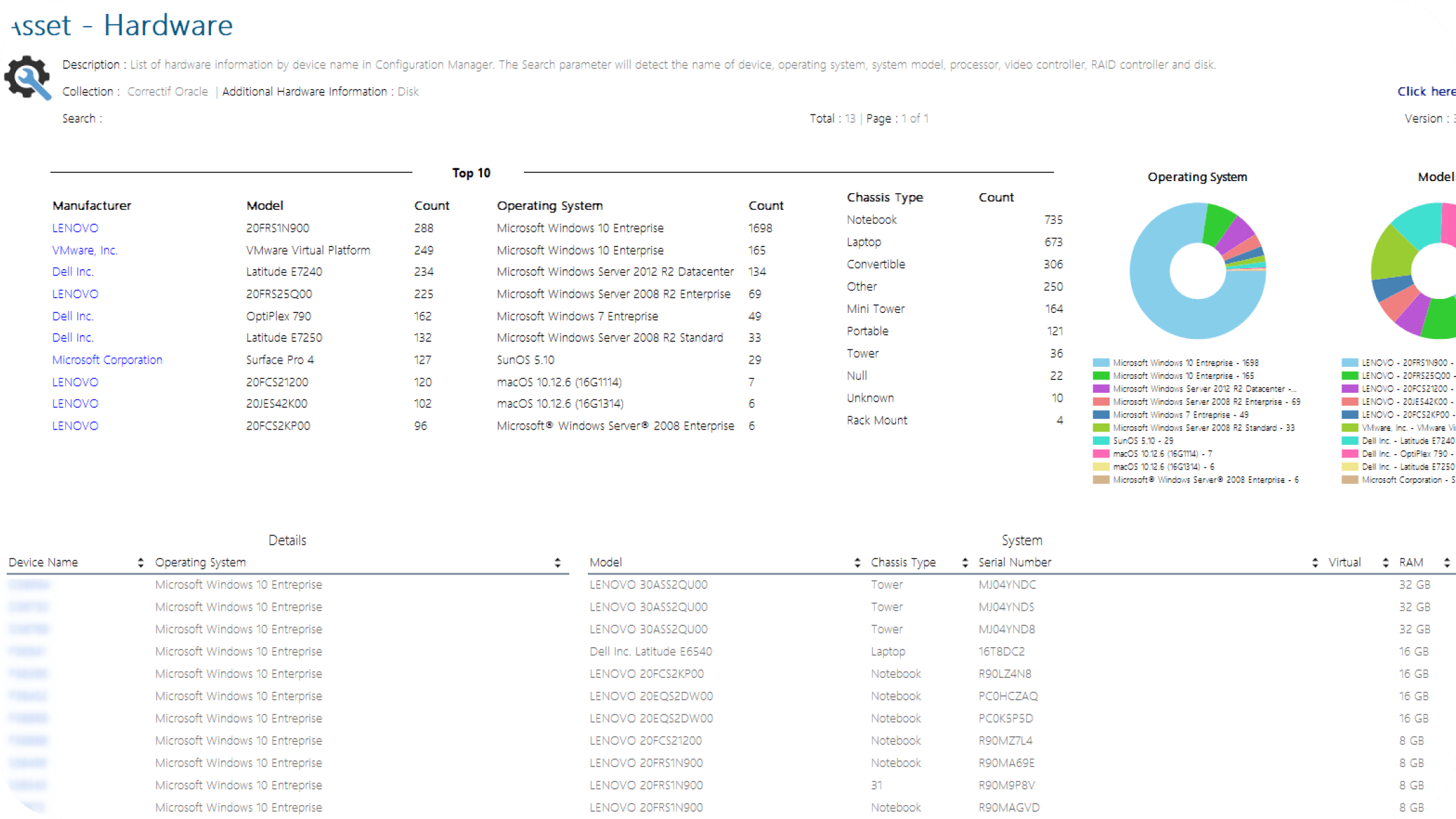
The SCCM hardware inventory report lets you see all your hardware in a single view. No longer need to browse multiple built-in reports. Use it to quickly find a specific machine having particular hardware specification (Disk, CPU, Serial number, RAID controller…). The report is scoped using collections, simply create a new collections if you want to display particular data from a group of machines.

Qualities
Report features
  • How many computers our company owns
  • How many DELL Optiplex 780
  • Which computers are still running Windows 7 or Windows 2008
  • What’s the serial number of a specific computer
  • Identify specific hard drive firmware
START TO USE
You can now enjoy our most popular reports in Power BI format

How to buy

This dashboard is FREE ! You can download this Power BI Dashboard by visiting our shop

How to install

To install this product, refer to How to install our Power BI Dashboard section at the bottom of this page

Pricing
2 ways to buy our SCCM Custom Reports
Single Product
You will only have access to one product of your choice and you will have to pay the full price
By purchasing a single Product you don't get benefits such as:
  • No discount
  • No drilldown experience
  • No free updates
Benefits
SCCM Custom Reports

Inspired by our on field experience, we have created multiple SCCM custom reports that are available for you to purchase.

Reports are RDL files, ready to be uploaded to your SCCM reporting server. The goal of theses reports is to help SCCM administrators understand the massive data amount that SCCM gathers.

We divided our reports in categories. (Asset, Configuration Manager, Dashboard, Deployment and System Health). Each one of them targets specific aspect of SCCM.

Simply select the desired report in the following table to get redirected to the detailed product section.

We also made a complete report bundle which includes all reports. When buying the full suite, you benefits a 15% discount on the normal price.

Free Support
We make sure that the report you purchase will work on your environment
5 Min Setup
By following this step by step guide, the dashboard is installed in 5 minutes.
Fast ROI
This dashboard is very useful and save a lot of time to your administrators.
FAQ
Frequently Asked Questions

For any questions, please send us an email to support@systemcenterdudes.com.

How do I get my products?
As soon the purchase is complete, you will receive an email from us with all the downloadable links.
What are the accepted payment platform? As soon the purchase is complete, you will receive an email from us with all the downloadable links.
We accept all major Credit cards and accept purchase orders for resellers.
You didn't receive any emails after you purchase a product?
Make sure to check the email used during the buying process, not the email configured in your Paypal account. Make sure to check your junk email folder as well.
How much time do I have to download the product?
The download link is available for 24h after the purchase date.
What are the supported SCCM version?
We have tested our reports on SCCM 2012, SCCM Current Branch (SCCM 1511) and later.
What's the optimal resolution for viewing this dashboard?
The report is best displayed on 1920×1080 resolution. You can use the Zoom functionality or CTRL + Wheel Mouse if the report is not shown in full screen.
What are other functionalities included in the dashboard that I may not see on the screenshots ?
The dashboard contains detailed information with a mouse over on the various fields of the report.
