For this post, I’ve built a little scenario to explain how to use SCCM Collection variables in Task Sequence.
I get often asked how to reduce the number of SCCM task sequences and how to make them dynamic. I’m always surprised when I hear from an SCCM administrator that they don’t use variables in their task sequence.
Let’s say you are working in an international company and use SCCM to deploy operating systems. Each office has its own configuration and specific software to install. You decide to create 1 task sequence per office. Wrong! You’ll end up in a management nightmare. One task sequence is often enough and this is where you need variables to the rescue.
The magic that you need to understand is collection variables. You have 2 choices, let the user enter the variable value at the beginning of the deployment (explain later) or pre-load these values using collection variables. I prefer the second option which speeds up the deployment process.
Scenario :
Here is how to achieve this :
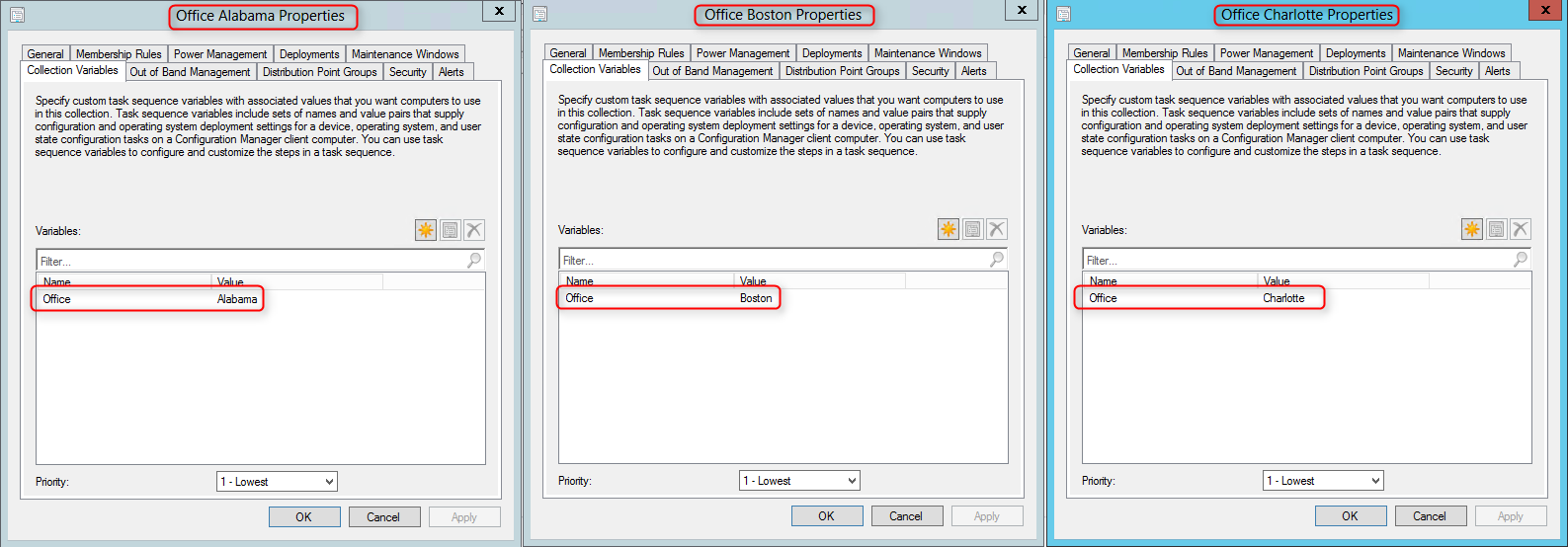
Create 1 collection per office. For this post, I created 3 collections Offices in Alabama, Boston, and Charlotte. Each Office will receive different configurations and software based on their variables.

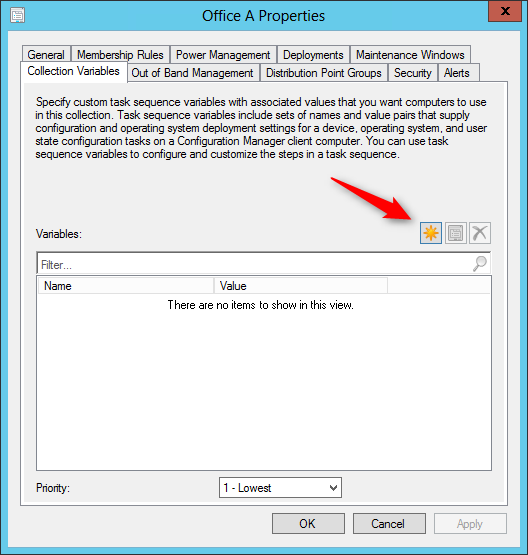
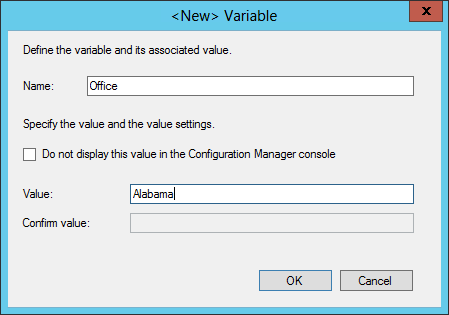
You’ll end up with 3 collections with their variables having different values.
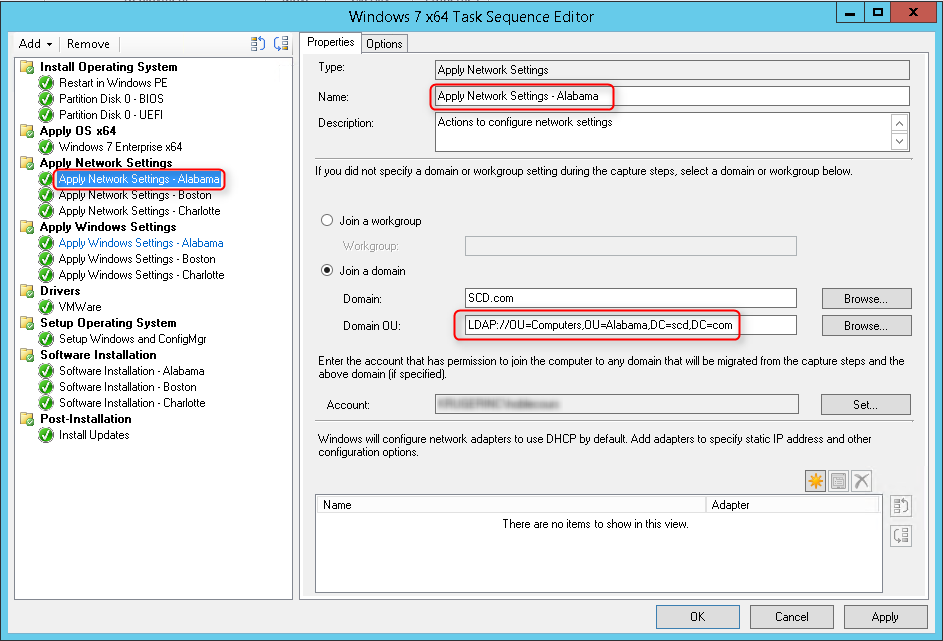
*I assume that you already have a functional task sequence.
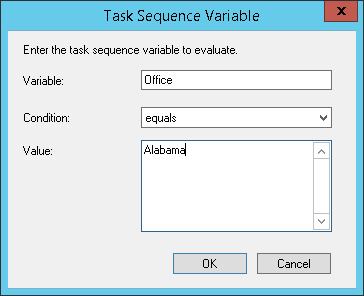
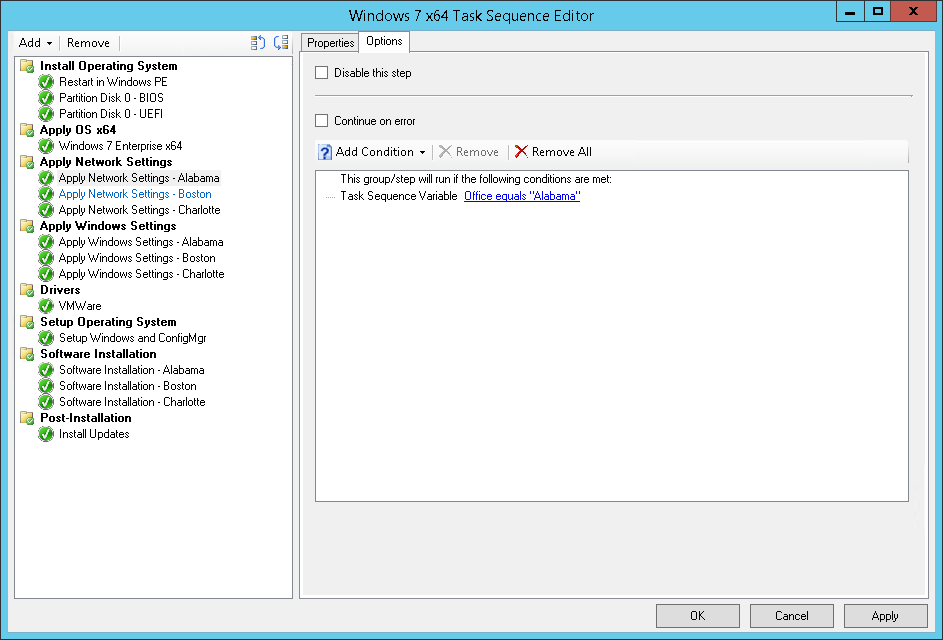
***Repeat above steps for Boston and Charlotte changing the value of the variable***
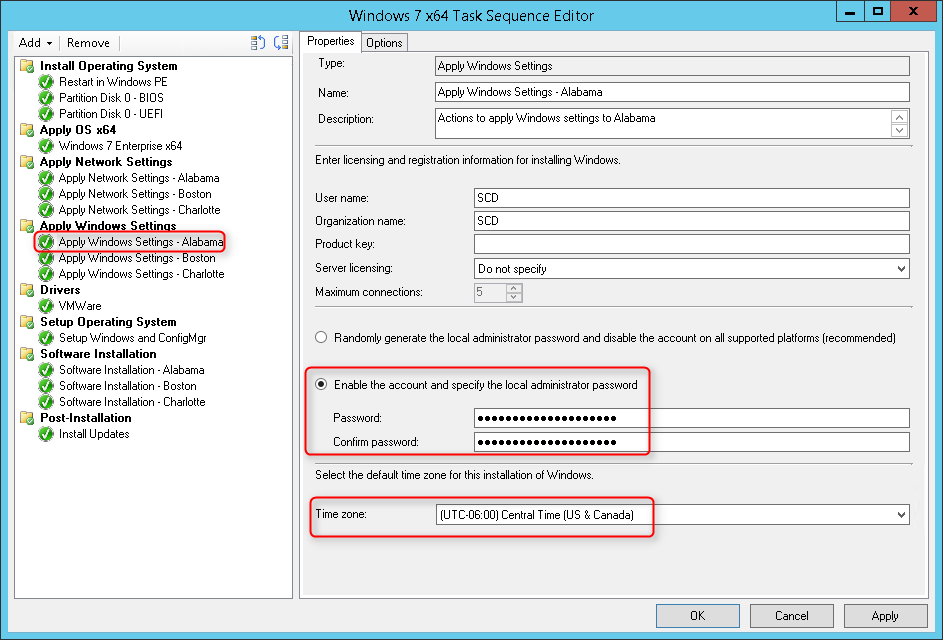
***Repeat above steps for Boston and Charlotte changing the value of the variable***
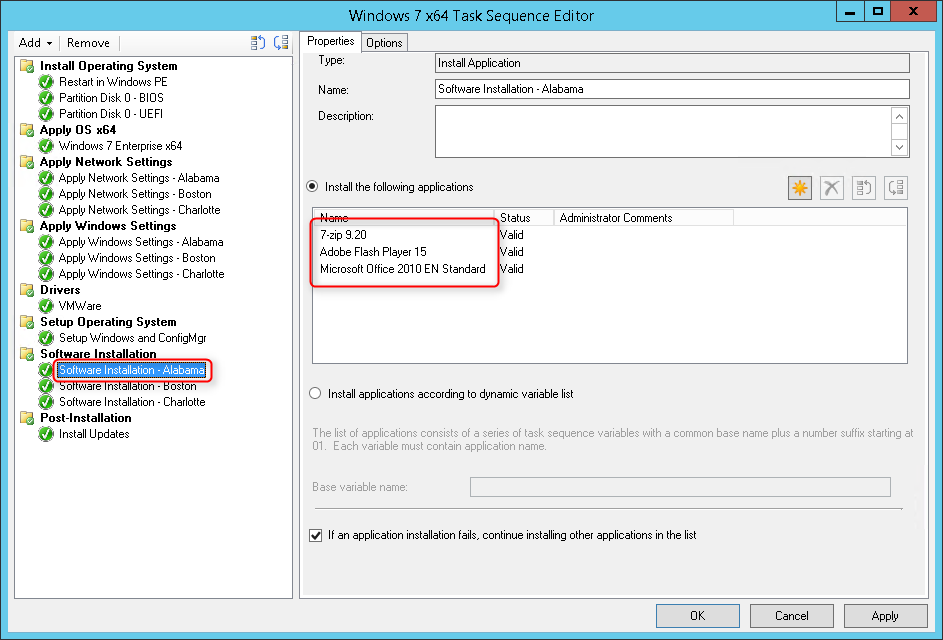
***Repeat above steps for Boston and Charlotte changing the value of the variable***
So what we basically did in the previous steps is told the task sequence to run our step based on the Office variable value.
Next, you need to deploy your task sequence to the 3 collections. Ask your IT guys in Alabama, Boston, and Charlotte to use their respective collections.
When the task sequence runs, it will evaluate each step and run only the Alabama step when in the Alabama collection, the Boston step when in the Boston collection, and the Charlotte step when in the Charlotte collection.
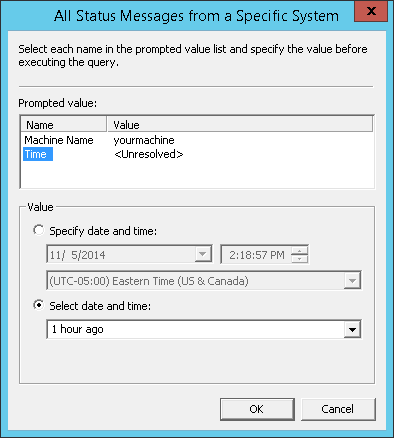

If you prefer to have only 1 collection for OSD and ask you IT people to fill in the Office variable, you can achieve that easily.
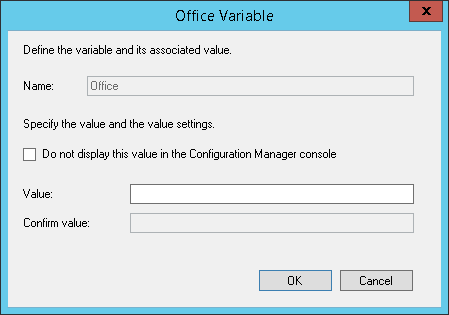
From there, only imagination is the limit. You now understand the power of the variable in a task sequence. Use it in order to maintain the lowest amount of task sequence in your organization.
Read more about variables on Technet.
You can create you collection variable using PowerShell but for now, the cmdlet is broken in CU3. If you need to script the variable creation you must use WMI function for now.

Please fill out the form, and one of our representatives will contact you in Less Than 24 Hours. We are open from Monday to Friday.

Thank you for subscribing to our newsletter or requesting a quote. You will receive our next month's newsletter. If you have requested a quote, we will get in touch with you as soon as possible.

Something went wrong!


Thank for your reply!