Following a blog post on receiving an email after an operating system deployment completes, I received a friendly tip to try replicating the behavior using the new External notifications feature available since SCCM 2107. Challenge accepted! Beginning with SCCM 2107, you can enable the site to send notifications to an external system. You can use Azure Logic Apps to configure subscriptions to send these notifications. These notifications can be based on SCCM events like status message filter rules. In the previous post, we were using status message filter rules to trigger a Powershell script. In this blog post, we’ll be using the new SCCM External Notification feature to trigger an event in Microsoft Team to notify a channel that a Task Sequence deployment is complete.
Besides Teams, you can also use the Office O365 connector to send an email. For this blog post, we’ll stick to the Teams option as I find it much more dynamic.
There are multiple other uses that you could use that for. Here’s some example :
You get the point… if the event is triggered by SCCM Status Message, you can use it and get creative.
If you’re not familiar with Status Message, you can see them all in the console :


To obtain this script, run this command in a PowerShell Window on your SCCM server :
The script will be saved in C:\Temp after code execution
$FileName = "C:\temp\SetupExternalServiceNotifications.ps1"
Invoke-WebRequest https://aka.ms/cmextnotificationscript -OutFile $FileName
(Get-Content $FileName -Raw).Replace("`n","`r`n") | Set-Content $FileName -Force
(Get-Content $FileName -Raw).TrimEnd("`r`n") | Set-Content $FileName -Force
Once you have the script, we can go to Azure to create our Logic App to receive SCCM External Notifications
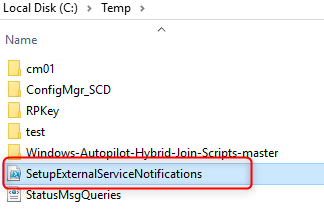
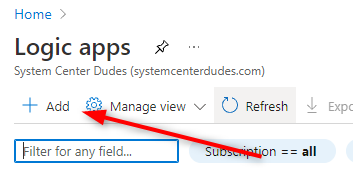
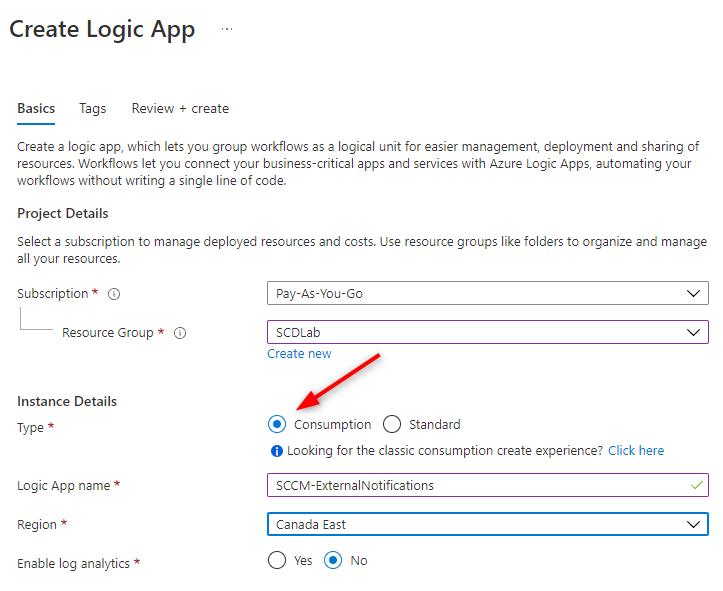
We will create an app in Azure Logic Apps to receive the notification from Configuration Manager :
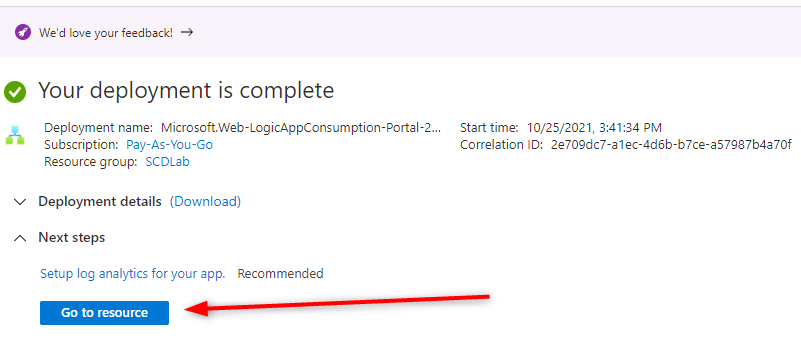
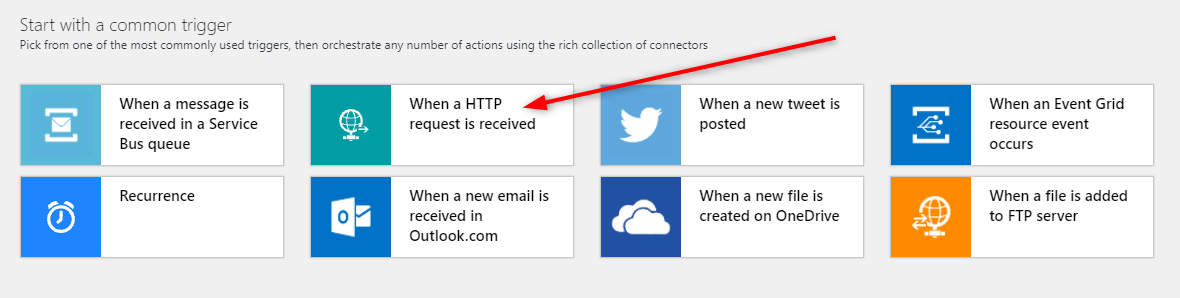
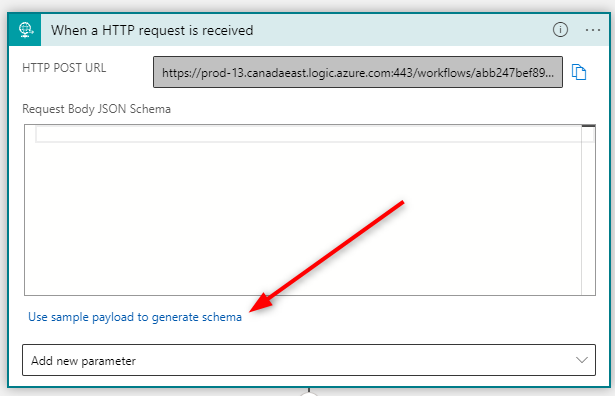
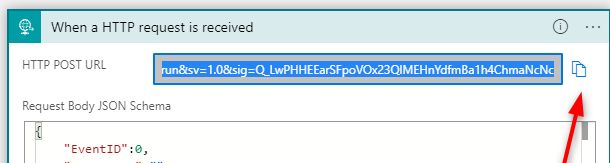
{
    "EventID":0,
    "EventName":"",
    "SiteCode":"",
    "ServerName":"",
    "MessageID":0,
    "Source":"",
    "EventPayload":""
}
We have now created a Logic App, we now need to add a step to send our notification. You have 2 possible options :
We will use Team as an example for this post
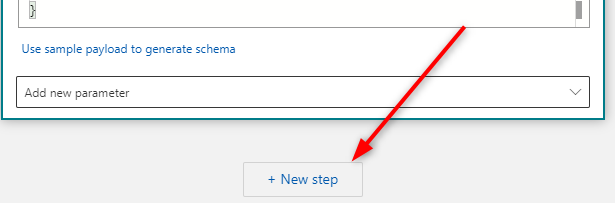
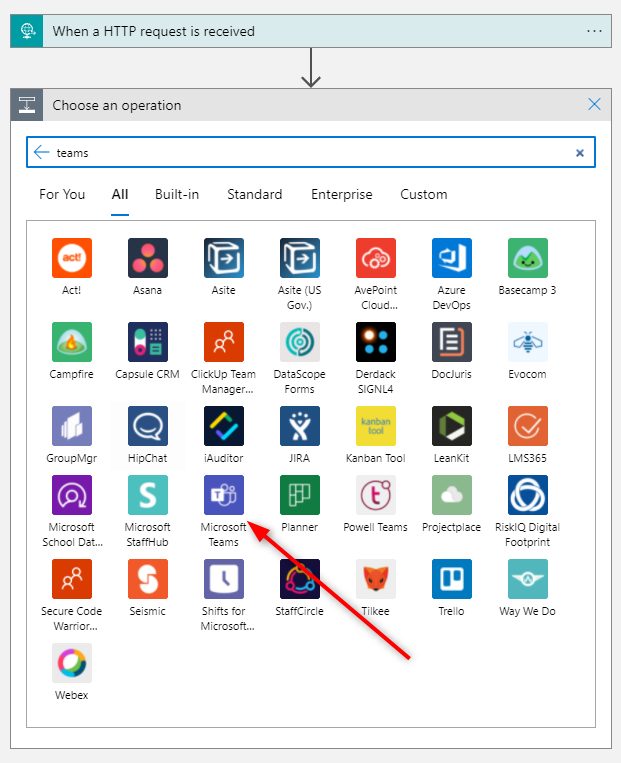
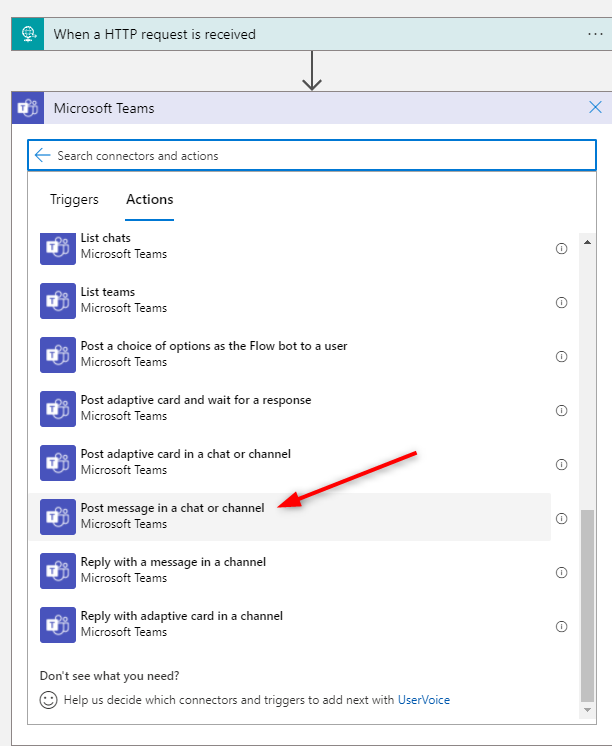
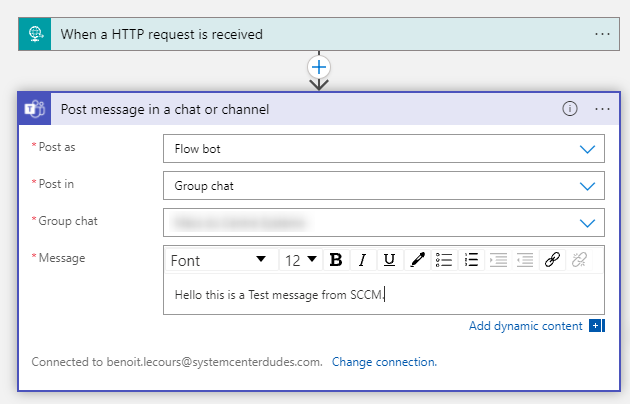
Now that our logic app is ready to receive our notification, we need to tell SCCM to send its event to this Logic App. We’ll achieve that by using a Status Filter Rule in SCCM . For our example, we’ll use MessageID 11171 which means that a Task Sequence has been run successfully. In a production environment that could mean that an IT technician or a whole team receives a notification to their Teams when a computer has successfully deployed Windows 11.
This is the event we want to trap :

So each time the MessageID 11171 will be generated, a message will be sent to Microsoft Teams.
The important part to understand here is that you cannot create the Status Filter Rule manually, you need to use Microsoft provided a script that you’ve downloaded in the first step of this guide.
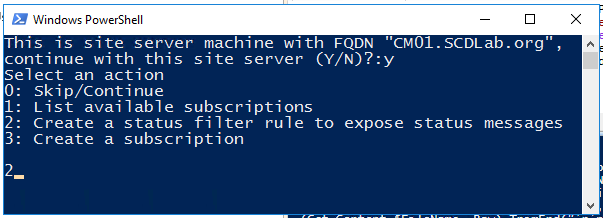
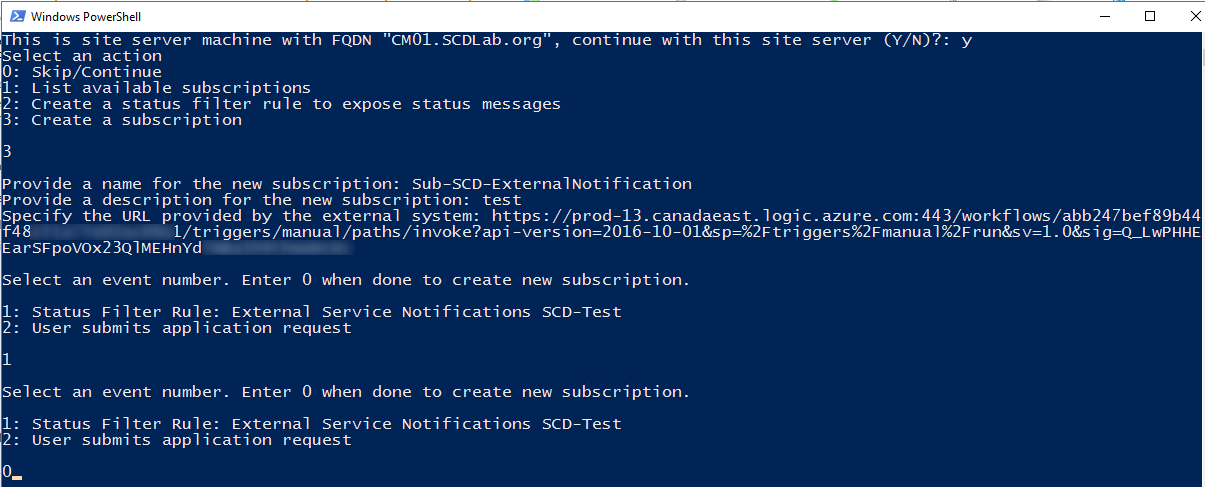
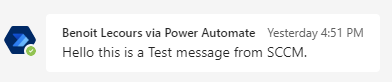
It’s now time to test our rule creation. If everything was done correctly, you should have a Teams notification on the provided channel each time a task sequence completes (MessageID 11171)
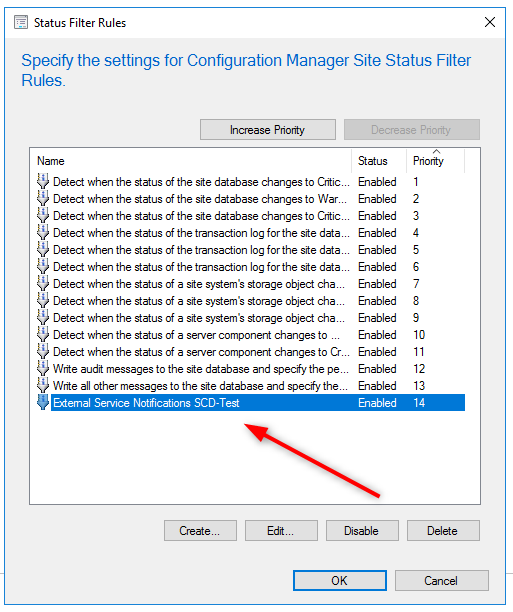
Let’s start by validating that our rule has been configured
You can monitor this process by opening the ExternalNotificationsWorker.log file. The SubscriptionID can be found by using the script and using the 1 option.

There are so many uses I can see using the SCCM External Notification feature! I will certainly write more blog posts on other possible use in the near future.

Please fill out the form, and one of our representatives will contact you in Less Than 24 Hours. We are open from Monday to Friday.

Thank you for subscribing to our newsletter or requesting a quote. You will receive our next month's newsletter. If you have requested a quote, we will get in touch with you as soon as possible.

Something went wrong!


Thank for your reply!