Configure SCCM Email Notifications on Alerts and Reports
In SCCM you can configure email notifications. These notifications can be configured on alerts or reports. This allows better monitoring as you can be notified by email as soon as an event is triggered. In this post, we will show you how to configure SCCM email notifications on both reports and alerts. For this post, we are using an SCCM 2010 site but you can use any Current Branch version.
Requirements to configure SCCM Email Notification
Before we start to configure the SCCM email notifications, make sure to have the following information :
FQDN or IP Address of the SMTP server to send email alerts
The SMTP port for the email server. (Default port – 25 or 465 for SSL)
An account for SCCM to connect the email server.
An email address for email alerts
Once you have these informations, you can launch the SCCM console.
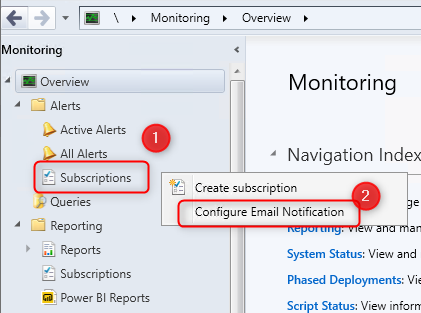
Go to Monitoring / Alerts / Subscriptions
Right-click Subscriptions, click Configure Email Notification. (You can also click Configure Email Notification on top ribbon)
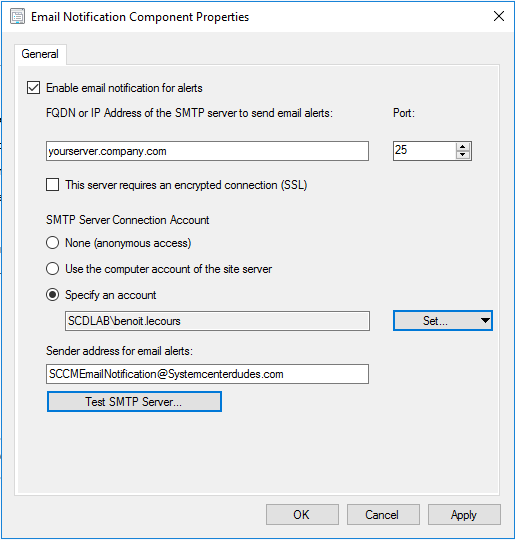
In the Email Notification Component Properties, specify the following information.
This is the information we ask you to get in the beggining of this post.
Enable email notification for alerts – Select this check box to enable SCCM to use an SMTP server to send email alerts
FQDN or IP Address of the SMTP server to send email alerts – Enter either FQDN or IP address
Next is the SMTP port for the email server
SMTP Server Connection Account – Specify an account for SCCM to connect the email server
Sender address for email alerts – Sender address is the email address from which alert emails are sent
Click Apply
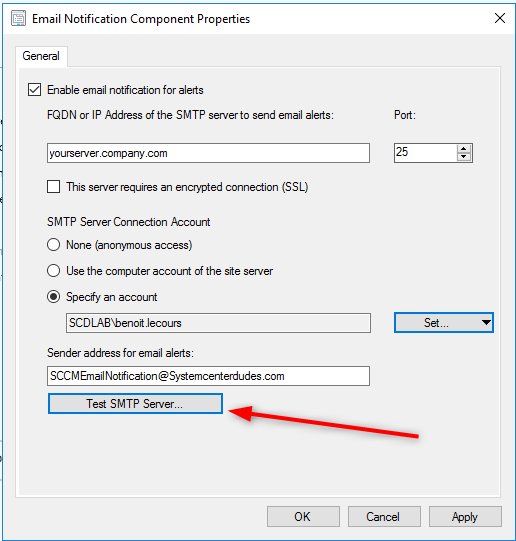
We will now check if SCCM can send email notification by clicking Test SMTP Server
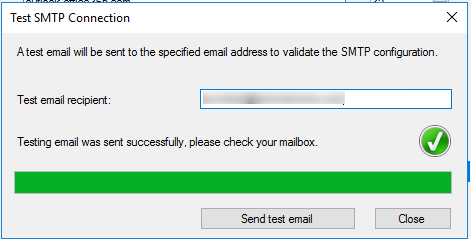
On Test SMTP Connection window, enter the test email recipient and click Send test email. This will send a test email to the email address specified in the Sender address for email alerts. Ensure that you have : Testing email was sent successfully, please check your mailbox
Check the specified sender mailbox. You should have received an email from the SCCM console. The subject of the email is This is a Test Email for Alert Notification Sent from System Center Configuration Manager.
Now that the email are correctly configured, let see how to enable an email on an alert or report.
Enable SCCM Email Notification on Alerts
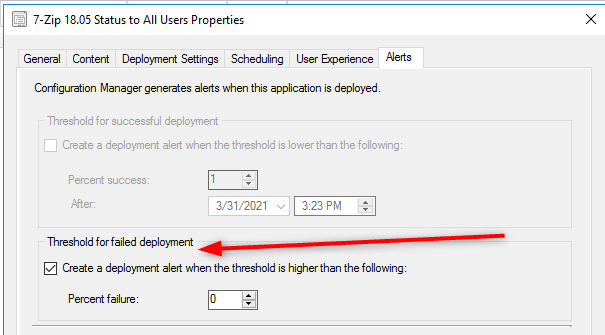
For the purpose of this post, we created an alert on a deployment if there’s errors.
In any deployments you can set this on the Alert tabs and check the box to create a deployment alert
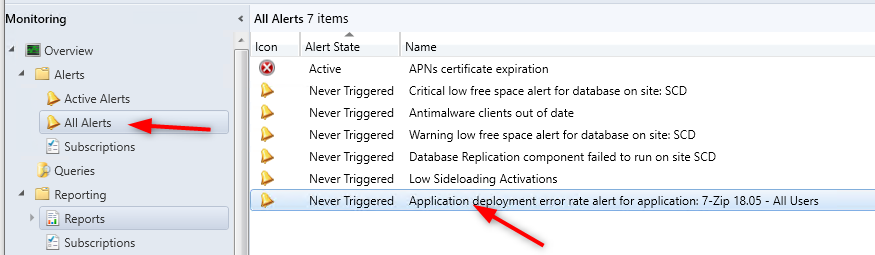
This will create a new Alert in the Monitoring / Alerts / All Alerts section
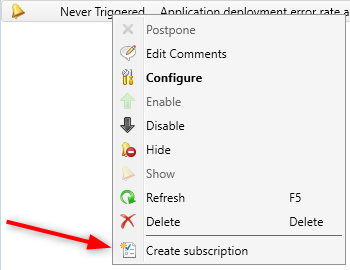
Right-click the alert and select Create Subscription at the bottom
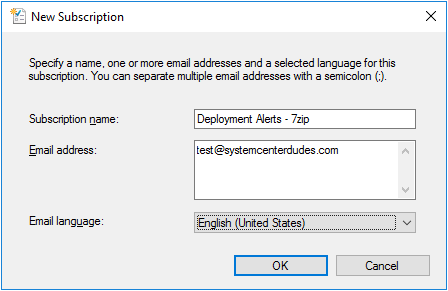
In the New Subscription window, enter the Subscription name, email adress. You can add multiple address by separating them with a semicolon (;).
When the alert will be triggered, it will be sent to these addresses
Enable SCCM Email Notification on Reports
To enable SCCM email notification on reports, you need to first enable the email option in Reporting Service Configuration Manager.
Log to your SSRS server
Open Reporting Service Configuration Manager
Click on the Email Settings tab
Enter the settings of your sender address and SMTP server
Click Apply
Back in SCCM, go to Monitoring / Reporting / Reports
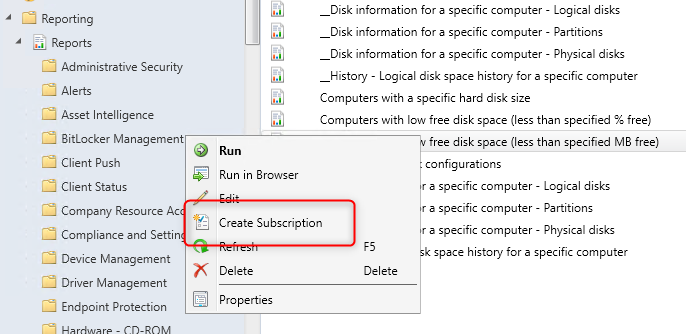
Select the report you want a Subscription, right-click on it and select Create Subscription
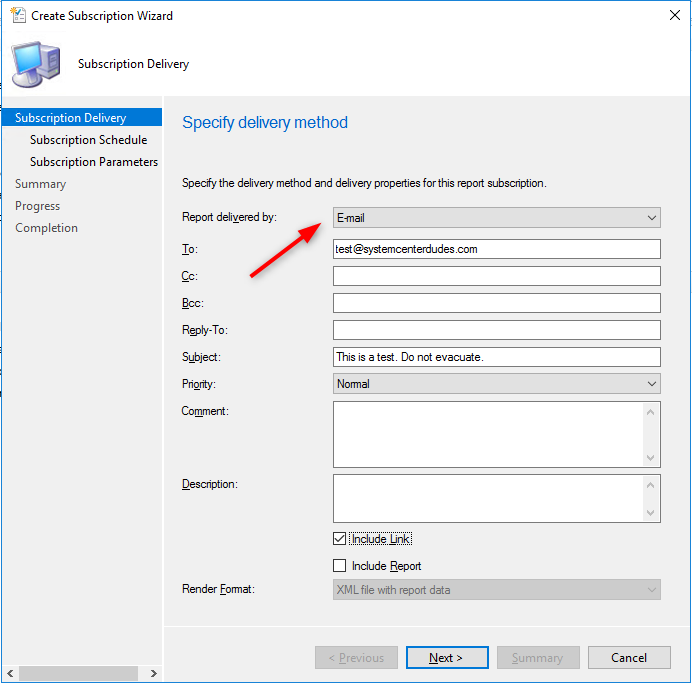
In the Create Subscription Wizard
Select Email in the Report delivred by dropdown
Enter the desired field
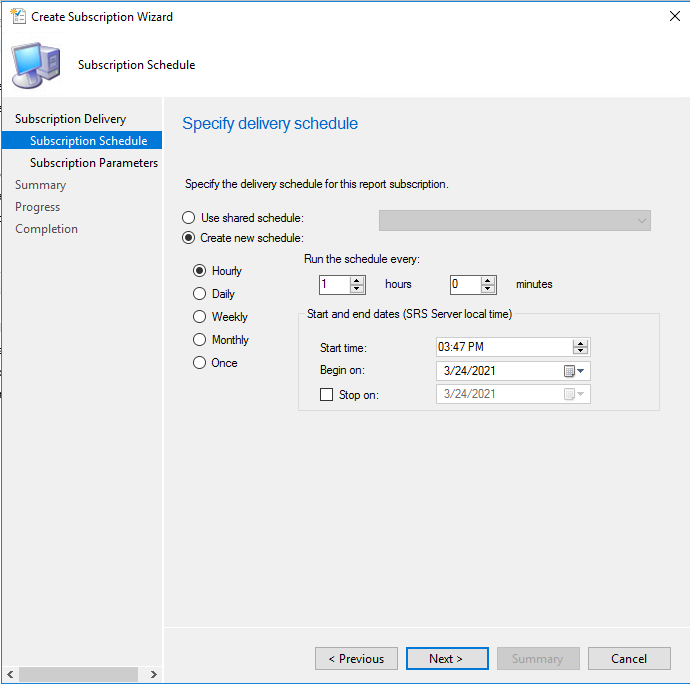
Select your schedule. This is when the report will be sent to the specified email address
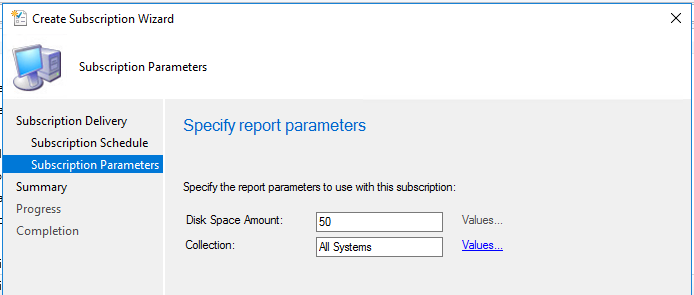
Specify Report Parameters (if any)
Delete an Email Notification
To delete an active SCCM Email Subscription, depending if it’s an alert or report email subscription :
For alerts :
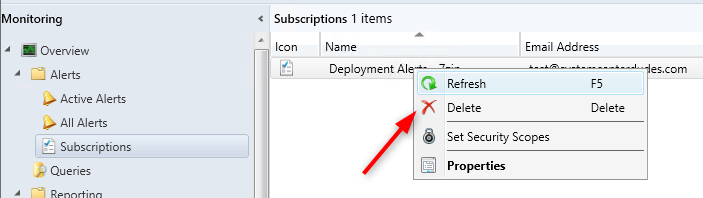
Go to Monitoring / Alerts / Subscriptions
Select your subscription and select Delete
For reports :
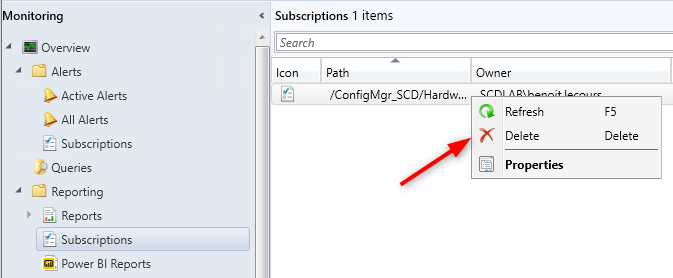
Go to Monitoring / Reporting / Subscriptions
Select your subscription and select Delete
Request a Quote
Please fill out the form, and one of our representatives will contact you in Less Than 24 Hours. We are open from Monday to Friday.
Never share sensitive information (credit card numbers, social security numbers, passwords) through this form.
Request Sent
Thank you for subscribing to our newsletter or requesting a quote.
You will receive our next month's newsletter. If you have requested a quote, we will get in touch with you as soon as possible.
Comment Sent
Thank for your reply!
Error
Something went wrong!
We use cookies to ensure that we give you the best experience on our website. If you continue to use this site we will assume that you are accepting it.






Thank for your reply!