As part of your job, you are using SCCM daily. You are probably part of a team that performs multiple tasks each day. Sometimes it may happen that someone creates, modify or delete a particular component in SCCM (Collection, Package, Application…). You may want to monitor and audit SCCM changes to verify that there’s no error or maybe you just want to know who deleted a certain component. Error in the SCCM may happen and it’s important to know which Administrator made the error.
This blog post will show how to use SCCM Status Message MessageID to identify who created, modified or delete a particular component in SCCM (Collection, Package, Application). We’ve gathered a long list of MessageID to let you identify what you’re looking for. For this post, we are using an SCCM 2006 site.
First, you need to understand how SCCM logs these tasks. Every action SCCM Administrator performs are logged into SCCM Status Message MessageID.
If you’re not familiar with Status Message, here’s Microsoft description :
State messaging in Configuration Manager is a mechanism that reflects a client’s condition at a certain point in time. Status messages, by contrast, work to help administrators track the workflow of data through various Configuration Manager components.
So great, it contains what we’re looking for! But, it can be pretty overwhelming at first. You have to know what you’re looking for in these SCCM Status Message MessageID.
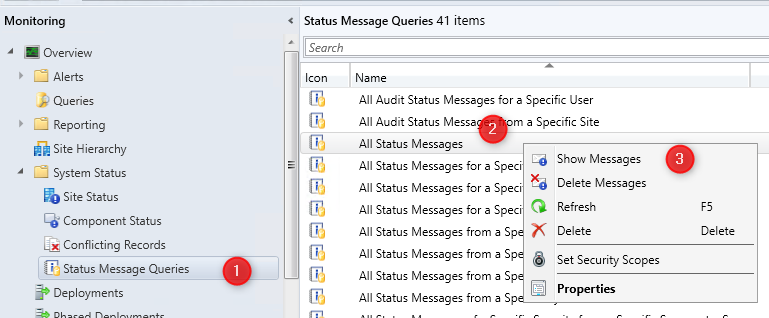
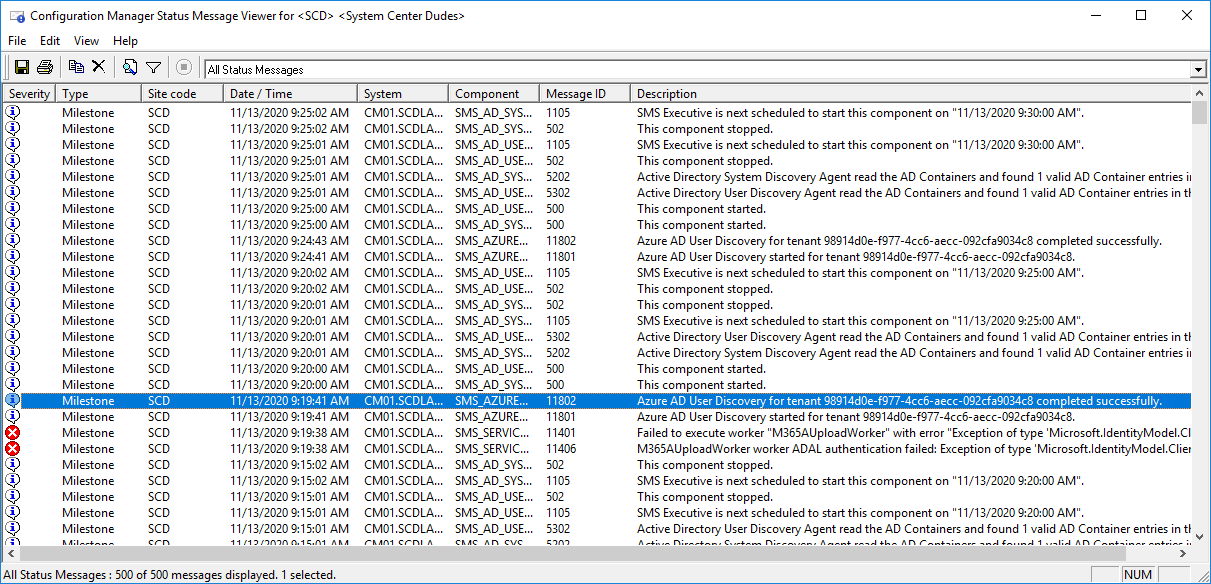
The important part resides in the SCCM Status Message MessageID. Almost all user’s actions start with 30xxx. I say almost because there are some exceptions.
We’ve gathered a list of Status MessageID and using this list, you can filter out your search. We’ll describe how to do that just after the list.
| Component | Action | Message ID |
|---|---|---|
| Site Server Role | Creation, Modification, Deletion | 30036-30038 |
| Client Component | Creation, Modification, Deletion | 30042-30047 |
| Server Configuration Changes | All Actions | 30033-30035 / 30039-30041 |
| Collections | Creation, Modification, Deletion | 30015-30017 |
| Collection Member Resources | Manually Deleted | 30066-30067 |
| Client and Collection Actions | Update Membership, Device Imports, Clear PXE Deployments | 30104 / 30213 / 42021 |
| Deployments | Creation, Modification, Deletion | 30006-30008 |
| Packages | Creation, Modification, Deletion | 30000-30002 |
| Queries | Creation, Modification, Deletion | 30063-30065 |
| Remote Control Activity | All Actions | 30069-30087 |
| Security Scopes | Creation, Modification, Deletion, or Importation | 31200-31202 / 31220-31222 / 31207 |
| Site Addresses | Creation, Modification, Deletion | 30018-30020 |
| Applications | Creation, Modification, Deletion | 30226-30228 / 49003-49005 / 52300 |
| Asset Intelligence | All Actions | 30208-30209 / 31001 |
| Azure and Co-Management | All Actions | 53001-53005 / 53401-53403 / 53501-53503 |
| Boundaries | Creation, Modification, Deletion | 40600-40602 |
| Boundary Group | Creation, Modification, Deletion | 40500-40505 |
| Client Push | All Actions | 30106-30111 |
| Client Operations | All Actions | 40800-40804 |
| CMPivot and Script | All Actions | 40805-40806 / 52500-52505 |
| Configuration Baseline | All Actions | 30168 / 30193-30198 |
| Compliance Settings and Endpoint Protection | All Actions | 30152-30167 |
| Distribution Point | All Actions | 30009-30011 / 30068 / 30109 / 30125 / 30500-30503 |
| Folder | All Actions | 30113-30117 |
| Migration | All Actions | 30900-30907 |
| Report | All Actions | 30091-30093 / 31000-31002 |
For example, you may want to know who in your team has deleted an important collection from the console. So using this list, you can now target the MessageID 30015-30017
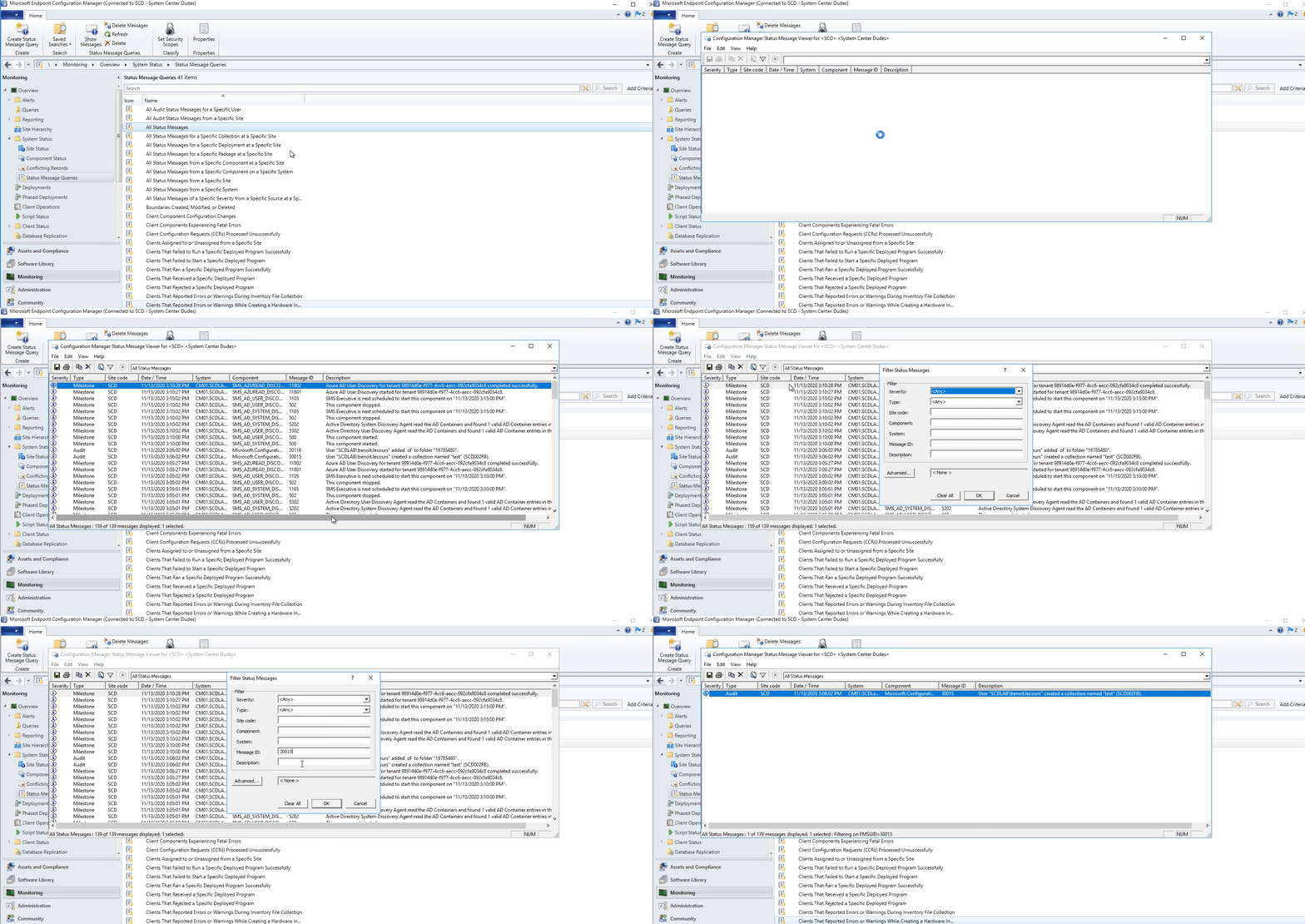
It’s also possible to use the All Audit Status Messages for a Specific User query if you want to all action by a specific user… but the goal of this post if to find who specifically made an action.
If you want to go deeper with status message queries, we’ve also made a report which allows you to search by a specific component, severity and System. Pretty useful to find state messages from any SCCM Site Server in your environment.
You can download this report from our Shop page


Please fill out the form, and one of our representatives will contact you in Less Than 24 Hours. We are open from Monday to Friday.

Thank you for subscribing to our newsletter or requesting a quote. You will receive our next month's newsletter. If you have requested a quote, we will get in touch with you as soon as possible.

Something went wrong!


Thank for your reply!