Migrate Office 365 Architecture from 32-bits to 64-bits using SCCM
In the past, if you had a computer with Office 365 32-bit version and wanted to migrate to the Office 365 64-bit version, you needed to uninstall the existing 32-bit version before installing the 64-bit version.
Now, the Office Deployment Tool and its configuration files support a new attribute: MigrateArch. When set to True, the Office 365 installation will be migrated to the architecture specified in the OfficeClientEdition attribute.
Another great feature is that MigrateArch, will preserve all the installed products, languages and other deployment settings. If desired you can also make changes to the installed products and languages.
In this post, we will show you how to migrate an Office 365 32-bit version to an Office 365 64-bit version in an automated and silent way using SCCM.
We could have used the Office 365 installer from SCCM but the built-in customization tool doesn’t support the MigrateArch yet.
If you’re unsure if you need to install Office 64 or 32bits, you can read the Office support article that covers this subject.
Michael Niehaus (Principal Program Manager at Microsoft) also publish this tweet to recommend using Office 64-bits:
If you are already familiar with the Office Deployment Tools, the short version of this post is to download an Office version at least 1902 and create a new configuration file (.xml) with the MigrateArch attribute to deploy your new installation. If you’re unfamiliar with the tools, we’ll cover every step in this post.
Requirements for using the MigrateArch Office 365 attribute
To use the MigrateArch attribute, you need the following:
In the first line, we are telling the script to migrate the 32-bit version to 64 bit.
In our tests, we found out that the Channel must be specified when using the MigrateArch attribute. When we made test without the channel we received an error telling that the configuration file was invalid (Error 1008)
We are also using the AllowcdnFallback attribute to ensure that all content is available. Be aware that this will stream from the Office CDN. If you’re not comfortable with this, just remove it but make sure to include all content in the installation directory :
When installing languages, the ODT looks first for source files in the location specified in the SourcePath attribute. If the language pack isn’t available at that location and the AllowCdnFallback setting is set to True, then the ODT will use source files from the Office CDN.
We are also using the Logging Level attribute to have logs of our installation. This is also optional but useful for testing purpose.
The DisplayLevel and AcceptEULA parameters ensure that our installation is silent.
It’s important that you don’t include the SourcePath attribute in the Add section of your Configuration.xml file. That’s because SCCM copies the installation files for an application into a folder under the SCCM client cache folder, and the name of that subfolder is different for each computer.
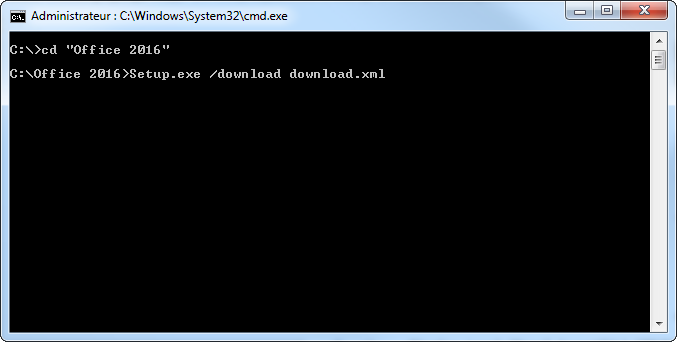
Once the 2 files are created, we can launch the download using our Download.xml file :
Open a command prompt and naviguate to your folder
Execute : Setup.exe /download Download.xml
The download starts silently, you’ll see an Office folder appear in your current directory. The download is around 1.5GB so it will take some time to complete depending on your download speed. You won’t have a notification when it completes.
Copy the whole content of your Office download directory to your SCCM source directory before creating the application
Create the Office 365 Application
Open the SCCM console
Go to Software Library / Application Management / Applications
Right-click Applications and choose Create Application
On the General tab of the Create Application Wizard, select Manually specify the application information, choose Next
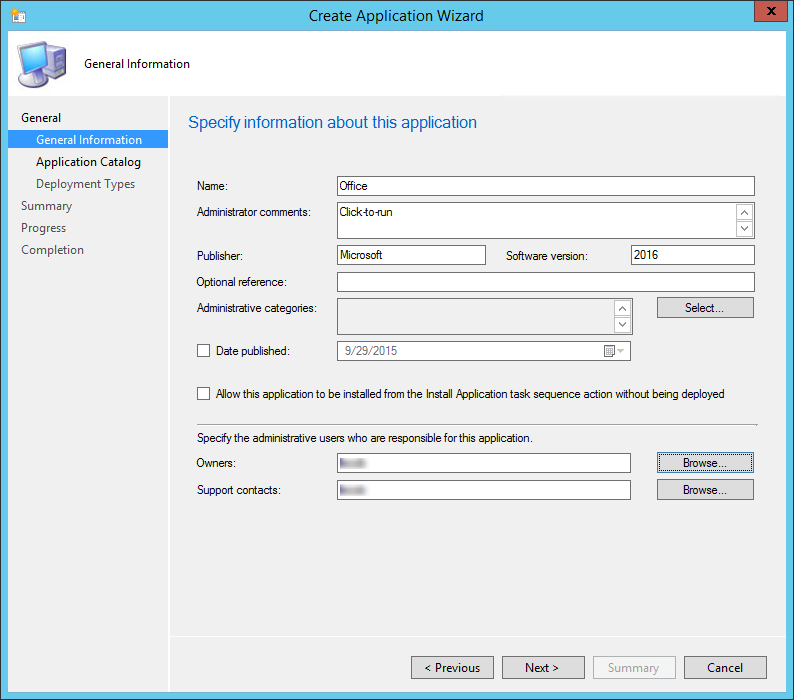
On the General Information tab, enter a name for the application, enter any optional information, choose Next
On the Application Catalog tab, provide the information that’s appropriate for your environment, choose Next
On the Deployment Types tab, choose Next. We’ll add a deployment type later
On the Summary tab, review the settings you’ve chosen, choose Next
Complete the wizard by selecting Close
Create Office 365 1903 deployment type
Open the SCCM console
Go to Software Library / Application Management / Applications
Right-click the Office 365 1903application and choose Create Deployment Type
On the General tab of the Create Deployment Type Wizard, in the Type list, select ScriptInstaller, choose Next
On the General Information tab , enter a name for the deployment type, enter any optional information, and then choose Next
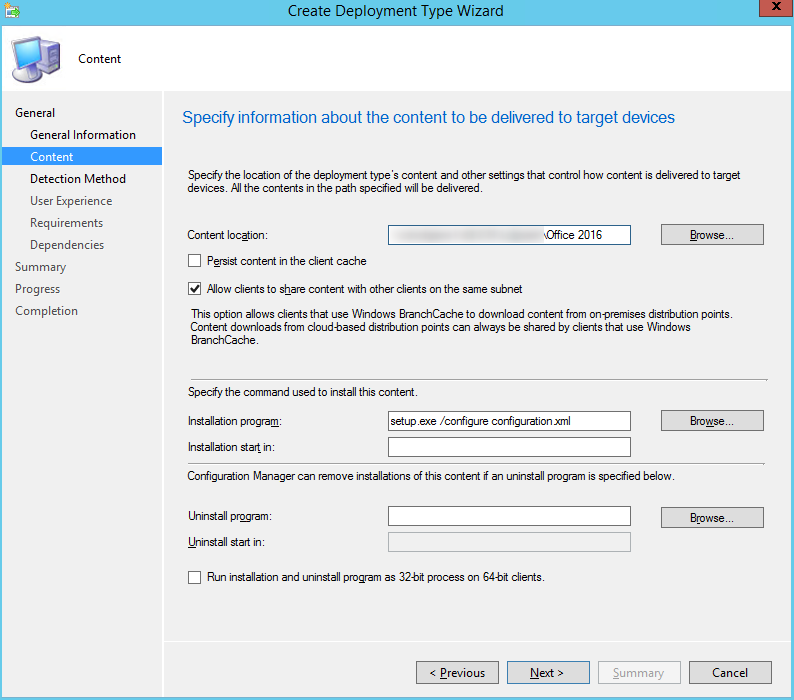
On the Content tab , do the following :
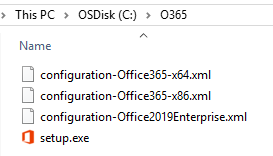
In the Content location box, enter the network share where you put the Office Deployment Tool, your Configuration.xml file, and the Office 365 ProPlus installation files that you downloaded from the Internet
In the Installation program box, enter the following text: Setup.exe /configure Configuration.xml
After you enter this information, choose Next
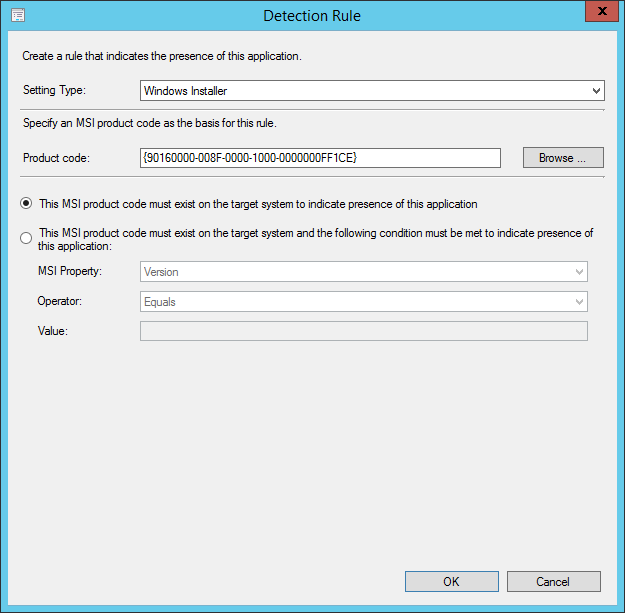
On the Detection Method tab , choose Add Clause
In the Detection Rule dialog box, do the following :
In the Setting Type list, select Windows Installer
In the Product Code box, enter {90160000-008F-0000-1000-0000000FF1CE}
After you enter this information, choose OK, and then choose Next
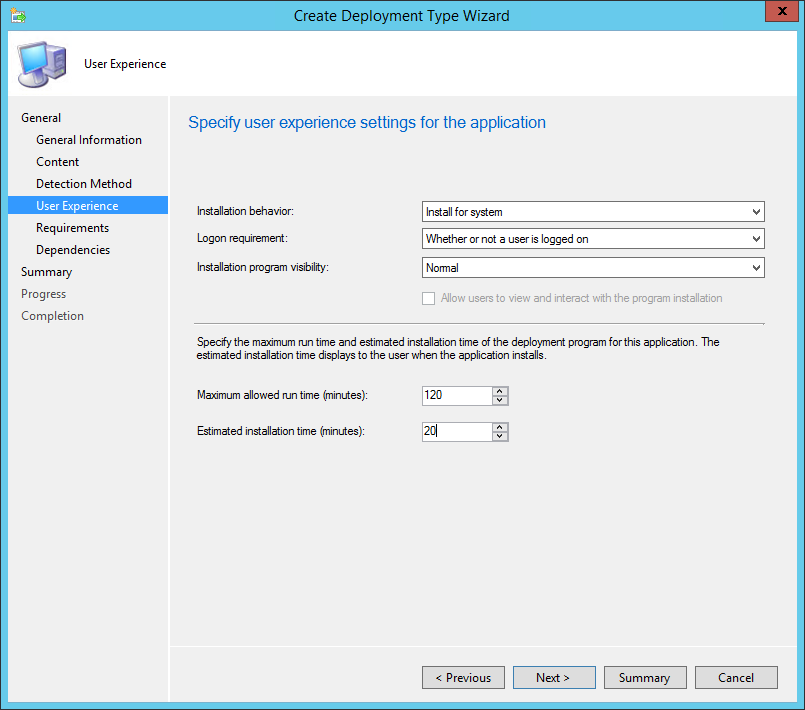
On the User Experience page, in the Installation behavior list, select Install for system, and then choose Next
If you want to specify any requirements or dependencies for the deployment type, choose Next to go through those pages in the wizard. Otherwise, choose Summary
Complete the wizard by selecting Close
Deploy the 32-bits to 64-bit Office 365 installation
The only step left is to distribute the content to your distribution points and create the deployment to a test machine that has an Office 365 32 bit version.
For our test, we’ll create an Available deployment to a collection containing a test machine.
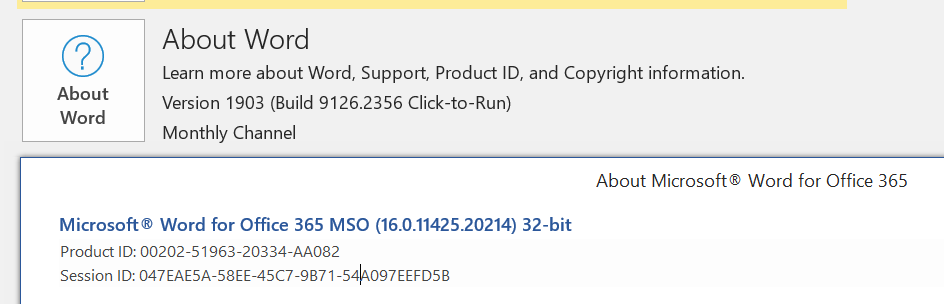
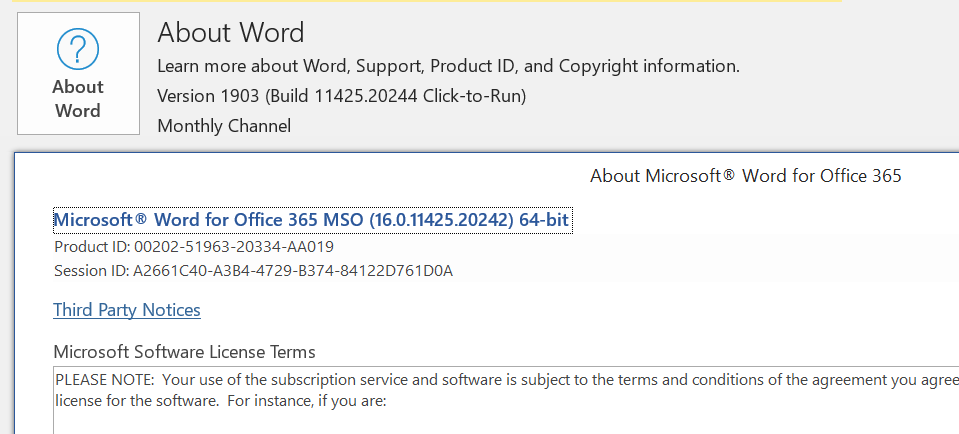
On the machine, before launching the application, we confirm that we have a 32-bit Office installation
Open an Office application (ex: Word)
On the bottom click Account
On the right, click About Word
We have a Version 1903 32-bits installation. Remember that only version 1902 and up are compatible with the MigrateArch attribute
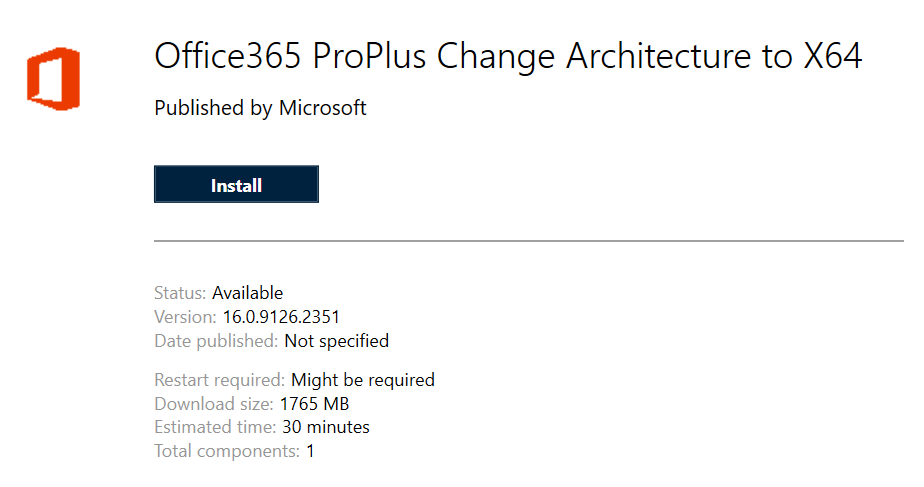
Open Software Center and launch the SCCM application to change the Office architecture
Once launched, the installation will take about 5 to 10 minutes. When completed, re-open Word and validate that it has been migrated to 64-bits.
If you’re unhappy with results and need to change some options in your deployment, go back and modify the Configuration.xml file. Make sure to update the content of the Deployment Type and test again until you’re happy with the results.
Request a Quote
Please fill out the form, and one of our representatives will contact you in Less Than 24 Hours. We are open from Monday to Friday.
Never share sensitive information (credit card numbers, social security numbers, passwords) through this form.
Request Sent
Thank you for subscribing to our newsletter or requesting a quote.
You will receive our next month's newsletter. If you have requested a quote, we will get in touch with you as soon as possible.
Comment Sent
Thank for your reply!
Error
Something went wrong!
We use cookies to ensure that we give you the best experience on our website. If you continue to use this site we will assume that you are happy with it.




Thank for your reply!