The process of enrolling your Windows 10 computers in Intune should be as simple as possible for your users. If you’re using Azure Active Directory in your organization, the enrollment process can be made automatically when a user joins it’s device to AAD. It couldn’t be simpler. The process is the same rather for Intune Standalone or Hybrid mode (integrated with SCCM)
For this post, we’ll be using a Windows 10 1703 device but the process is the same for Windows 10 1607 and slightly different for older versions but is supported.
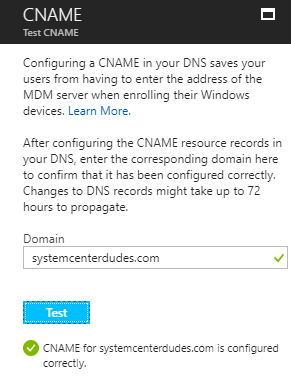
Follow our Intune Preparation post for the steps to create CNAME entry.
The Azure portal let you test your configuration

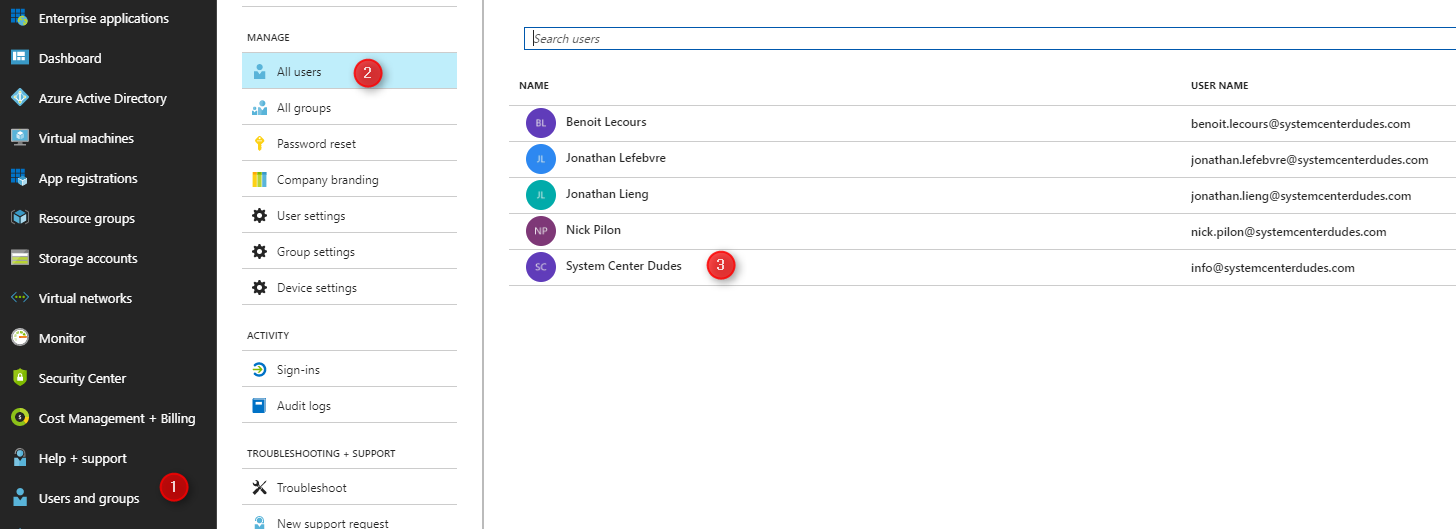
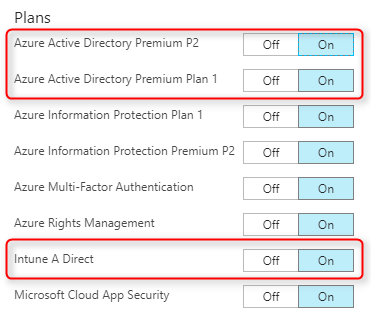
We’ll start by verifying if our Intune and/or Azure Active Directory Premium License are enabled for this task.

We now need to enable Intune to accept automatic MDM enrollment requests.
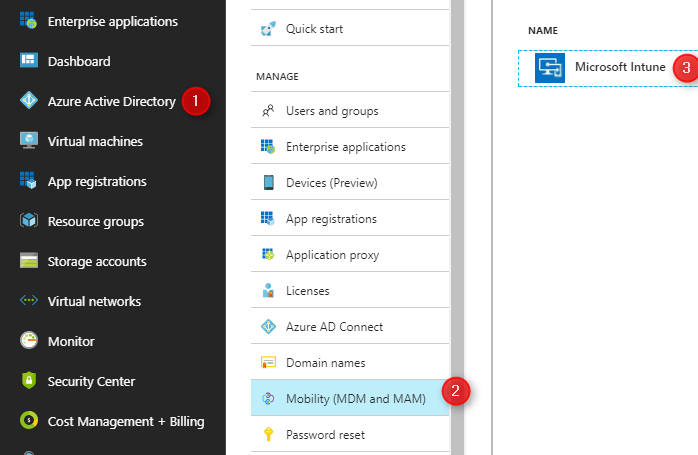
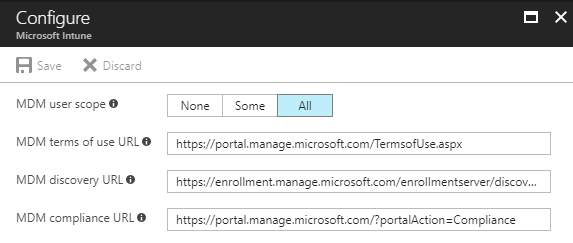
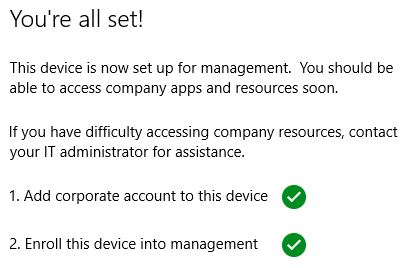
We are now ready to automatically enroll a Windows 10 device in our Intune tenant.
We will now test our enrollment procedure using a Windows 10 device.

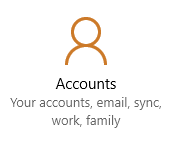
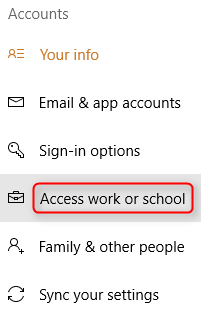
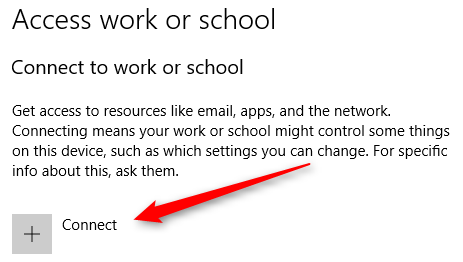
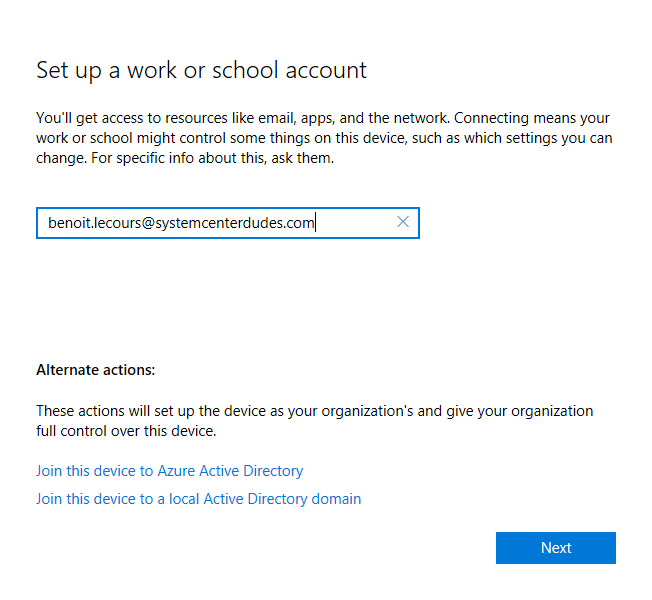
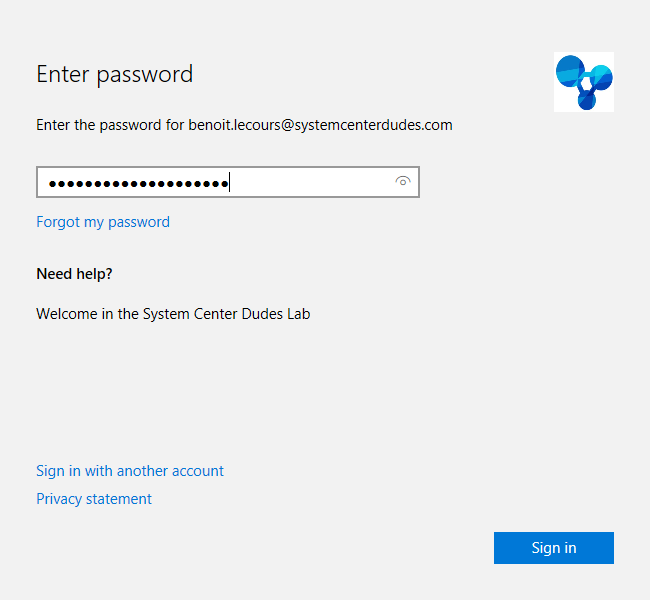
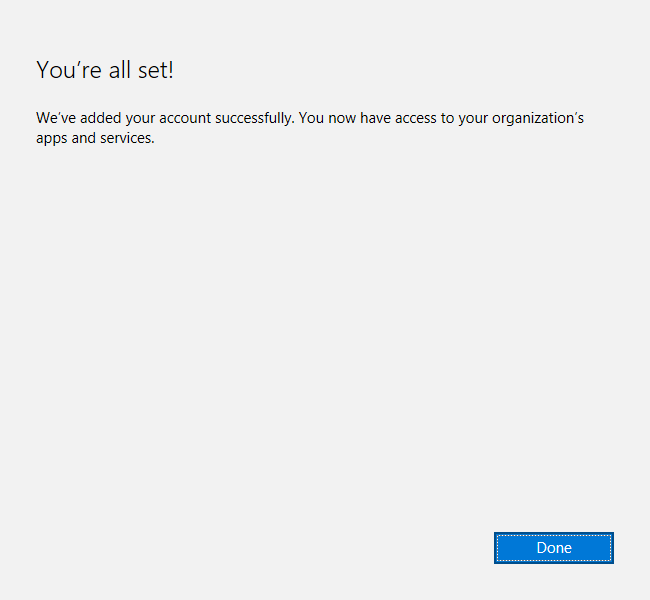
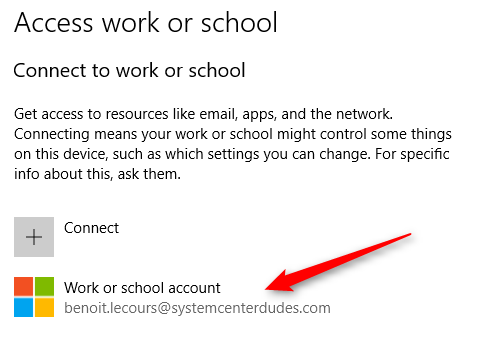
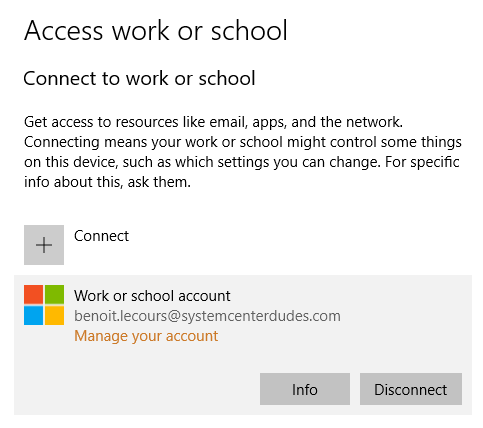
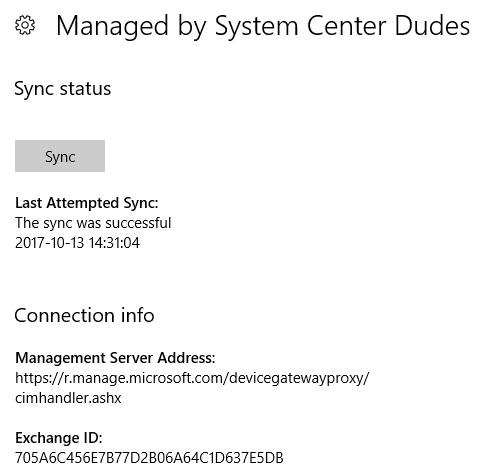
If you followed the previous steps, but still fail to connect, see the Microsoft documentation or use the Export your management log file on the right. Consult the log file and refer to the MSDN documentation for the full error code list.
At this time you’ll see your device in the Intune Portal or in the SCCM console depending if you’re using Standalone or hybrid mode.
SCCM :

Intune :

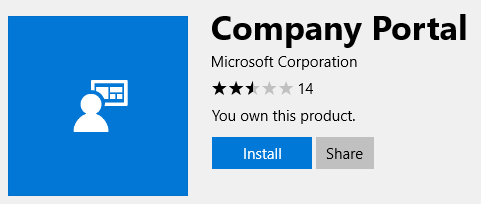
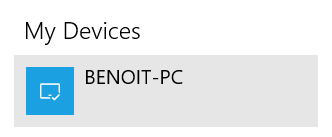
The Company Portal app, lets you find and download available and required apps sent by your IT department. If you have the Company Portal app installed you can validate that the enrollment is successful.
If you don’t have the Company Portal installed :

Please fill out the form, and one of our representatives will contact you in Less Than 24 Hours. We are open from Monday to Friday.

Thank you for subscribing to our newsletter or requesting a quote. You will receive our next month's newsletter. If you have requested a quote, we will get in touch with you as soon as possible.

Something went wrong!


Thank for your reply!