When planning for a Windows 10 migration, understanding your environment is the key. Luckily, Windows 10 setup comes with command line options which one of them is an excellent compatibility check (/Compat ScanOnly). This command can be used on a Windows 7,8 or 10 devices before a migration in order to see if those devices are Windows 10 compatible. Using SCCM, we will run this Windows 10 compatibility check, return the results in the SCCM database and use this data to build a comprehensive report. This report can be used to detect and fix migration errors before the actual Windows 10 deployment.
We will start by creating a package for Windows 10 compatibility check. The source of this package must be the Windows 10 installation media. The deployment option and command line is important here. If they are not set correctly you’ll end up sending the complete installation media (including Install.wim) to the computers only for a compatibility check which is not really effective. Using our proposed methods, you’ll be using about 250mb on the client drive instead of 5gb.
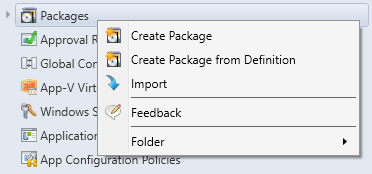
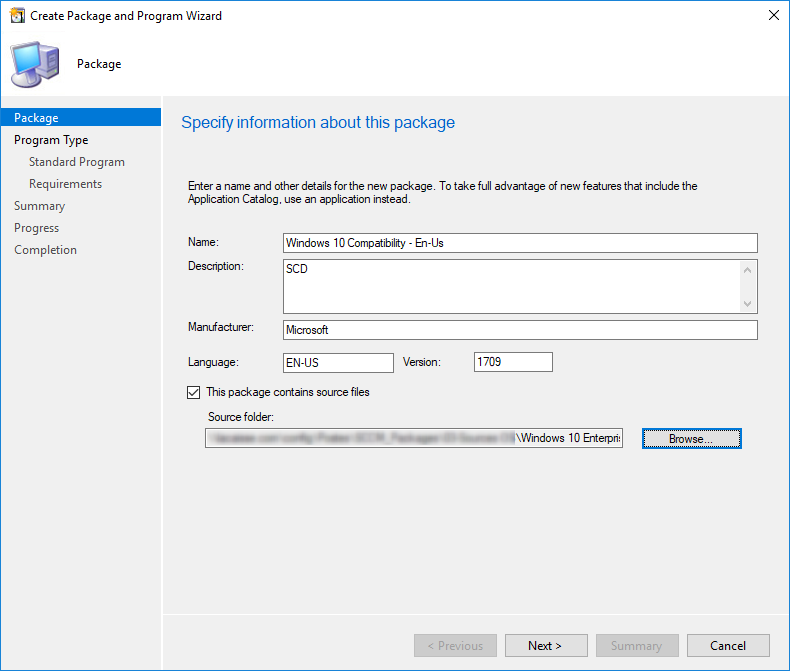
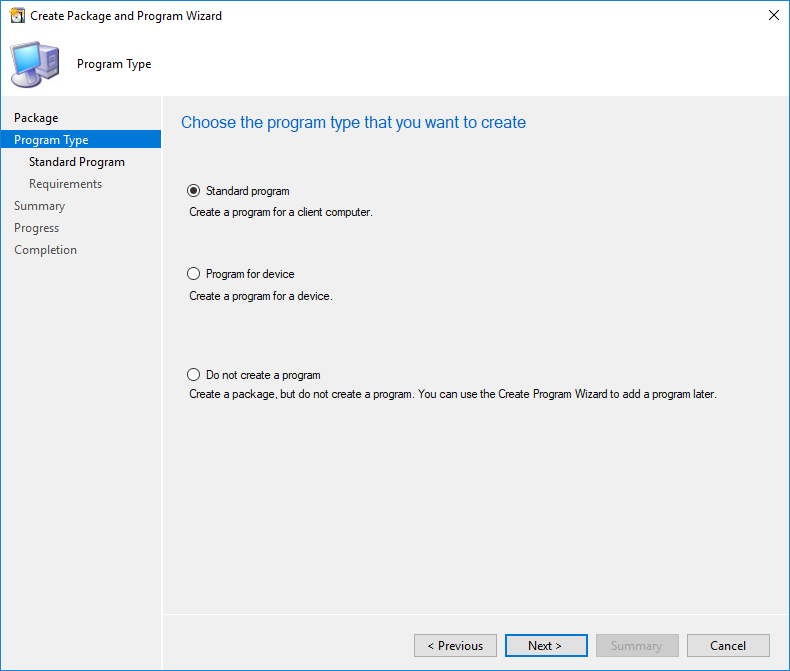
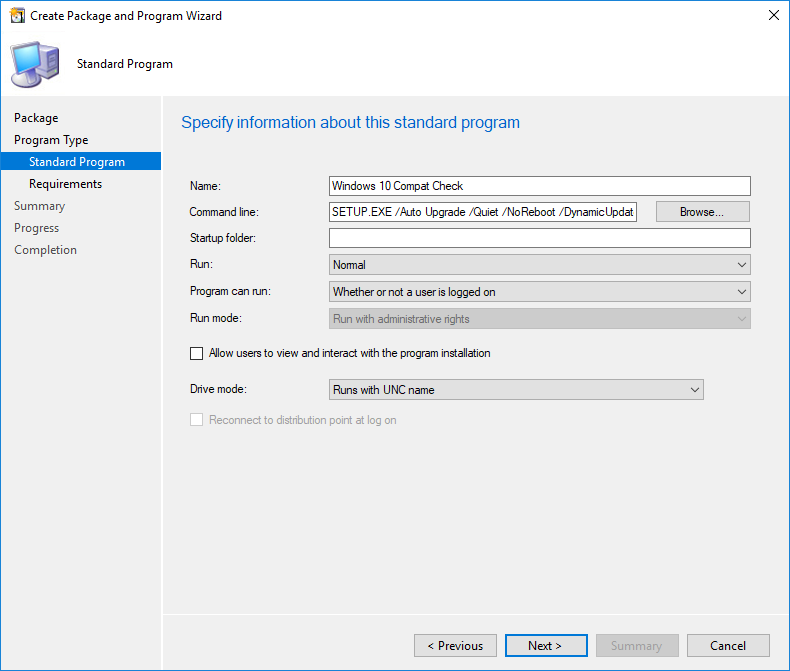
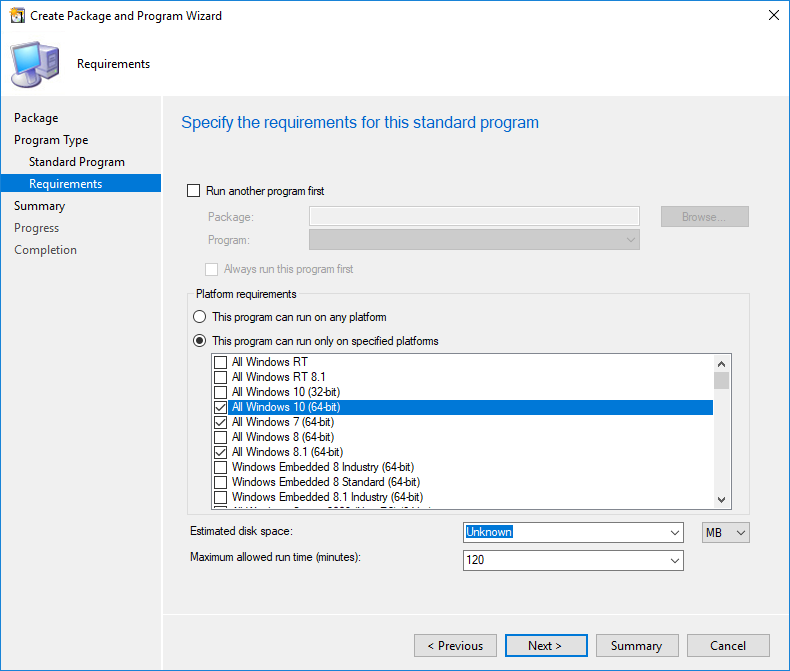
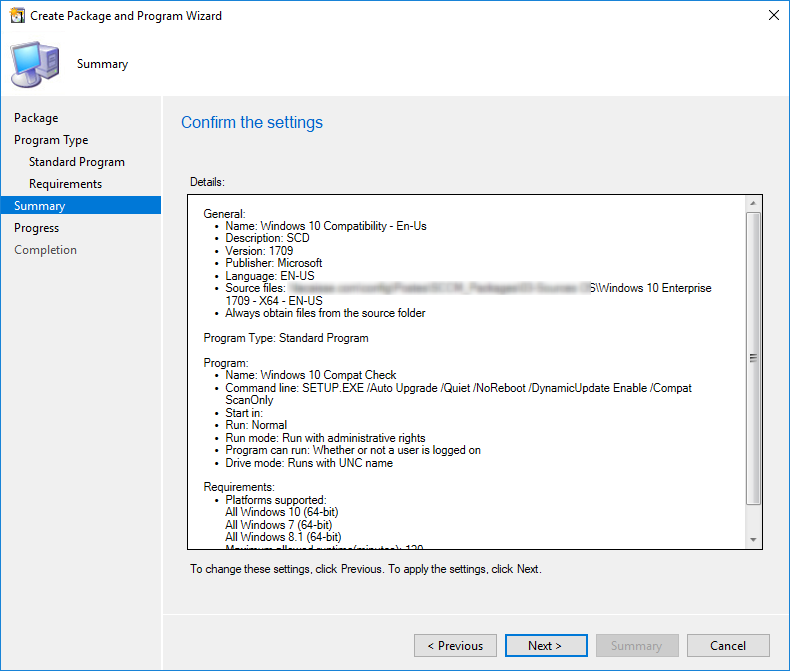
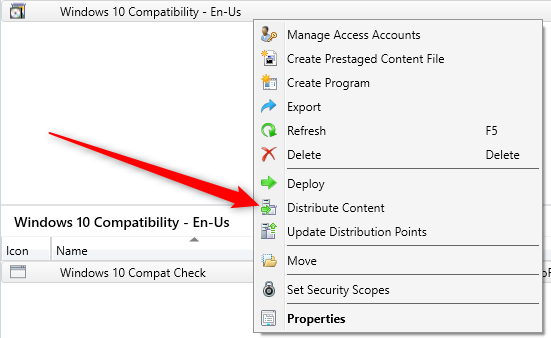
We will now deploy the Windows 10 compatibility check program on a computer that runs Windows 10 1607. In our test, we want to evaluate if this computer can upgrades from Windows 10 1607 to 1709. Create a test collection and deploy the newly created program to a test device.
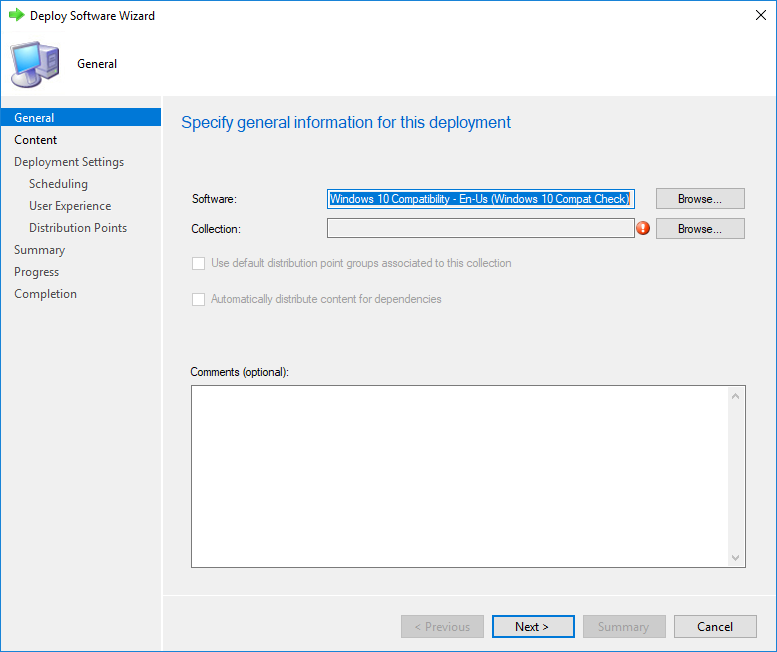
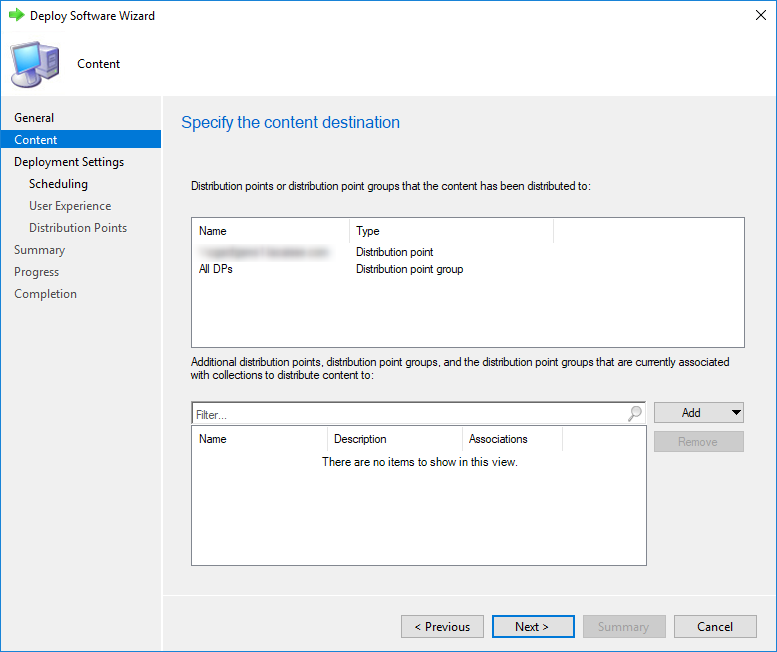
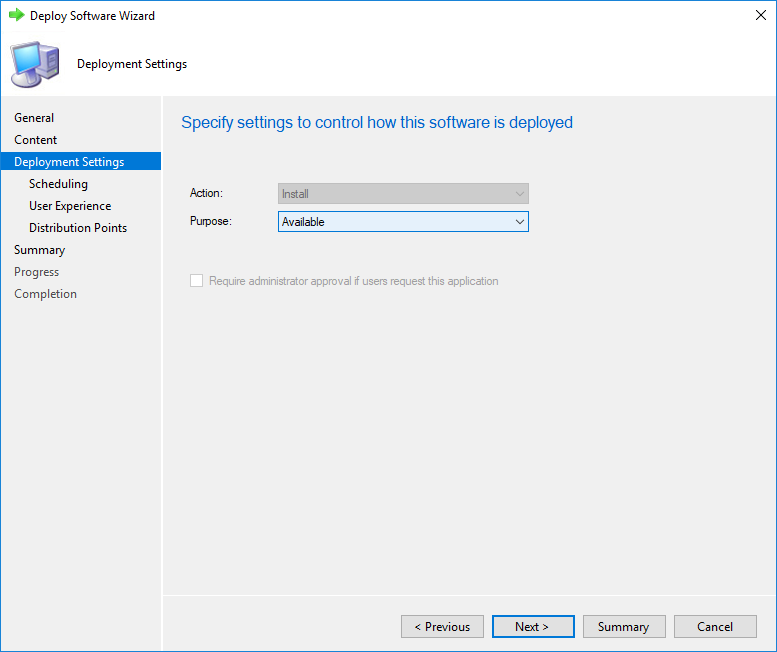
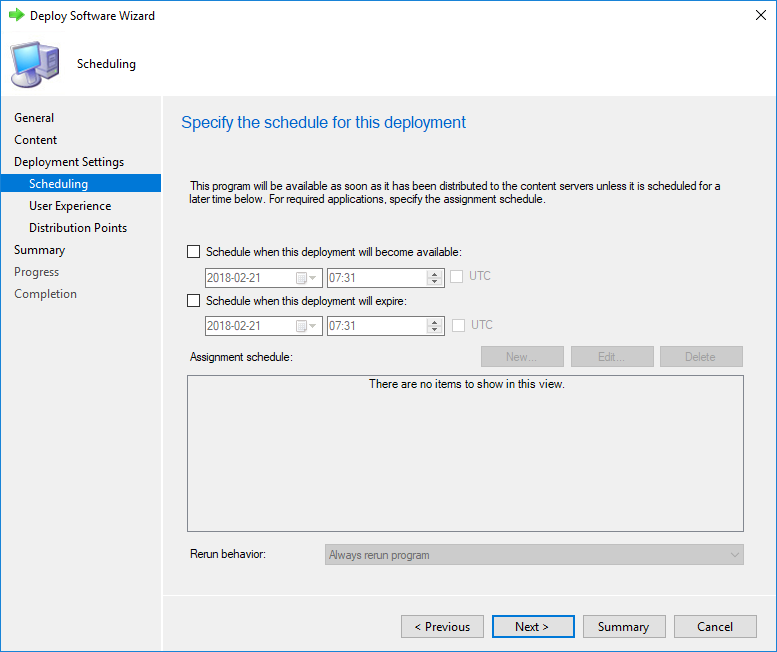
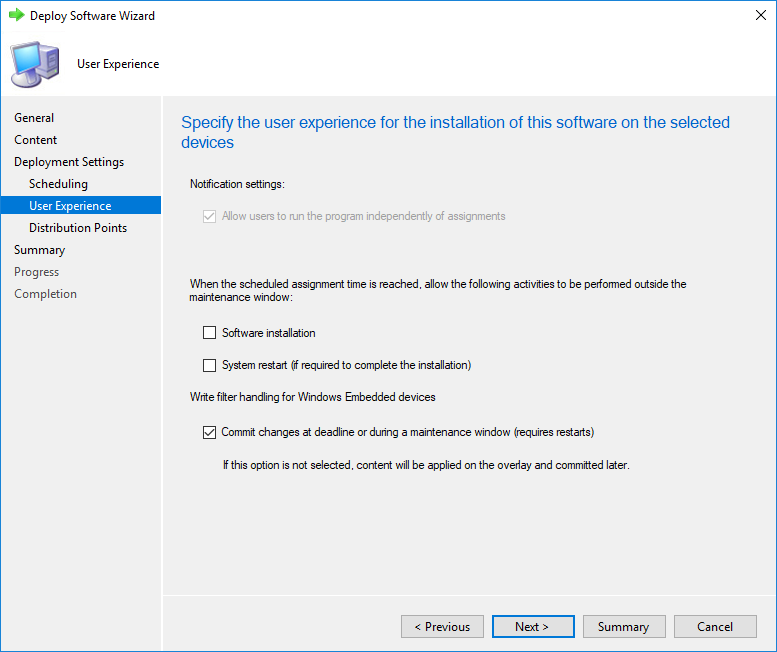
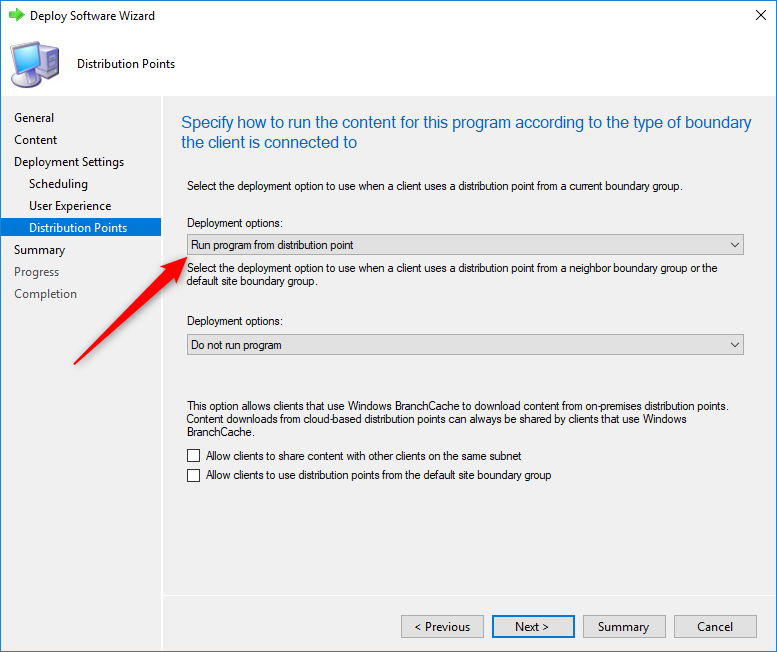
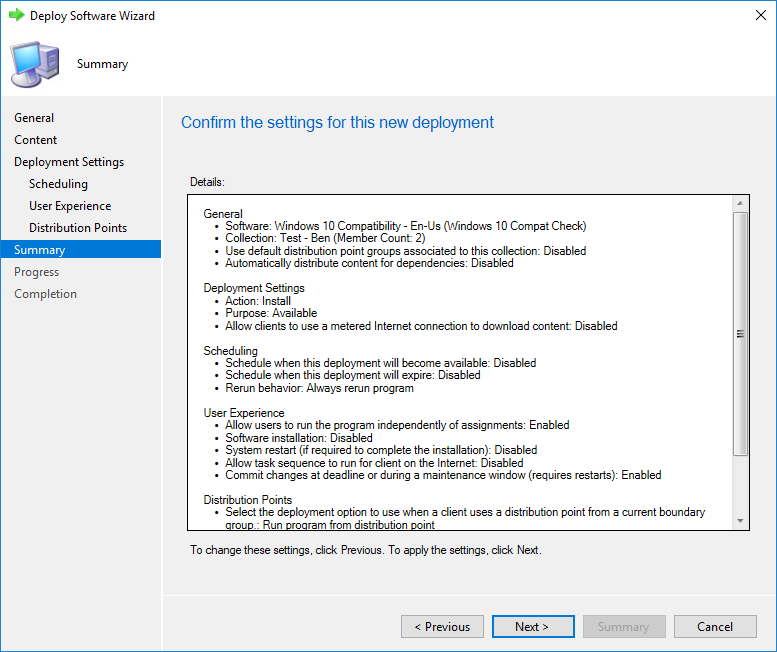
On a targeted computer, run the program manually in the Software Center (Available) or wait for the schedule to trigger your deployment (Required).
The installation will starts. It will take about 5 minutes to complete… and it will fail. This is normal as the error code returned by the compatibility check will always be an error. (No problem will be 0xC1900210 -1047526896).
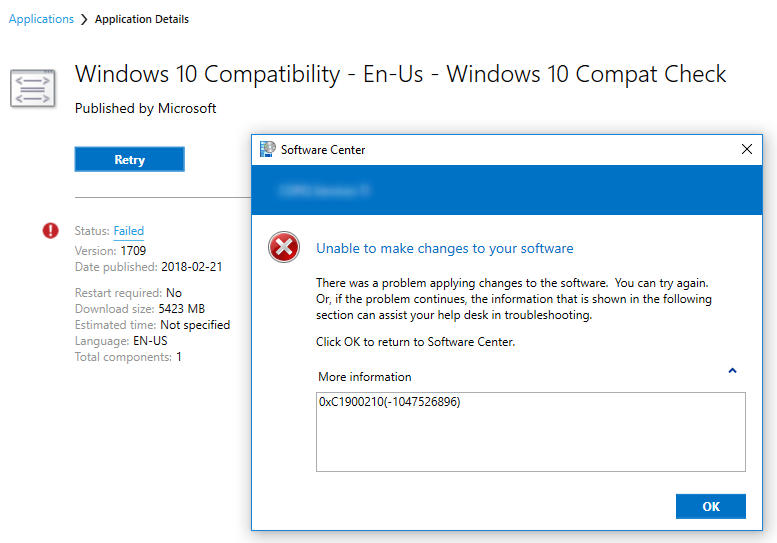
If you need more information about the error, look at Setupacr.log or Setuperr.log generated by Setup.exe. They are located in C:\$WINDOWS.~BT\Sources\Panther folder. (Or in the specified path if you use the /CopyLogs parameter in your command line. We cover the topic on how to troubleshoot Windows 10 error in this blog post
Once we tested on a couple of test machine and are happy with results, we can expand our deployment to all computers.
From there, what’s the easy way to check your compatibility results? You could go in the Monitoring / Deployment section in the console… or you build a custom report.
Luckily for you, we created a report which will give you a quick overview of your compatibility success or failure. We also included basic hardware inventory information for you to refer if a computer is not compliant because of hardware limitation. The only thing you need to do is to select your Compatibility package and run the report !
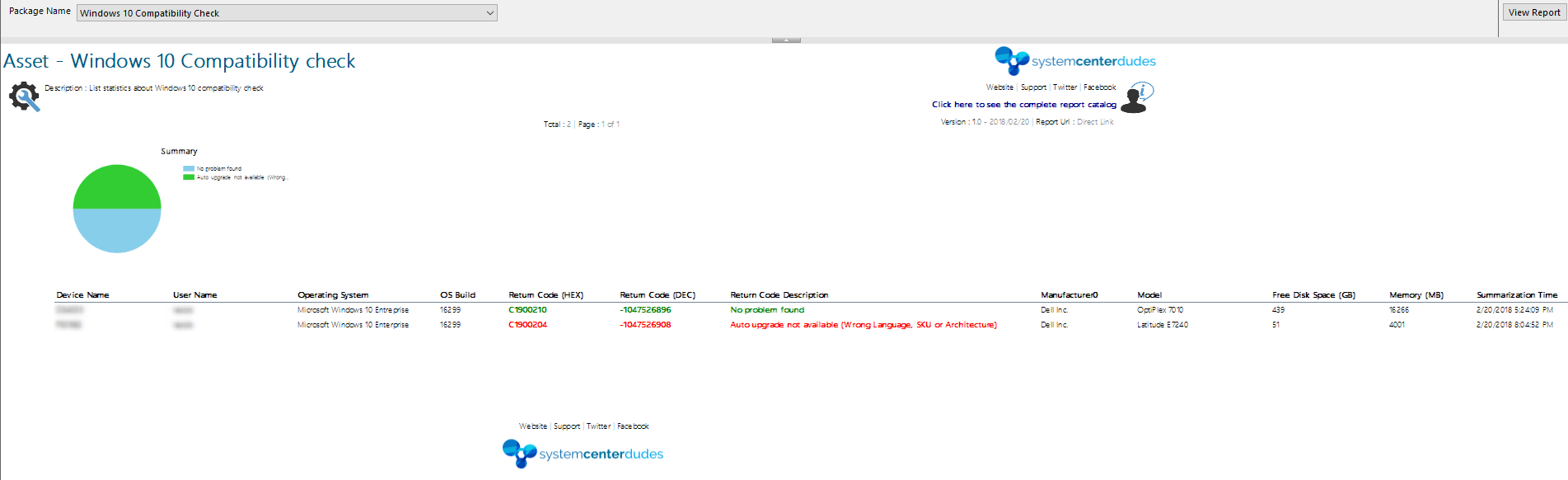
You can download this free report by visiting our product page. The Asset – Compatibility Check report is available in the Report / Asset Section.
Good to know : How to import an RDL file
Let us know what you think of it.

Please fill out the form, and one of our representatives will contact you in Less Than 24 Hours. We are open from Monday to Friday.

Thank you for subscribing to our newsletter or requesting a quote. You will receive our next month's newsletter. If you have requested a quote, we will get in touch with you as soon as possible.

Something went wrong!


Thank for your reply!