Enable and Configure SCCM Install Behavior for Applications
SCCM 1702 introduce a new feature to check and close executable files before application installation. This could be useful if you need to close a certain process before an SCCM application installation. One example would be some Adobe products that need Internet Explorer to be closed before installation. Before 1702 there was no way to do this using a built-in option in SCCM. A popular User Voice item was delivered as a pre-release feature in SCCM 1702 which is called SCCM install behavior for applications.
We will show you how to enable and configure the Install Behavior tab in an application deployment type and show you the different behaviors based on the deployment properties.
Enable SCCM Install Behavior for Applications
Before you can use the Install Behavior feature, you must enable it as it’s still a pre-release feature:
- In the SCCM Console, go to Administration \ Site Configuration \ Sites
- Click on the Hierarchy settings on the top ribbon
- Ensure that the Consent to use pre-release feature checkbox is checked
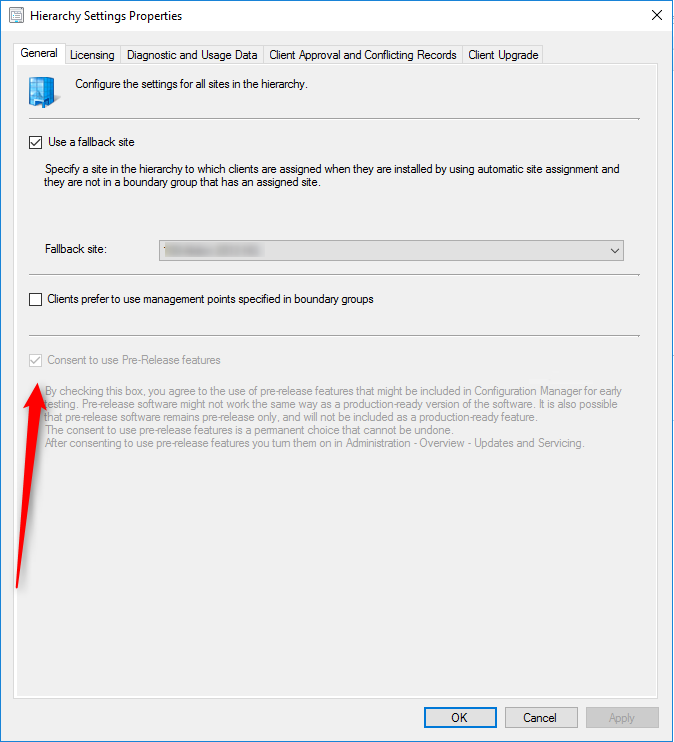
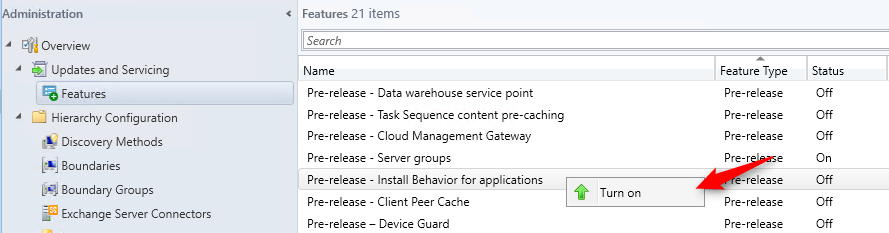
- Go to Administration \ Updates and Servicing \ Features
- Right-click Pre-Release Install Behavior for applications
- Select Turn On
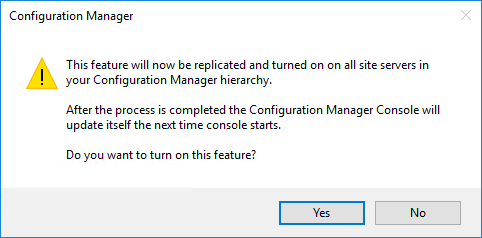
- On the warning dialog, click Yes
- Close your SCCM console and reopen it
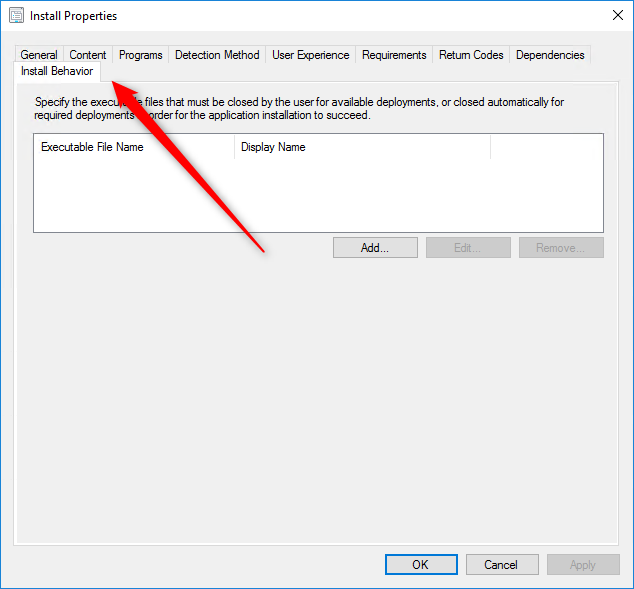
- Verify that you have the Install Behavior tab in any application deployment type
Create a Check for Running Executable Files Rule
For our post, we will deploy 7zip to a computer and we’ll ask to check if notepad.exe is running before installing.
- Right-click an application deployment type and select Properties
- Click the new Install Behavior tab
- Click Add
- Enter your Executable File Name and Display Name – In our case notepad.exe / Notepad
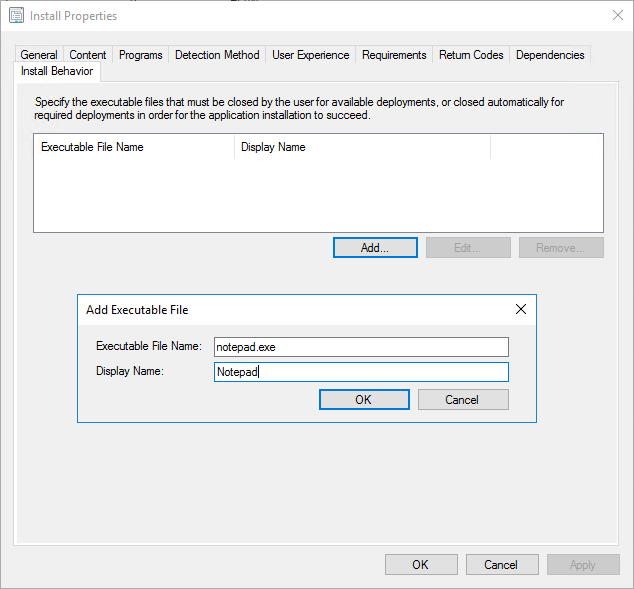
- Click Ok and close the deployment type properties
Create a Deployment – Available vs Required
Depending on the purpose of the deployment, the user experience will be different:
Available
We will now deploy 7zip to one computer as Available. When deploying as Available, there are no new option at deployment creation.
- On our test computer, Notepad is running
- In Software Center, we launch the 7zip installation by clicking Install
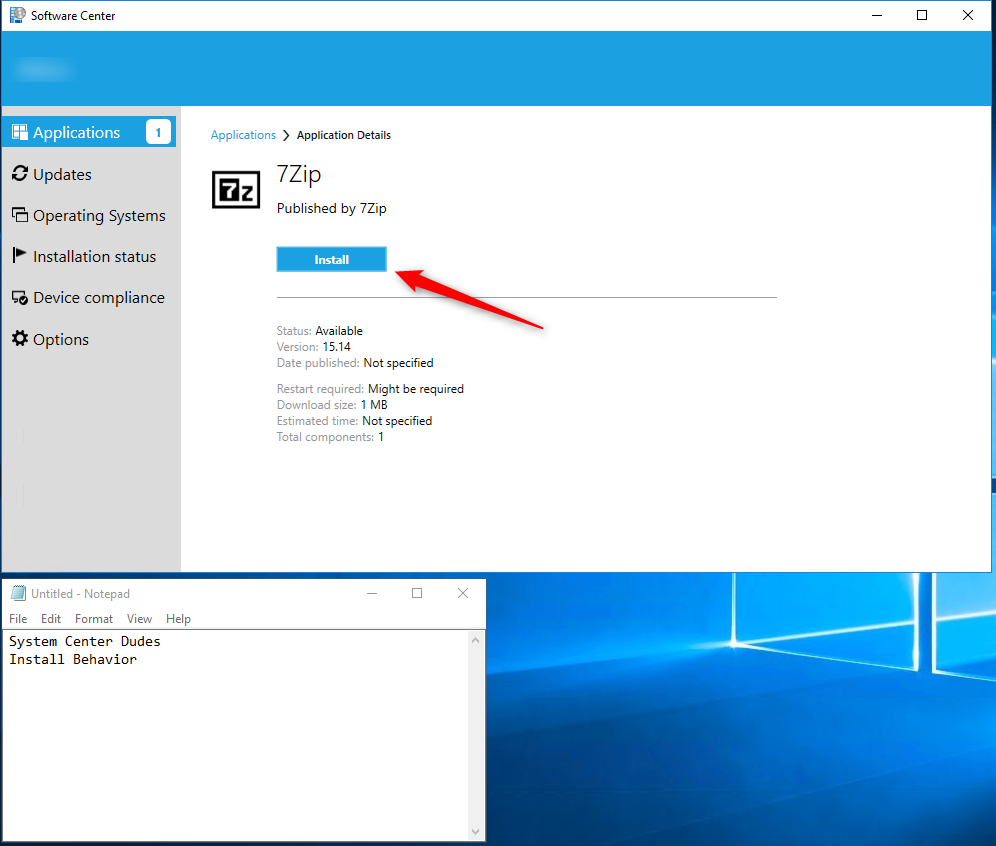
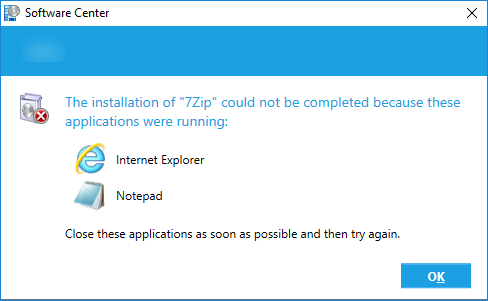
- The application failed to install and the user is prompted to close the running executable you specified (in Install Behavior) before it can proceed with the installation
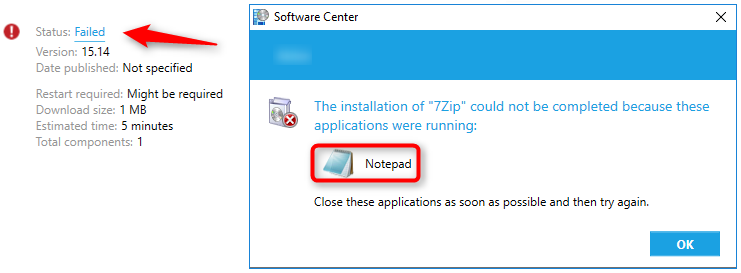
- Close Notepad and rerun the installation from the Software Center. The application installs correctly
Required Deployment
We will now create the same deployment but with a Required assignment
- Create a new Required deployment, you’ll notice a new checkbox in the Deployment Settings pane
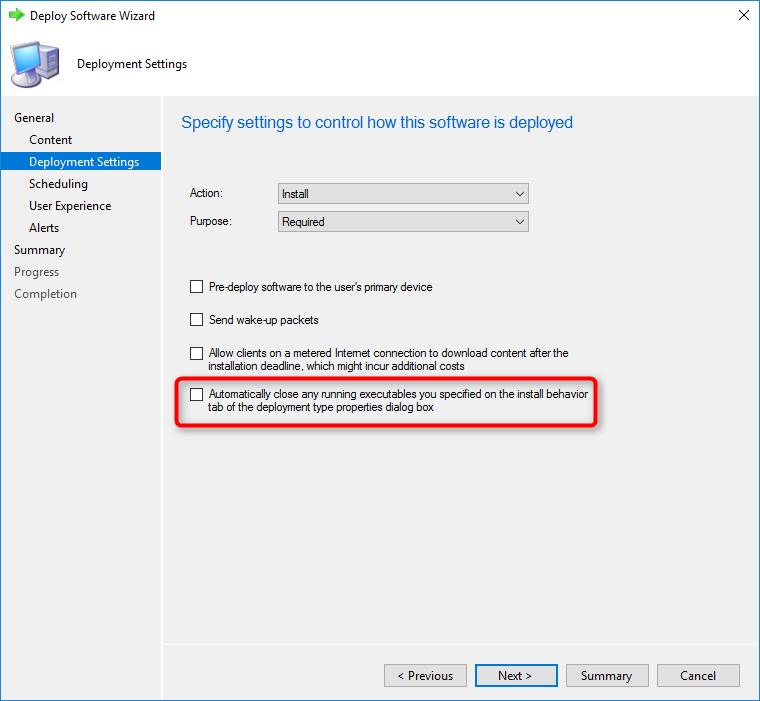
- If Automatically close any running executables you specified on the install behavior tab of the deployment type properties dialog box is selected, a more intrusive notification experience is provided to inform the user, and the specified executable files will be closed automatically at the deadline.
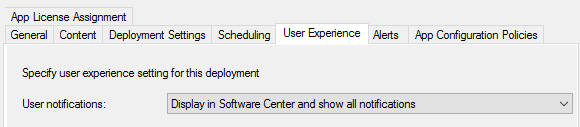
- One important thing to mention is that the User Experience / User Notification is important here. If you select Hide Software Center and all notifications, the notification will not be shown and the running application will be closed without notice and user could lose unsaved data.
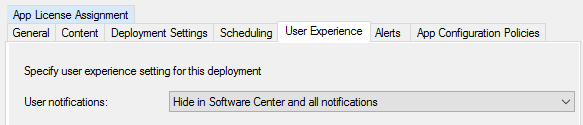
- For our post, we select Display in Software Center and show all notification
- The user receives this notification before the deadline and can select to close the applications using 3 options :
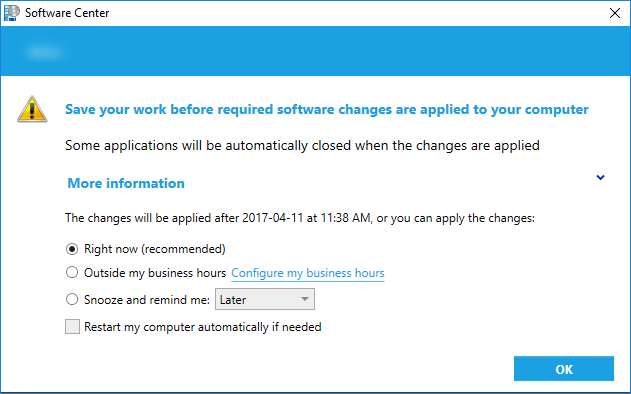
- Right now: Notepad is closed and the application installs (7zip)
- Outside my business hours: Notepad will close outside business hour (following Business hour logic)
- Snooze and remind me: User will be reminded at a later time
- If the user does nothing, at the deadline, Notepad will close automatically without other notice and the application (7zip) will install. The Software Center notification will stay on the user screen (!). This will probably be fixed in an upcoming release.
Monitoring
When monitoring your deployment using Install Behavior feature:
- In the SCCM Console, Monitoring \ Deployments
- You’ll find a new error when a process prevents the installation: One or more process are running and prevent enforcement action.

Bonus Tips
If you specify more than one application in Install Behavior, the warning will show all applications that need to be closed. The applications that are not running at deployment time will not be displayed.




Thank for your reply!