Starting in SCCM 1610, you can use the new Software Updates Dashboard to view the compliance status of devices in your organization and analyze devices that are at risk. This is the third dashboard since the Current Branch release which is a great effort from the product group to give better visibility on the data gathered by your Configuration Manager clients. We already made an overview of the Windows 10 Servicing dashboard and the Office 365 Management dashboard will also be a topic in a future post.
To open the dashboard :
The dashboard is divided in 5 sections :
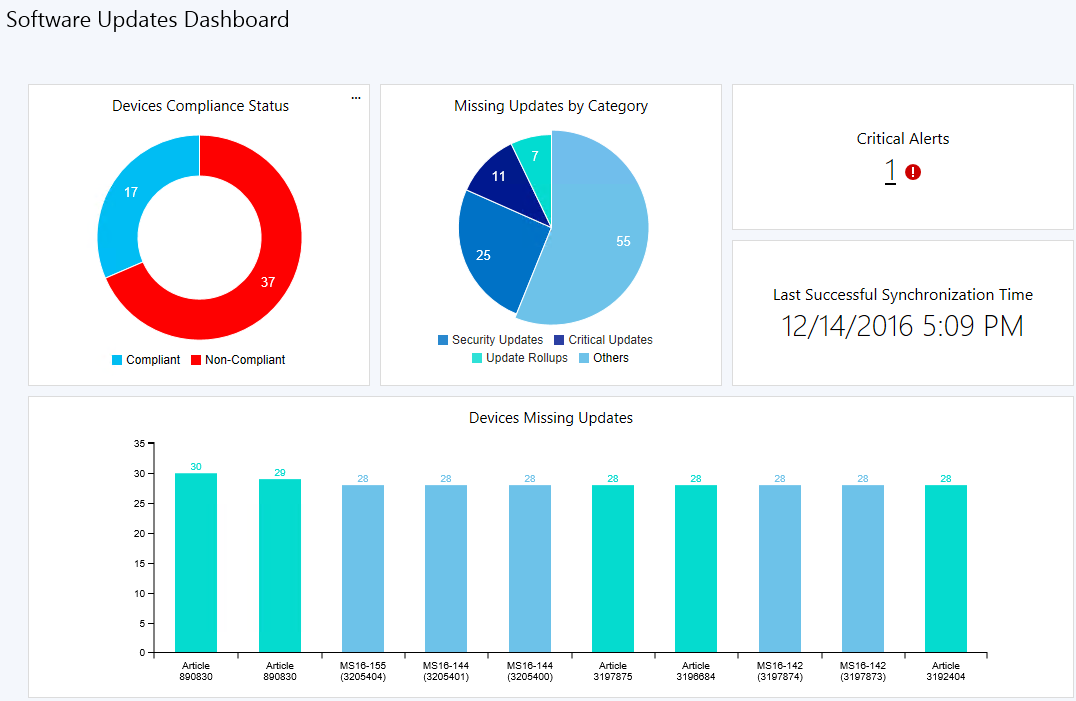
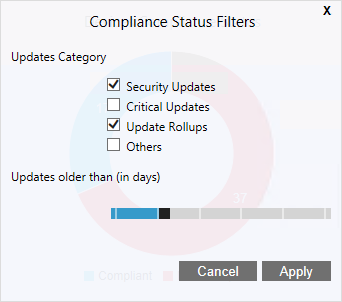
Gives a number of devices the are compliant and non-compliant based on the Compliance Status Filters options using the 3 dots in the upper right corner. In our example 17 devices are compliant and 37 are not.
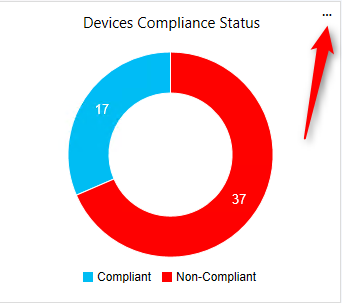
In the Compliance Status Filter section, you can decide which Updates Category and the update time frame that you want included in the calculation.
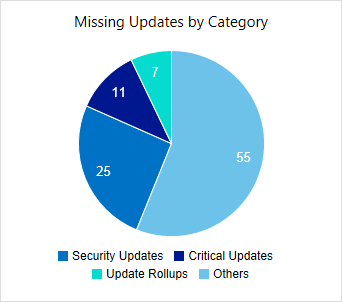
This section is self-explanatory. By clicking on a section of the pie chart, the selected updates are displayed in the Devices Missing Updates section. In our example, we clicked on the 7 Update Rollups
The Critical Alerts section show any alerts related to Software Updates like Automatic Deployment Rules that has failed.
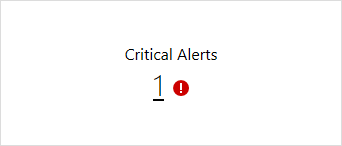
When clicking on the 1, we get redirected to Monitoring \ Alerts \ Critical – Updates which gives more details about the error.

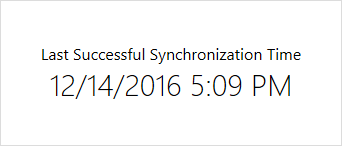
This section is self-explanatory, the Last Successful Synchronization Time on your Software Update Point
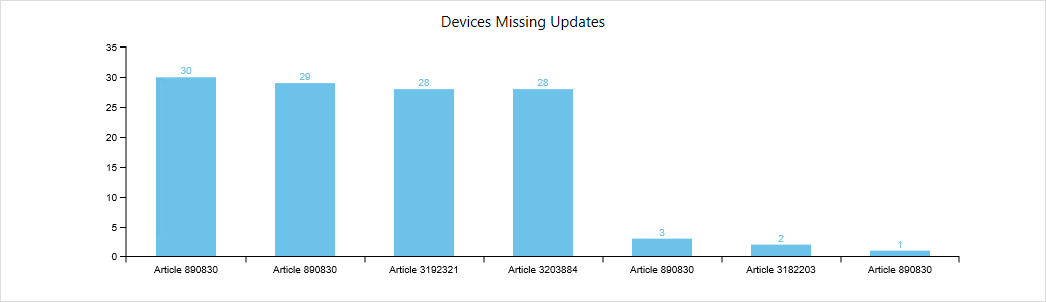
This section is interesting but incomplete. In our example, we clicked on the 7 Update Rollups in the Missing Updates by Category section. The pane show those 7 Updates and the number of devices which requires the update. When clicking on a column, it would have been nice to have a list of those 30 devices for Article 890830 but you get redirected to the Microsoft Support page instead. This is logic since there’s nothing that group those devices (ie : in a collection).
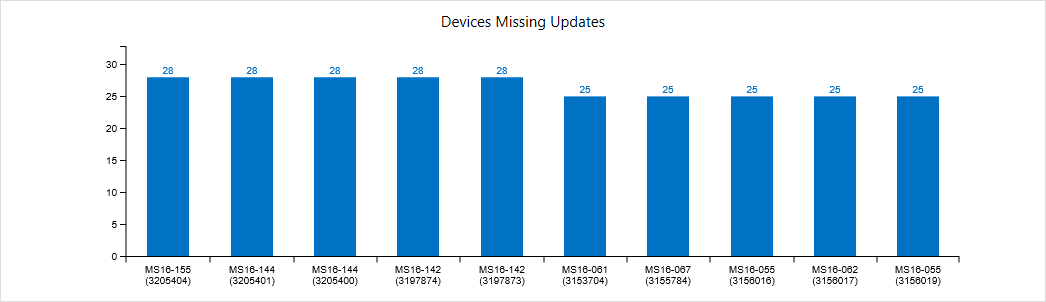
Where it gets incomplete is that if we select 25 Security Updates, only 10 updates are displayed. There’s a maximum of 10 updates to be shown in the chart which is… odd. Impossible to see the 15 other updates out of the 25.
The new Software Updates dashboard is a really nice addition but as the other dashboards, it still lacks major features to rely on for your overall compliance. We still suggest to use built-in reports or our Software Updates reports to monitor your compliance. How do you monitor your software update compliance ?
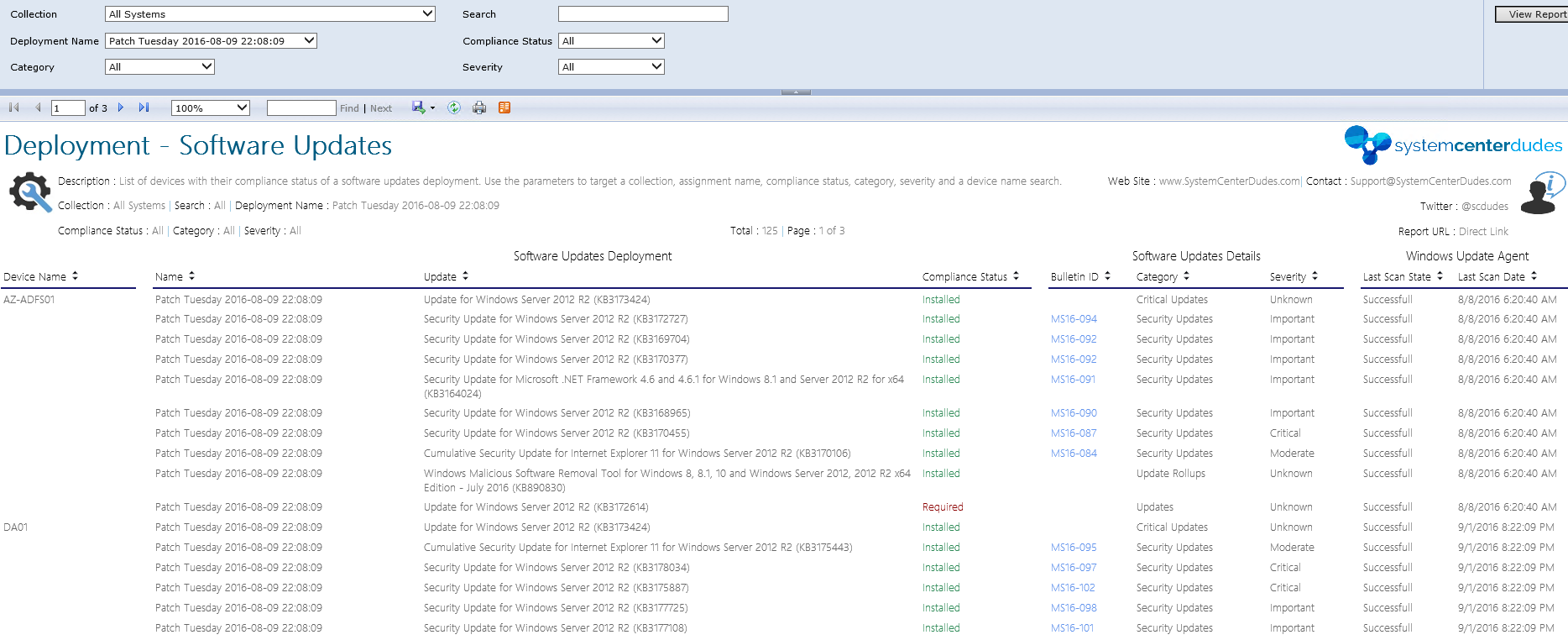
https://systemcenterdudes.com/sccm-2012-software-updates-deployment-report/
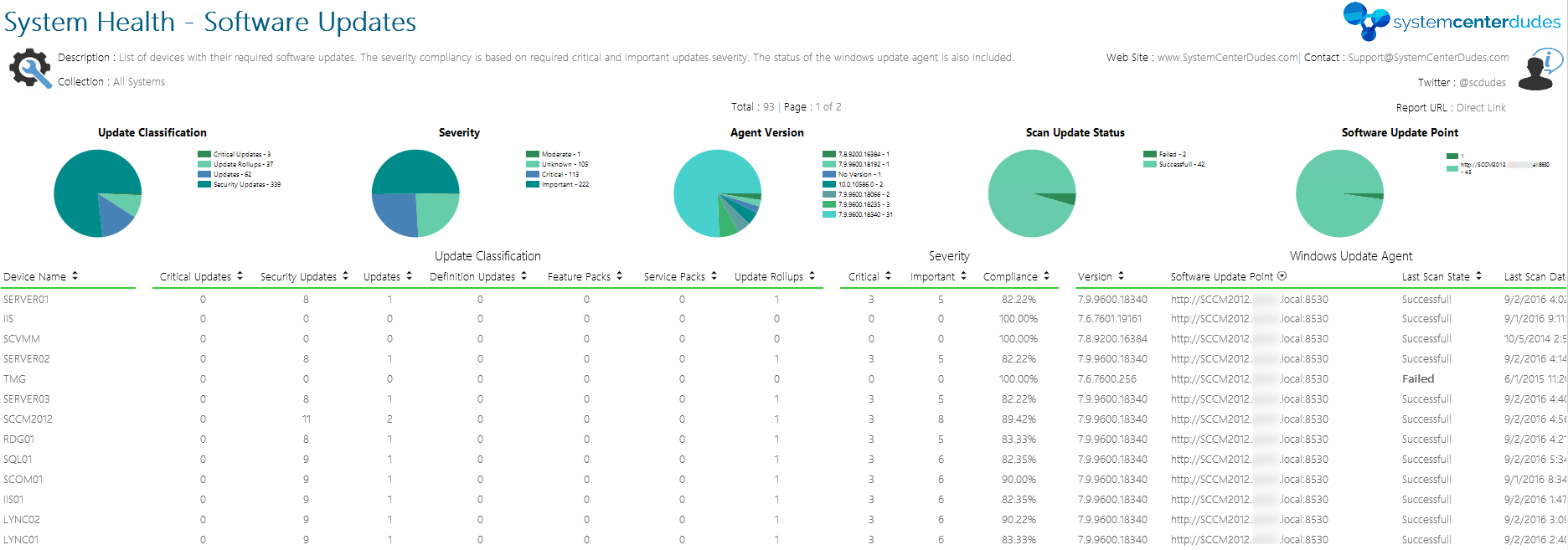
https://systemcenterdudes.com/sccm-2012-software-update-reports/

Please fill out the form, and one of our representatives will contact you in Less Than 24 Hours. We are open from Monday to Friday.

Thank you for subscribing to our newsletter or requesting a quote. You will receive our next month's newsletter. If you have requested a quote, we will get in touch with you as soon as possible.

Something went wrong!


Thank for your reply!