SCCM Windows 10 Deployment | Create SCCM Windows 10 Task Sequence
In the second post of this blog series about Windows 10 Deployment using SCCM, we will show you how to create a SCCM Windows 10 Task Sequence and deploy it. Complete the preparation of your environment before reading this post.
This task sequence will help you deploy what we call a “vanilla” Windows 10 using the default Install.wim from the Windows 10 media. This means that you’ll end up with a basic Windows 10 with the SCCM client and nothing else.
You will be able to edit this task sequence later to customize it to your environment.
Create SCCM Windows 10 Task Sequence
- Open the SCCM Console
- Go to Software Library \ Operating Systems \ Task Sequences
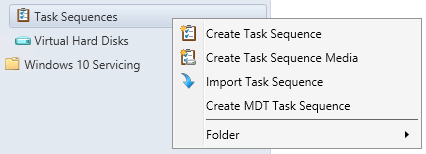
- Right-click Task Sequences and select Create Task Sequence
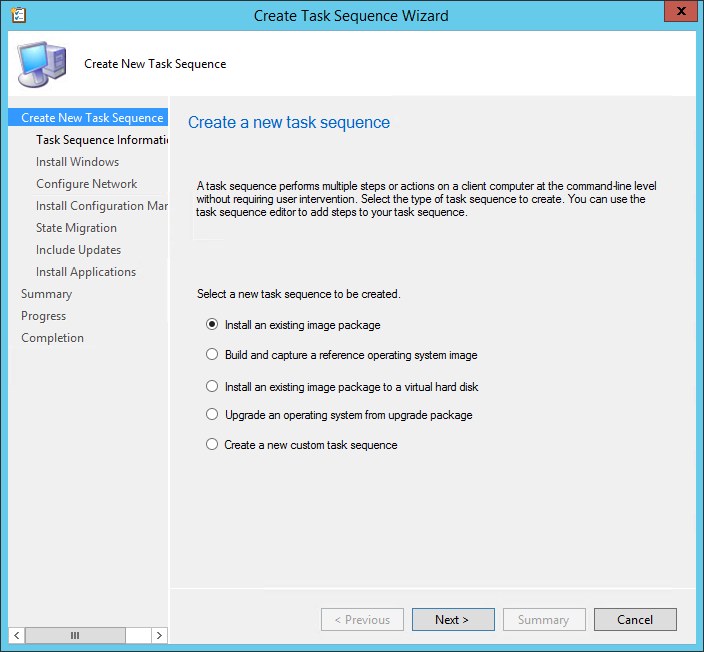
- On the Task Sequence wizard, select Install an existing image package
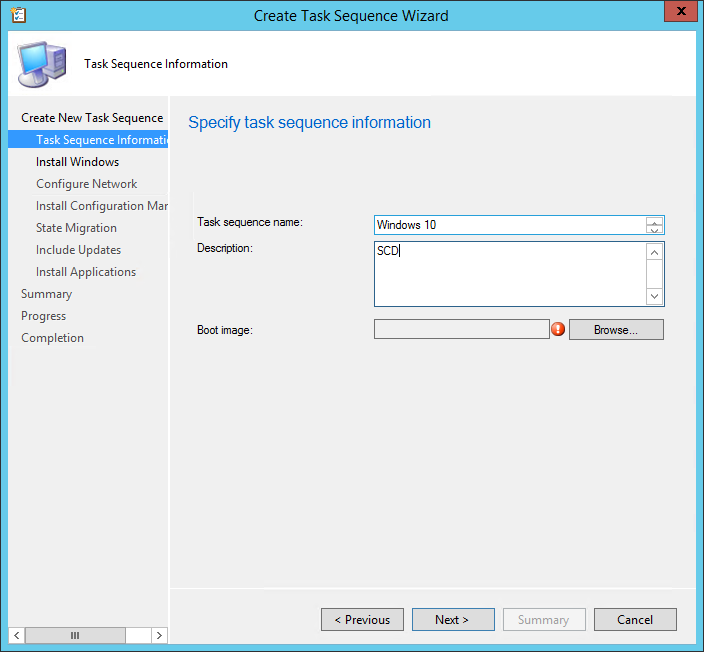
- On the Task Sequence Information pane, enter the desired Name, Description and Boot Image
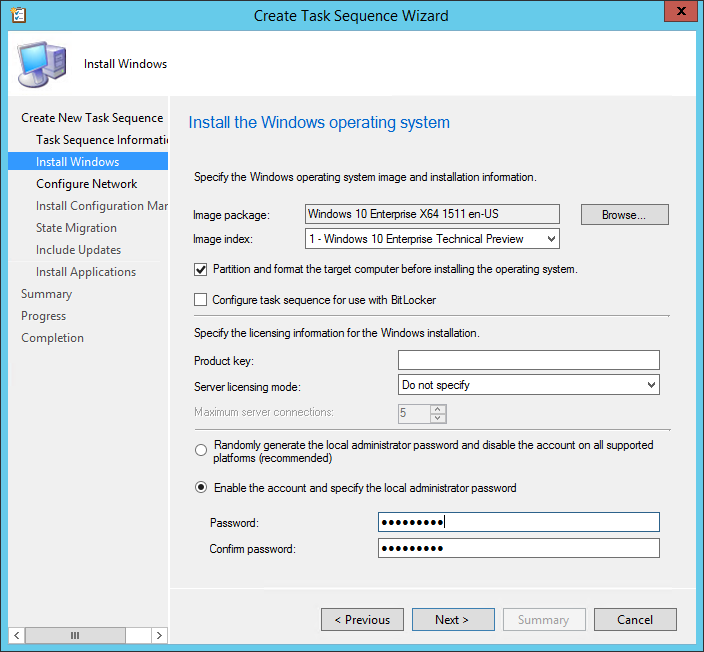
- On the Install Windows pane, select the Image package and Image index you imported in part 1
- Leave the check box beside Partition and Format the target computer before installing the operating system
- For this example we will remove the Configure task sequence for use with Bitlocker
- Leave the Product key blank, if you are using MAK keys, read this post on how to handle that in your Task Sequence. (TL;DR: Even with MAK key, you need to leave the Product key blank)
- Enter an Administrator password
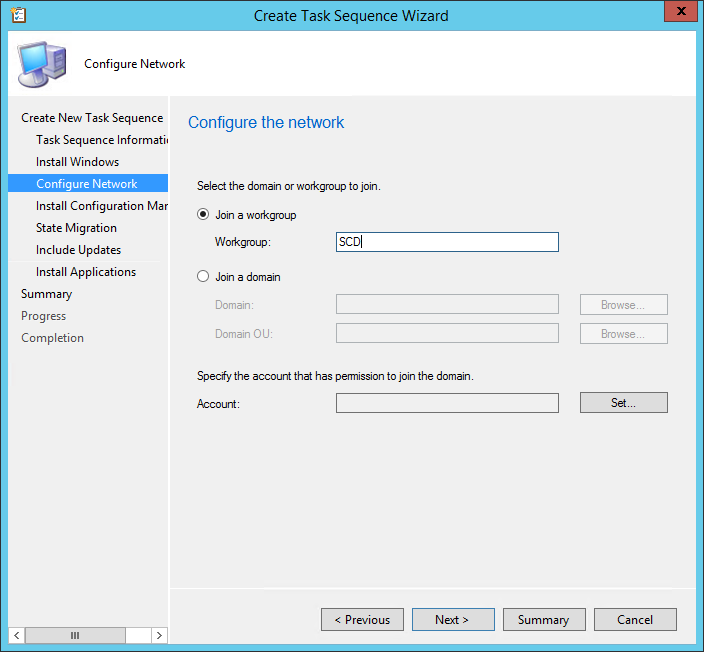
- In the Configure Network pane, you can select to Join a workgroup or domain. If you select Join a domain, enter your domain information, OU and credentials
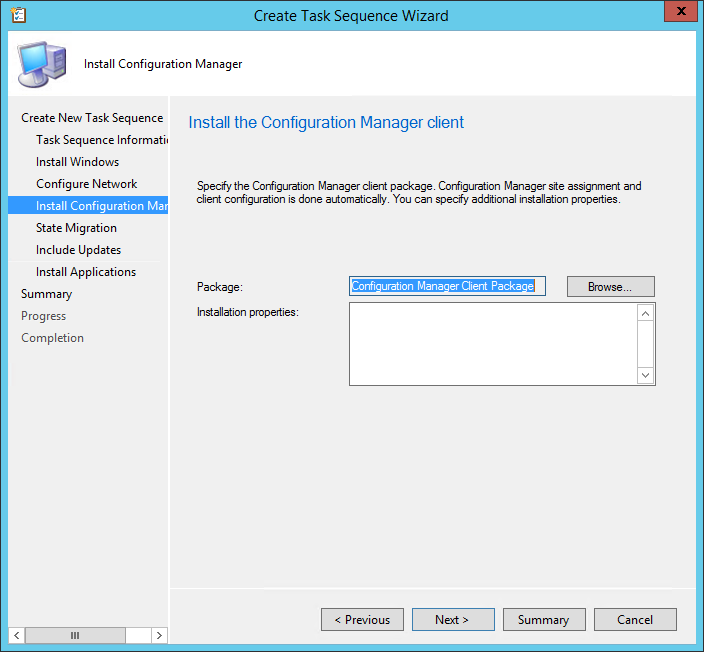
- On the Install Configuration Manager Client pane, select your Configuration Manager Client Package and enter your installation properties
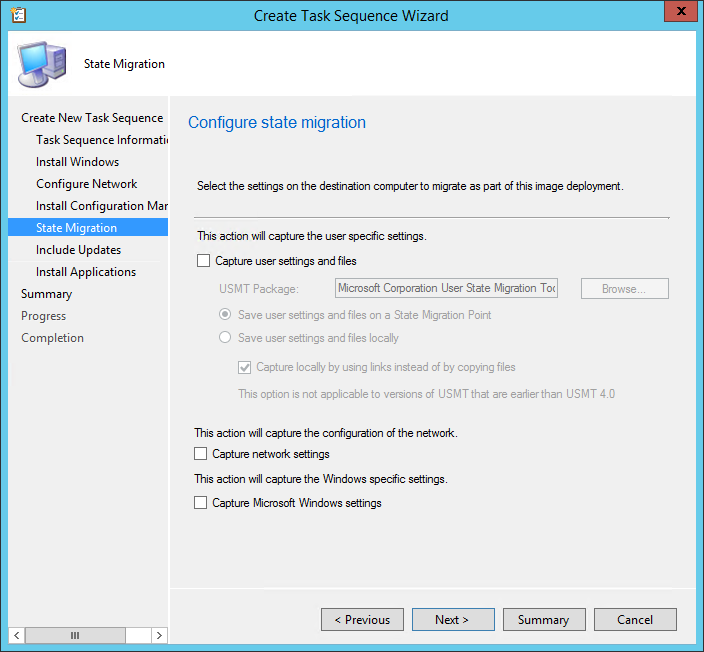
- On the State Migration pane, we will remove all checkbox as we don’t want to use User State Migration at this time
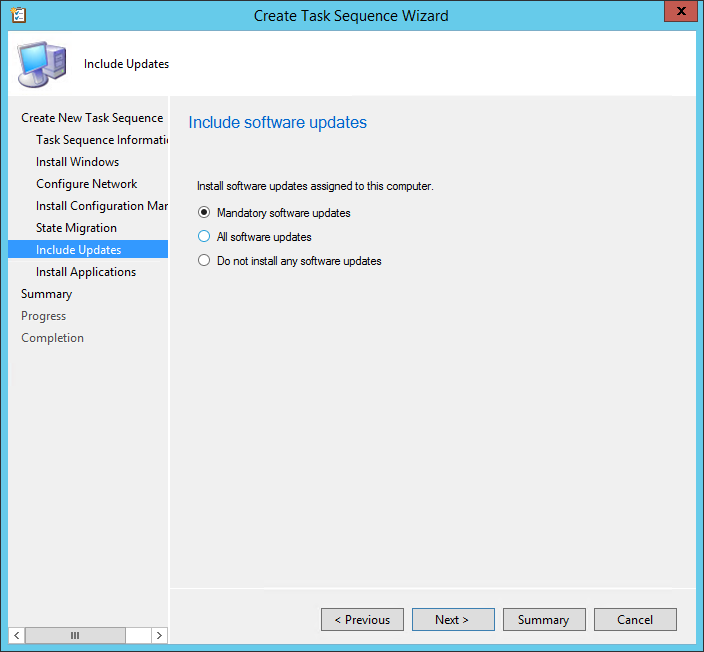
- On the Include Updates pane, select the desired Software Update task
- All Software Updates will install the updates regardless of whether there is a deadline set on the deployment (on your OSD collection)
- Mandatory Software Updates will only install updates from deployments that have a scheduled deadline (on your OSD collection)
- Do not install any software updates will not install any software update during the Task Sequence
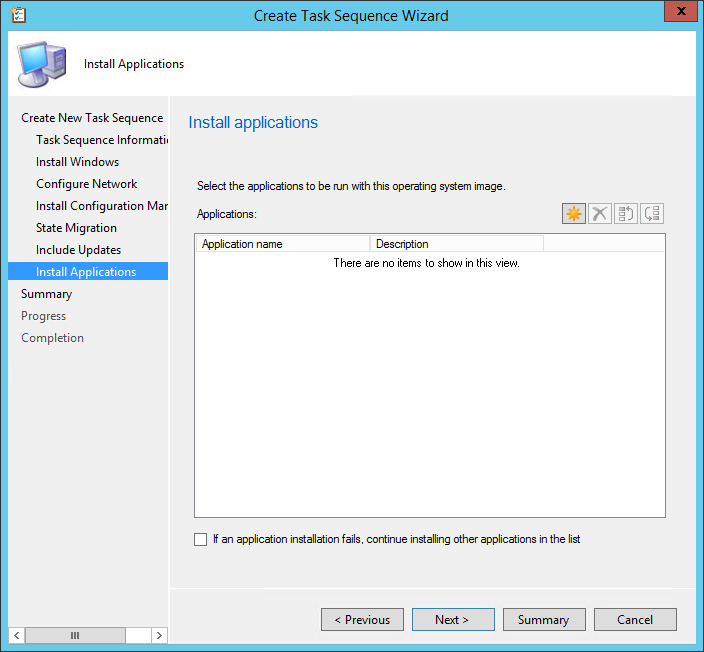
- On the Install Applications tab, click on the Star Icon to add any application that you want to be installed during your deployment. Only applications will be listed. If you need to add packages, you can add it by editing the task sequence later. Theses applications will be deployed each time the task sequence is executed.
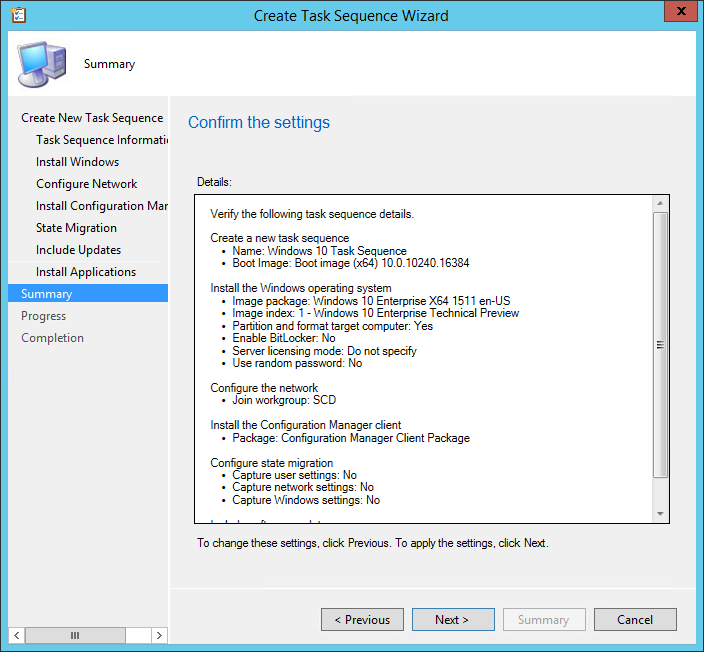
- On the Summary tab, review your settings and click Next
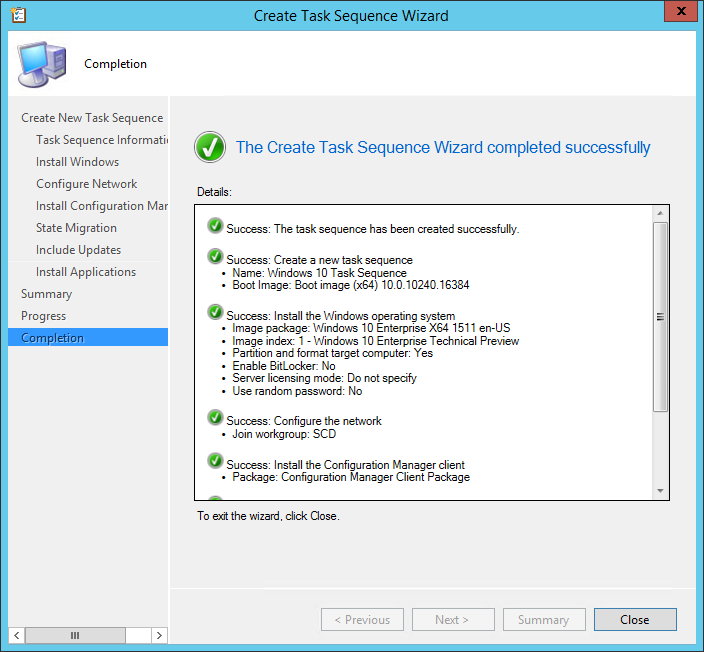
- On the Completion tab, click Close
Deploy Windows 10 Task Sequence
Now that your Task Sequence is created, we will deploy it to a collection and start a Windows 10 deployment.
[su_box title=”Warning” style=”glass” title_color=”#F0F0F0″]Be careful when targeting the deployment. This task sequence will format and install a new OS to targeted devices.[/su_box]
- Open the SCCM Console
- Go to Software Library \ Operating Systems \ Task Sequences
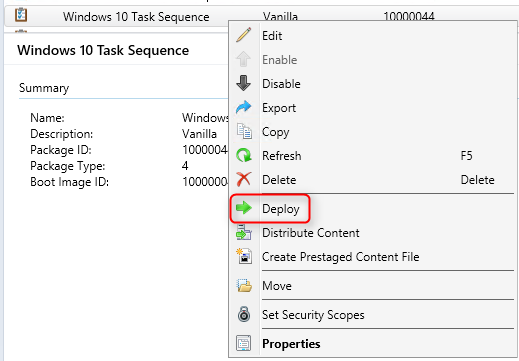
- Right-click your Windows 10 Task Sequence and select Deploy
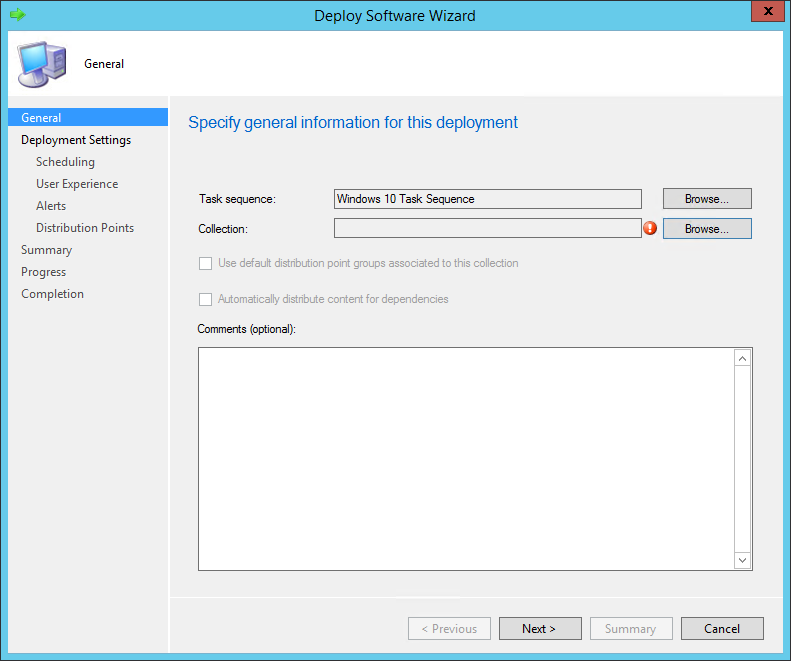
- On the General pane, select your collection. This is the collection that will receive the Windows 10 installation. For testing purposes, we recommend putting only 1 computer to start
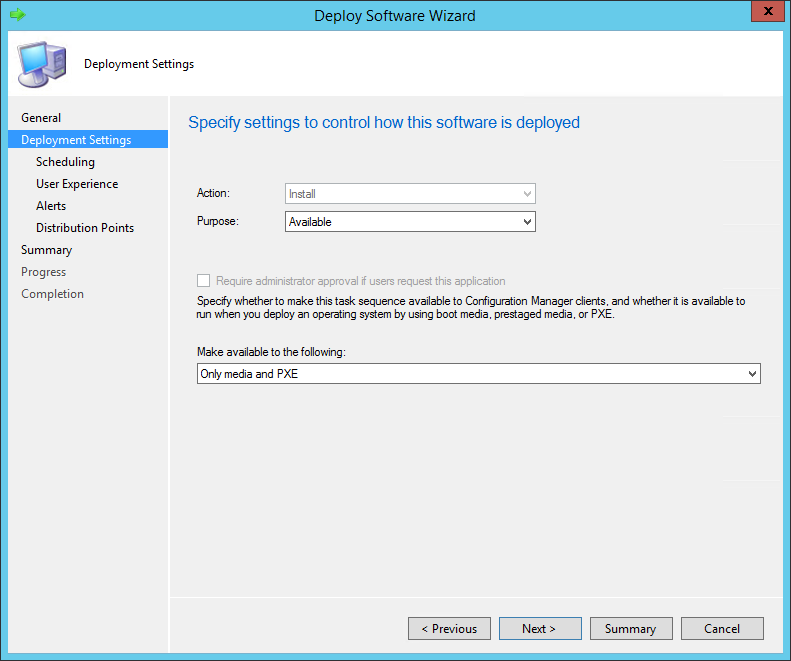
- Select the Purpose of the deployment
- Available will prompt the user to install at the desired time
- Required will force the deployment at the deadline (see Scheduling)
- In the Make available to the following drop down, select the Only media and PXE. This will ensure that you do not send the deployment on clients. This is also useful to avoid errors, using this options you *could* send the deployment to All Systems and no clients would be able to run the deployment from Windows
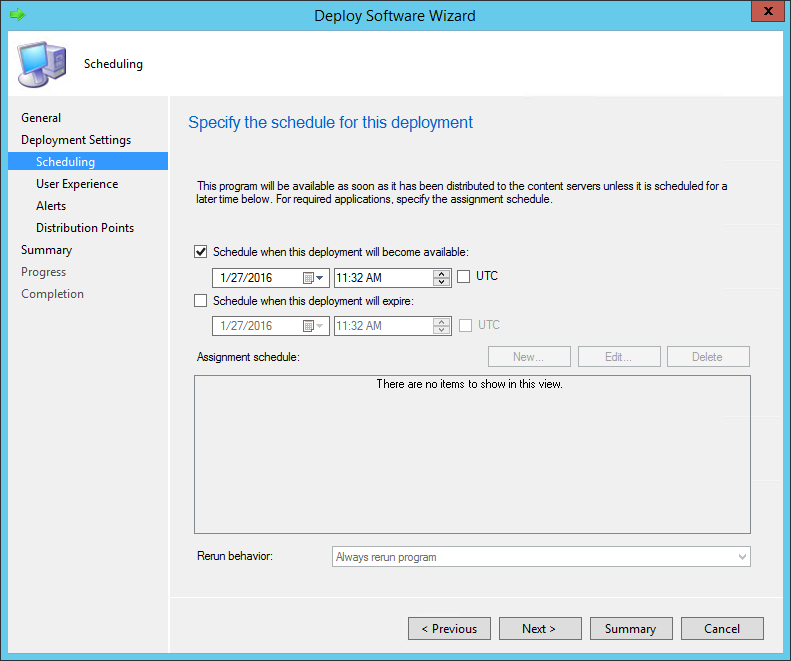
- On the Scheduling tab, enter the desired available date and time. On the screenshot, we can’t create an Assignment schedule because we select Available in the previous screen
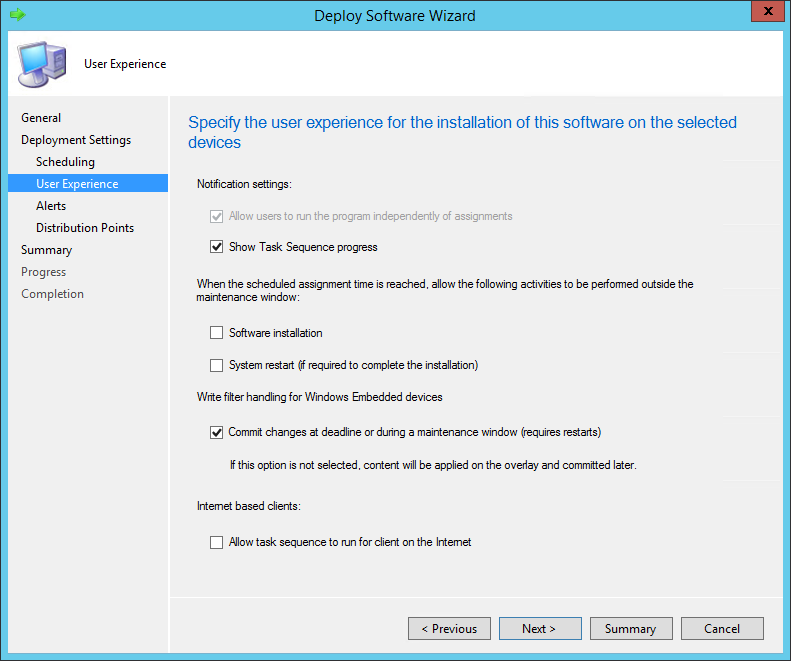
- In the User Experience pane, select the desired options
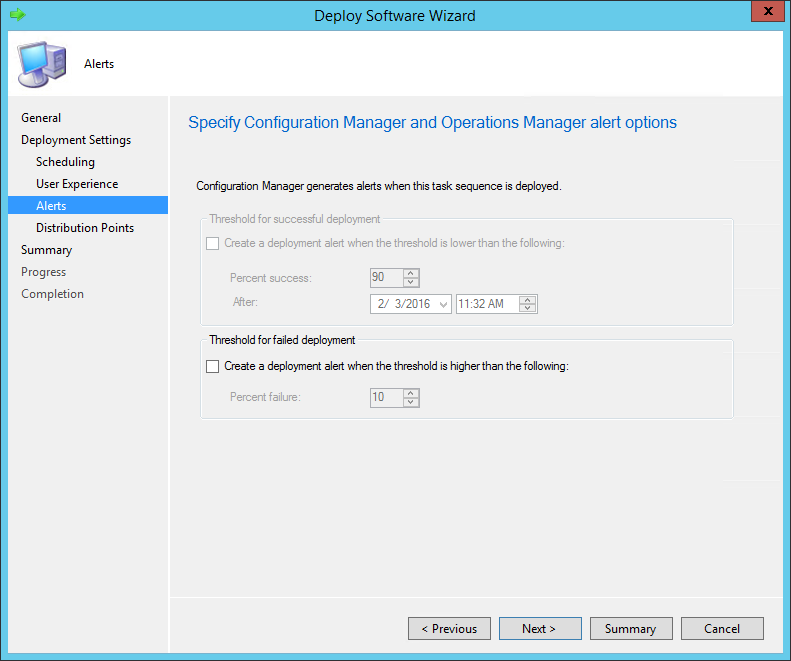
- In the Alerts tab, check Create a deployment alert when the threshold is higher than the following checkbox if you want to create an alert on the failures
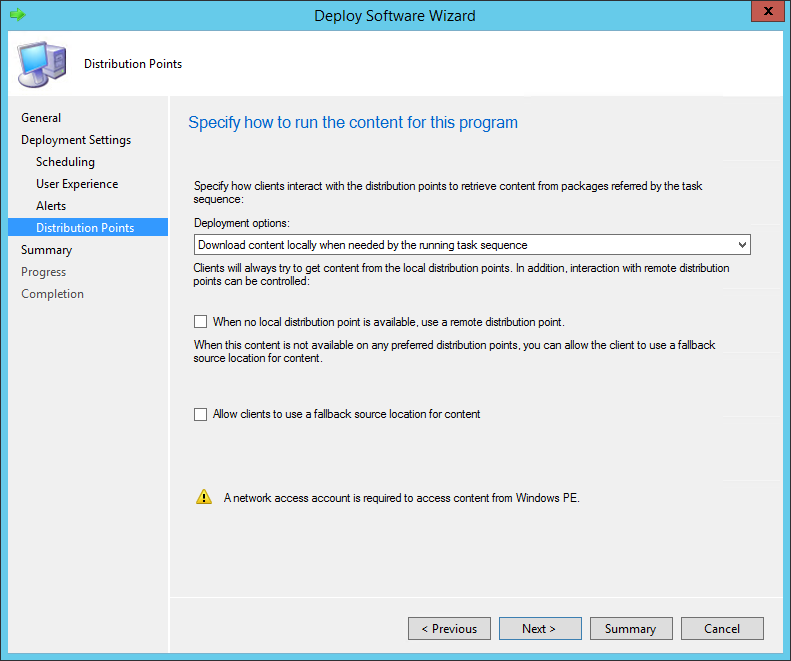
- On the Distribution Point pane, select the desired Deployment options. We will leave the default options
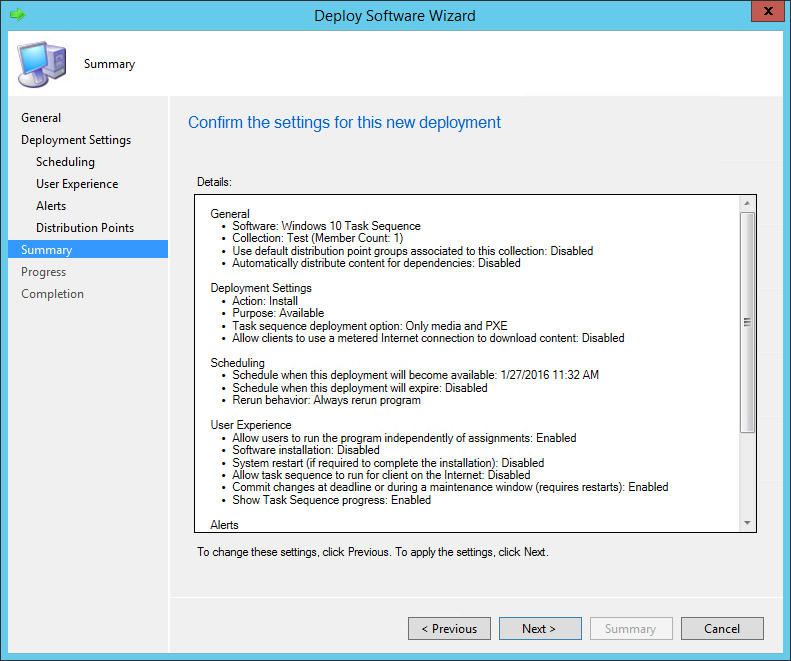
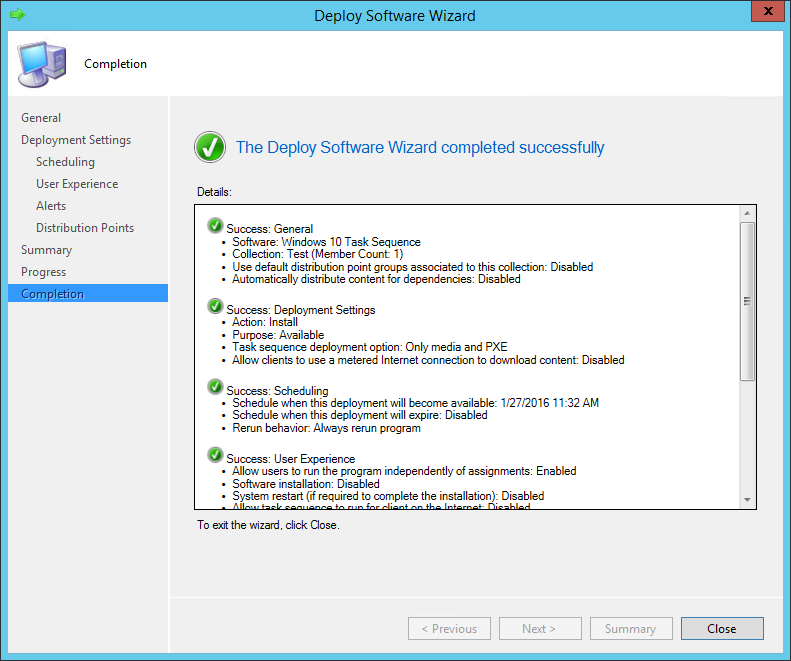
- Review the selected options and complete the wizard
PXE Boot
Now that we’ve created our task sequence and that it’s deployed. We can start the deployment on the machine. Make sure that your system is a member of your deployment collection and start the device. For this example, we will be using a virtual machine running on Hyper-V.
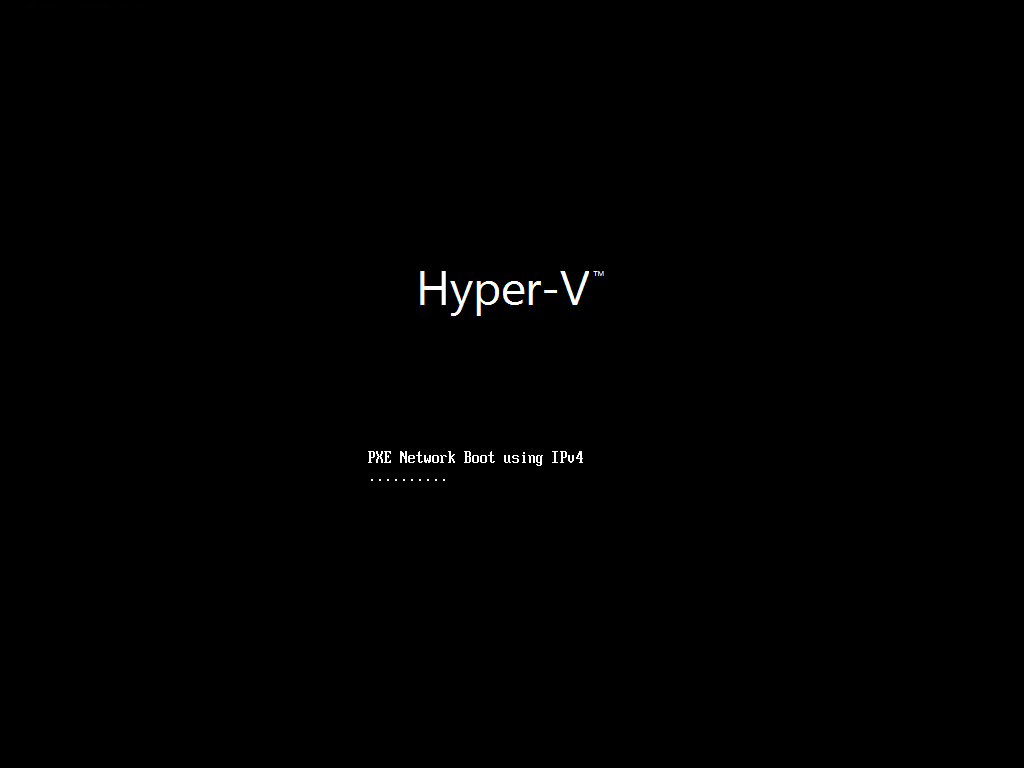
- The machine is booting and waiting for the PXE to respond
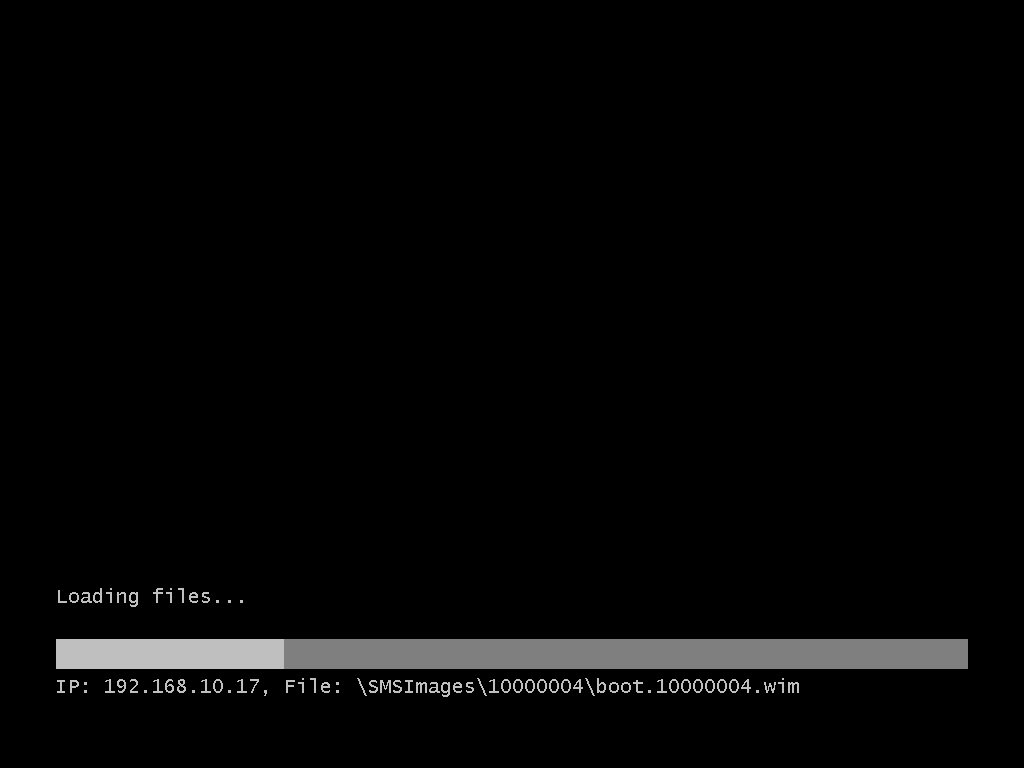
- Our SCCM Distribution point is sending the boot image to our VM
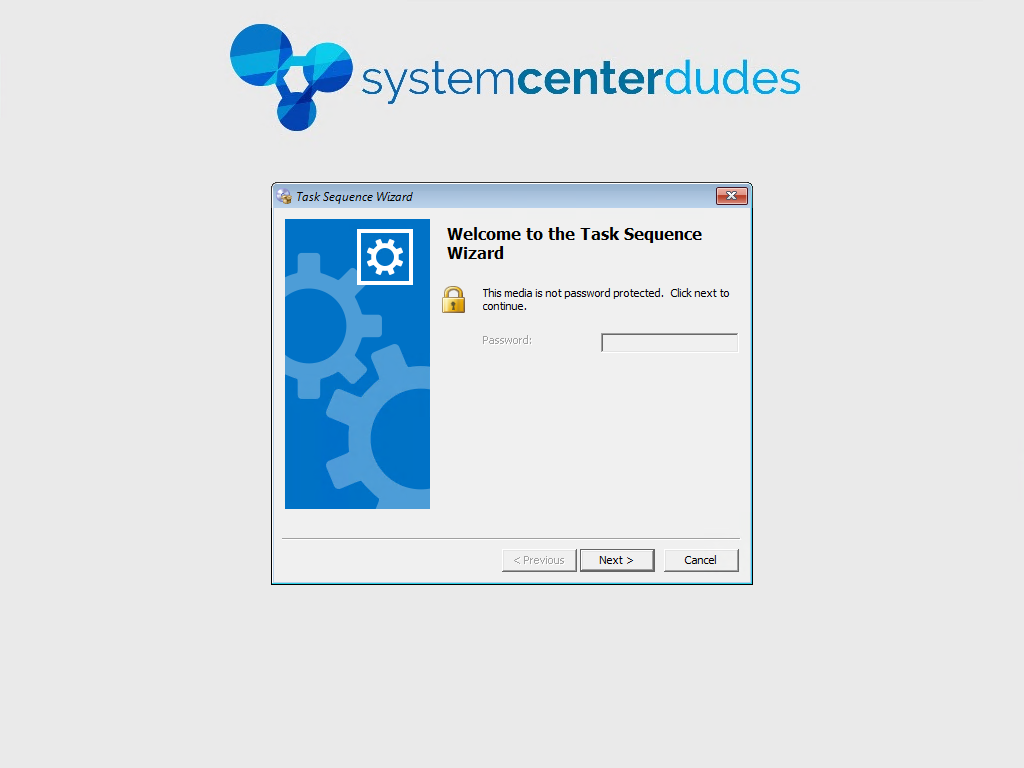
- The Welcome to the Task Sequence Wizard pops-up. This is because of the Available purpose in the Deployment Settings. If we had a Required deployment, the task sequence would start right away. Click Next
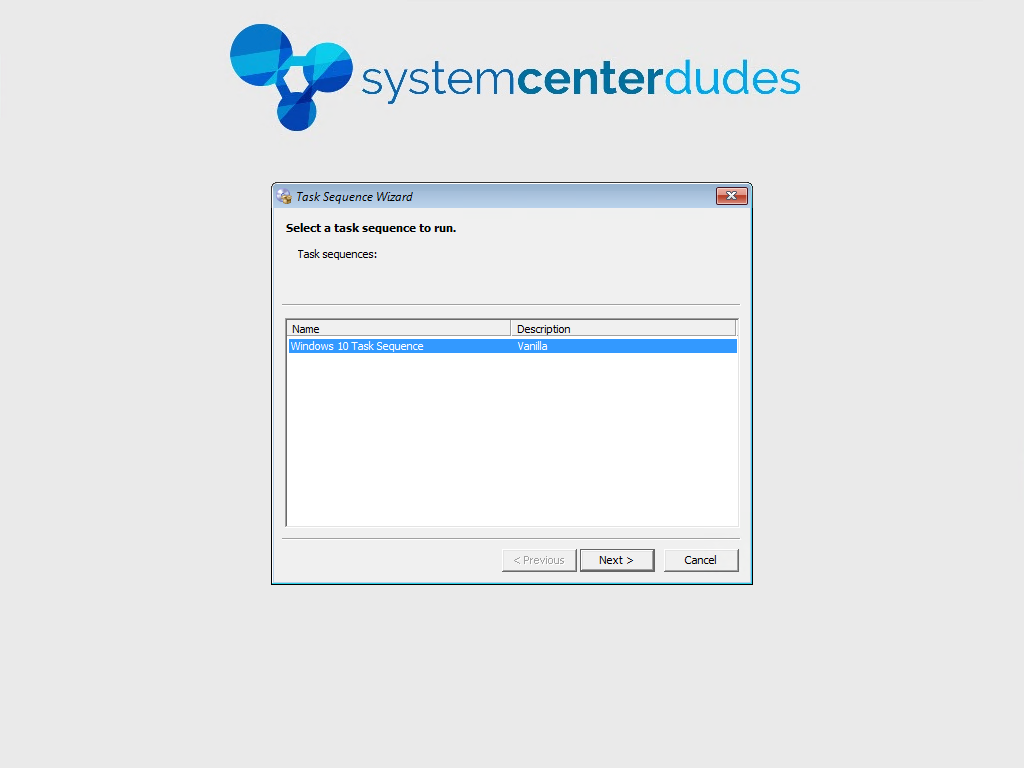
- All the available task sequence are listed. In our example we have only 1 deployment on our collection so only 1 task sequence is available. Select the task sequence and click Next
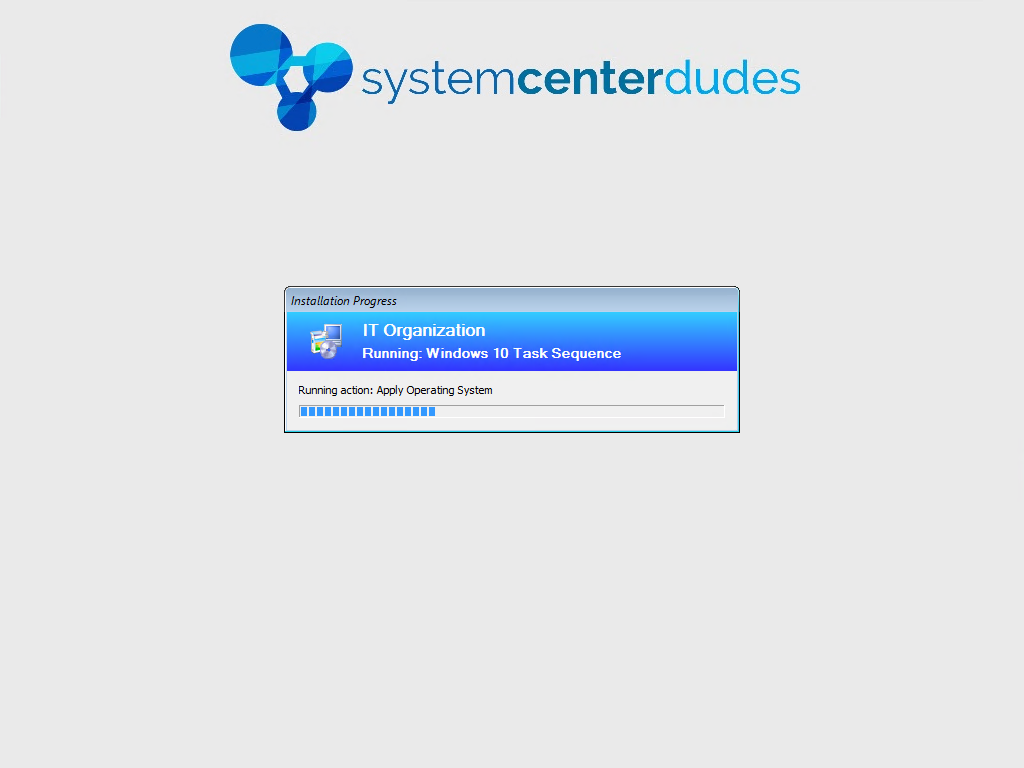
Monitoring
See our blog post on this topic which covers the various ways to monitor your Task Sequence progress.




Thank for your reply!