Today, Microsoft has release the SCCM Cmdlet Library. The SCCM product group is taking a new update direction: from now on, the future Cumulative Updates (CU) releases won’t contain any PowerShell changes. The SCCM Cmdlet Library will be the vehicle for any future cmdlet updates. This separation means no more breaking cmdlets when updating to a new CU and more frequent cmdlets fixes/releases from Microsoft. Better of both world !
What’s even better is that it checks and notifies you automatically for library updates on a daily basis.
Requirements
Read the release notes carefully as it describes known issues, breaking changes, and other important details about this initial release.
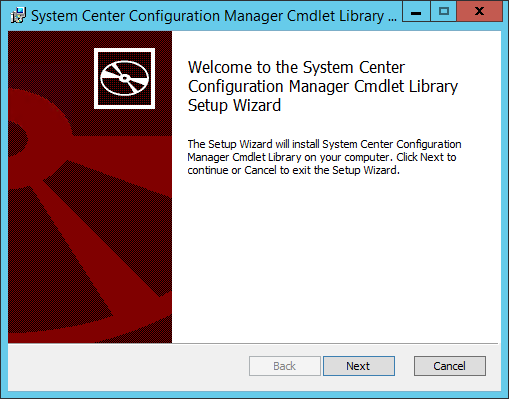
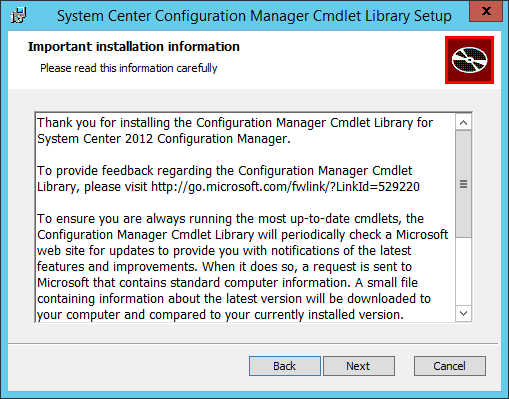
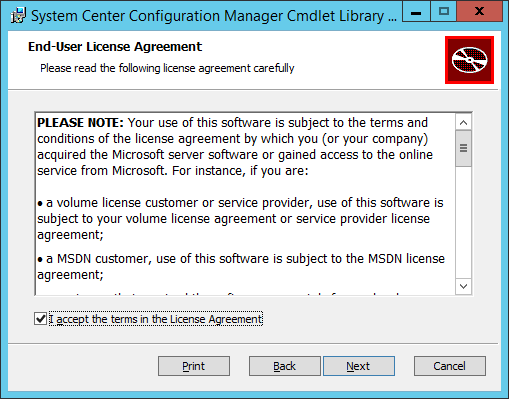
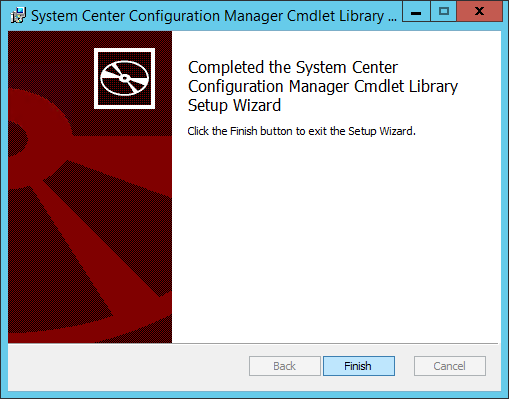
How to install SCCM Cmdlet Library
The SCCM Cmdlet Library must be installed on each workstation computers that runs the SCCM Console and needs PowerShell access.
Configuration
The library includes cmdlets to enable the update notification functionality :
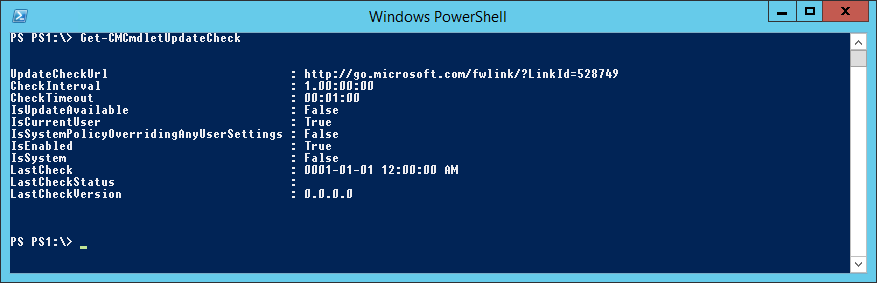
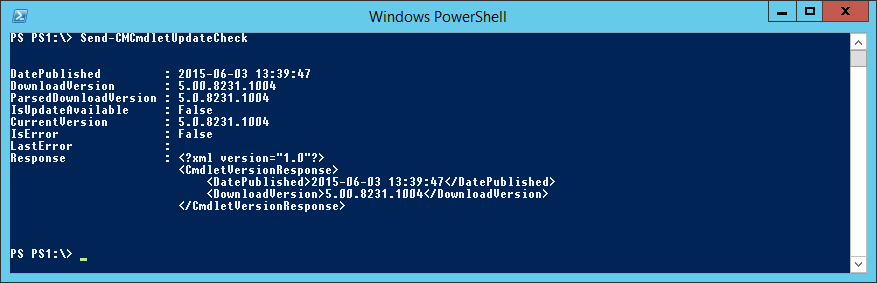

You can also configure the update feature using Group Policy :
Your site is now ready for the new update model.
The full documentation from Microsoft can be found here.
This post will be updated with screenshots when my site will detect a new version of the library. Stay Tuned !

Please fill out the form, and one of our representatives will contact you in Less Than 24 Hours. We are open from Monday to Friday.

Thank you for subscribing to our newsletter or requesting a quote. You will receive our next month's newsletter. If you have requested a quote, we will get in touch with you as soon as possible.

Something went wrong!


Thank for your reply!