How to install a Certificate Registration Point in SCCM 2012
Download and own this SCCM Installation Guide in a single PDF file.
The PDF file is a 162 pages document that contains all informations to install and configure SCCM Current Branch. Use our products page or use the button below to download it . Download |
In this part of SCCM 2012 and SCCM 1511 blog series, we will describe how to install SCCM 2012 R2 or SCCM 1511 Certificate Registration Point (CRP).
Role Description
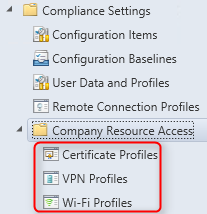
Using SCCM and Intune, the CRP communicates with a server that runs the Network Device Enrollment Service (NDES) to provision device certificate requests.
This is not a mandatory Site System but we recommend to install a CRP if you need to provision client certificates to your devices (like VPN or WIFI).
Prerequisites
Before the CRP can be installed, dependencies outside SCCM is required. I won’t cover the prerequisite configuration in details as they are well documented on this Technet article and it goes beyond SCCM. Here’s an overview of what needs to be done :
- Install the NDES role on a Windows 2012 R2 Server
- Modify the security permissions for the certificate templates that the NDES is using
- Deploy a PKI certificate that supports client authentication
- Locate and export the Root CA certificate that the client authentication certificate chains to
- Increase the IIS default URL size limit
- Modify the request-filtering settings in IIS
On the machine that will receive the CRP role, install the following using Windows server role and features:
- IIS
- ASP .NET 3.5
- ASP .NET 4.5
- WCF HTTP Activation
If you are installing CRP on a remote machine from the site server, you will need to add the machine account of site server to the local administrators group on the CRP machine.
Site System Role Placement in Hierarchy
The Certificate Registration Point must not be installed on the same server that runs the Network Device Enrollment Service. It’s supported to install this role on a Central Administration Site, child Primary Site or stand-alone Primary Site but it’s not supported on a Secondary Site.
CRP Installation
- Open the SCCM console
- Navigate to Administration / Site Configuration / Servers and Site System Roles
- Right click your Site System and click Add Site System Roles
- On the General tab, click Next
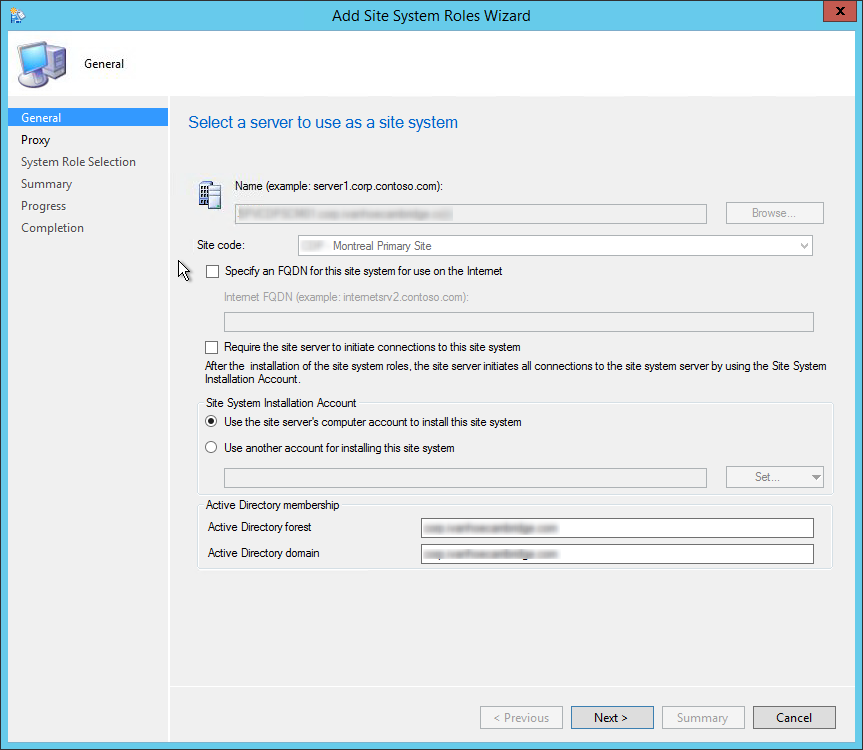
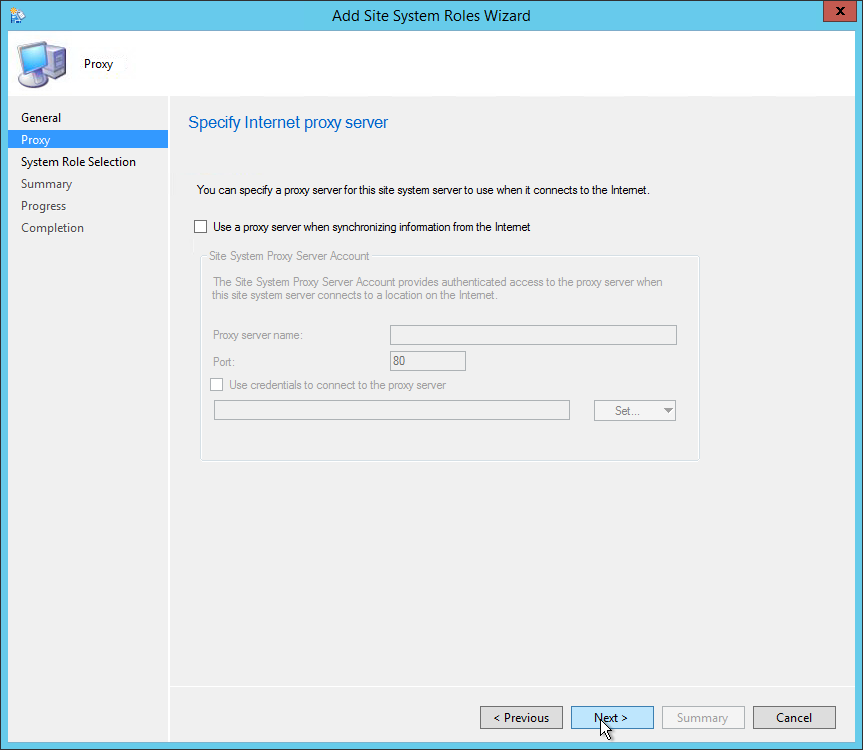
- On the Proxy tab, click Next
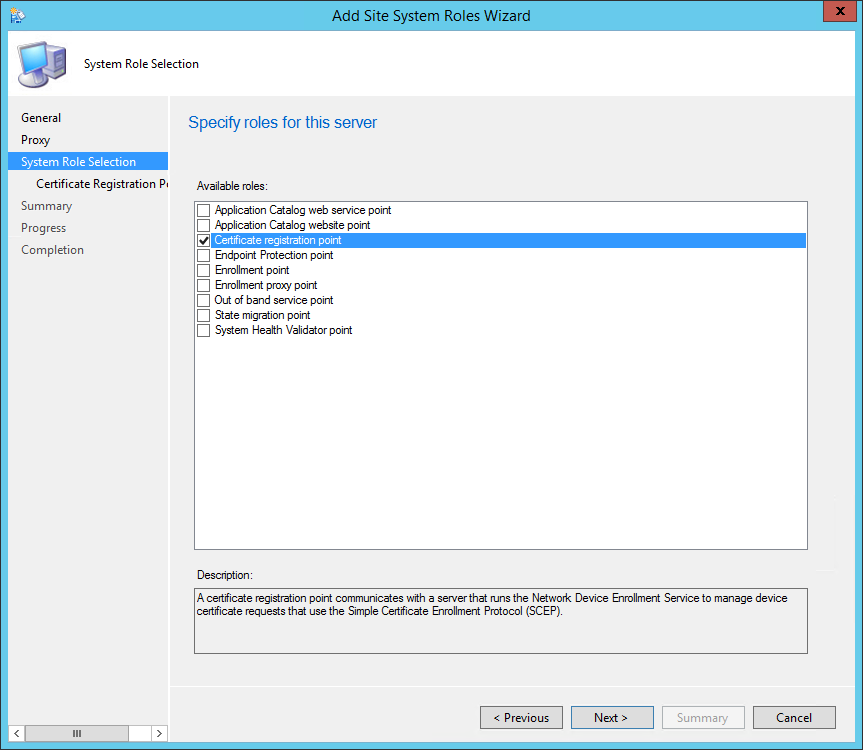
- On the Site System Role tab, select Certificate Registration Point, click Next
- On the Certificate Registration Point Properties, leave the default website name and virtual application name. Take note of your Virtual Application Name, you will need it later.
- Click on Add
- Enter the URL of your NDES server
- This URL will be part of the profile send to the devices. The device will needs to access this URL from the internet
- Exemple : https://ndes.systemcenterdudes.com/certsrv/mscep/mscep.dll
- Enter the path to your exported Root CA Certificate (.cer file)
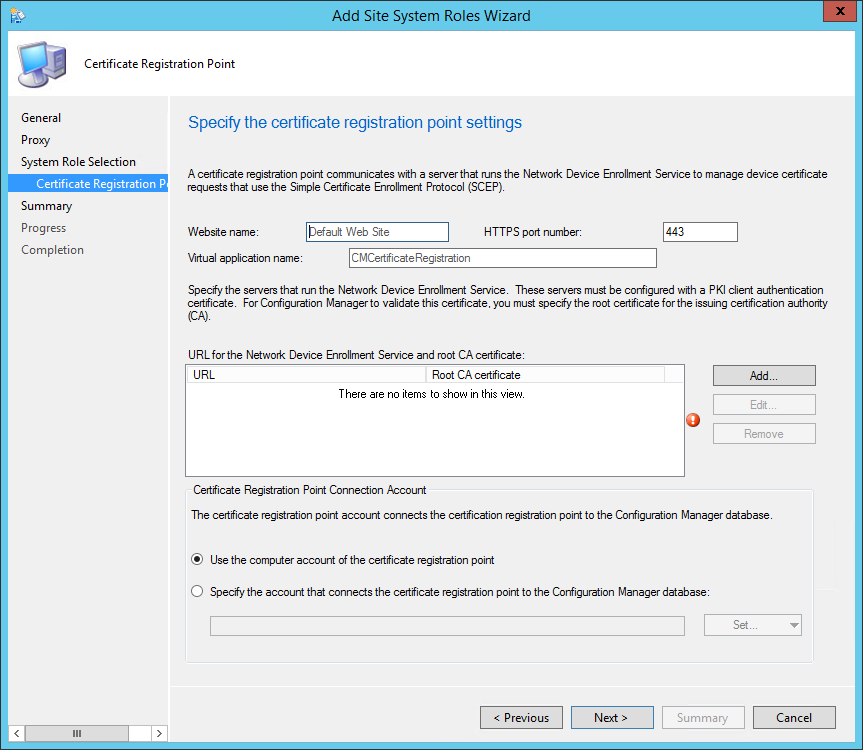
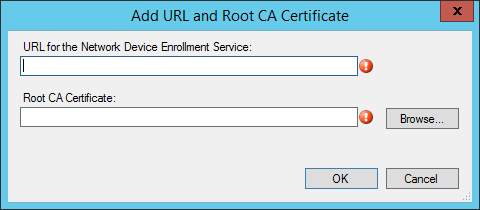
- Once completed, click on Next, review the Summary and close the wizard
Verification and Logs files
- ConfigMgrInstallationPath\Logs\crpmsi.log – Detailed CRP Installation status
- Using a browser, verify that you can connect to the URL of the certificate registration point—for example, https://crp.systemcenterdudes.com/CMCertificateRegistration
- HTTP Error 403 is ok. If you have a 404 error or 500 error, look at the logs file before continuing
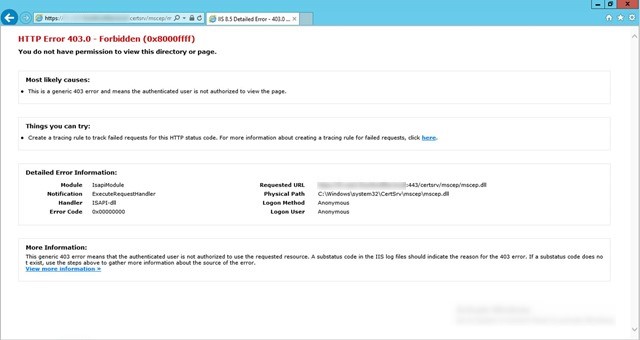
- After the CRP is installed, the system will export the certificate that will be used for NDES plugin to the certmgr.box folder. It may take up to 1 hour to appear.

- Save this .cer file on the NDES server as we will need it in the next section.
Configuration Manager Policy Module
Now that the Certificate Registration Point has been installed, we must install a plug-in on the NDES server to establish the connection with SCCM.
On the server that runs the Network Device Enrollment Service :
- Copy the \SMSSETUP\POLICYMODULE\X64 folder from the the Configuration Manager installation media to a temporary folder
- From the temporary folder, run PolicyModuleSetup.exe
- Click Next, accept the license terms and click Next
- On the Installation Folder page, accept the default installation folder click Next
- On the Certificate Registration Point page, specify the URL of the Certificate Registration Point. This is the Virtual Application Name created during the SCCM role installation (Example : https://crp.systemcenterdudes.com/CMCertificateRegistration)
- Accept the default port of 443, click Next
- On the Client Certificate for the Policy Module page, browse to and specify the client authentication certificate. This is the same certificate you used in the CRP Installation wizard in SCCM
- On the Certificate Registration Point Certificate page, click Browse to select the exported certificate file (the one exported from \inboxes\certmgr.box)
- Click Next and complete the wizard
- Open the registry editor and browse to HKLM\SOFTWARE\Microsoft\Cryptography\MSCEP
- Make sure that the values of EncryptionTemplate, GeneralPurposeTemplate and SignatureTemplate match the names of the template on your CA
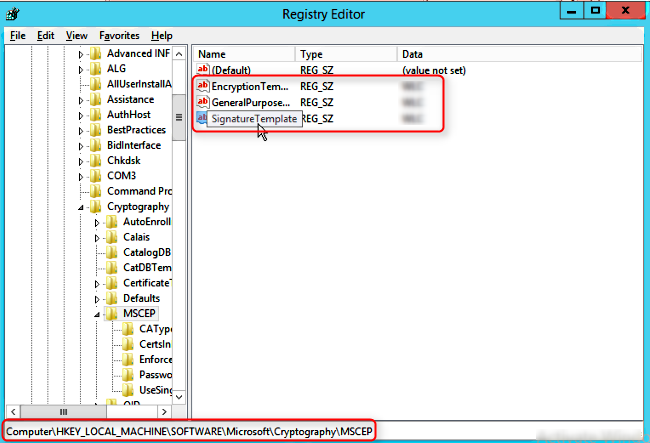
Once all the above has been configured and verified, you are ready to create your certificate profile in SCCM.
References
Here’s my favorites articles covering the subject :
sccm 2012 certificate registration point





Thank for your reply!