 |
|---|
In this post, we’ll guide you through the process of Setup Microsoft Intune Tenant and show you some of the basic steps you can do right from the start. Microsoft Intune is a cloud-based service that helps you manage your devices and apps. Many of our readers have been managing SCCM (Configuration Manager) for many years and are now pushed toward Microsoft Intune for the future of their device Management.
Let’s make a clear statement, as of today, Microsoft Intune is not doing everything as SCCM does. Microsoft Intune has still its flaws and drawbacks but it’s the path where Microsoft wants you to go in the upcoming years.
If you currently use SCCM, and want to use Microsoft Intune, you have the following options :
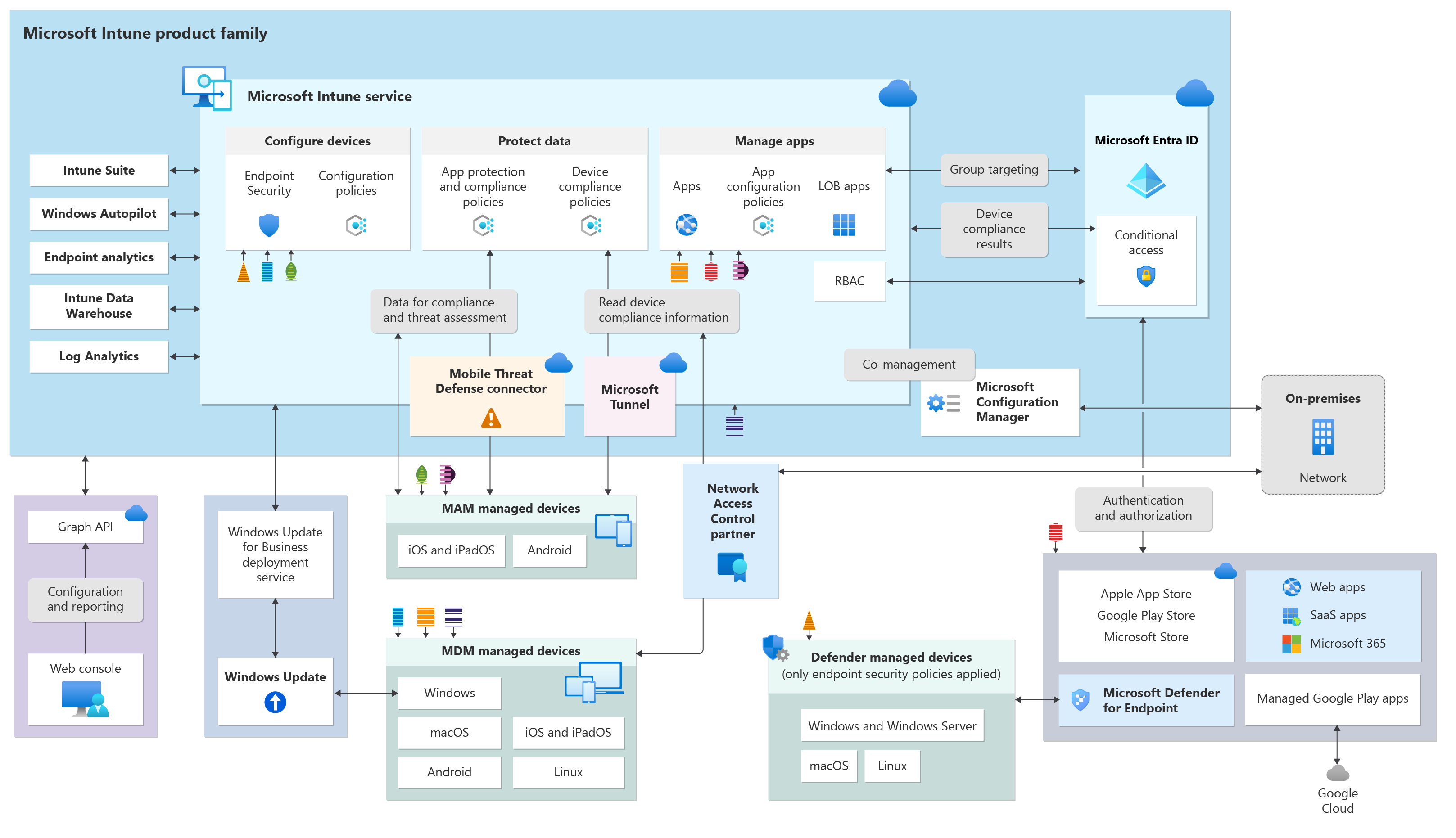
But first, let’s look at the architecture options for integrating Microsoft Intune in your Azure environment with Microsoft Entra ID. You can see SCCM in the right lower part of the blue section.
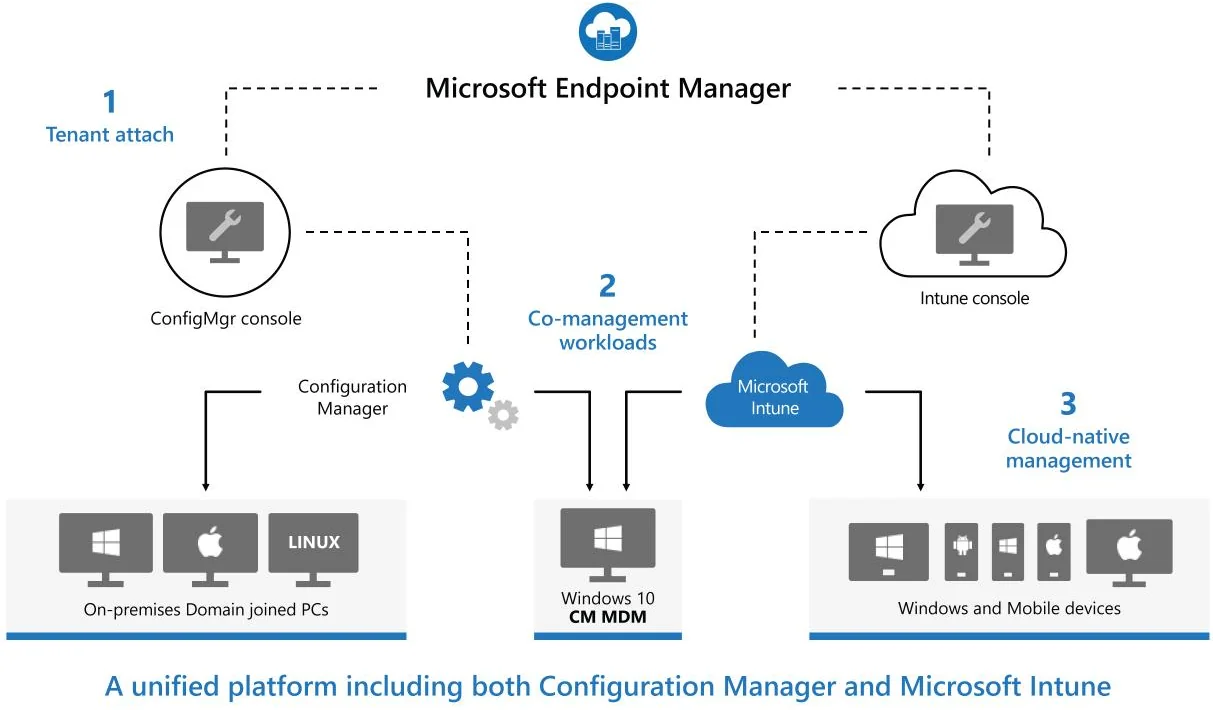
If you’re wondering if you can use Intune with your current licensing, Microsoft Intune licensing moves a lot, so the best bet is to look at Microsoft Licensing page and Microsoft Intune Plans and Pricing.
So now that you’re familiar with the concept, you’re ready to manage some devices in Microsoft Intune.
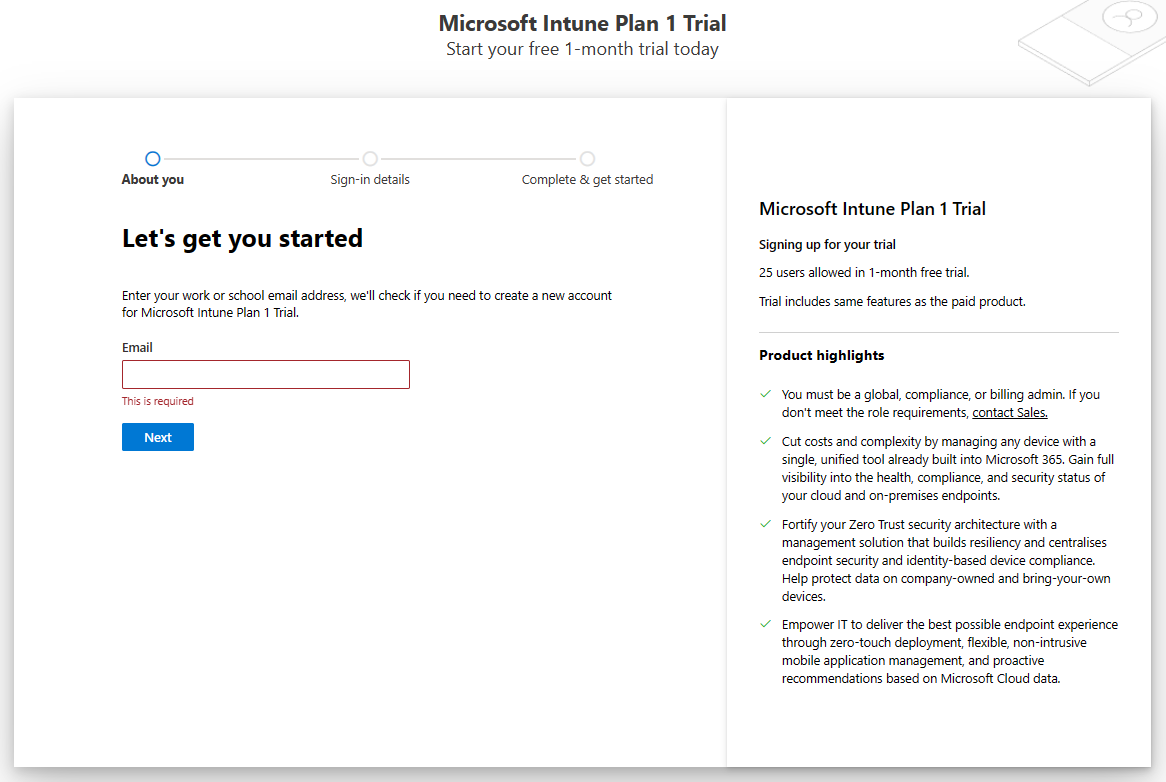
The first step before going into the Endpoint Manager Portal is to setup Microsoft Intune Tenant. If you don’t have an Intune portal yet, you can sign in for a 30-day trial.
If you already have a Microsoft work or school account, sign in with that account and add Intune to your subscription. If not, you can sign up for a new account to use Intune for your organization.
When you setup Microsoft Intune, Microsoft gives you an initial domain name that looks like xyz.onmicrosoft.com. You can configure your company custom domain in Intune (systemcenterdudes.com)
If you are trying Microsoft Intune using the free trial, you can skip this step.
If you’re already using an Office 365 subscription, your domain may already be in Microsoft Entra ID. Intune uses the same Microsoft Entra ID, and can use your existing domain.
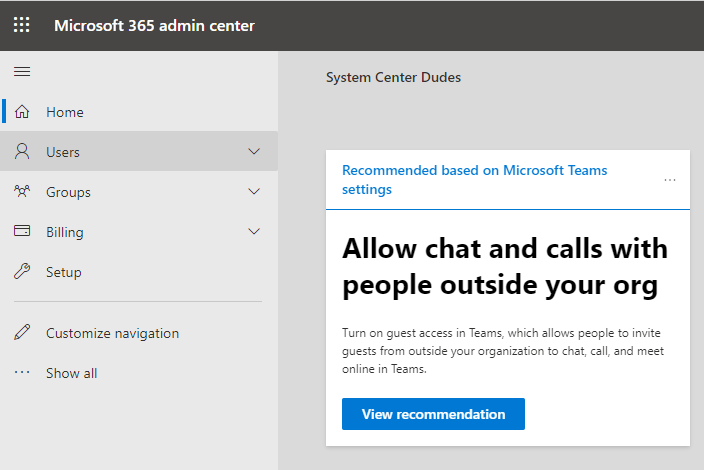
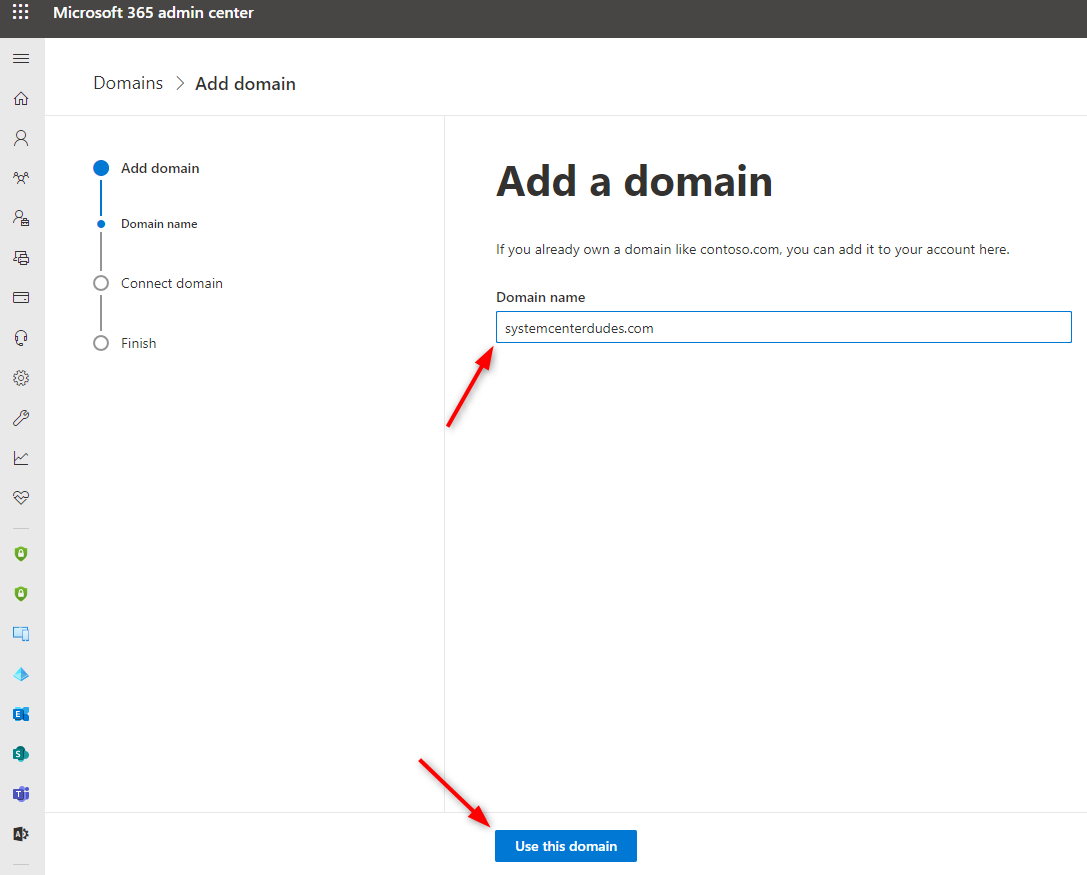
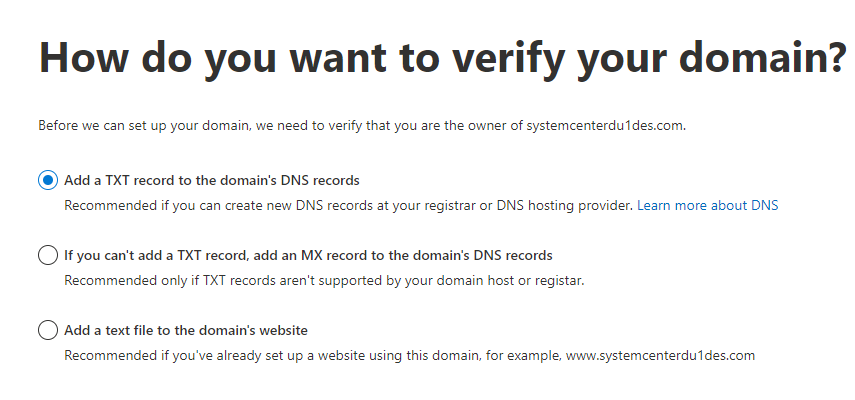
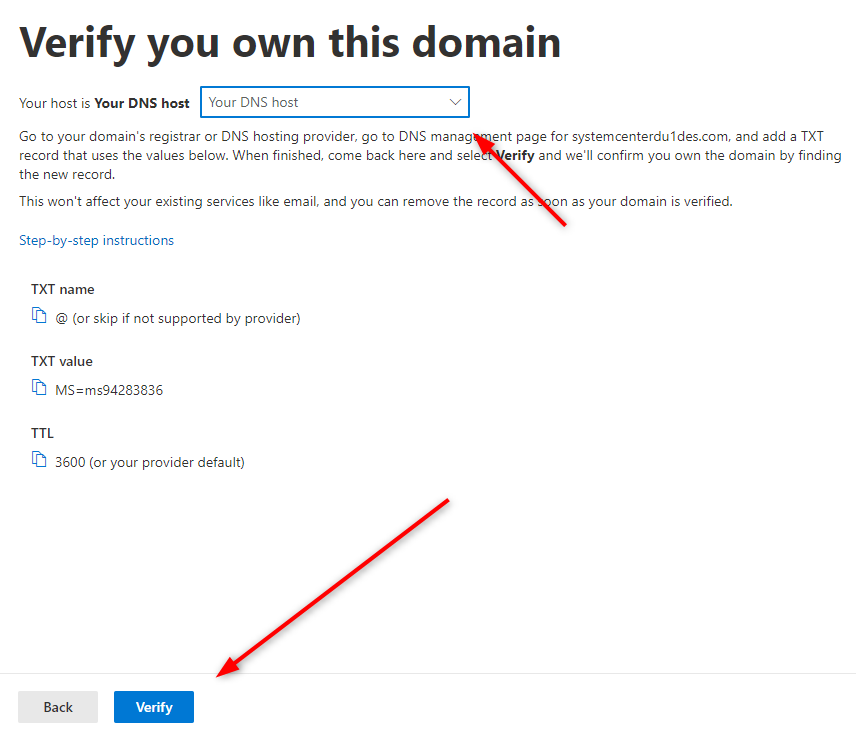
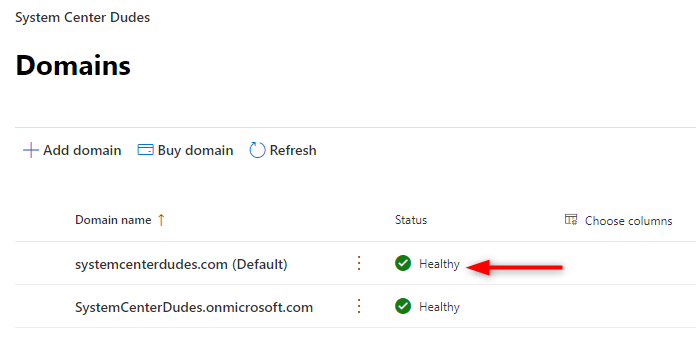
Once your initial Microsoft Intune setup is completed, you can close the Office portal and open the Endpoint Manager Admin Center.
The mobile device management (MDM) authority setting determines how you manage your devices. By default, the Intune free trial sets your MDM authority to Intune. As an IT admin, you must set an MDM authority before users can enroll devices for management. With the MDM authority set, you can start enrolling devices.
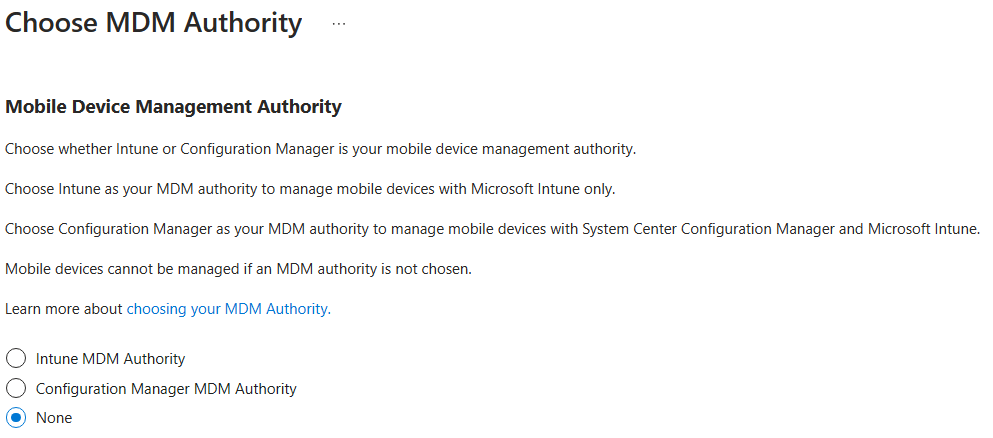
In our post, the MDM Authority will be set to Intune MDM Authority.
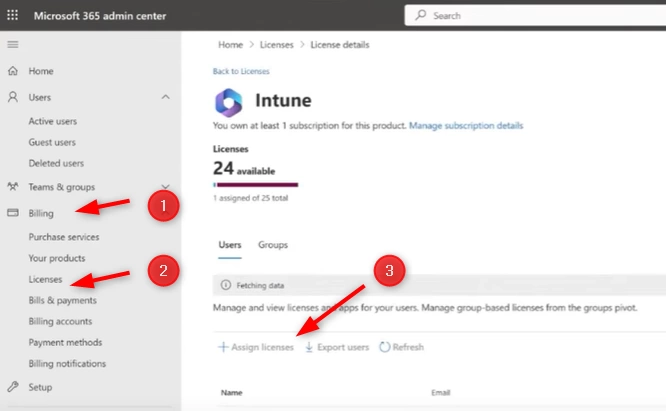
You can manually add users to Intune via Microsoft 365 admin center or Microsoft Intune admin center. You can also assign licenses in either of both portal.
Before enrolling devices, we need to create users. Users will use these credentials to connect to Intune.
If you’re using an Office 365 subscription, your users and groups are already in Microsoft Entra ID
For our test, we will create users manually in our Microsoft Intune Admin Center
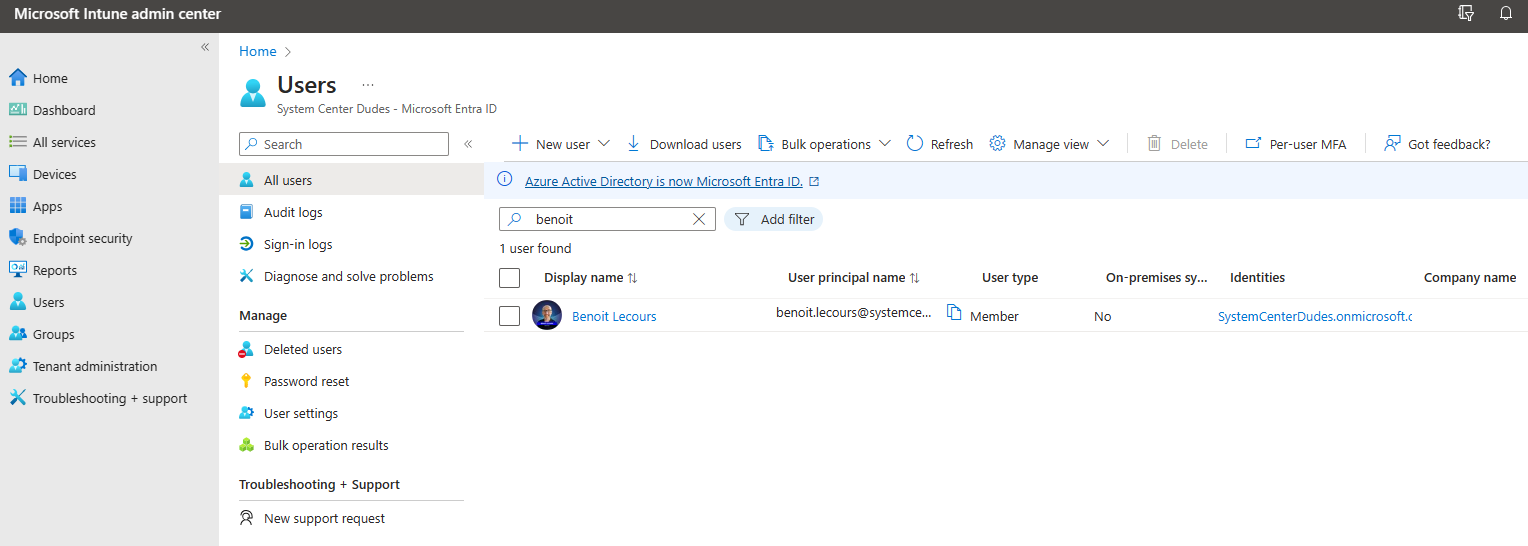
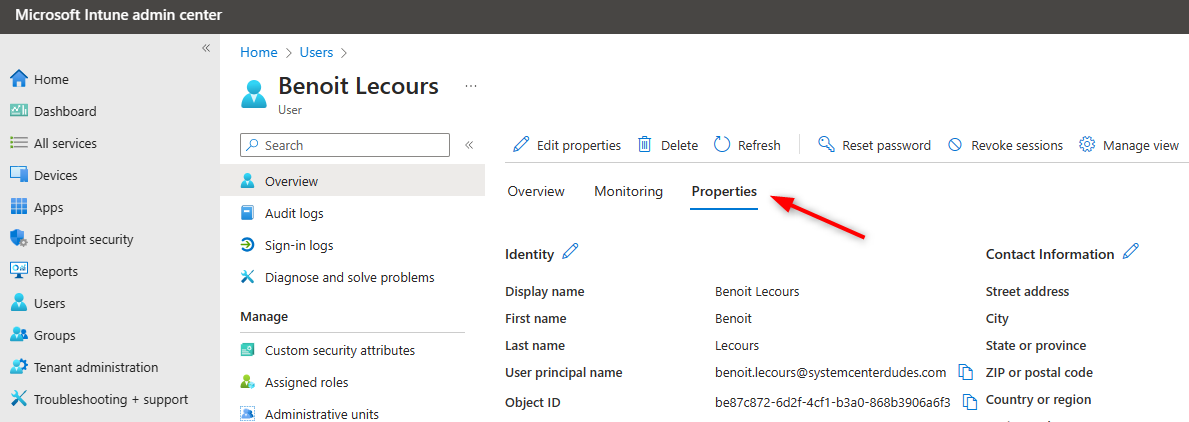
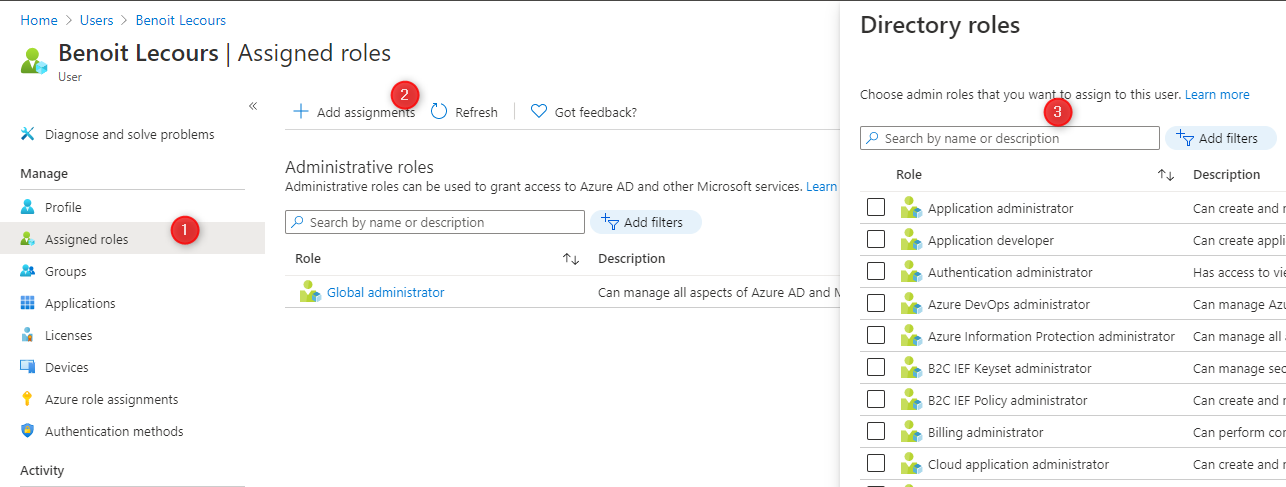
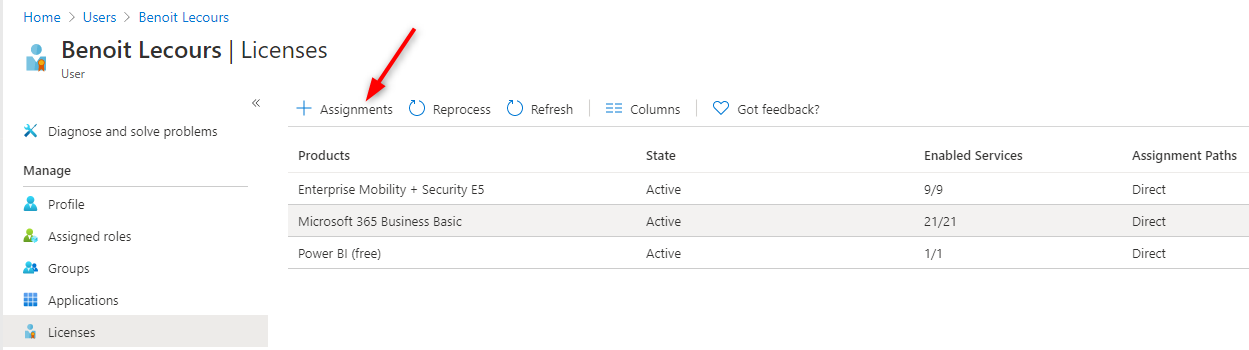
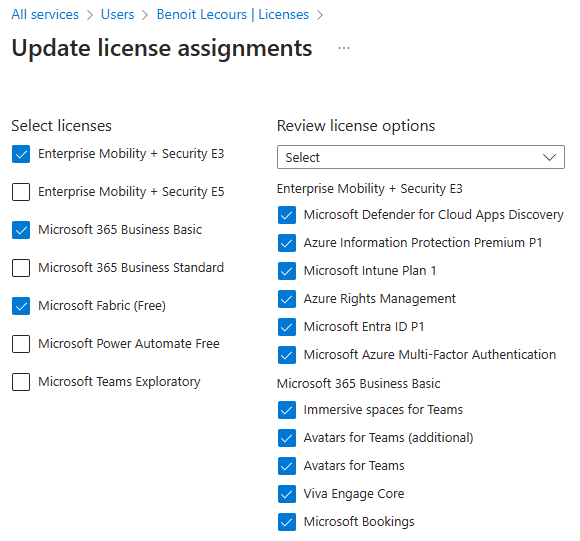
We now need to assign the user a license that includes Intune before enrollment. If you don’t assign an Intune license to your user, you won’t be able to enroll their devices.
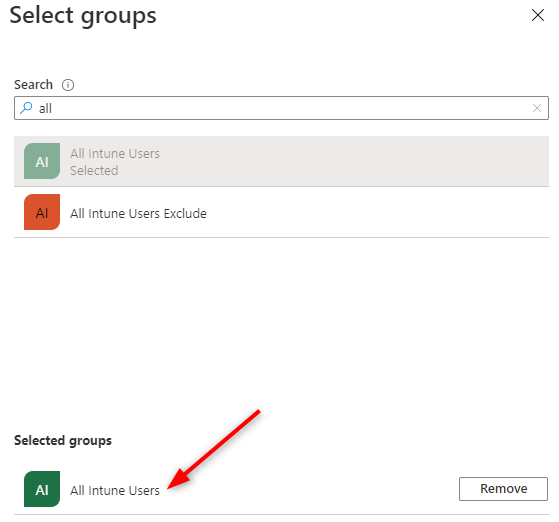
You can assign a license by users or you can use groups to assign your license more effectively. Repeat the step for all your users or groups.
The Intune company portal is for users to enroll devices and install apps. The portal will be on your user devices. You’ll want to customize it to increase your user trust before doing any actions in the portal.
So we’ll customize it to reflect our company branding.
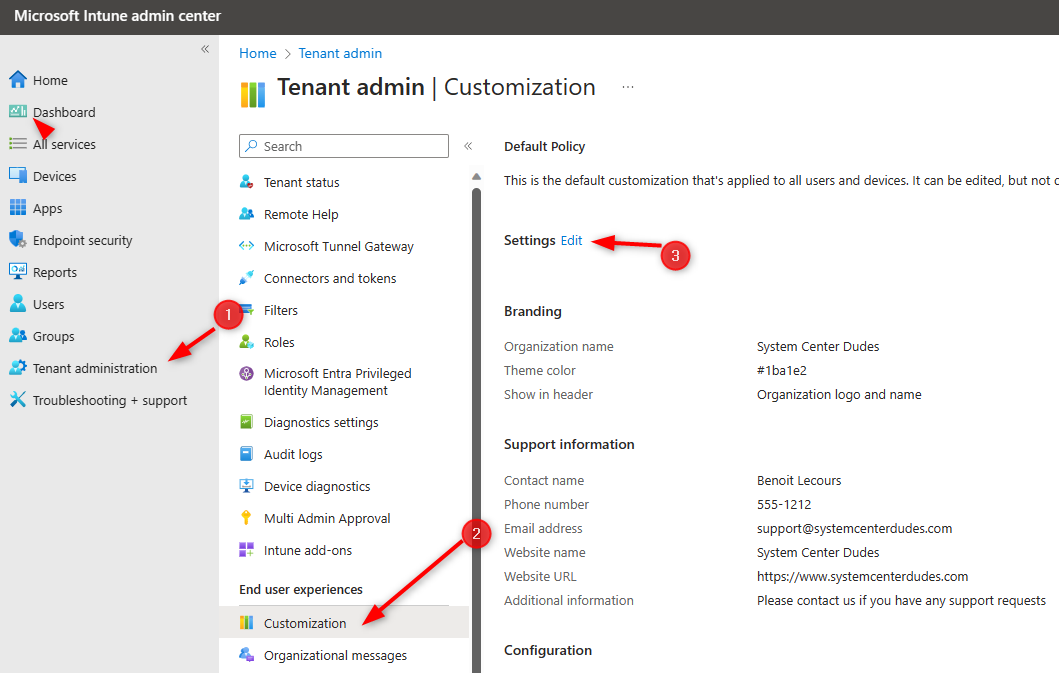
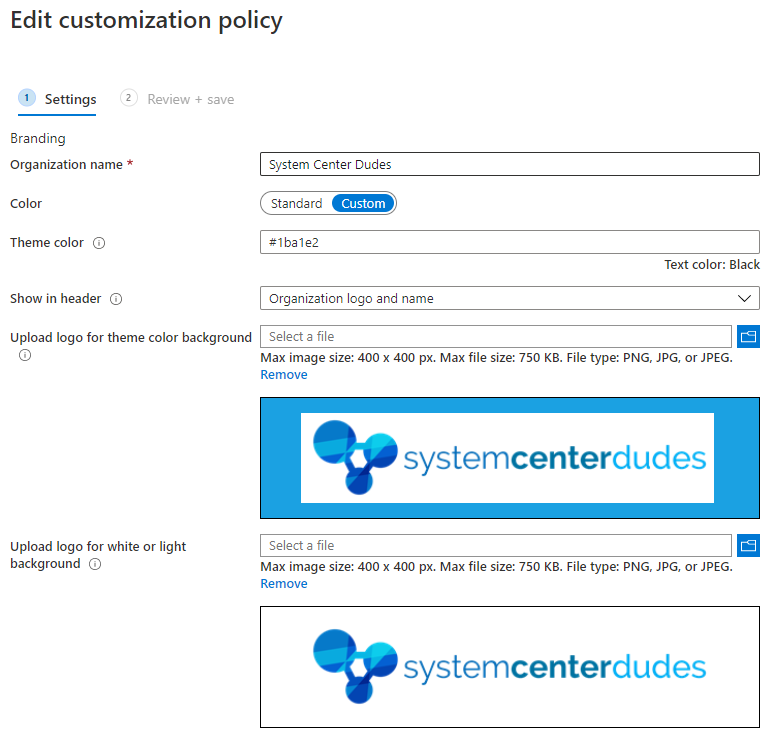
There’s plenty of other options to customize Microsoft Intune, go ahead and customize what you need. When completed, click the Review + Save button at the bottom
At that point, your Intune Tenant is ready to enroll devices. The next steps are optionnal but recommended.
Before enrolling a device using this user, it’s best practice to create a basic compliance policy.
In our example, we will create a basic security setting that will allow monitoring iOS device compliance. We will check Jailbroken devices, check for an OS version and require a password policy.
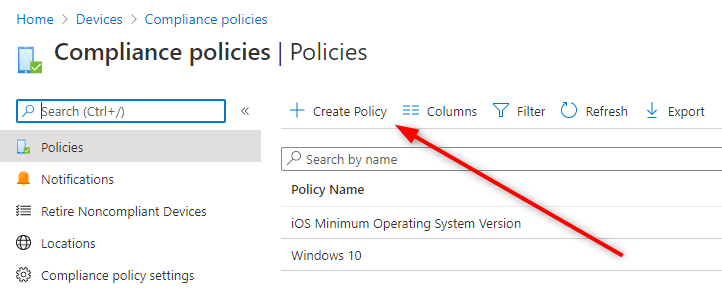
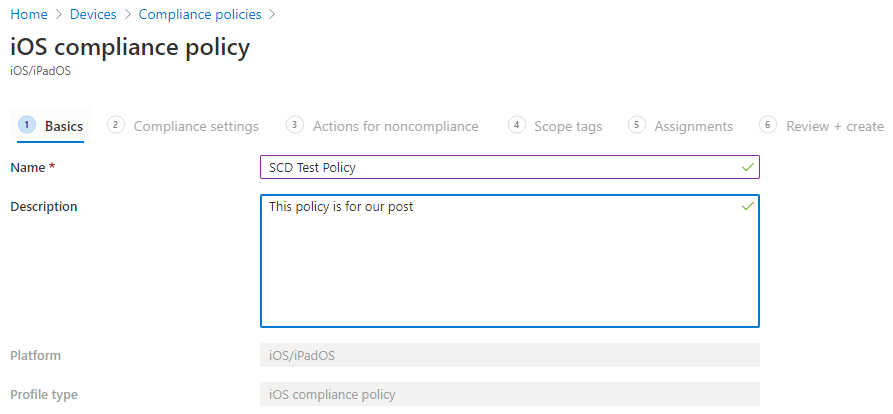
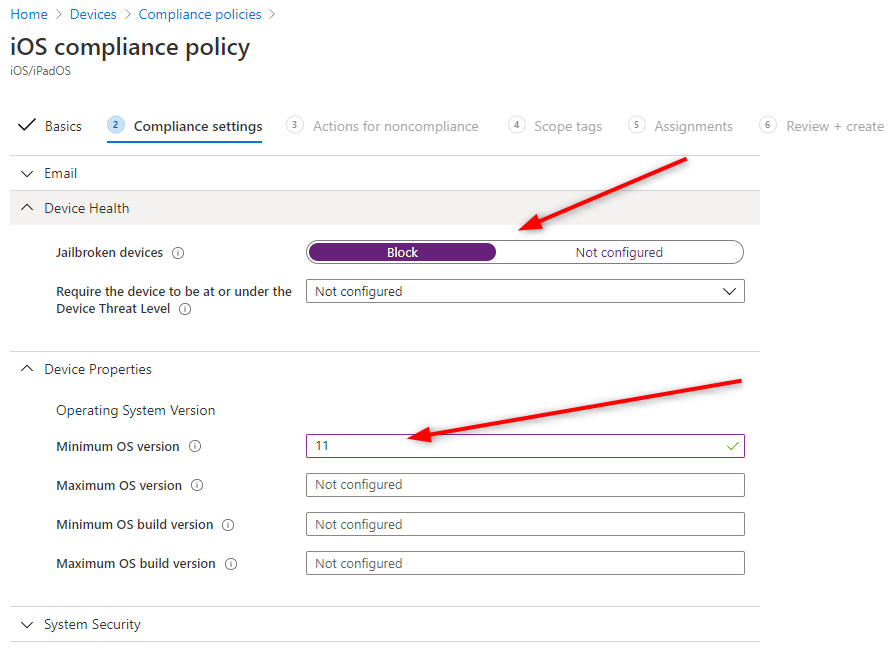
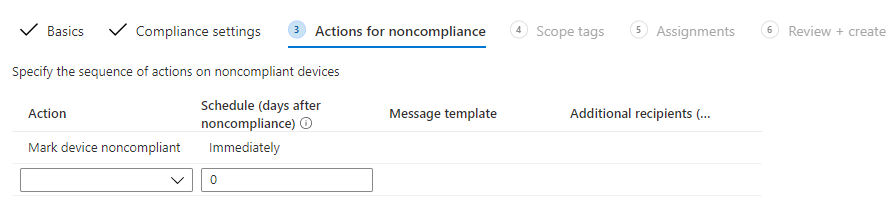
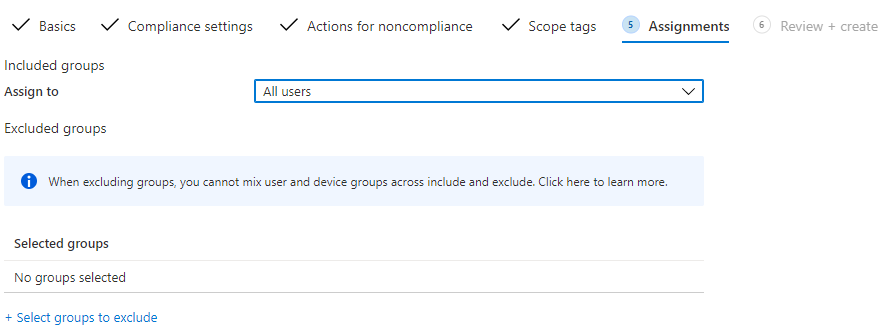
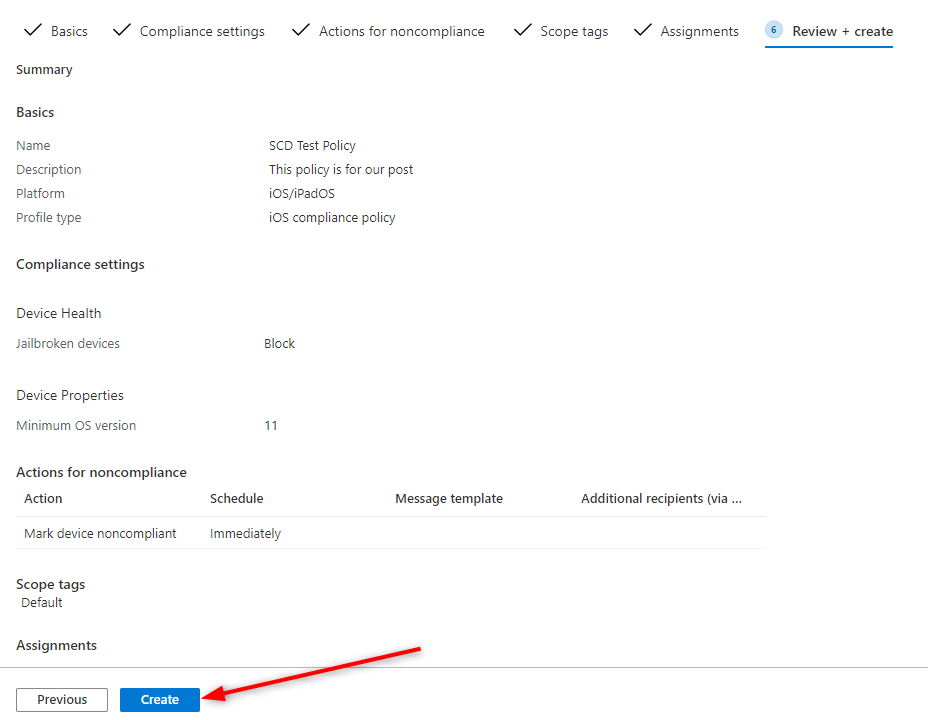
We are now ready to enroll devices into Microsoft Intune. With the various OS such as Windows, Android, and iOS and specific scenarios with BYOD and corporate device, there are so many ways to enroll devices.
We’ll cover various enrollment methods in separates posts. We already have a post on How to enroll iOS devices. To enroll Windows devices, we suggest the Intune Training video from our collegue Adam Gross on the topic which covers 5 common scenarios.
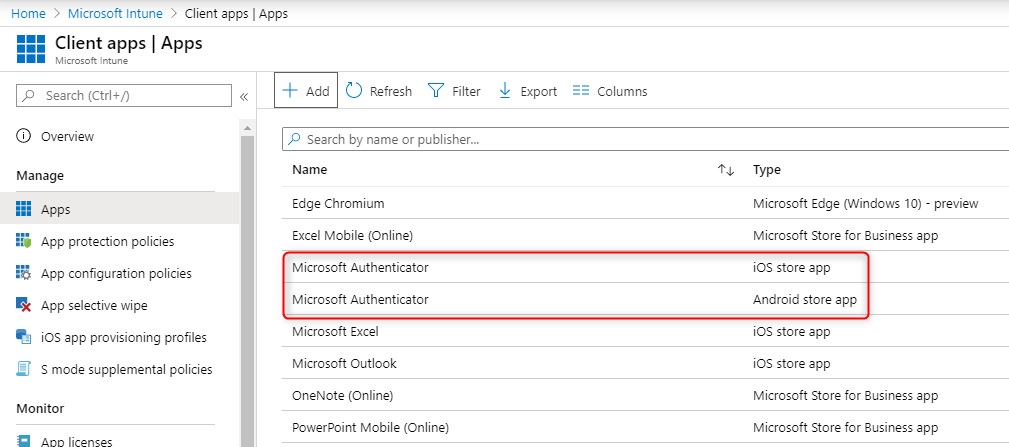
As an example, we will now add an application to the Intune Portal. We select Microsoft Authenticator app to show your the process. We will begin with the iOS version. This can be used for any other application if needed.
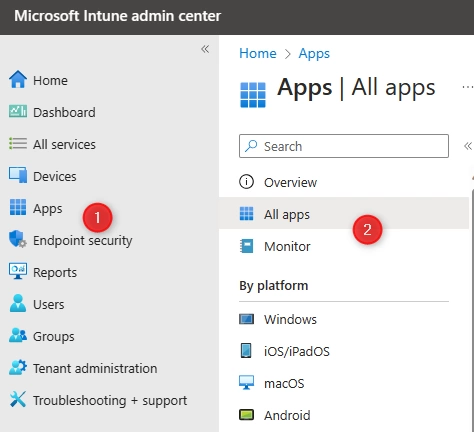
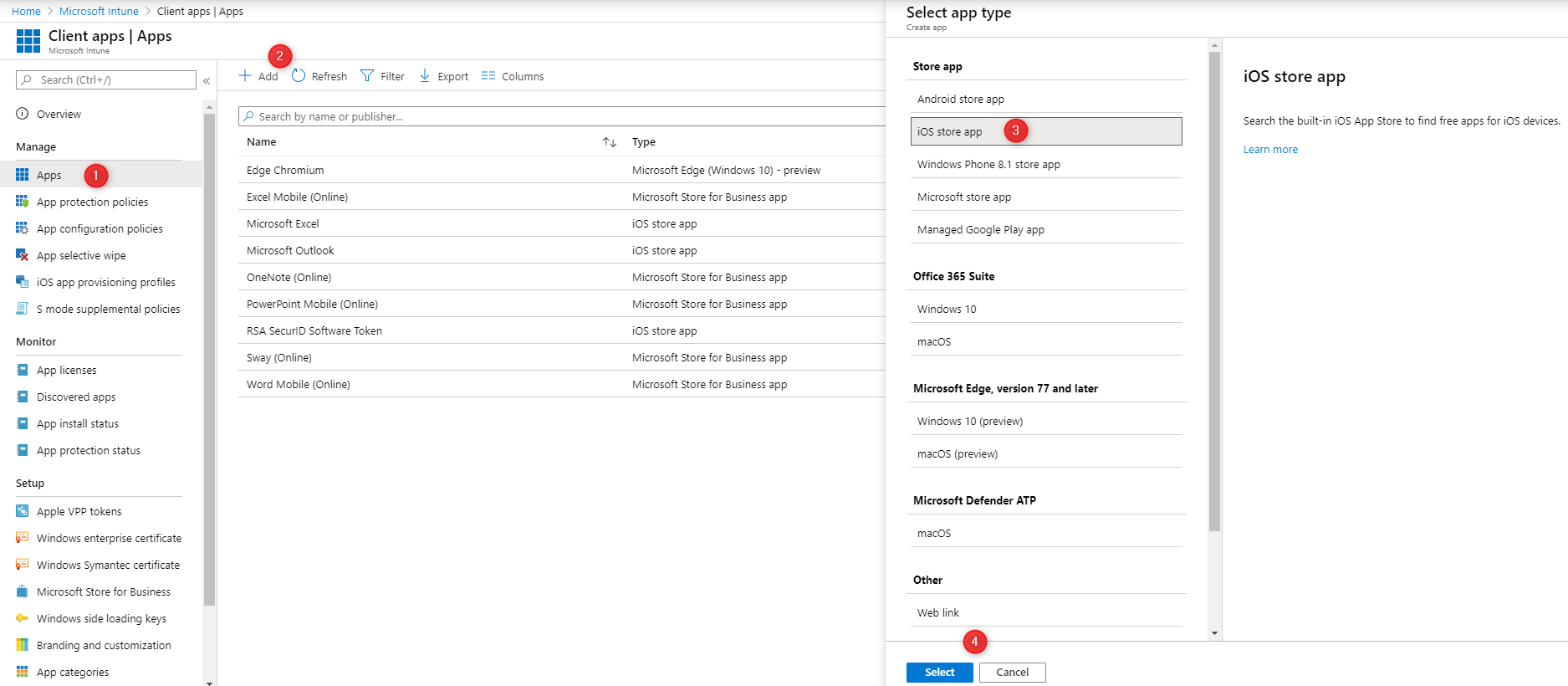
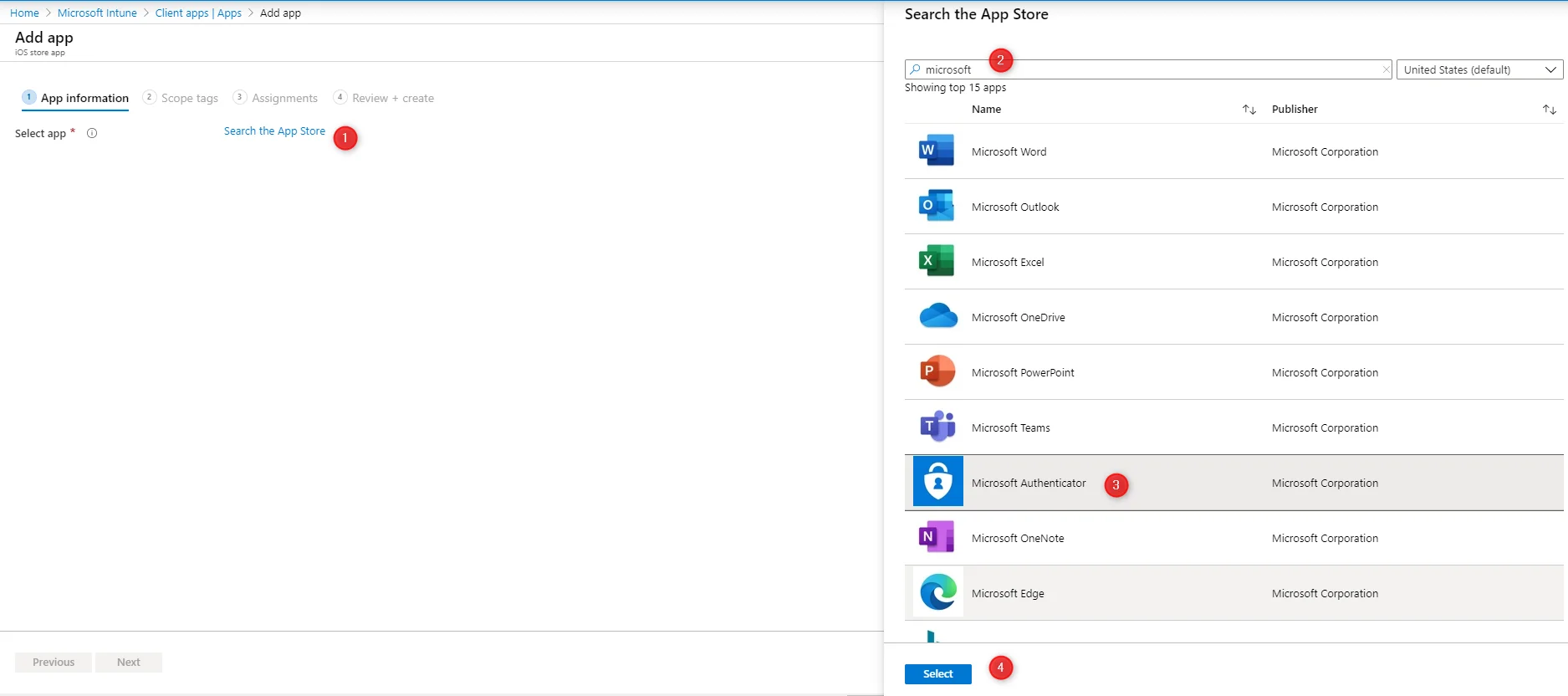
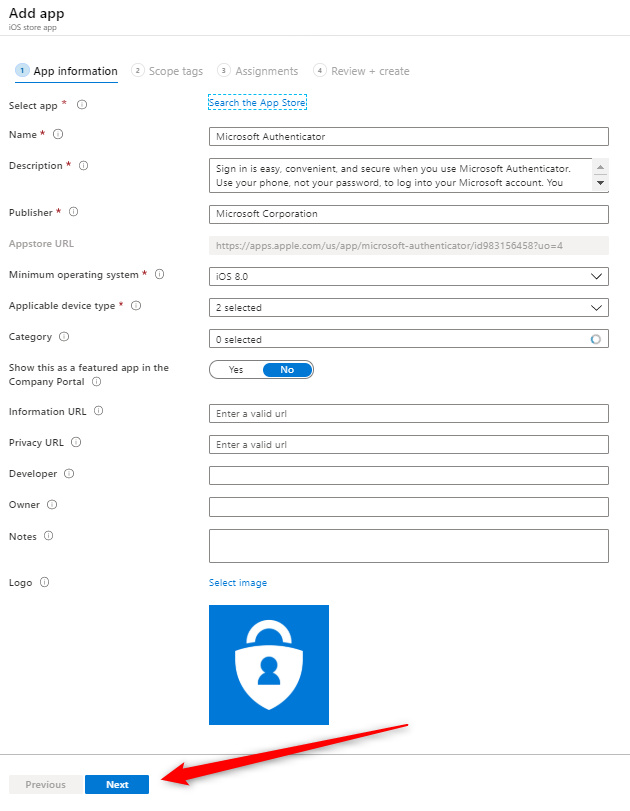
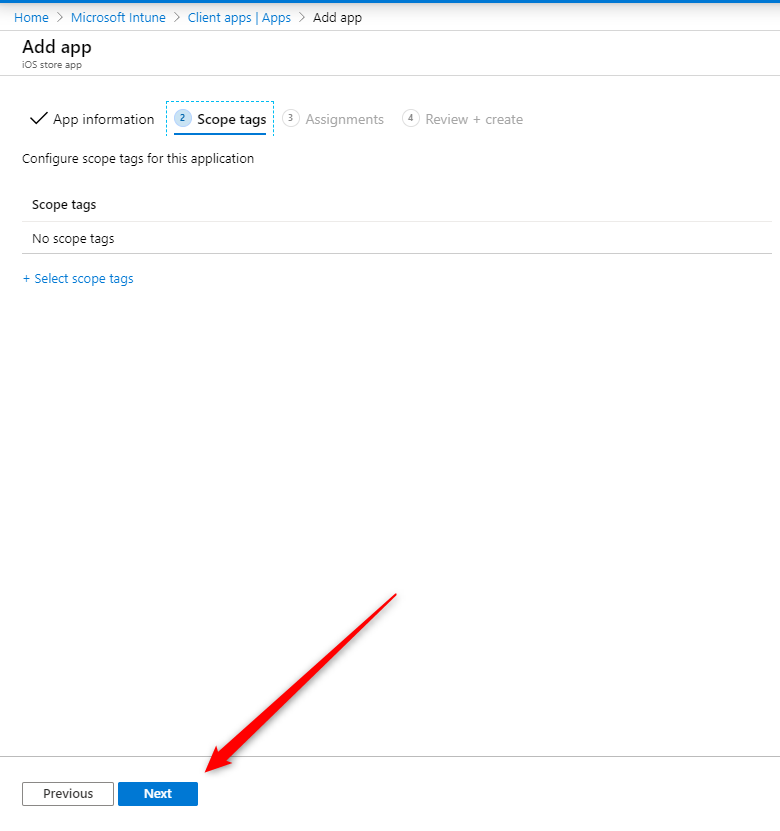
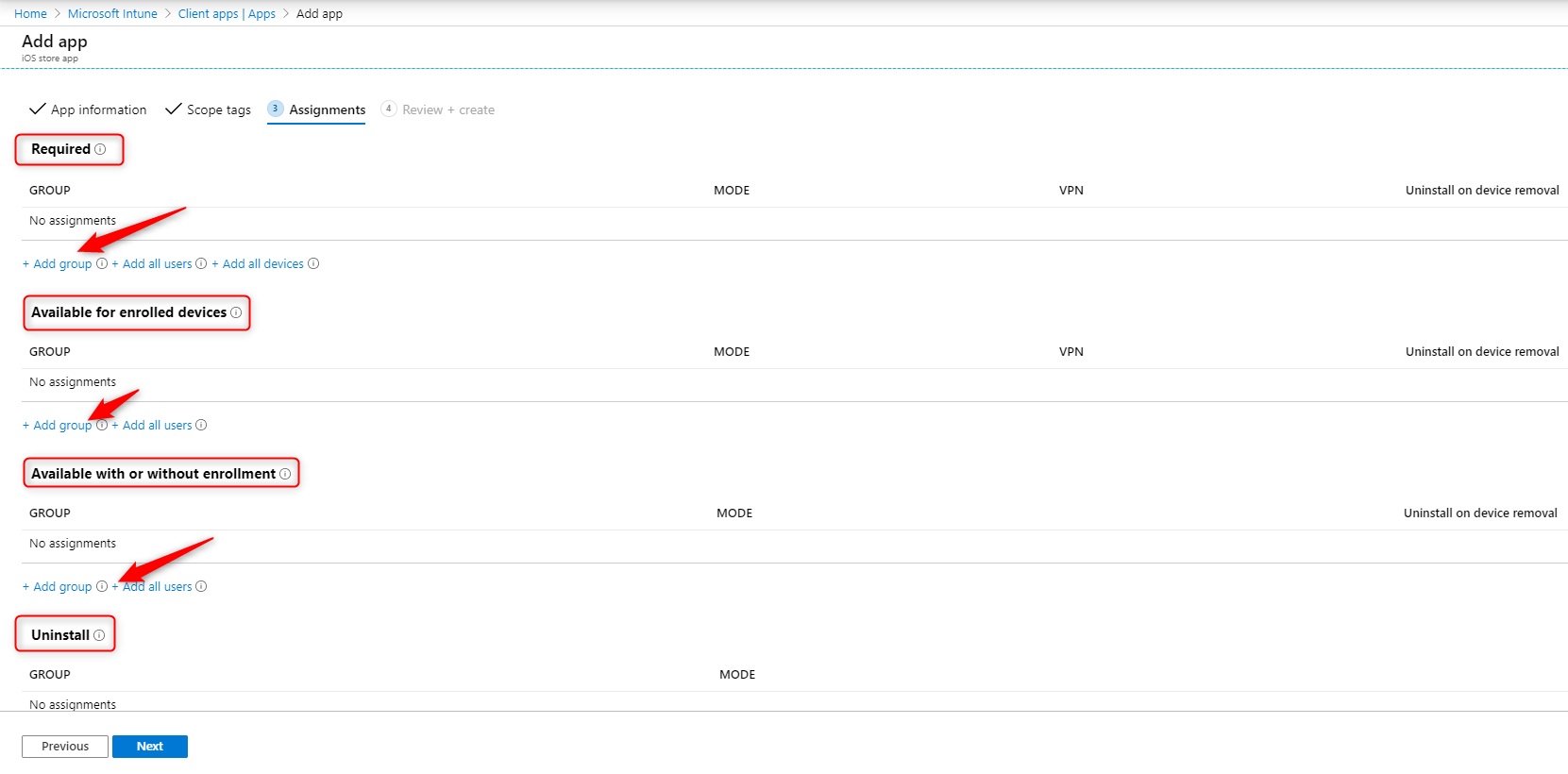
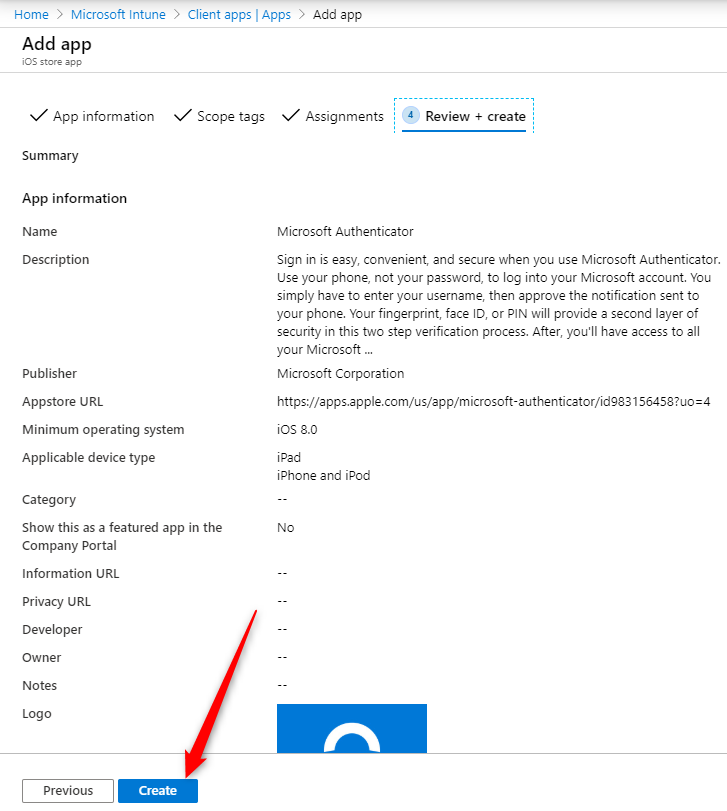
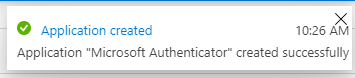
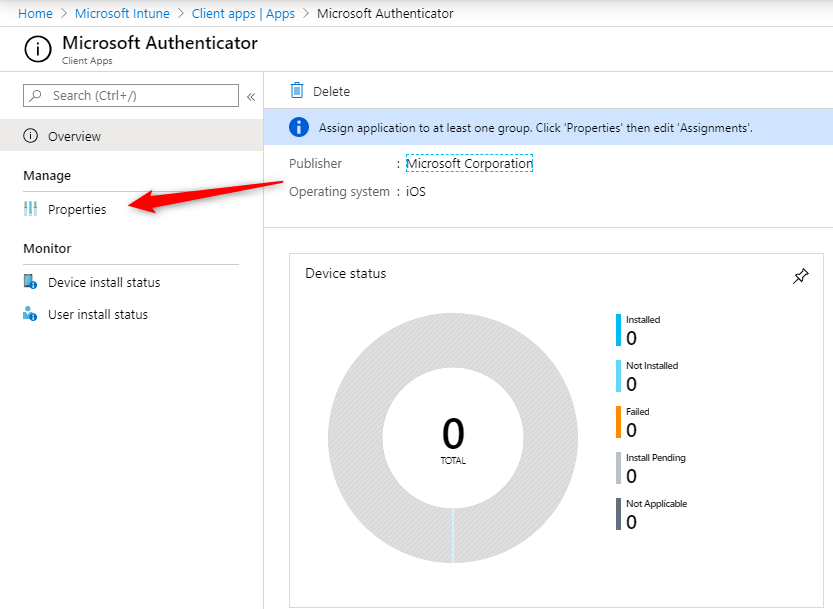
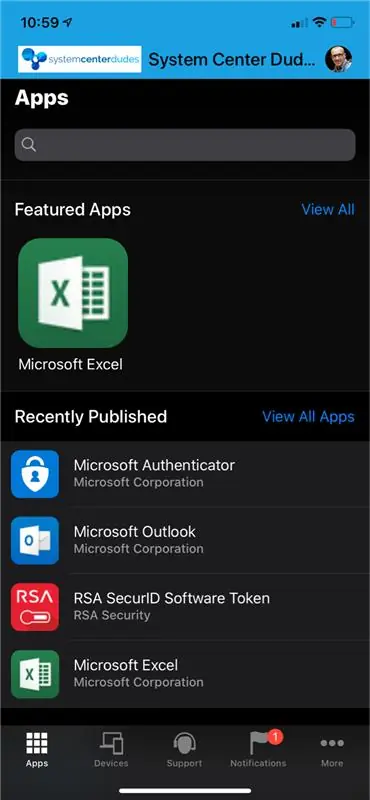
The Application has now been added to our Intune tenant and is ready to test on an iOS or Android device
Using Microsoft Intune, you can enable or disable different settings and features as you would do using Group Policy on your Windows computers. You can create various types of Intune configuration profiles. Some to configure devices, others to restrict features, and even some to configure your email or wifi settings.
For our post, let’s create a Wifi connection profile for our users so they get access to your Wi-Fi network without configuring it. This is just an example, you can create a configuration profile for many other different settings.
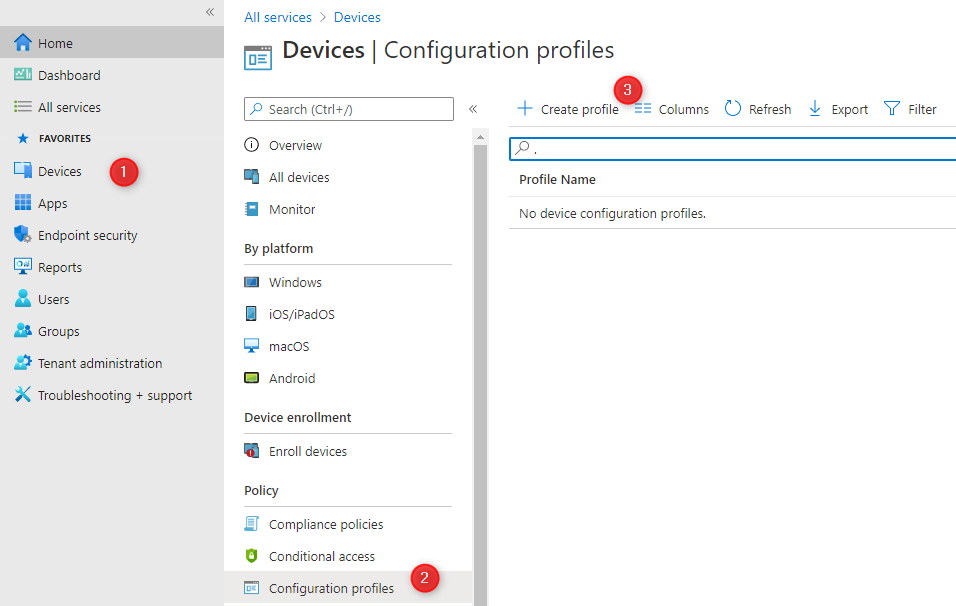
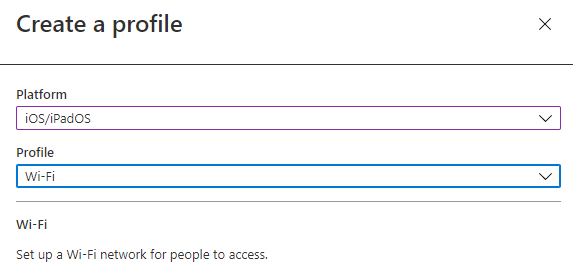
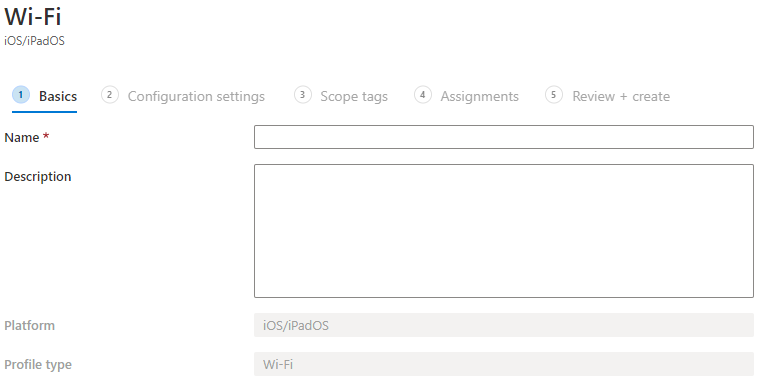
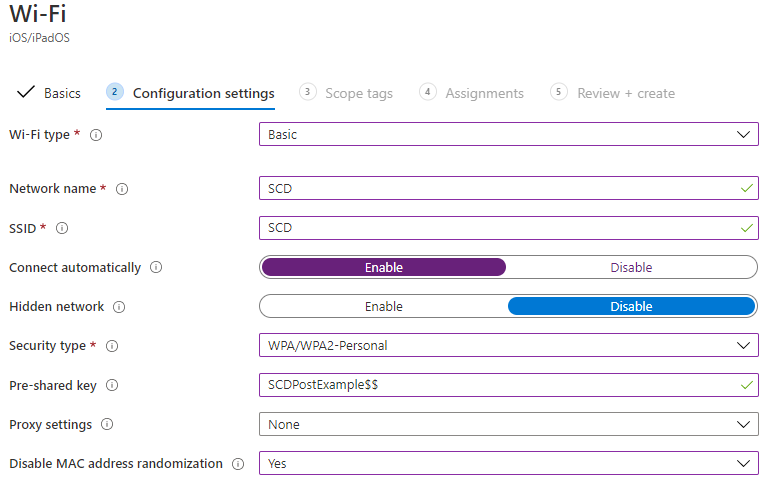
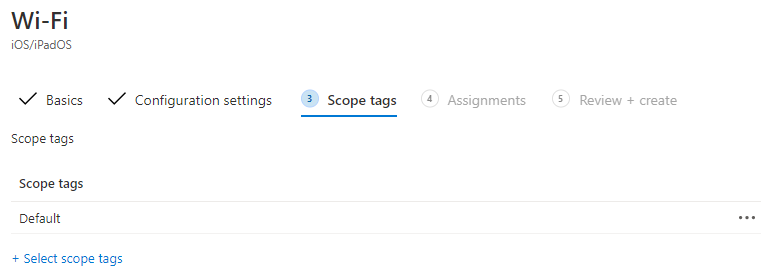
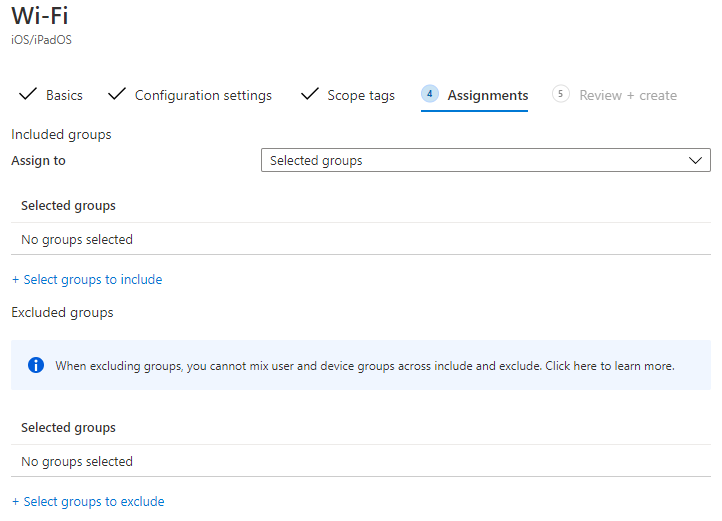
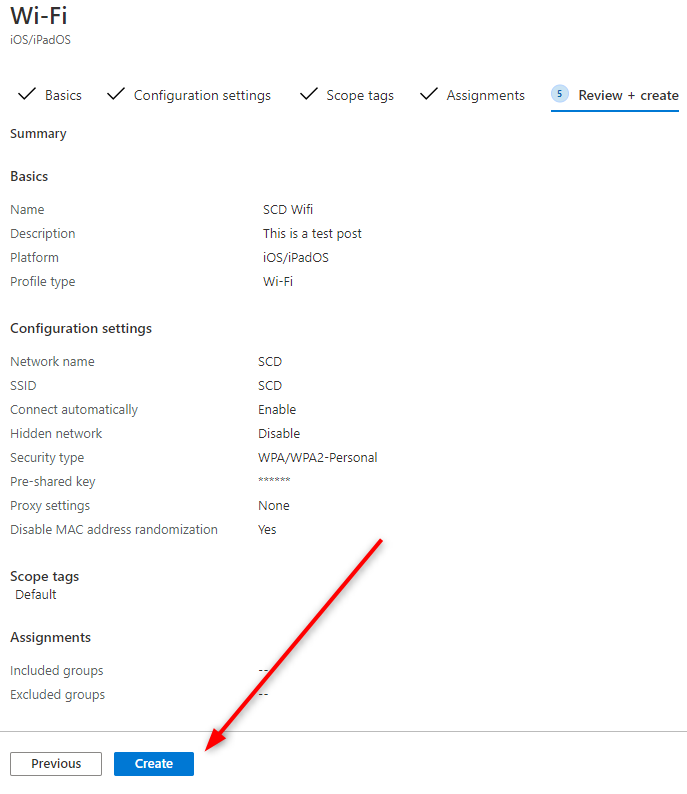
You’ve just created your first configuration profile. You can now check the available options and create different configurations for different OS.
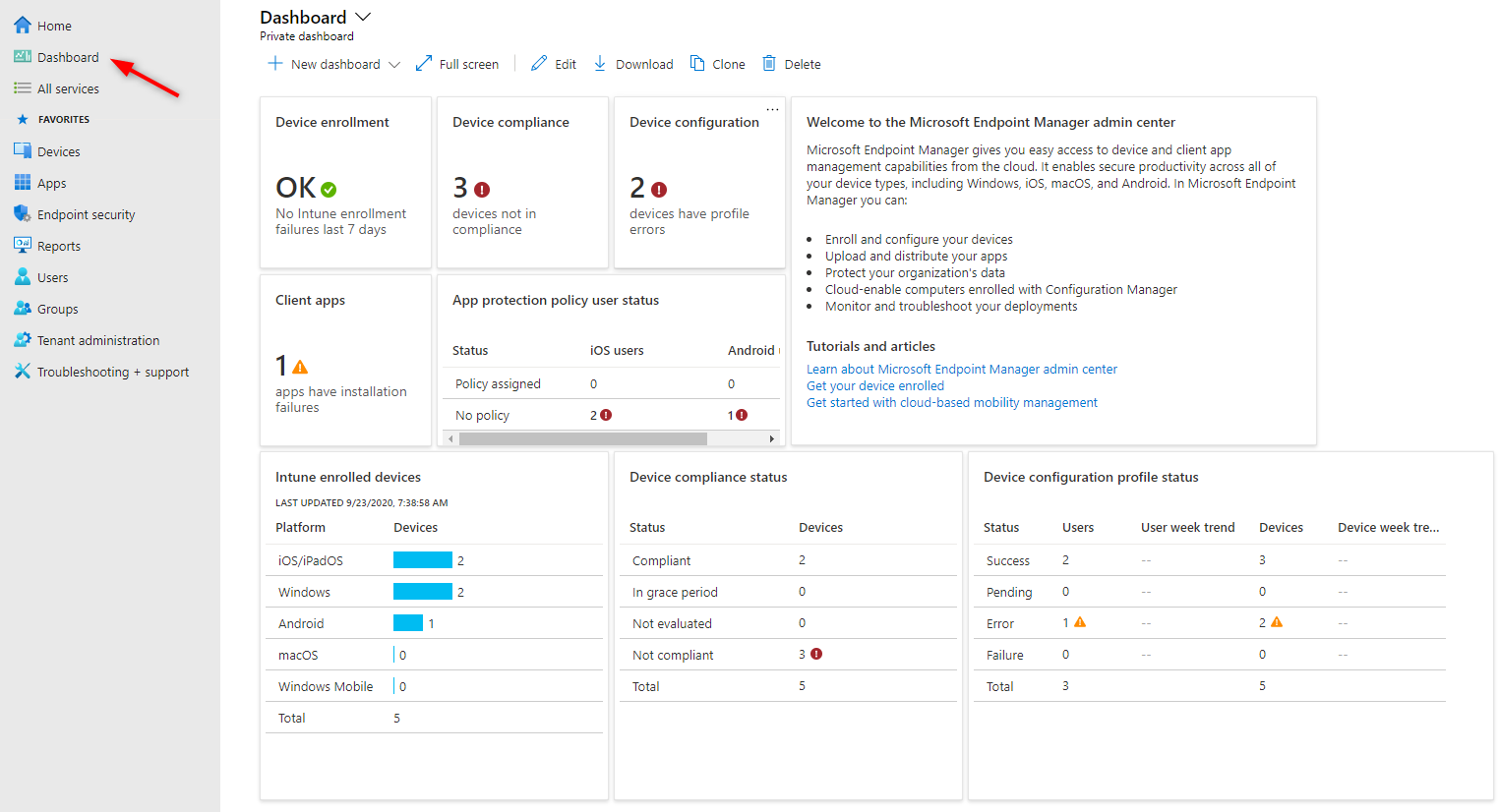
There’s still one last thing that you should start looking at. The Microsoft Intune Dashboard displays overall details about the devices and client apps in your Intune tenant. If you have a device, just take a look at what’s displayed there. it gives a good overview of your progress.
To access the Dashboard, simply select Dashboard on the left pane.
For our example, we can quickly see the action point we should focus on.
So to wrap up, we’ve setup Microsoft Intune Tenant, configure it for your company’s needs, enroll some devices, configure a basic compliance policy, create a configuration profile and deploy your first app.
So what’s next? There’s still so much to cover. We suggested that you start looking at :
Enroll on more devices, play with different options and most importantly test, test and test ! We’ll be doing a more in-depth post in the following week to cover more Microsoft Intune configuration options.

Please fill out the form, and one of our representatives will contact you in Less Than 24 Hours. We are open from Monday to Friday.

Thank you for subscribing to our newsletter or requesting a quote. You will receive our next month's newsletter. If you have requested a quote, we will get in touch with you as soon as possible.

Something went wrong!


Thank for your reply!