In an enterprise, it’s important to track your Windows 10 and Windows 11 Build Numbers. New build releases add new features, quality updates, and bug fixes. You may also need to identify the Windows version in a migration project or to plan your patch management deployments. This blog post will show you how to identify your Windows 11 build version and how to manage this information in SCCM / MEMCM.
| Windows | Release Name | Build Number | Revision Number | Availability date (First Rev) | End of servicing |
|---|---|---|---|---|---|
| Windows 11 | 21H2 | 22000 | 194 to 856 | 2021-10-04 | Yes |
| Windows 10 | 21H2 | 19044 | 1288 to 1889 | 2021-11-16 | Yes |
| Windows 10 | 21H1 | 19043 | 985 to 1889 | 2021-05-18 | Yes |
| Windows 10 | 20H2 | 19042 | 572 to 1889 | 2020-10-20 | Yes |
| Windows 10 | 2004 | 19041 | 264 to 1415 | 2020-05-27 | No |
| Windows 10 | 1909 | 18363 | 476 to 2274 | 2019-11-12 | No |
| Windows 10 | 1903 | 18362 | 116 to 1256 | 2019-05-21 | No |
| Windows 10 | 1809 | 17763 | 1 to 3227 | 2018-10-02 | Yes |
| Windows 10 | 1803 | 17134 | 48 to 2208 | 2018-05-08 | No |
| Windows 10 | 1709 | 16299 | 19 to 2166 | 2017-10-17 | No |
| Windows 10 | 1703 | 15063 | 138 to 2108 | 2017-04-11 | No |
| Windows 10 | 1607 | 14393 | 10 to 5291 | 2016-08-02 | Yes |
| Windows 10 | 1511 | 10586 | 3 to 1540 | 2015-11-10 | No |
| Windows 10 | 1507 | 10240 | 16405 to 19387 | 2015-07-29 | Yes |
Windows 10 version name is pretty simple:
For example, Windows 11 22H1 would mean that it was released in 2022 in the first half of the year.
Where it gets more complicated is the Windows 11 revision or build number which is different depending on the patch applied to the OS. Each KB number applied to the OS changes the Revision number.
The first Windows 11 revision number was 194 (22000.194 – which is RTM) and the latest one is 856 (22000.856 – KB5016629)
For example : 10.0.22000.856
All KB and revision numbers are documented on Microsoft Documentation.
Let’s see how to identify your different Windows 11 versions and build numbers.
On a device running Windows 11 or Windows 10, you can run winver in a command window.
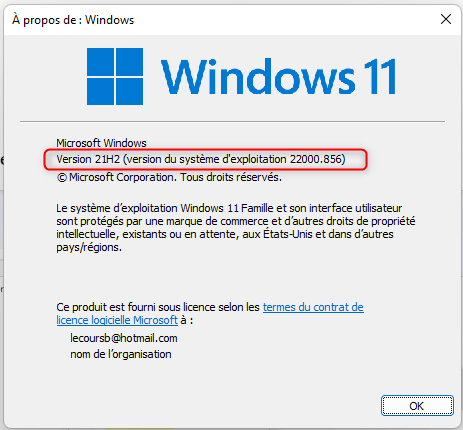
The Windows 11 version will be listed :
You can also use this useful Powershell script from Trevor Jones. The script will show you:
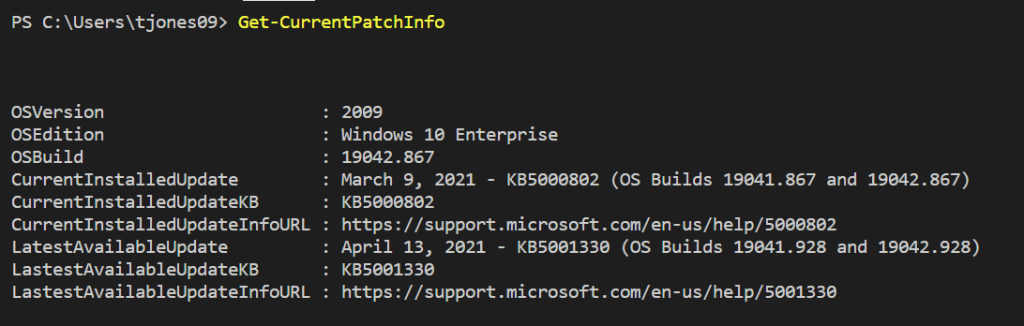
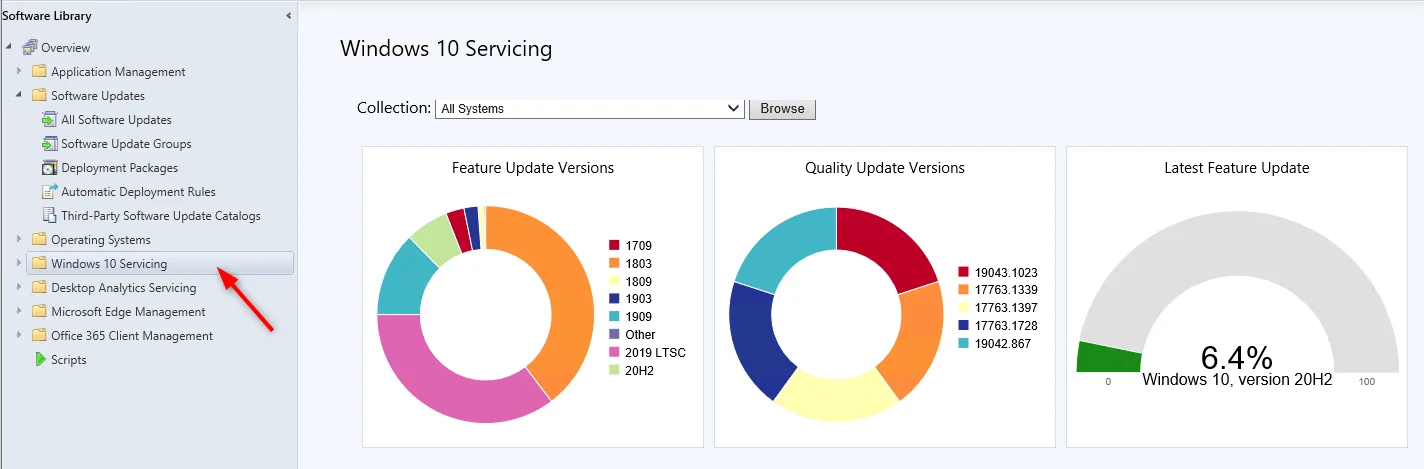
If you’re using SCCM in your company, no need to query each computer one by one. You can use various tools in the SCCM console to do so.
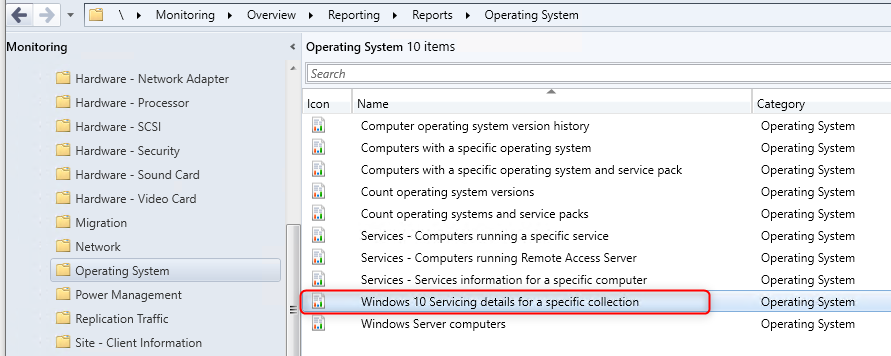
You can use the built-in reports in SCCM to identify your Windows 10 versions.
We developed a comprehensive report to track your Windows version.
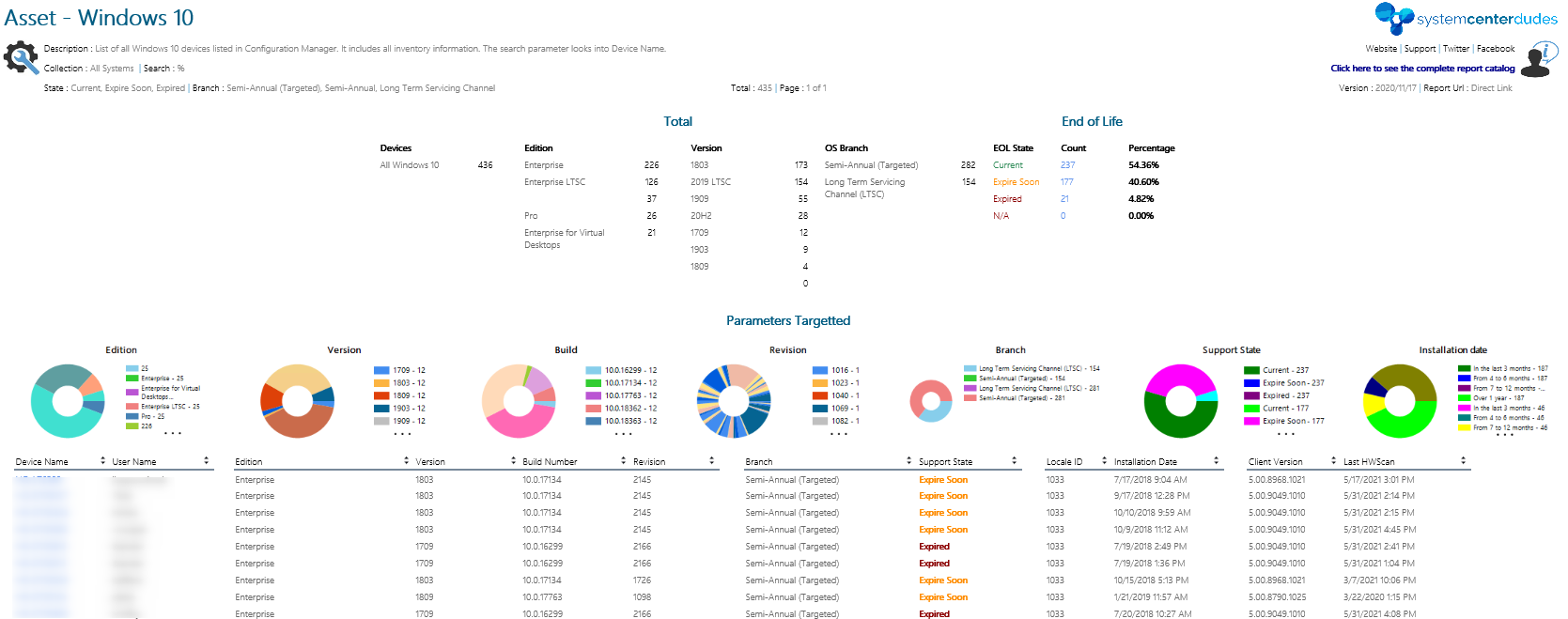
Our SCCM CMPivot Query Examples post contains a query to identify Windows 11 and Windows 10 versions and build numbers.
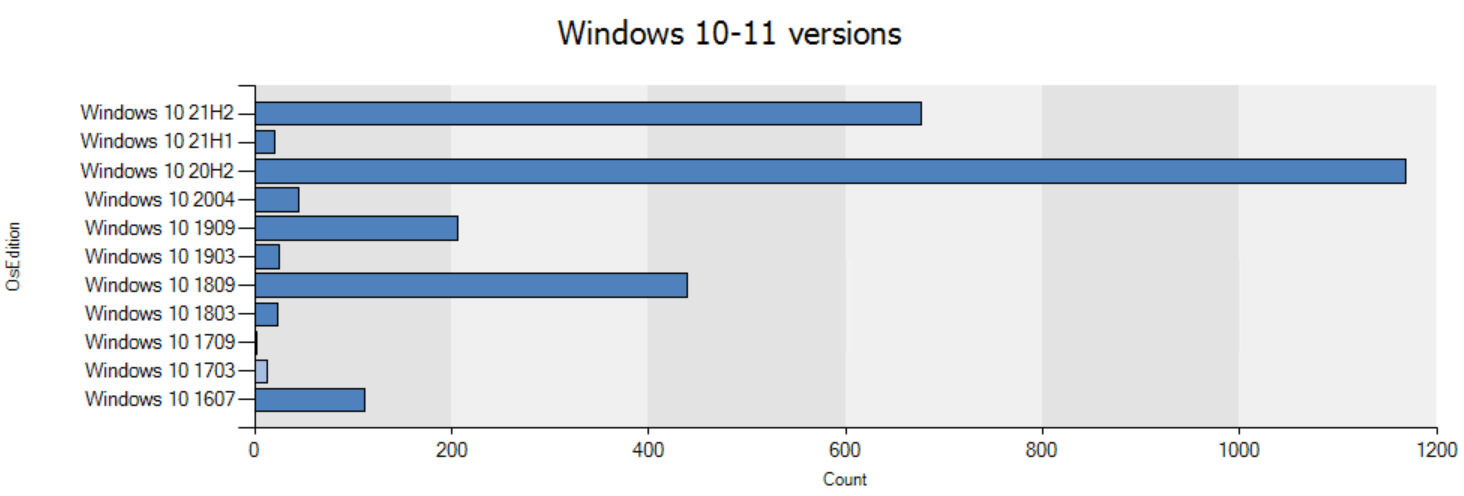
OperatingSystem | where ProductType == 1 and Caption contains '10' | project OSEdition=case(
BuildNumber == '10240', 'Windows 10 1507',
BuildNumber == '10586', 'Windows 10 1511',
BuildNumber == '14393', 'Windows 10 1607',
BuildNumber == '15063', 'Windows 10 1703',
BuildNumber == '16299', 'Windows 10 1709',
BuildNumber == '17134', 'Windows 10 1803',
BuildNumber == '17763', 'Windows 10 1809',
BuildNumber == '18362', 'Windows 10 1903',
BuildNumber == '18363', 'Windows 10 1909',
BuildNumber == '19041', 'Windows 10 2004',
BuildNumber == '19042', 'Windows 10 20H2',
BuildNumber == '19043', 'Windows 10 21H1',
BuildNumber == '19044', 'Windows 10 21H2',
BuildNumber == '19045', 'Windows 10 22H2',
BuildNumber == '22000', 'Windows 11 21H2', BuildNumber)
| summarize count() by OSEdition | render columnchart with(title='Windows 10-11 versions', ytitle='Count')If you want to create collections based on Windows 10 versions, you can use our set of Operational Collections or use this query. You only need to change your version number at the end of the query.
select SMS_R_SYSTEM.ResourceID,SMS_R_SYSTEM.ResourceType,SMS_R_SYSTEM.Name,SMS_R_SYSTEM.SMSUniqueIdentifier,SMS_R_SYSTEM.ResourceDomainORWorkgroup,SMS_R_SYSTEM.Client from SMS_R_System where SMS_R_System.Build = '10.0.10240'The Windows servicing information is spread across many views. If you need to build a Windows 10 report you can use these views to get your information

Please fill out the form, and one of our representatives will contact you in Less Than 24 Hours. We are open from Monday to Friday.

Thank you for subscribing to our newsletter or requesting a quote. You will receive our next month's newsletter. If you have requested a quote, we will get in touch with you as soon as possible.

Something went wrong!


Thank for your reply!