Co-management was first introduced in SCCM 1710, since then, it has been updating with the latest features that help to achieve more in a better way. Co-management helps to move the windows device management from traditional to Modern using Microsoft Intune (MDM). This post will describe how to Monitor it using an SCCM comanagement report.
If you don’t have any plans to manage the device using Intune which is already being managed by ConfigMgr, you can still go ahead and enable the co-management and leave the workloads with ConfigMgr. You obsoletely have no issues in doing it. By enrolling the device into Intune, you get additional benefits from the cloud such as conditional access policy, wipe or reboot a device, etc.
When you enable the co-management and start moving the workloads to Intune, it is always important to monitor the devices for enrollment status, the errors in case they failed to enroll, and more.
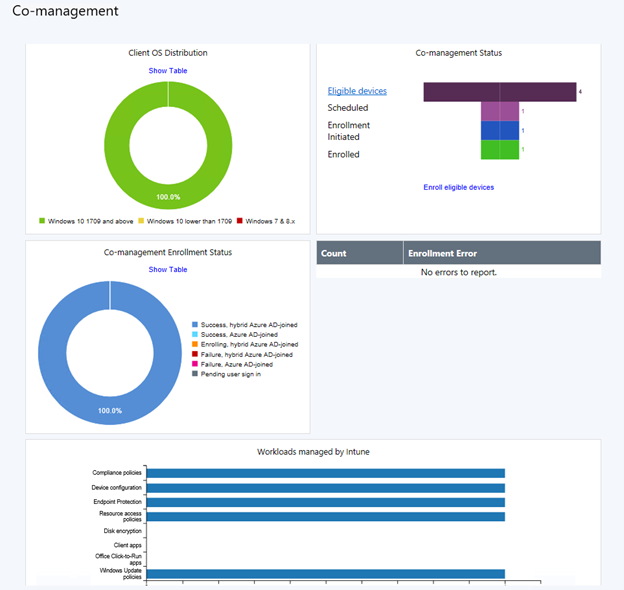
For monitoring usage of the co-management devices, there are no default reports available, though there is a co-management dashboard available in the monitoring node, it doesn’t give deeper insights about the device status, what workloads are applied, enrollment status etc. Basically, the linked URLs for each section are missing which is a little frustrating during the client troubleshooting.
The following is the default dashboard available in the console.
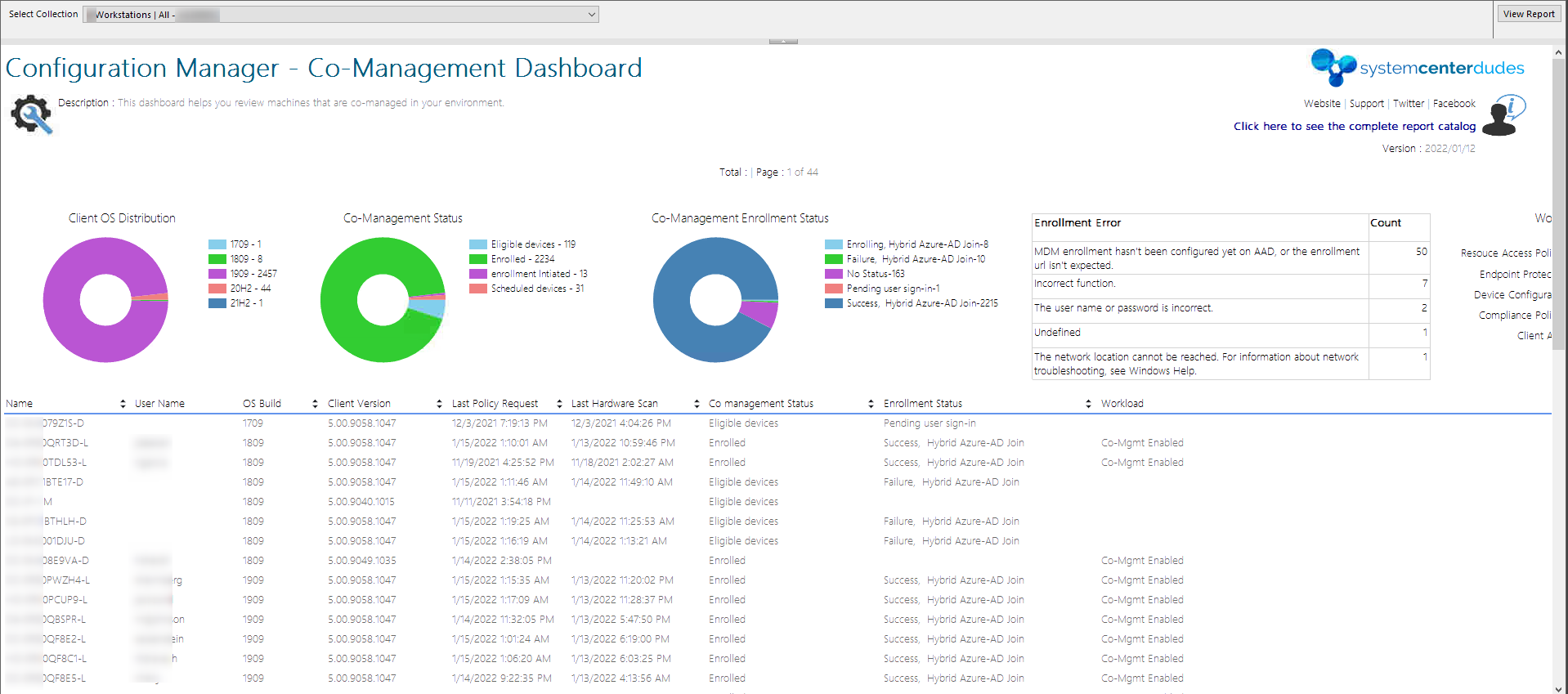
If you are looking for deeper insights on the co-management information, we have got you covered with our custom SCCM Comanagement Report.
This dashboard can run against a specific collection (filter) and is split into the following sections:
To use this report, you have 2 options :
Please, leave your feedback or comments if you are using our SCCM Comanagement Report.

Please fill out the form, and one of our representatives will contact you in Less Than 24 Hours. We are open from Monday to Friday.

Thank you for subscribing to our newsletter or requesting a quote. You will receive our next month's newsletter. If you have requested a quote, we will get in touch with you as soon as possible.

Something went wrong!


Thank for your reply!