SCCM Endpoint Protection is not the simplest SCCM tasks to put in place. Over the years, we trained many SCCM administrator using a simple approach and deployment strategy. We created this complete SCCM Endpoint Protection Guide based on our knowledge and experience.
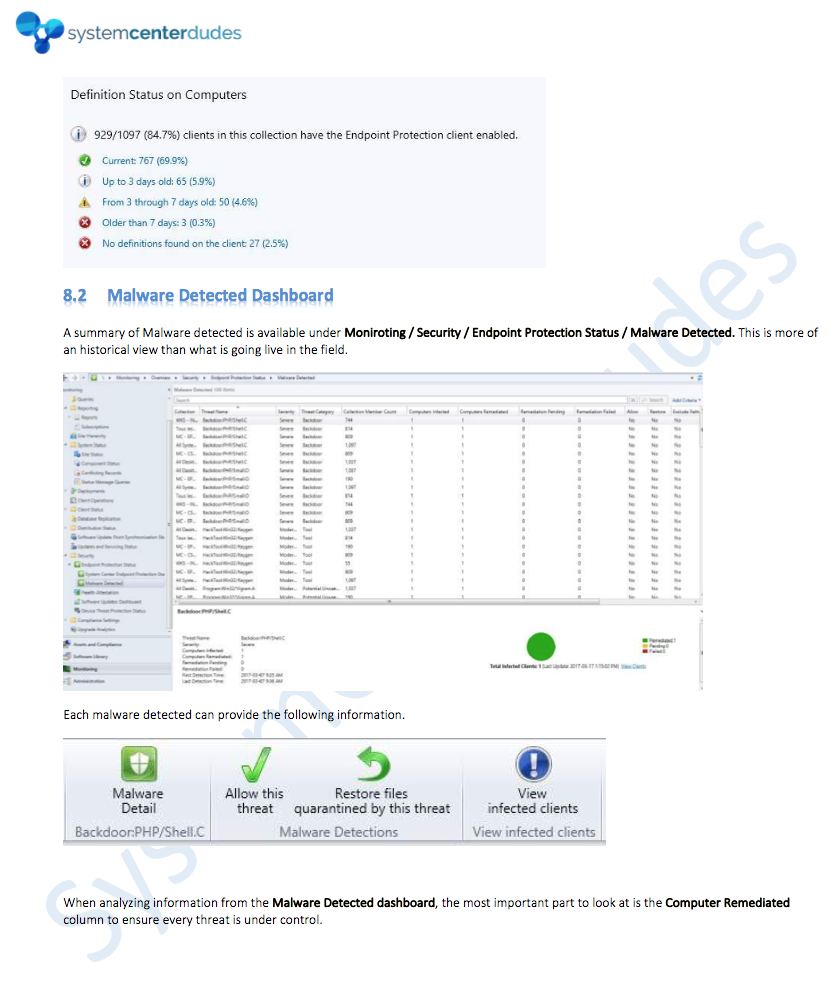
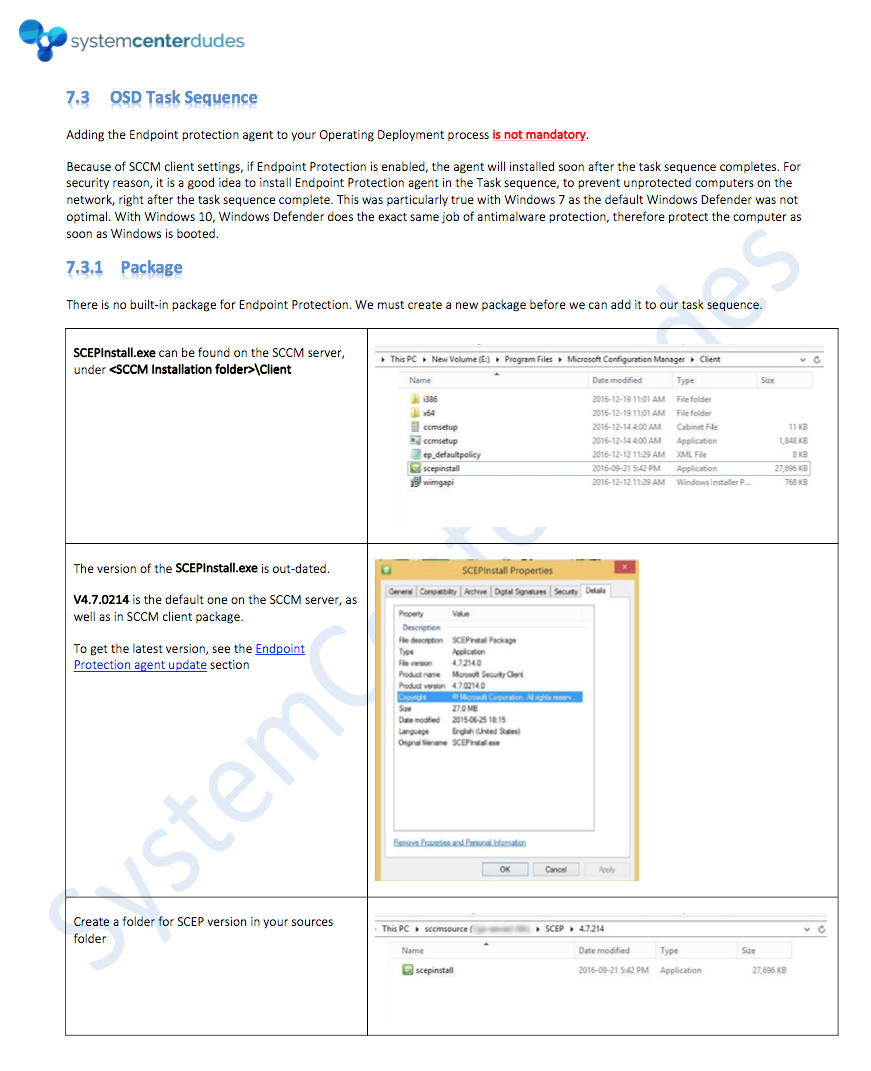
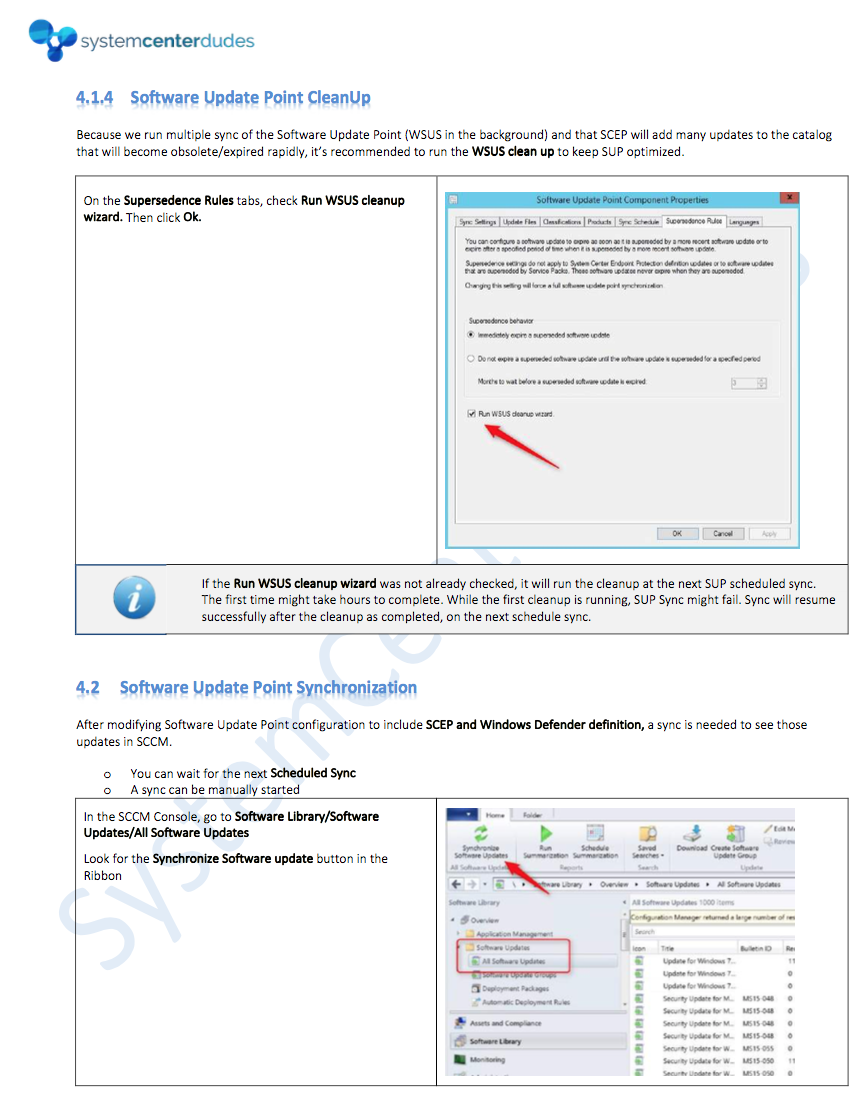
This e-book is a best-practice guide on how to plan, configure, manage and deploy Endpoint Protection with SCCM. This e-book aims to help SCCM administrator understand the basic concept of each part of the Endpoint Protection management.
Many Endpoint Protection settings require customization based on your environment, this document describes a typical case that can be used in any organization as a good starting point for efficient malware protection.
The guide will help you achieve theses tasks:
This guide does not explain how to setup your Software Update Point.
This guide does not cover Windows Defender Advanced threat.
The PDF file is a 67 pages document that contains all information to manage endpoint protection with SCCM. Use our products page or use the button below to download it. |

Please fill out the form, and one of our representatives will contact you in Less Than 24 Hours. We are open from Monday to Friday.

Thank you for subscribing to our newsletter or requesting a quote. You will receive our next month's newsletter. If you have requested a quote, we will get in touch with you as soon as possible.

Something went wrong!


Thank for your reply!