Upgrade to Internet Explorer 11 with SCCM
Last week, Microsoft announced the end of support for older version of Internet Explorer . Many organisations will need to upgrade to Internet Explorer 11 soon. This post will describe how to upgrade to Internet Explorer 11 with SCCM.
There’s multiple ways to upgrade your Internet Explorer :
All of theses options were tested and the fastest installation is by using Task sequence because of the ability to manage restart and multiple consecutive steps to get everything installed in one deployment. IEAK could also do that, but we never had much success with it.
Task sequence are made for OS Deployment, but they can be very useful with complex application deployment.
In this post, we will cover :
Required download to upgrade to Internet Explorer 11 with SCCM
The key to a successful Internet Explorer 11 upgrade is to have all the required files in the right format. Here’s everything that you need :
- Download Prerequisite KB
- Validate which KB are required for your environment and download all required
- Download Internet Explorer 11 for IT Pro
- X86 – Download all the different language needed
- X64 – Download all the different language needed
- Download Enterprise Mode for Internet Explorer
- If you are using a Windows 7 Enterprise with MUI, you will need to do the same for Internet Explorer 11
Keep all original files as they will be used in different ways to update or to inject in OSD.
SCCM Task Sequence Method
This method is great to have complete control of the deployment and be sure that one deployment will get everything needed for updating to Internet Explorer 11.
Pre-requisite package
- The downloaded prerequisites KB are MSU files. We need the extracted the .CAB files from those .MSU files.
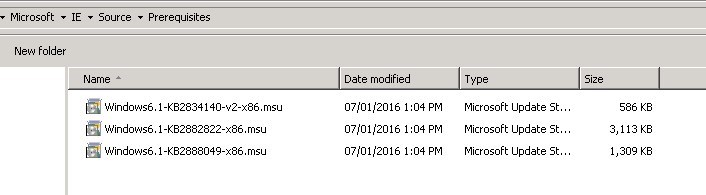
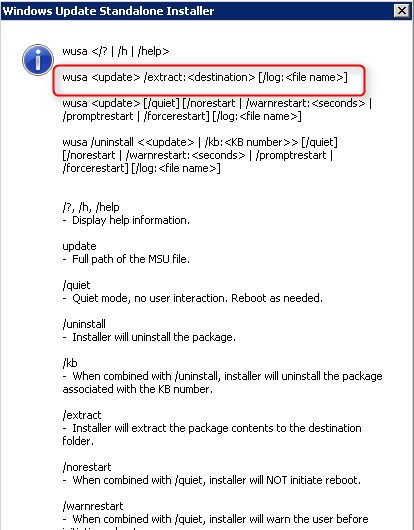
- Run the following command for each .MSU :
[su_box title=”Extract .CAB from .MSU” style=”glass” title_color=”#F0F0F0″]wusa E:\Source\Microsoft\IE\Source\Prerequisites\Windows6.1-KB2882822-x86.msu /extract:E:\Source\Microsoft\IE\Source[/su_box]
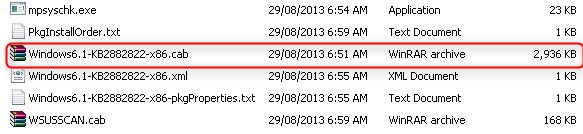
- This provide many files, only the .CAB is important
- Add all .CAB files in a folder
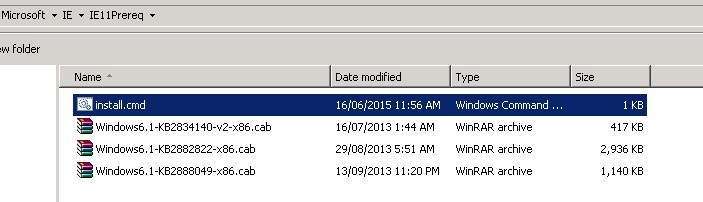
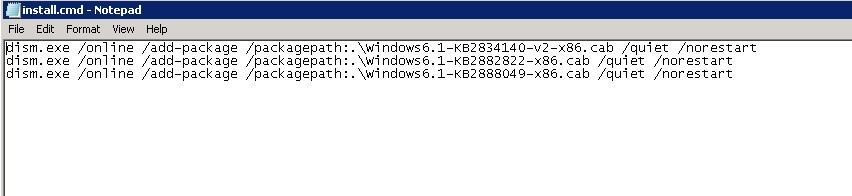
- We will now create a batch file to insert each .CAB using DISM
- Create a new batch file (install.cmd) in the folder where you saved your .CAB files
- Add this line for each .CAB files (change the .CAB file name in each line)
[su_box title=”DISM Add-Package” style=”glass” title_color=”#F0F0F0″]dism.exe /online /add-package /packagepath:.\Windows6.1-KB2834140-v2-x86.cab /quiet /norestart[/su_box]
- Create a new package in SCCM that will be use for the IE Prerequisite
- Open the SCCM Console
- Go to Software Library / Application Management / Packages
- Right-Click Package and select Create Package
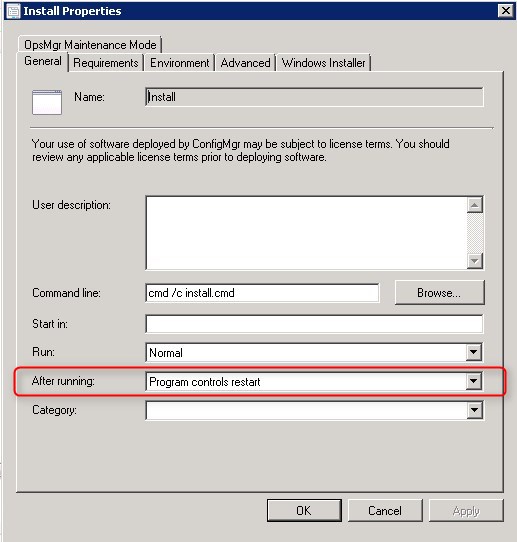
- Create a standard program
- Command line – cmd /c install.cmd
- After Running – Program controls restart
- This is required as the task sequence will automatically detect a restart pending error code (3010)
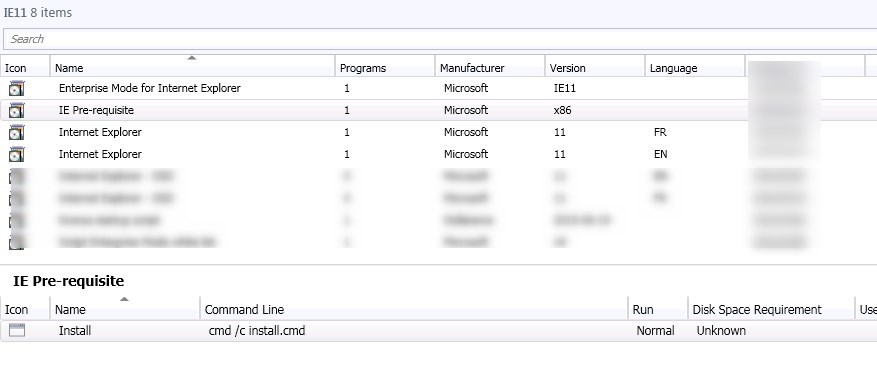
- Your Internet Explorer Prerequisite package is created and ready to deploy
Internet Explorer 11 Package
Create a standard package for each Internet Explorer languages you need.
- Open the SCCM Console
- Go to Software Library / Application Management / Packages
- Right-Click Package and select Create Package
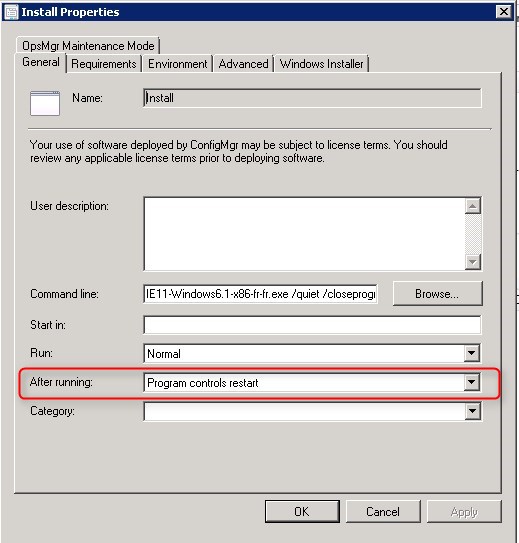
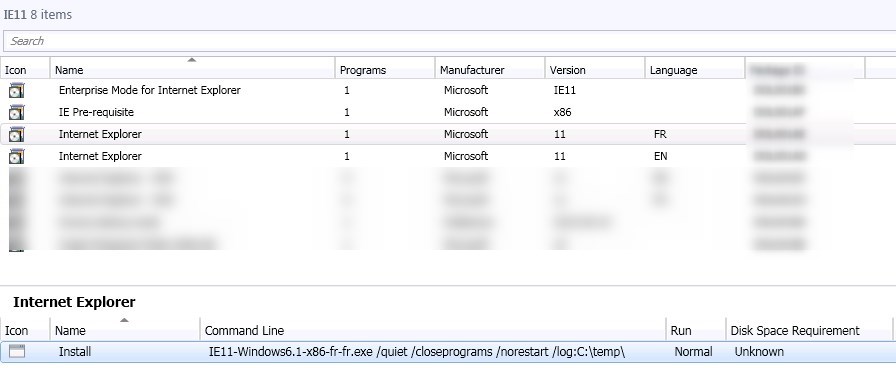
- Create a standard program. (Be sure to change the .exe file to your language)
- Command line – IE11-Windows6.1-x86-fr-fr.exe /quiet /closeprograms /norestart /log:C:\temp\
- After Running – Program controls restart
- This is required as the task sequence will automatically detect a restart pending error code (3010)
- Your Internet Explorer 11 package is created and ready to deploy
Enterprise Mode for Internet Explorer 11 Package
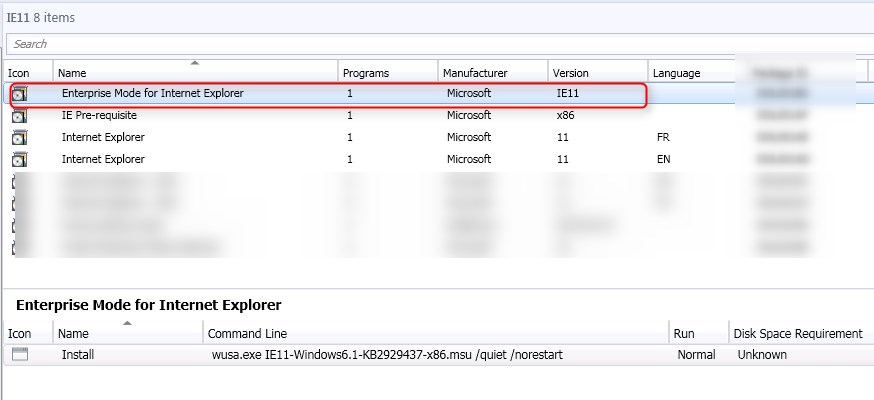
Create a standard package for Enterprise Mode for Internet Explorer 11
- Open the SCCM Console
- Go to Software Library / Application Management / Packages
- Right-Click Package and select Create Package
- Create a standard program
-
- Command line – wusa.exe IE11-Windows6.1-KB2929437-x86.msu /quiet /norestart
- After Running – Program controls restart
- This is required as task sequence automatically detect 3010 restart pending
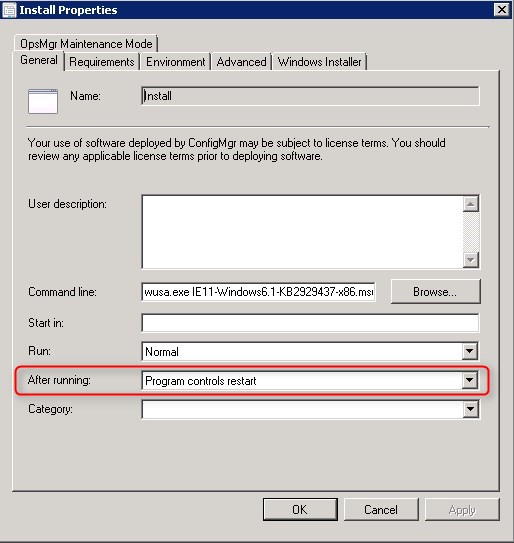
- Your Enterprise Mode for Internet Explorer package is created and ready to deploy
Multi Language Consideration
Create a standard package for each MUI.
- Open the SCCM Console
- Go to Software Library / Application Management / Packages
- Right-Click Package and select Create Package
- Create a standard program
- Command line – wusa.exe IE11-Windows6.1-KB2929437-x86.msu /quiet /norestart
- After Running – Program controls restart
- This is required as task sequence automatically detect 3010 restart pending
Task Sequence
We will now create the Task Sequence to deploy our package we just created.
- Open the SCCM Console
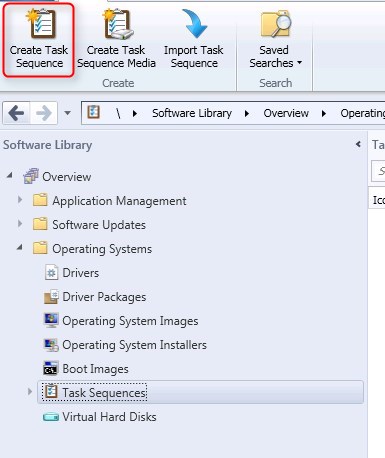
- Go to Software Library / Operating Systems / Task Sequences
- Right-click Task Sequence and select Create Task Sequence
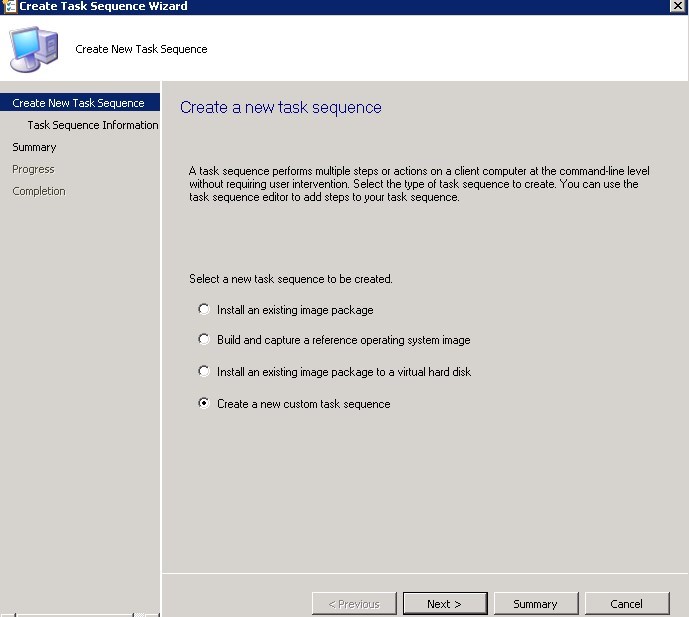
- Select Create a new custom task sequence, click Next
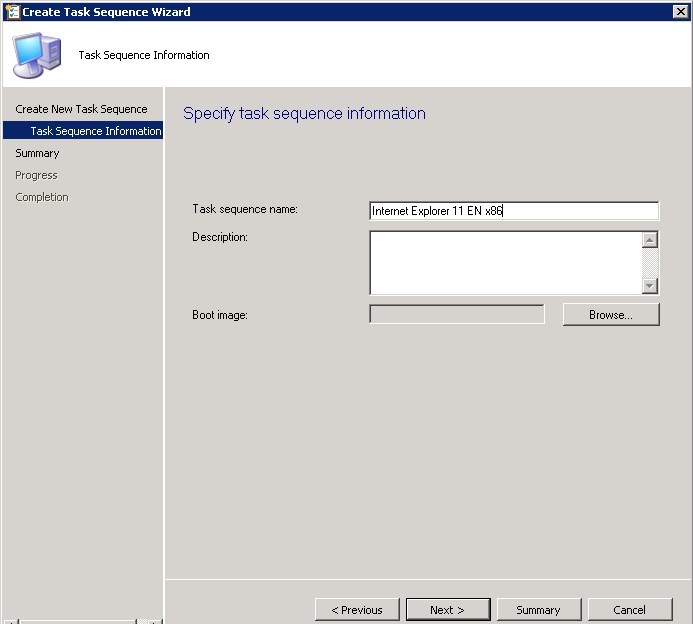
- Enter the desired name
- Do NOT add a boot image, click Next
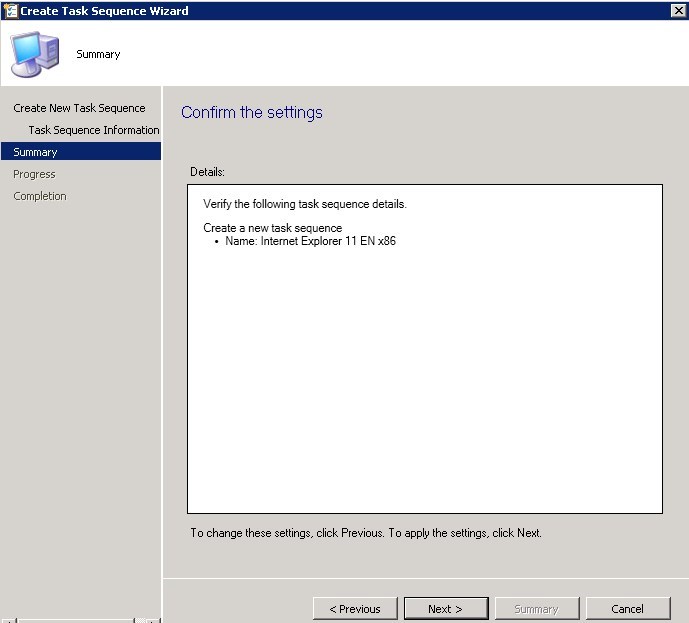
- On the Summary tab, click Next
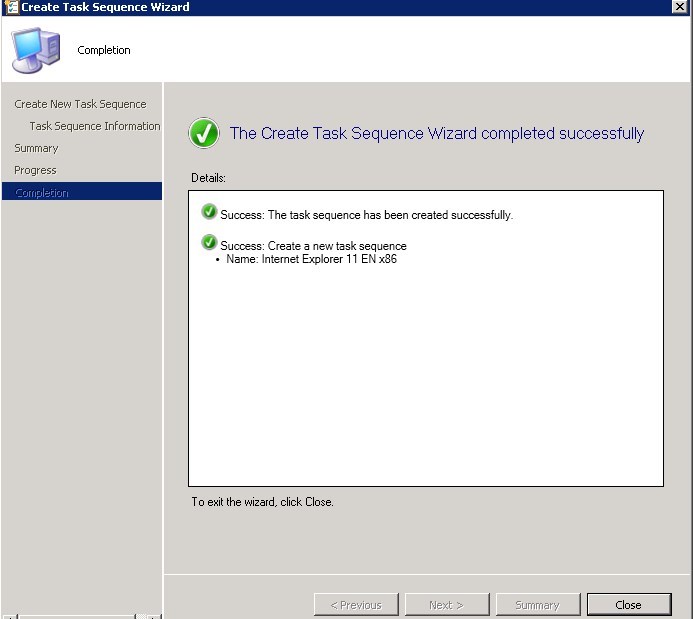
- On the Completion tab, click Close
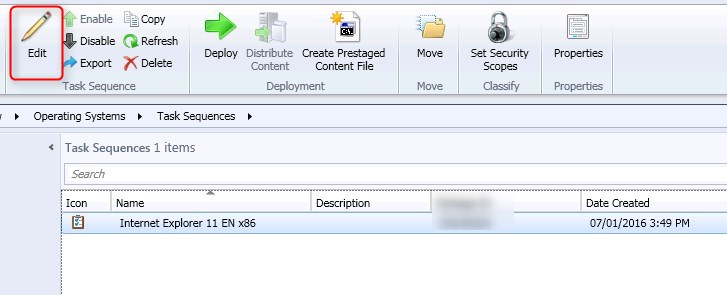
- Select your Task Sequence
- On the top ribbon, click Edit
- Click Add / Software / Install Package
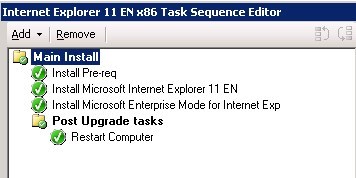
- Add your previously created package in this order
- Prerequisites
- Internet Explorer 11
- Internet Explorer Enterprise Mode
- Each Install Package task has the right to restart the computer if necessary
- Each task will return a 3010 error code (Success but restart required), the task sequence will automatically initiate a restart
- At the end of the Task Sequence, we will add a restart to successfully apply GPO for IE11 and Enterprise mode if needed
- Click Add / General / Restart Computer
- This is the expected result :
Results
This method will automatically reboot the computer 4 times. Overnight deployment and communication plan might be a good idea
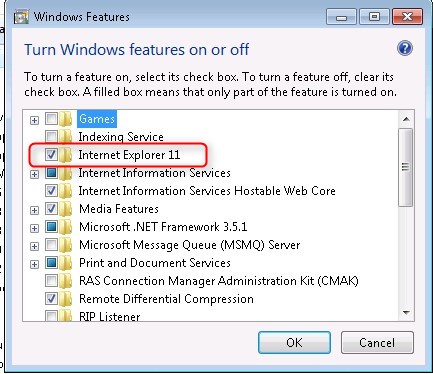
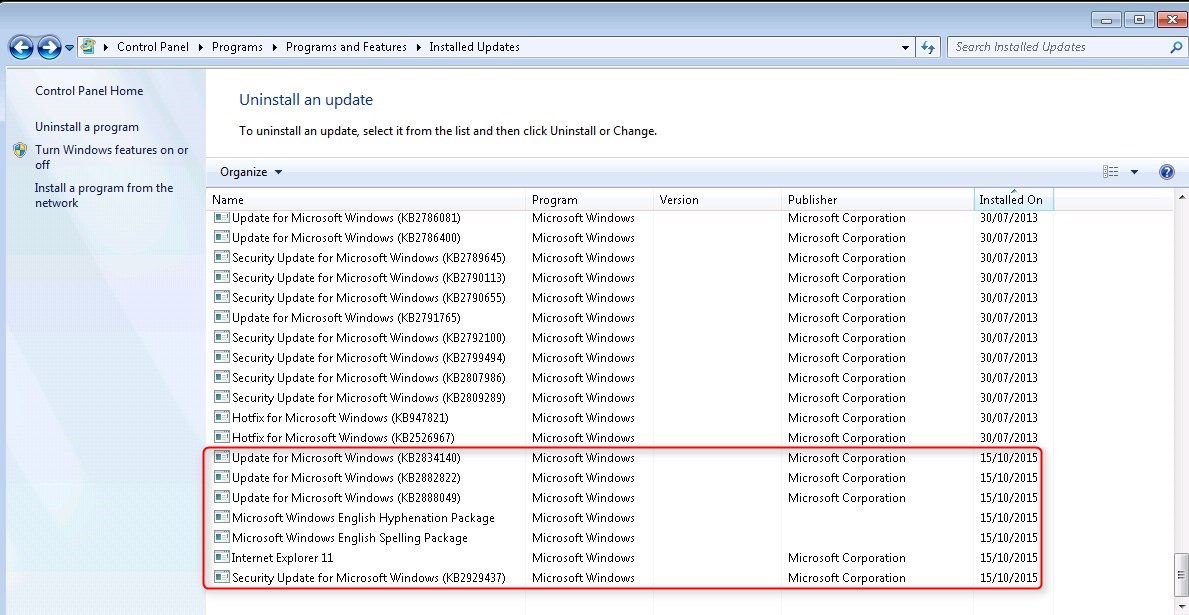
On a deployed computer, Internet Explorer 11 will be installed as well as all prerequisite KB and Enterprise mode.
How to inject Internet Explorer 11 in OS Deployment Task Sequence
Internet Explorer 11 OSD Source Files
As stated in the required downloads section, the downloaded files will be used in a different manner to inject all required updates in OS Deployment.
- Create a new folder with the following directories
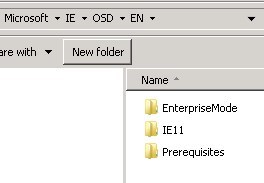
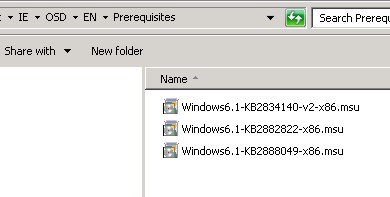
- Add the downloaded Prerequiste MSU files to Prerequisites folder
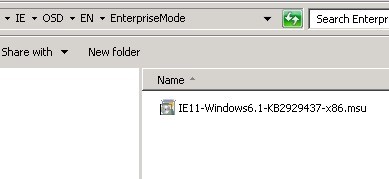
- Add the downloaded Enterprise Mode MSU file to EnterpriseMode folder
- Extract the required file from Internet Explorer executable
[su_box title=”Extract Internet Explorer required files” style=”glass” title_color=”#F0F0F0″]IE11-Windows6.1-x86-en-us.exe /x:<destination path>[/su_box]
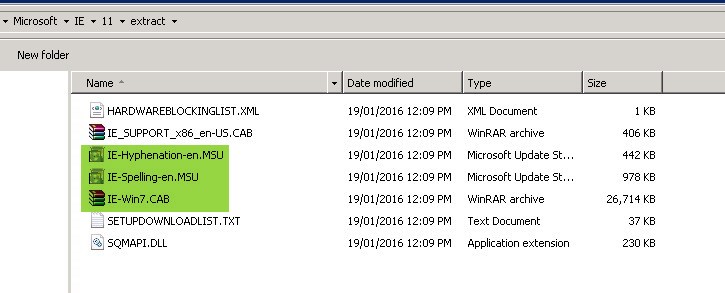
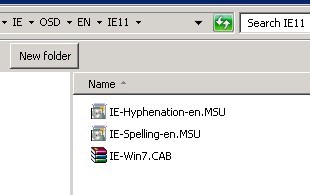
- Add the theses extracted files to the IE11 folder :
- IE-Hyphenation-en.MSU
- IE-Spelling-en.MSU
- IE-Win7.CAB
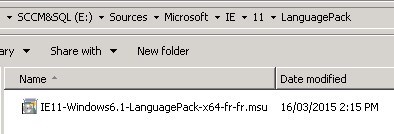
- Add the language pack MSU file to LanguagePack folder
- This will only work with Windows 7 Enterprise
- If you are using Windows 7 Pro, this folder is not necessary. You will need multiple package for the Internet Explorer 11 extracted file to match the OS language.
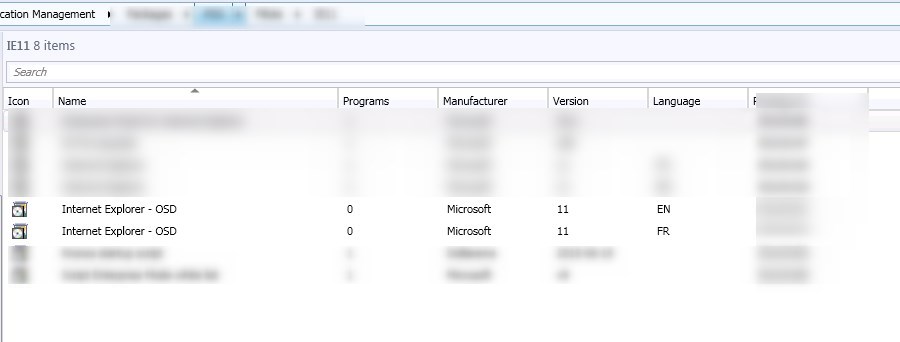
Internet Explorer 11 OSD Package
- Open the SCCM Console
- Go to Software Library / Application Management / Packages
- Right-Click Package and select Create Package
- Name – Internet Explorer – OSD
- No program is needed. We will use this package later.
Inject Internet Explorer 11 in Task Sequence
This method can be used in a Build and Capture task sequence as well as a Deploy task sequence. It will add Internet Explorer offline (using DISM) to the Windows Installation.
- Select your Task Sequence
- On the top ribbon, click Edit
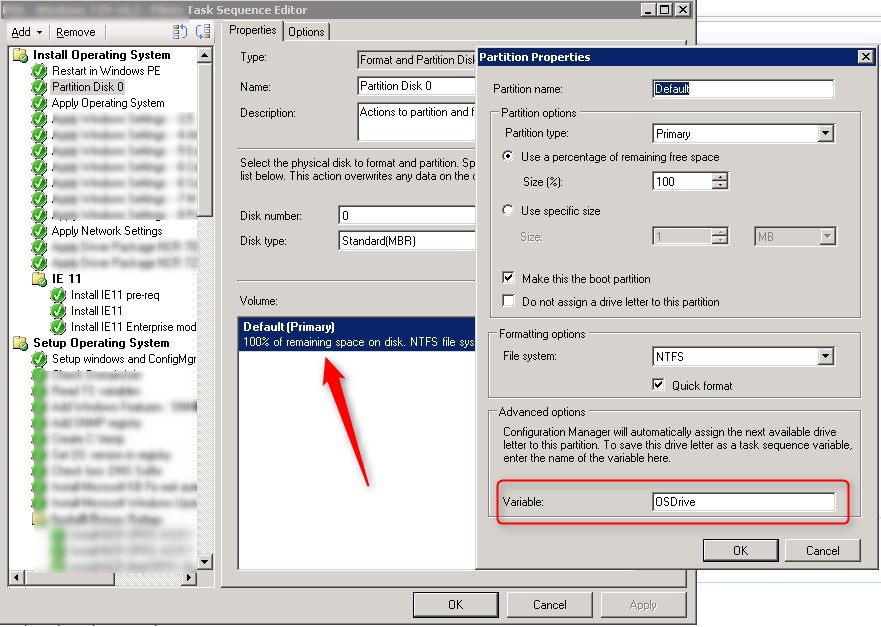
- Add a Variable under the Partition Disk task. Name it OSDrive
- Add a new group under the Apply Driver section and before the Setup Operating system group
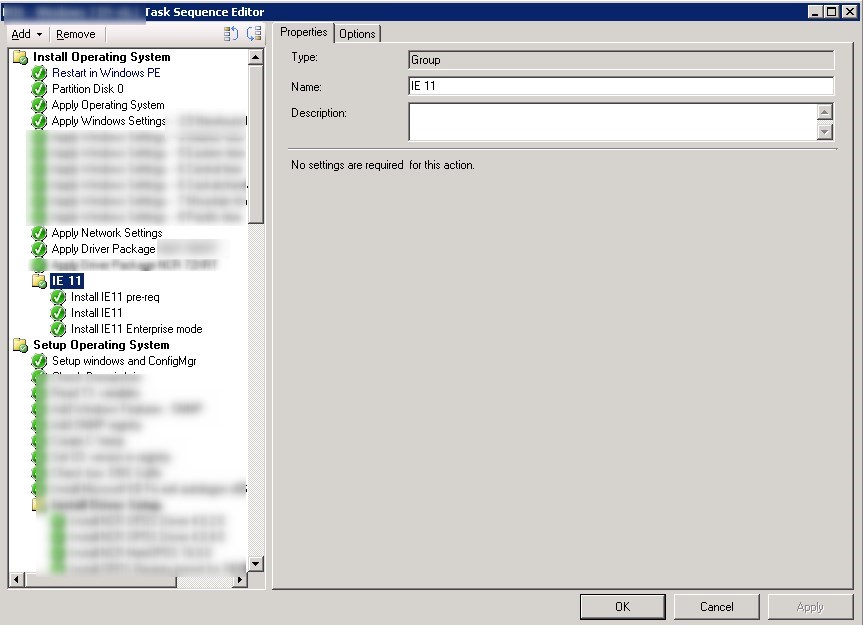
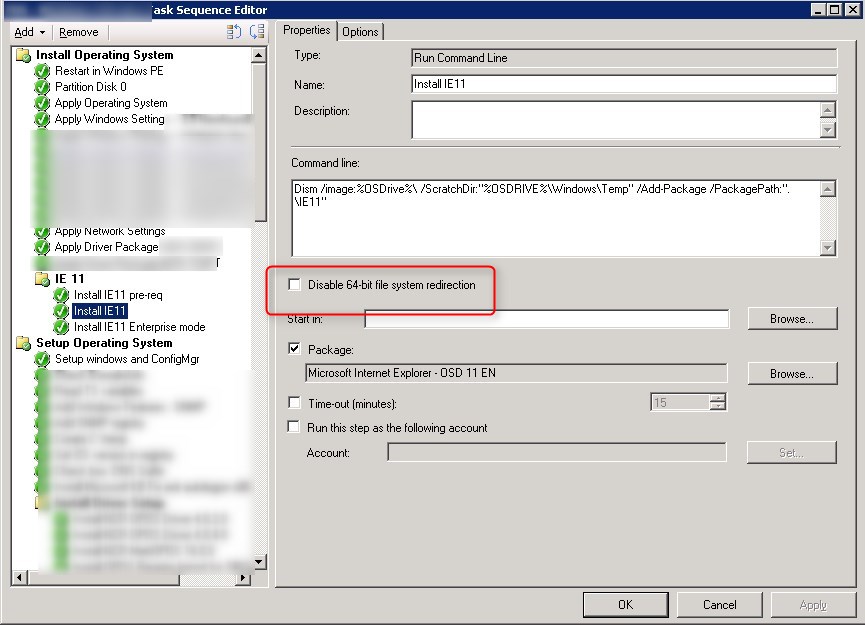
- Click Add / General / Run Command Line 3 times to add 3 steps to the new group
- Command #1 – Install IE 11 Prereq
- Command line – Dism /image:%OSDrive%\ /ScratchDir:”%OSDRIVE%\Windows\Temp” /Add-Package /PackagePath:”.\Prerequisites”
- Check the Package box and select the package created in the previous step
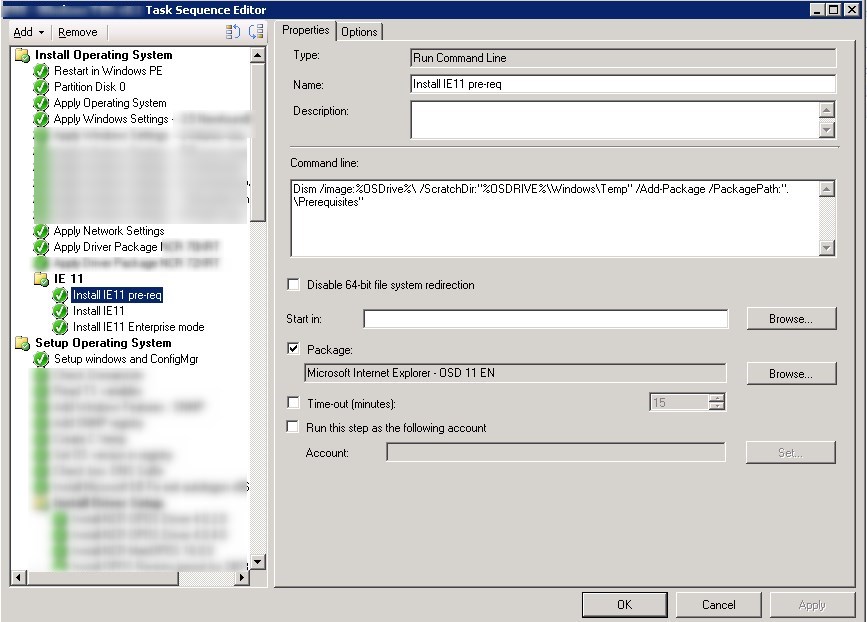
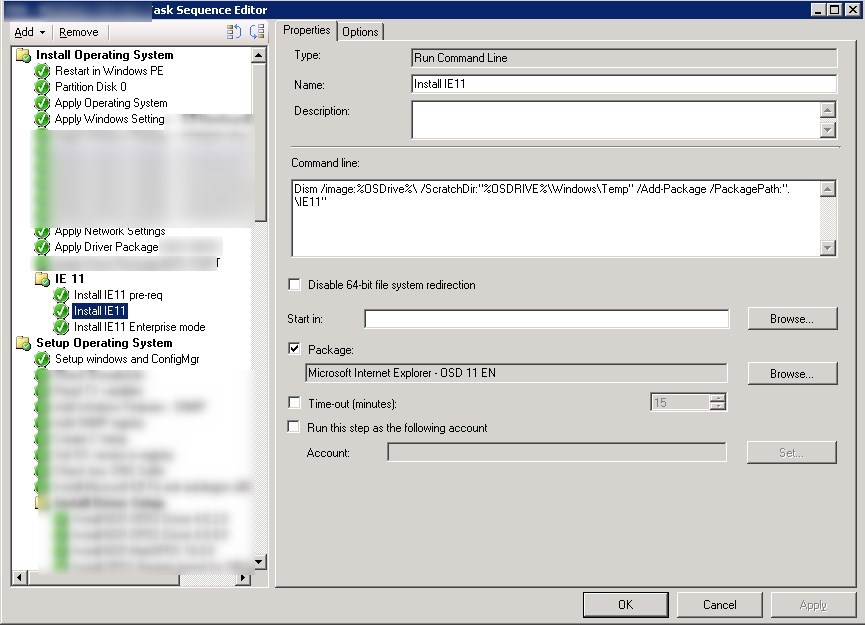
- Command #2 – Install IE 11
- Command line – Dism /image:%OSDrive%\ /ScratchDir:”%OSDRIVE%\Windows\Temp” /Add-Package /PackagePath:”.\IE11″
- Check the Package box and select the package created in the previous step
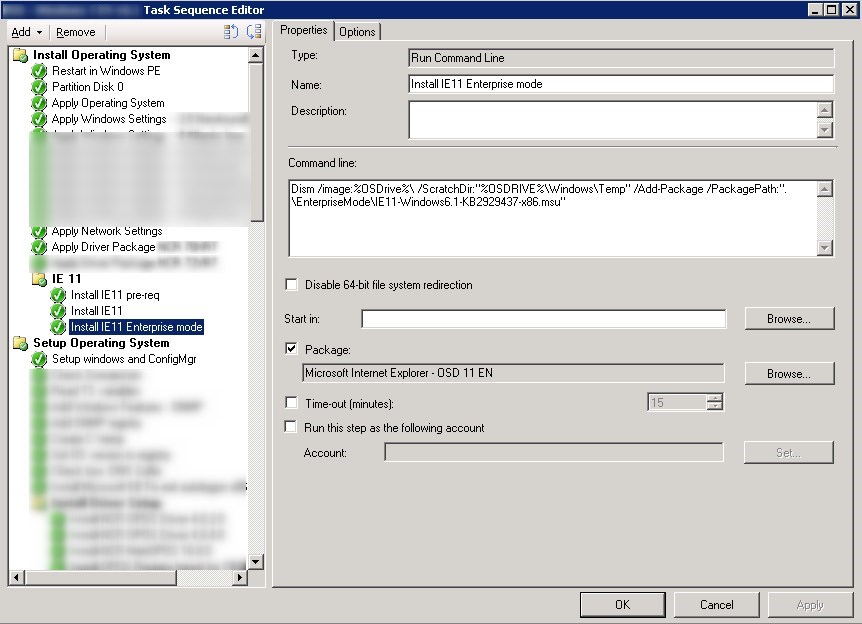
- Command #3 – Install Enterprise mode
- Command line – Dism /image:%OSDrive%\ /ScratchDir:”%OSDRIVE%\Windows\Temp” /Add-Package /PackagePath:”.\EnterpriseMode\IE11-Windows6.1-KB2929437-x86.msu”
- Check the Package box and select the package created in the previous step
- If needed,
- Command #4 – Install Language pack
- Command line – Dism /image:%OSDrive%\ /ScratchDir:”%OSDRIVE%\Windows\Temp” /Add-Package /PackagePath:”.\LanguagePack\IE11-Windows6.1-LanguagePack-x64-fr-fr.msu”
- Check the Package box and select the package created in the previous step
[su_box title=”Important Note” style=”glass” title_color=”#F0F0F0″] if you are doing theses steps for Windows 7 x64, you must check the Disable 64-bit file system redirection checkbox on all command line.[/su_box]
Happy Upgrade!




Thank for your reply!