How to move SCCM Move Content Library to another drive
One of the common mistakes we still see is having SCCM Move Content Library folders on many different drives, most of the time not on purpose. Usually, this will lead to the C drive being full, or the drive where the SQL database sits. This will then cascade into a series of errors all over SCCM.
In this post, we will show how to use the SCCM Content Library Transfer tool to move distribution content folders
Prerequisites
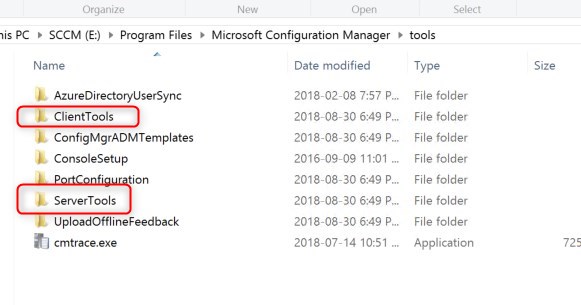
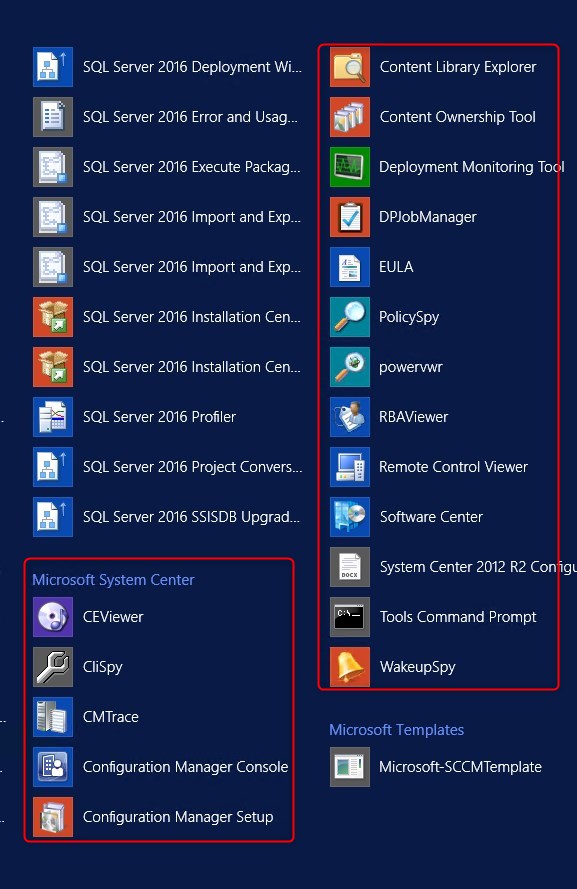
If you are running SCCM latest build, the tool is now build-in the install folder
Turn out that the built-in version of the Content Library Transfer in SCCM 1802 and higher as issues that should be fixed with v1810 that should release soon.
Run the tool locally on the distribution point. You can’t run it from a remote computer
Only use it when clients aren’t actively accessing the distribution point. If you run the tool while clients are accessing content, the content library on the destination drive may have incomplete data. The data transfer might fail altogether leading to an unusable content library
Don’t distribute content to the distribution point when you run the tool. If you run the tool while content is being written to the distribution point, the content library on the destination drive may have incomplete data. The data transfer might fail altogether leading to an unusable content library.
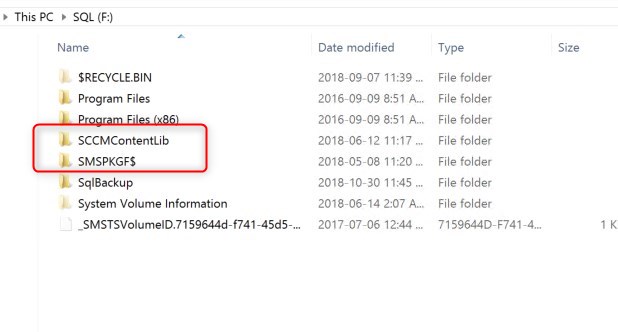
Find the drives where there are Distribution Point content folder that shouldn’t be there
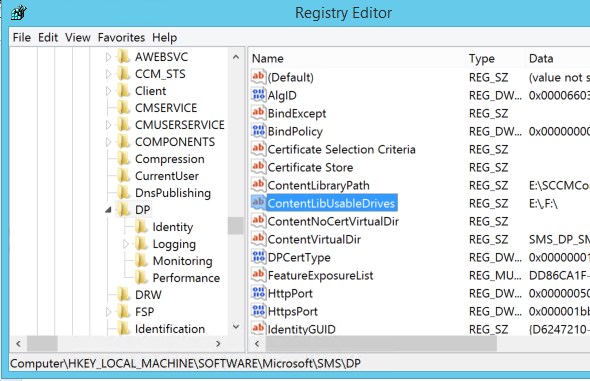
You can see the Content Library folder location in a registry key: HKLM\Software\Microsoft\SMS\DP\
As stated in the limitation, the Distribution Point needs to stop providing content to clients. This can be achieved by multiple solutions:
Remove the distribution point from any Boundary group
stop network connection to that distribution point
Stop IIS on that distribution point
Open a command prompt on the faulty distribution point
Browse to <SCCM install folder>\Tools\ServerTools
Using the old SCCM 2012 toolkit, the path will be <Program Files(x86)\ConfigMgr 2012 Toolkit R2\Server Tools
If this is to be run on a remote distribution point, simply copy over the ContentLibraryTransfer.exe
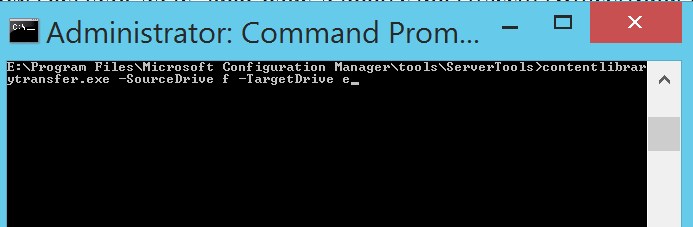
Command-line: contentlibrarytransfer.exe -SourceDrive f -TargetDrive e
You will need to repeat this if you have distribution point content on multiple drives and want to consolidate all of them
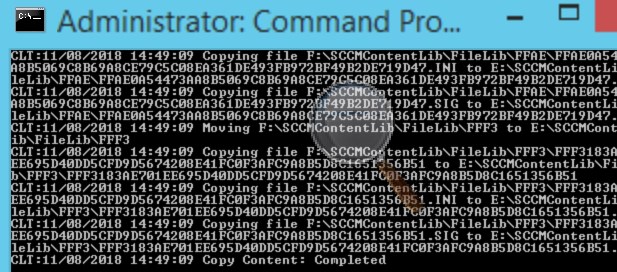
Transfer started. This will take time has it copy over all the content
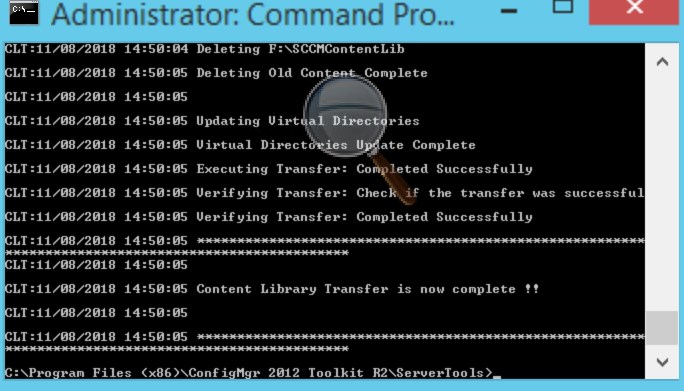
Transfer completed
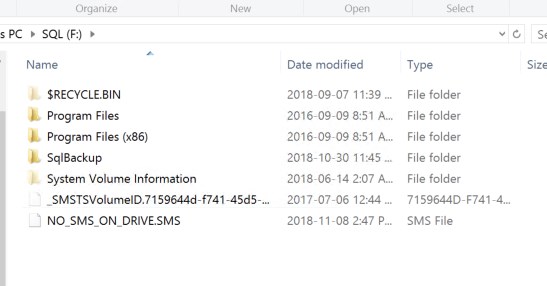
Content has been moved off the F drive
Put the SCCM distribution point back online
Hope you found this blog useful!
Request a Quote
Please fill out the form, and one of our representatives will contact you in Less Than 24 Hours. We are open from Monday to Friday.
Never share sensitive information (credit card numbers, social security numbers, passwords) through this form.
Request Sent
Thank you for subscribing to our newsletter or requesting a quote.
You will receive our next month's newsletter. If you have requested a quote, we will get in touch with you as soon as possible.
Comment Sent
Thank for your reply!
Error
Something went wrong!
We use cookies to ensure that we give you the best experience on our website. If you continue to use this site we will assume that you are happy with it.




Thank for your reply!