In our previous post, we covered how to set up computers using Windows Autopilot. While the main scenario is to join computers to Azure AD, leaving the on-prem domain aside is for sure not realist in many cases. Microsoft has added the ability to join the On-prem domain as part of the Autopilot setup. This feature is still currently in Preview, but worth testing and checking it out. In this post, we will detail the requirements and how to configure Azure and on-prem AD to allow Hybrid AD to join computers. Intune Autopilot Hybrid AD joined computers allow seamless integration.
This post is part of a series on Windows Autopilot that will be published in the following weeks. In the next posts, we will cover the following subjects :
Before we move on to set up the AD delegation, the server that will be used to host the Intune Connector needs to be chosen. This server requires to run Windows Server 2016.
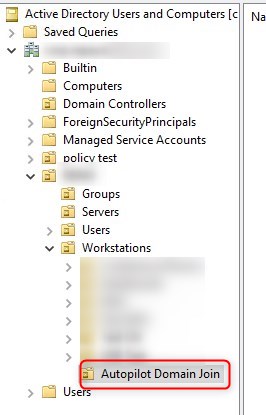
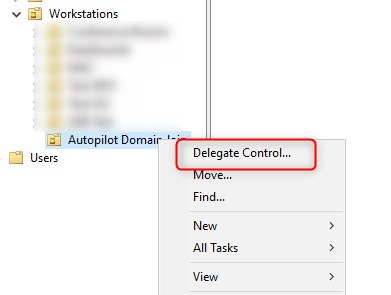
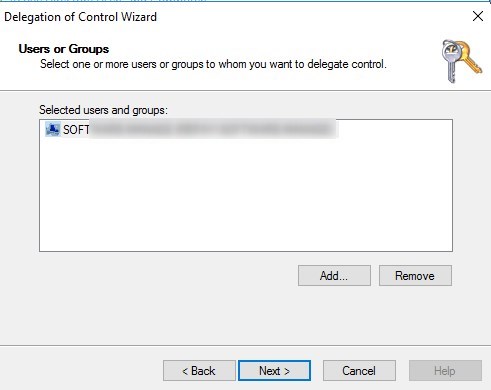
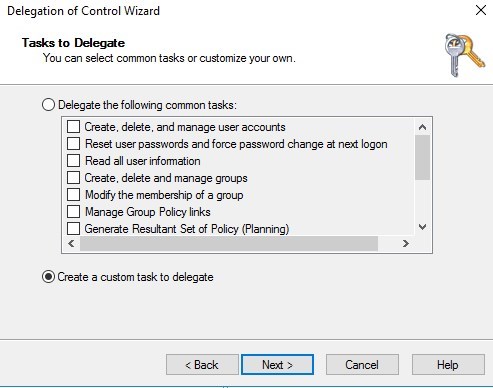
Because will be delegating rights on an OU, we created a new one. This is not mandatory to have a dedicated OU.
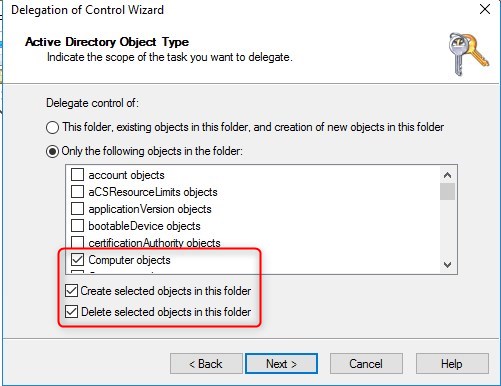
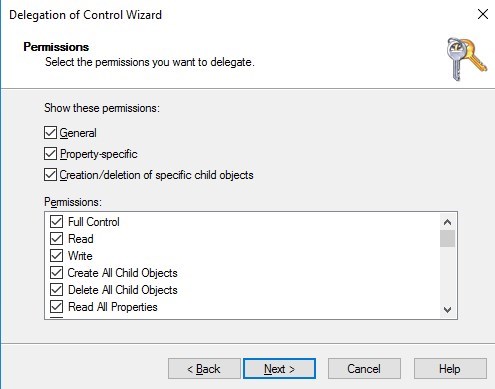
The server that will have the Intune connector must be running Windows Server 2016, have internet access and can talk to the Active Directory
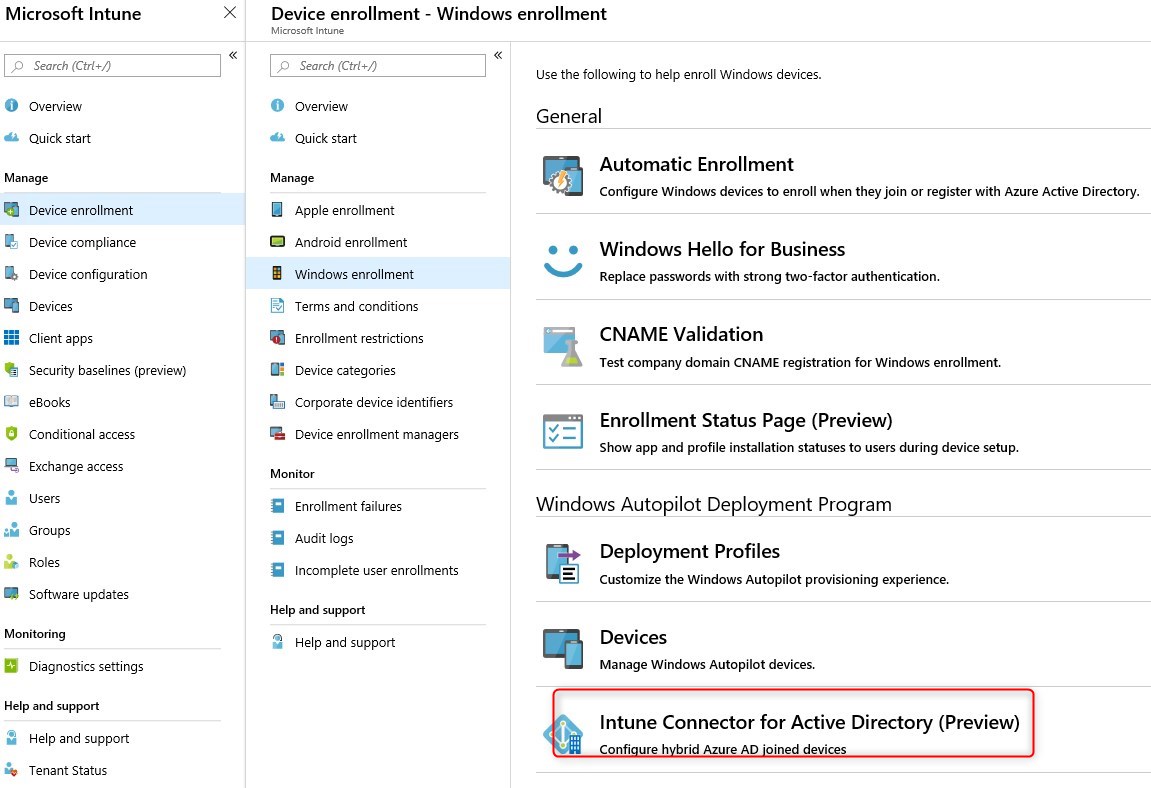
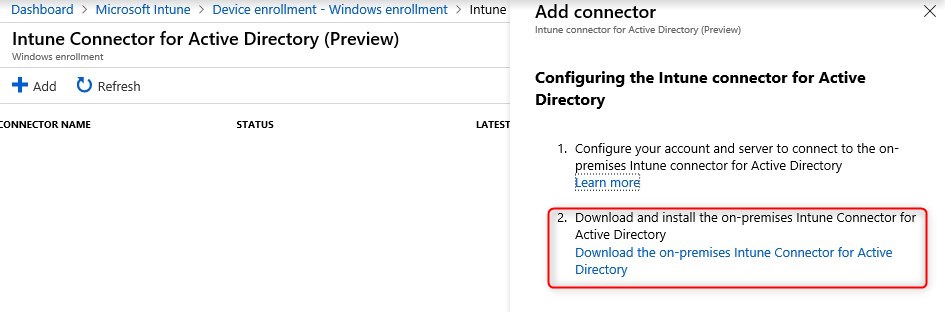
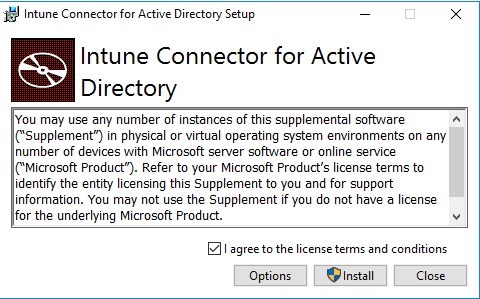
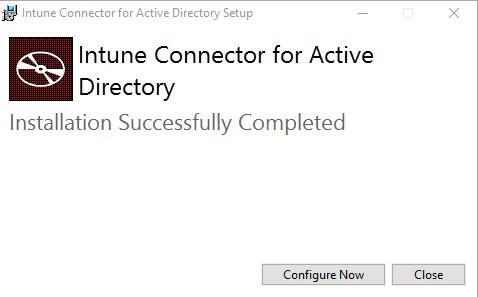
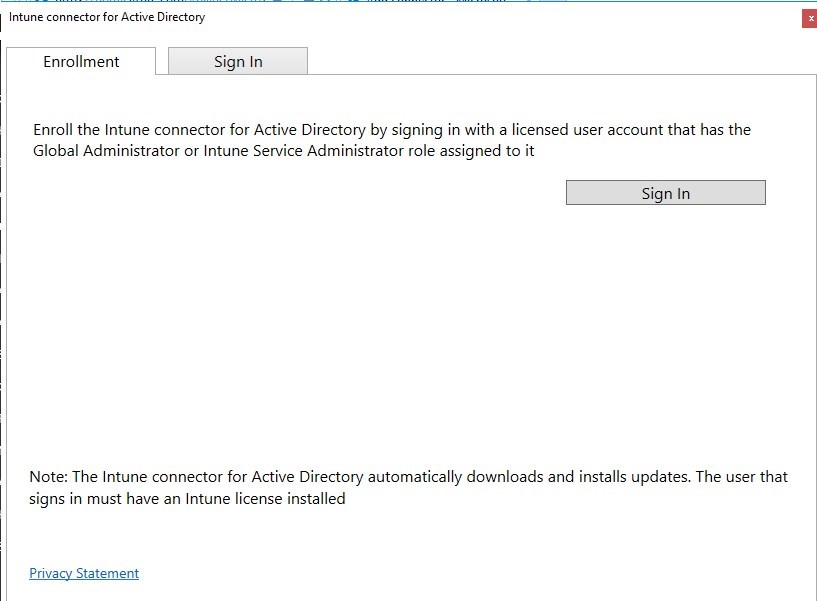
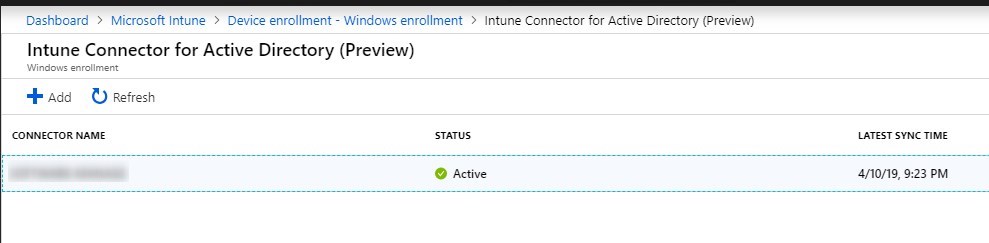
The note at the bottom is really important :
The Intune connector for Active Directory automatically downloads and installs updates. The user that signs in must have an Intune license installed
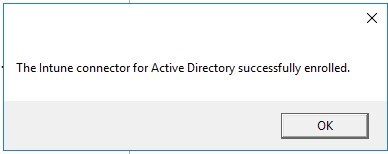
If you currently have an Autopilot profile to Azure AD join, it will not be possible to modify it. So we’ll create a new one.
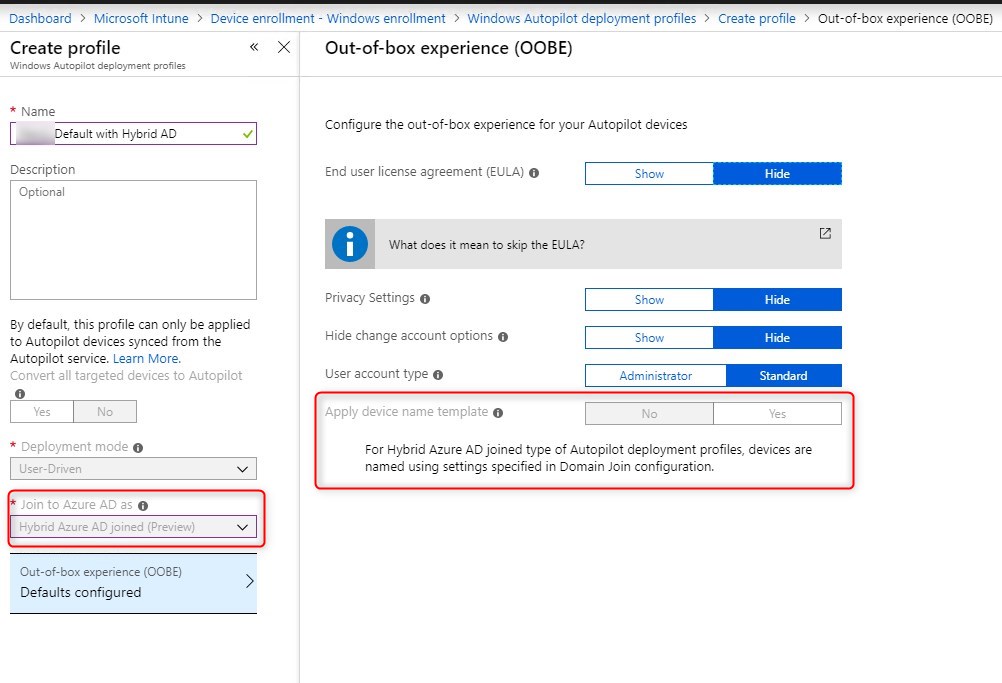
Note that the computer name will not be configured in the Autopilot deployment profile. This will be done in a Device configuration profile for Domain join.
This actually limits the use of variables like %SERIAL%, meaning that it is not currently supported to use the serial number as a computer name with Hybrid Domain join.
Once the Autopilot configuration is completed, we need to create a Device configuration profile with the domain specific informations.
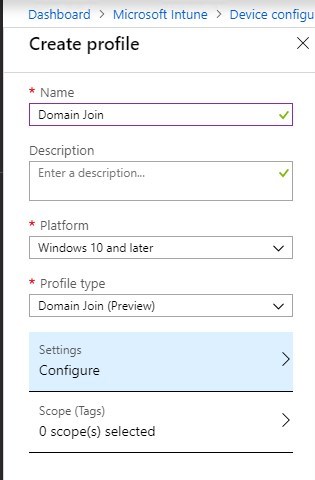
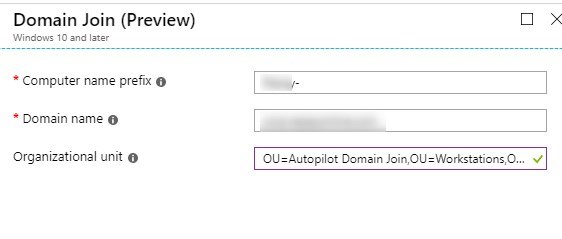
As mentioned earlier, the computer must be connected to the on-prem network and can access the domain before we initiate a reset.
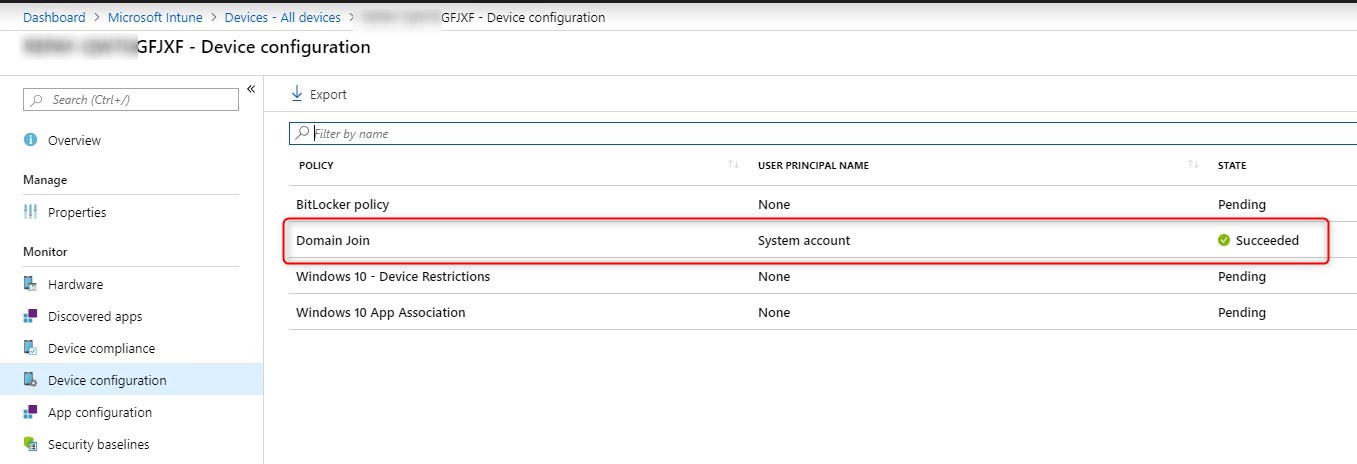
After completing the OOBE section, we can see under Intune/Devices that this specific device as the Device Configuration – Domain join with a state of Succeeded!
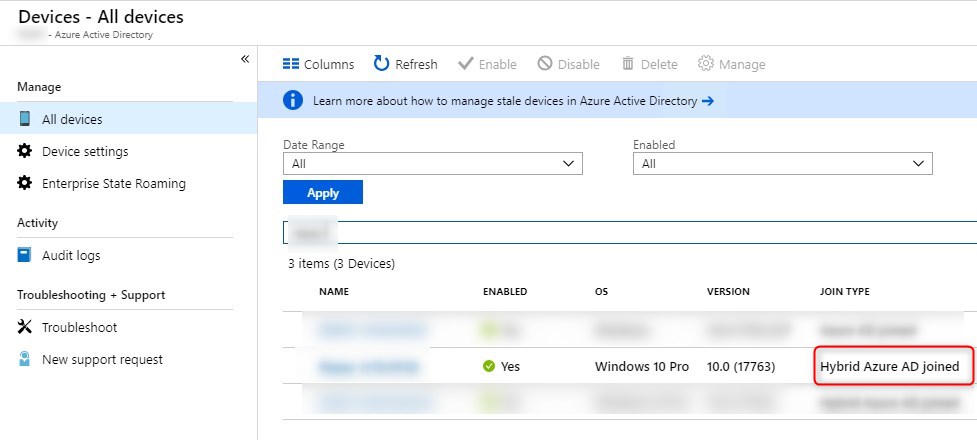
Under Azure AD/Devices our new computer is now Hybrid Azure AD joined instead of simply Azure AD joined!
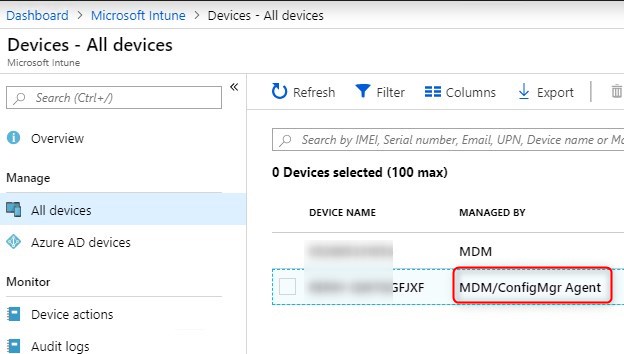
Because SCCM is also on our domain, it automatically push out the SCCM agent. This means that the Co-Management must be up and running in order to fully complete the process from Intune, for example, to push default applications.
Here’s a few observations while testing the Hybrid AD join.
Double computer with the same name
While we haven’t found a clear statement on this, it seems normal that 2 computers with the same name are store in Azure AD.

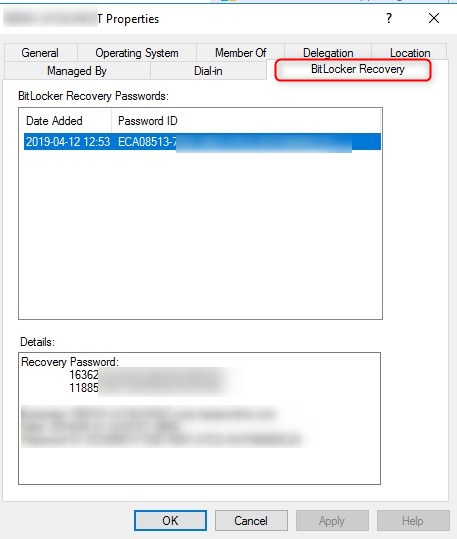
BitLocker recovery keys
In our previous post, we stated that the recovery keys are stored under the Intune device/ Monitor/Recovery Keys.
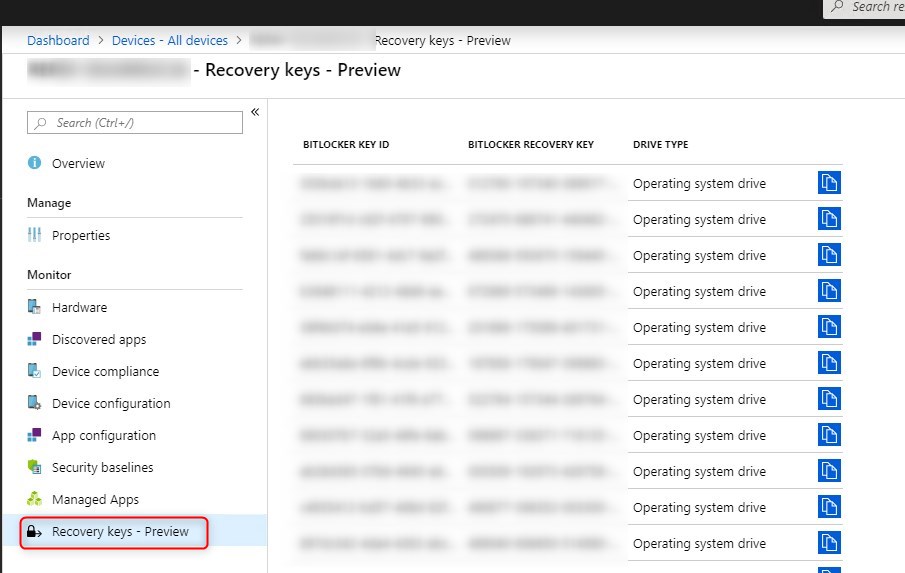
When doing the Hybrid AD join, this isn’t the case. The BitLocker recovery key will be stored on the on-prem AD object. Is this a feature? a bug? We don’t know…
For more details about Hybrid AD with Autopilot, see Microsoft docs

Please fill out the form, and one of our representatives will contact you in Less Than 24 Hours. We are open from Monday to Friday.

Thank you for subscribing to our newsletter or requesting a quote. You will receive our next month's newsletter. If you have requested a quote, we will get in touch with you as soon as possible.

Something went wrong!


Thank for your reply!