

Getting Started with Robopack Automated App Packaging
Founder of System Center Dudes. Based in Montreal, Canada, Senior Microsoft SCCM Consultant, 8 times Enterprise Mobility MVP. Working in the industry since 1999. His specialization is designing, deploying and configuring SCCM, mass deployment of Windows operating systems, Office 365 and Intune deployments.

Benoit Lecours
PresidentTable of Content
- What Is Robopack?
- Robopack Automated App Packaging – Top Benefits
-
How to Start With Robopack (Step-by-Step Guide)
- Step 1: Create Your Robopack Automated App Packaging Account
- Step 2: Connect your Intune Tenant
- Permissions needed for the Robopack Intune integration, Connect Tenant (Admin Consent)
- Step 3: Browse the App Catalog
- Step 4: Build and Deploy the Package
- Step 5: Enable Automatic Updates
- Setp 6: SCCM Import
- Select the applications to import
- Start importing to Robopack
- Is Robopack Automated App Packaging Worth Trying?
- Request a Robopack Demo and Quote





Share


Get the latest insights and exclusive content delivered to your inbox
If you work in IT and you need to package apps for Intune or SCCM, you know it can take a lot of time. Downloading installers, checking versions, repackaging everything… it never stops. This is why many people start using Robopack. It makes the job much easier.
In this post, we’ll describe how to start with Robopack Automated App Packaging and why it can help you save a lot of time.
What Is Robopack?
Robopack is a cloud tool that creates software packages for you. Instead of doing everything manually, you choose an app from their list, and Robopack automate the package creation for you. It also patches all your installed applications automatically.
It works and integrate seamlessly with Microsoft Intune and SCCM. If you’re a system administator working with these system, you won’t be lost in the intuive interface.
It is safe to say that once you install Robopack, you no longer need a full-time packager in your team.
Robopack Automated App Packaging – Top Benefits
If you manage Windows devices, you know that packaging software is time-consuming. Robopack removes most of this workload. Here are the biggest benefits:
1. Save Time With Automated Packaging
Robopack builds applications with one click. No more downloading installers or writing batch scripts.
2. Stay Secure With Automatic Updates
The platform checks for new versions and rebuilds packages instantly, keeping your environment secure.
3. Reduce Deployment Errors
Robopack uses consistent packaging standards, which reduces installation failures.
4. Works With Intune and SCCM
You can push packages directly to Microsoft Intune and import SCCM Applications.
5. Cloud-Based and Easy to Use
Everything is accessible through a clean, modern web interface. No software or server to install.
How to Start With Robopack (Step-by-Step Guide)
Now that you are familiar with Robopack features, we will set up our tenant.
Step 1: Create Your Robopack Automated App Packaging Account
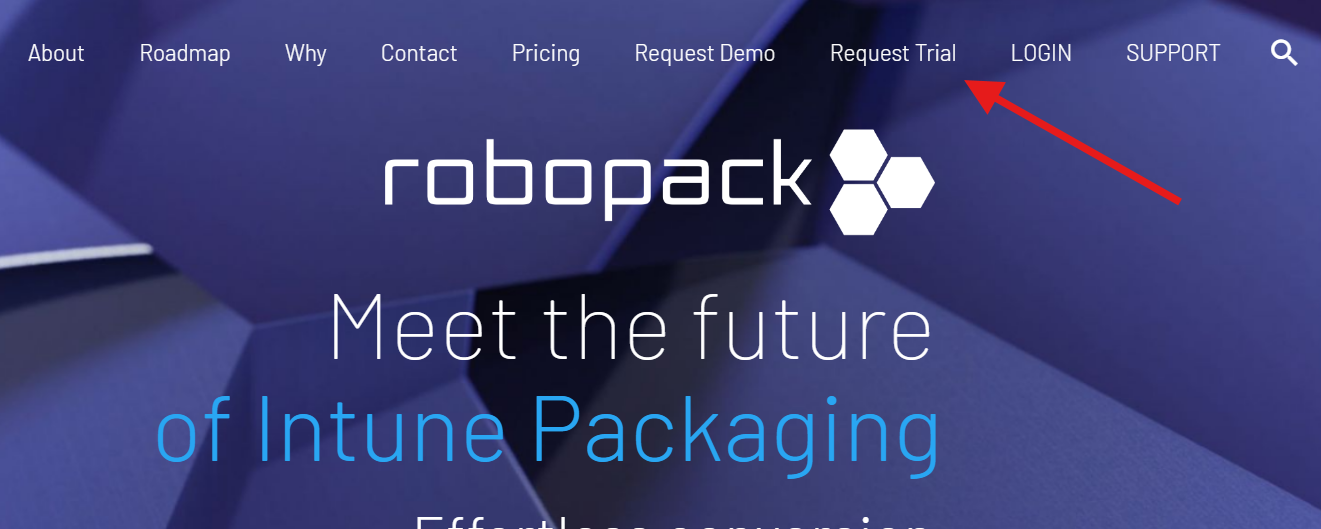
Visit the Robopack website and create your account or request a free trial that can be later converted to your prod tenant after buying your license.
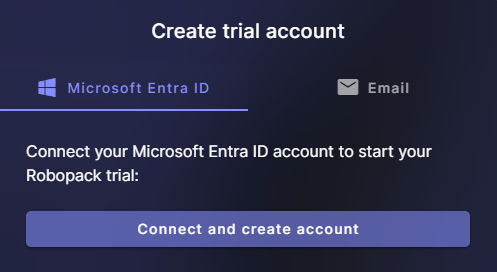
You can use your Microsoft Entra ID to sign in or choose an email/password account. If you use the email/password option, you will receive an activation email.
Step 2: Connect your Intune Tenant
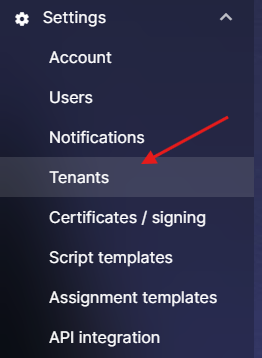
The first step is to connect your Intune tenant to Robopack. Connect your Intune tenant by going to Setup / Tenant.
- Once there, click on Connect Tenant on the right.
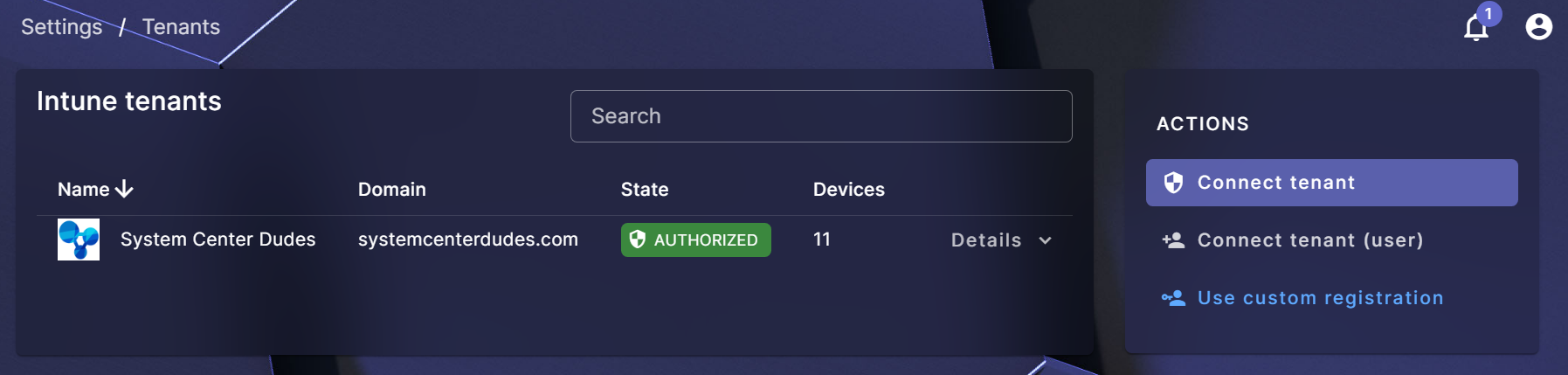
- Connect tenant will register Robopack as an application in your tenant. This option is required if you want to use the patching option of Robopack.
- Connect tenant (user) will run as on-behalf-of the user that connects the tenant. This option does not allow for automated patching
Permissions needed for the Robopack Intune integration, Connect Tenant (Admin Consent)
- Organization.Read.All
- Used for reading information on connected tenants, including name, domain name and branding information such as the Tenant logo.
- DeviceManagementApps.ReadWrite.All
- Used for creating new applications in Intune, either as manual imports or as new versions uploaded from a patch flow.
- DeviceManagementConfiguration.Read.All
- Used for reading the deployment status of applications for Robopack to monitor the progress of deployments and raise errors, or move to the next deployment wave.
- DeviceManagementServiceConfig.ReadWrite.All
- When an application created by Robopack is added to an Enrollment Status Page as a required app for an Autopilot deployment, granting these permissions lets Robopack automatically replace older versions with newer ones when they are uploaded by Robopack as part of a patch flow.
- Group.ReadWrite.All
- The read permission for groups is used by Robopack when creating deployment flows, allowing you to search through and pick out groups to be used for the assignment of software. The write permission is used when instructing Robopack, in a deployment flow, to create a new assignment group for a deployment, as well as being used by Radar Tracking to create the groups it uses.
- DeviceManagementManagedDevices.Read.All
- Device.Read.All
- These permissions are needed by Robopack for the Radar Tracking feature, which finds devices with apps that are not up-to-date and updates them. The Device.Read.All permissions aren’t strictly necessary for this feature to work, but errors are often experienced when patching some devices if they is not granted.
Step 3: Browse the App Catalog
Robopack includes a large catalogue of popular applications. At the time of this writing, there are 41000 applications supported, such as:
- Google Chrome
- Zoom
- Adobe Acrobat Reader
- Microsoft Teams
- 7-Zip
The complete list as of December 2025 is available here : Robopack list of 41000 available applications. If you find an unavailable app, you can request it to the Robopack dev team.
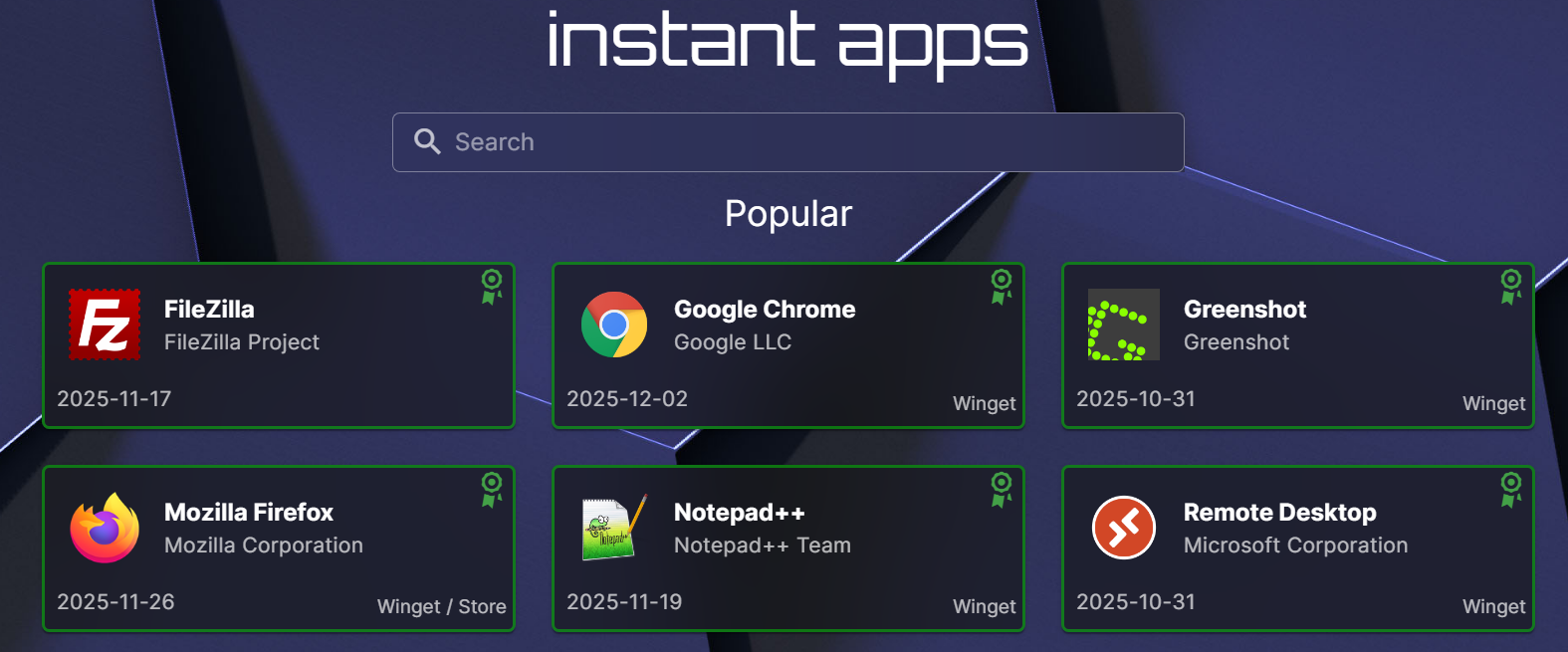
Select the application you want to deploy.
Step 4: Build and Deploy the Package
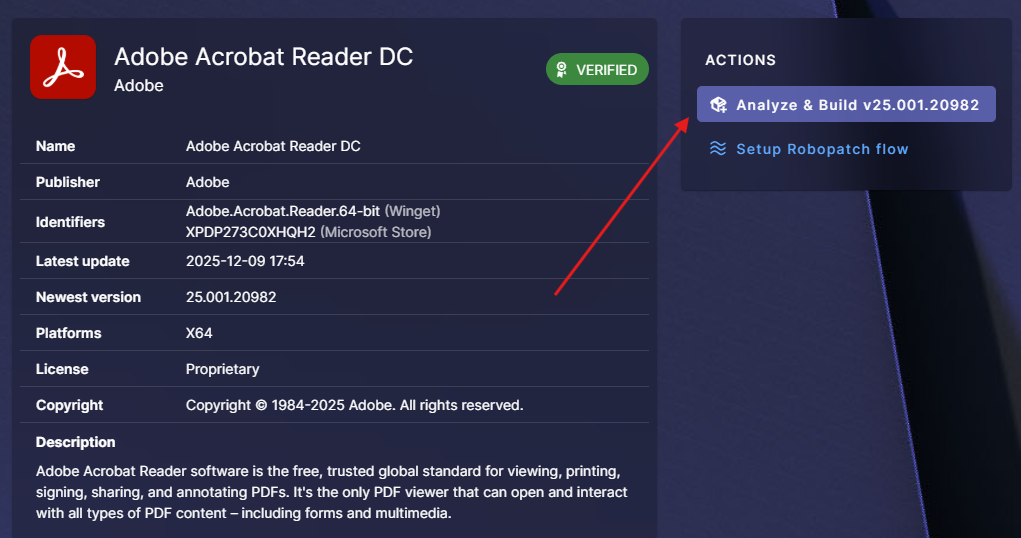
Click Build Package. Robopack Automated App Packaging create the correct format for Intune. Once ready, you can deploy the application directly from the dashboard.
Step 5: Enable Automatic Updates
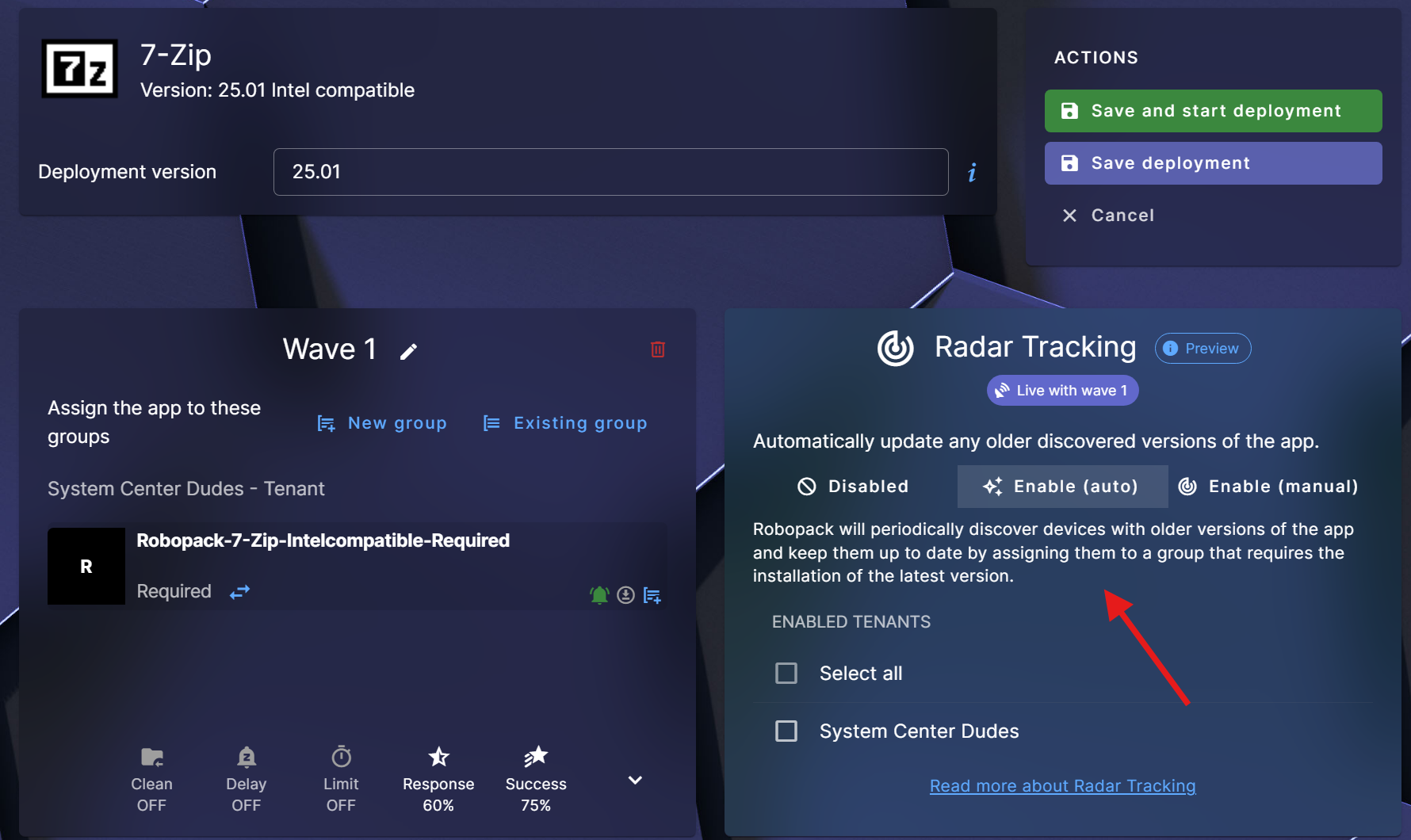
Turn on auto-updates so Robopack can rebuild packages when new versions are released. This is one of the biggest time-savers for IT teams. This function is called Robopatch Patch Flow.
Setp 6: SCCM Import
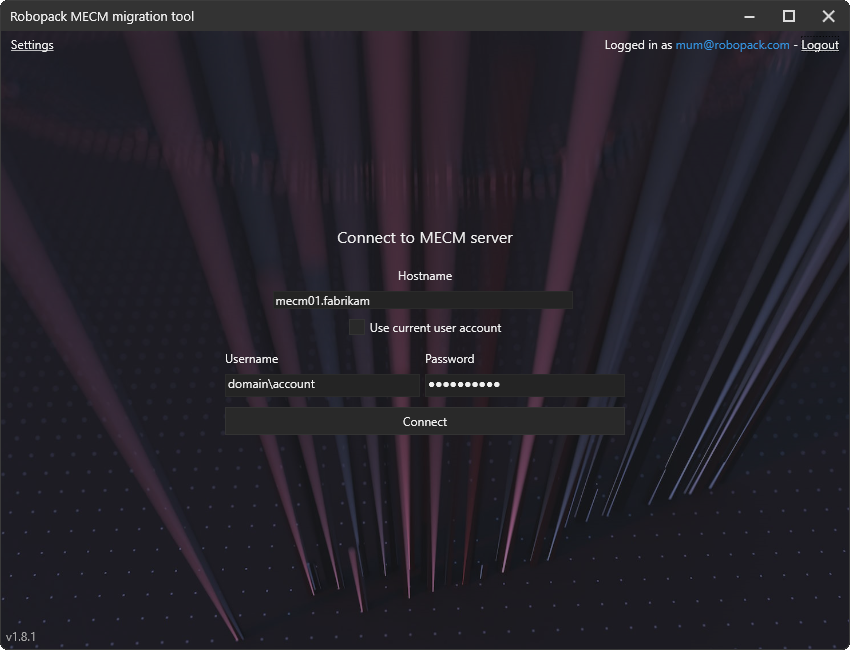
The Robopack SCCM migration tool can be used to read application information and content from a local SCCM server, and upload the selected packages to Robopack, automatically converting them to IntuneWin so they can be imported to Intune.
The tool comes as a single executable, requires .NET Framework 4.7.2, and does not require installation.
You can run the tool with a user account that has access to the SCCM server, or manually specify a user account and password with the necessary permissions.
- Download the Robopack SCCM migration tool
- Run the .exe file to start the tool
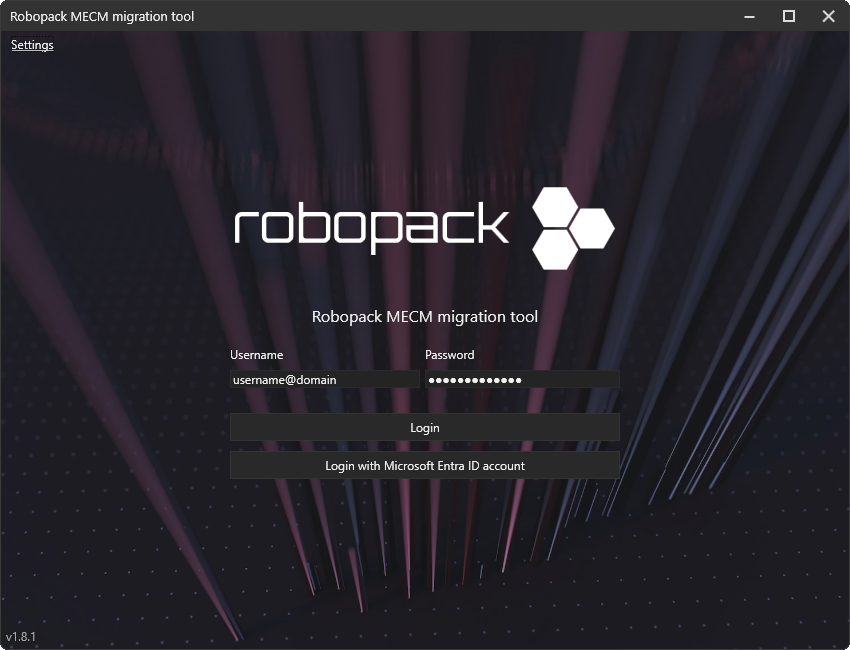
- If the current Windows user account has access to the SCCM server, you need only press Connect
- Otherwise, enter the username and password for the user account you will use to connect to the server.
Select the applications to import
Select the applications to import and decide if they should be imported as IntuneWin or converted to MSIX packages.
Start importing to Robopack
Click the Start import to Robopack button to start the process of importing the selected applications to Robopack. The imported applications will be visible below on this page and also in the normal list of applications.
Is Robopack Automated App Packaging Worth Trying?
Starting with Robopack is easy and free. You can start your tenant now and try it yourself. It speeds up app packaging, reduces errors, and keeps your environment secure. Whether you manage 100 devices or 10,000, RoboPack helps you work faster and smarter.
The era of having a full-time application packager is over.
If you’re interested going forward, we are an official reseller and can make you save up to 40% on the retail price. Just fill the form below to receive a quote or visit our Robopack reseller page.
Request a Robopack Demo and Quote
If you’re ready to move forward, we can set up a no-obligation Robopack trial, guide you through the entire setup process, and make sure you’re evaluating all the features that matter for your environment.
Share
Get the latest insights and exclusive content delivered to your inbox


Only authorized users can leave comments
Log In