The second hotfix for SCCM Current Branch (1606) is now available. This post is a complete SCCM 1606 Update Rollup 1 (KB3186654) installation guide. If you’re looking for a complete SCCM 1511 installation guide, see our blog series which covers it all. You can’t install this upgrade if you are running SCCM 2012. You need to be running at least SCCM 1606.
Installing SCCM upgrades is important for your infrastructure. It fixes a lot of issues from SCCM 1606, which some of them are important.
If you’re not familiar with the new SCCM servicing model, read our New Update and Servicing section of the 1602 upgrade post which explain it all.
You may wonder what’s the difference between a Cumulative Update (CU) and an Update Rollup (UR) :
A CU is a new servicing baseline. A post-CU1 hotfix requires CU1 first, whereas a post-UR1 hotfix doesn’t require UR1. Like CU, UR are cumulative which means that UR2 will include previous hotfixes.
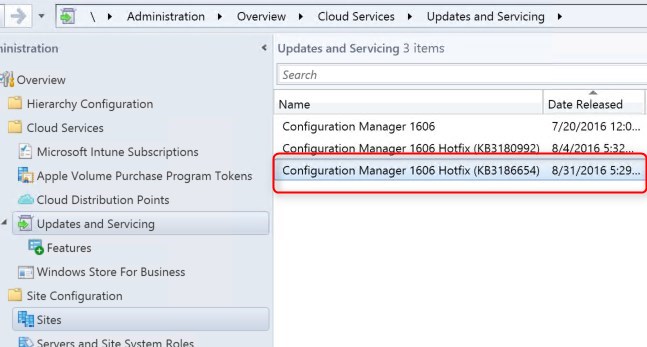
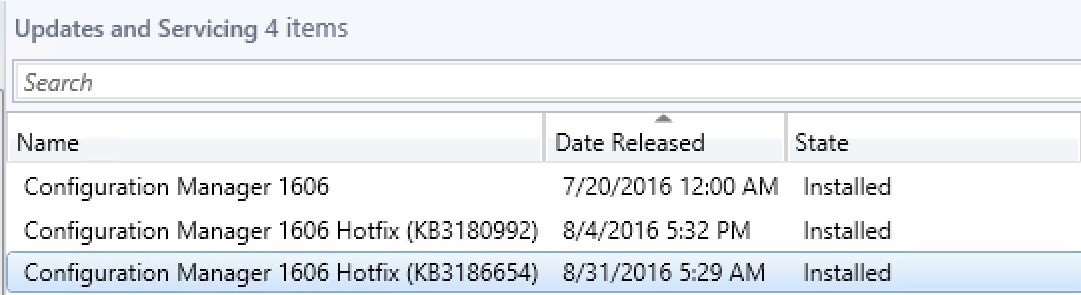
*If you are running SCCM 1511 or 1602, you first need to upgrade to 1606 prior to apply this Update Rollup, see our blog which covers the upgrade process. Once completed, the Update Rollup 1 will be available under Update and Servicing node.
Consult this support page for a full list of issues fixed.
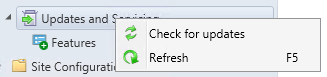
Downloading and installing this update is done entirely from the console. There’s no download link, the update will appear in your console once synchronized.
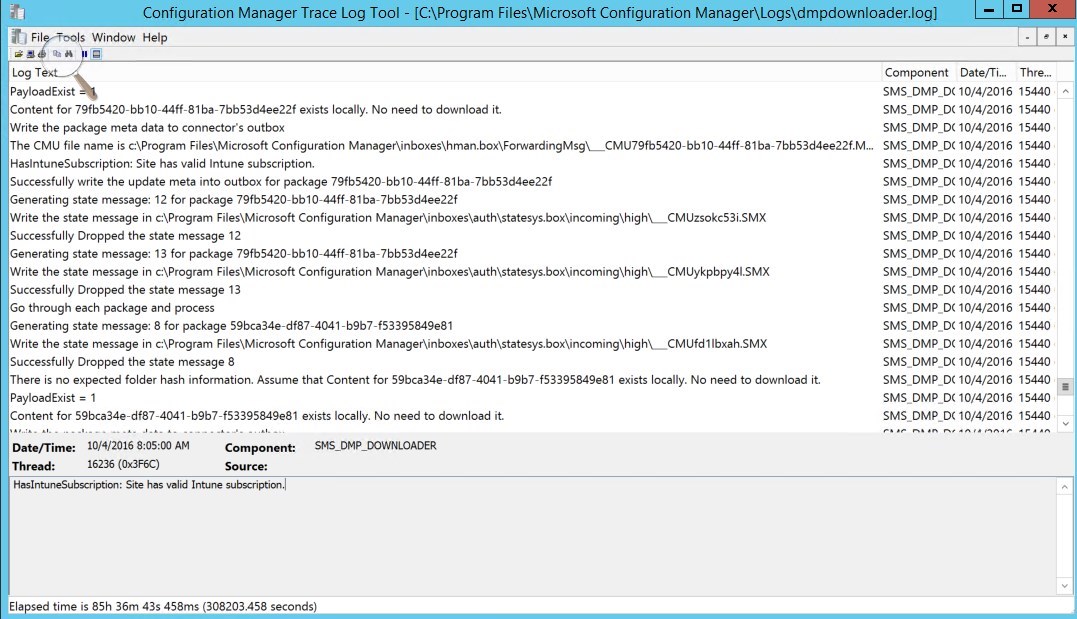
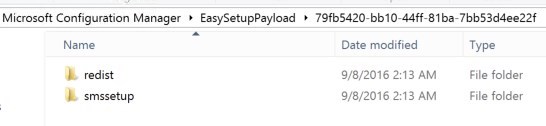
When you install an in-console update: (New Versions,CU,UR,KB)
In this post, we’ll be updating a standalone Primary Site Server, console and clients.
[su_box title=”Reminder” style=”glass” title_color=”#F0F0F0″]It’s a best practice to have some exclusions for your antivirus/anti-malware software on the SCCM server. Here a list for exclusions from SCCM 2012, which is still valid for CB as far as we know.
You could also consider disabling the AV prior to installing the update and re-enable it once completed. [/su_box]
Before installing, check if your site is ready for the update :
Before launching the update, we recommend to launch the prerequisite check :
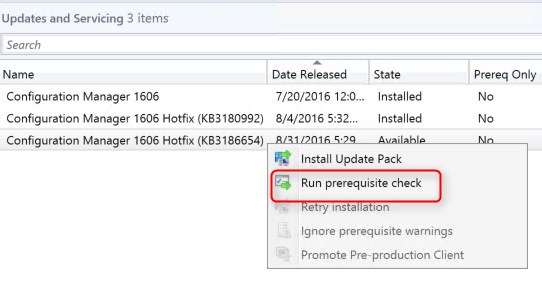
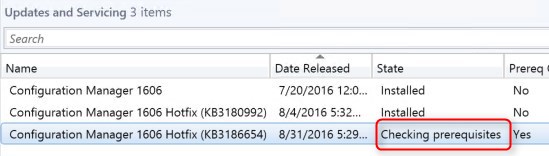
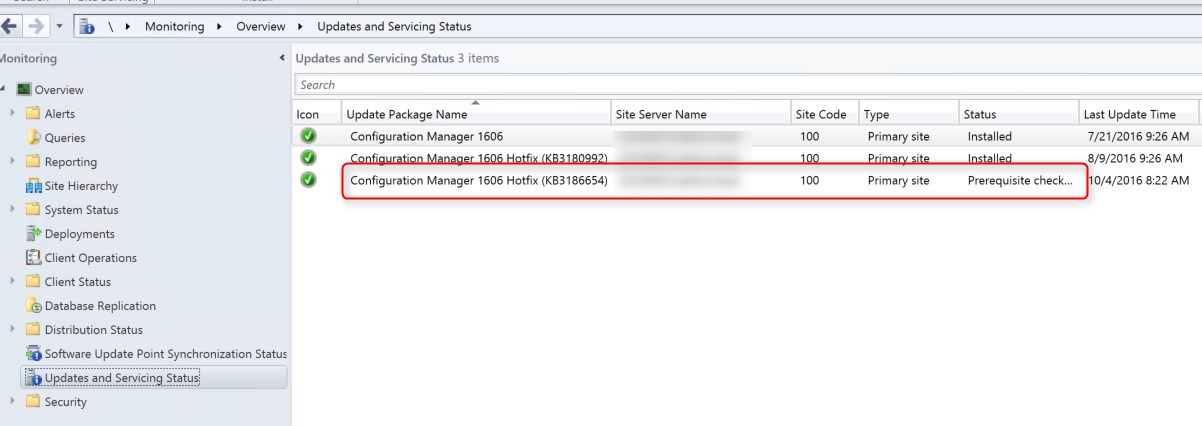
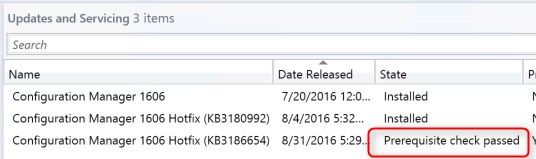
We are now ready to launch the SCCM 1606 Update rollup 1. At this point, plan about 30 minutes for the update installation.
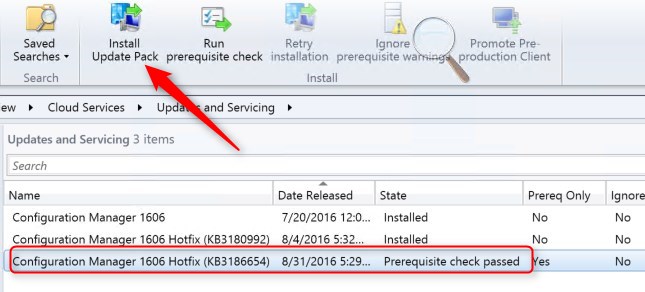
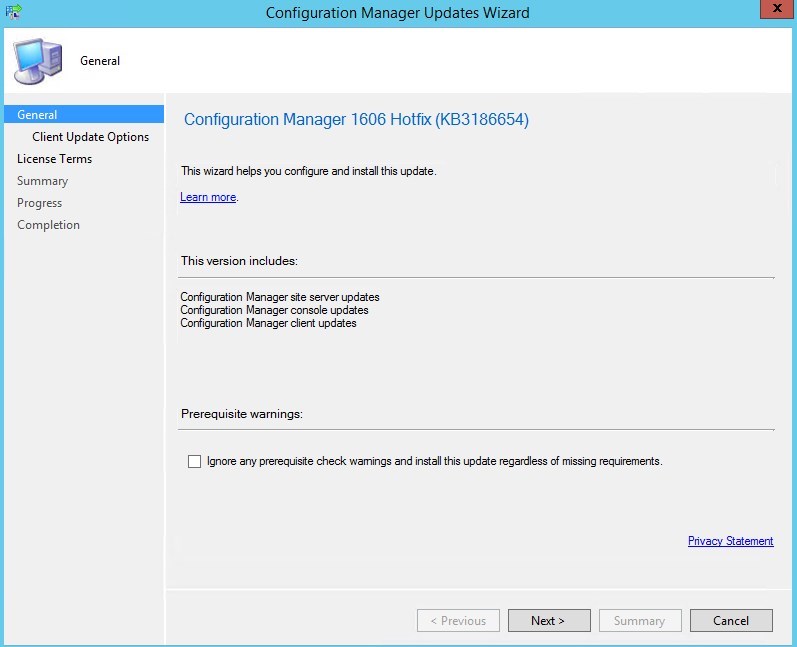
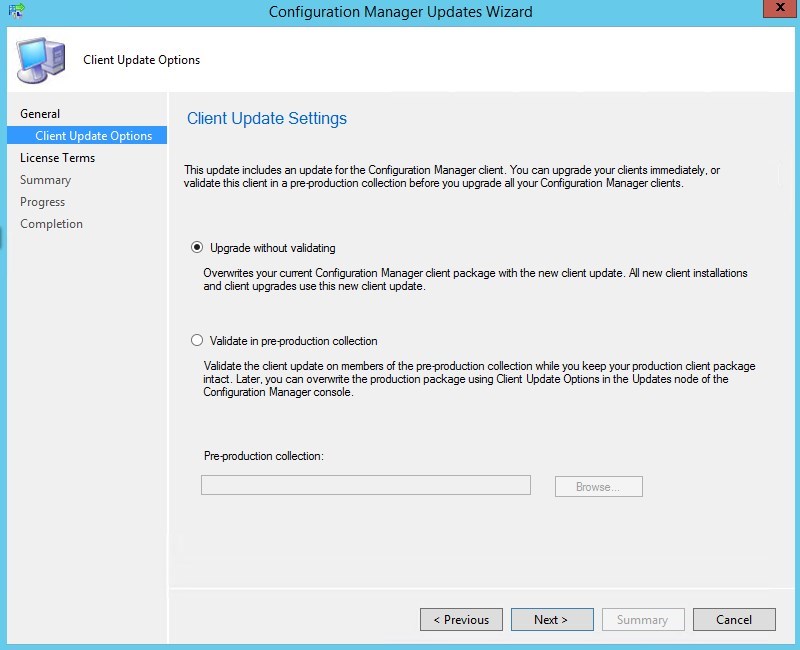
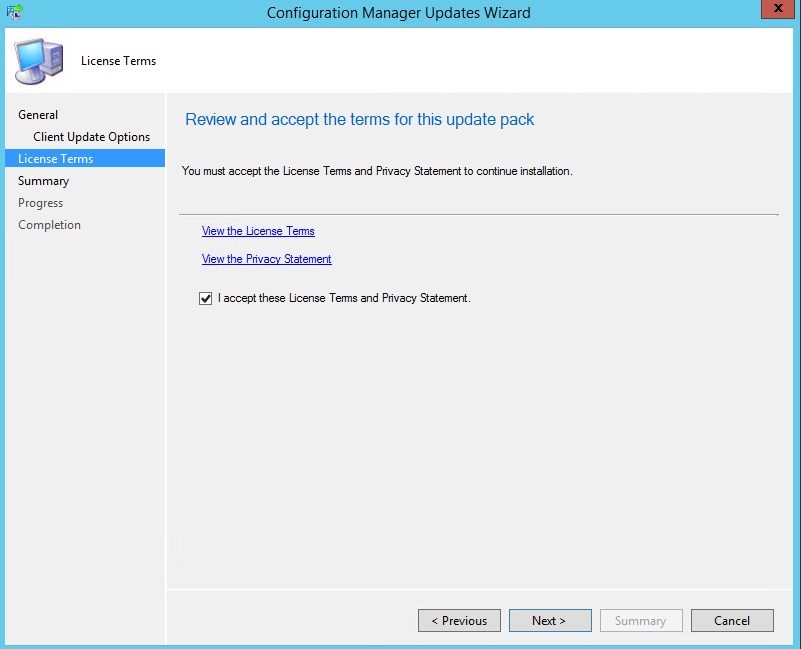
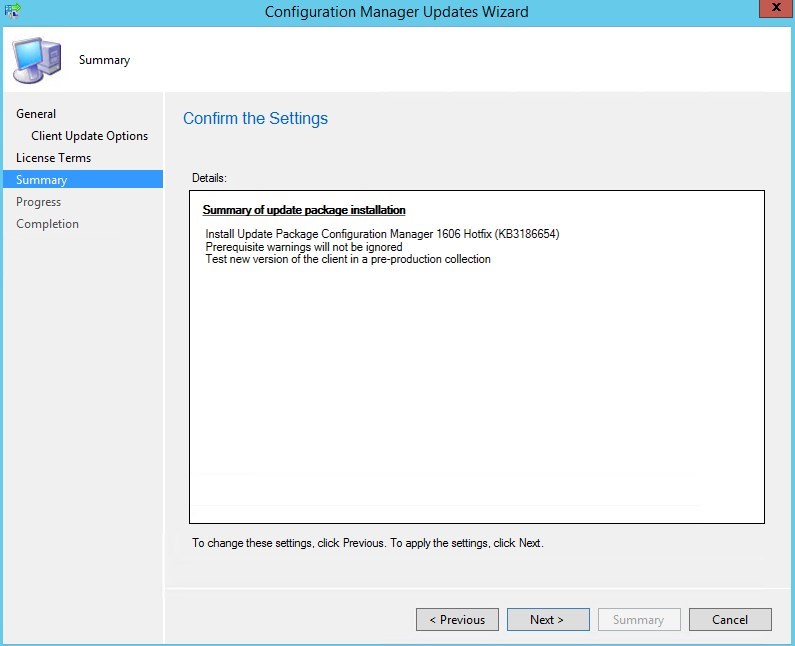
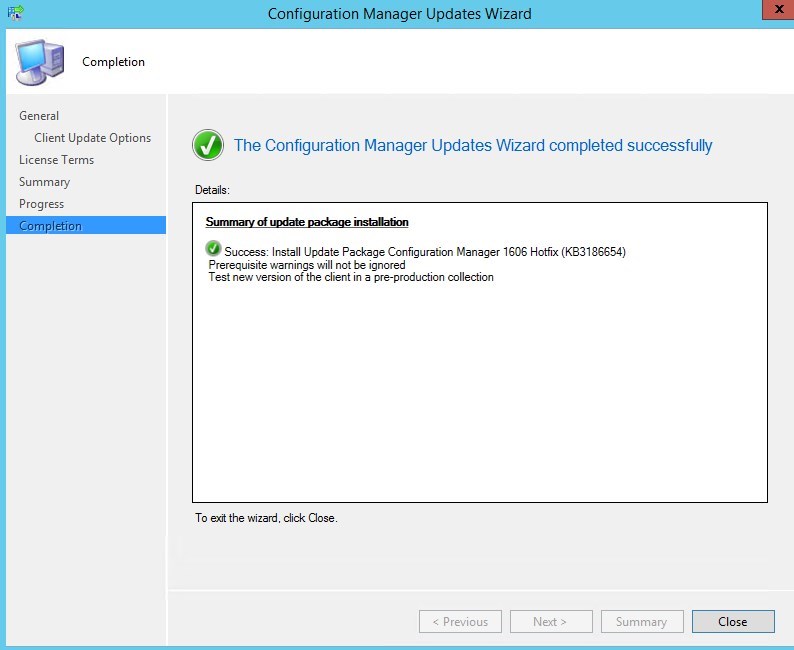
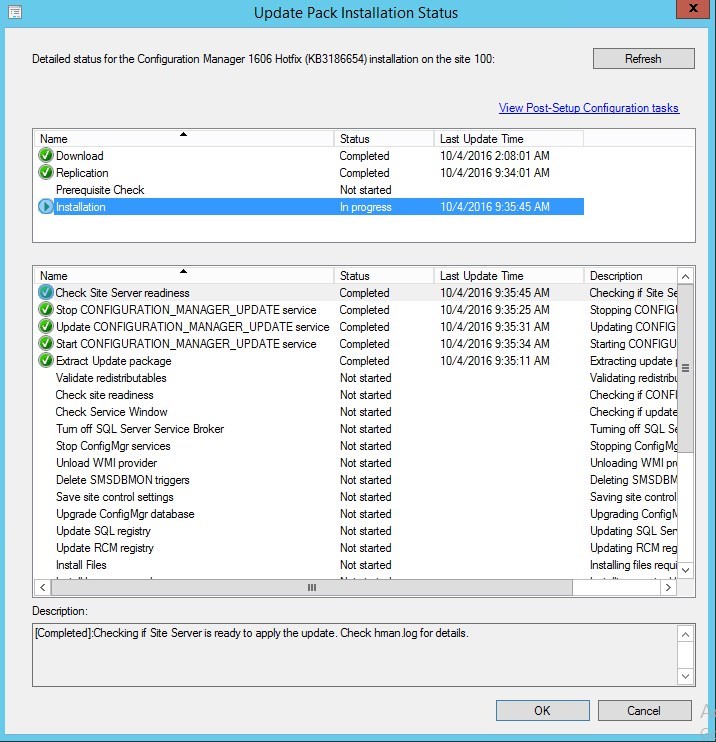
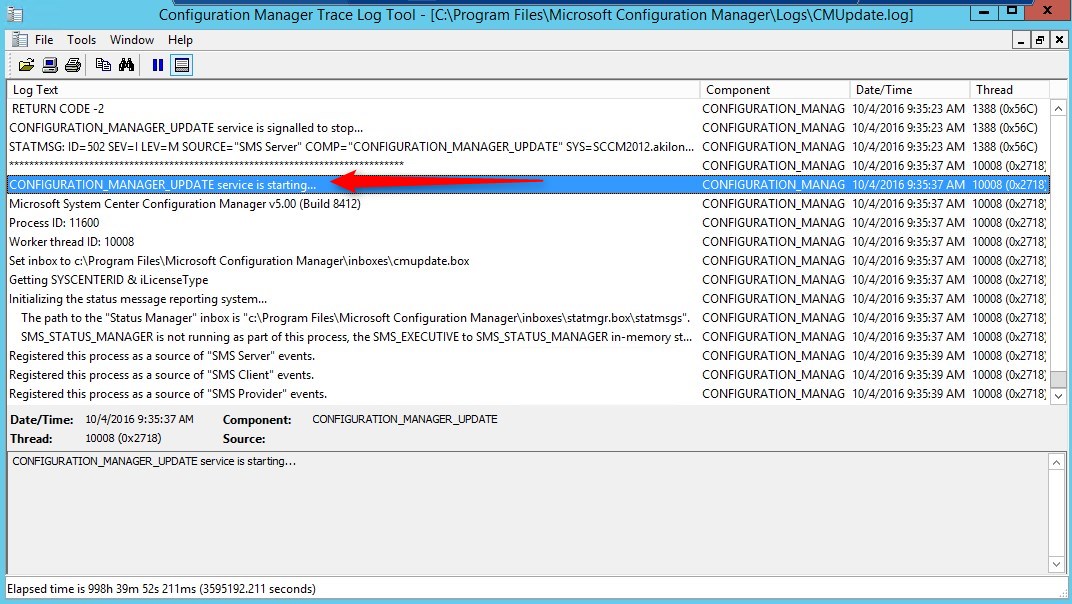
[su_box title=”Warning” style=”glass” title_color=”#F0F0F0″]We’ve done numerous SCCM 1606 installation/upgrade. Some installation start a couple of minutes after you complete the wizard but we’ve seen some installation starts after a 10 minutes delay. Do not reboot or restart any services during this period or your update could be stuck in “Prerequisite check passed” status and all other options greyed out. There’s actually no officially documented methods by Microsoft to fix that. Patience is the key ![/su_box]
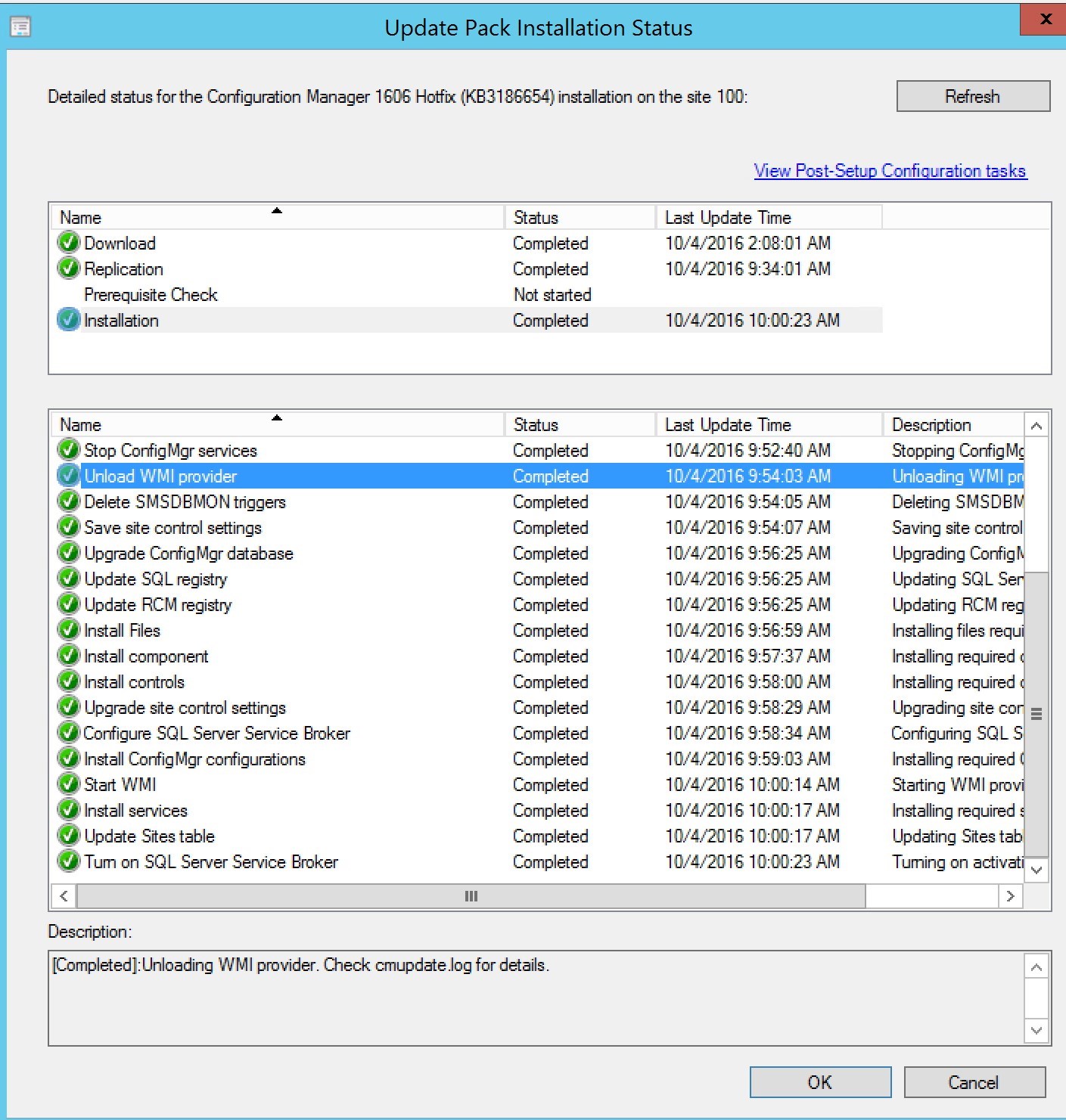
Since 1602, the console has an auto-update feature. At console opening, if you are not running the latest version, you will receive a warning and the update will start automatically.
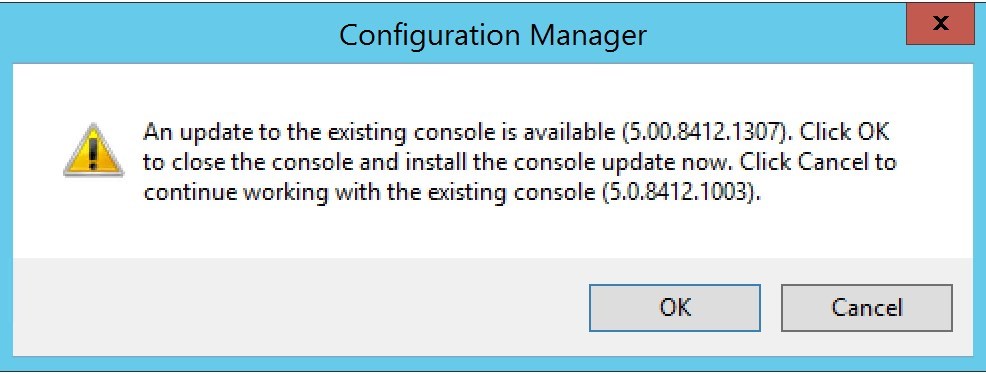
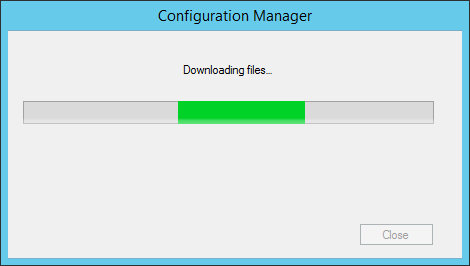
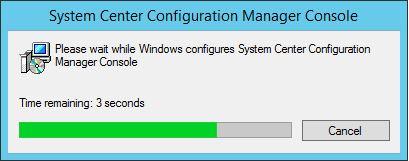
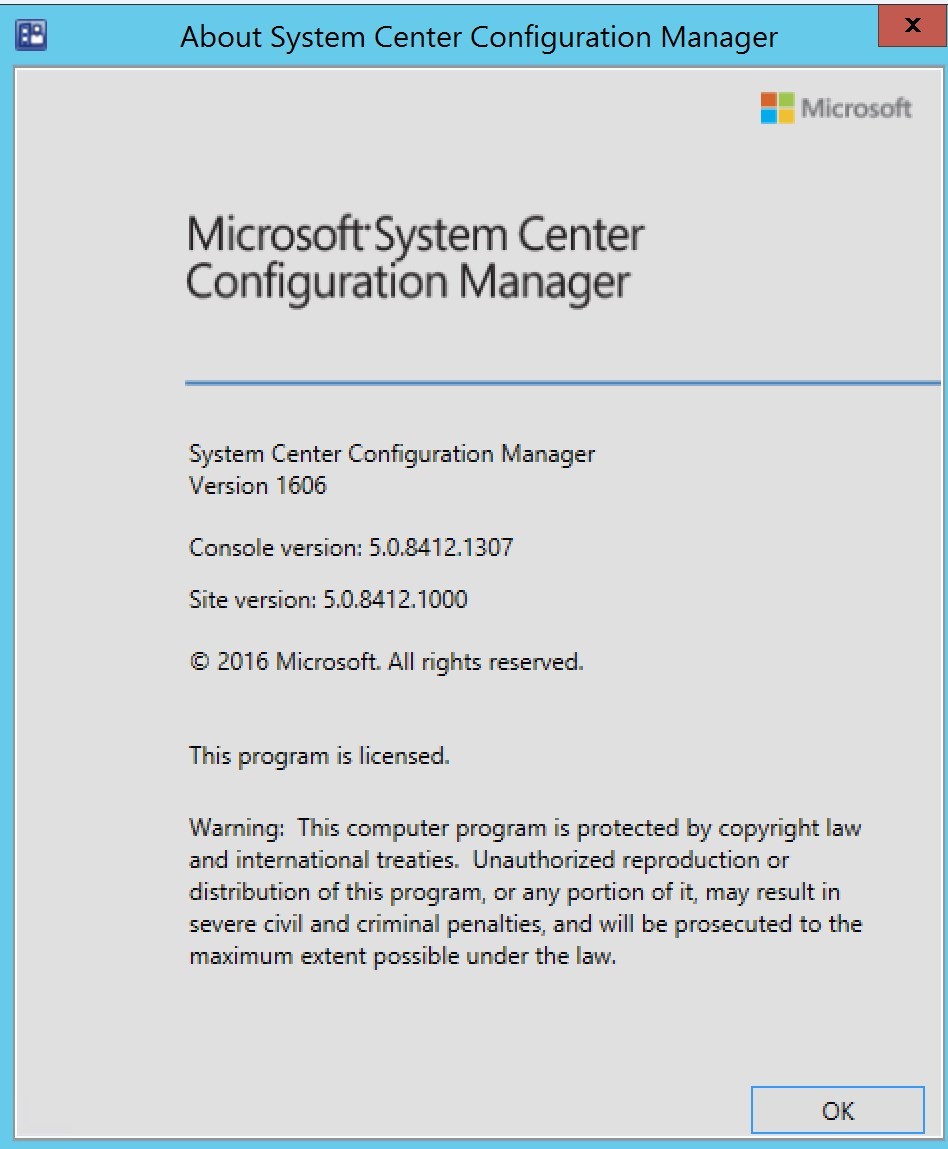
After setup is completed, verify the build number of the console. If the console upgrade was successful, the build number will be 5.0.8412.1307. Note that the Site Version is not changed to the Update rollup version. This is normal.
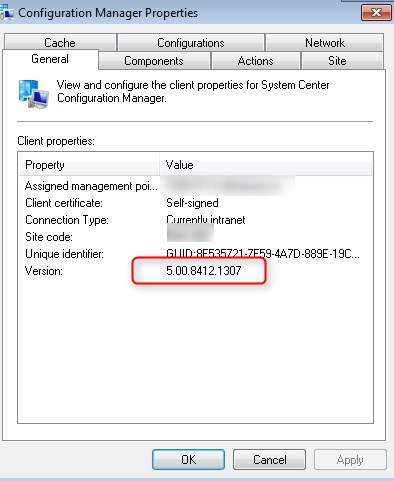
Clients
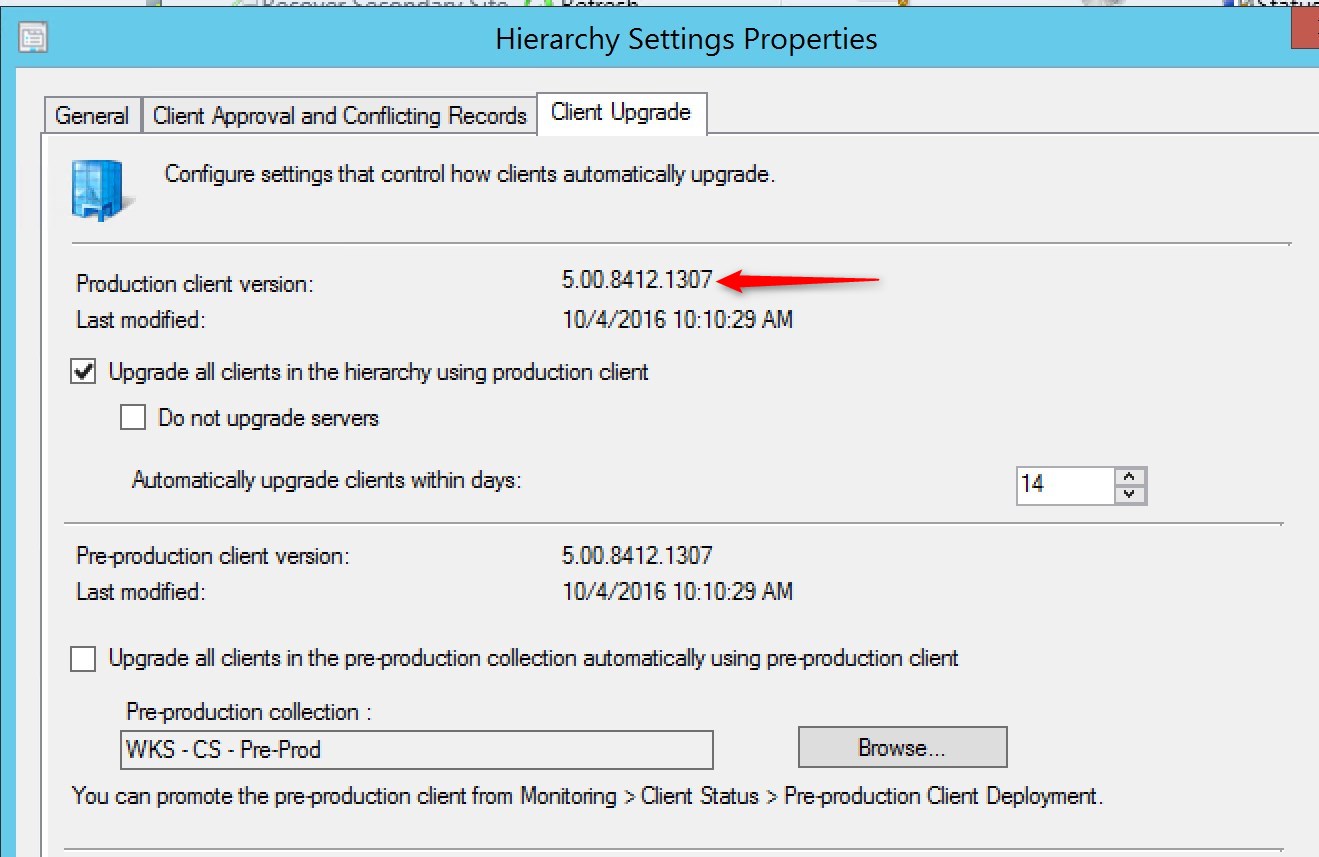
The client version will be updated to 5.00.8412.1307 (after updating, see section below)
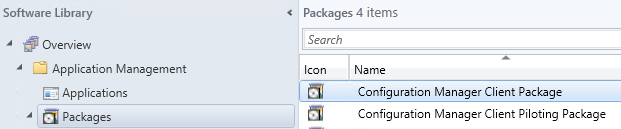
You’ll see that the 2 client packages are updated :
Our preferred way to update our clients is by using the Client Upgrade feature :
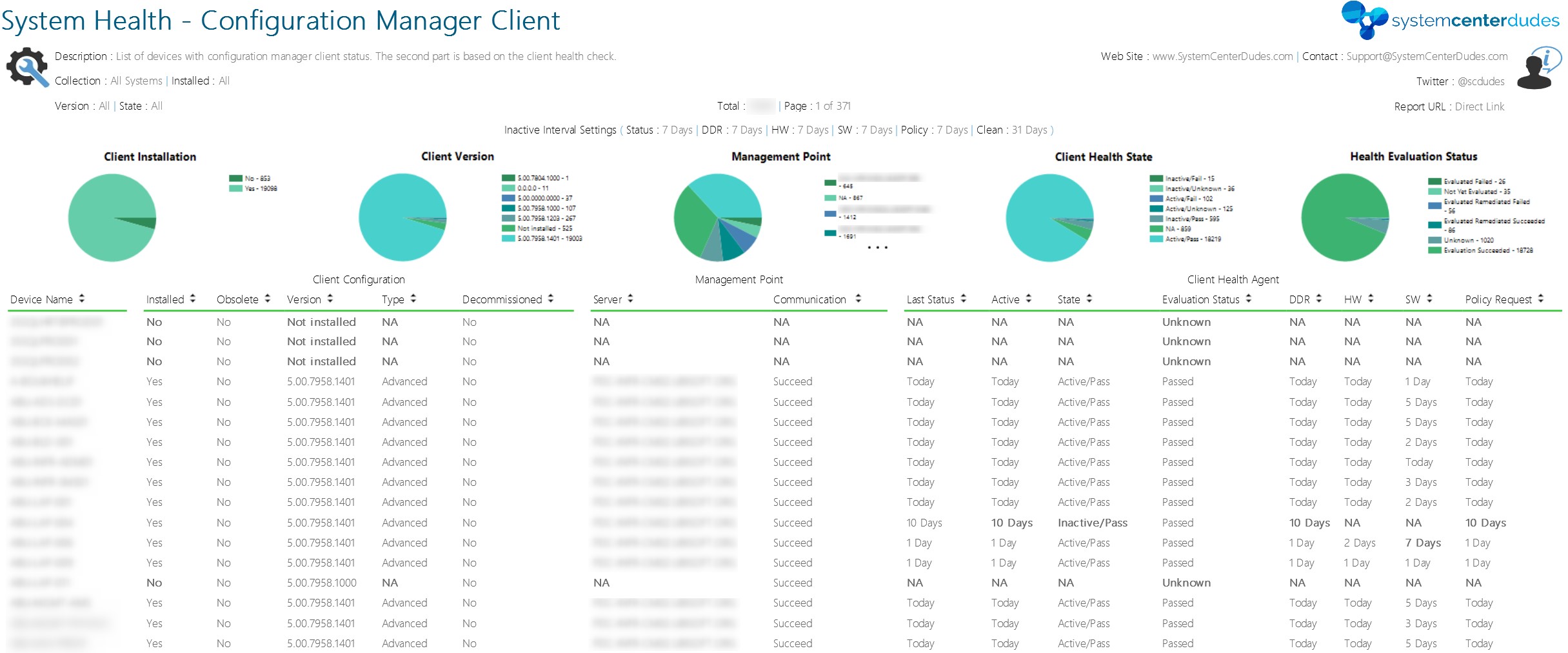
You can see our SCCM Client version reports to give detailed information about every clients versions in your environment. It’s the easiest way to track your client updates.
You can also create a collection that targets clients without the latest client version. I use it to monitor which client haven’t been updated yet.
Here’s the query to achieve this: (You can also refer to our Set of Operational Collection Powershell Script which contains this collection)
[pastacode lang=”sql” manual=”select%20SMS_R_SYSTEM.ResourceID%2CSMS_R_SYSTEM.ResourceType%2CSMS_R_SYSTEM.Name%2CSMS_R_SYSTEM.SMSUniqueIdentifier%2CSMS_R_SYSTEM.ResourceDomainORWorkgroup%2CSMS_R_SYSTEM.Client%20from%20SMS_R_System%20where%20SMS_R_System.ClientVersion%20!%3D%20’5.00.8412.1307′” message=”” highlight=”” provider=”manual”/]
Happy updating ! 🙂

Please fill out the form, and one of our representatives will contact you in Less Than 24 Hours. We are open from Monday to Friday.

Thank you for subscribing to our newsletter or requesting a quote. You will receive our next month's newsletter. If you have requested a quote, we will get in touch with you as soon as possible.

Something went wrong!


Thank for your reply!