The first upgrade for SCCM Current Branch (1511) is now available. This post is a complete step-by-step SCCM 1602 upgrade guide. If you’re looking for a complete SCCM 1511 installation guide, see our blog series which covers it all.
Installing SCCM upgrades is very important to your infrastructure. It adds new feature and fixes lots of issues, which some of them are important.
Since SCCM 1511, Microsoft now release update pack differently than services packs and cumulative updates. Downloading and updating is made directly from the console. If you need to make a new SCCM installation, you can’t install SCCM 1602 directly. You need to install SCCM 1511 first and then apply SCCM 1602 from the console. SCCM 1511 is still the baseline version if you’re starting from scratch.
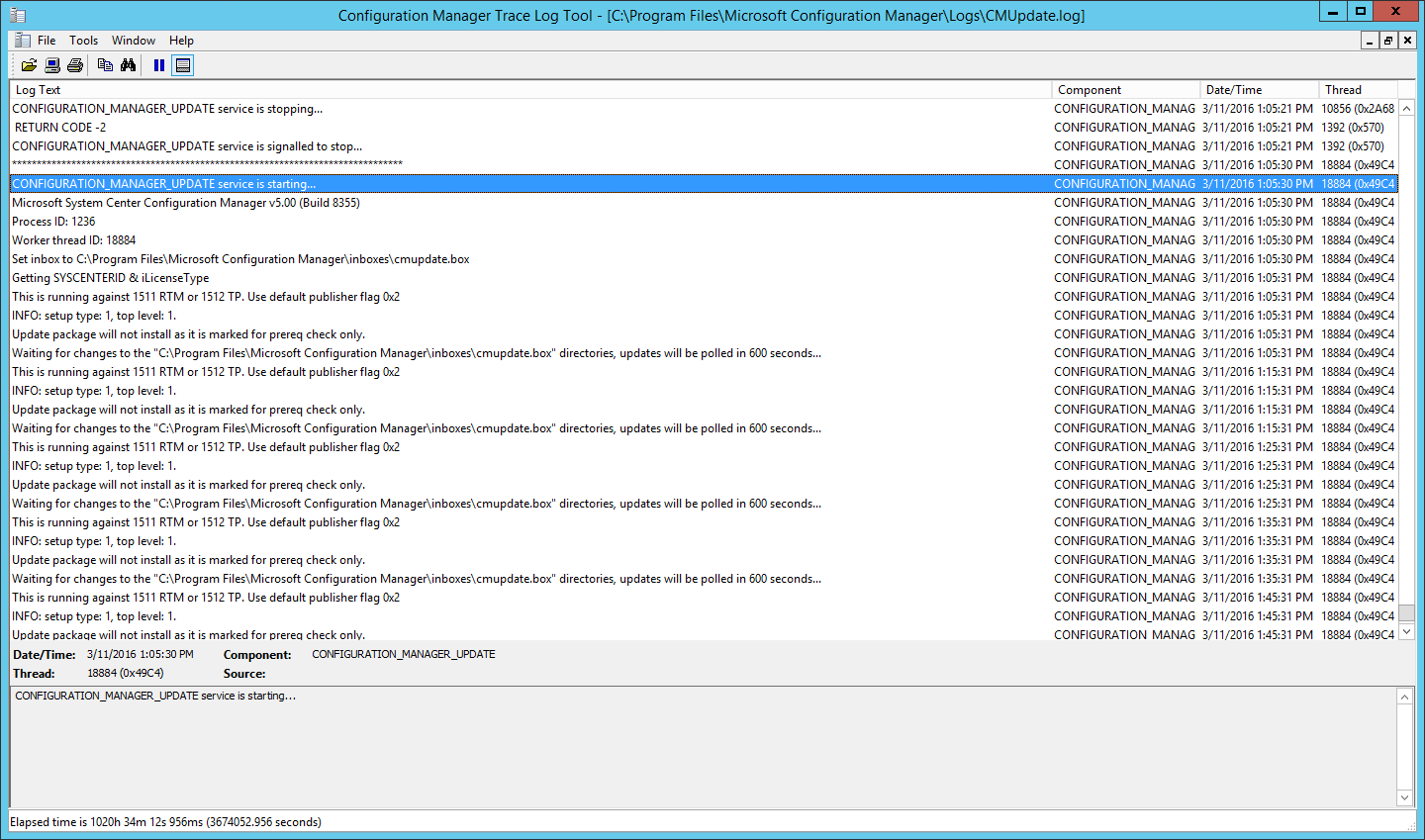
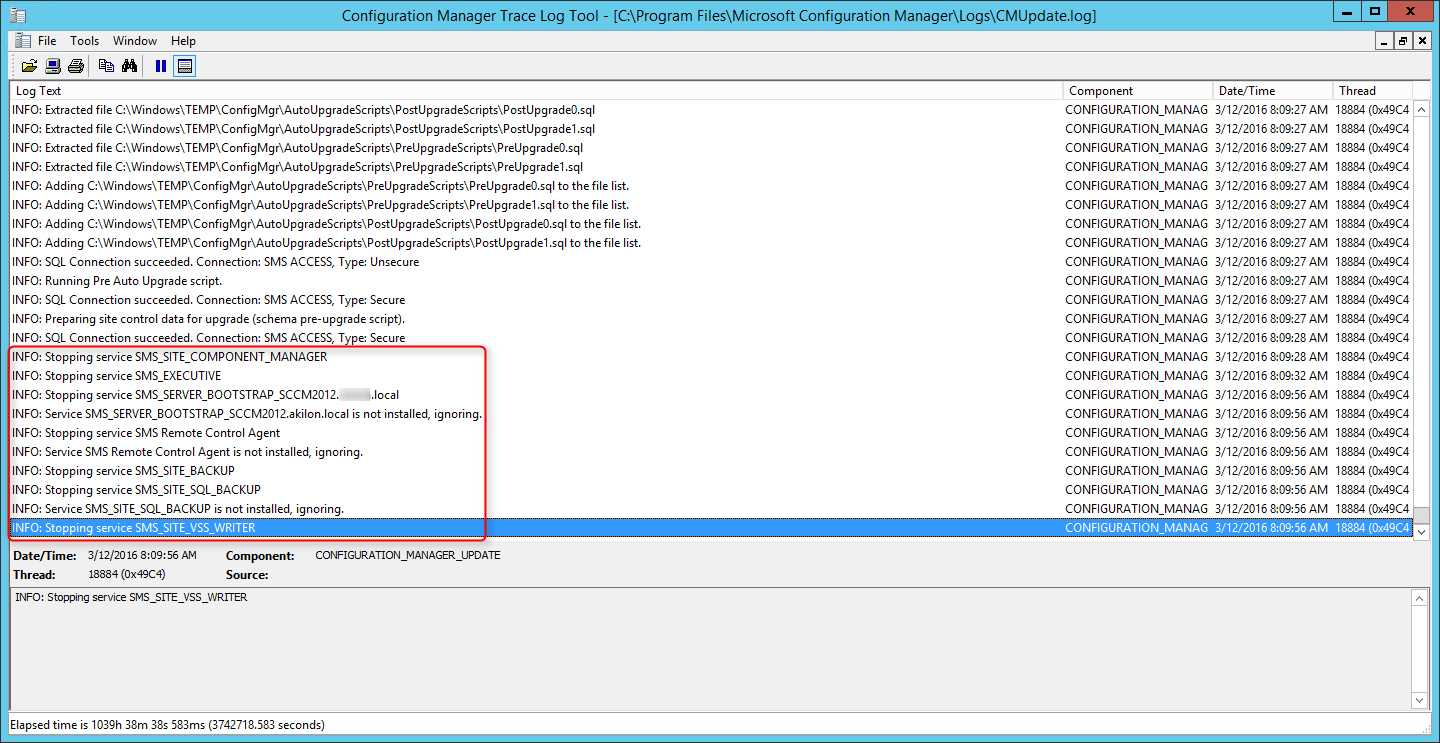
The update process seem quite easy but don’t get confused. Yes, it’s easy to apply, but these updates needs to be planned as much as you planned cumulative updates and service pack in the past. (During the installation process all SCCM services including SMS_Executive service are stopped)
As stated on the Configuration Manager Team blog, the new servicing methods is designed to support the much faster pace of updates for Windows 10 and Microsoft Intune. (You can expect 3 or 4 of these updates per year). They also mentioned that they plan to support each version/update for 12 months before they require that customers upgrade to the latest one to continue support. This basically means that you can skip SCCM 1602 if you want and apply SCCM 1606 (fictional name) at release. The important thing to remember is to update before the 12 month end-of-support period.
This update contains new features and applies the latest KB/fixes to fix known bugs.
Our favorite feature is Client Online Status which will greatly help operational tasks. A computer is considered online if it is connected to its assigned management point. To indicate that the computer is online, the client sends ping-like messages to the management point. If the management point doesn’t receive a message after 5 minutes, the client is considered offline.
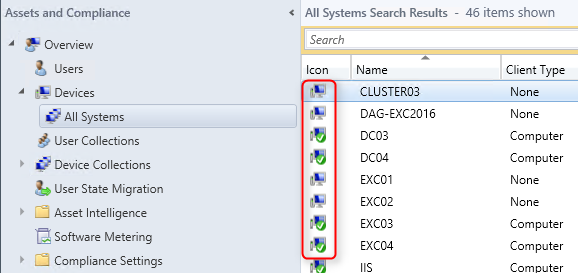
Downloading and installing this update is done entirely from the console. There’s no download link, the update will appear in your console.
If you’re running a multi-tier hierarchy, start at the top-level site in the hierarchy. After the top-level site upgrades, you can begin the upgrade of each child site. Complete the upgrade of each site before you begin to upgrade the next site. Until all sites in your hierarchy are upgraded, your hierarchy operates in a mixed version mode.
Before applying this update, We strongly recommend that you go through the upgrade check list provided on Technet.
In this post, we’ll be updating a standalone Primary Site Server, console and clients.
Before installing, check if your site is ready for the update :
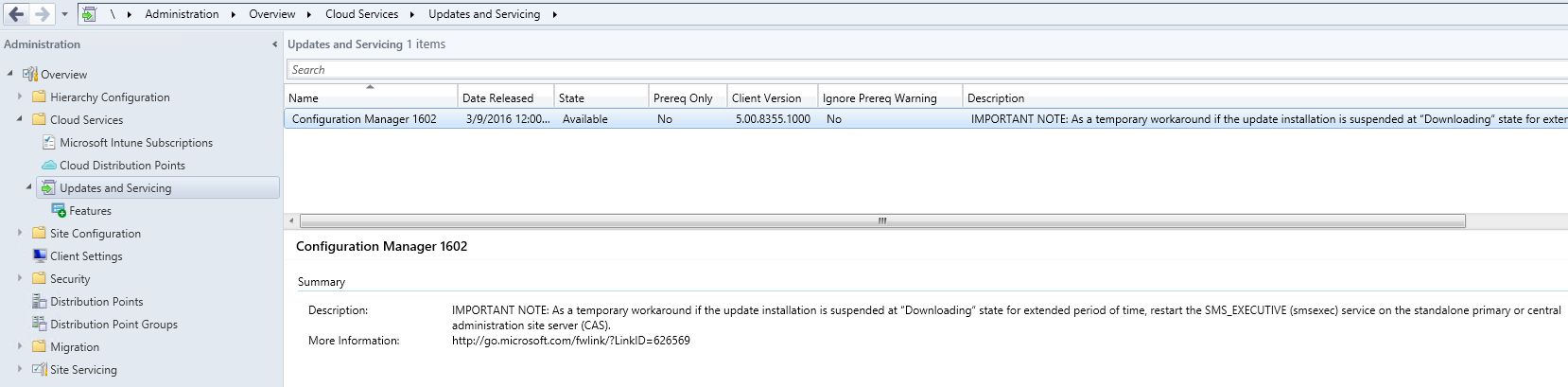
If you’re not seeing the update, Microsoft has provided a PowerShell script to force the download. If you’re not in a hurry, just wait and it should appear in the next following days.
Refer to Dmpdownloader.log to see download progress :
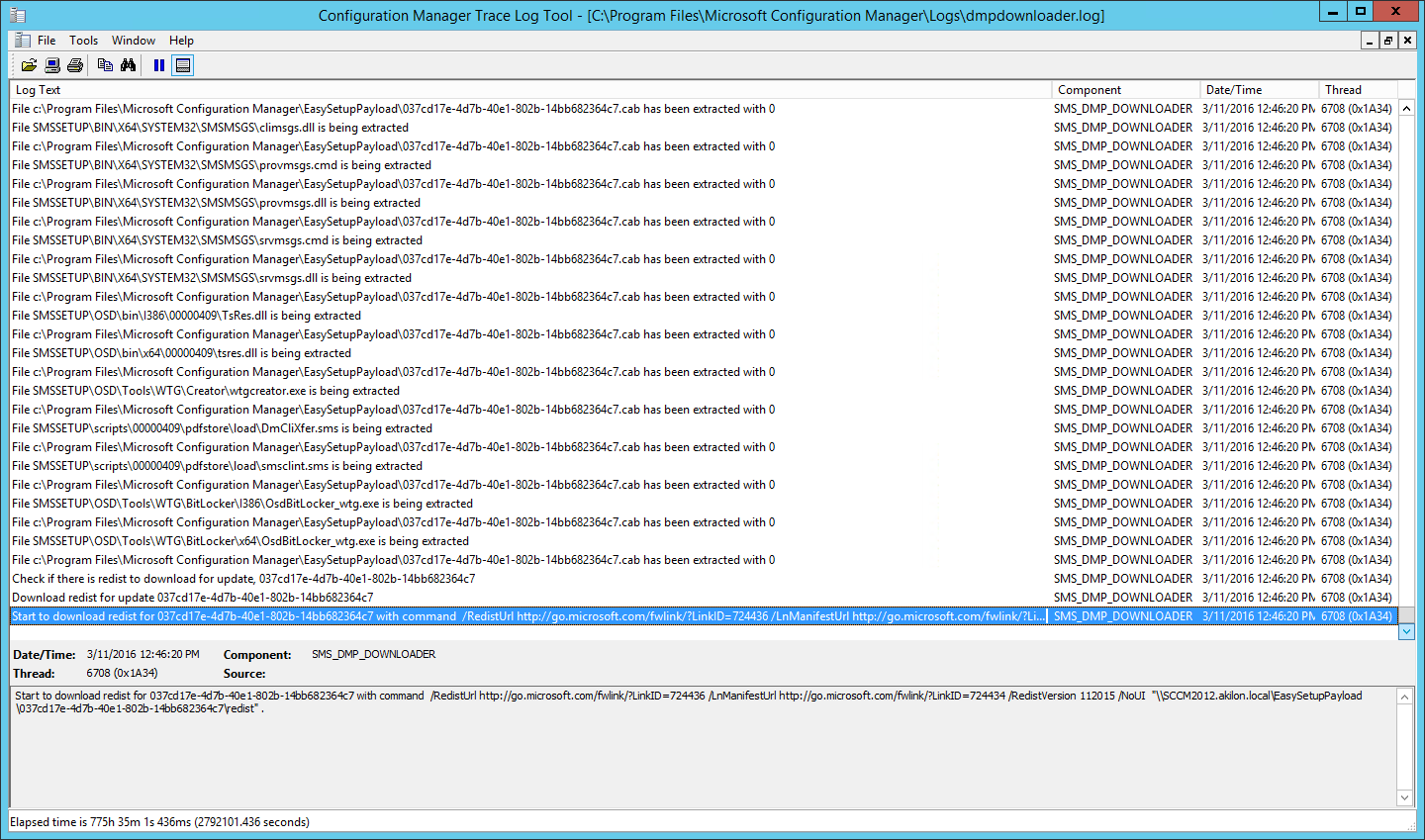
The update files gets saved in the EasySetupPayload folder in the Configuration Manger setup folder

Before launching the update, we recommend to launch the prerequisite check :
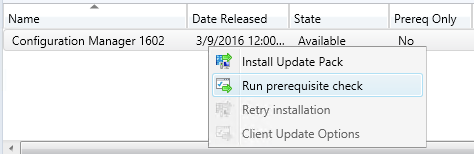
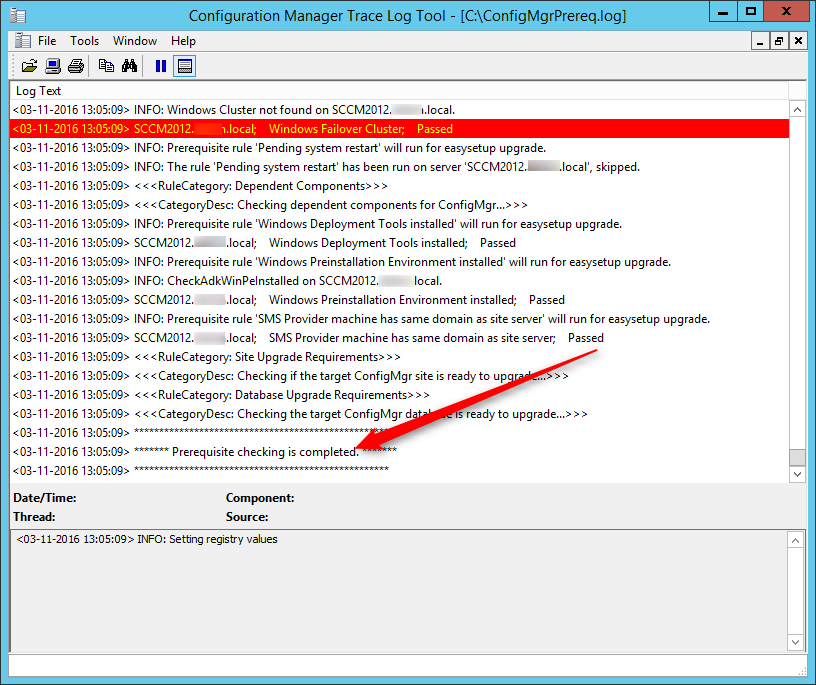
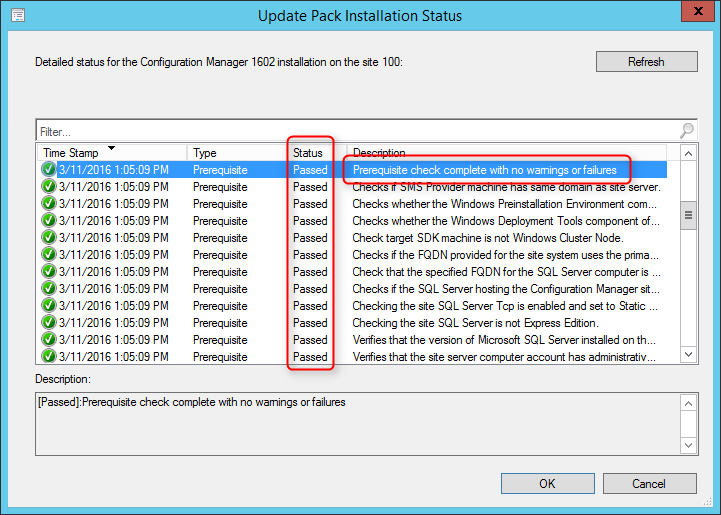
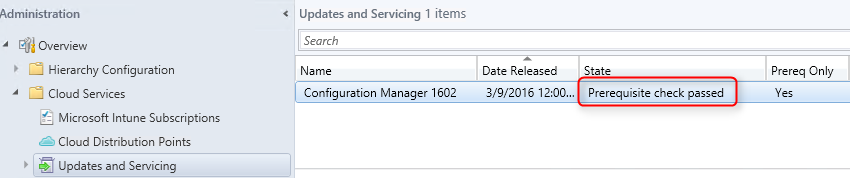
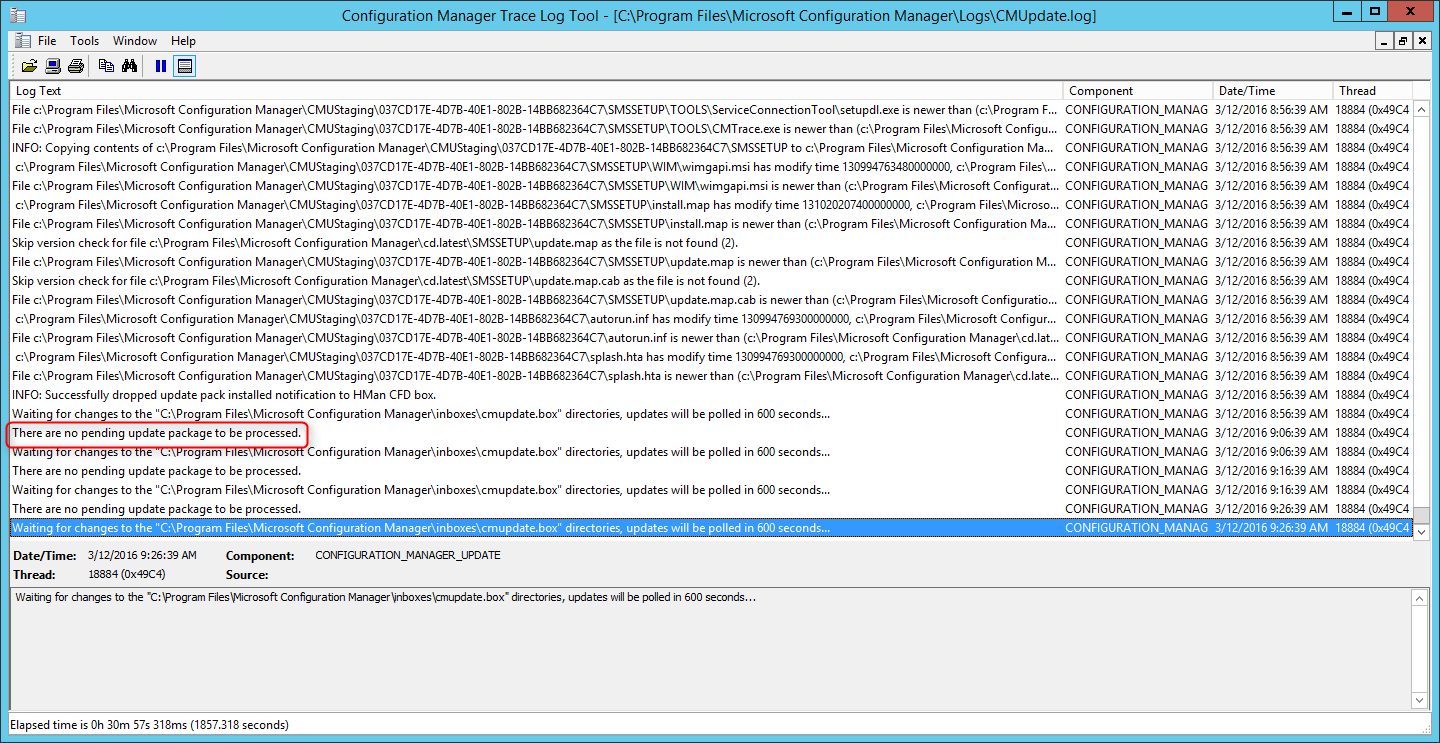
We are now ready to launch the SCCM 1602 update
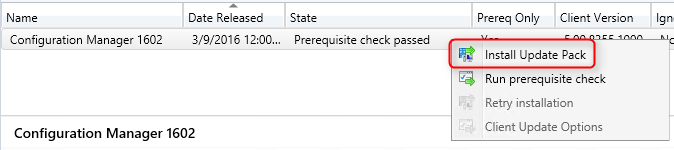
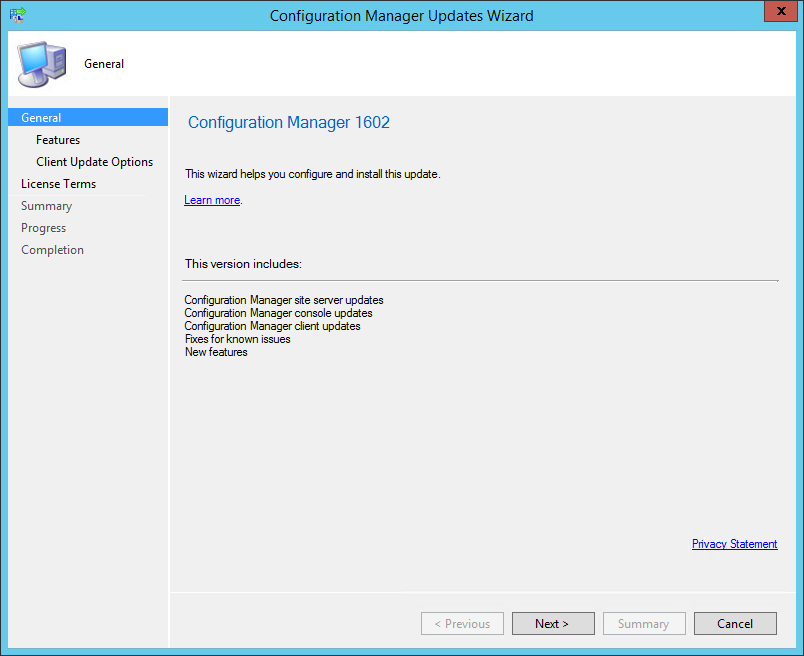
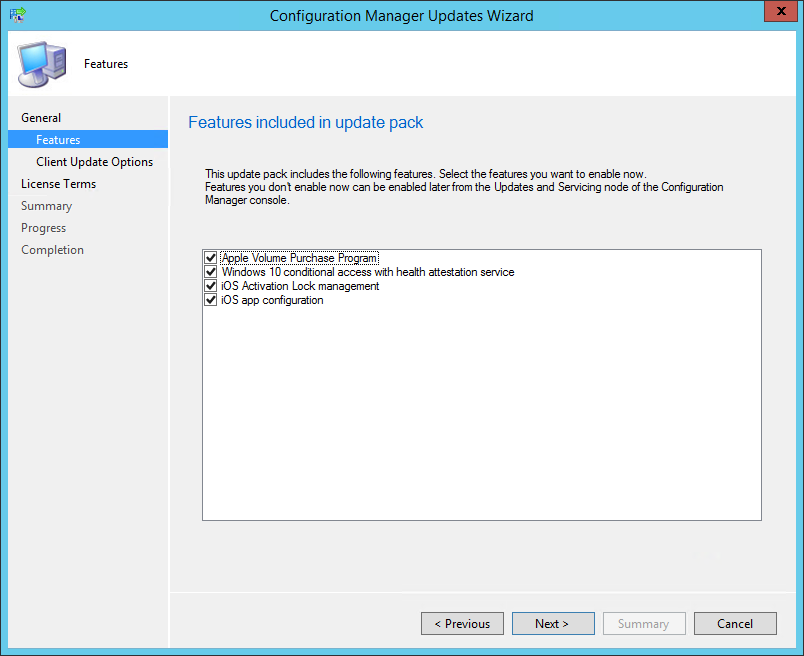
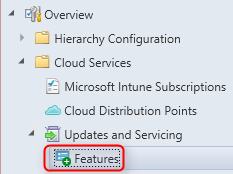
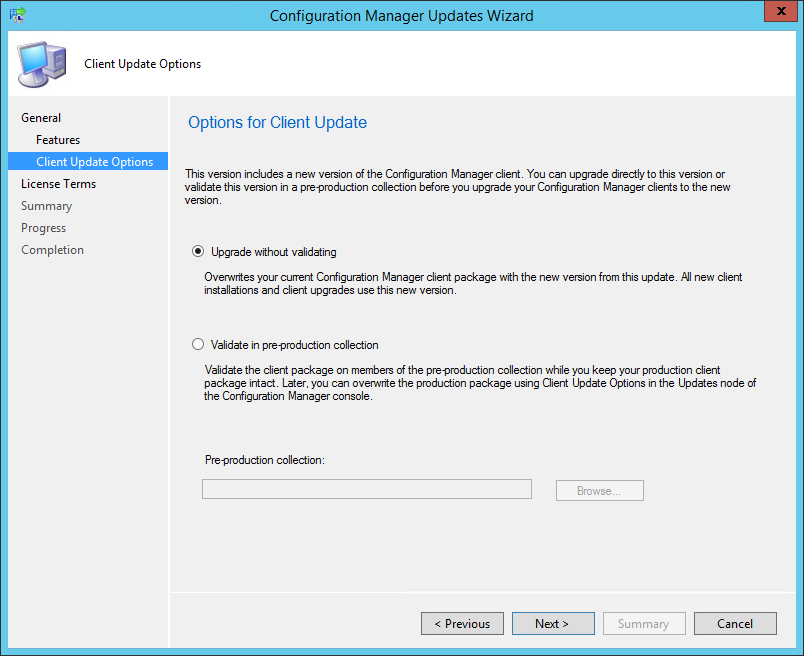
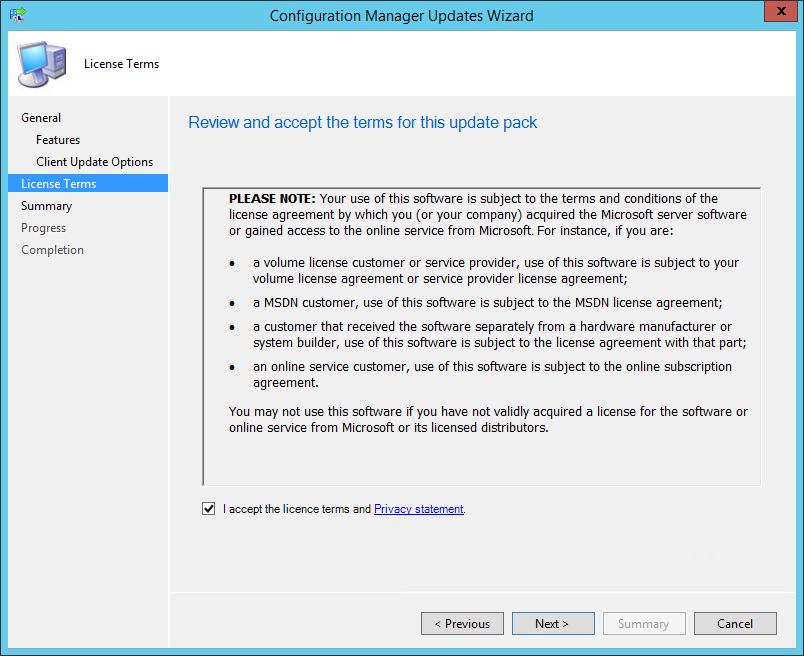
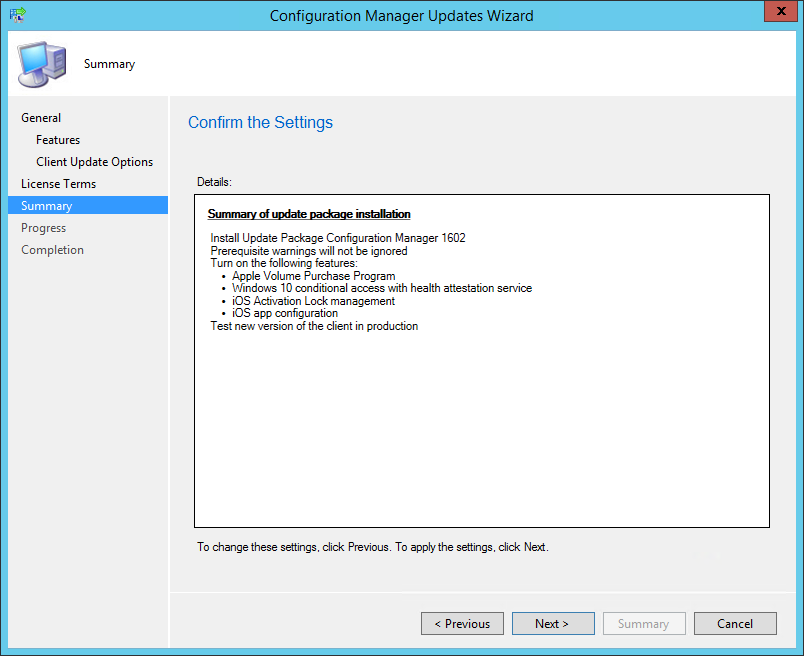
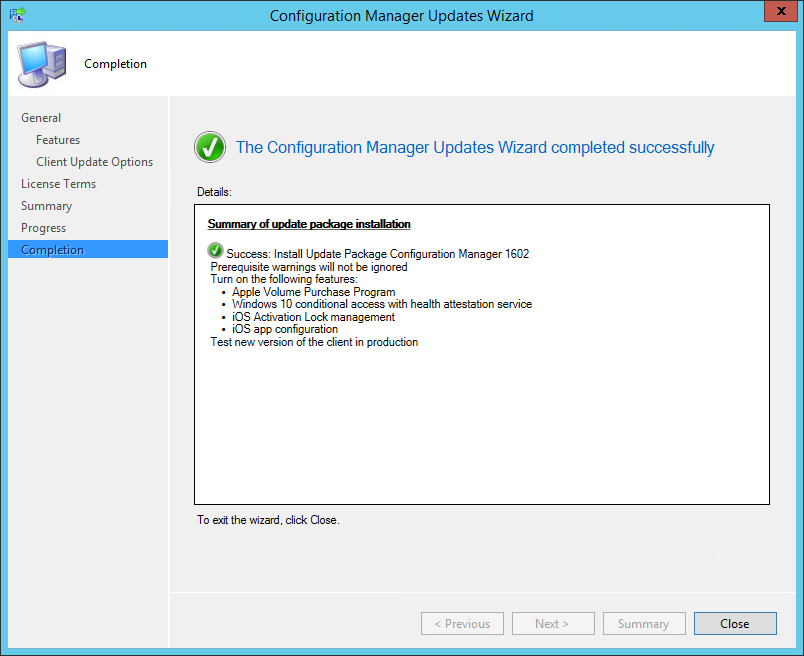

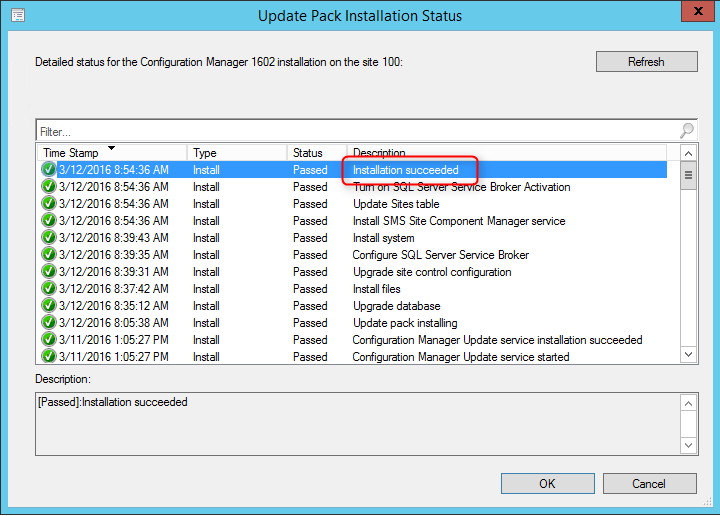

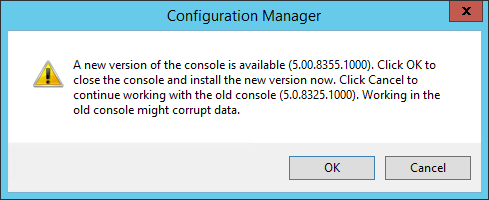
The console now has an auto-update feature. At console opening, if you are not running the latest version, you will receive a warning and the update will start automatically.
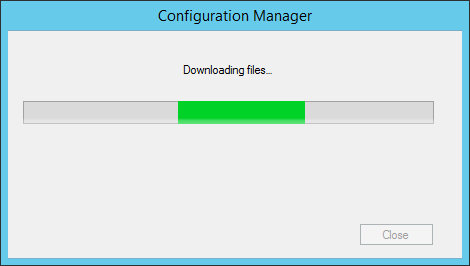
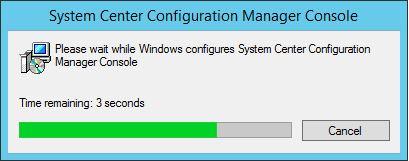
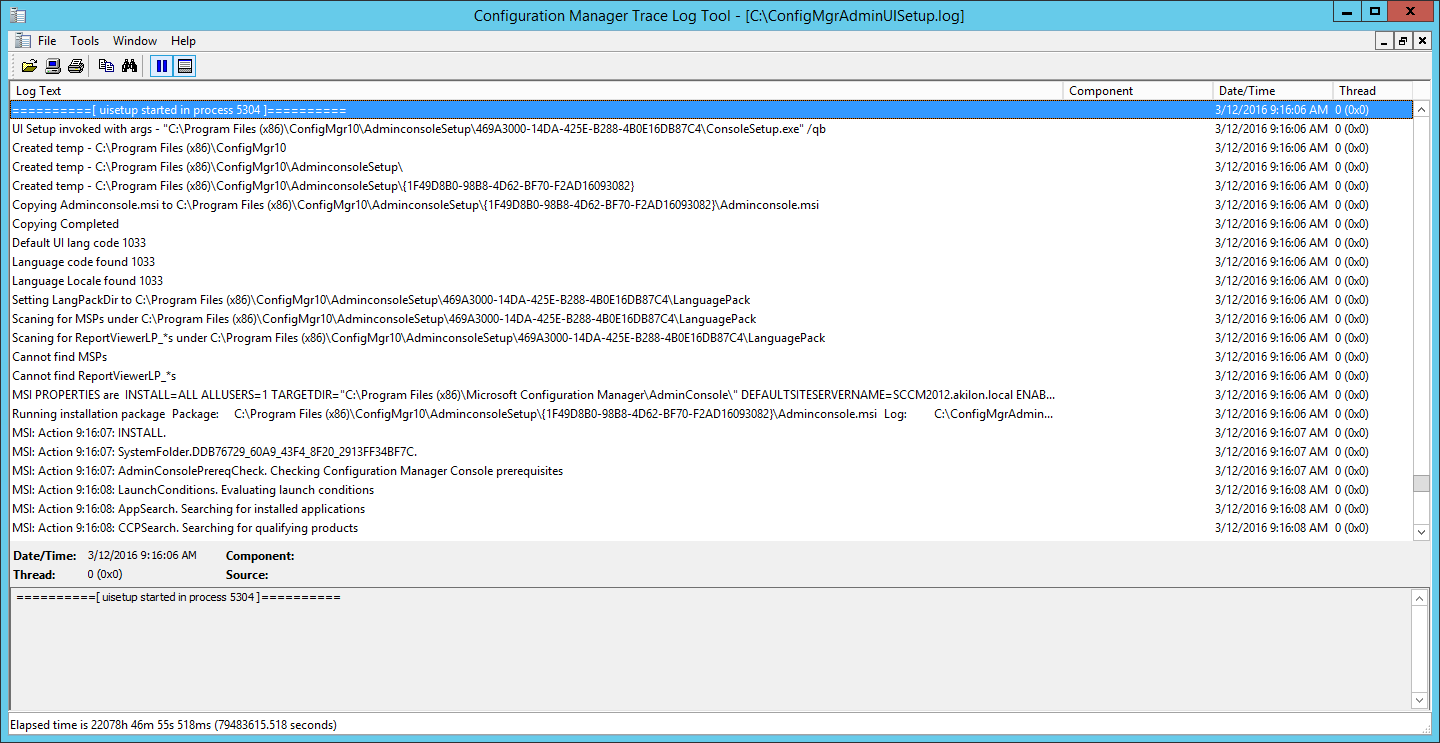
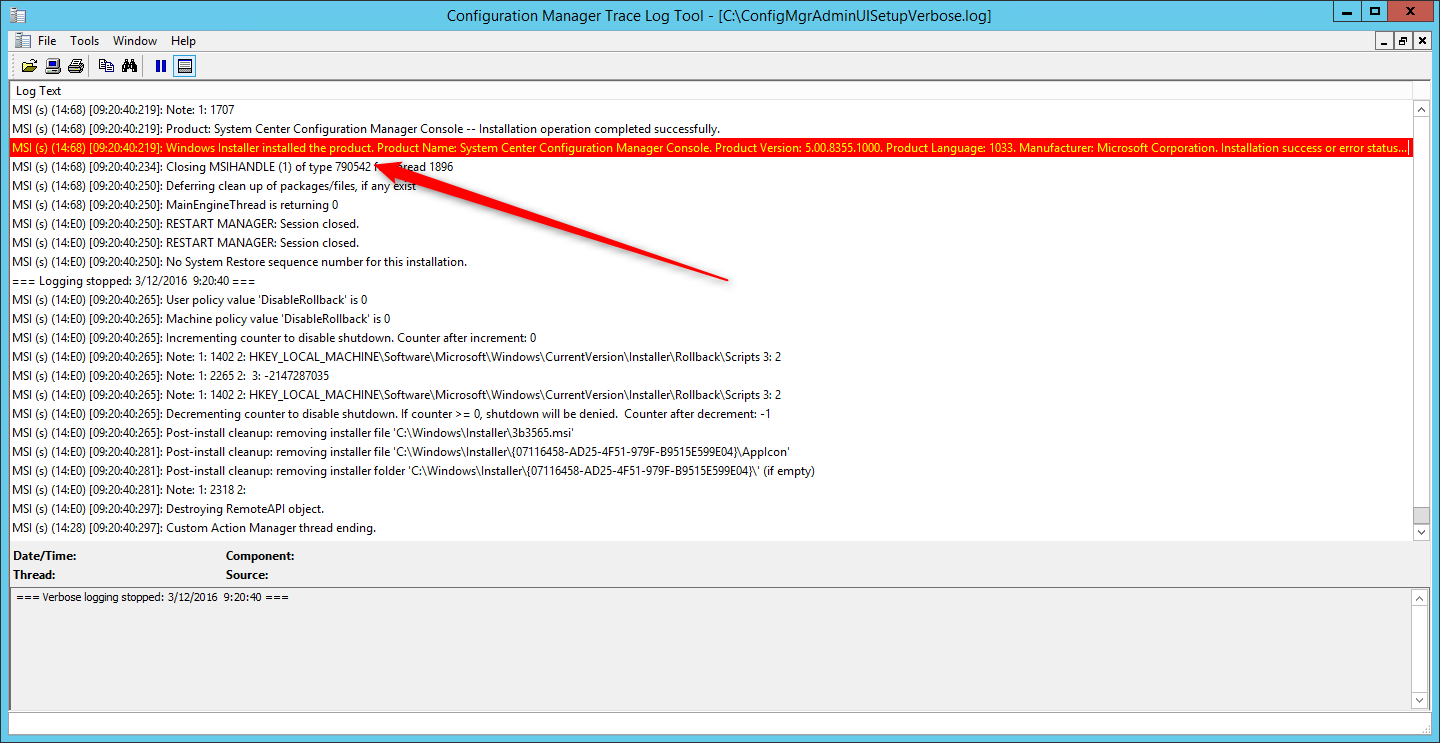
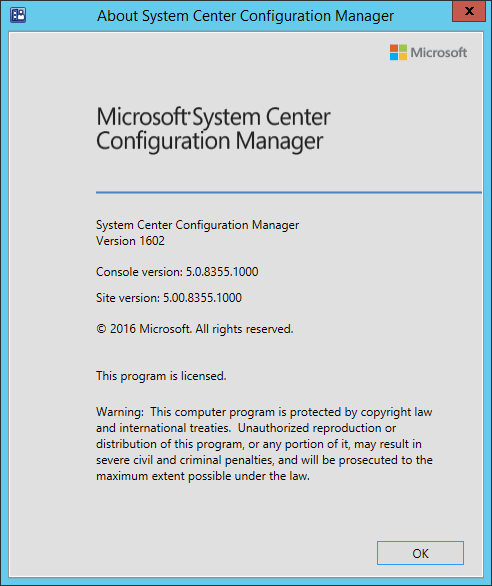
After setup is completed, verify the build number of the console. If the console upgrade was successful, the build number will be 5.0.8355.1000. You can also notice that Version 1602 is stated.
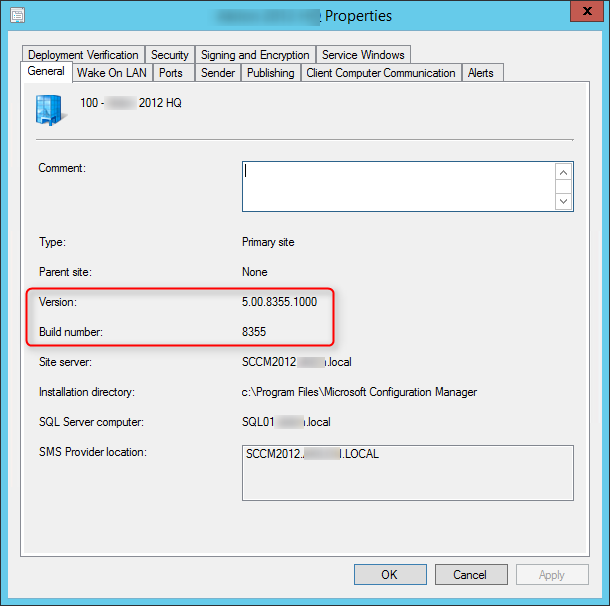
Clients
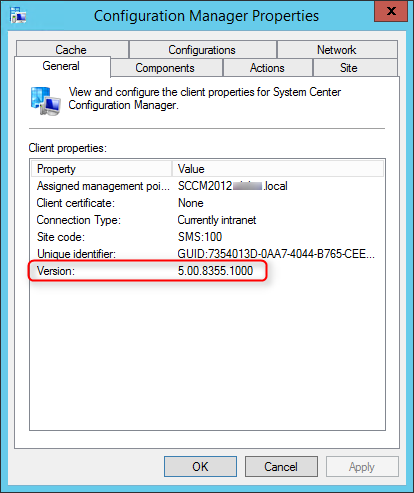
The client version will be updated to 5.0.8355.1000 (after updating, see section below)
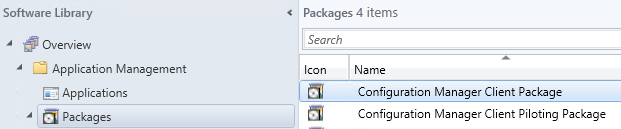
You’ll see that 2 client update packages are created :
Boot Images
Boot images are automatically updated during setup. See our post on upgrade consideration in large environment to avoid this if you have multiple distribution points.
Our preferred way to update our clients is by using the Client Upgrade feature.
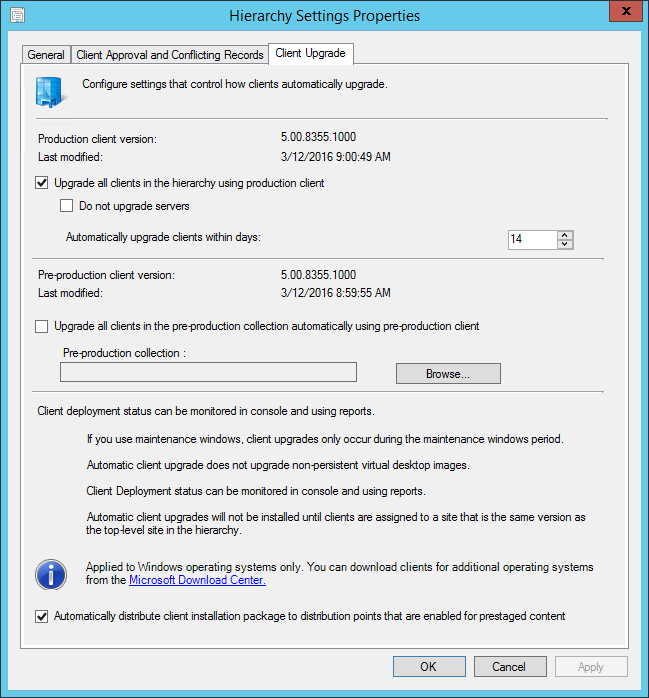
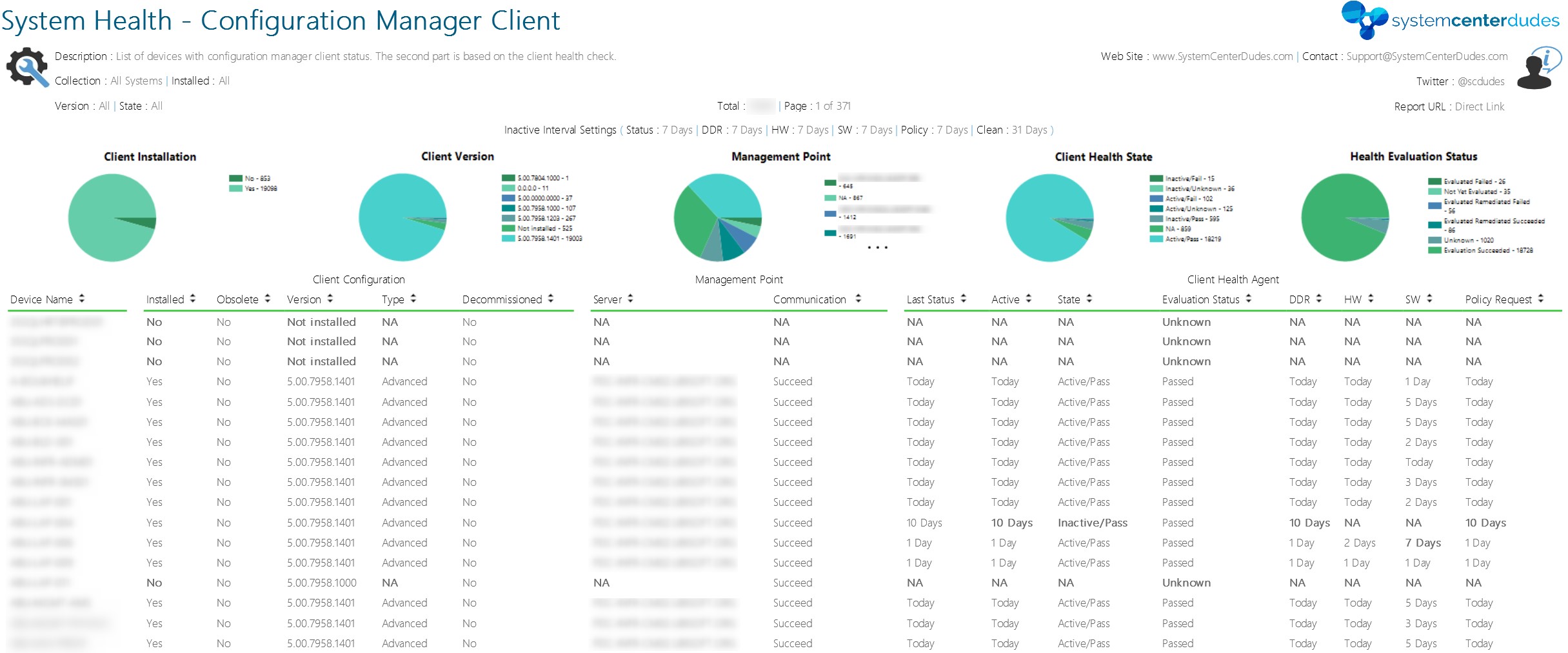
You can se our SCCM Client version reports to give detailed information about every clients versions in your environment. It’s the easiest way to track your client updates.
You can also create a collection that targets clients without the latest client version. I use it to monitor which client haven’t been updated yet.
Here’s the query to achieve this: (You can also refer to our Set of Operational Collection Powershell Script which contains this collection)
[pastacode lang=”sql” message=”” highlight=”” provider=”manual” manual=”select%20SMS_R_SYSTEM.ResourceID%2CSMS_R_SYSTEM.ResourceType%2CSMS_R_SYSTEM.Name%2CSMS_R_SYSTEM.SMSUniqueIdentifier%2CSMS_R_SYSTEM.ResourceDomainORWorkgroup%2CSMS_R_SYSTEM.Client%20from%20SMS_R_System%20where%20SMS_R_System.ClientVersion%20!%3D%20’5.00.8355.1000′”/]
Happy updating ! 🙂

Please fill out the form, and one of our representatives will contact you in Less Than 24 Hours. We are open from Monday to Friday.

Thank you for subscribing to our newsletter or requesting a quote. You will receive our next month's newsletter. If you have requested a quote, we will get in touch with you as soon as possible.

Something went wrong!


Thank for your reply!