Step-by-Step SCCM 1511 Upgrade Guide
Microsoft has just announced the release of SCCM 1511. Before performing your SCCM 1511 upgrade, we recommend that you read all the available resources and carefully plan the upgrade process throughout your SCCM 2012 R2 SP1 hierarchy. The good news is that our SCCM 1511 Upgrade Guide will list everything you need to know before applying this major upgrade to your existing SCCM 2012 installation. We’ve got you covered !
In this blog post, we will guide you through the whole upgrade process to bring your existing SCCM 2012 R2 SP1 to SCCM 1511. See our complete installation guide if your starting from scratch.
New Features
SCCM 1511 brings a whole new set of features. Don’t get surprised, the gap isn’t as big as 2003 to 2007 or 2007 to 2012. The console has the same look and concepts are the same. If you’re upgrading from 2012, the upgrade process is similar as applying a Service Pack. No need to do a side-by-side migration which is a pretty good news !
We suggest to read our blog post to know everything about the new features before upgrading.
Naming Convention
You may wonder why Microsoft has decided to name the next version of SCCM that way. You may heard the name SCCM Vnext or SCCM 2016 but the final name is simply SCCM. This is due to the fact that SCCM is now part of the new SaaS platform which means that its update cycle will be much quicker than before. Each new version will be named as SCCM YYMM (Year Month). The first release is 1511 (for November 2015). Microsoft needed a way to keep the same upgrade pace than Windows 10 and decided to opt for the same naming convention which makes sense. Here’s chances that a new build of Windows will simultaneously bring a new SCCM build.
Upgrade Path
Depending your actual SCCM version you have different options :
- You can upgrade directly to SCCM 1511 if you’re running the following versions. Keep reading, this guide is for you ! (Cumulative Update are not mandatory)
- SCCM 2012 SP1
- SCCM 2012 SP2
- SCCM 2012 R2
- SCCM 2012 R2 SP1
- If you’re running SCCM 2012 (non-SP), you need to apply first Service Pack 1 or Service Pack 2 before upgrading. Use our blog post to apply it and come back to this guide afterward
- If you’re running a Technical Preview on your lab server. Completely uninstall it before doing a fresh install. An upgrade is not supported from a Technical Preview version
- If you’re running SCCM 2007 a side-by-side migration is still possible but you must first start by a fresh install on a separate server. Supported SCCM 2007 is SP2+
- If you’re running SMS 2003, you seriously need to upgrade your remaining XP computers !
- If you’re not running any version of SCCM in your environment, refer to our full installation guide
Prerequisites
- Our post focus on what needs to be done to upgrade a stand-alone SCCM 2012 R2 SP1 Primary Site to SCCM 1511
- If you have a hierarchy with a Central Administration Site and multiple Primary Site, start with the top of the hierarchy (CAS) and go down, upgrading all Primary Sites and Secondary Sites.
- You need to upgrade your ADK version to version 10 before the upgrade process. See section Windows Automated Deployment Kit (ADK) of our Windows 10 blog post to know how to upgrade. Also consult this blog post from the product group to use the right version of ADK 10, there’s a bug in the latest release
- If you’re planning to use Windows 10 Servicing, you need to consider applying this important WSUS update to your Windows Server. This hotfix is only available for Windows 2012, if you’re running your Software Update Point on Windows 2008, consider moving your SUP to a Windows 2012 server
- Review the upgrade checklist from Technet
Database Replication
If you have a database replica for management point, disable Database replication. If you don’t use this function, skip this step and go to the Backup and TestDBupgrade section
- Open the SCCM Console, browse to Administration / Site Configuration / Servers and Site System Roles
- Select the Site System that hosts the management point that uses the database replica
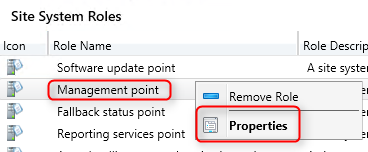
- Right click Management point and select Properties
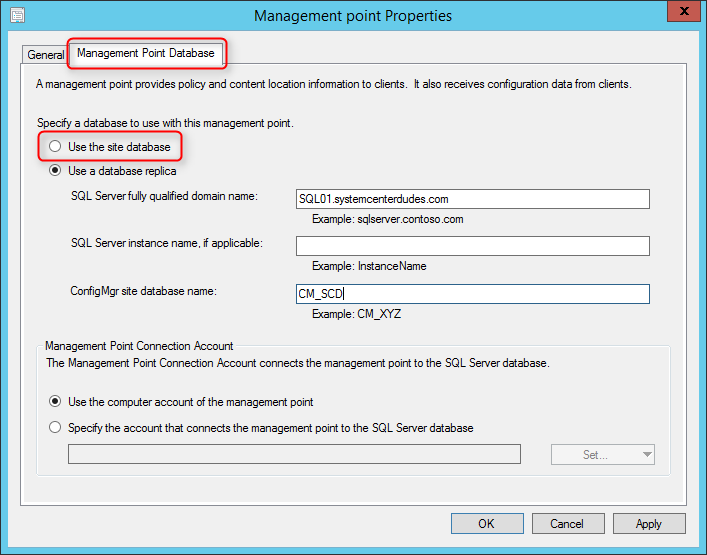
- On the Management Point Database tab, select Use the site database and click Ok
- Connect to the SQL server hosting the replica databases
- Open SQL Management Studio
- Go to Replication / Local subscription
- Right click the replica and select Delete. Select Yes to the warning prompt
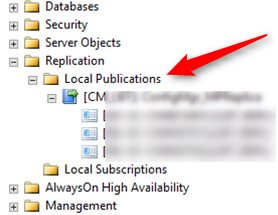
- Right click the publisher database and select Delete. Select Close existing connections and click OK
- Connect to the SQL server hosting the site database
- Open SQL Management Studio
- Go to Replication and select Disable Publishing and Distribution
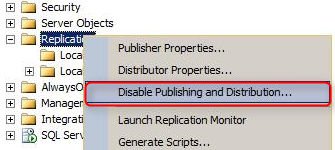
- On the next screen, click Next
- Select Yes, disable publishing on this server and click Next, Next, Next
- Click Finish
Backup and TestDBUpgrade
- Before upgrading, perform a backup of your SCCM database.
- It is recommended to test your Configuration Manager database before the upgrade. Detailed procedure is available on Technet, here’s the resumed version :
- Backup your site databse
- Restore it on a SQL server running the same version as your SCCM SQL instance
- On the SQL server, run the SCCM setup command line using the Testdbupgrade switch
- Open the log file on C:\ConfigMgrSetup.log
- If the process is successful, you can delete the database copy
- If you have errors, resolve them on your SCCM server, do a new backup and restart this procedure
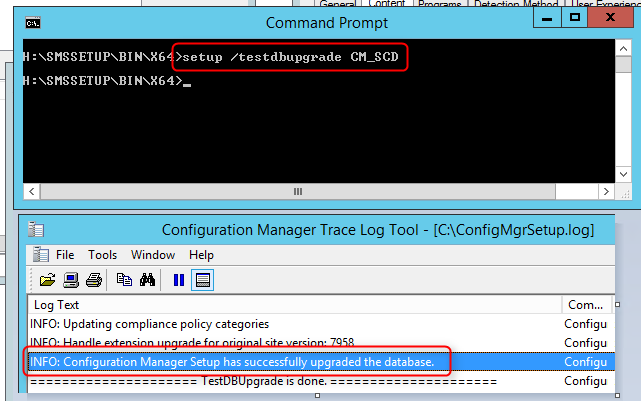
After you successfully upgrade a copy of the site database, proceed with the “real” upgrade.
Running Console
Close all running consoles on the server. Check also if remotely logged users are running the console in their sessions. The setup won’t check that and you’ll endup having an error in the installation log at the end of the process.
ERROR: Configuration Manager console uninstallation failed. Check log file ConfigMgrAdminUISetup.log.

SCCM 1511 Upgrade Installation
If you just upgraded to SCCM 2012 R2 SP1, you’ll recognize the process. The user experience is similar to a new SCCM installation or Service Pack.

- Mount the ISO File and run Splash.hta
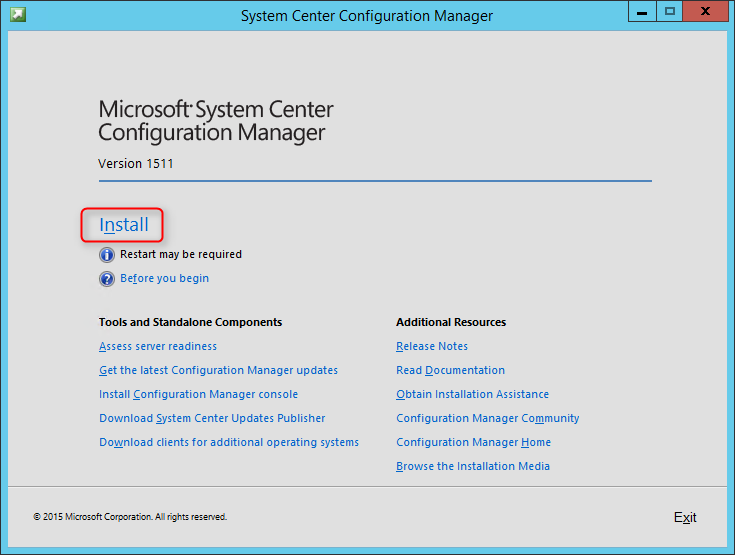
- On the main menu, select Install
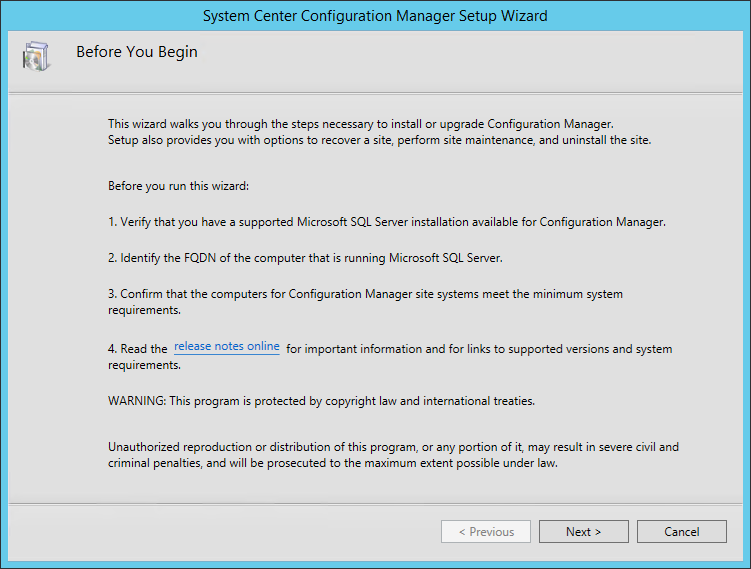
- On the Before You Begin screen, click Next
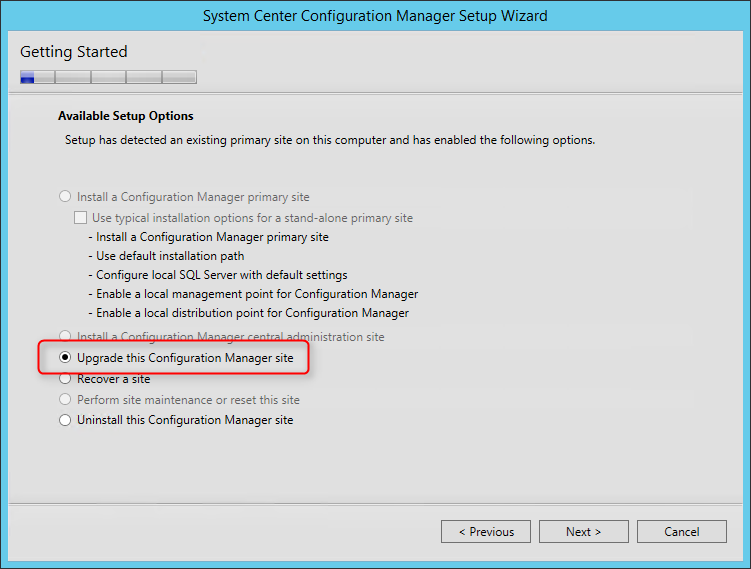
- On the Getting Started screen, select Upgrade this Configuration Manager site
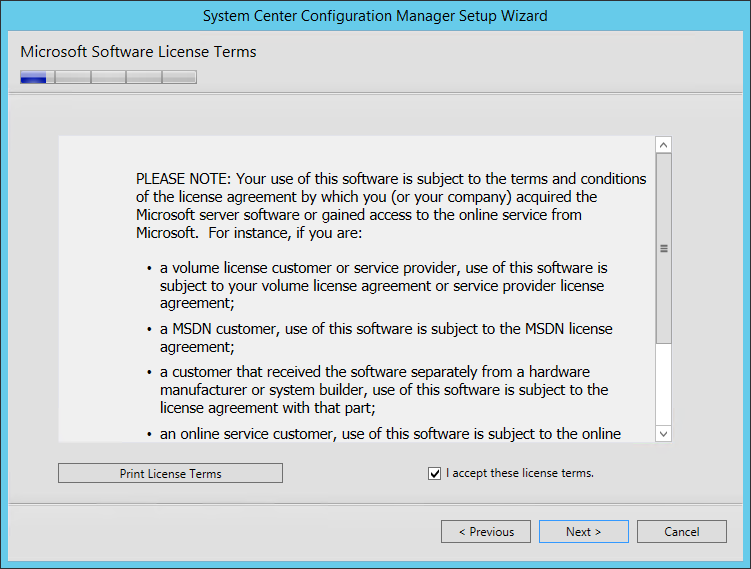
- On the Microsoft Software License Terms, check I accept these license terms and click Next
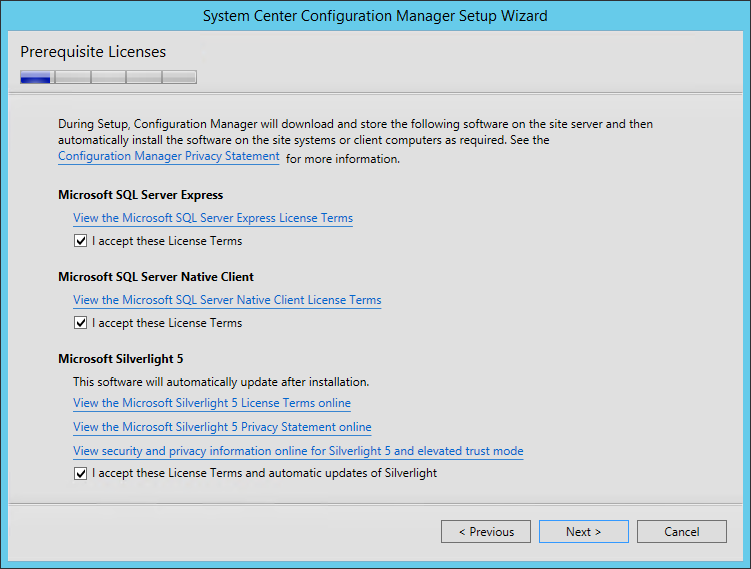
- On the Prerequisite Licenses, check all 3 boxes and click Next
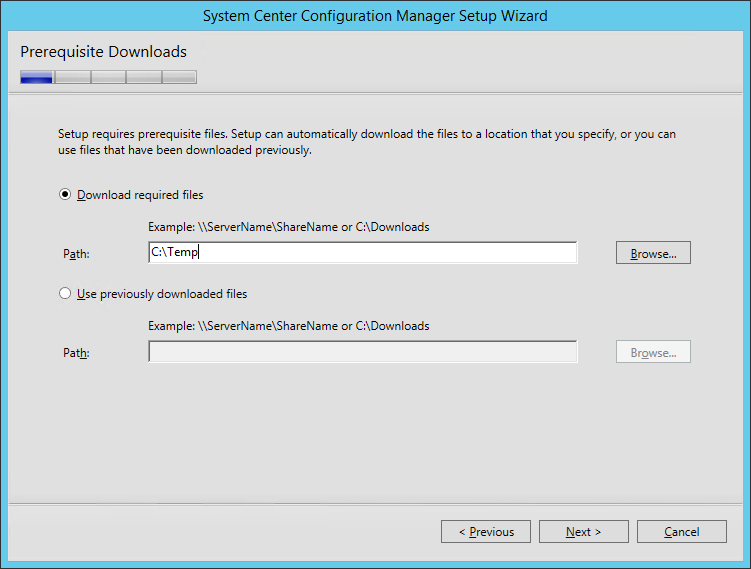
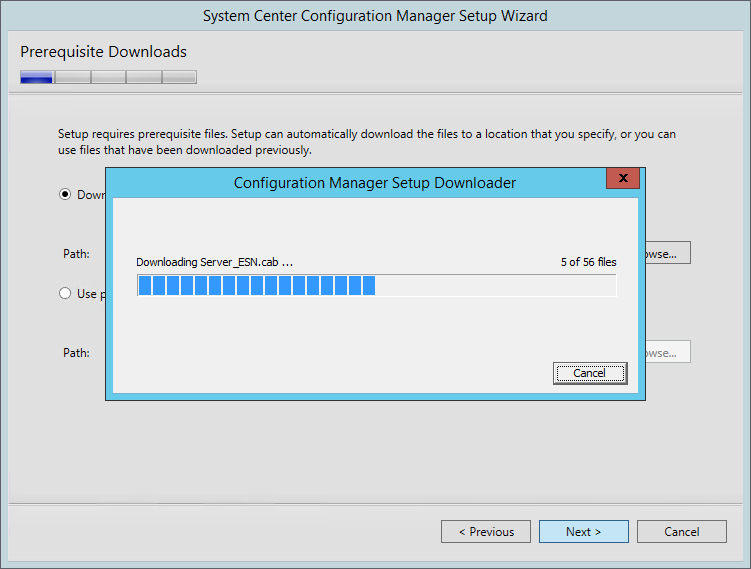
- On the Prerequisite Downloads screen, specify a location to download the prerequisite files. This folder can be deleted after the upgrade process
- The files are downloading
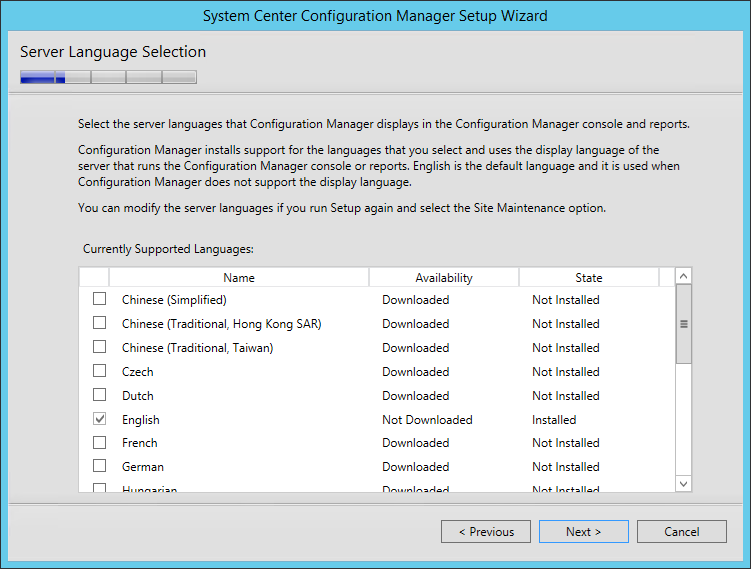
- On the Server Language Selection screen, select the language you want to display in the SCCM Console and Reports
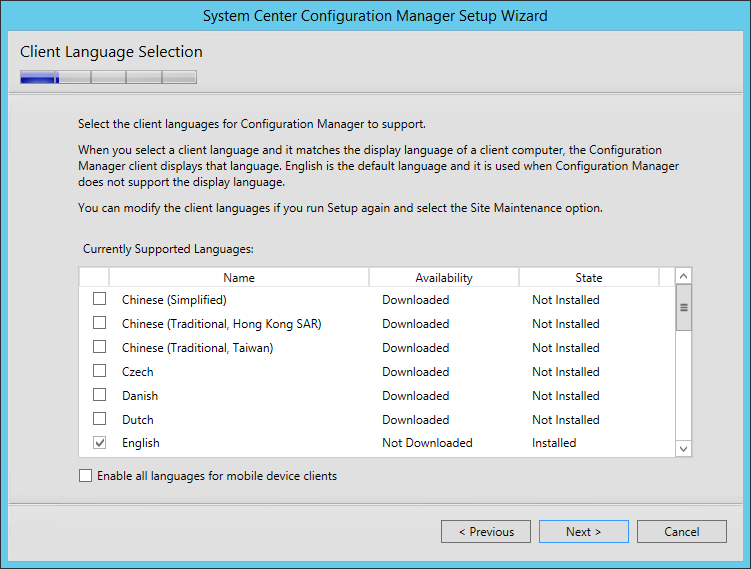
- On the Client Language Selection screen, specify the display language for your clients
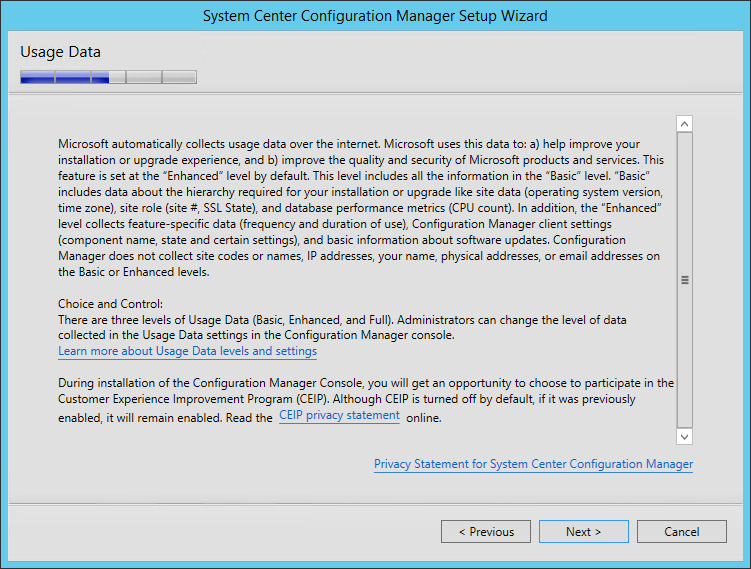
- On the Usage Data screen, click Next. This new screen basically tells that you accept that you will send some telemetry data to Microsoft
- If you have an Windows Intune Connector enabled, you won’t have the Service Connection Point screen during the upgrade process. The Windows Intune Connector will be automatically replaced by a Service Connection Point
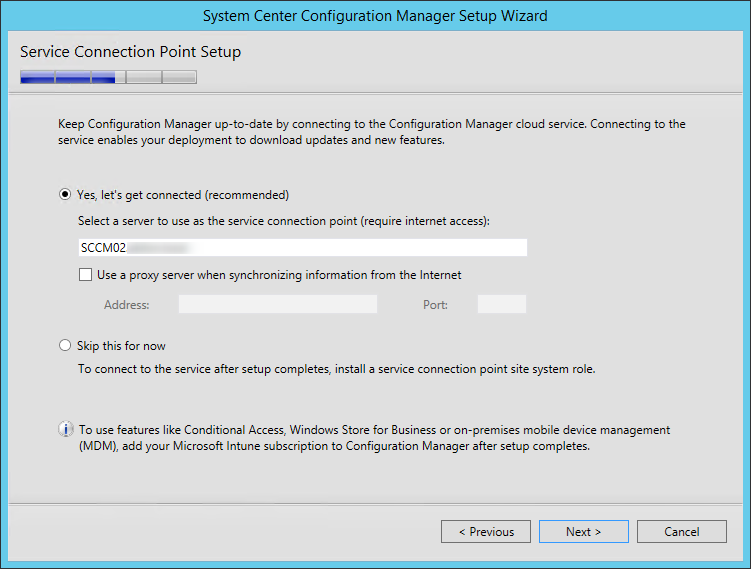
- On the Service Connection Point screen, click Next. Connecting to the service enables your hierarchy to stays updated
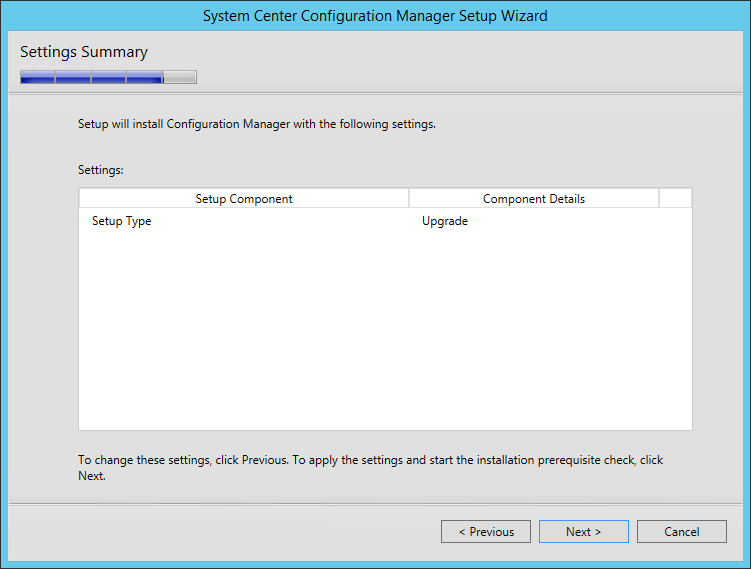
- On the Settings Summary screen, you will see that you are performing an Upgrade, click Next
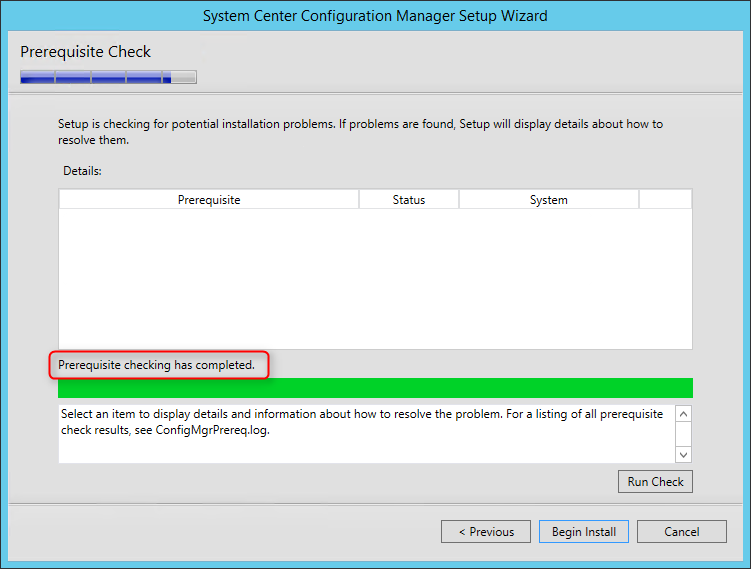
- The Prerequisite Check is running
- You should have no errors since your site is already installed and running
- Wait for Prerequisite checking has completed and click on Begin Install
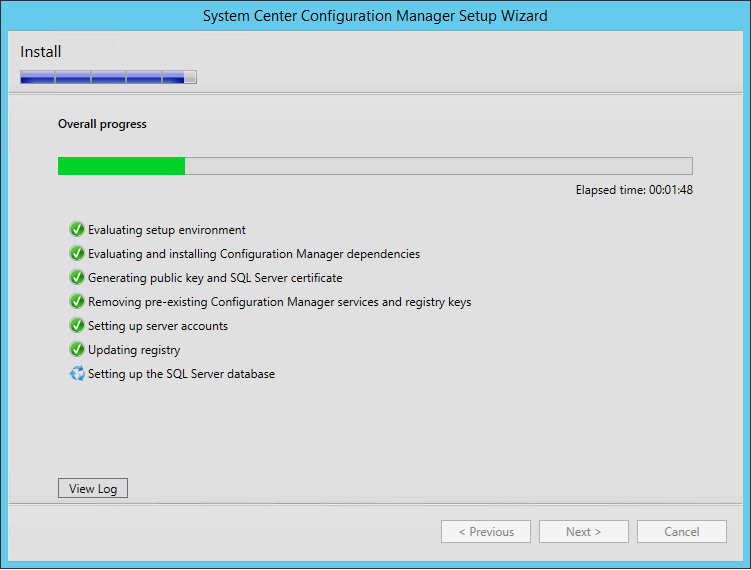
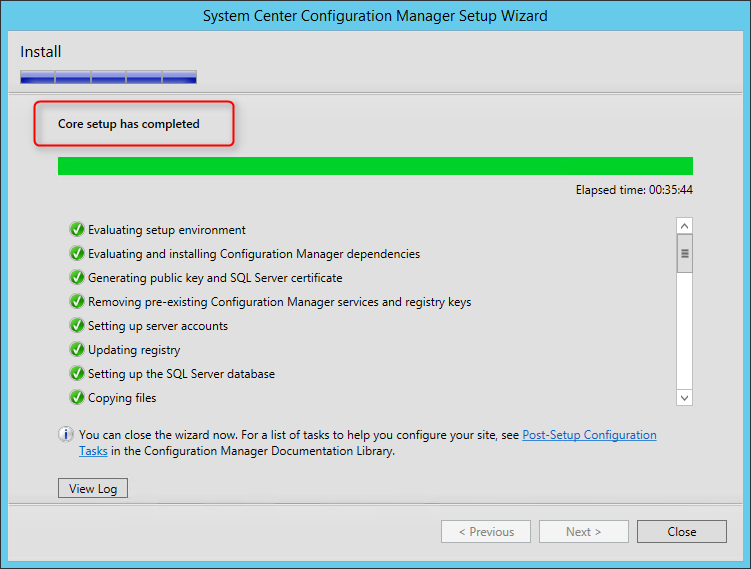
- The installation is in progress. The installation will run for about 30 to 45 minutes depending of your server specifications
- You can follow the progress by clicking the View Log button or open the ConfigMgrSetup.log file on the C:\ drive
- Wait for Core setup has completed and close the wizard
Verification
Once the setup has completed, there’s a couple of check that you can make to be sure the upgrade process was successful.
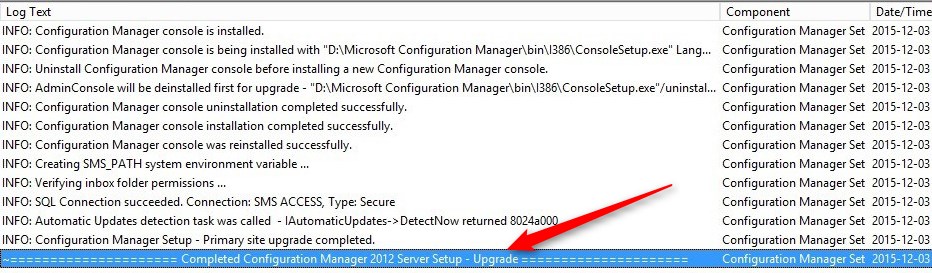
- C:\ConfigMgrSetup.log – Display detailed installation steps. Funny easter egg here, still written Configuration Manager 2012.
Console
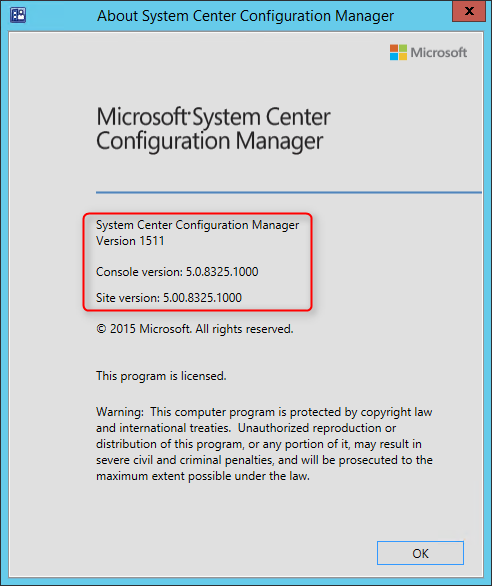
- Open the SCCM Console and click on the upper left corner on the blue arrow and select About Configuration Manager
- The Console has been upgraded to SCCM 1511 – 5.00.8325.100
Site
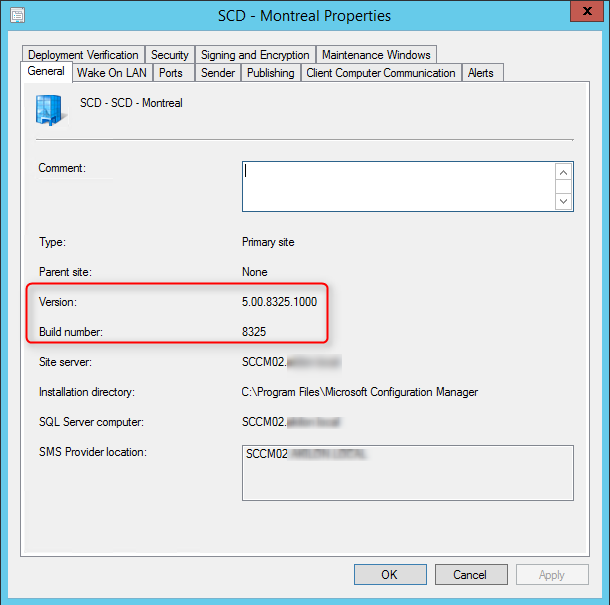
- Go to Administration / Site Configuration / Sites
- Right-click your site and select Properties
- The Site Version and Build Numbers has been upgraded to 5.00.8325.1000
Clients
The site server client version will be upgraded to 5.00.8325.1000. A full list of client version is available on this post.
Boot Image
- Go to Software Library / Operating Systems / Boot Images
- Validate that the Boot Images has been automatically upgraded to WinPE 10 on your distribution points

Packages
- Go to Software Library / Application Management / Packages
- Validate that the Configuration Manager Client Package has been automatically distributed on your distribution points

Post Upgrade
Upgrading your Secondary Sites
If you have any Secondary Sites, you need to manually upgrade them after the migration.
- Go to Administration / Site Configuration / Sites
- Select your Secondary Site and click Upgrade on the top ribbon

- Click Yes to confirm
- You can follow the process by selecting the Show Install Status option on the top ribbon

Intune
If you use Intune with SCCM, at the top-level site upgrades, install a service connection point. This site system role must also be reconfigured with your Intune subscription.
Database Replication
Enable the database replicas for Management Points, if it was configured before the upgrade.
Maintenance Tasks
Reconfigure any database maintenance tasks you disabled prior to the upgrade. If you disabled database Maintenance tasks for SCCM at a site prior to the upgrade, reconfigure those tasks at the site using the same settings that were in place prior to the upgrade
Updating the Clients and Consoles
Once your site is successfully upgraded, you need to upgrade the clients and console to SCCM 1511. A lower version of the console won’t be able to connect to a newer site. A outdated client will still be able to communicate with your Management Point but we recommend to update them.
Console
You can manually upgrade by browsing to .\ConfigMgrInstallationFolder\tools\ConsoleSetup and execute ConsoleSetup.exe on each computer running the console.
We suggest to create a package or application pointing on the same directory and deploy it using a collection.
All clients with the SCCM console installed
[pastacode lang=”sql” manual=”select%20SMS_R_SYSTEM.ResourceID%2CSMS_R_SYSTEM.ResourceType%2CSMS_R_SYSTEM.Name%2CSMS_R_SYSTEM.SMSUniqueIdentifier%2CSMS_R_SYSTEM.ResourceDomainORWorkgroup%2CSMS_R_SYSTEM.Client%20from%20SMS_R_System%20inner%20join%20SMS_G_System_ADD_REMOVE_PROGRAMS%20on%20SMS_G_System_ADD_REMOVE_PROGRAMS.ResourceID%20%3D%20SMS_R_System.ResourceId%20where%20SMS_G_System_ADD_REMOVE_PROGRAMS.DisplayName%20%3D%20’System%20Center%202012%20R2%20Configuration%20Manager%20Console'” message=”” highlight=”” provider=”manual”/]
Clients
To upgrade the clients, you have various options :
Automatic Client Upgrade
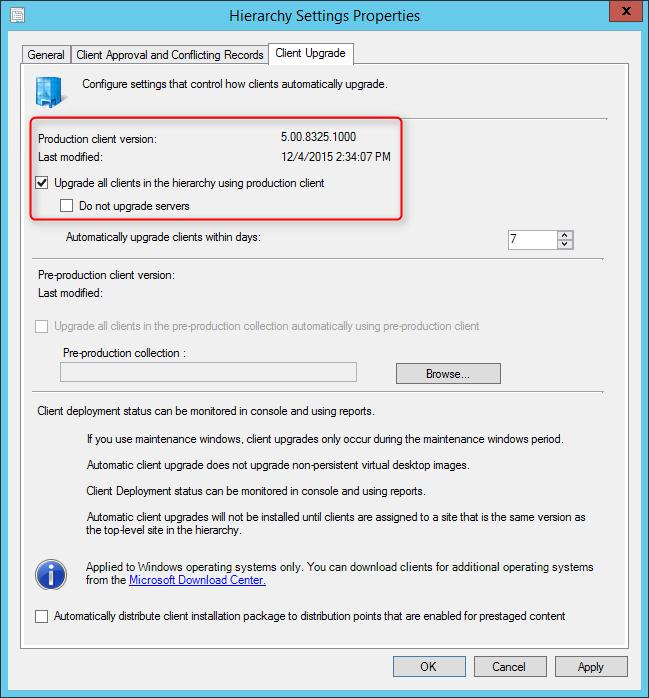
Using the Client Upgrade option, your client will be upgraded automatically within x days using the value specified
- Go to Administration / Site Configuration / Sites
- Click on the Hierarchy Settings button on the top ribbon
- On the Client Upgrade tab
- Check the Upgrade client automatically when new client updates are available
- Select the desired number of days you want your upgrade to be run
- A schedule task will be created on the clients and run within the specified number of days
Client Push
Create manual collection and use the client push function to deploy your clients. This method gives you more control on the group of computer you are upgrading.
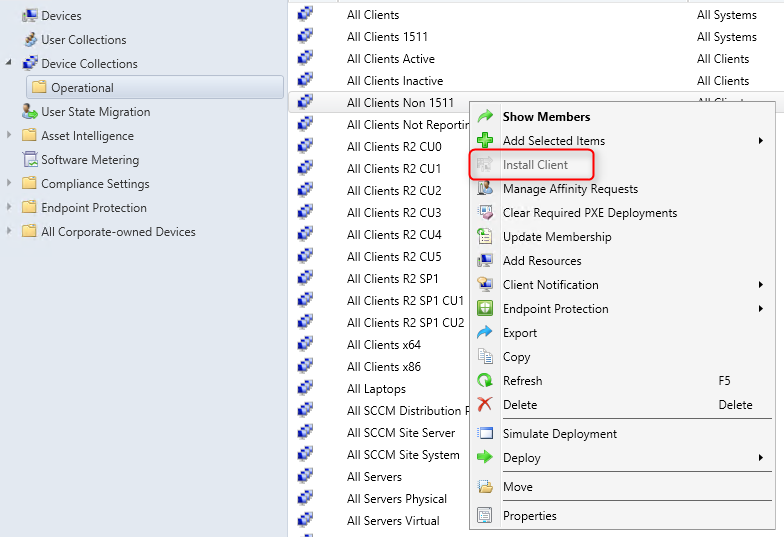
I like to create a collection that targets clients without the latest SCCM 1511 version. I use it to monitor which client haven’t been upgraded yet.
Here’s the query to achieve this: (You can also refer to our Set of Operational Collection Powershell Script which contain this query and 47 others that you see in the previous screenshot)
[pastacode lang=”sql” message=”” highlight=”” provider=”manual” manual=”select%20SMS_R_SYSTEM.ResourceID%2CSMS_R_SYSTEM.ResourceType%2CSMS_R_SYSTEM.Name%2CSMS_R_SYSTEM.SMSUniqueIdentifier%2CSMS_R_SYSTEM.ResourceDomainORWorkgroup%2CSMS_R_SYSTEM.Client%20from%20SMS_R_System%20where%20SMS_R_System.ClientVersion%20!%3D%20’5.00.8325.1000′”/]
Report
You can run our Client Health Check custom report to track your client versions.

Additional reference
Planning to Upgrade System Center 2012 Configuration Manager
Official Configuration Manager documentation
If you need further help to understand and configure various SCCM site component, consult our Step-by-Step SCCM 1511 Installation Guide blog series. It covers all you need to know.
Happy updating ! 🙂
sccm 2012 r2 sp1 upgrade




Thank for your reply!