If there is one thing you can do to your Configuration Manager Task Sequences to streamline imaging, it’s building them around a UI that sets Task Sequence variables based on selections. There have been many major tools that filled this need over the years:
Based on PowerShell, which removed the VBS dependency that UI++ has
Fully customizable UI
Lacked some features compared to UI++
XML files were huge and hard to maintain
Why TSDude Task Sequence UI might be the best solution for you
While we always recommended UI++ at System Center Dudes, its aging VBS dependencies, XML files that some struggled to maintain and the fact that it’s no longer maintained by the developer pushed us to bridge the gap and work on a solution that would check all the boxes.
TSDude Task Sequence UI
Based on PowerShell
Inspired by the great UI++ (because you don’t change a winning formula)
Comes with a configurator helping you build and maintain your XML config files
Custom colors and logo
Has all the same features that UI++ had for Task Sequences, such as:
AD Login
AD Computer name validation
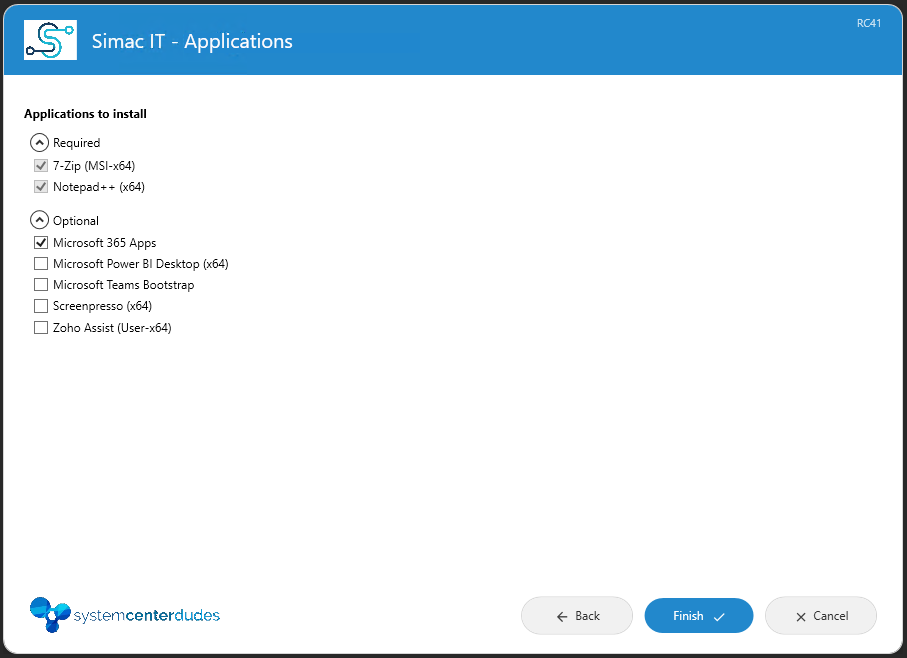
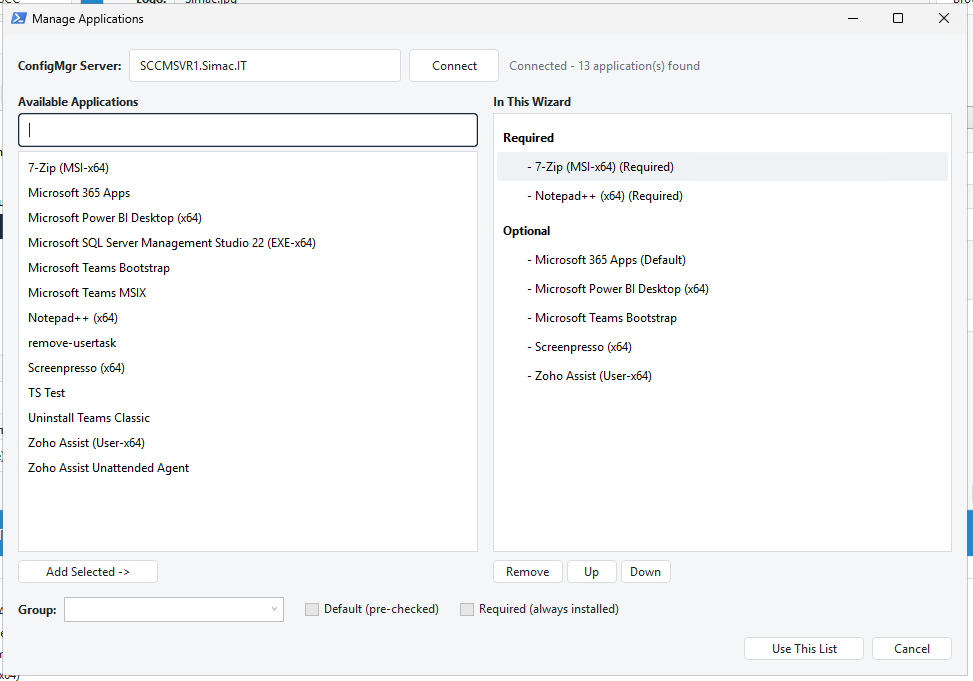
Application tree selector
The configurator will connect to your SCCM and offer you a list of your apps to add
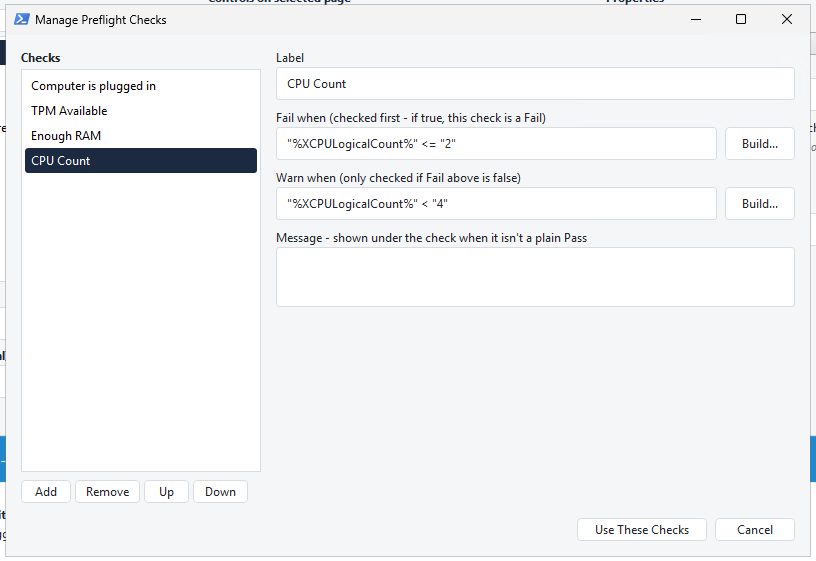
Customizable Preflight checks
Gathers all relevant information
Uses the same variable names as UI++, allowing easy transition without adapting your task sequence to new variable names
Great, useful, simple log files
Comes with a UI++ XML Converter so you can easily move from UI++ to TsDude
Items that can’t be migrated natively will be mentioned for review following the conversion
Still actively maintained by System Center Dudes
We are open to feature suggestions if they are relevant to the community
Has a built-in Help button in the configurator bringing you to the KB, so you can quickly find any information you need to ensure you set the proper values
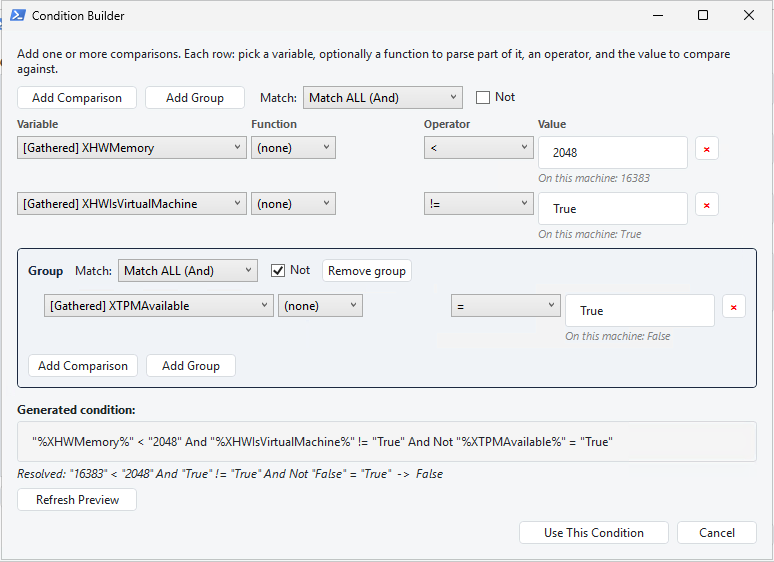
Has a condition builder with immediate validation to confirm they work before trying in a task sequence
Configurator has a live preview integrated so you can visualize and try your config as you build it
The Wizard
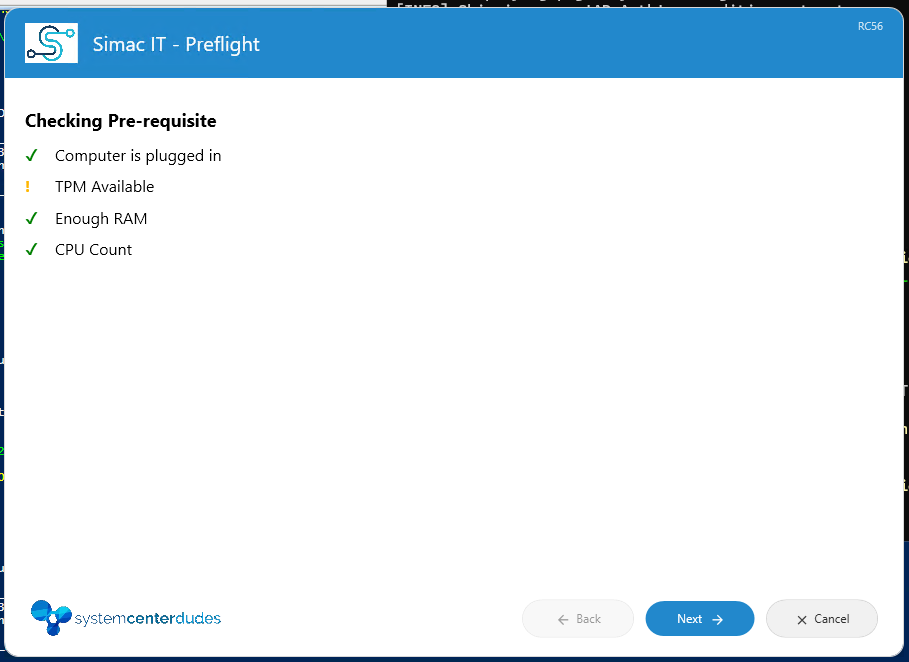
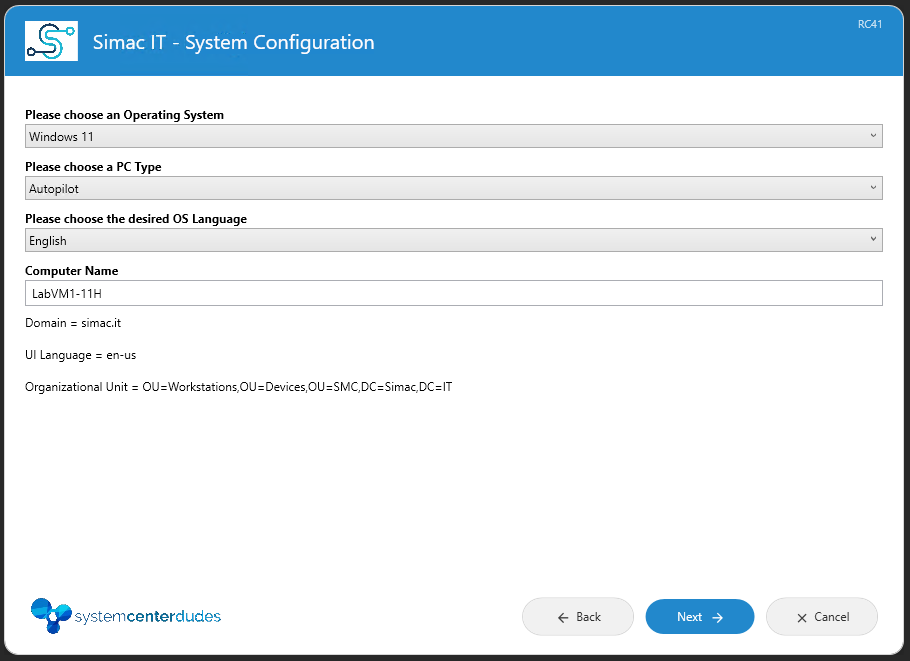
The wizard itself is what is used within the task sequence to do your selections. Here are a few sample pages from my lab config:
TSDude Task Sequence UI – The Configurator
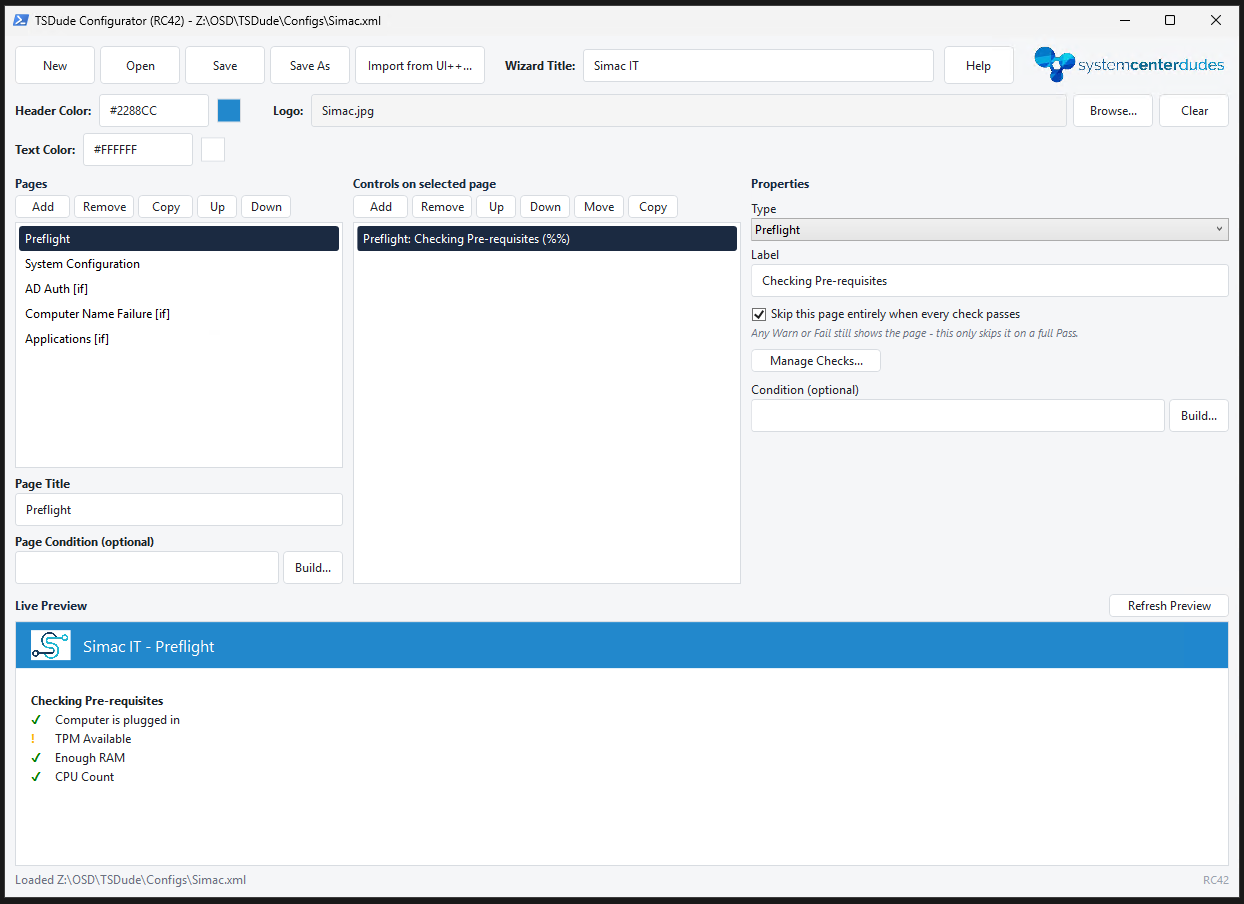
This is where the magic happens. You can entirely build your config XML from there, and also convert UI++ XML Files from here.
Here are some screens from the configurator. Note that these pictures were taken from a Release Candidate (RC) version and may look slightly different from the versions released in the future.
Main page of the configurator:
Preflight checks builder:
Condition builder:
Application selector, with a search field:
TsDude Prerequisites
To implement TsDude in your environment, the process is very similar to UI++, but you’ll need to add the PowerShell component to your boot image first.
In your SCCM Console, go to Software Library->Operating Systems->Boot Images
Right-Click on the boot image you use in production, and go to properties
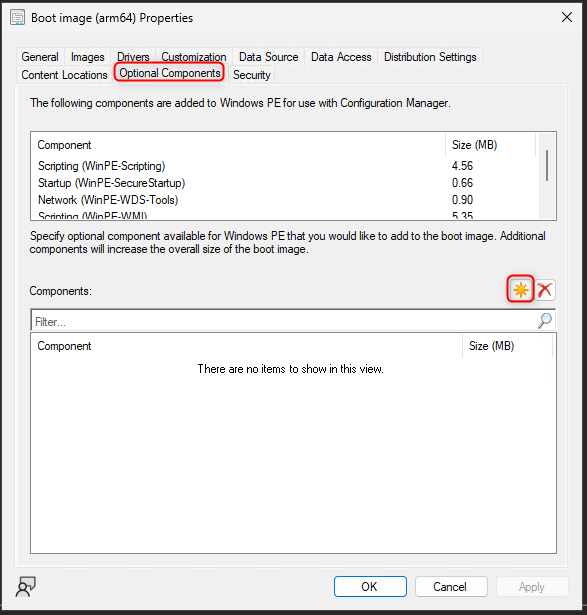
From there, click on the Optional Components tab.
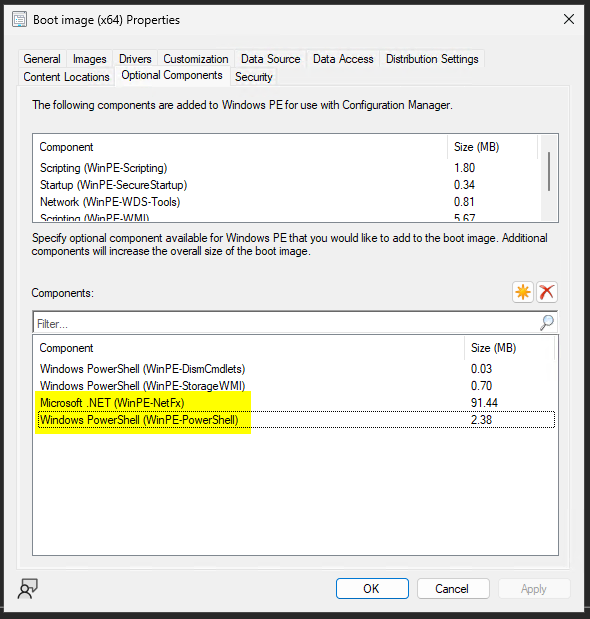
You need to ensure you have WinPE-PowerShell and WinPE-NetFx in your list of components:
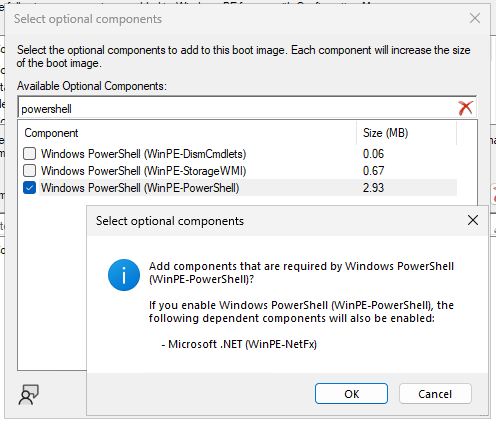
If you don’t, then you can click on the Yellow star button to add new components
Select WinPE-PowerShell from the list, this will automatically pull the dependency on WinPE-NetFx
Click apply to save your boot image, and say yes to redistribute it to your Distribution Points.
Adding the Package to SCCM
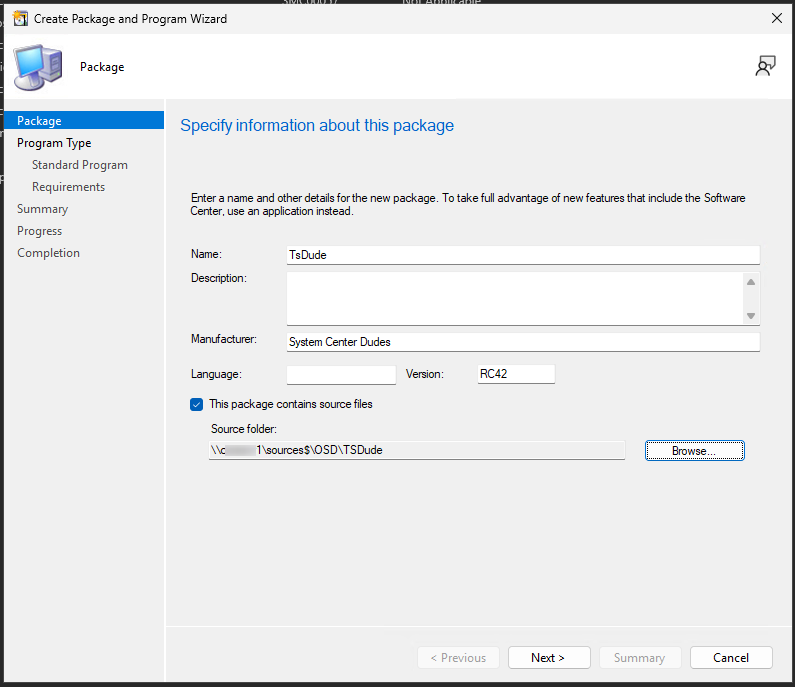
Create a package that points to the TsDude folder that contains all the scripts, your logo, and your configuration file
Go to Software Library -> Application Management -> Packages
Create a new package, and name it TsDude
Point it to the TsDude folder
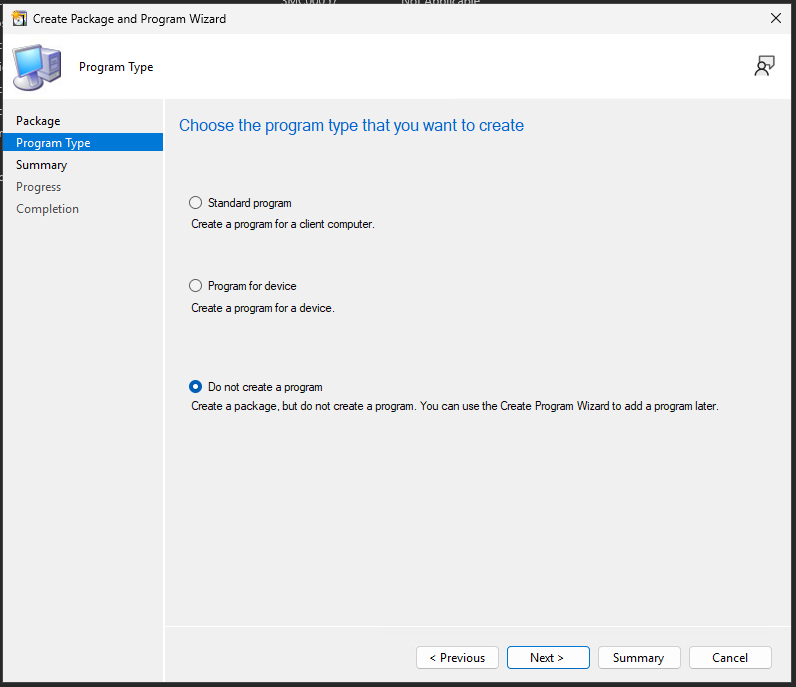
select Do not create a program, then simply click next until the end.
Be sure to distribute the package to all distribution points that can image devices
Task Sequence implementation
It’s recommended you build a copy of your existing Task Sequence while you complete the implementation of TsDude to avoid impacting production until you’re ready to do the cut over.
Create a “Run PowerShell script” step near the top of your Task Sequence
If you don’t use disk encryption (BitLocker), you can put TsDude before the format drive step.
If you use BitLocker disk encryption, you can either:
put TsDude just after the format drive step
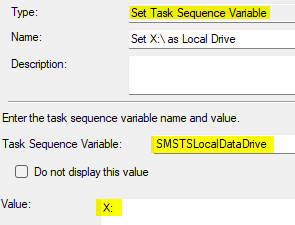
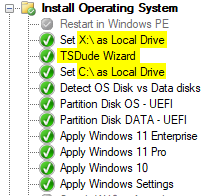
Set the Task Sequence Variable SMSTSLocalDataDrive = X: before TsDude, then SMSTSLocalDataDrive = C: after the format disk step.
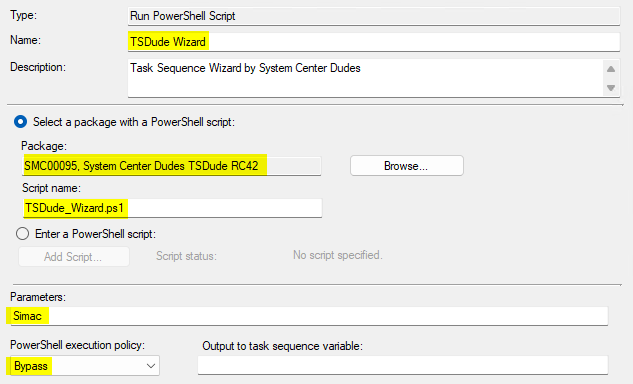
Set a descriptive name, such as TsDude Wizard
Select your previously created Package that contains TsDude
for the Script name, enter TsDude_Wizard.ps1
under Parameters, you can put the name of the config file. Formats accepted are:
Name
Name.xml
Configs\Name.xml
Set the execution policy to Bypass
With all steps created, your task sequence should look something like this:
Please fill out the form, and one of our representatives will contact you in Less Than 24 Hours. We are open from Monday to Friday.
Never share sensitive information (credit card numbers, social security numbers, passwords) through this form.
Request Sent
Thank you for subscribing to our newsletter or requesting a quote.
You will receive our next month's newsletter. If you have requested a quote, we will get in touch with you as soon as possible.
Comment Sent
Thank for your reply!
Error
Something went wrong!
We use cookies to ensure that we give you the best experience on our website. If you continue to use this site we will assume that you are happy with it.




Thank for your reply!