

Deploy HP BIOS Updates in SCCM with HP MIK When BIOS Password Is Set
Contributor of System Center Dudes. Based in Montreal, Canada, Senior Microsoft SCCM consultant, working in the industry for more than 10 years. He developed a strong knowledge of SCCM and MDT to build automated OS deployment solution for clients, managed large and complexe environment, including Point of Sale (POS) related projects.

Jonathan Lefebvre
Table of Content





Share


Get the latest insights and exclusive content delivered to your inbox
With the Secure Boot Certificate update required, updating the BIOS is a complex task. If you are already using Autopatch or Windows Update for Business, the driver update is the easiest method to achieve the BIOS update. With SCCM, the third-party update catalog can help, but things can get tricky when a BIOS password is in place. Using the HP Manageability Integration Kit in SCCM allows the use of the password while automating BIOS update deployments, and much more.
The integration is pretty simple, and rolling out a simple policy will allow devices to do the BIOS update automatically when needed, for their model. Overall, it’s as automated as it can get without using Autopatch.
In this blog post, we’ll demonstrate how to integrate the HP Manageability Integration Kit (MIK) with SCCM to ease the BIOS upgrade on HP devices.
SCCM HP MIK BIOS update – Prerequisites with download links
- .NET framework 4.8 or higher is needed on the server side.
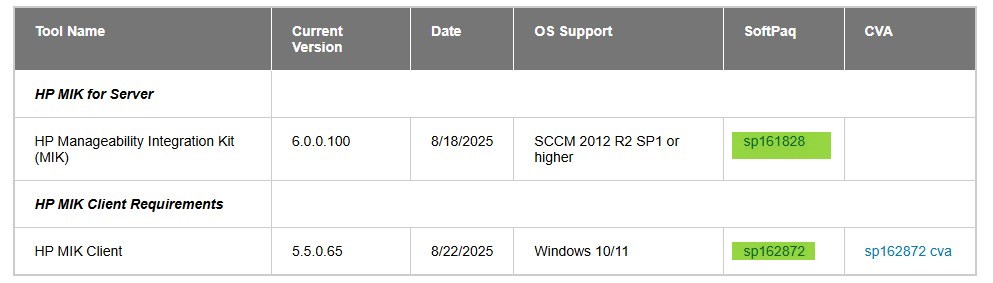
- Download HP Manageability Integration Kit and client
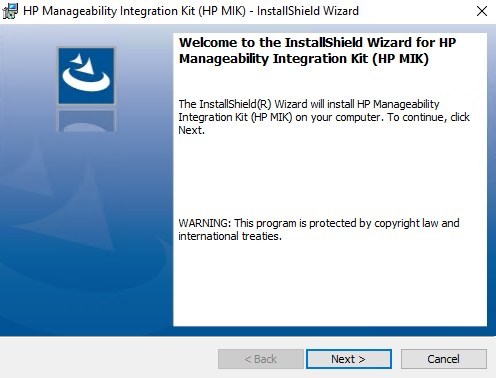
HP Manageability Integration Kit installation
- Extract the installer from the HP Softpack and execute the installer.
- Note it took a few minutes to launch.
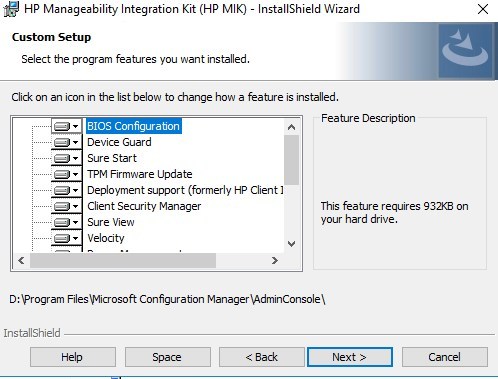
- Select the desired features. In our case, we’ll keep all, but need Patch Assistant.
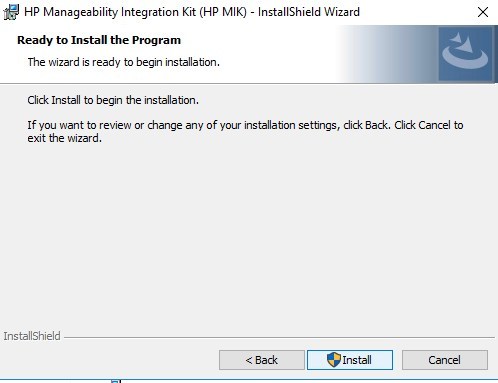
- Complete the installation
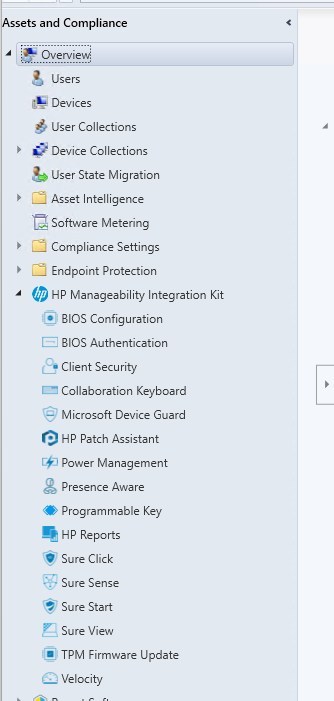
- Launch the Configuration Manager console, and look under Asset and compliance.
Create SCCM HP MIK BIOS update policy
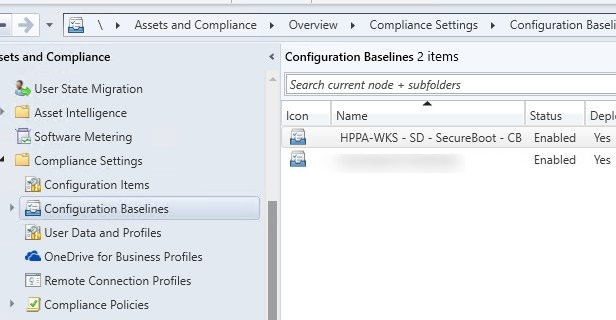
HP MIK policies are applied through Compliance Settings. These different wizards are simply generating the required component for easy management.
- Open SCCM console and browse to Asset and compliance / HP Manageability Integration Kit / HP Patch Assistant
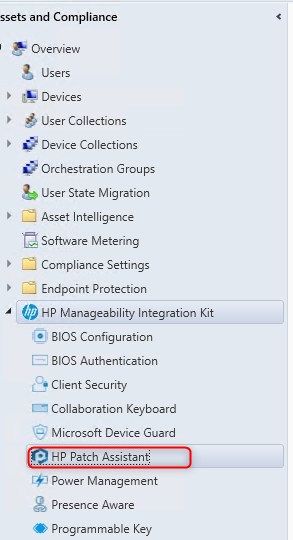
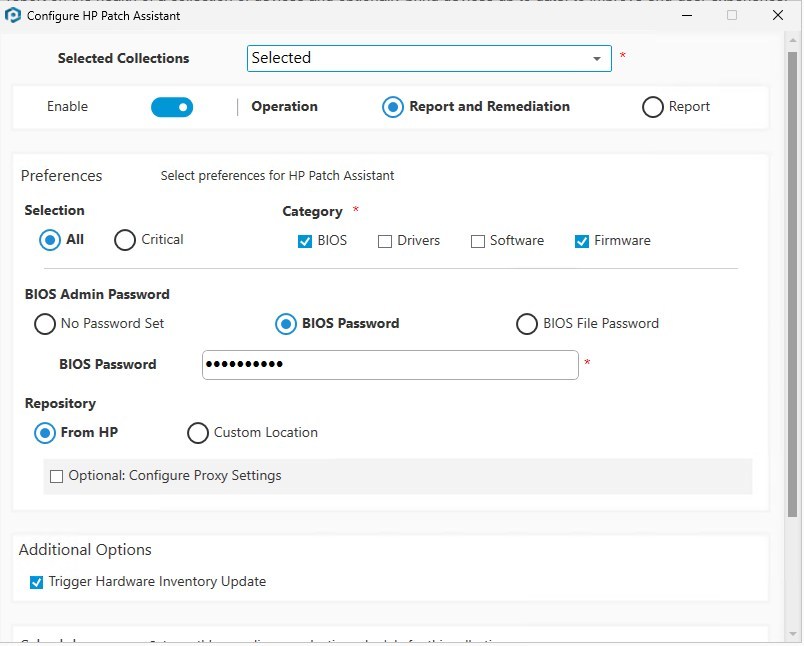
- On the right side, click on Configure HP Patch Asssitant
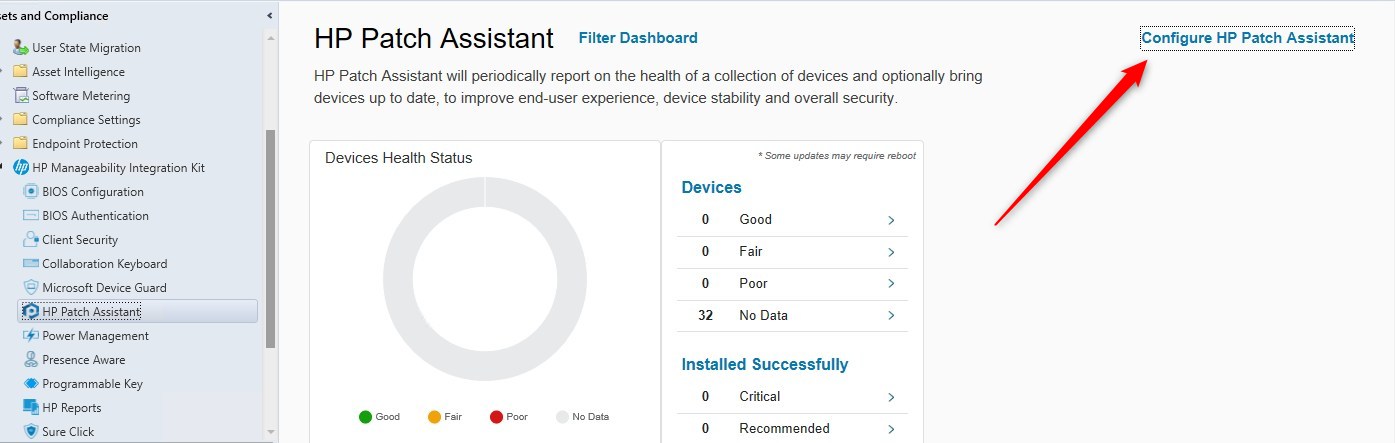
- This wizard will configure the Patch Assistant component, which essentially will automate updating the BIOS
- Select a collection to deploy the configuration
- Select Report and Remediation
- Select which option to patch, in our case, BIOS and firmware
- Specify the BIOS password
- Specify the monthly frequency to look and update.
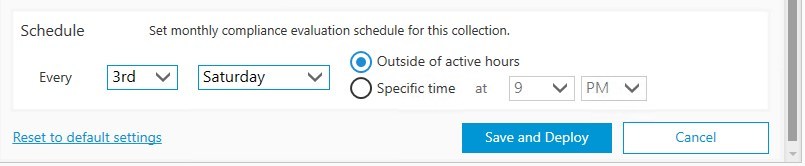
- Once saved and deployed, it creates a baseline and applies it to the selected collection.
Client component package
HP MIK also requires a client-side support component on each endpoint. This client package enables the device to evaluate and apply the HP BIOS policy. Without it, the SCCM policy can exist, but the device will not be able to complete the HP BIOS workflow correctly.
Silent install note:
- Install command line : Setup.exe /S /V/qn
- Detection method MSI : {0C42C2AD-F97B-4EF4-9530-570B08301A85}
- look for latest MSI ID under for the laster MSI ID. HKLM/SOFTWARE\WOW6432Node\Microsoft\Windows\CurrentVersion\Uninstall
Simply push the client on HP devices.
Device impact
Once the HP HP Manageability Integration Kit client is installed and the Compliance baseline to enforce the configuration, we can look at how it’s managing the device.
HP Patch Assistant
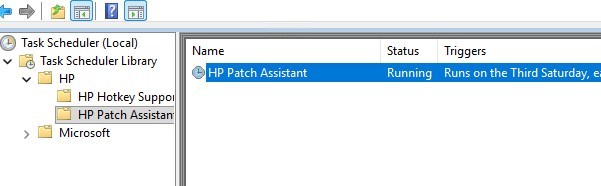
A Secheduled task is created by a mix of the Configuration baseline and the local HP client. By default, it is set to run every 30 days, but it can be manually run to force a check to happen now.
BIOS Upgrade notification
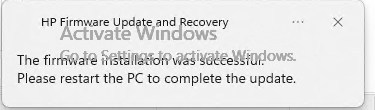
Bios update will run automatically and silently, upon discovery. Once completed a notification will display for a pending restart.
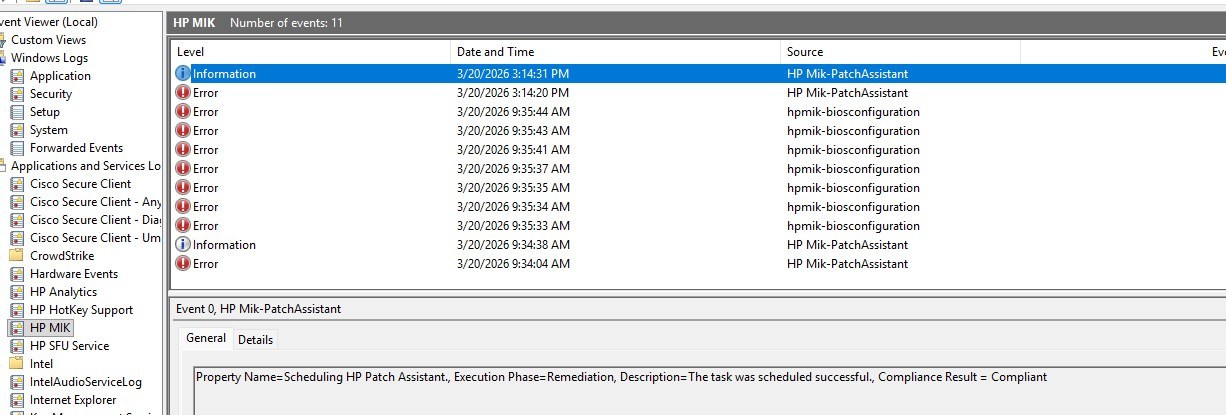
Dedicated section in the events
- Policies and actions will be displayed
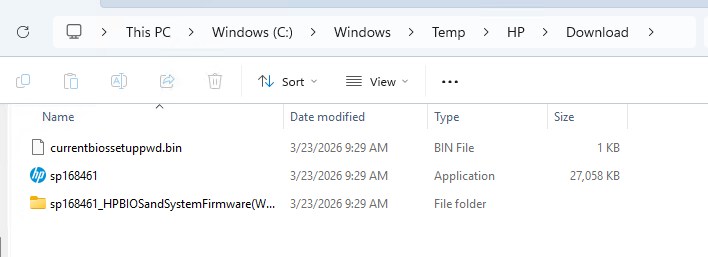
HP MIK client cache
When using integration, like Patch Assistant to install the BIOS upgrade, it will use its own cache.
Logs
- Policy logs
- C:\ProgramData\HP\MIK\Logs\HPPA
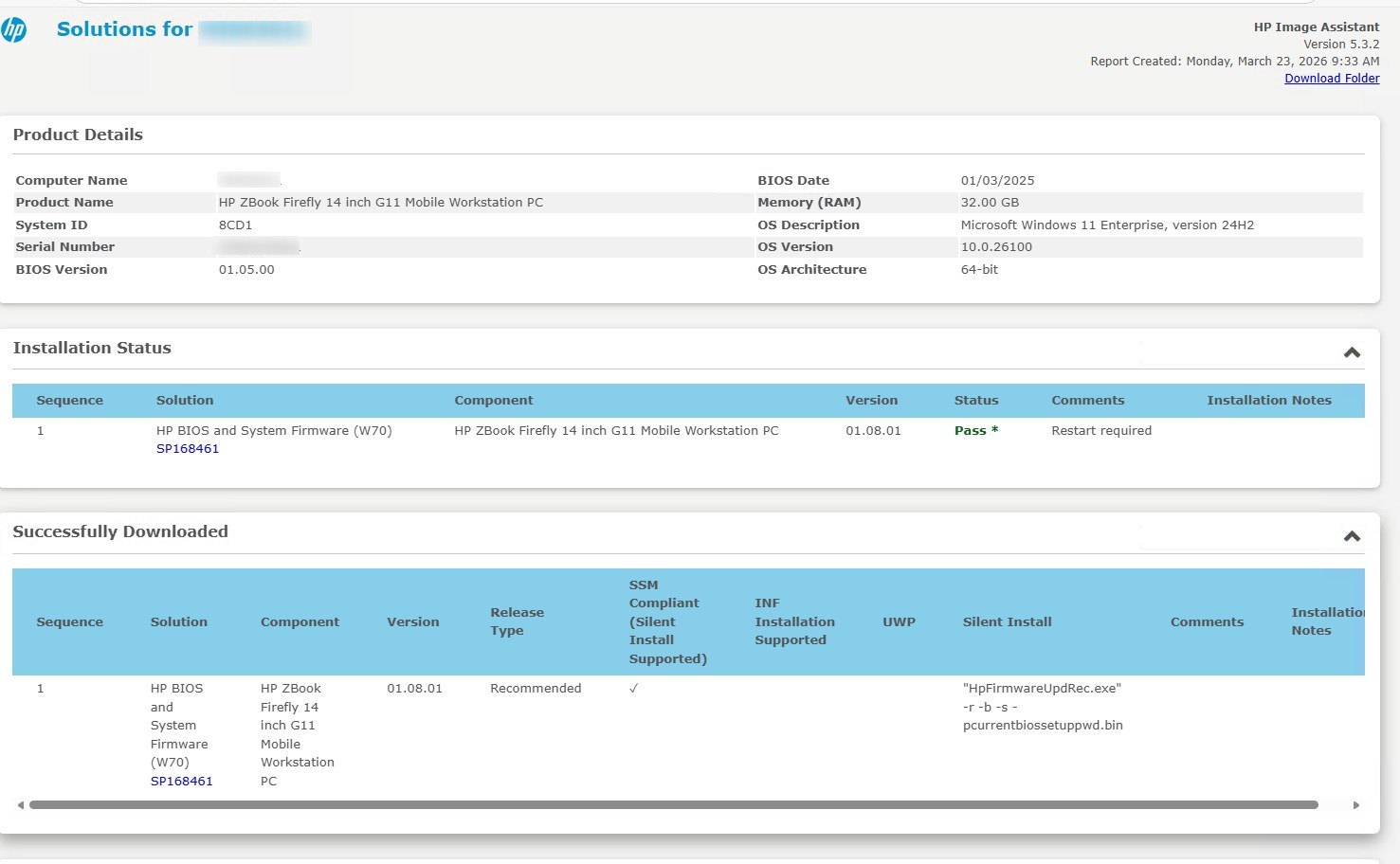
- Local reports
- C:\ProgramData\HP\MIK\HPIAReport
- Like in the example below, the status of the BIOS upgrade before a restart was performed.
Side note about Secure Boot Certificate, once a BIOS update is applied and device rebooted, it will proceed correctly.
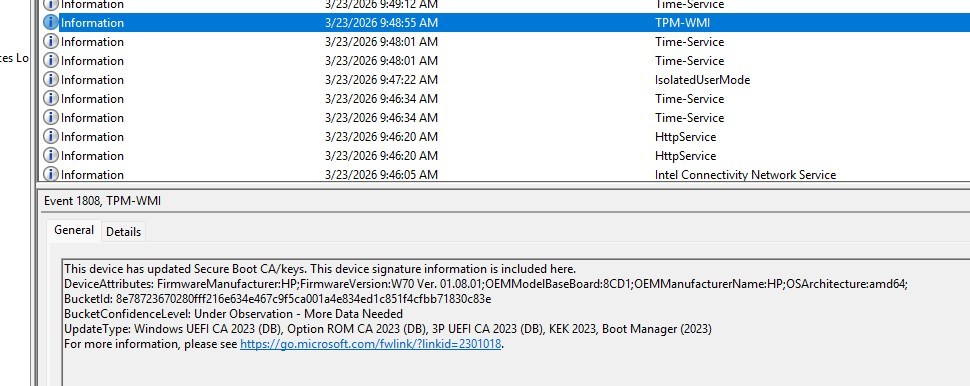
Reports
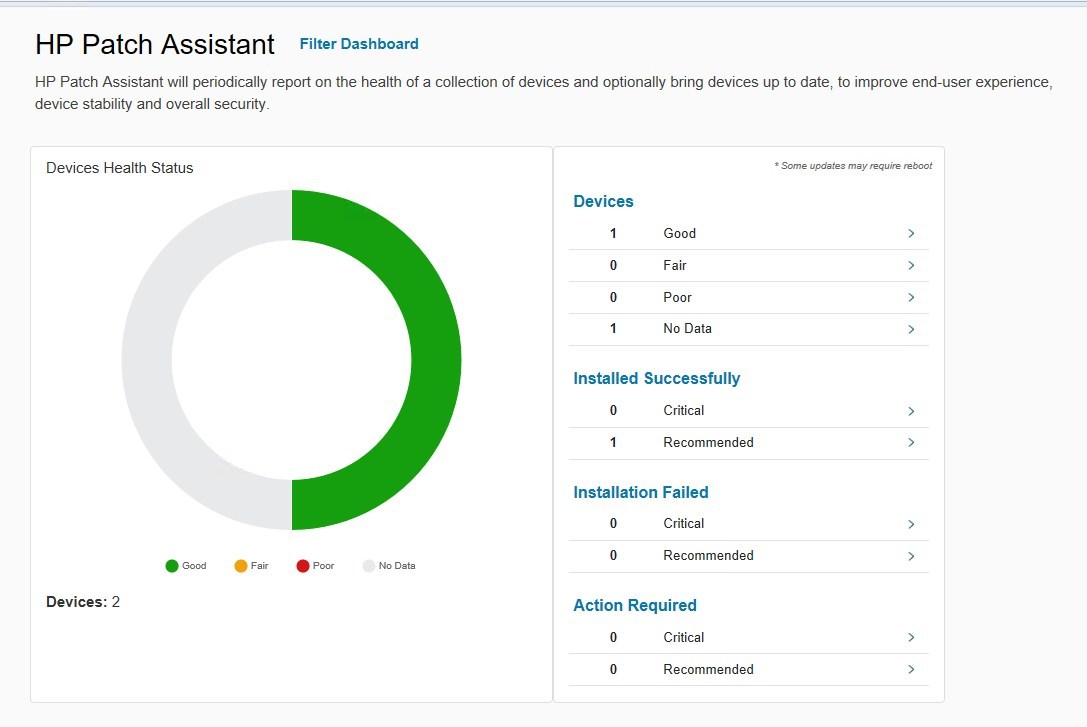
In the HP Patch Assistant, once a cycle has gone through, a health status report will be displayed.
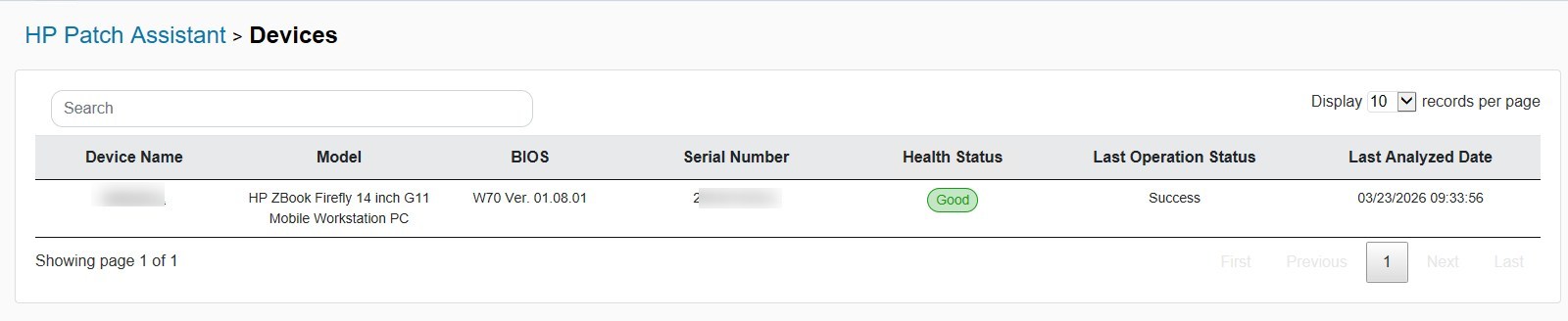
- Looking at the details, models and BIOS version can be easily viewed with the health status
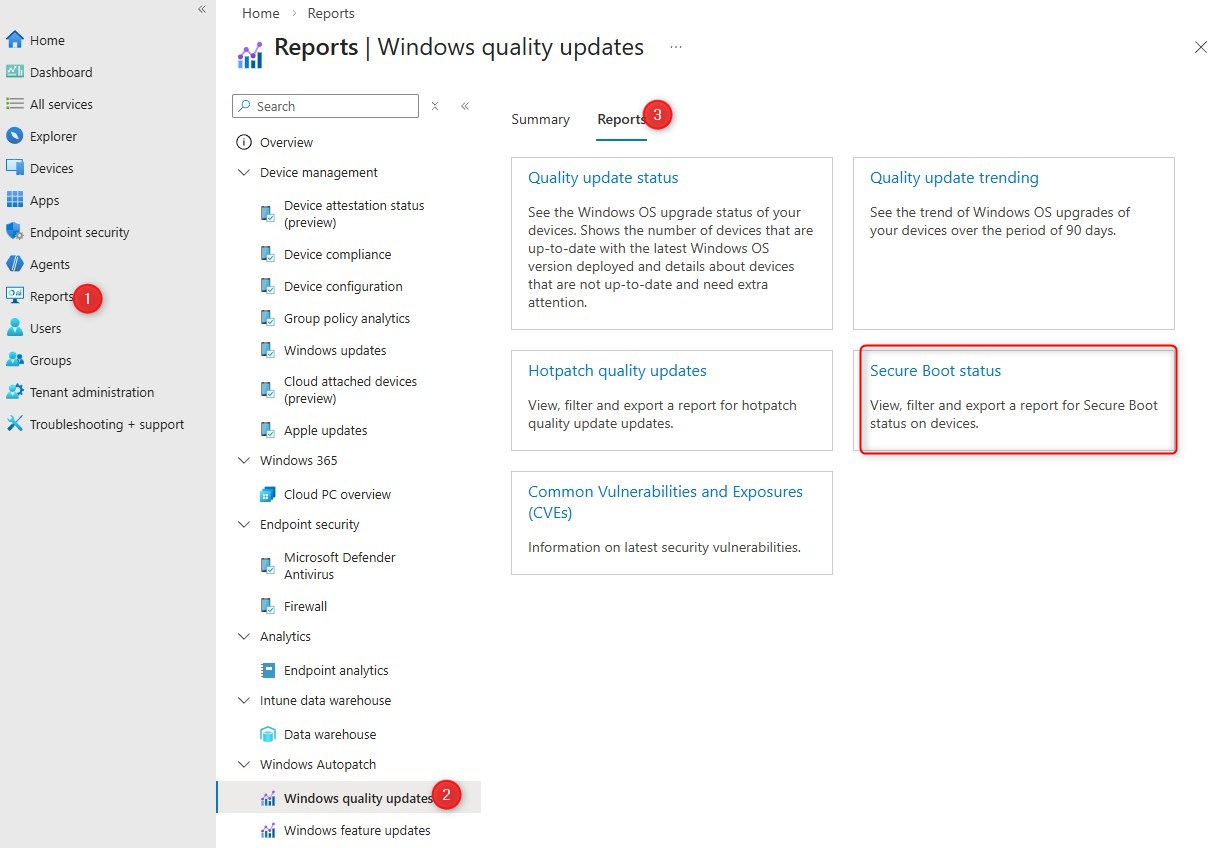
Important note – SCCM HP MIK BIOS update
- HP MIK helps manage HP BIOS in SCCM.
- It does not bypass a BIOS administrator password.
- It works best when the password-aware HP workflow is used correctly.
Closing words
HP MIK is the practical SCCM path when BIOS passwords are enabled, and you need a controlled BIOS update process tied to Secure Boot certificate readiness.
It can also help enable Secure Boot or even set a BIOS password if it was never accomplished before.
Share
Get the latest insights and exclusive content delivered to your inbox


Only authorized users can leave comments
Log In