

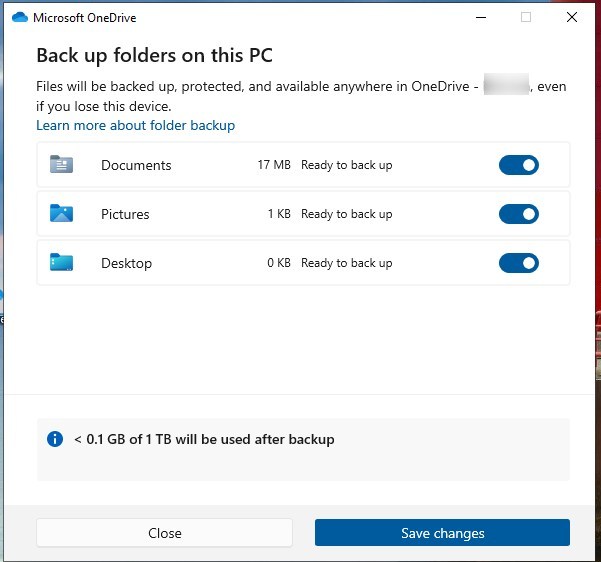
How to configure Intune Windows 11 OneDrive policy
Contributor of System Center Dudes. Based in Montreal, Canada, Senior Microsoft SCCM consultant, working in the industry for more than 10 years. He developed a strong knowledge of SCCM and MDT to build automated OS deployment solution for clients, managed large and complexe environment, including Point of Sale (POS) related projects.

Jonathan Lefebvre
Table of Content






Share


Get the latest insights and exclusive content delivered to your inbox
Configuring OneDrive policies through Intune is one of the most effective ways to streamline file management, improve data protection, and deliver a seamless experience for Windows 11 users.
In this guide, we’ll detail how to configure the Intune Windows 11 OneDrive policy.
Look at our previous posts for various Intune and Windows 11 topics!
- Create an Intune BitLocker policy for Windows 11 devices – System Center Dudes
- How to Configure Windows Backup for Organizations with Intune – System Center Dudes
Prerequisites
- Device managed by Intune
- If CoManaged, the workload for Device Configuration changed to Intune
- Tenant ID will be needed
- Easily find it at the Overview screen of Microsoft Entra ID in the Azure portal.
Create an Intune Windows 11 OneDrive policy
- Under Devices / Configurations, create a new policy.
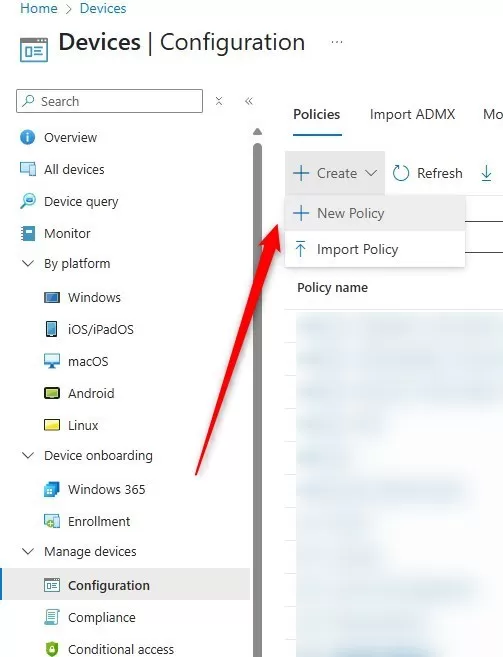
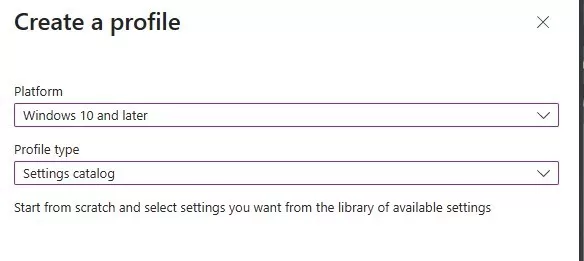
- Select Windows 10 or Later and the settings catalog.
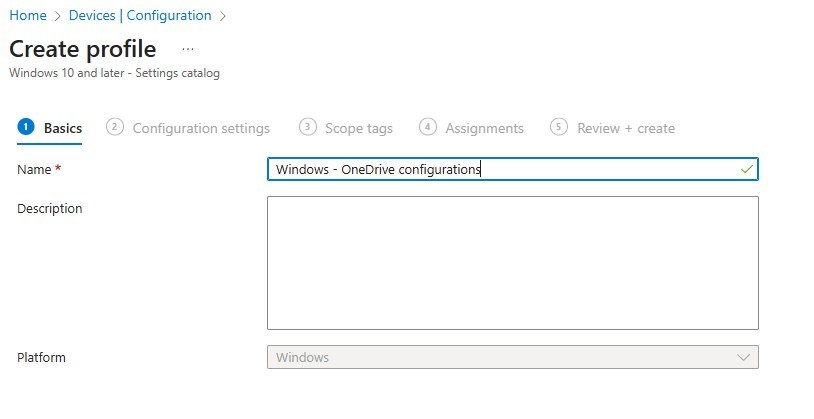
- Provide the policy name
- Select OneDrive and all these settings
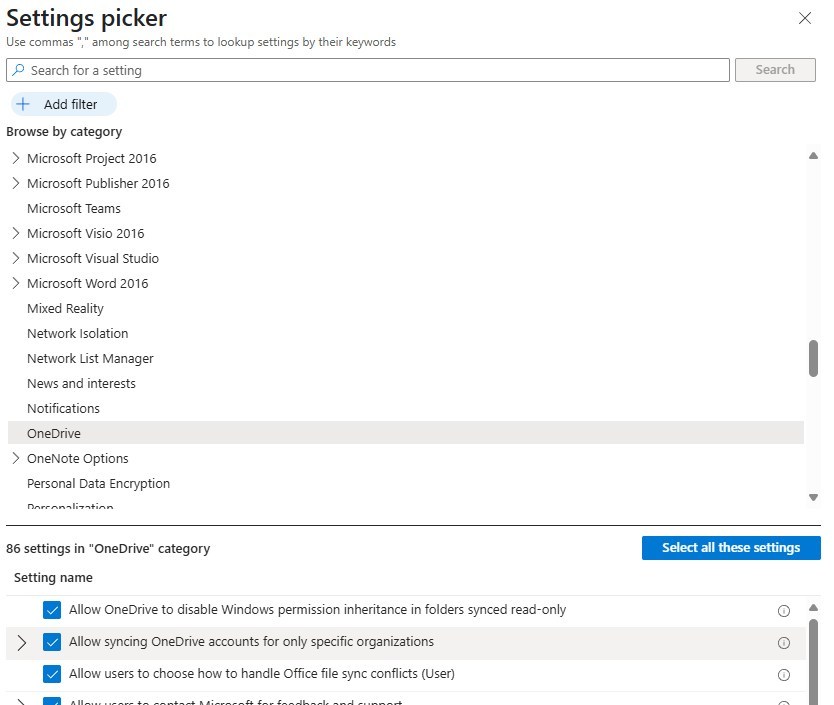
- Since there are many settings, we’ll complete the policy creation with all defaults and review key settings to be modified in the next section.
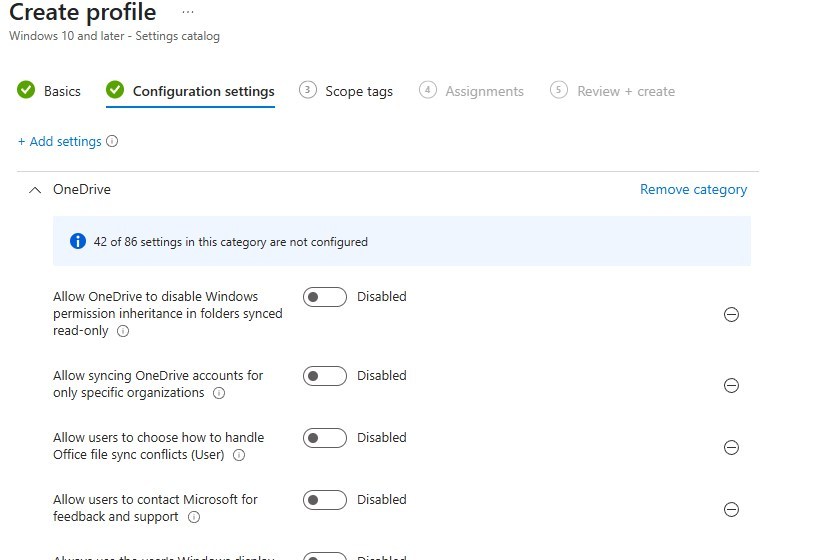
- Do not assign the policy yet.
Recommended OneDrive settings
First and foremost, take the time to review all available settings for OneDrive, as many will be environment-specific. The list below is the required and most common ones used.
| Setting | Why it matters |
|---|---|
| Silently sign in users to OneDrive with Windows credentials | SSO sign-in for the user. |
| Silently move Windows known folders to OneDrive | Auto‑backs up Desktop, Documents, Pictures. |
| Allow syncing only a specific organization | Ensures only company OneDrive accounts are used. |
| Use OneDrive Files On‑Demand | Reduces local storage and improves sync performance. |
| Enable Sync health reporting for OneDrive | Lets admins monitor sync issues in Admin Center. |
| Prevent users from syncing their personal OneDrive account | Helps enforce data‑governance and compliance. |
For more details about recommended OneDrive settings, see Microsoft docs.
Intune Windows 11 OneDrive policy – Validation and logs
Registry keys
Most configurations pushed by the Intune device configuration are available under HKLM\SOFTWARE\Policies\Microsoft\OneDrive\

For more details, see Microsoft Learn
MS365 Admin Center
If enabled, issues can be visible in the MS 365 Admin Center.
- Go to the Microsoft 365 Apps admin center and sign in as an Office App Administrator or higher rights.
- From the left navigation menu, select Health > OneDrive Sync.
For more details, see Microsoft learn for various Troubleshooting tips!
Share
Get the latest insights and exclusive content delivered to your inbox


Only authorized users can leave comments
Log In