

Monitor Secure Boot Certificates Expiration with Power BI Dashboard
Contributor of System Center Dudes. Based in Montreal, Canada, Senior Microsoft SCCM consultant, working in the industry for more than 10 years. He developed a strong knowledge of SCCM and MDT to build automated OS deployment solution for clients, managed large and complexe environment, including Point of Sale (POS) related projects.

Jonathan Lefebvre
Table of Content






Share


Get the latest insights and exclusive content delivered to your inbox
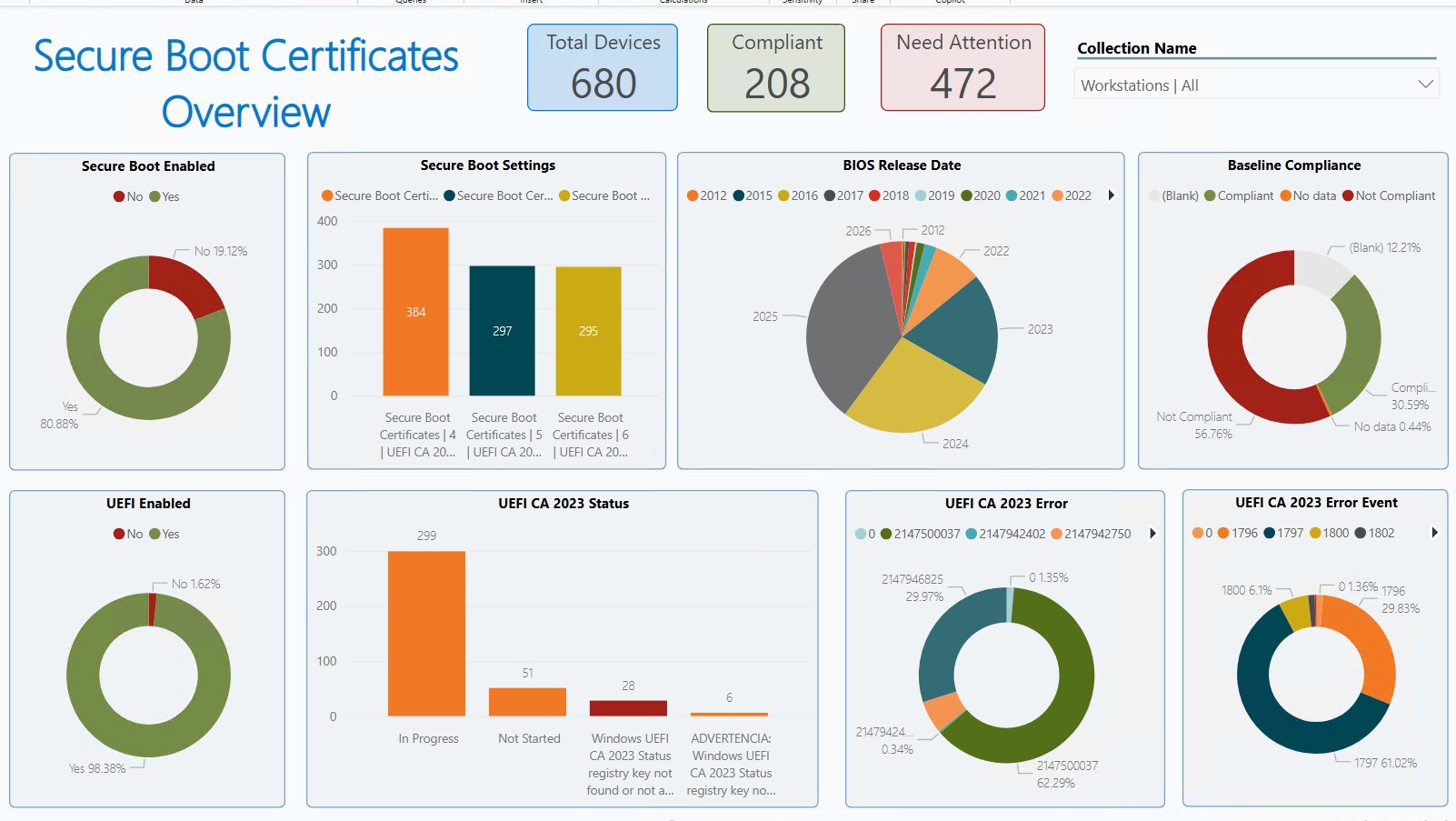
As part of the series of blog posts about the upcoming SecureBoot certificate expiration, our Team worked on a brand new Power BI report for Configuration Manager with Configuration baselines. Wether your are still using Configuration Manager in standalone mode, or CoManaged, this report can be quite useful to figure out why some devices are having a hard time updating the Secure boot certificate or being fully compliant.
In the blog post, we’ll go over the few steps to get going with our new Secure Boot Certificates Power BI Dashboard.
For more details about the Secure Boot Certificates Expiration, refer to our previous related posts.
Prerequisites – Secure Boot Certificates Power BI Dashboard
- Subscribe to our Free membership
- Premium members will already see the downloads available.
- Download the Configuration baseline and Power BI report. (available in the Free Membership)
- Power BI Desktop
- The latest version can be found here: Download Microsoft Power BI Desktop from Official Microsoft Download Center
Import SecureBoot Configuration baseline
Many inventory components are not available via Hardware Inventory by default. Using a baseline with Compliant/non-compliant status is the easiest implementation.
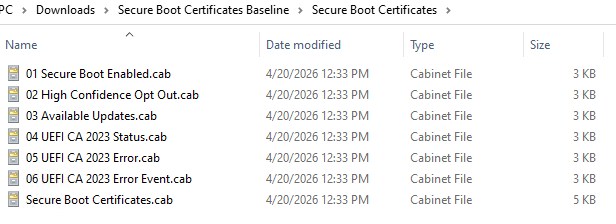
- Extract the files from the SecureBoot Certificate baseline download
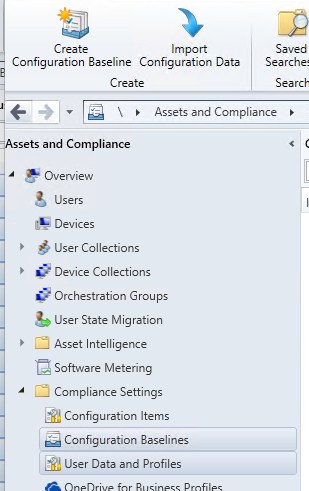
- In the Configuration Manager console, browse to Asset and Compliance / Compliance Settings / Configuration baseline and click on Import Configuration Data
- Click on Add, and browse to select ALL .cab files previously extracted.
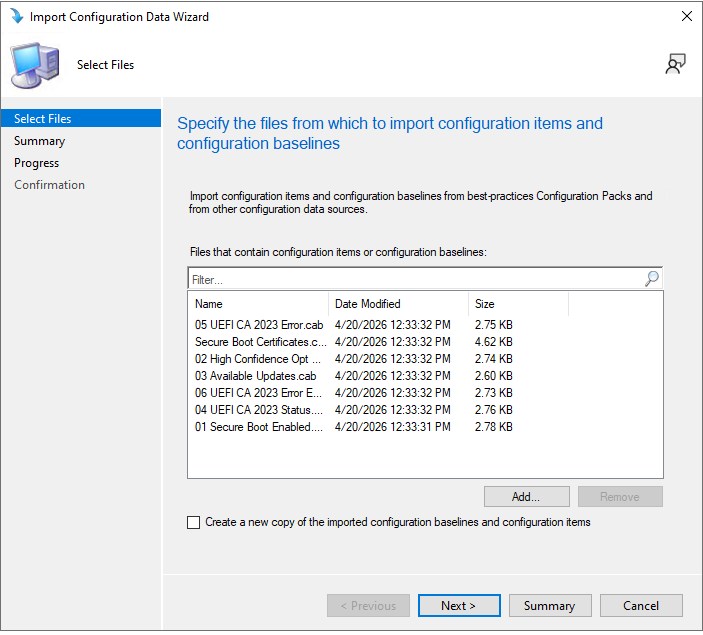
- A warning will display about an unknown publisher, click Ok
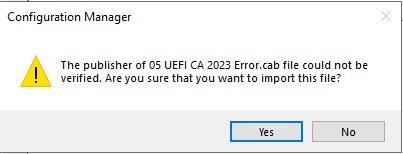
- Click next to complete the wizard
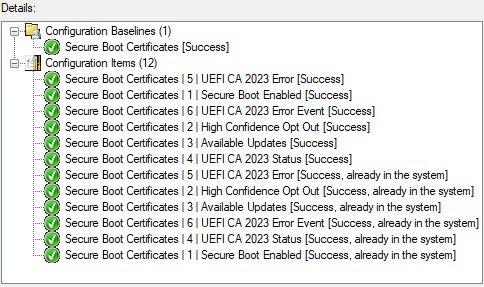
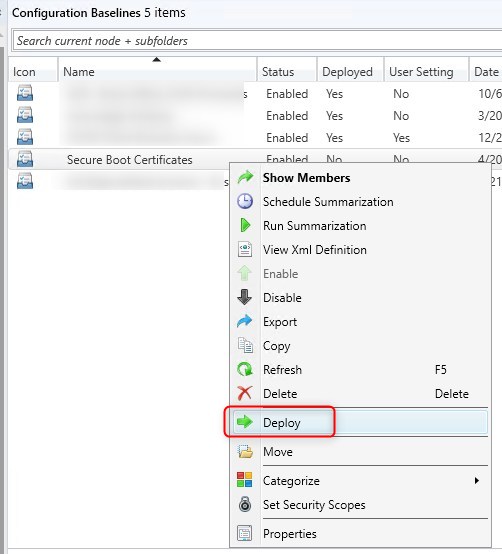
- Once created, deploy the Secure Boot Certificates Configuration baseline
- Note that the name must remain the same for the report to work properly.
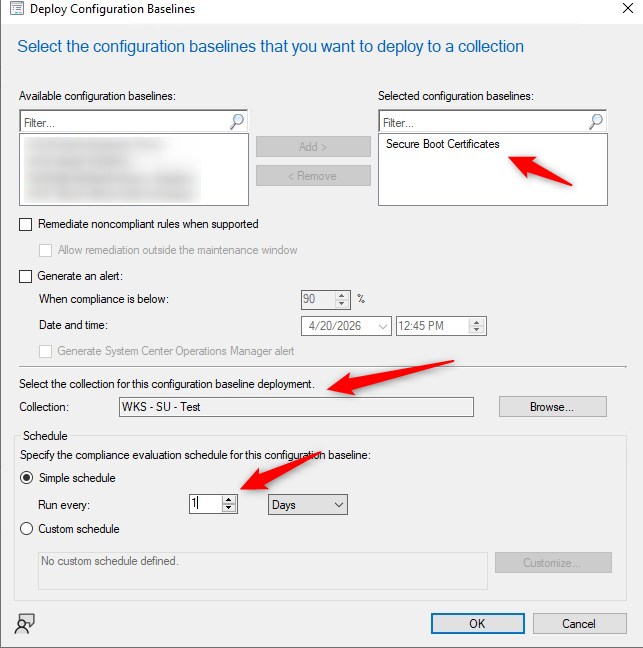
- Select only the Secure boot certificates baseline, a target collection, and adjust the evaluation schedule to 1 day
- This baseline does not require Remediate, since it only evaluates for inventory purposes.
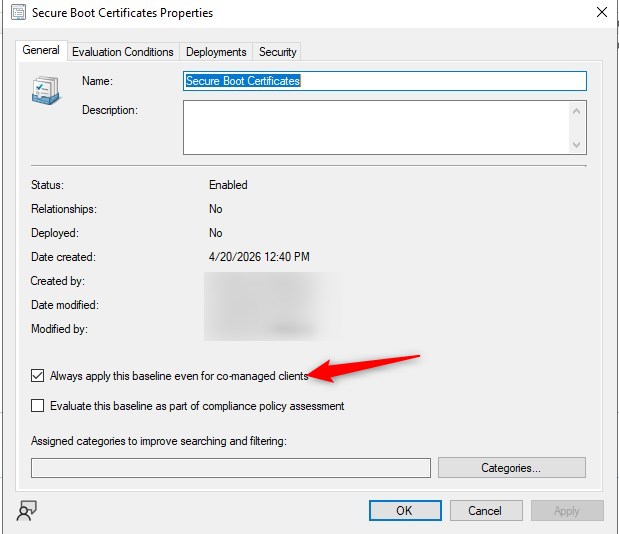
- The baseline is pre-configured to be effective on CoManaged devices as well
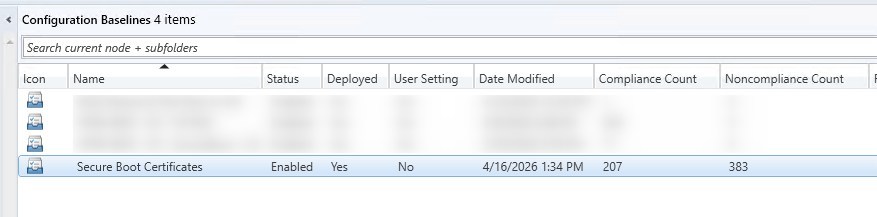
- After a day or 2, look at the Compliance count within the Configuration Manager console.
- Once the data shows up, continue to the Power BI report section.
Secure Boot Certificates Power BI Dashboard
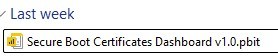
- Open the report with Power BI Desktop
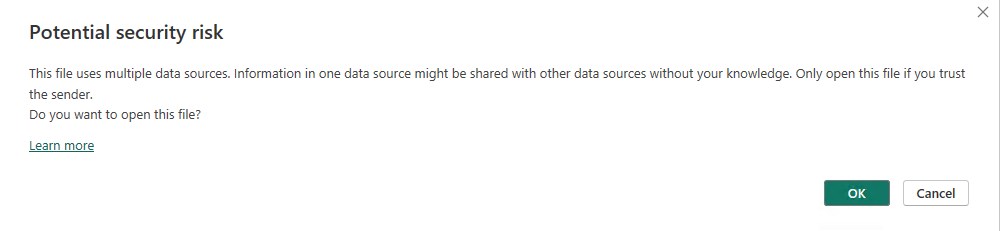
- Accept
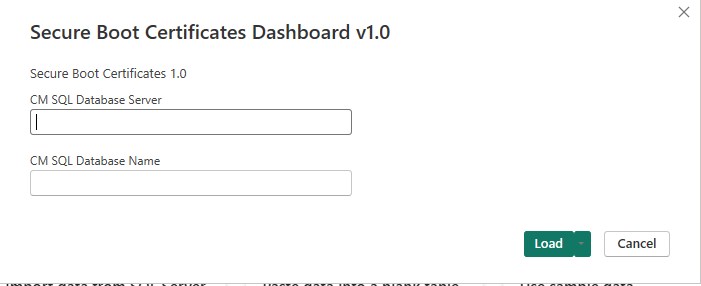
- Provide the SQL server for the Configuration Manager and the SQL database
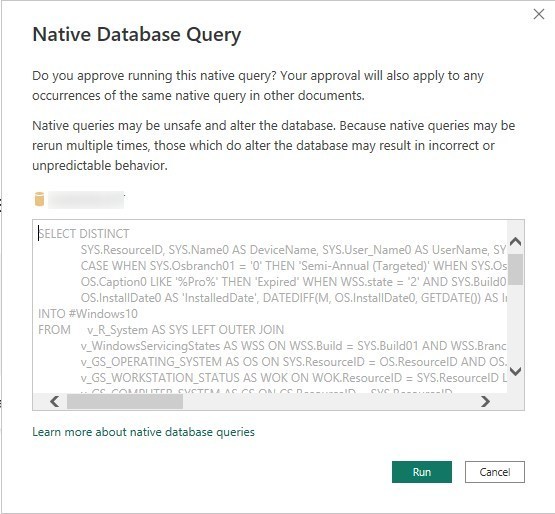
- A prompt for Native Database Query will most probably happen.
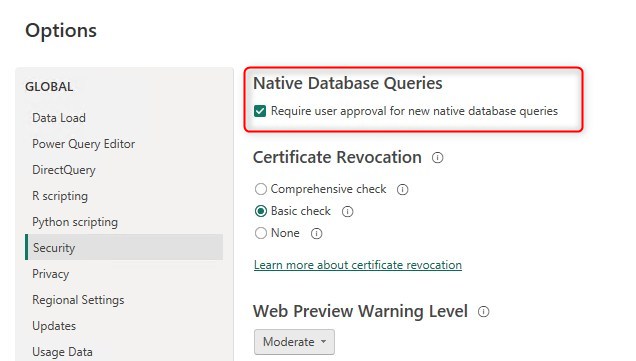
- To prevent this, turn of Require user approval for new native database queries, under Options / Global / Security
- Once completed with the queries
Voilà!
More Information
Detailed articles about the Secure Boot DB and DBX variable update events.
For more details about Secure Boot certificate expiration, see this Microsoft TechCommunity post.
We hope this report helps address the various challenges of updating the Secure Boot Certificate.
Share
Get the latest insights and exclusive content delivered to your inbox


Shogo
05.03.2026 AT 04:25 AMMarc-Andre Chartrand
06.08.2026 AT 11:52 AMEUC
05.13.2026 AT 04:42 PMShailendra Kumar
05.01.2026 AT 02:32 AMMarc-Andre Chartrand
06.08.2026 AT 11:50 AMShailendra Kumar
04.30.2026 AT 10:38 PMShailendra Kumar
04.30.2026 AT 10:38 PMShailendra Kumar
04.30.2026 AT 10:38 PM