

Fix Windows Backup for Organization error 53000 and 53003 during Autopilot
SCD Consultant, Contributor. Specialized in Microsoft Endpoint Manager (SCCM, InTune), Windows Autopilot, Windows10 (11) and Office365 Deployment and maintenance.

Marc-Andre Chartrand
Table of Content






Share


Get the latest insights and exclusive content delivered to your inbox
If you have deployed Windows 11 and enabled Windows Backup for Organization, you may have noticed that the restore step during autopilot shows an error. The cause is almost always a Conditional Access policy applying to All cloud apps. The service principal used by Windows Backup does not satisfy the policy conditions during the background authentication flow, so access is denied.
In our tenant, we ran into an additional problem: the app to exclude was not visible in the Conditional Access portal at all. We had to register it manually using PowerShell before the exclusion could be applied. This post covers both issues with Windows Backup for Organization error 53000 and 53003.
Quick Links
- Why Windows Backup Gets Blocked by Conditional Access
- Exclude the Windows Cloud Login App from Conditional Access
- The App Is Not Visible in the Portal
- Fix: Tag the Service Principal with PowerShell
- Verify the Configuration and Test
- Security Considerations
Windows Backup for Organization error 53000 – The issue
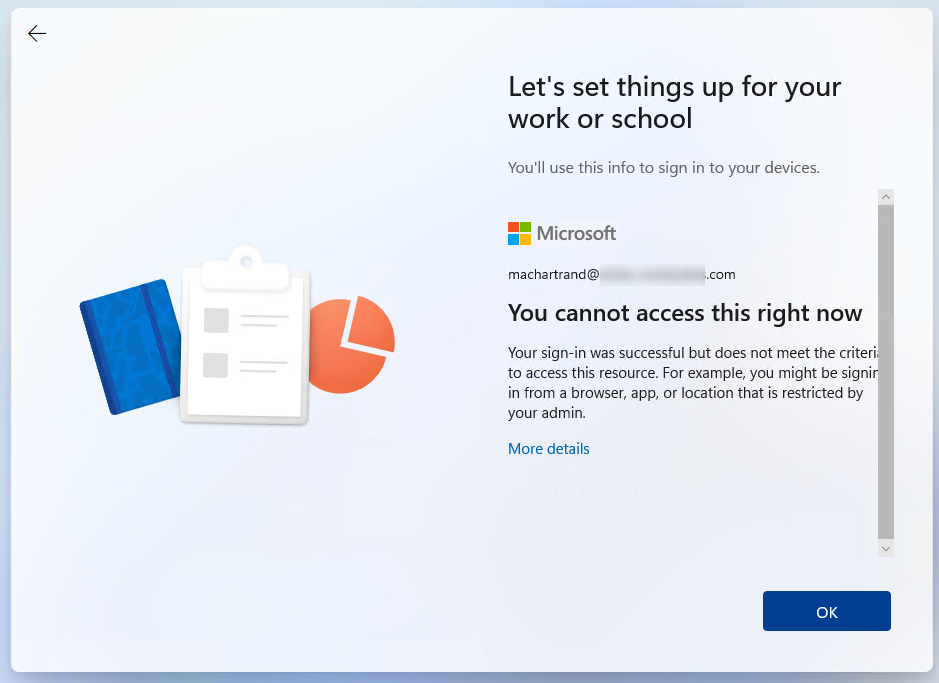
When doing an Autopilot user provisioning, the user will be shown one of these 2 error messages:
- You can’t get there from here
- You cannot access this right now
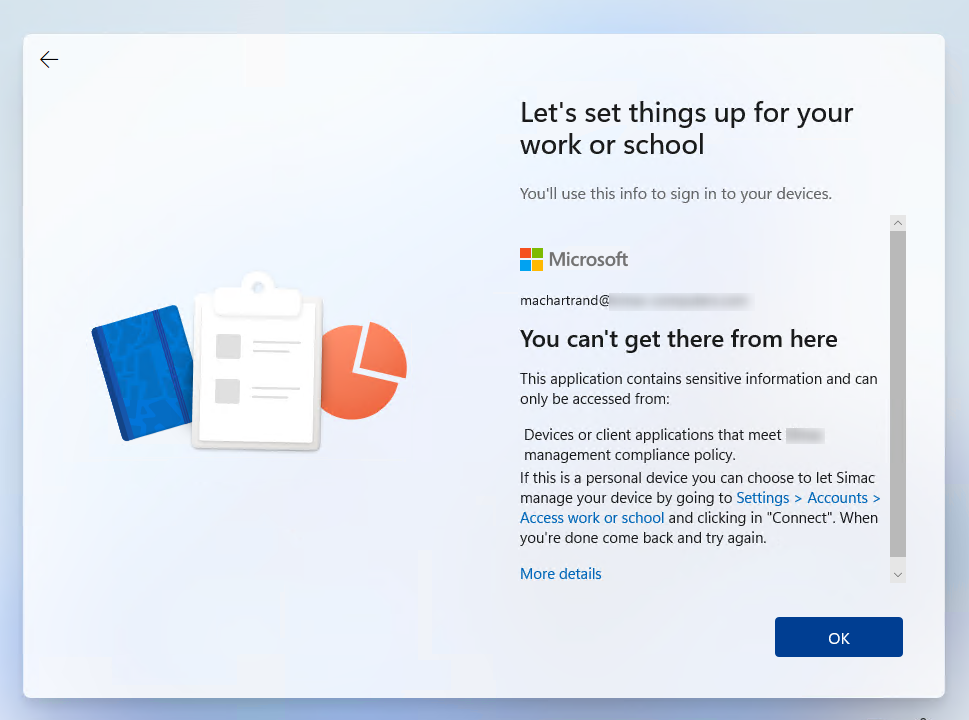
Both messages indicate a different root cause, but both are related to conditional access policies. If you click on more details, you’ll find an error code that 53000 for “Can’t get there from here”, and 53003 for “You cannot access this right now”. When clicking “More details”, you’ll also notice an App ID listed; don’t get fooled, this is not the App ID that is getting blocked by Conditional access. To find the exact App ID to exclude, we need to look at conditional access logs.
In my case and most cases, the App ID to exclude is d4ebce55-015a-49b5-a083-c84d1797ae8c, but just in case, you might want to go through conditional access logs and confirm this is the case for you as well.
Fixing the issue
Step 1 – Identify the Conditional Access Policy
- Navigate to the Microsoft Entra admin center
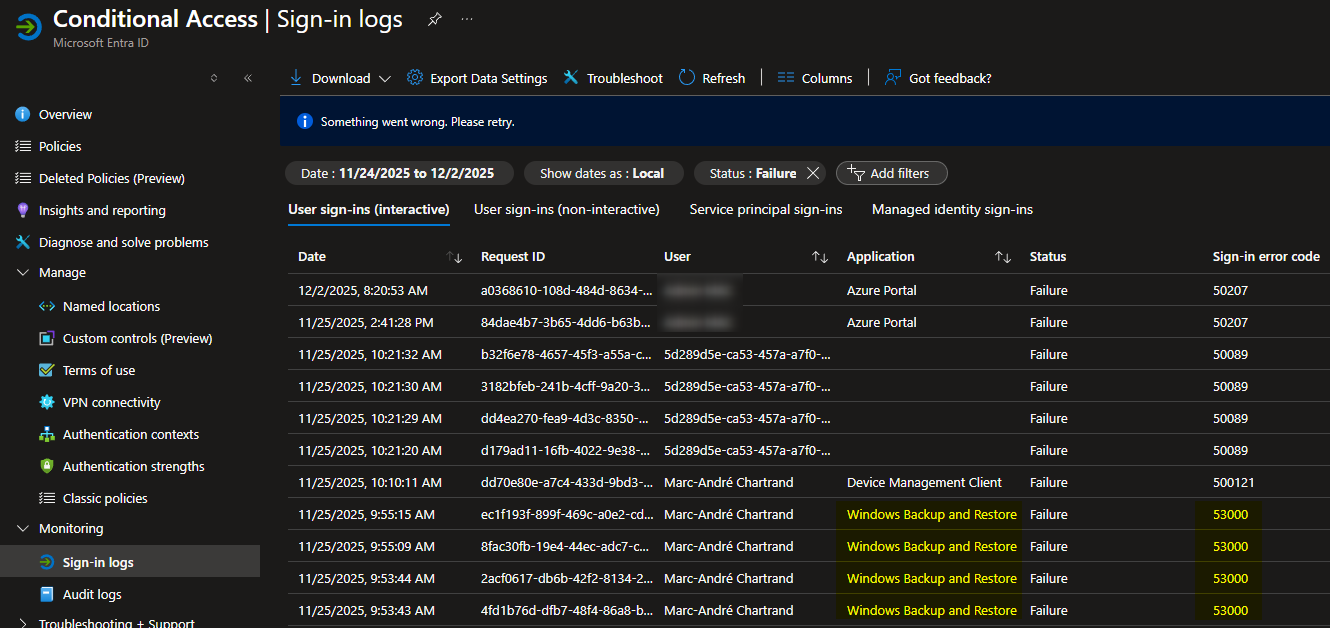
- Search for Conditional Access, then go to Sign-In logs
- Identify the entries that reference Windows Backup and Restore as the application, and the error code that matches yours (53000 or 53003). Note that it takes 5-10 minutes after the failure for the entry to appear in the logs.
- When you select the log entry that corresponds (any of them if there are multiple), you’ll be brought to the details view in the Basic info tab. Scroll at the bottom and find the Resource and Resource ID, these are the ones actually getting blocked
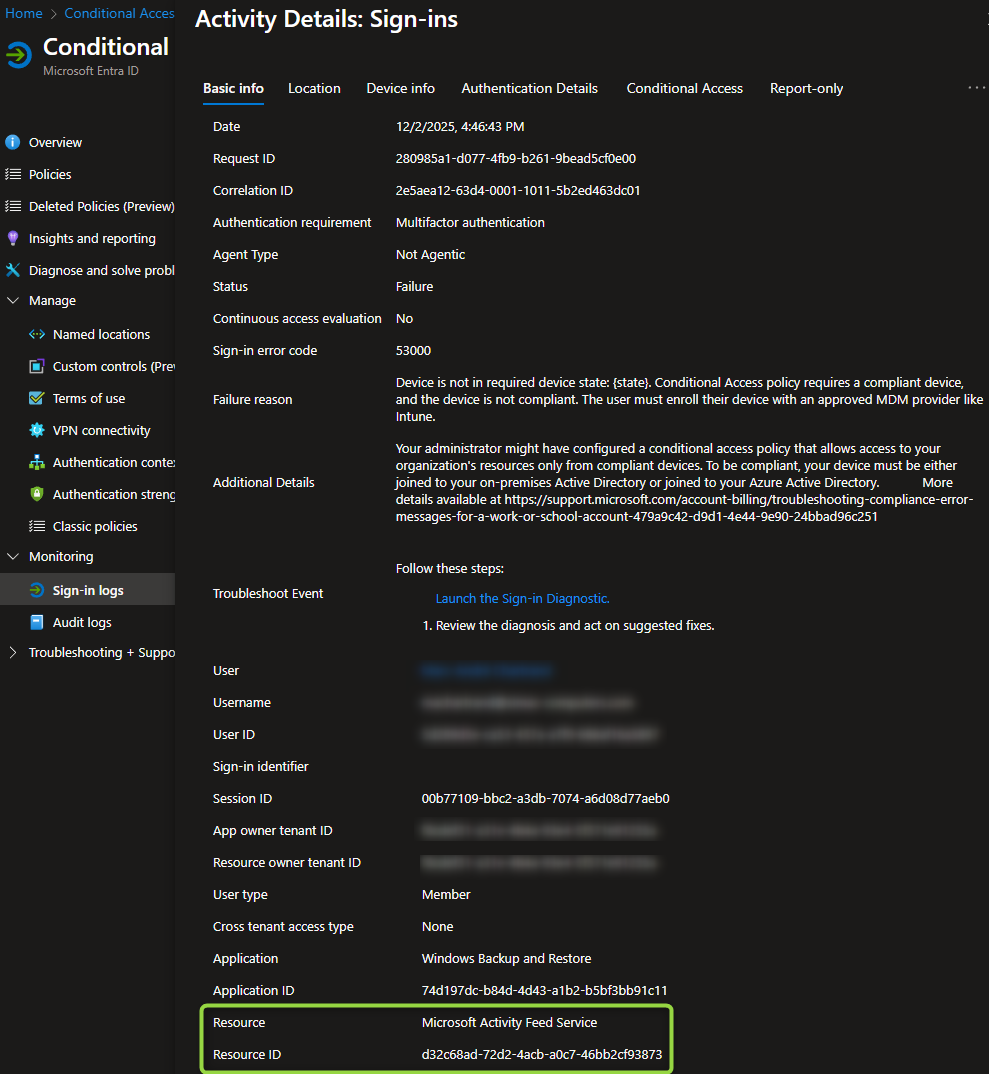
- You can then go to the Conditional Access tab at the top-right of the screen, and look for the policy that resulted in a failure
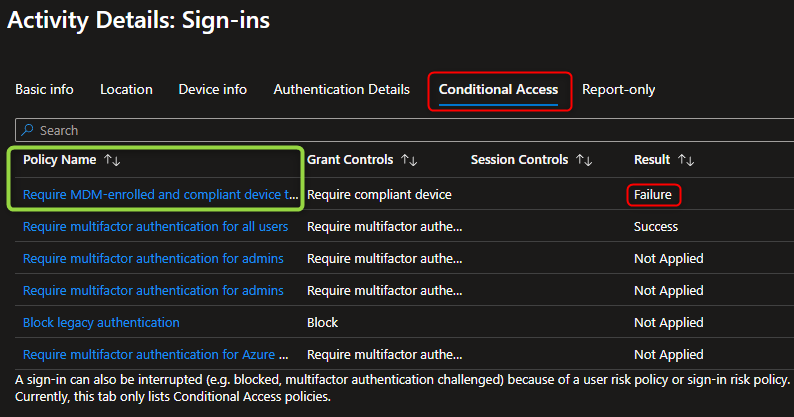
Step 2 – Add the App Exclusion
- Open the policy and click on the link below Target resources
- Select the Exclude tab, click on “Select resources“
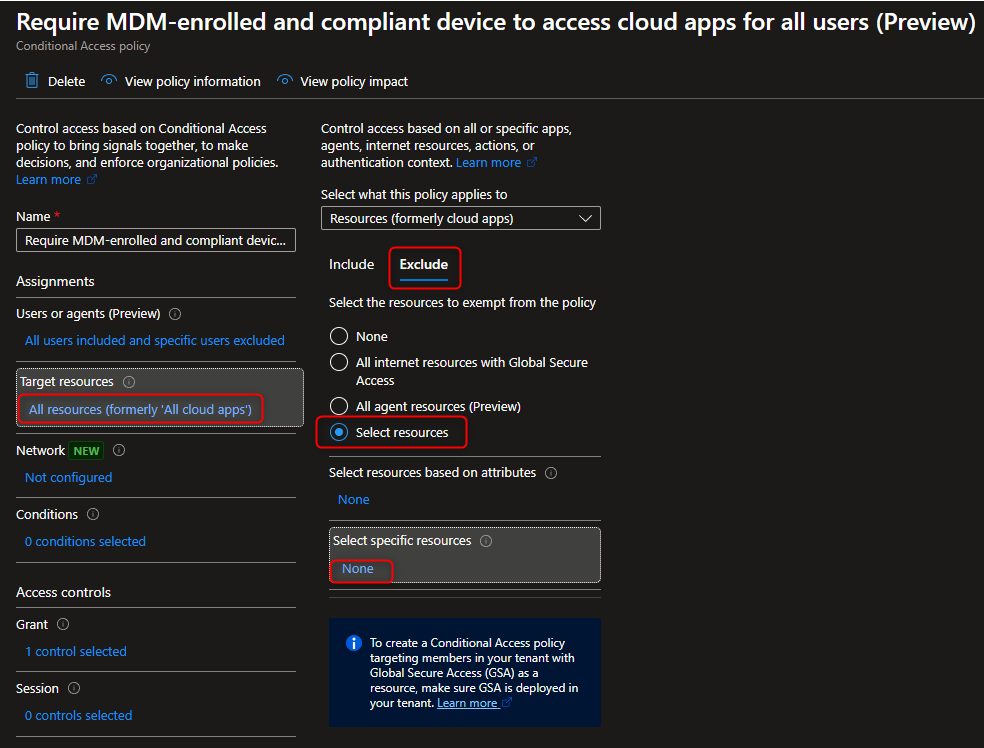
- Search for the Microsoft Activity Feed Service application
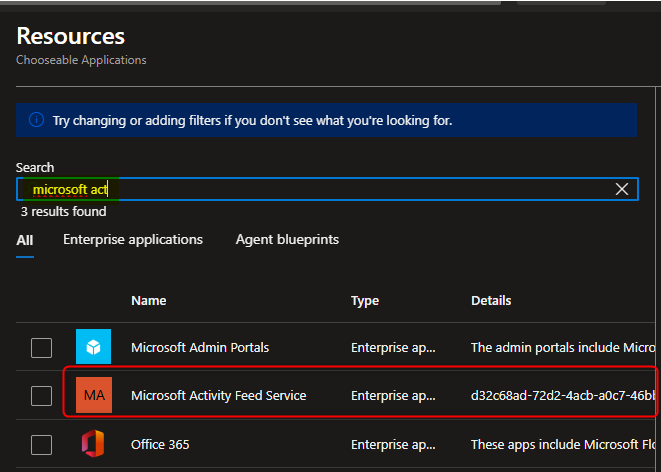
- If the app appears in the list, select it, click Select, and Save the policy
- If the app does not appear in the list, continue to the next section before coming back here
The App Is Not Visible in the Portal
In some tenants, the Microsoft Activity Feed Service service principal exists in Entra ID but does not appear in the Conditional Access app picker. This is because the service principal is missing a tag that tells the portal to surface it as a selectable integrated app.
You can confirm the service principal is present by doing the following:
- In the Entra admin center, go to Applications > Enterprise Applications
- Change the filter to All Applications
- Search for
Microsoft Activity Feed Service - If the app appears in the list but could not be found in the CA picker, the tagging issue is confirmed.
- If the app doesn’t even appear there, that’s the same issue I faced and we must run a PowerShell command to make it appear. We’ll use its App ID for that.
Install-Module AzureAD
Connect-AzureAD
New-AzureADServicePrincipal -AppId d32c68ad-72d2-4acb-a0c7-46bb2cf93873Fix: Tag the Service Principal with PowerShell
You need to add the WindowsAzureActiveDirectoryIntegratedApp tag to the service principal. This is a one-time operation that makes the app visible in the Entra portal, including the Conditional Access app picker.
Prerequisites
- Azure AD PowerShell module installed. If you do not have it, run:
Install-Module AzureAD - A Global Administrator or Privileged Role Administrator account
Run the following commands in an elevated PowerShell session:
# Step 1 – Connect to your tenant
Connect-AzureAD

# Step 2 – Find the service principal by App ID
$sp = Get-AzureADServicePrincipal -Filter "AppId eq 'd32c68ad-72d2-4acb-a0c7-46bb2cf93873'"

# Step 3 – Verify you found the right object
$sp | Select-Object DisplayName, AppId, ObjectId

# Step 4 – Apply the tag to make it visible in the portal
Set-AzureADServicePrincipal -ObjectId $sp.ObjectId -Tags @("WindowsAzureActiveDirectoryIntegratedApp")Wait 1–2 minutes after running the commands for the change to propagate. Then go back to your Conditional Access policy and search for Microsoft Activity Feed Service in the app exclusion picker — it should now appear.
- Select Microsoft Activity Feed Service from the list
- Click Select
- Click Save to update the policy
Verify the Configuration and Test – Windows Backup for Organization error 53000
Once the exclusion is saved, test it on a device that was previously failing.
Note: If a user already saw a sign-in error before the fix was applied, the cached failure state does not auto-resolve. You may need to wipe the device again to bypass the conditional access error.
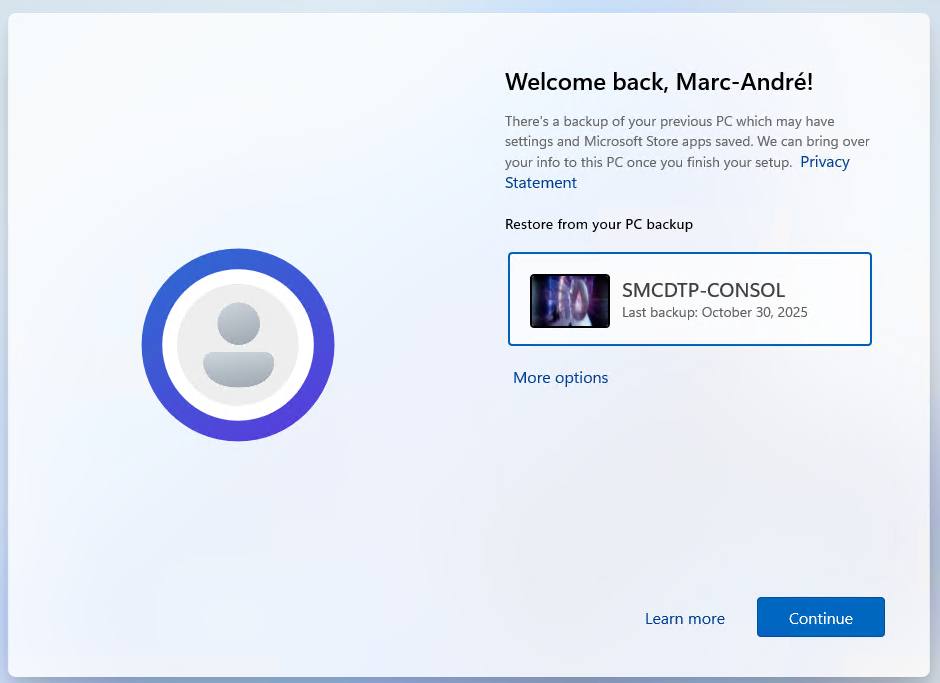
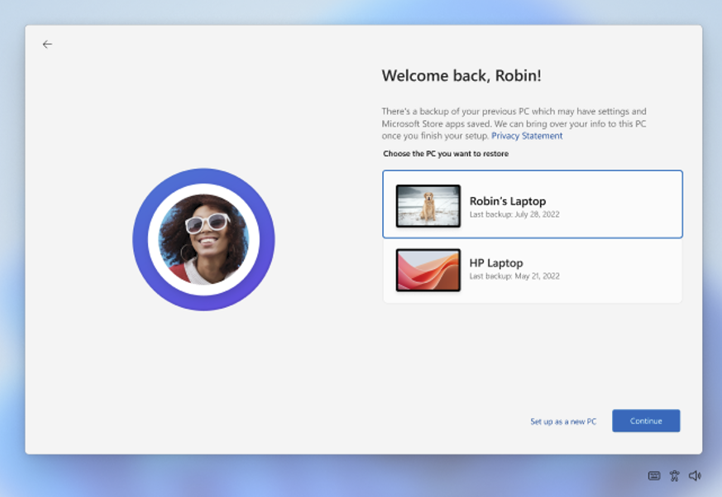
Once the computer evaluates the rule again, you should now be greeted with the Windows Backup restore screem
Security Considerations
Excluding an app from Conditional Access is always a trade-off. Keep the following in mind:
- Scope your exclusion carefully. Apply it only to the specific policy causing the block (for example, a device compliance policy), rather than removing the app from all CA policies globally.
- Limit to a user group. Instead of excluding the app for all users, target a specific group such as a Windows Backup Users group and expand the scope as your rollout progresses.
- Monitor sign-in logs. After adding the exclusion, use Entra ID > Monitoring > Sign-in logs and filter by App ID
d32c68ad-72d2-4acb-a0c7-46bb2cf93873to confirm authentication is working as expected.
We hope this helped you get Windows Backup for Organization working in your tenant. Let us know in the comments if you ran into a different configuration issue or if you are using a hybrid Azure AD joined environment.
Share
Get the latest insights and exclusive content delivered to your inbox


Only authorized users can leave comments
Log In