

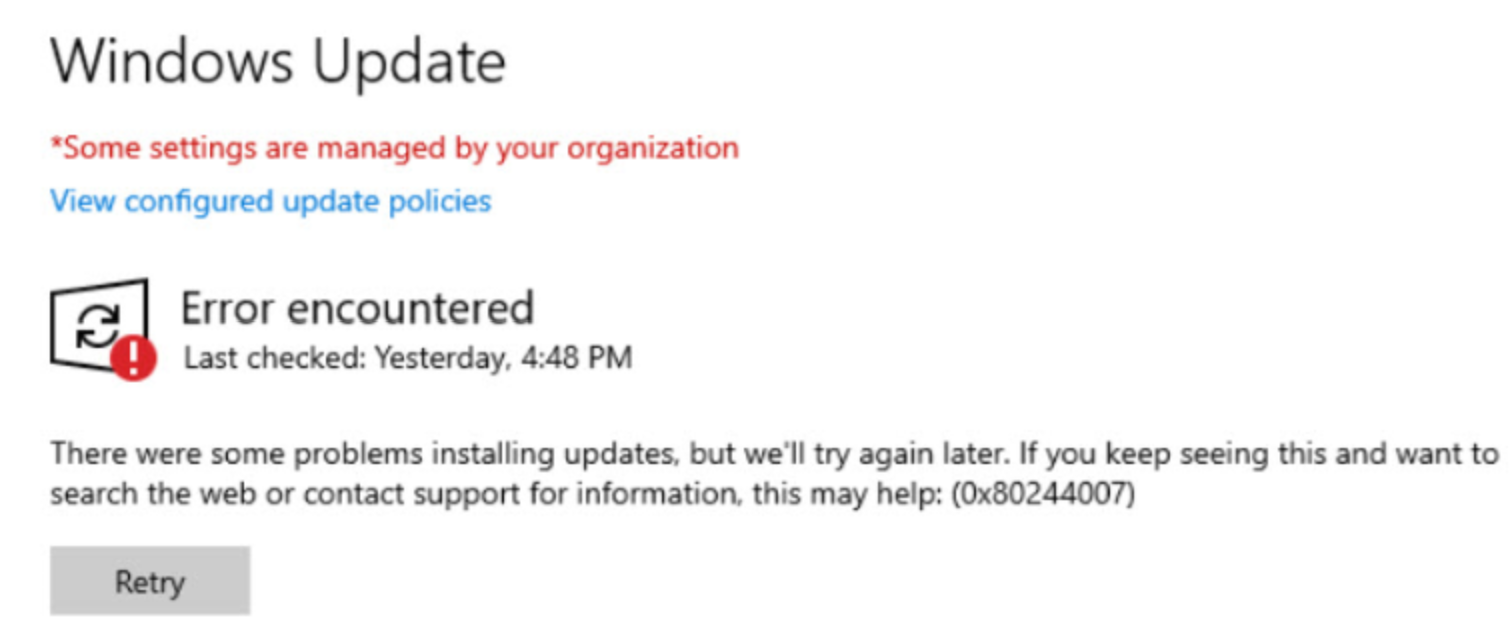
SCCM error code 0x80244007 – Windows Servers 2019/2022/2025 not scanning updates from
SCD Consultant, Contributor. Specialized in Microsoft Endpoint Manager (SCCM, InTune), Windows Autopilot, Windows10 (11) and Office365 Deployment and maintenance.

Marc-Andre Chartrand
Table of Content






Share


Get the latest insights and exclusive content delivered to your inbox
Since February 2026, we have started to notice Configuration Manager environments with a Windows Update deployment issue: Servers 2019 and above are reporting 0 updates required to the Software Update Point, while Servers 2016 and below are still scanning for updates correctly. This blog post will investigate the SCCM 0x80244007 error code and show how to fix it using a simple step.
After investigating the WUAHandler.log on an affected 2019 server, we can quickly notice the SCCM error code 0x80244007 while trying to scan for updates against the SCCM’s WSUS server.
This 0x80244007 error code translates to WU_E_PT_SOAPCLIENT_SOAPFAULT, which means a SOAP client protocol fault occurred while the client was attempting to communicate with the Windows Server Update Services (WSUS). That’s cute, but that’s just about as useful as an error code 1, or a “catastrophic failure” message.
Before diving into the actual error, it’s worth looking at why it only affects Windows Servers 2019 and above. They have a different update hierarchy than their 2016 and below siblings, which is why the issue only affects them. When scanning for updates, they go down a chain of dependencies, and today in 2026, they seem to have hit WSUS’s default limits for the max installed prerequisites value.
Here’s a breakdown of what happens under the hood when a 2016+ client scans in the update catalog
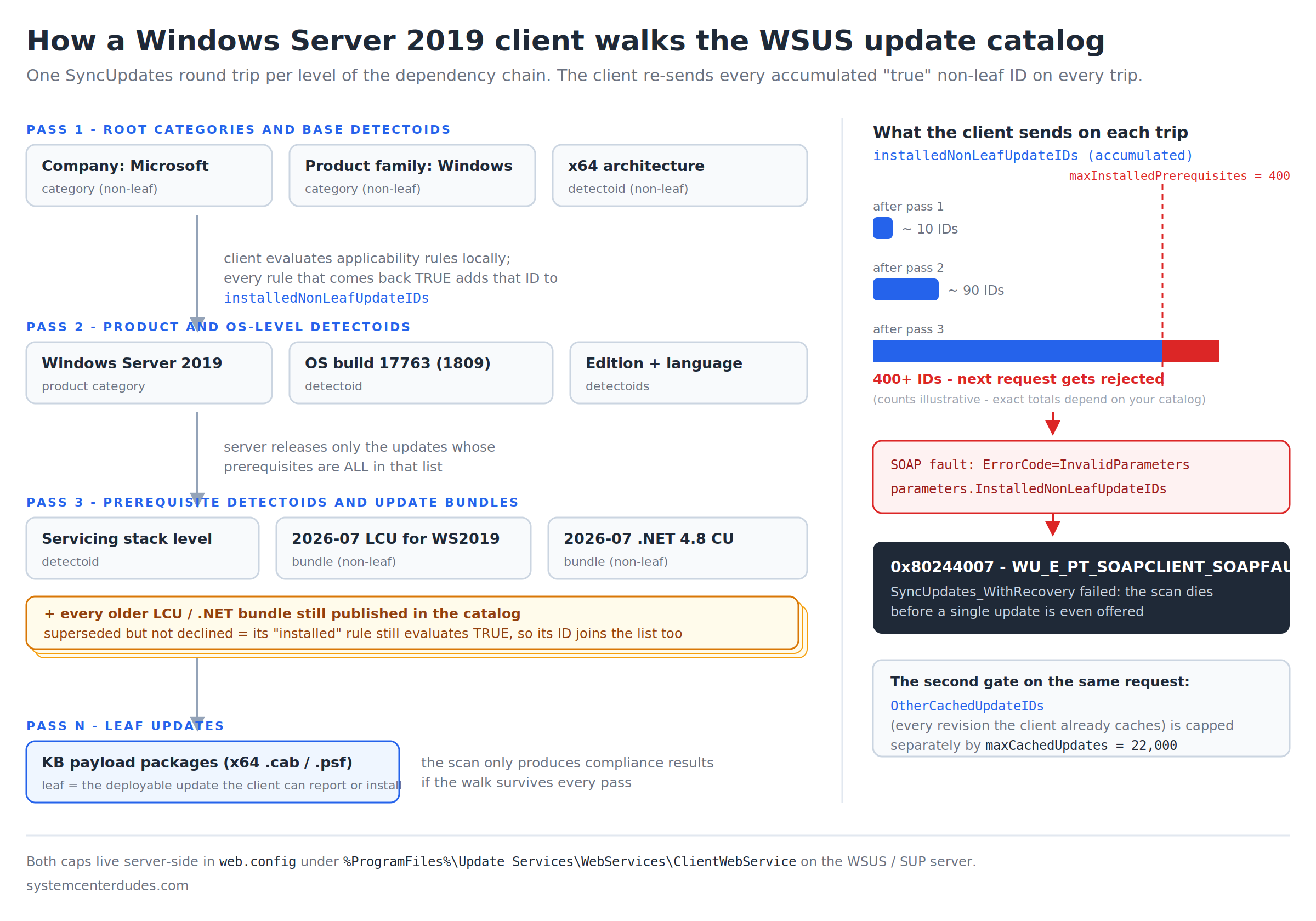
SCCM error code 0x80244007
To fix the issue, we need to change some values in the WSUS config to allow us to go through the entire dependency chain. Here’s the procedure:
- Log in as a local administrator on the server that hosts the WSUS instance
- Navigate to C:\Program Files\Update Services\WebServices\ClientWebService
- Create a copy of your existing web.config file
- Edit the original file, ideally using a tool like VSCode or Notepad++ as an Administrator
- Search for these lines, and change them to the values specified below
- We are essentially doubling the original values
<add key="maxInstalledPrerequisites" value="800"/> <!-- Change from 400 to 800 -->
<add key="maxCachedUpdates" value="44000"/>       <!-- Change from 22000 to 44000 -->
- Save the file.
- If your editor instance was not running as Admin, you’ll have to save the file to your desktop, and then overwrite the original file with the one on your desktop.
- Restart IIS to apply the change
- From the IIS console, right-click the server, Stop, then Start
- From an admin command prompt, type iisreset
After applying this change on the server, try running a Software Update Scan Cycle from an affected server; the scan should now go through. You may force this scan on all servers from the console, or simply let them scan on the schedule set in the Client Settings.
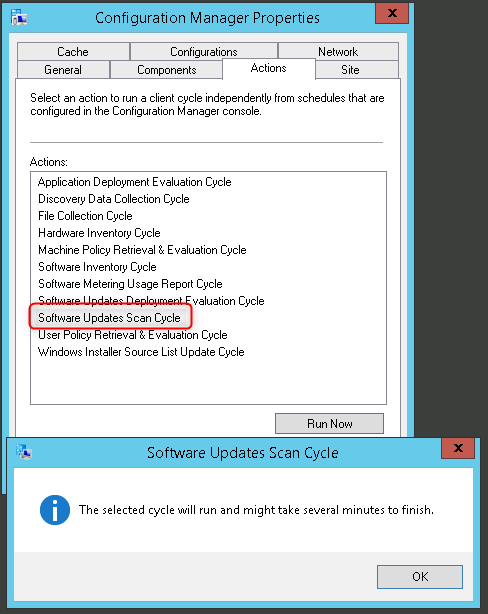
A few hours after the servers scanned for updates, you’ll start seeing the Required numbers go up for the server updates in SCCM.
For good measure, it’s also recommended to ensure you have these maintenance settings in your software update point:
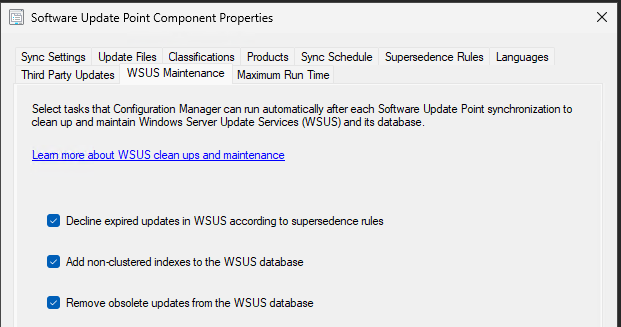
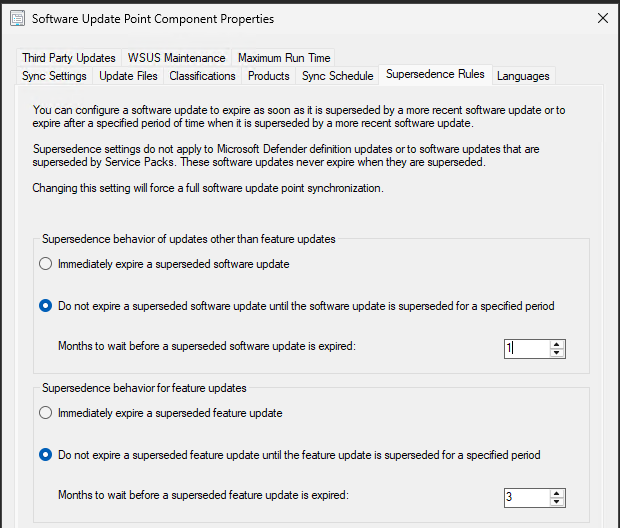
By expiring superseded updates quickly (but not aggressively), and declining expired updates, you’ll help keep your WSUS catalog clean and limit the number of updates to scan against. Even with those settings in place, you may hit the issue above.
Happy updating!
Share
Get the latest insights and exclusive content delivered to your inbox


Only authorized users can leave comments
Log In