

Use Robopack Radar to Find and Patch Unmanaged Applications in Intune
Founder of System Center Dudes. Based in Montreal, Canada, Senior Microsoft SCCM Consultant, 8 times Enterprise Mobility MVP. Working in the industry since 1999. His specialization is designing, deploying and configuring SCCM, mass deployment of Windows operating systems, Office 365 and Intune deployments.

Benoit Lecours
PresidentTable of Content






Share


Get the latest insights and exclusive content delivered to your inbox
One of the challenges with application management in Microsoft Intune is that not every application installed on a device was deployed by Intune. This is something we see regularly when working with our clients.
Applications may have been installed manually by users, installed by IT before the device was enrolled, deployed by another management solution, or left behind after an SCCM-to-Intune migration.
Intune can provide visibility into these applications through Discovered Apps, but discovering an application and actually managing its lifecycle are two different things. This is where Robopack Radar can be useful.

Rather than looking only at applications already managed by Robopack, Radar uses Intune inventory data to identify third-party applications that are present on managed devices. From there, administrators can determine which applications should be brought into their patching process.
In this blog post, we’ll describe how to enable Robopack Radar and give some use cases where it can be useful to keep your applications up to date.
The Intune Discovered Apps Limitation
If you manage Intune today, you are probably familiar with Apps > Monitor > Discovered apps.
Intune collects application inventory from managed devices and provides information such as the application name, version, and number of devices where the application was detected.
This is useful information, but from an operational perspective, there is still work to do.
Let’s say Intune Discover Apps reports 7-Zip 24.09 (x64 edition) — 287 devices

You know the application exists and that the version is old. What do you do with those 287 devices?
Normally, you would need to package the latest version, create the Win32 application, configure detection rules, create the appropriate assignment strategy, and determine how to target only the devices where the application is already installed.
If 7-Zip is installed on 287 out of 2,000 devices, you probably don’t want to assign 7-Zip as Required to all 2,000 devices just because you want those existing installations patched.
You need a way to identify and maintain the population of devices where the application already exists.
How Robopack Radar Works
Robopack Radar essentially adds another layer on top of the application inventory already available from Intune.
Robopack retrieves application information from Intune using Microsoft Graph and compares discovered software against applications available in the Robopack catalogue.
This allows an administrator to identify applications that are installed in the environment even when those applications were never originally deployed using Robopack.
For example, Radar could identify different versions of applications such as:
- 7-Zip
- Google Chrome
- Mozilla Firefox
- VLC
- Notepad++
- Adobe applications
- Other supported third-party software
From an Intune administrator’s perspective, this helps because the starting point becomes the software actually installed on endpoints, rather than only the applications currently configured in Intune.
Radar Tracking
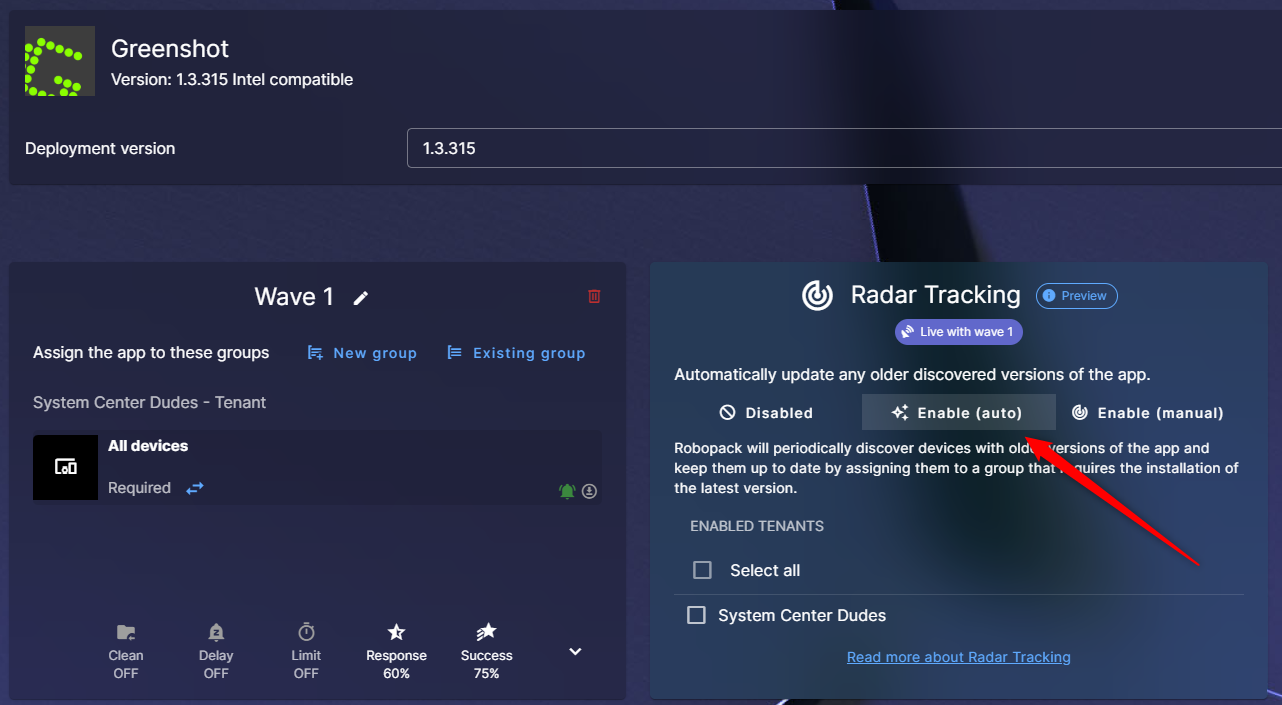
The most interesting part of the feature is Radar Tracking. Once an application has been identified, Radar Tracking can be enabled as part of the Robopatch configuration.
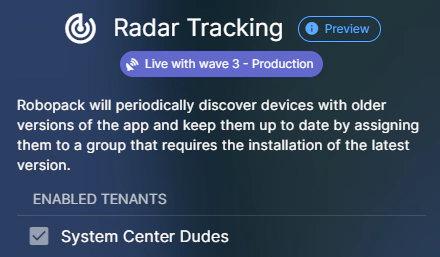
The objective is relatively simple: identify devices where the application already exists and use that information to maintain the deployment targeting.
Behind the scenes, Robopack uses Microsoft Entra ID groups as part of this process.
If Radar detects that a managed device has an application that needs to be updated, the device can be added to the Entra ID group associated with the Robopatch flow.
Intune can then use that group for the application assignment.
This creates a workflow similar to: Intune inventory → Radar → Entra ID group → Intune assignment → Application update
Robopack isn’t replacing Intune as the management authority. Intune is still responsible for deploying the application to the device.
Radar is helping automate the logic around which devices should receive that deployment.
Enable Robopack Radar
Enough explanation… let’s go through the steps required to enable Robopack Radar functionality, and after, we’ll cover some use cases and practical examples.
What you’ll need
- A Robopack license (trial version is enough)
- A connected Intune tenant with Admin Consent authorization
- The
Device.Read.AllandDeviceManagementManagedDevices.Read.Allpermissions granted — Radar scans return no results without them - Robopatch Writer or Organization Administrator role
Step-by-Step Guide
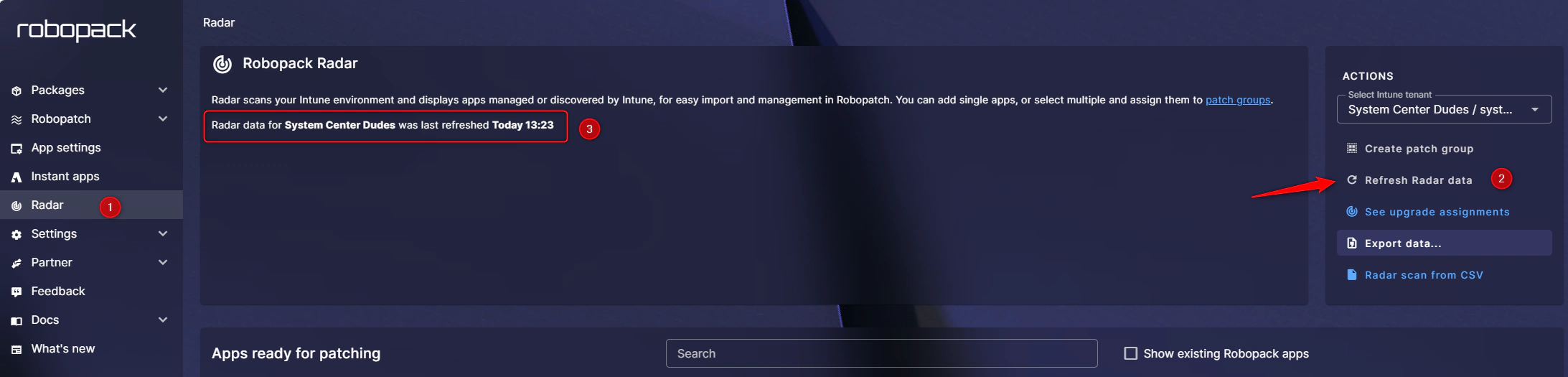
1. Run an initial scan
Go to Radar in the left menu and run a scan of your tenant. Robopack will inventory the software installed across your Intune-managed devices.
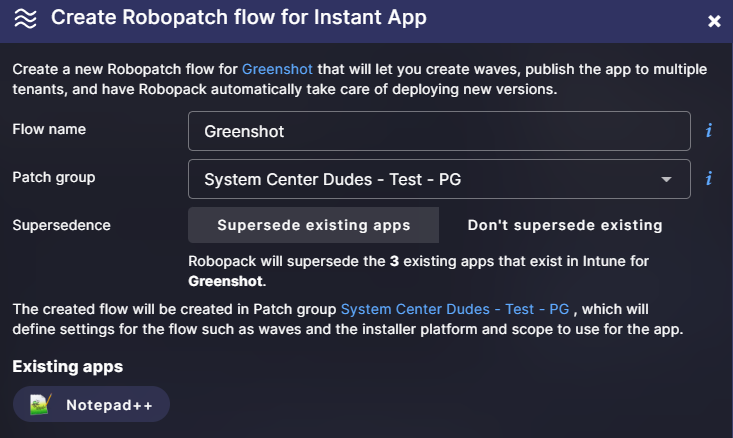
2. Select an app to manage
From the scan results, find an application you want to bring under management and click Add Patch Flow.

3. Create a Robopatch Flow
Set up your Deployment Waves as you would for any Robopatch Flow
4. Enable Radar Tracking
Once you’ve added at least one Deployment Wave, the Radar Tracking toggle becomes available. Enable it.
5. Choose a tracking mode

| Mode | How it works |
|---|---|
| Auto | Robopack re-scans periodically and automatically targets devices running older versions |
| Manual | You trigger scans manually; Robopack populates groups with devices that have outdated versions. Use this mode to stop automatic notifications and actions |
6. Save and start
Click Save and Start Deployment. Radar will scan your tenant periodically (every 24 hours) and automatically update devices that have older versions of the tracked application.
That’s a much more useful question when building an application-management strategy for Intune.
A Practical Example
Let’s take a simple environment with 2000 Windows devices. Robopack Radar discovers that VLC is installed on 327 devices.
The versions aren’t consistent:
- 201 devices are running the current version
- 98 devices are one version behind
- 28 devices are running significantly older versions
The requirement isn’t necessarily to deploy VLC to all 2000 devices.
The requirement is : If VLC exists on a device, keep it patched.
You can configure a Robopatch flow for VLC and use Radar Tracking to identify the devices where VLC is already present.
Those devices can then become members of the appropriate Entra ID group used for the Intune deployment.
When a new version becomes available, the normal Robopatch process can update the Intune application and make the new version available to those targeted devices.
The result is that the application is maintained where it exists without turning the application into a company-wide deployment.
What Happens When a User Installs the Application Later?
This is another scenario that is difficult to handle with static groups.
Suppose everything is patched today.
Next month, a user downloads an older installer for VLC and installs it manually.
That device wasn’t part of your original deployment population.
With a traditional static Entra ID group, nothing necessarily happens. Unless another control detects the installation, the device may remain on the old version.
Robopack Radar periodically refreshes the information coming from Intune Discovered Apps.
When the application is detected, the device can become part of the Radar Tracking process and eventually receive the managed version through Intune.
It’s important to understand that this isn’t instantaneous.
Radar depends on the inventory information available from Intune, and Robopack currently refreshes Radar data approximately every 24 hours. There can therefore be a delay between an application being installed and it appearing in the patching workflow.
For most third-party application patching scenarios, this is usually acceptable, but it should be considered when designing the solution.
An Interesting Use Case During SCCM-to-Intune Migration
Robopack Radar can also be useful during an SCCM-to-Intune migration.
One mistake we sometimes see during migrations is trying to recreate the entire SCCM application catalogue in Intune before moving devices. In an SCCM environment that has existed for many years, there may be hundreds of applications.
But having 400 applications in SCCM doesn’t necessarily mean you still need 400 applications in Intune.
Some may no longer be installed anywhere. Others might exist on only a few machines. Some were deployed years ago and are no longer relevant. Once devices are enrolled and reporting application inventory to Intune, Radar can help provide another view of what is actually installed.
Instead of thinking: “What applications exist in SCCM?”
You can start thinking: “What applications still exist on our endpoints?”
Robopack Radar Final Thoughts
The interesting part of Robopack Radar isn’t simply that it provides another software inventory. Intune already gives us application inventory. The more useful capability is taking that inventory and connecting it to an application patching workflow.
For applications that are already deployed and fully controlled through Intune, this may not change much.
Where Radar becomes more useful is in environments where software can appear outside the normal Intune deployment process: user-installed applications, legacy installations, devices migrated from SCCM, or applications that should only be patched when they’re already present.
From an Intune architecture perspective, the approach makes sense. Discover what’s actually installed, identify what can be managed, dynamically target the relevant devices, and let Intune perform the deployment.
It doesn’t replace Intune’s application management model. It helps automate one of the more difficult parts of maintaining that model over time.
Share
Get the latest insights and exclusive content delivered to your inbox


Only authorized users can leave comments
Log In