Founder of System Center Dudes. Based in Montreal, Canada, Senior Microsoft SCCM Consultant, 8 times Enterprise Mobility MVP. Working in the industry since 1999. His specialization is designing, deploying and configuring SCCM, mass deployment of Windows operating systems, Office 365 and Intune deployments.
Get the latest insights and exclusive content delivered to your inbox
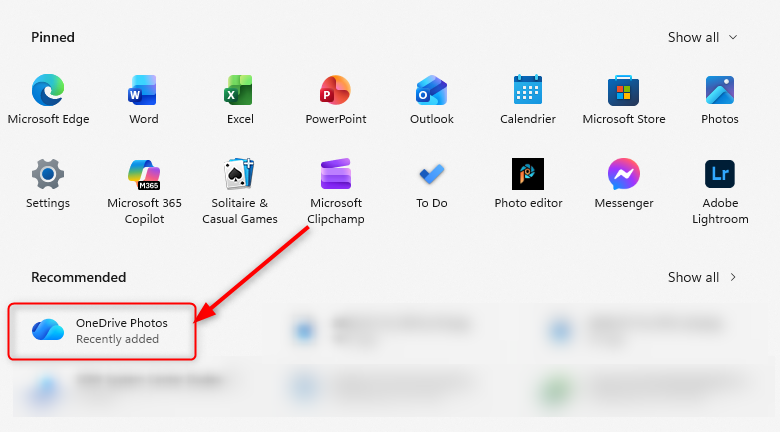
If you manage Windows 11 devices with Intune, you may have recently noticed a new app appearing called OneDrive Photos.
It looks like Microsoft has silently installed a new application. It appears in the Start menu even on Enterprise SKUs, which is a bit surprising… or maybe not, since Microsoft has never been great at leaving customer apps out of the Enterprise.
In most enterprise environments, this app serves little purpose. OneDrive Photos only supports personal Microsoft accounts, not work or school accounts. If your organization blocks personal accounts, the app provides no business value and simply adds unnecessary clutter to users’ Start menus.
This blog post will describe how to remove the OneDrive Photos App using Intune. It’s not a complicated process, you just have to use the right script.
What is OneDrive Photos
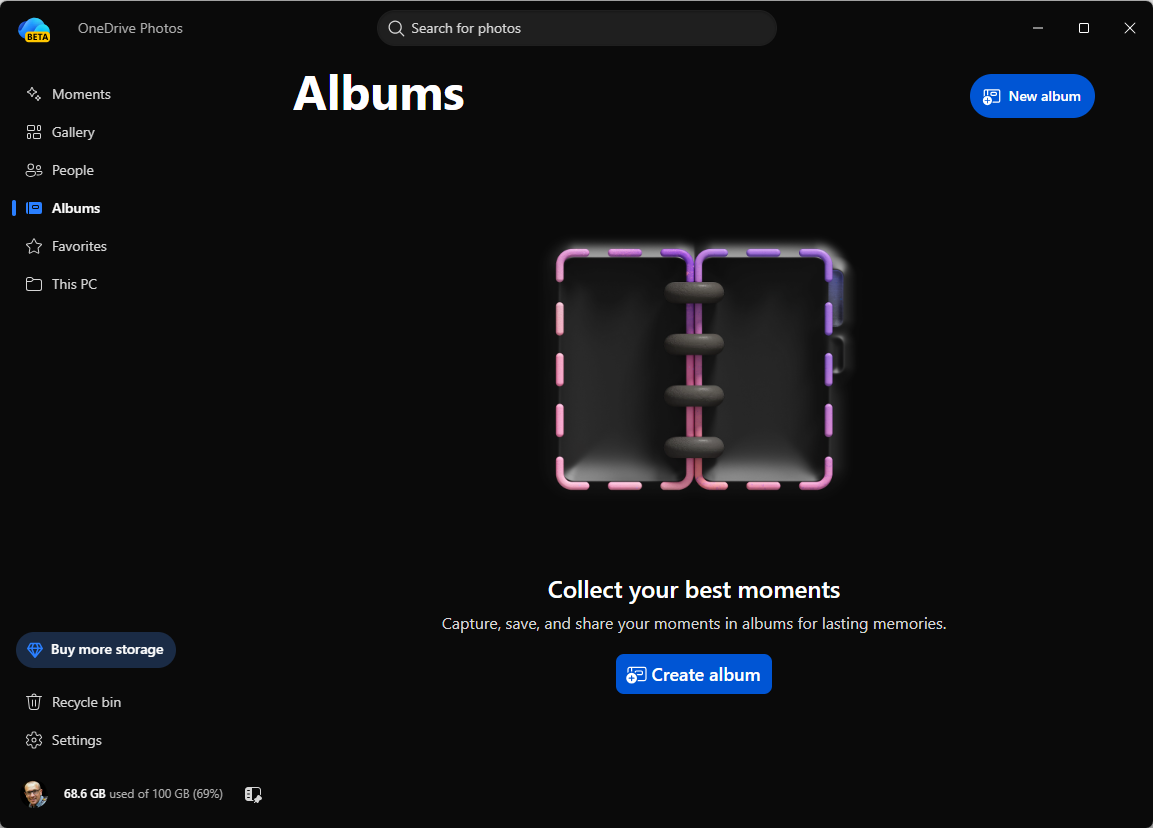
Our first assumption was that OneDrive Photos was just another Microsoft Store application.
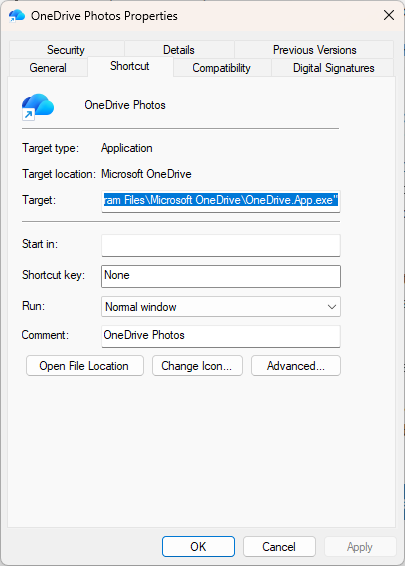
However, a closer look revealed something different. Inspecting the shortcut properties showed that it doesn’t launch a Store app at all. Instead, it points to:
Launching OneDrive.App.exe directly opens the exact same OneDrive Photos interface as the Start menu shortcut.
This indicates that OneDrive Photos isn’t a separate application. Instead, it’s a new experience built into the OneDrive client itself, with Microsoft simply exposing it as its own entry in the Start menu.
The confusing part is that modern OneDrive installations now include multiple executables, each serving a different purpose.
The usual OneDrive sync client is:
C:\Program Files\Microsoft OneDrive\OneDrive.exe
This is the familiar process responsible for your OneDrive file synchronization
The second executable (notice the “app.exe” difference) , includes the OneDrive Photos interface that appears in the Start menu.
Likely, Microsoft will eventually introduce a dedicated Intune policy or Settings Catalog option to disable OneDrive experiences such as OneDrive Photos.
Until then, organizations can use workarounds, but waiting for an official management policy is generally the preferred approach. There’s a script by Nicky De Westelinck to remove the new OneDrive.App.exe completely, but we don’t recommend it as it may break other processes in the future.
We prefer using a remediation script to detect and remove the shortcut for now.
Intune OneDrive Photo App Detection script
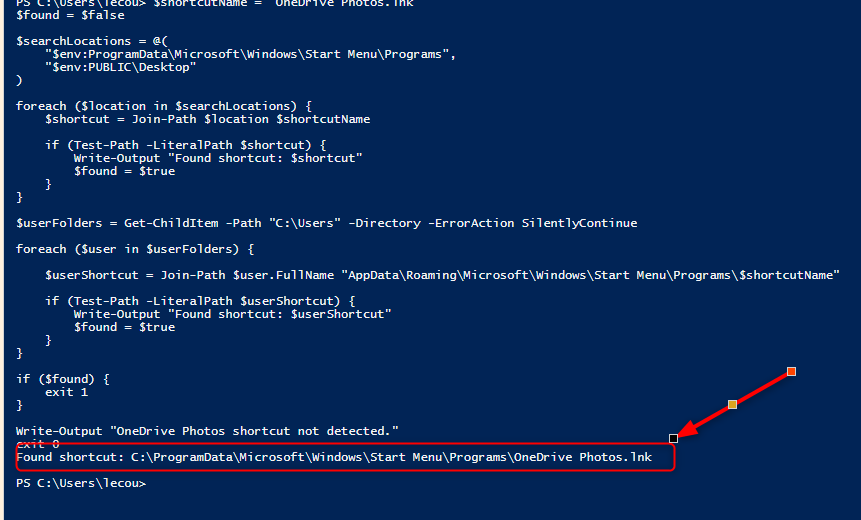
This PowerShell script can be used as an Intune Onedrive Photo app remediation detection script. It checks whether the OneDrive Photos shortcut exists in any of the common locations:
On our test machine, the output returns that the shortcut has been found.
Intune OneDrive Photo App Remediation script
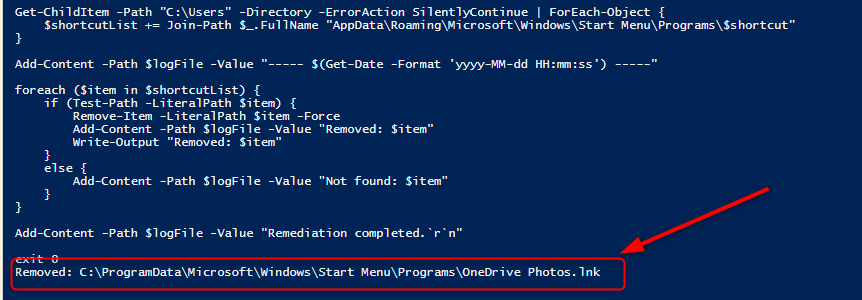
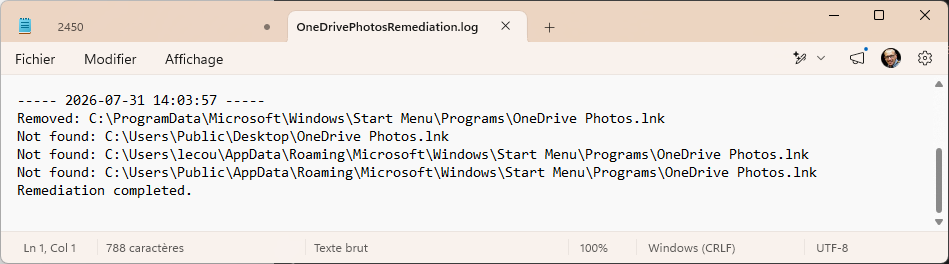
This PowerShell script can be used as an Intune Onedrive Photo appremediation script. It checks whether the OneDrive Photos shortcut exists in any of the common locations and will delete it. The script writes to a log file for troubleshooting. Change the path if needed.
On our test machine, the output shows that the shortcut has been found and deleted. In our start menu, no more OneDrive Photo App shortcut.
Intune
The last step is to send this detection and remediation script to your devices.
Save both scripts in separate files
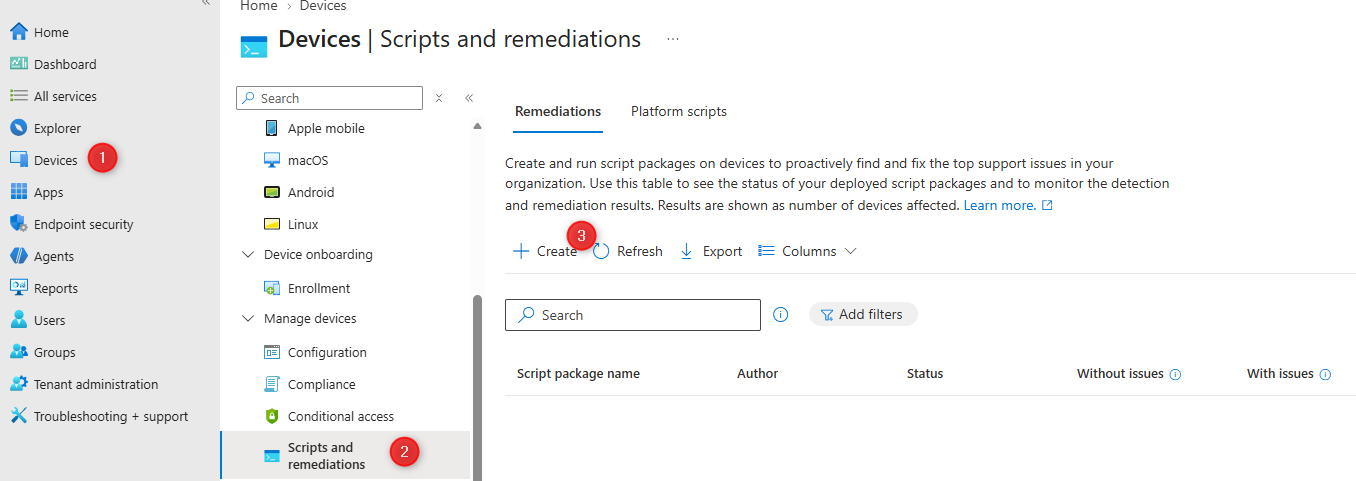
In the Intune Console, go to Device / Scripts and remediation / Create
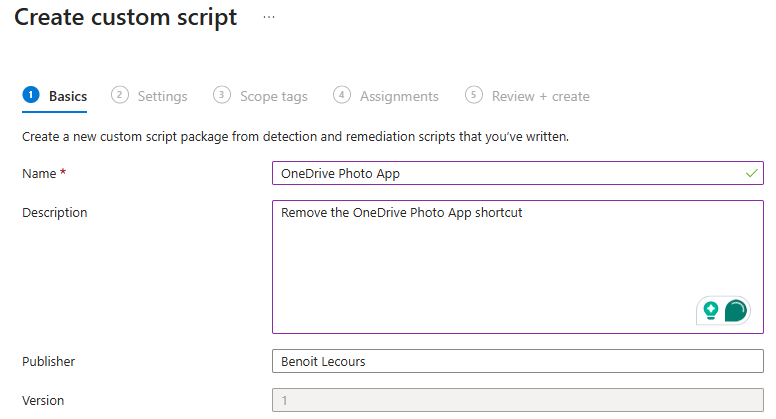
Give your script a name, click next
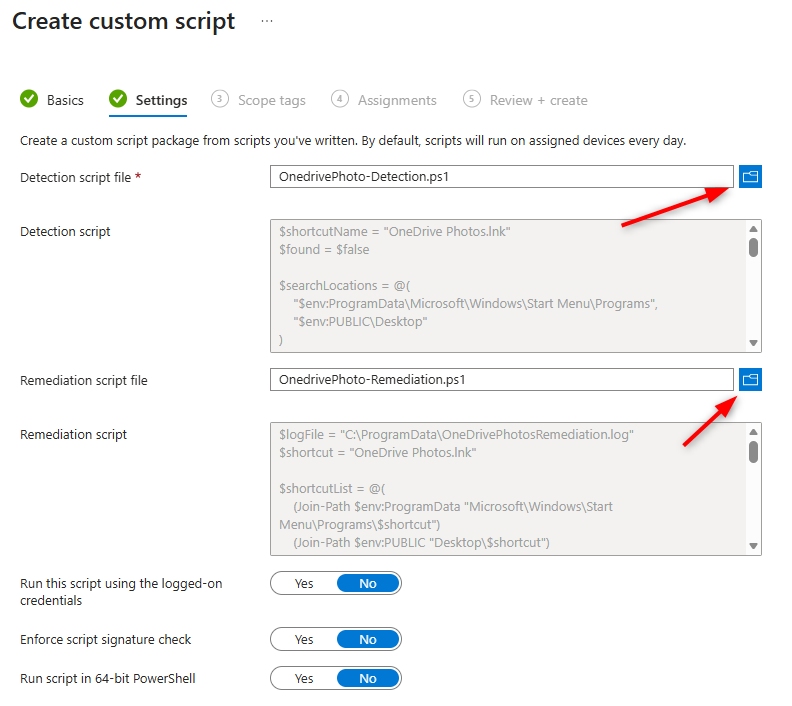
Provide the detection and remediation script that you just saved. Leave all other options at their default value, click Next
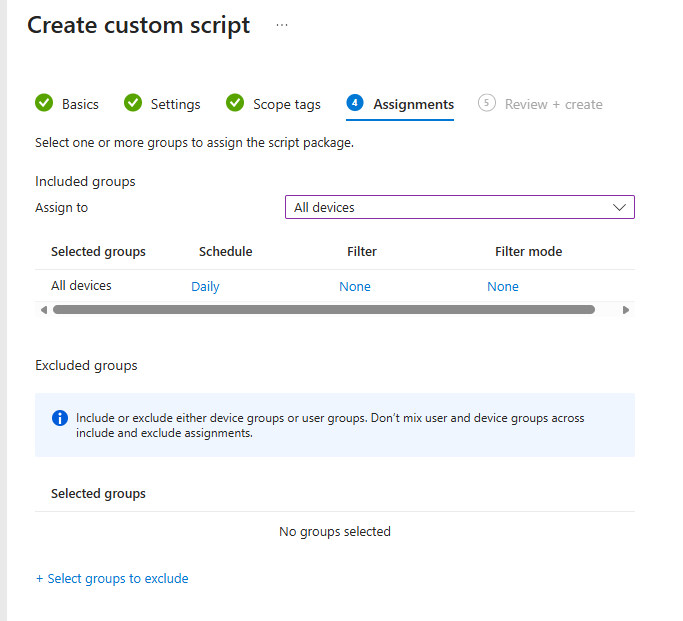
Assign your script to the desired devices. In our lab, we selected All Devices but do your testing before deploying to a large computer group
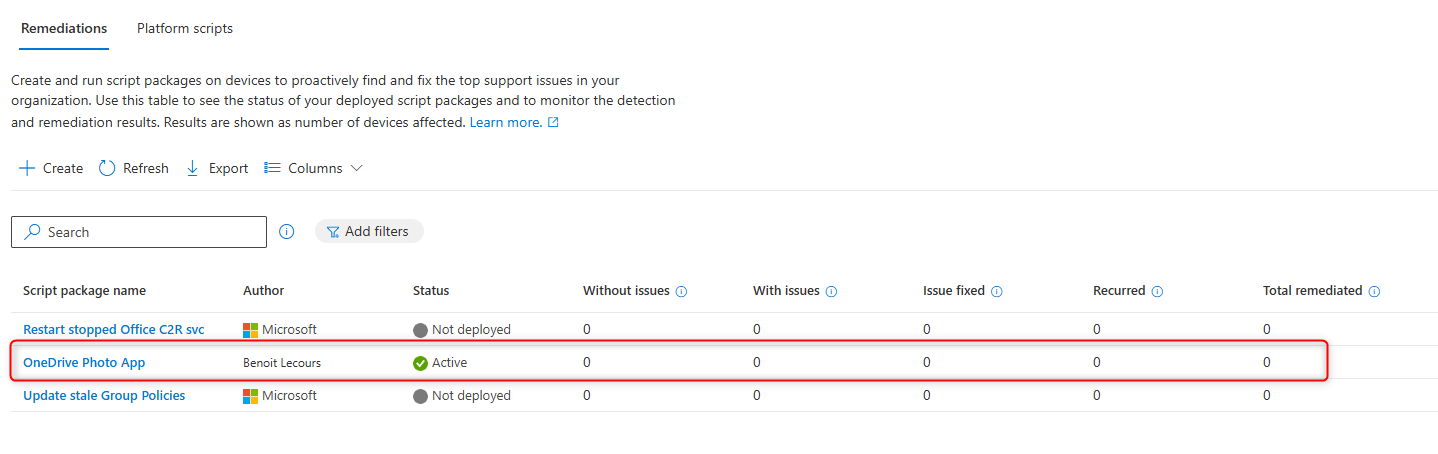
Back in the Script window, ensure that your script is Active and monitor its deployment.
While OneDrive Photos may look like a newly installed application, it’s actually a new experience exposed by the existing OneDrive client through OneDrive.App.exe. If you want to keep your users’ Start menus clean and avoid user questions, removing the shortcut is currently the simplest solution.
We hope that future Intune Settings Catalog or Administrative Template policy will provide administrators with a supported way to disable these consumer-focused experiences.
Please fill out the form, and one of our representatives will contact you in Less Than 24 Hours. We are open from Monday to Friday.
Never share sensitive information (credit card numbers, social security numbers, passwords) through this form.
Request Sent
Thank you for subscribing to our newsletter or requesting a quote.
You will receive our next month's newsletter. If you have requested a quote, we will get in touch with you as soon as possible.
Comment Sent
Thank for your reply!
Error
Something went wrong!
We use cookies to ensure that we give you the best experience on our website. If you continue to use this site we will assume that you are happy with it.













Only authorized users can leave comments
Log In