

Intune Tips and Tricks – 2026 Edition
Founder of System Center Dudes. Based in Montreal, Canada, Senior Microsoft SCCM Consultant, 8 times Enterprise Mobility MVP. Working in the industry since 1999. His specialization is designing, deploying and configuring SCCM, mass deployment of Windows operating systems, Office 365 and Intune deployments.

Benoit Lecours
PresidentTable of Content
- Do not treat Intune like SCCM (Configuration Manager)
- Device Groups vs User Groups
- Dynamic Groups
- Patch your devices… and applications
- Intune Tips and Tricks – Use Intune Assignment Filters
- RBAC – Do not give Everyone the Intune Administrator Role
- Choosing the right Application Type
- Do not install too many apps during Autopilot
- Local Administrator Rights
- Keep up on Intune Changes
- Intune Tips and Tricks – Final Thoughts





Share


Get the latest insights and exclusive content delivered to your inbox
Microsoft Intune has come a long way over the past few years. Today, it can manage nearly every aspect of Windows, macOS, iOS, Android, and Microsoft 365 devices without requiring Configuration Manager (SCCM) in many environments. Yet despite Intune’s maturity, we continue to see organizations making the same mistakes during assessments, migrations, and day-to-day management.
We’ve reviewed hundreds of Intune environments. Most issues aren’t caused by bugs or missing features; they’re the result of poor planning, legacy habits from Configuration Manager (SCCM), or simply not knowing how Intune behaves under the hood.
If you’re using Intune daily, just deployed Intune or migrating from SCCM, here are our Intune Tips and tricks to become a better administrator.
Do not treat Intune like SCCM (Configuration Manager)
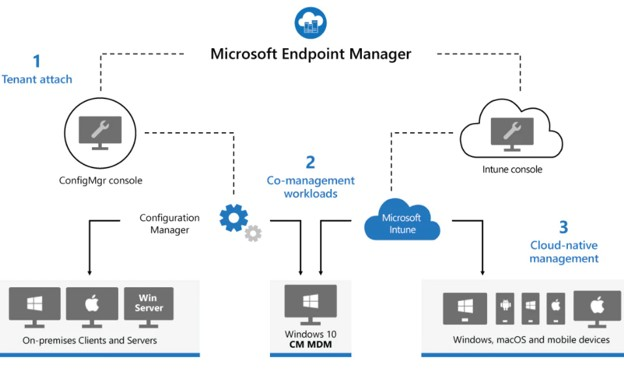
One of the biggest challenges for experienced SCCM administrators is reproducing their Configuration Manager design in Intune. They’re different products built around different concepts.
For example:
- Configuration Manager uses Collections
- Intune relies on Microsoft Entra groups
- Configuration Manager deployments are generally device-centric
- Intune supports both user-based and device-based targeting
Trying to recreate hundreds of SCCM collections usually results in unnecessary complexity.
Instead:
- Simplify your design
- Use dynamic Entra groups where appropriate
- Take advantage of Intune Filters
- Rethink your targeting strategy instead of copying your existing one
Device Groups vs User Groups
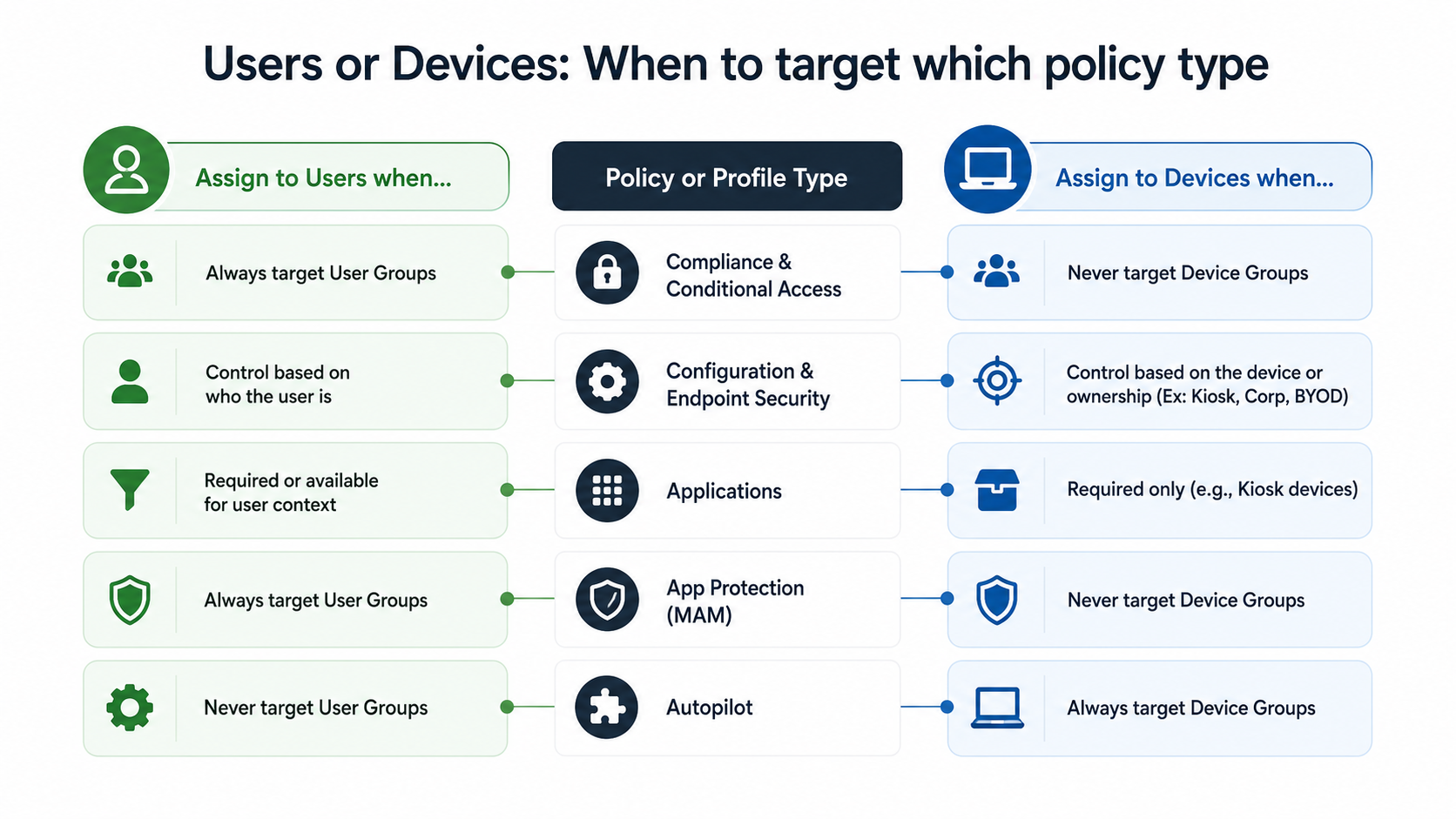
Use User Groups when the configuration should follow the user and use Device Groups when the configuration belongs to the device. Using the wrong assignment type often creates inconsistent behaviour after hardware replacements or user changes.
User Group examples:
- Microsoft 365 Apps
- OneDrive
- Edge settings
- Office preferences
- User certificates
Device Group examples:
- BitLocker
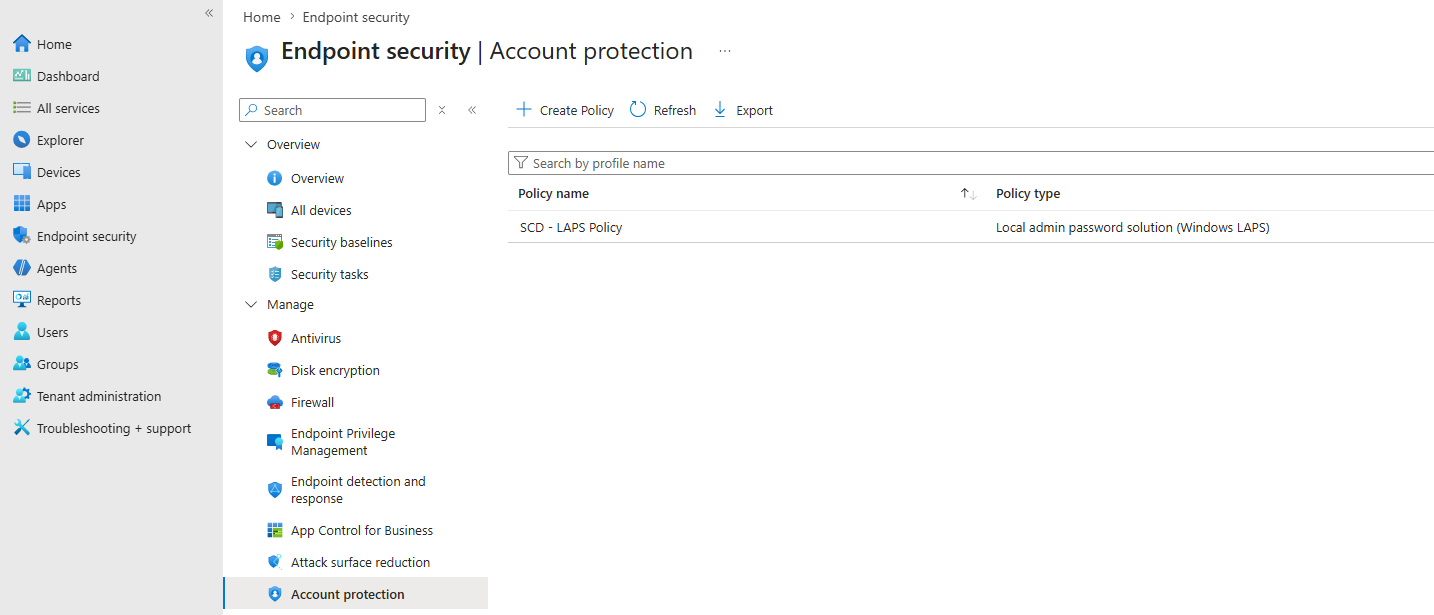
- Windows LAPS
- Device restrictions
- Shared devices
- Kiosk devices
In addition, do not mix user and device groups when making assignments: Include and Exclude App Assignments in Microsoft Intune
Dynamic Groups
Dynamic groups are incredibly useful. They’re also slower than many administrators expect.
We’ve seen customers repeatedly edit membership rules and immediately wonder why deployments aren’t happening. That’s normal.
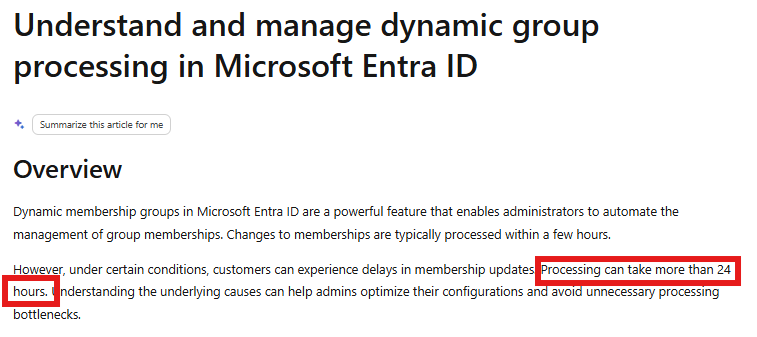
Depending on your tenant size, dynamic group processing can take from several minutes to several hours and, in some cases, even longer for initial population. The presentation specifically warns administrators to be patient because dynamic group evaluation is asynchronous and can take significant time.
If your scenario requires fast targeting, dynamic groups may not be the right tool.
Patch your devices… and applications
Keeping Windows up to date is only half the battle. While Windows updates are critical, many of the vulnerabilities exploited by attackers are found in third-party applications such as Google Chrome, Adobe Acrobat, Mozilla Firefox, 7-Zip, Notepad++. If you’re only patching Windows, you’re leaving a significant portion of your environment exposed.
For most organizations, the best approach is to use Windows Autopatch to manage the operating system and Microsoft applications, including Windows quality updates, feature updates, Microsoft 365 Apps, Microsoft Edge, and Microsoft Teams. Windows Autopatch automates the update process and helps keep devices secure with minimal administrative effort.
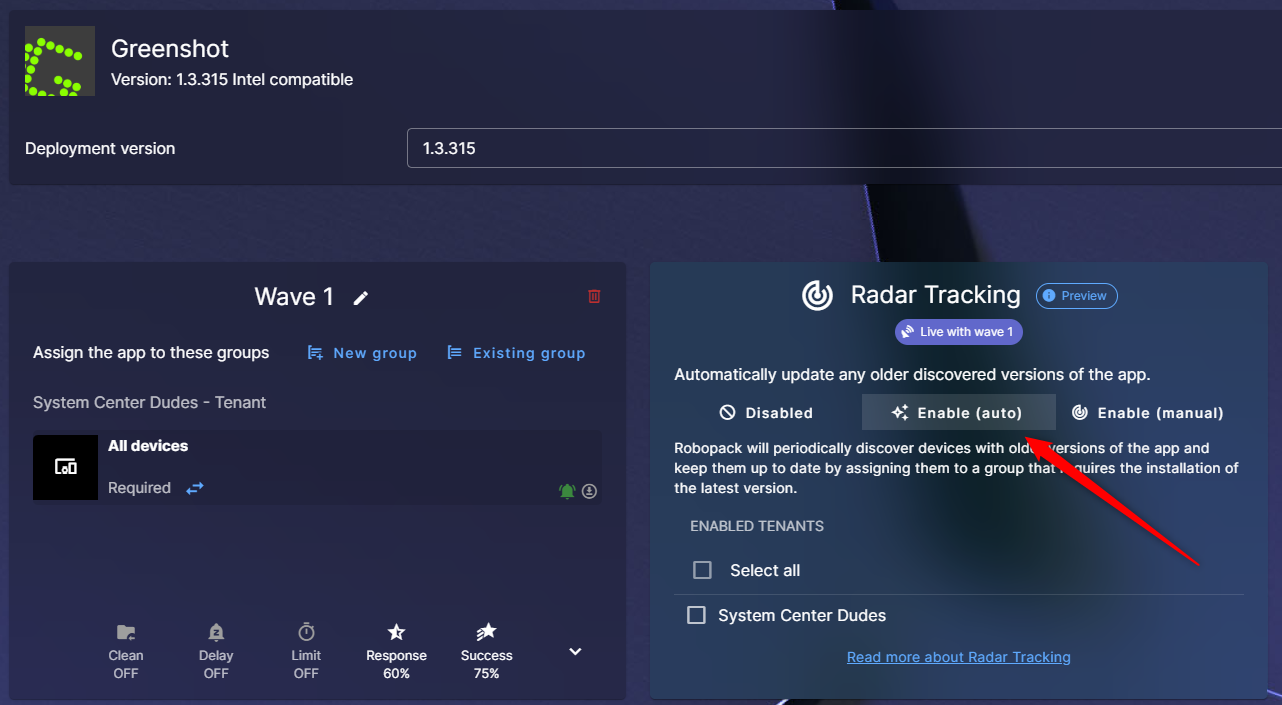
However, Windows Autopatch doesn’t manage third-party applications. To keep those applications updated, we recommend using a dedicated solution such as Robopack or Patch My PC. Both integrate with Microsoft Intune and automate application packaging, deployment, updates, and removal, eliminating the need to manually repackage applications every time a new version is released.
Microsoft just launch a similar solution with Intune Enterprise Application Management but its 933 app catalog lack a bit of depth (compared to the ten of thousand for Robopack and Patch my PC) and the functionality is so new that we haven’t tested it yet.
By combining Windows Autopatch for the operating system with Patch My PC or Robopack for third-party applications, you create a complete patch management strategy that improves security, reduces administrative overhead, and ensures your devices remain compliant and protected.
Intune Tips and Tricks – Use Intune Assignment Filters
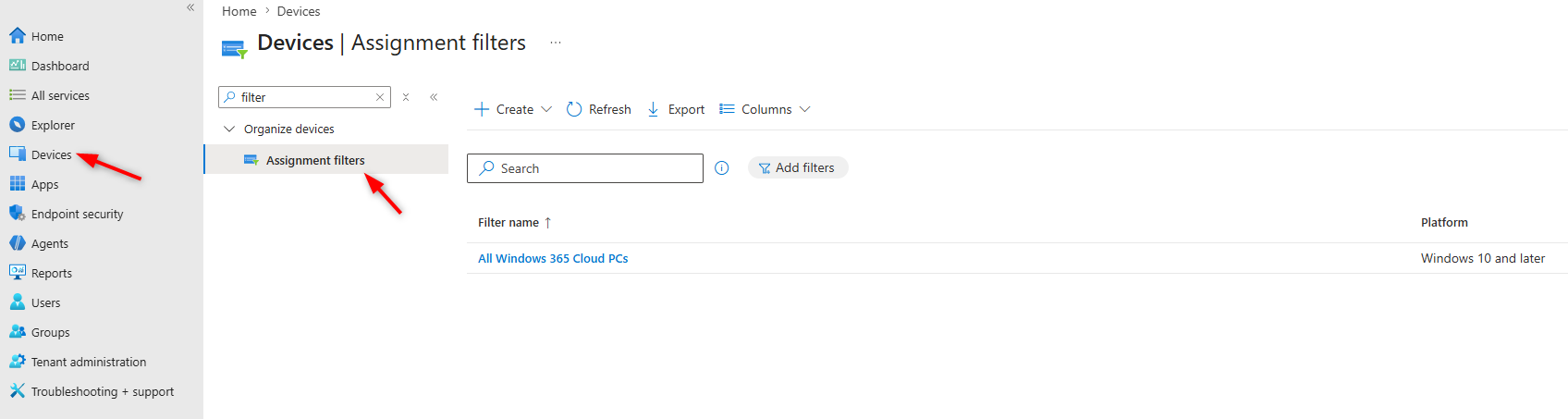
Many organizations create hundreds of dynamic groups that could simply be replaced with Intune Filters. Filters are one of the most underused features in Intune.
Assignment filters in Microsoft Intune let you assign policies based on rules you create. Use assignment filters to narrow policy scope by targeting devices with specific OS versions, manufacturers, or ownership types (personal vs. organization-owned). This targeting capability helps you apply the right policies to the right devices automatically.
Instead of creating:
- Windows 10 Devices
- Windows 11 Devices
- Azure AD Joined Devices
- Hybrid Joined Devices
- Corporate Devices
You can often target one assignment and use filters to determine which devices should receive the policy.
Benefits include:
- Improve flexibility and granularity when assigning Intune policies and apps.
- Are used when assigning apps, policies, and profiles. They dynamically target managed devices based on device properties and target managed apps based on app properties you enter.
- Can include or exclude devices or apps in a specific group based on criteria you enter.
- Can create a query of device or app properties based on different properties, like device platform or application version.
- Can be used and reused in multiple scenarios in “Include” or “Exclude” mode.
If you’re still creating a new group for every deployment, it’s worth revisiting your design.
RBAC – Do not give Everyone the Intune Administrator Role
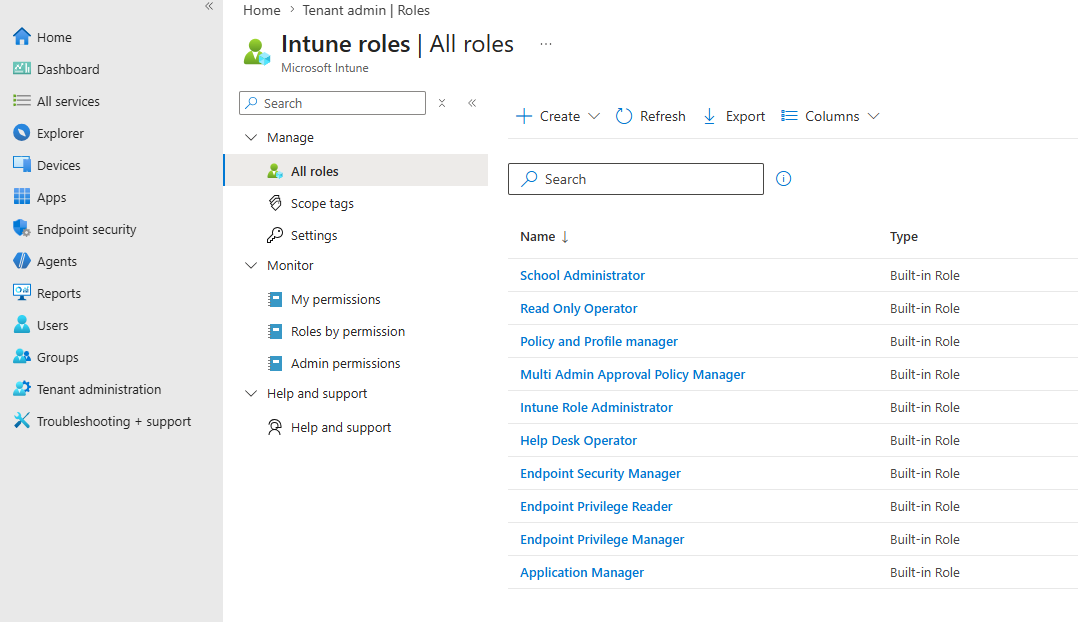
We’ve audited environments where every member of the IT department was a Global Administrator. Others had every technician assigned the built-in Intune Administrator role.
Neither approach follows the principle of least privilege.
Instead:
- Create custom RBAC roles
- Separate help desk permissions from engineering permissions
- Restrict application administrators
- Scope access by region or business unit when appropriate
Not every administrator needs full control over every device in your tenant.
Choosing the right Application Type
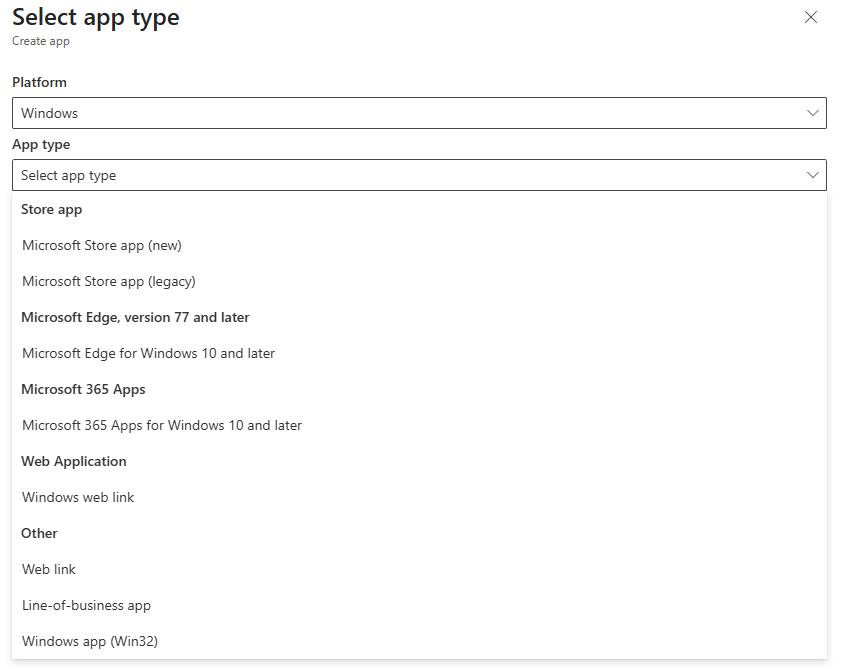
We continue our Intune Tips and Tricks article with applications type. There are actually 26 different app types; know which one to use in which scenarios. Add Apps to Microsoft Intune – Microsoft Intune
Many environments fall into one of two extremes:
- Packaging everything as Win32
- Deploying everything through the Microsoft Store
Neither is a best practice. The right deployment method depends on what you’re deploying. The most common ones :
Microsoft Store apps
Best for:
- Microsoft Store applications
- Apps that update automatically
- Software that requires minimal management
Win32 apps
Best for:
- Legacy applications
- Custom installers
- Applications requiring advanced detection rules
- Complex installation or uninstall logic
Microsoft 365 Apps
Best for:
- Microsoft Office deployments
- Microsoft 365 Apps for enterprise
- Update channel management
- Language packs and Office-specific configuration
LOB app
An LOB app is one that you add from an app installation file. For example, to install an iOS/iPadOS LOB app, you add the application by selecting Line-of-business app as the App type in the Select app type pane. You then select the app package file (extension .ipa). These types of apps are typically written in-house or as a custom app.
Why it matters
Choosing the right application type results in a better end-user experience, fewer deployment failures and less troubleshooting.
Do not install too many apps during Autopilot
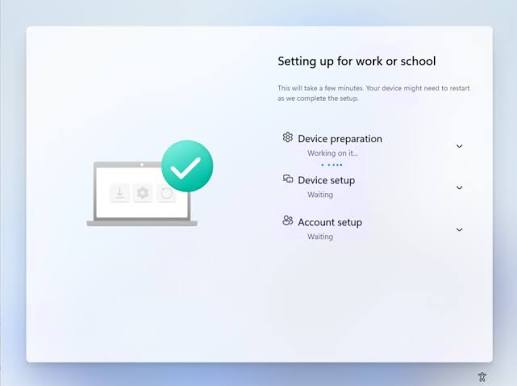
Many organizations overload the Autopilot Enrollment Status Page with:
- 20+ applications
- Multiple PowerShell scripts
- Heavy configuration profiles
- Security baselines
- Large Office deployments
The result? Autopilot deployment that takes over an hour or fails.
Instead, try to :
- Install only what’s required before first sign-in. (Hint: Only the Company Portal)
- Install other applications after deployment using a “normal” required deployment
- Keep ESP as lightweight as possible.
Local Administrator Rights
The days where your user gave you reason to keep their administrator right on their device are over. Keep everyone as a local administrator or Remove all local admin rights without an alternative is not the right approach.
Your Intune environments should leverage:
This significantly reduces your attack surface while still allowing administrators to support users effectively.
Keep up on Intune Changes
Microsoft ships new Intune features almost every months. That means today’s best practice may not be next year’s best practice.
In the past 6 months, all these feaatures and functionality were integrated/updated :
- Platform SSO with registration during Automated Device Enrollment on macOS
- Updated sync mechanism
- Microsoft Intune Enterprise Application Management
- Windows Autopatch improvements
- Endpoint Privilege Management gets sharper
- Platform-specific enrollment enhancements
Organizations that never review their Intune design often continue using outdated methods simply because “that’s how we set it up three years ago.” An annual Intune assessment is one of the easiest ways to identify technical debt before it becomes a larger operational problem.
Intune Tips and Tricks – Final Thoughts
We conclude this Intune Tips and Tricks article by saying that Intune a powerful endpoint management platform capable of managing everything from Windows 11 deployments to compliance, application lifecycle management, security, and device provisioning.
The challenge isn’t whether Intune can do the job, it’s designing your environment to take advantage of its strengths.
If you recognize several of these mistakes in your own tenant, you’re not alone. We see them regularly during customer Intune assessments, and most can be corrected without starting over.
Our Intune Assessment reviews your tenant against current Microsoft best practices, identifies configuration issues, and provides practical recommendations to simplify management, improve security, and deliver a better end-user experience.
Share
Get the latest insights and exclusive content delivered to your inbox


Only authorized users can leave comments
Log In