

Step-by-Step SCCM 2603 Upgrade Guide
Founder of System Center Dudes. Based in Montreal, Canada, Senior Microsoft SCCM Consultant, 8 times Enterprise Mobility MVP. Working in the industry since 1999. His specialization is designing, deploying and configuring SCCM, mass deployment of Windows operating systems, Office 365 and Intune deployments.

Benoit Lecours
PresidentTable of Content
- SCCM 2603 Upgrade Guide – New Features and Fixes
- Support for SCCM Current Branch Versions
- Windows, SQL and .NET Requirements
- Before You Begin – SCCM 2603 Upgrade Guide
- Step 1 | SCCM 2603 Prerequisite Check
- Updating the Outdated Consoles
- Verification
- SCCM 2603 Upgrade Guide – Client Package distribution
- SCCM 2603 Upgrade Guide – Upgrade Clients
- Reconfigure SQL Server AlwaysOn availability groups
- Reconfigure any disabled maintenance tasks
- SCCM 2603 Upgrade Guide – Monitor SCCM Client Version Number






Share


Get the latest insights and exclusive content delivered to your inbox
Microsoft has released Configuration Manager 2603, the latest Current Branch version of Microsoft Configuration Manager.
SCCM 2603 was made globally available on May 27, 2026 and is available directly from the Updates and Servicing node in the Configuration Manager console.
This post is a complete step-by-step SCCM 2603 upgrade guide. If you’re planning to upgrade your existing SCCM environment to version 2603, we’ll cover the preparation, prerequisite check, installation, console upgrade, client upgrade, and post-upgrade validation.
To install SCCM 2603 as an in-console update, your site must currently be running Configuration Manager 2409 or later.
As always, keeping your Configuration Manager infrastructure current is recommended. Version 2603 continues Microsoft’s focus on security, quality, and infrastructure modernization.
SCCM 2603 Upgrade Guide – New Features and Fixes
Configuration Manager 2603 isn’t a feature-heavy release. The main focus is security, reliability, and modernization of the underlying Configuration Manager infrastructure.
Some of the more important changes in SCCM 2603 include:
- Improved security around the Network Access Account (NAA)
- Changes to Microsoft Entra token validation on Management Points
- Updates related to Software Center compliance checks in co-managed environments
- Microsoft Connected Cache fixes
- Removal of the legacy SQL Server Native Client dependency
- Updated SQL Server Management Objects components
- Multiple fixes previously released as Configuration Manager hotfixes
One change deserves particular attention before upgrading.
Management Point Internet Access Requirement
Starting with Configuration Manager 2603, the Management Point uses Microsoft Identity Service Essentials (MISE) for Microsoft Entra token validation.
If your environment supports Microsoft Entra joined users or devices, your Management Point must be able to communicate with Microsoft Entra authentication endpoints.
At minimum, verify access to:
https://login.microsoftonline.comhttps://sts.windows.net
This connectivity must work from the Local System context of the Management Point. This is particularly important in environments where Configuration Manager servers have restricted Internet access or must communicate through a proxy.
If this connectivity isn’t available, you may see errors similar to MISE12034 in your Configuration Manager logs.
Microsoft.Identity.ServiceEssentials.Exceptions.MiseAuthenticationTicketProviderException: MISE12034: AuthenticationTicketProvider Name:AuthenticationTicketProvider
System.Net.Sockets.SocketException: No connection could be made because the target machine actively refused it
We strongly recommend validating this requirement before upgrading to SCCM 2603.
Support for SCCM Current Branch Versions
Before upgrading, make sure your existing Configuration Manager version supports a direct upgrade to 2603.
To install Configuration Manager 2603, you must be running SCCM 2409 or later.
If you’re running an older version, you’ll need to upgrade to a supported version first.
All sites in a hierarchy must also be running the same Configuration Manager version before starting the 2603 upgrade.
Windows, SQL and .NET Requirements
Before installing SCCM 2603, make sure your site servers and site system roles meet Microsoft’s currently supported prerequisites.
Pay particular attention to:
- Windows Server version
- SQL Server version
- Microsoft .NET Framework
- Microsoft ODBC Driver for SQL Server
- Windows ADK version
Configuration Manager requires .NET Framework 4.8 for site servers, specific site systems, and the Configuration Manager console. If you need to update .NET, do it before starting the SCCM upgrade and reboot the server before proceeding.
The Microsoft ODBC Driver for SQL Server is also a Configuration Manager prerequisite.
If you’re using Operating System Deployment, verify that your installed Windows ADK version is supported by Configuration Manager 2603.
If an ADK upgrade is required, we recommend updating the ADK before upgrading Configuration Manager. This allows the default boot images to be updated with the appropriate Windows PE components during the site upgrade.
Before You Begin – SCCM 2603 Upgrade Guide
The SCCM 2603 update is downloaded and installed directly from the Configuration Manager console. There’s no standalone download required for an existing Current Branch site. The update is downloaded through the Service Connection Point.
If your Service Connection Point is configured in offline mode, use the Service Connection Tool to download and import the update.
If you’re running a hierarchy, always start with the top-level site:
- Central Administration Site (CAS), if applicable
- Standalone Primary Site
After the CAS upgrade completes, child Primary Sites will automatically begin their upgrade based on their configured service windows.
Secondary Sites must be upgraded manually after their parent Primary Site has successfully upgraded.
Before starting the upgrade, we recommend:
- Perform a recent Configuration Manager site backup
- Verify site and component status
- Verify database replication
- Verify file replication
- Install pending critical Windows updates
- Reboot servers if required
- Verify SQL database health
- Verify available disk space
- Verify Windows ADK compatibility
- Verify SQL ODBC Driver
- Check third-party Configuration Manager extensions
- Temporarily disable custom Configuration Manager SDK or PowerShell solutions if applicable
- Review the Microsoft SCCM 2603 release notes
If you’re using SQL Server Always On Availability Groups, configure failover to Manual before starting the upgrade.
Once you’re ready:
- Open the SCCM console
- Go to Administration / Updates and Servicing
- Locate Configuration Manager 2603
- Ensure the update is listed as Available or Ready to install
If the update doesn’t appear, right-click Updates and Servicing and select Check for Updates.
You can monitor the download process using Dmpdownloader.log
You can also navigate to Monitoring / Updates and Servicing Status
Select the Configuration Manager 2603 update and choose Show Status.
If the update remains stuck in a Downloading state, also review hman.log
SCCM 2603 Upgrade Guide
Step 1 | SCCM 2603 Prerequisite Check
Before launching the update, we recommend launching the prerequisite check first. To see the prerequisite checklist, see the Microsoft Documentation
- Open the SCCM console
- Go to Administration Updates and Servicing
- Right-click the Configuration Manager 2603 update and select Run prerequisite check

- Nothing will happen; the prerequisite check runs in the background, and all menus are unavailable during the check
- One way to see progress is by viewing C:\ConfigMgrPrereq.log
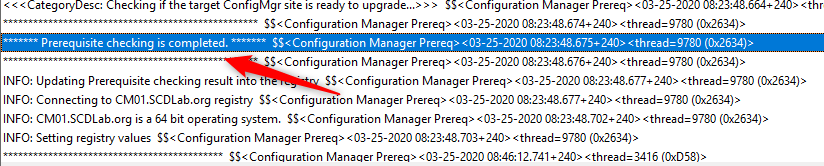
- You can also monitor prerequisite checks by going to Monitoring / Update and Servicing Status, right-clicking your Update Name and selecting Show Status
- If you have any warnings, follow the recommendation to fix the issue in the bottom pane
- When completed, the State column will show Prerequisite check passed
- Right-click the Configuration Manager 2603 update and select Install Update Pack
Step 2 | Launching the SCCM 2603 Update
We are now ready to launch the SCCM 2603 update. At this point, plan about 45 minutes to install the update.
- On the General tab, click Next
- On the Features tab, check the boxes on the features you want to enable during the update
- Don’t worry, if you don’t select one of the features now and want to enable it later, you’ll be able to so by using the console Administration Updates and Servicing Features
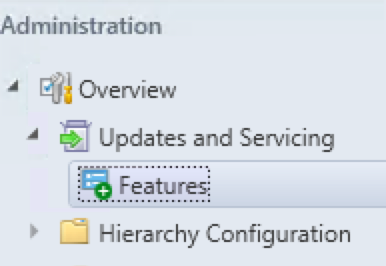
- In the Client Update Options, select the desired option for your client update
- This option allows updating only client members of a specific collection. Refer to our pre-production client deployment post for more details
- On the License Terms tab, accept the license terms and click Next
- Select if you want to upload Microsoft Defender for Endpoint data to Microsoft Intune.
- On the Summary tab, review your choices, click Next and close the wizard on the Completion tab
The whole process took a minute, but the installation begins on the back end.
- During installation, the State column changes to Installing
- We suggest you monitor the progress by navigating to Monitoring / Updates and Servicing Status, right-clicking your Update Name and select Show Status
Unfortunately, the status is not updated in real-time. Use the Refresh button to update the view.
- Open the SCCM update log SCCMInstallationDirectoryLogsCMUpdate.log with CMTrace
We’ve done numerous SCCM upgrades. Some installations start a couple of minutes after you complete the wizard but we’ve seen some installation starts after a 10-minute delay. Do not reboot or restart any services during this period or your update can be stuck in the “Prerequisite check passed” status. There are actually no officially documented methods by Microsoft to fix that. Patience is the key!
- When completed, you’ll notice the message There are no pending update packages to be processed in the log file
- Monitoring / Updates and Servicing Status, right-click your Update Name and select Show Status, the last step will be Installation Succeeded
- Refresh the Updates and Servicing node in Administration, the State column will be Installed

Updating the Outdated Consoles
As a previous update, the console has an auto-update feature. At the console opening, if you are not running the latest version, you will receive a warning and the update will start automatically.

- Since all update operations were initiated from the console, we didn’t close it during the process. We received a warning message when clicking certain objects. You will have the same message when opening a new console

- Click OK, console restart and the update will start automatically
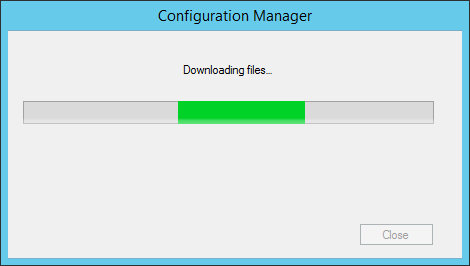
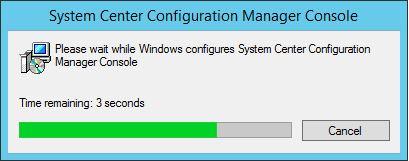
- Wait for the process to complete. You can follow the progress in C:ConfigMgrAdminUISetup.log and C:ConfigMgrAdminUISetupVerbose.log. Once completed, the console will open and you’ll be running the latest version
Verification
Consoles
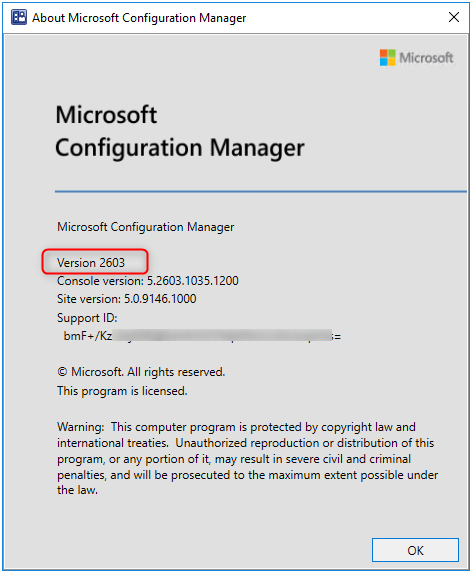
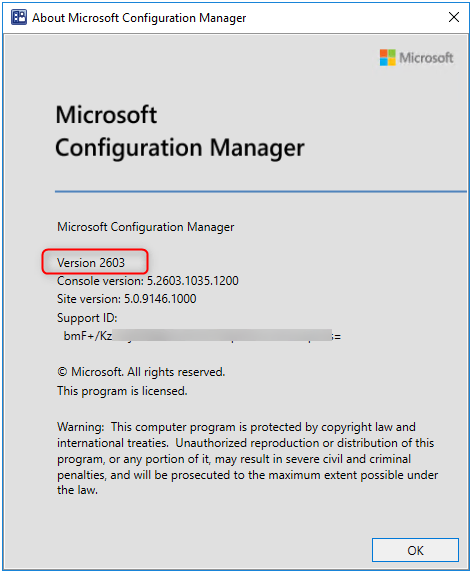
After setup is completed, verify the build number of the console. If the console upgrade was successful, the build number will be 9146 and the version is now Version 2603.
SCCM Servers
- Go to Administration / Site Configuration / Sites
- Right-click your site and select Properties
- Verify the Version and Build number
Upgrade SCCM 2603 Clients
The client version will be updated to 5.00.9146.x (after updating, see the section below)
SCCM 2603 Upgrade Guide – Client Package distribution
You’ll see that the 2 client packages are updated:
- Navigate to Software Library Application Management Packages
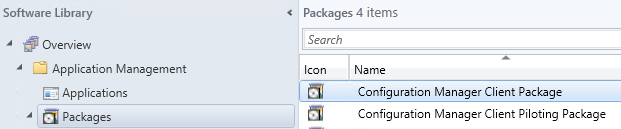
- Check if the update is successful; otherwise, select both packages and initiate a Distribute Content to your distribution points
Boot Images
Boot images will automatically update during setup. See our post on upgrade consideration in a large environment to avoid this if you have multiple distribution points.
- Go to Software Library / Operating Systems / Boot Images
- Select your boot image and check the last Content Status date. It should match your setup date
SCCM 2603 Upgrade Guide – Upgrade Clients
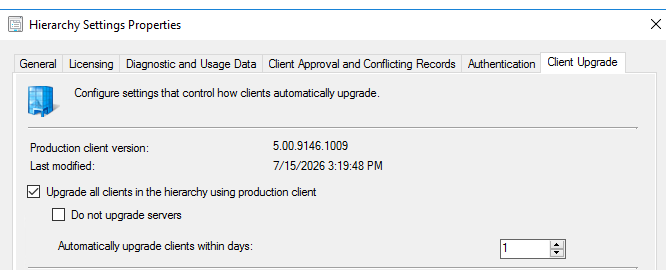
Our preferred way to update our clients is by using the Client Upgrade feature: (You can refer to our complete post documenting this feature)
- Open the SCCM Console
- Go to Administration / Site Configuration / Sites
- Click the Hierarchy Settings in the top ribbon
- Select Client Upgrade tab
- The Upgrade client automatically when the new client update is available to the checkbox is enabled
- Review your time frame and adjust it to your needs
Reconfigure SQL Server AlwaysOn availability groups
To complete SCCM 2603 Upgrade Guide, if you use an availability group, reset the failover configuration to automatic. For more information, see SQL Server AlwaysOn for a site database.
Reconfigure any disabled maintenance tasks
If you disabled database maintenance tasks at a site before installing the update, reconfigure those tasks. Use the same settings that were in place before the update.
SCCM 2603 Upgrade Guide – Monitor SCCM Client Version Number
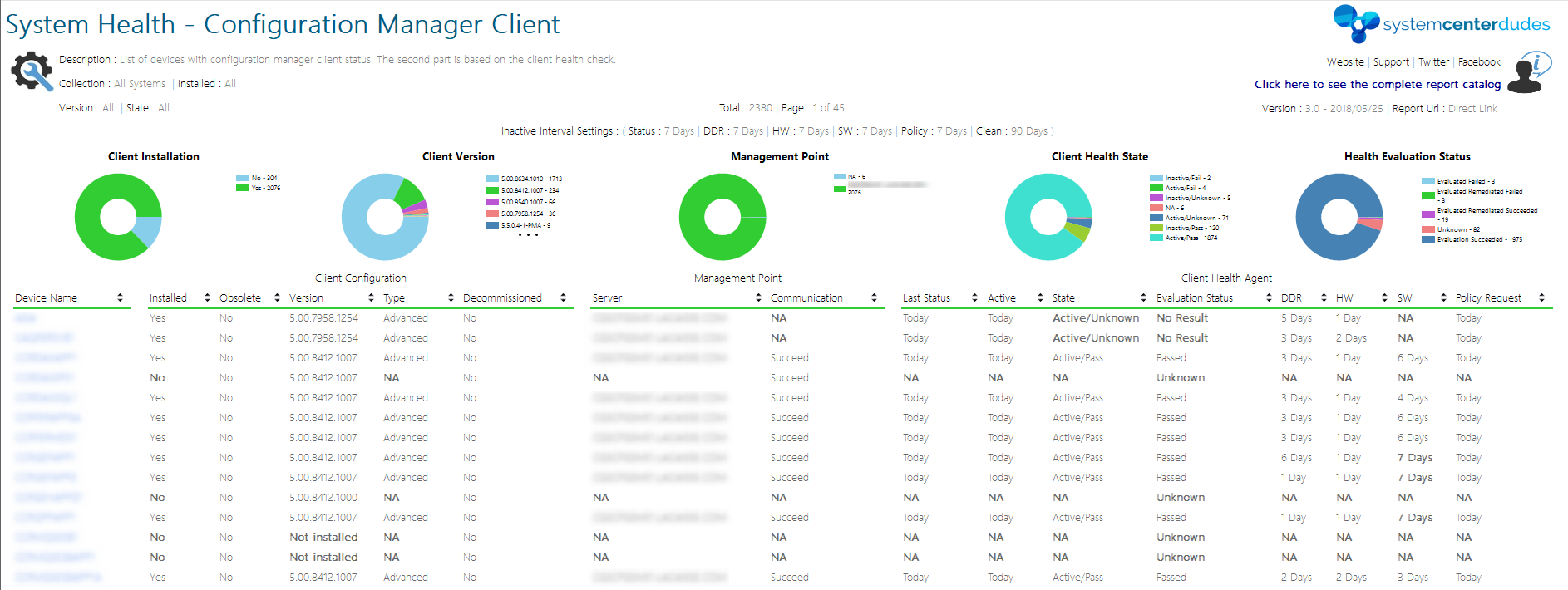
SCCM Reports Client Version
You can see our SCCM Client version reports to give detailed information about every client version in your environment. It’s the easiest way to track your client updates.
Collections
In conclusion, you can create a collection that targets clients without the latest client version because is very useful when it comes to monitoring a non-compliant client.
Here’s the query to achieve this: (You can also refer to our Set of Operational Collection Powershell Script, which contains this collection)
select SMS_R_SYSTEM.ResourceID,SMS_R_SYSTEM.ResourceType,SMS_R_SYSTEM.Name,SMS_R_SYSTEM.SMSUniqueIdentifier,SMS_R_SYSTEM.ResourceDomainORWorkgroup,SMS_R_SYSTEM.Client from SMS_R_System where SMS_R_System.ClientVersion != '5.00.9146.1000'Share
Get the latest insights and exclusive content delivered to your inbox


Only authorized users can leave comments
Log In