

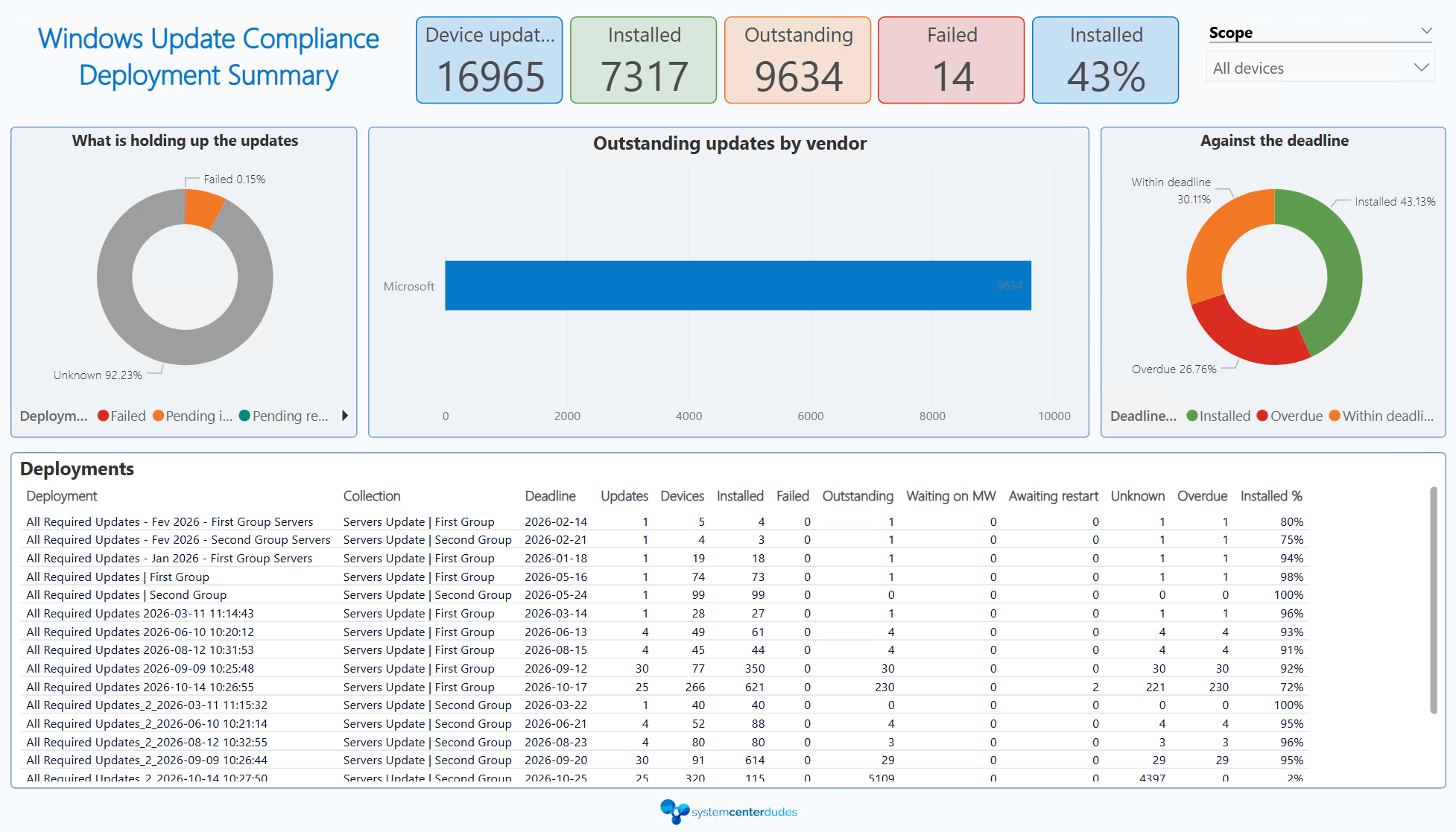
Finally, a SCCM Windows Update report you can rely on!
SCD Consultant, Contributor. Specialized in Microsoft Endpoint Manager (SCCM, InTune), Windows Autopilot, Windows10 (11) and Office365 Deployment and maintenance.

Marc-Andre Chartrand
Table of Content






Share


Get the latest insights and exclusive content delivered to your inbox
SCCM has been around for decades, and one thing it has always did very well is manage updates at a very granular level. Unfortunately, its update reports are based on deployment status and software update scans, which only tell you if the current deployment is known to be installed, not that the device is actually up to date with the latest version available.
This is where our new SCCM Windows Update report comes in. We’ve built a dashboard that checks information about the devices from AD System Discovery (OS Build), Hardware Inventory, Software Update scan, and can also be integrated with Intune. With all this data, we can easily and confidently identify the currently installed updates on Configuration Manager devices. As for checking if the device is actually up to date, we cross-check the currently installed installed versus the latest KB/Build available for each device based on Microsoft documentation.
The SCCM Windows Update report knows the latest CU applicable for every build of Windows and always checks online to stay up to date. It can also identify Out of band updates, as well as Hotpatch updates. We also confirm the servicing status of every OS Build in your environment, the patching authority (SCCM/Intune/3rd party patching solutions), deployment status of your software update groups, and much more all from one centralized dashboard.
Configuring the SCCM Windows Update report
You can download the report as a PowerBI Template file (.pbit) and use PowerBI Desktop to open it. The report can also be integrated inside a PowerBI Report Server, if you’re lucky enough to be licensed for one.
When you open the template file, you’ll need to enter your Configuration Manger’s SQL Server FQDN, as well as your database name.
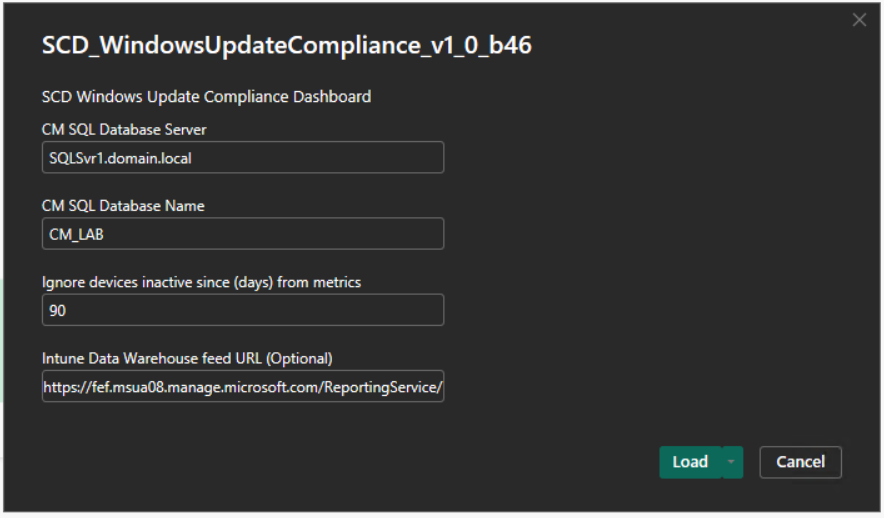
There is also a field for Stale Devices set to 90 days by default. This way, you can exclude devices that haven’t reported to SCCM or Intune in the last X days from your metrics and focus on patching only devices that are actually still within your environment. If you do not wish to exclude stale devices, simply set this value to 0.
You then have the Intune DataWarehouse URL as an optional field. While the dashboard is meant for SCCM-Managed devices, it can also pull data from Intune. If you decide to add the optional Intune connection, you gain more recent information for co-managed devices that may be off network but connected to the internet. You also gain the capability to view update compliance for Intune only devices, giving you one central view for all your SCCM and Intune managed devices.
Intune Data Warehouse contains Historical, not live data. The data is refreshed daily, so always assume the Intune information you’re looking at is from yesterday. Bercause of this, yhou may see information in Intune that doesn’t match the report’s information, but it will update on the next day.
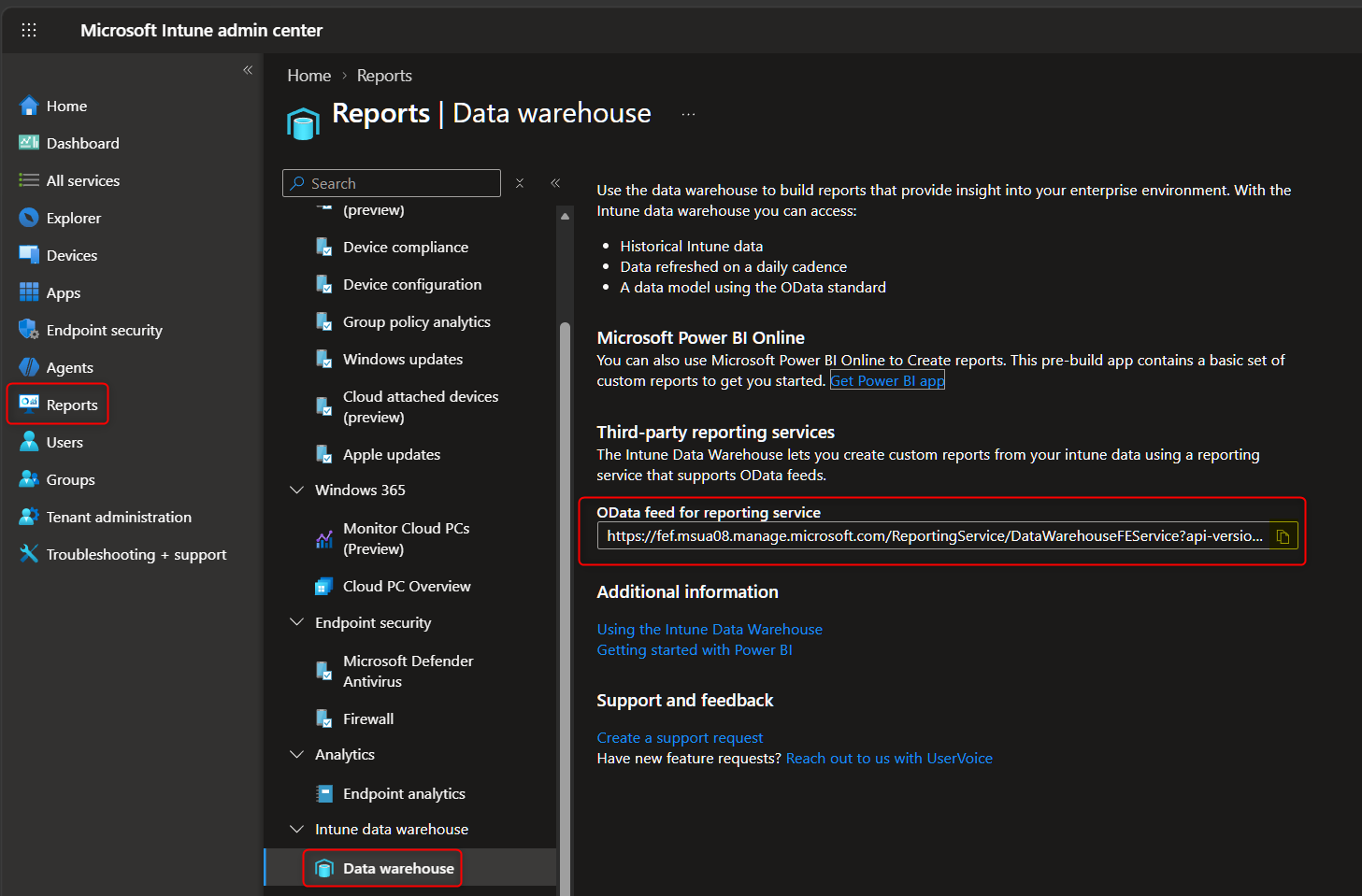
You can get the Intune DW URL from the Intune portal under Reports, Data Warehouse:
After clicking OK, you may see many prompts about Native Queries. This is a feature built-in to PowerBI to warn you every time a report connects directly to a database that the report could alter the data. Rest assured that the report only reads information from the database and never alters anything. You can safely accept all native queries, and since there will be many prompts, you can also go in PowerBI Desktop options and disable the warnings for native queries.
Analyzing the data
In the SCCM Windows Update report, you have the Scope filter at the top right so you can chose the information you want to see from the following:
- All Devices (default) which includes both SCCM and Intune devices
- SCCM Devices only
- Intune devices only
- Any SCCM Collection
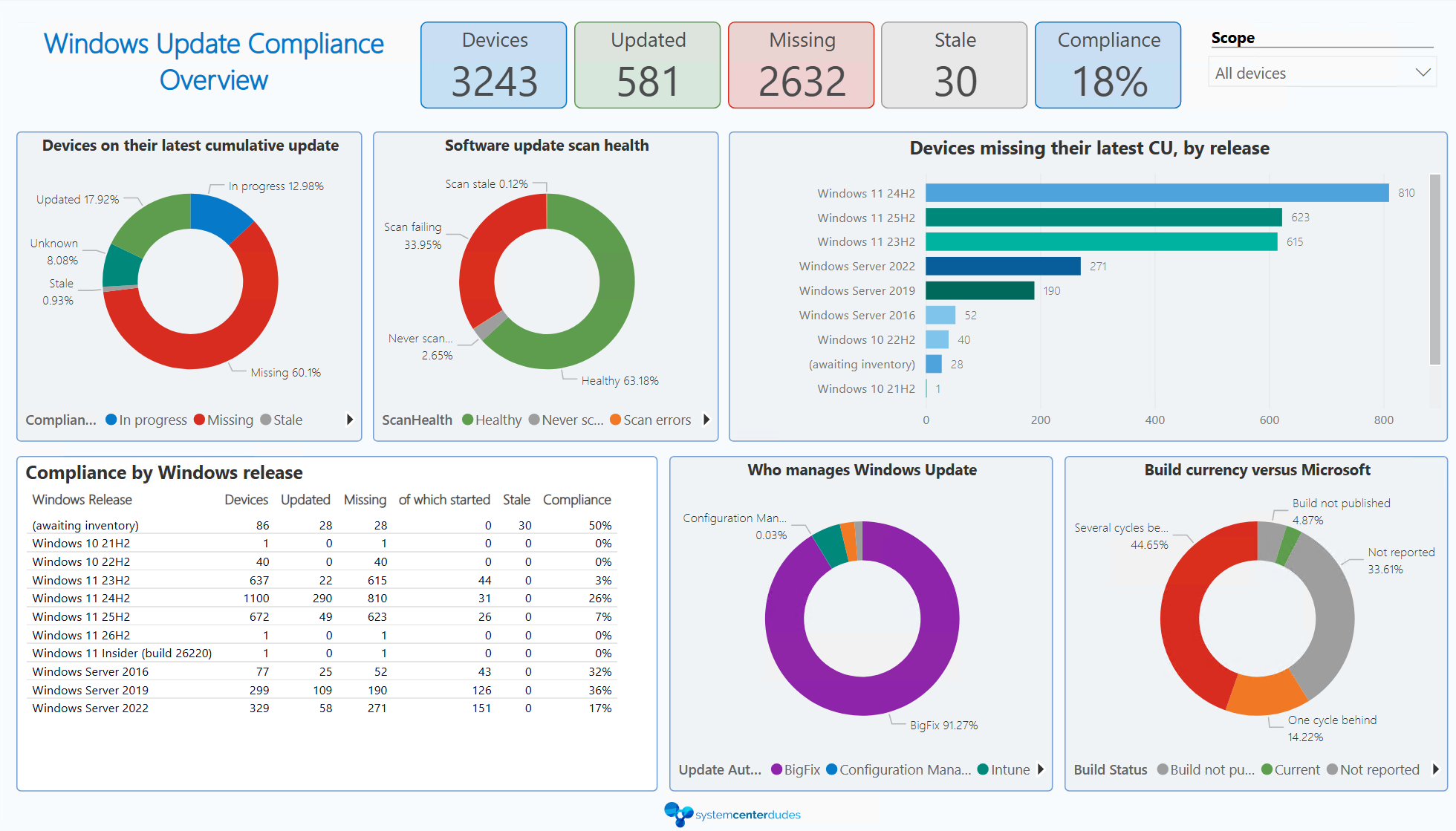
The overview gives you a general view of your environment’s compliance. You can quickly see a count and a visual representation of your updated and missing devices. The section “Who manages windows updates” shows the update authority, so if your environment has co-managed devices, you can see how many devices receive updates from SCCM vs Intune. The Software Update scan health is only for devices that report to SCCM.
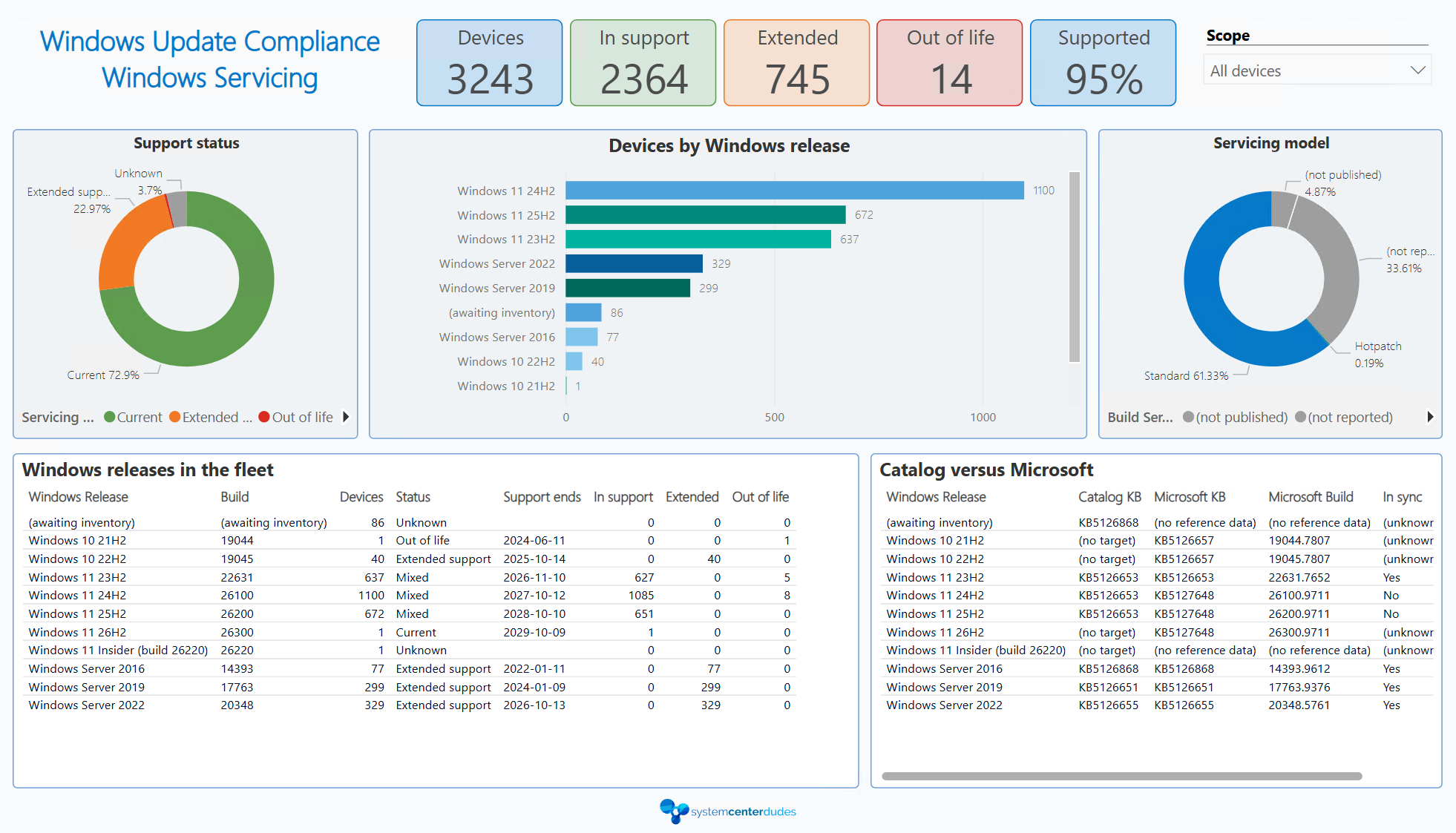
The servicing tab allows you to spot devices that run Operating System versions that are current, in extended support, or out of support. The servicing model shows you the update model applied on devices, such as Standard, HotPatch, and Not published (often Out of band updates as those are not documented in online sources).
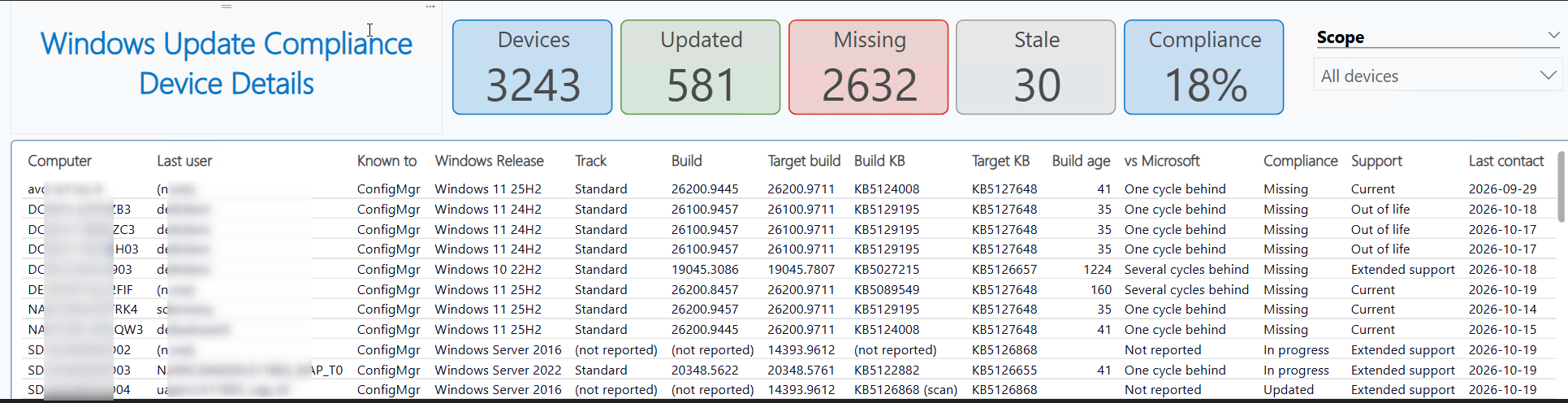
The Details tab allows you to drill down into details for each individual devices. There’s many valuable information about the current state of your devices. Values are merged between SCCM and Intune to use the most recent information automatically.
Deployment Summary displays deployment details for Configuration manager devices only. This view will not show any Intune devices or deployments.
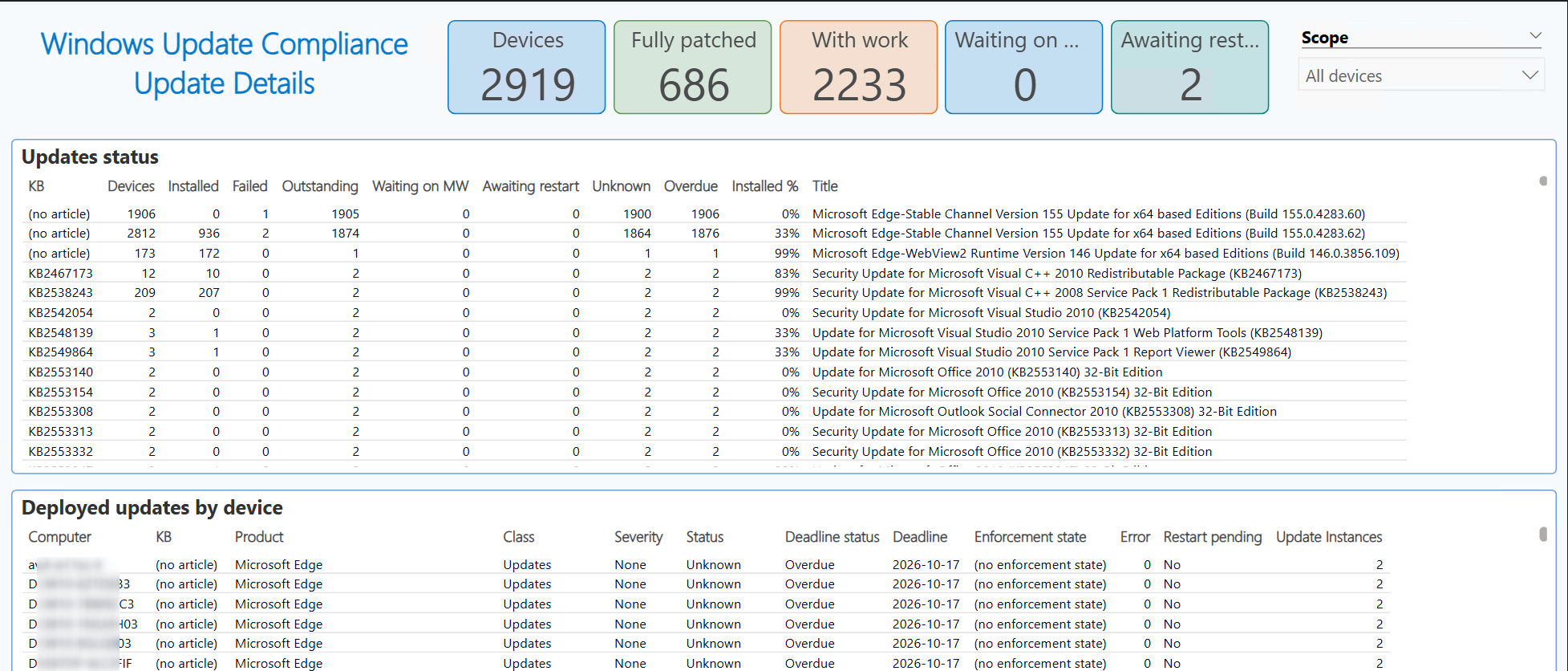
Update Details gives you, well, the details of each update deployed in your Configuration Manager environment. Again, no Intune devices will show up here.
Saving the SCCM Windows Update report
Now that you’ve connected to your data sources and seen the report, you can save it as a pbix report so you can view it later without having to re-enter all the data information.
Just be aware that when you save a report as pbix, it saves it with the current data. Be sure to hit the refresh button on your report to display the most recent data.
Where can you get it?
This report is only available in our Premium System Center Dudes subscription, among many other great reports and products.
Happy Patching!
Share
Get the latest insights and exclusive content delivered to your inbox


Only authorized users can leave comments
Log In