Microsoft has released the first SCCM version for 2024 as the release cadence is now reduced to 2 releases per year. SCCM 2403 was released on April 23rd, 2024. This post is a complete step-by-step SCCM 2403 upgrade guide, meaning that if you want to upgrade your existing SCCM installation to the latest SCCM updates, this post is for you.
If you’re looking for a comprehensive SCCM installation guide to building a new server, refer to our blog series which covers it all.
You won’t be able to install SCCM 2403 if you are running SCCM 2012. Well, that’s an odd phrase! Thank you current branch naming.
 |
|---|
SCCM 2403 isn’t a baseline version. SCCM 2403 is a baseline version. This means that if you’re downloading the source from Volume Licensing, SCCM 2403 will be the version of your new SCCM site. Upgrading to a later version (when released) will be available after the original installation.
At the time of this writing, SCCM 2403 is available in the Early update ring. You must run the opt-in script to see it appear in the console. We’ll cover that in the Installation section.
To install SCCM 2403 as an update, you must have installed
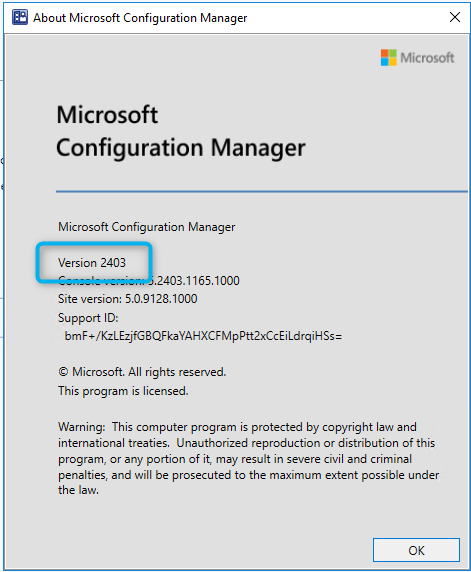
Keeping your infrastructure up to date is essential and recommended. You will benefit from the new features and fixes, some of which can apply to your environment. It’s easier than ever to upgrade since Microsoft has implemented the servicing model directly from the console.
SCCM 2403 includes fewer new features and enhancements than its predecessors.
You can consult the What’s new in version 2403 of Microsoft Configuration Manager article for a full list of changes.
There are 2 important warnings that you must be aware of before upgrading to this version.
If you have HTTP-only communication enabled, you must at least enable Enhanced HTTP for client communication or HTTPS.
If your SCCM server is still running Windows 2012, you must upgrade your site server Operating system before upgrading.
Here’s our list of favourite features :
Ensure to apply this update before you fall into an unsupported SCCM version. Read about the support end date of the prior version of the following Microsoft Learn article. The SCCM 2403 version will be supported until October 22, 2025.
Before installing, make sure that you are running a supported Operating System and SQL version. Older SCCM version was giving a warning during the Prerequisite check but 2403 is giving an error that prevents the installation from continuing.
SCCM 2403 supports only Windows Server 2016+ and SQL 2014 SP3+ but recommends SQL 2016 and up.
Downloading and installing this update is done entirely from the console. There’s no download link, the update will appear on your console once the Service Connection Point is synchronized.
If you’re running a multi-tier hierarchy, start at the top-level site in the hierarchy. After the CAS upgrade, you can begin the upgrade of each child site. Complete the upgrade of each site before you begin to upgrade to the next site. Until all sites in your hierarchy are upgraded, your hierarchy operates in a mixed version mode.
Before applying this update, we strongly recommend that you go through the upgrade checklist provided on Microsoft Learn. Most importantly, initiate a site backup before you upgrade.
There are a couple of new important prerequisite checks in this SCCM 2403 release :
HTTPS or Enhanced HTTP should be enabled for client communication from this version of Configuration Manager – HTTP-only communication is deprecated, and support is removed from this version of Configuration Manager. Enable HTTPS or Enhanced HTTP for client communication.
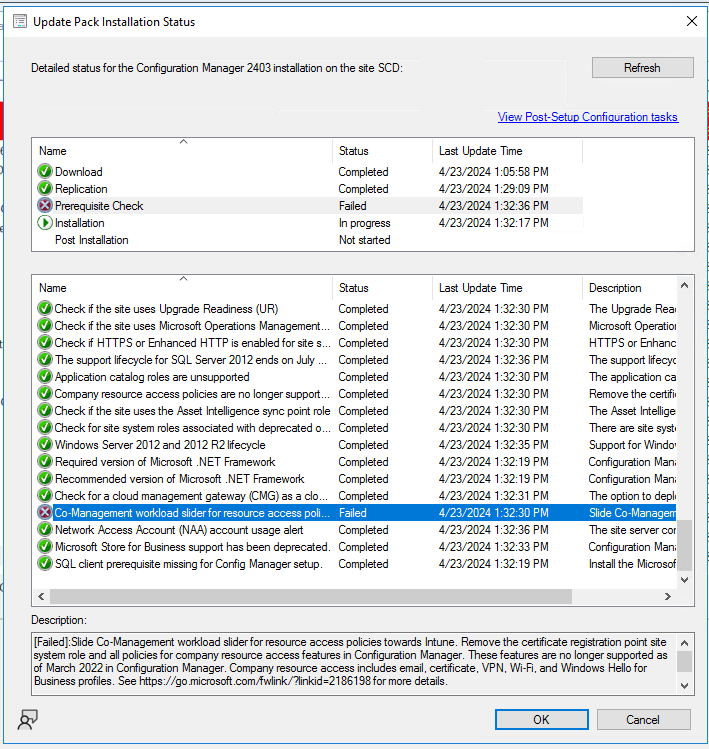
Configuration Manager current branch version 2403 has an error prerequisite rule that checks for Microsoft OBDC Driver 18 for SQL setup. This is needed to be installed manually prior to run the SCCM 2403 upgrade, on all site system servers.
To download the Microsoft ODBC Driver 18, click here
The installation of Microsoft ODBC Driver 18 does not require a restart.
Simply rerun the Prerequisite check after the installation.
The prerequisite check will verify all that for you :
If you migrated your site to EHTTP, you’ll have a warning about the Network Access Account that is no longer needed. See Microsoft Support Article on this subject.
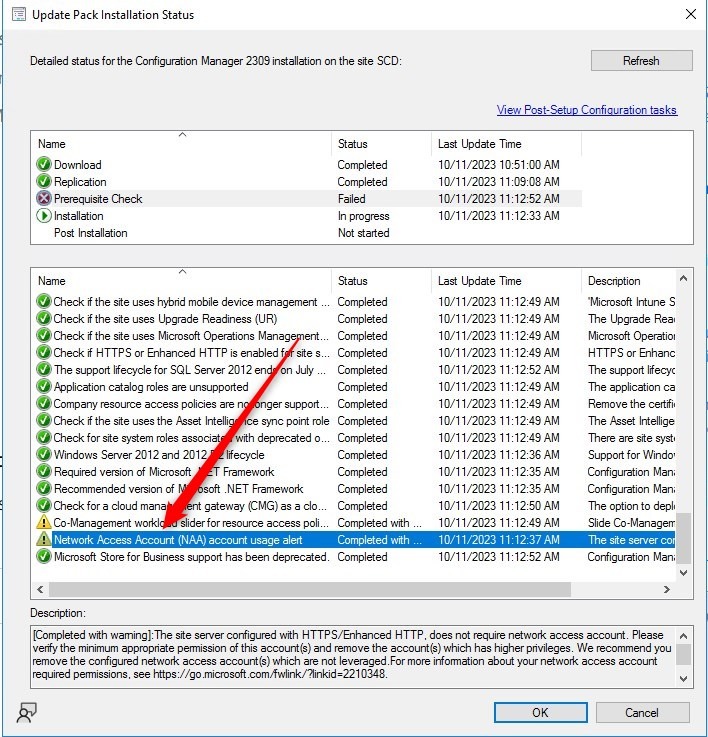
[Completed with warning]:The site server configured with HTTPS/Enhanced HTTP, does not require network access account. Please verify the minimum appropriate permission of this account(s) and remove the account(s) which has higher privileges. We recommend you remove the configured network access account(s) which are not leveraged.For more information about your network access account required permissions, see https://go.microsoft.com/fwlink/?linkid=2210348.
In this post, we will update a stand-alone primary site server, consoles, and clients. Before installing, check if your site is ready for the update:
The SCCM 2403 update is not yet available for everyone. If you need it right away you can run the Fast-Ring script and the update will show up.
Before launching the update, we recommend launching the prerequisite check first. To see the prerequisite checklist, see the Microsoft Documentation
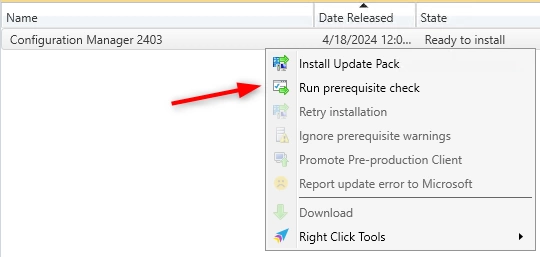
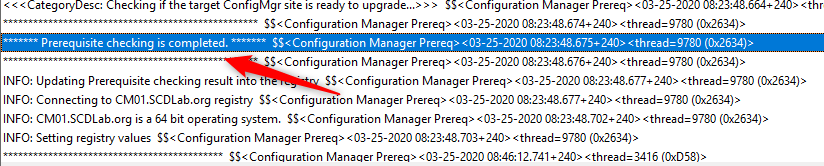
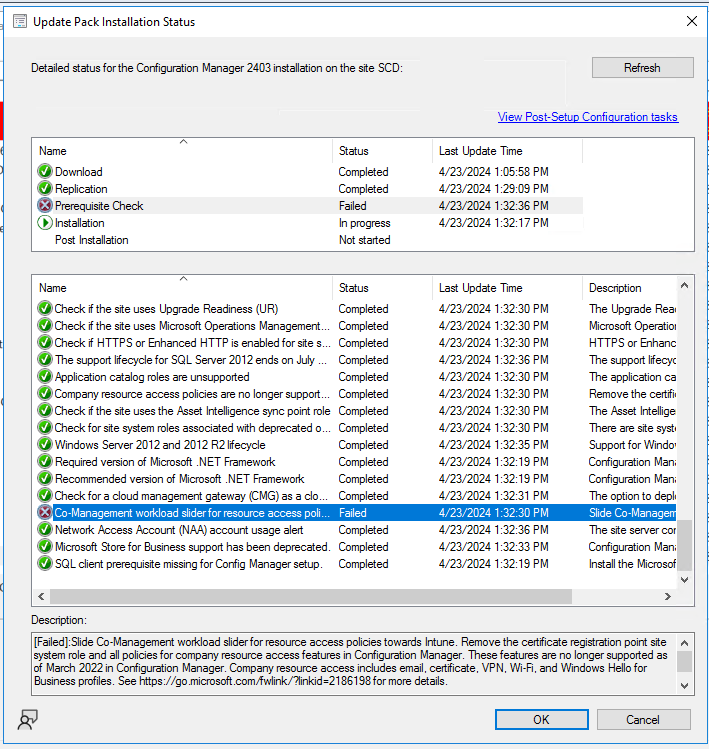
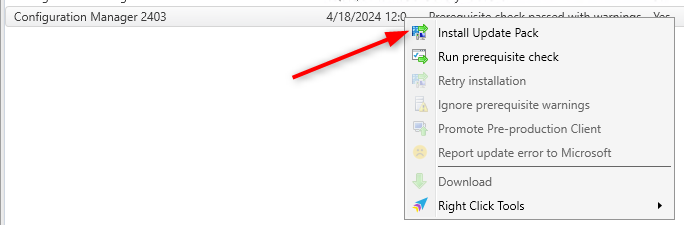
We are now ready to launch the SCCM 2403 update. At this point, plan about 45 minutes to install the update.
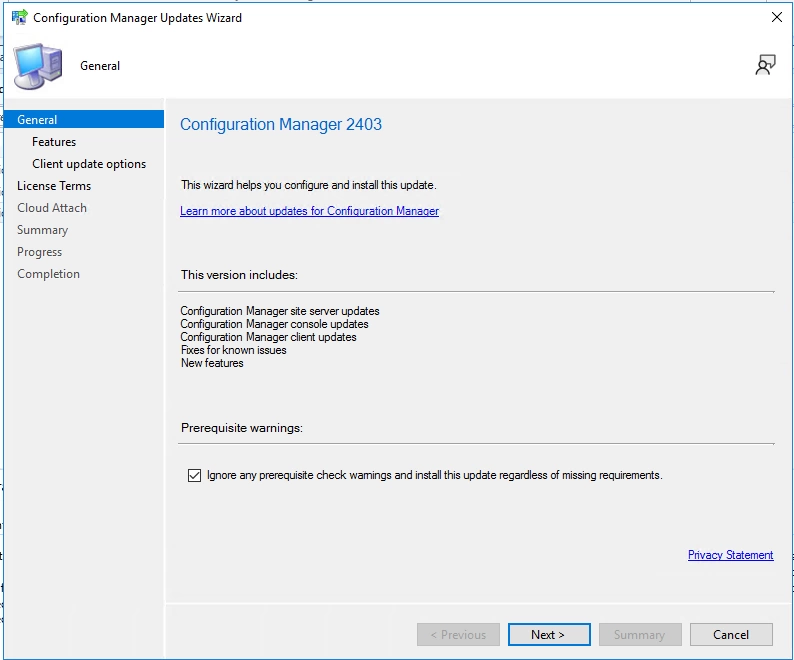
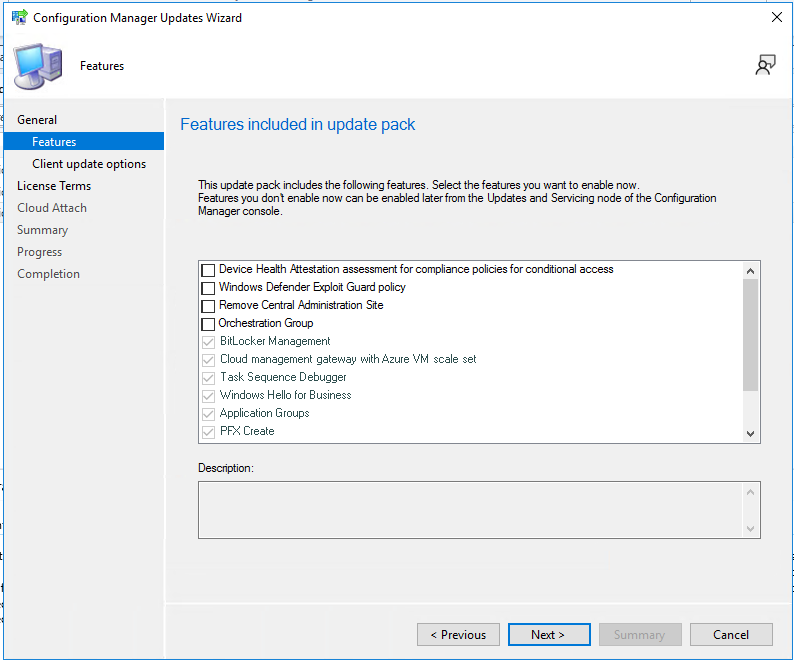
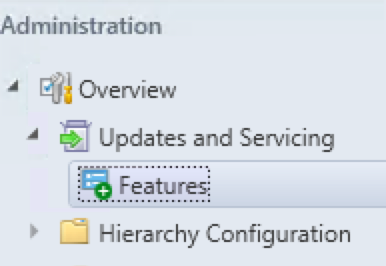
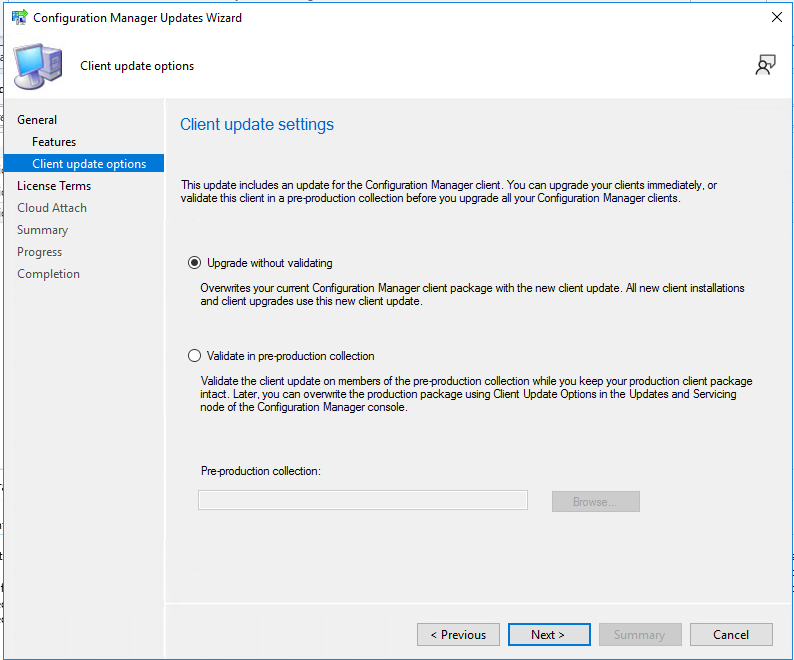
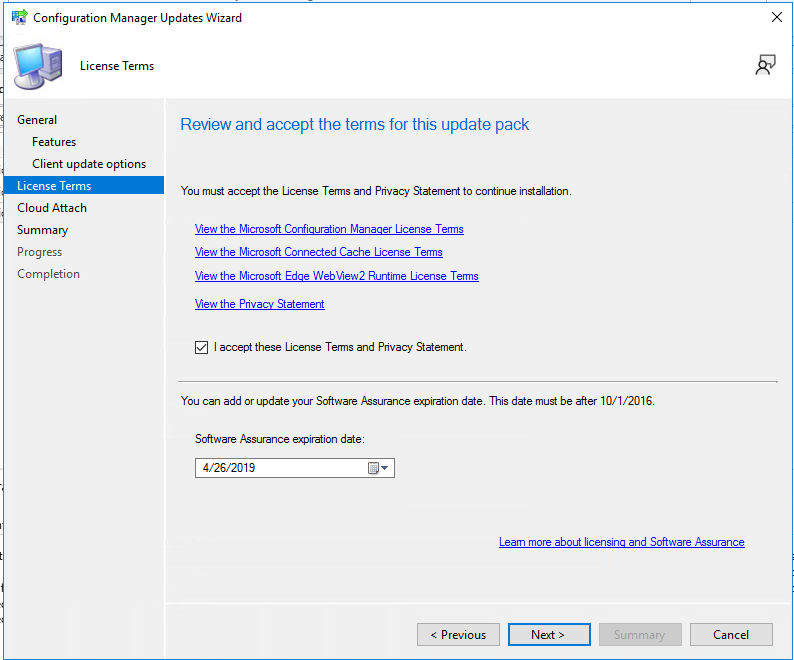

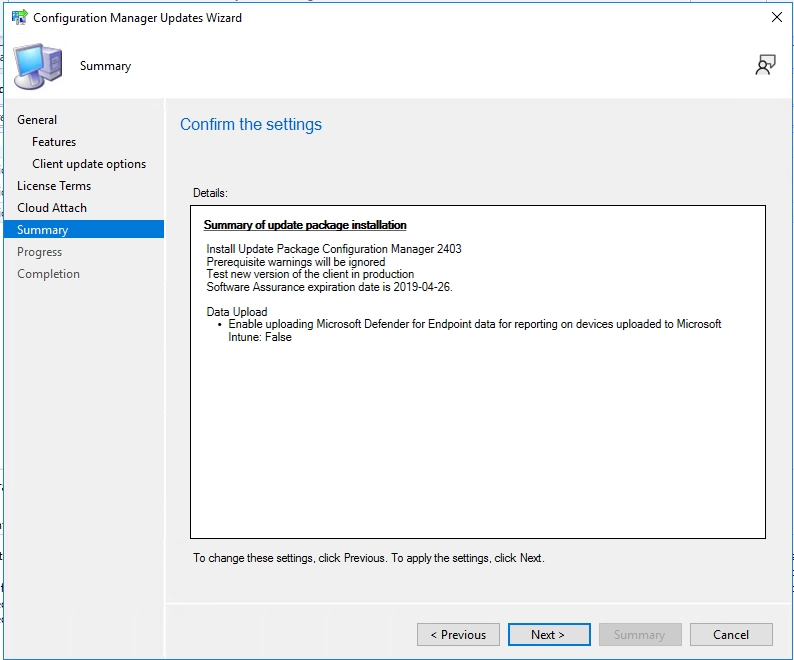
The whole process took a minute but the installation begins on the back end.

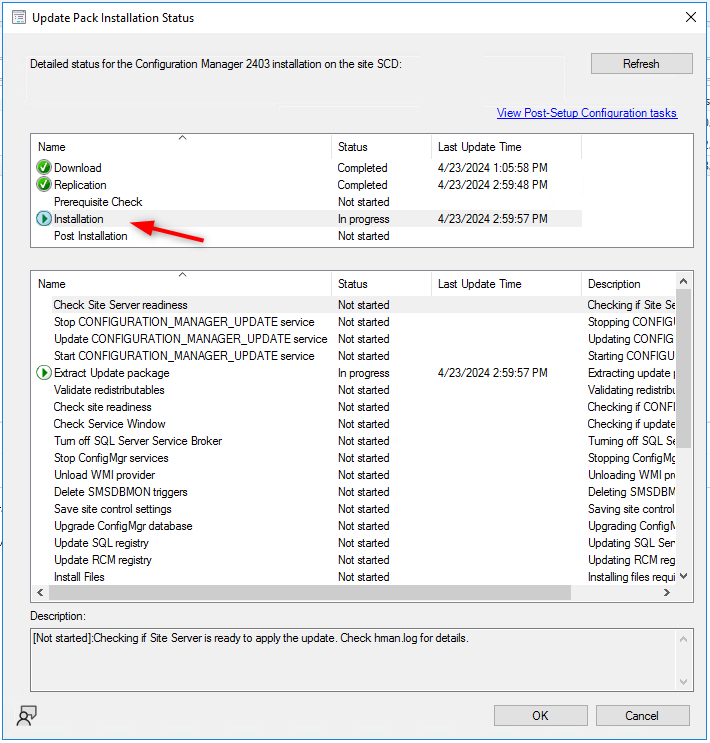
Unfortunately, the status is not updated in real-time. Use the Refresh button to update the view.
We’ve done numerous SCCM upgrades. Some installations start a couple of minutes after you complete the wizard but we’ve seen some installation starts after a 10 minutes delay. Do not reboot or restart any services during this period or your update can be stuck in the “Prerequisite check passed” status. There are actually no officially documented methods by Microsoft to fix that. Patience is the key!
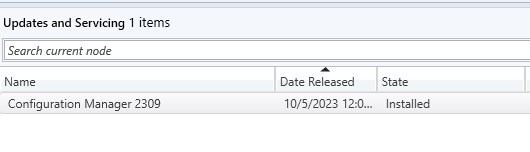
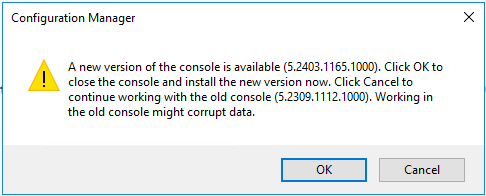
As a previous update, the console has an auto-update feature. At the console opening, if you are not running the latest version, you will receive a warning and the update will start automatically.

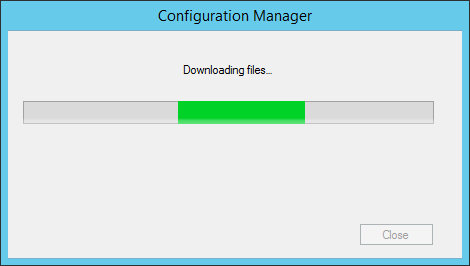
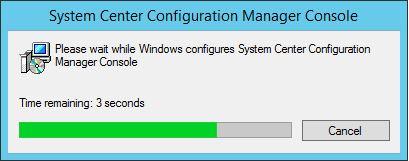
After setup is completed, verify the build number of the console. If the console upgrade was successful, the build number will be 9128 and the version is now Version 2403.
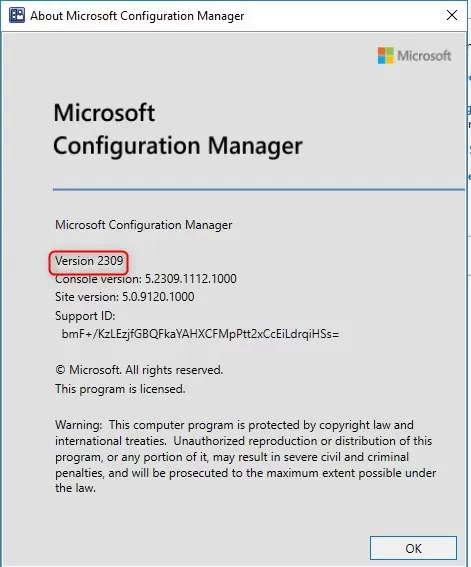
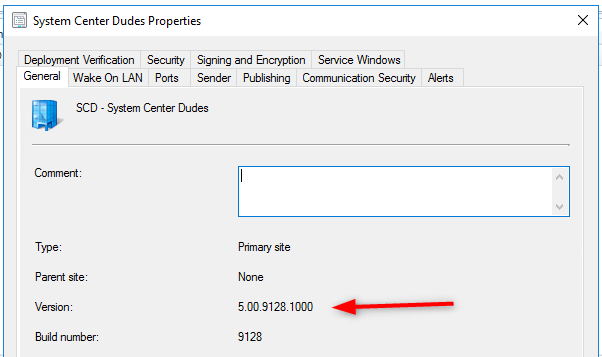
The client version will be updated to 5.00.9128.100x (after updating, see the section below)
You’ll see that the 2 client packages are updated:
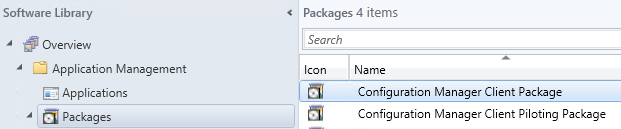
Boot images will automatically update during setup. See our post on upgrade consideration in a large environment to avoid this if you have multiple distribution points.
Our preferred way to update our clients is by using the Client Upgrade feature: (You can refer to our complete post documenting this feature)
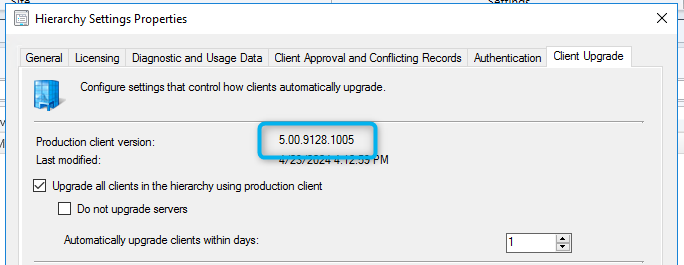
To complete SCCM 2403 Upgrade Guide, if you use an availability group, reset the failover configuration to automatic. For more information, see SQL Server AlwaysOn for a site database.
If you disabled database maintenance tasks at a site before installing the update, reconfigure those tasks. Use the same settings that were in place before the update.
You can see our SCCM Client version reports to give detailed information about every client version in your environment. It’s the easiest way to track your client updates.
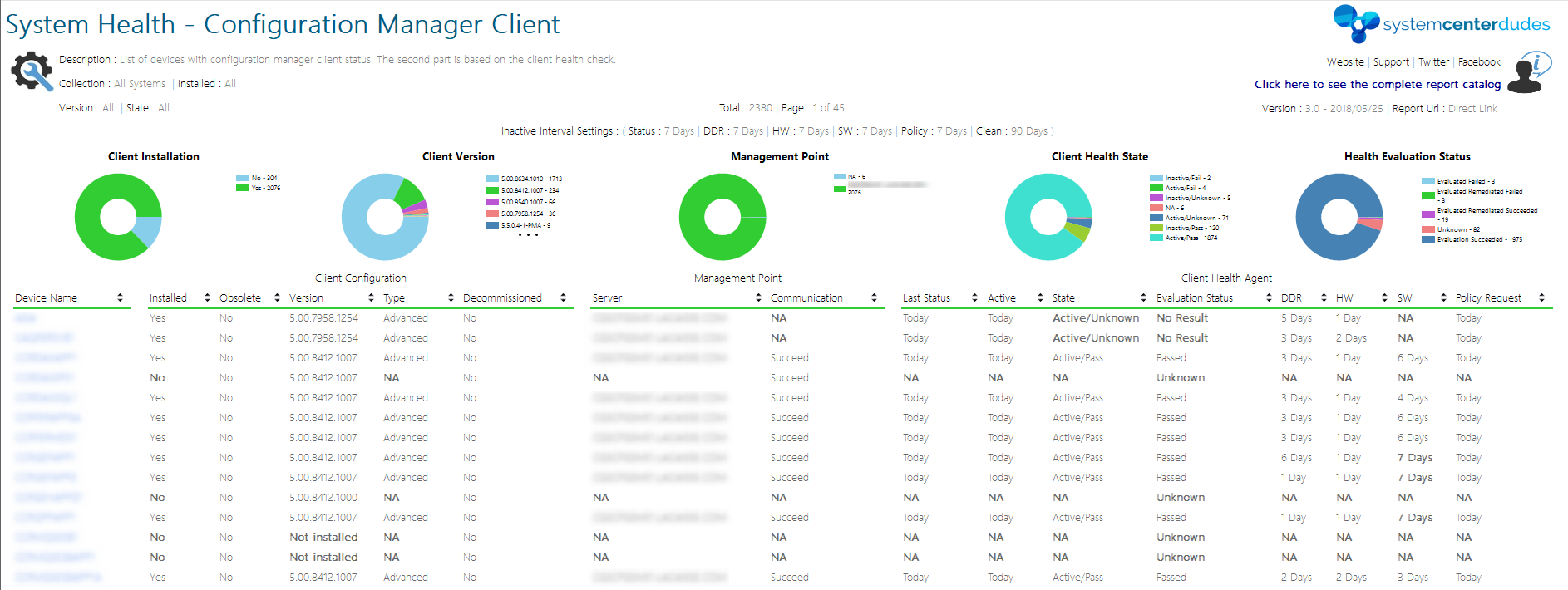
In conclusion, you can create a collection that targets clients without the latest client version because is very useful when it comes to monitoring a non-compliant client.
Here’s the query to achieve this: (You can also refer to our Set of Operational Collection Powershell Script which contains this collection)
select SMS_R_SYSTEM.ResourceID,SMS_R_SYSTEM.ResourceType,SMS_R_SYSTEM.Name,SMS_R_SYSTEM.SMSUniqueIdentifier,SMS_R_SYSTEM.ResourceDomainORWorkgroup,SMS_R_SYSTEM.Client from SMS_R_System where SMS_R_System.ClientVersion != '5.00.9128.1000'
Please fill out the form, and one of our representatives will contact you in Less Than 24 Hours. We are open from Monday to Friday.

Thank you for subscribing to our newsletter or requesting a quote. You will receive our next month's newsletter. If you have requested a quote, we will get in touch with you as soon as possible.

Something went wrong!


Thank for your reply!