

How to configure Intune Multi-Admin Approval
Contributor of System Center Dudes. Based in Montreal, Canada, Senior Microsoft SCCM consultant, working in the industry for more than 10 years. He developed a strong knowledge of SCCM and MDT to build automated OS deployment solution for clients, managed large and complexe environment, including Point of Sale (POS) related projects.

Jonathan Lefebvre
Table of Content






Share


Get the latest insights and exclusive content delivered to your inbox
Intune Multi-Admin approval was introduced a while ago. So far, this has not been a common topic among Intune admins. That all changed a few weeks ago with the Stryker incident, with CISA strongly recommending enforcing Multi-Admin Approval. The recent attack showed how damaging a compromised Intune admin account can be, as high-impact changes, such as a simple Wipe devices, can be extremely damaging to an environment.
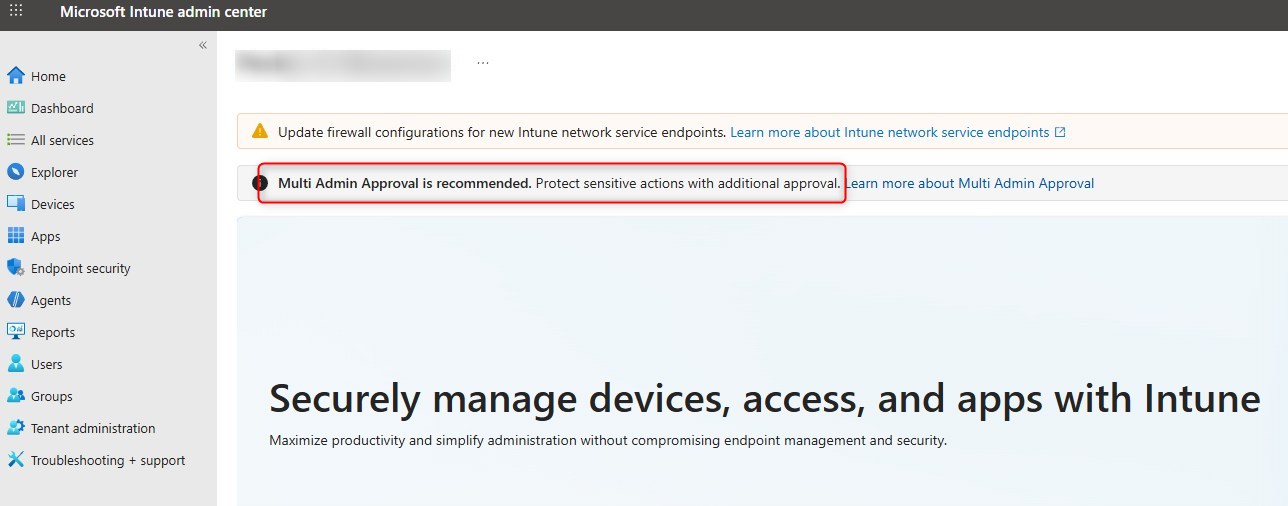
In this blog post, we’ll describe the few steps needed to enable Intune Multi-admin Approval for high-risk tasks.
IMPORTANT. Multi-admin Approval is in NO way a complete security strategy. Leveraging Conditional Access, least privilege access and even Privileged Identity Management, all worth time and effort to improve security in your environment.
Prerequisites
- At least 2 administrators in the Intune Tenant.
- To create a Multi-App approval policy, you need:
- Global administrator
- Intune Administrator
- A second administrator is needed to approve new policies.
- Groups to define approvers
- No specific Intune license requirement
How to configure Intune Multi-Admin Approval policy
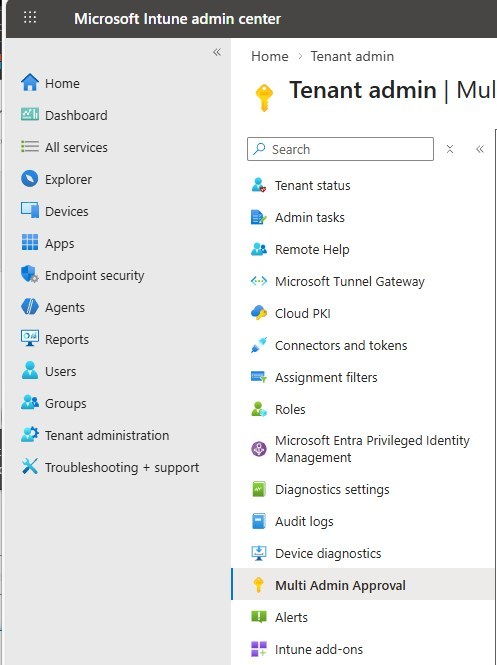
- In the Intune portal, browse to Tenant Administration / Multi-Admin Approval
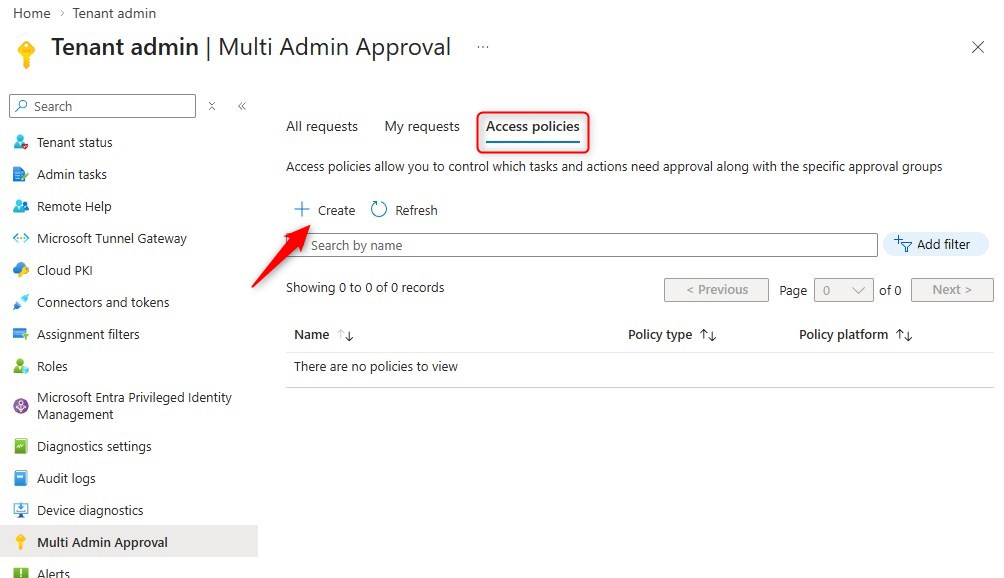
- Under Access Policies, hit Create
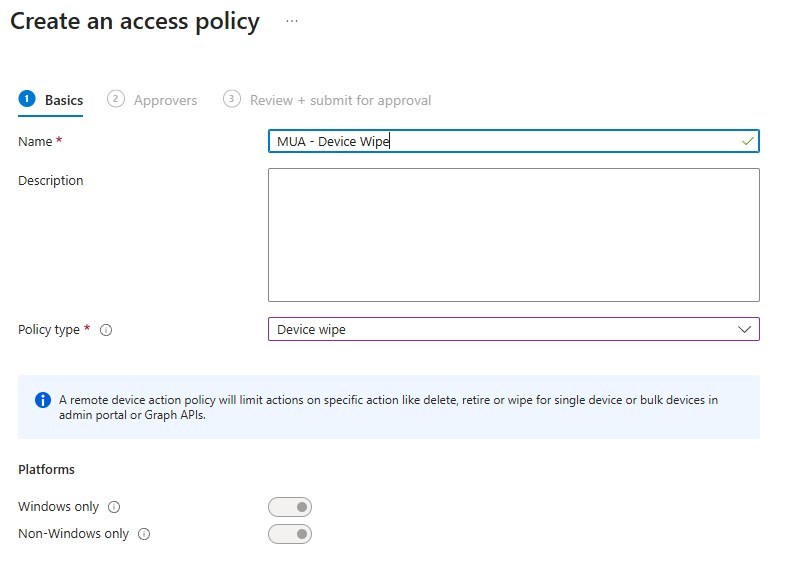
- Provide the name and select the policy type
- For the moment, we’ll configure the Device Wipe.
- There are multiple policy types, see the list below.
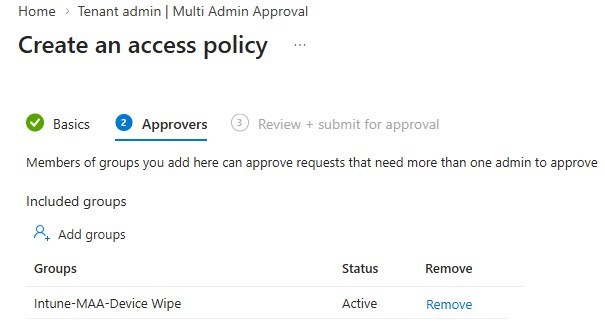
- Assign the Multi-admin policy to an Approver group
- depending on the type of action to protect; the Approver group may defer.
- Keep that in mind when designing the policies and group assignment for approvers.
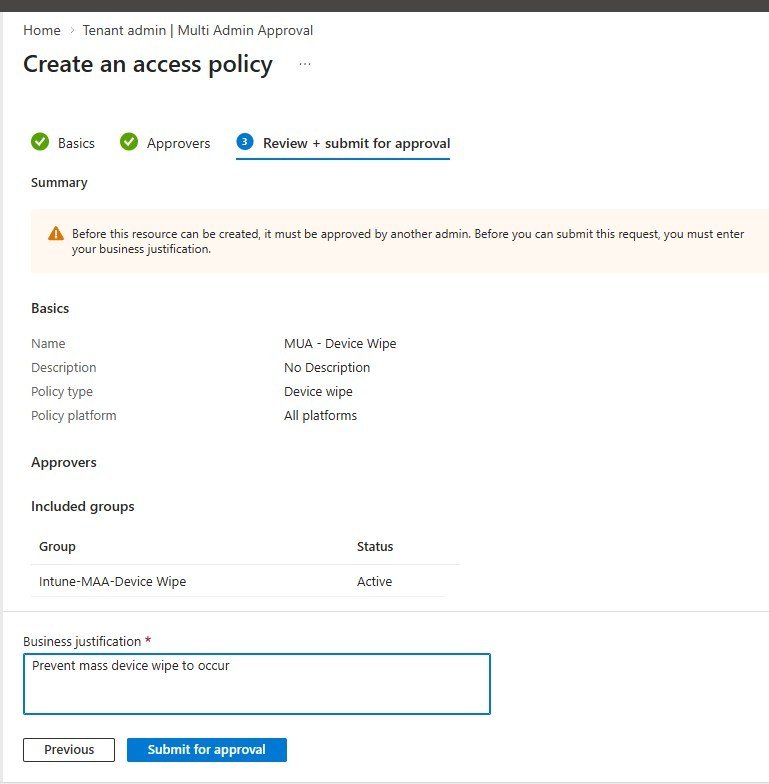
- Review and provide the business justification
- A new Multi-admin policy does need to be approved by another admin.
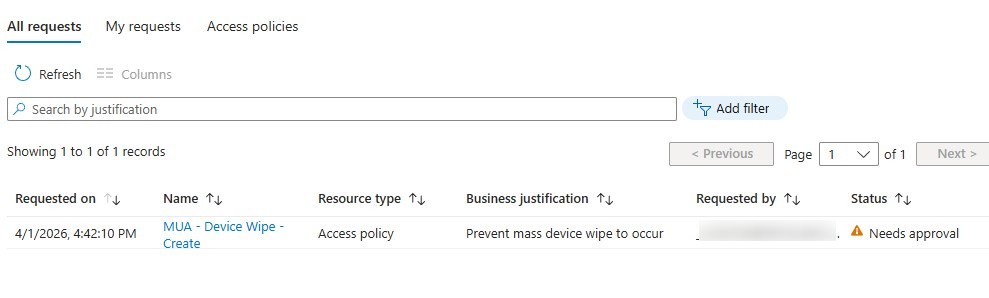
- The policy will show under All Request as it Needs Approval
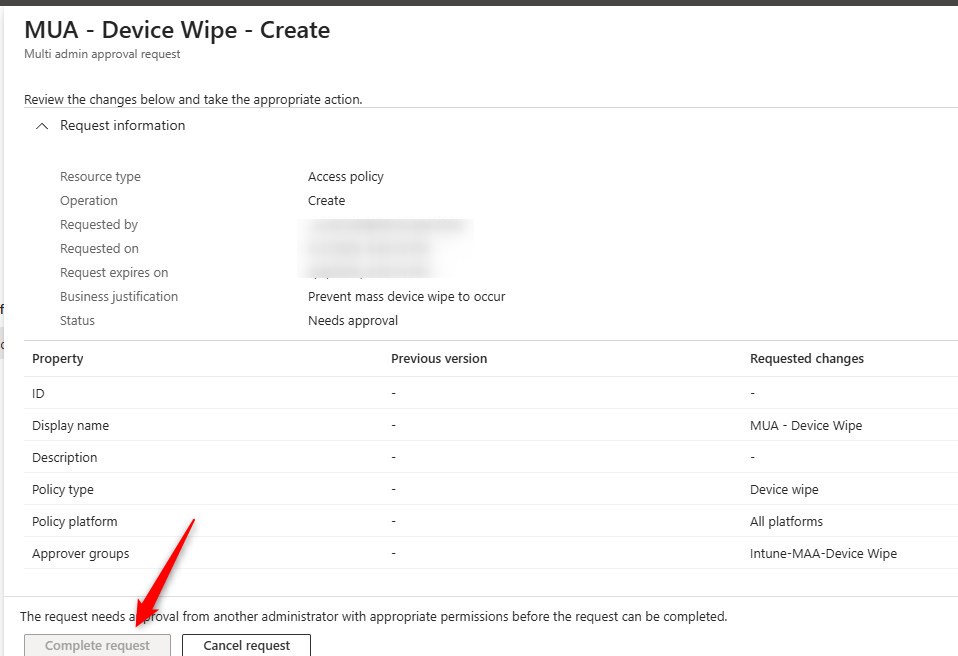
- Each new Multi-Admin policy must be approved by an Intune Administrator or Global Administrator.
- The creator of the policy cannot approve its own policy.
How Intune Multi-Admin approval works
- An admin makes a change to a protected resource.
- Request a Wipe, for example
- Intune does not apply the change immediately.
- Intune creates an approval request.
- Request is displayed under Tenant Administration / Multi-Admin Approval / All request
- A different approved admin reviews the request.
- An Approver reviews the request and decides to approve or deny the change.
- Upon approval, the original Wipe request gets initiated.
At the moment, this process does NOT create any alerts. Approvers must keep an eye in the Multi-Admin section of Intune.
Which action can Intune Multi-Admin approval protect?
Here’s the complete list, from Microsoft, of policies that can protect the environment:
- Apps – Applies to app deployments, but doesn’t apply to app protection policies.
- Compliance policies – Applies to creating and managing compliance policies.
- Configuration policies – Applies to creating and managing policies via the settings catalog.
- Device actions – Applies to wipe, retire, and delete device actions.
- Role-based access control – Applies to changes to roles, including modifications to role permissions, admin groups, or member group assignments.
- Scripts – Applies to deploying scripts to devices that run Windows.
- Access Policies – Applies to creating or managing multiple administrative approval policies.
- Tenant Configuration – Applies to managing device categories, including creating, editing or deleting them.
What to protect first
There is no definitive list of actions to prevent first, but the overall idea of Multi-Admin Approval is to prevent actions of mass destruction. With a creative mind, there can be a lot in Intune, but finding a balance between some key restrictions and day-to-day operation will be more specific to each environment.
Key restrictions
- Device wipe
- While a retire or delete is still no fun, it is less disruptive.
- Script deployment
- RBAC role changes
- Tenant Configurations
Most of these aren’t part of daily tasks. For Script, it would be a similar process to what was already possible within Configuration Manager.
Hope this post helps get going with Multi-Admin Approval policies.
Share
Get the latest insights and exclusive content delivered to your inbox


Only authorized users can leave comments
Log In