

How to update Secure boot certificate using Intune
Contributor of System Center Dudes. Based in Montreal, Canada, Senior Microsoft SCCM consultant, working in the industry for more than 10 years. He developed a strong knowledge of SCCM and MDT to build automated OS deployment solution for clients, managed large and complexe environment, including Point of Sale (POS) related projects.

Jonathan Lefebvre
Table of Content
- What is Secure Boot, and why does it matter?
- What is needed to update the Secure Boot certificate?
- What happens to non-updated devices after June 2026
- How to do the firmware Update?
- Intune Secure Boot report
- Intune Secure Boot Certificate Remediation Script
- Create an Intune policy for Secure Boot Certificate
- How to enable Secure Boot certificate update via Group Policy
- Validate Secure Boot policy configuration
- How to monitor Secure Boot certificate update on a device
- Intune Secure Boot Certificate – Additional notes






Share


Get the latest insights and exclusive content delivered to your inbox
By now, you have probably heard about Microsoft’s request to update the certificate for Secure Boot by June 2026. Then a few more thoughts led to “I have time to handle this later” or “What now?!”.
No need to worry, we’ve all been there. Secure Boot is your PC’s first line of defense. A UEFI firmware check that verifies bootloaders, drivers, and OS files carry valid digital signatures from trusted authorities like Microsoft’s certificates, blocking malware at the earliest stage. The 2011 certificates expire from April 2026 (DB phase) through October 2028 (full revocation), requiring the new Windows UEFI CA 2023 certificate and DB/KEK/DBX updates delivered via Windows Update.
In this blog post, we’ll detail what is needed from IT pros to update the Intune Secure Boot Certificate.
What is Secure Boot, and why does it matter?
Secure Boot protects the boot process by checking that every piece of startup software—like the bootloader and early drivers—has a valid digital signature from trusted sources, such as Microsoft. This stops malware from hijacking your PC right at power-on, before Windows can even load its own defenses.
What is needed to update the Secure Boot certificate?
Microsoft provided a lot of details on the part that concerns them: distributing and enforcing the new certificate. In many cases, that part is the only one needed if the device is less than 2 years old (ish).
The other part concerns hardware vendors. Many devices, still valid to date for Windows 10 22h2(with ESU) or already with Windows 11, will need a Firmware update… a good old BIOS update.
It is safe to assume that devices older than 2 years need a BIOS update in order to leverage the new SecureBoot Certificate. For all other devices, it’s more case-by-case.
Here are posts by major vendors to go into more detail. Each list device models and the minimum firmware version needed.
- From HP devices, see the post here
- For Lenovo devices, see the post here
- For DELL devices, see the post here
Note that at least Lenovo clearly states that it’s in progress to release the firmware.

What happens to non-updated devices after June 2026
Short answer: Nothing!

…But you already figured that with all the fuss around this, attention to the Secure Boot Certificate is needed. Devices that don’t receive the Secure Boot certificate before June will boot and function normally from the end-user perspective.
It will be considered degraded from a security standpoint because the boot-level protection won’t function as expected.
How to do the firmware Update?
Many options are on the table to perform such an extensive task.
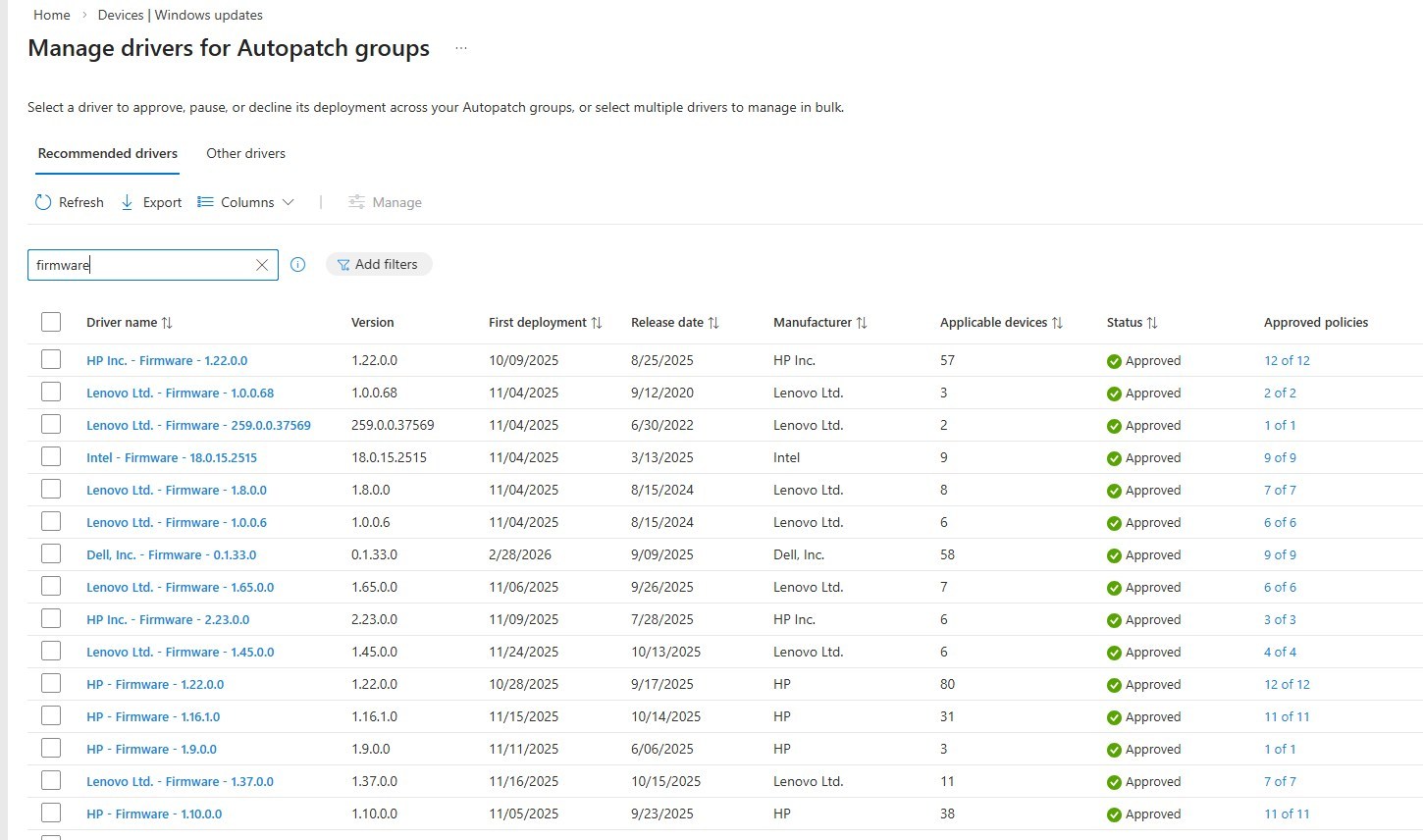
- Intune via Autopatch/Windows Update for Business while using the Driver update.
- If you are already there for Windows Update, but didn’t want to dive into Driver Updates, NOW is the time.
- This is likely the best option of all.
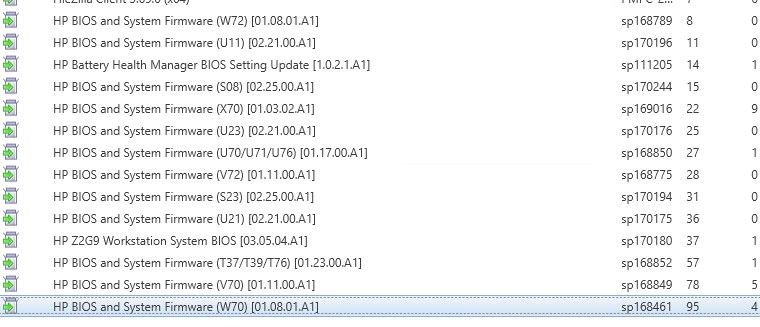
- SCCM with 3rd party patching catalog from vendors
- Always possible to do via different tools provided by vendors to keep devices up-to-date.
- Dell Command | Update Download
- Lenovo Vantage / System Update Download Lenovo System Update
- HP Image Assistant (HPIA) Download
Intune Secure Boot report
Microsoft recently released a new report for Intune to help address this issue. The goal of this report is to inventory and plan for devices that are not able to perform such tasks.
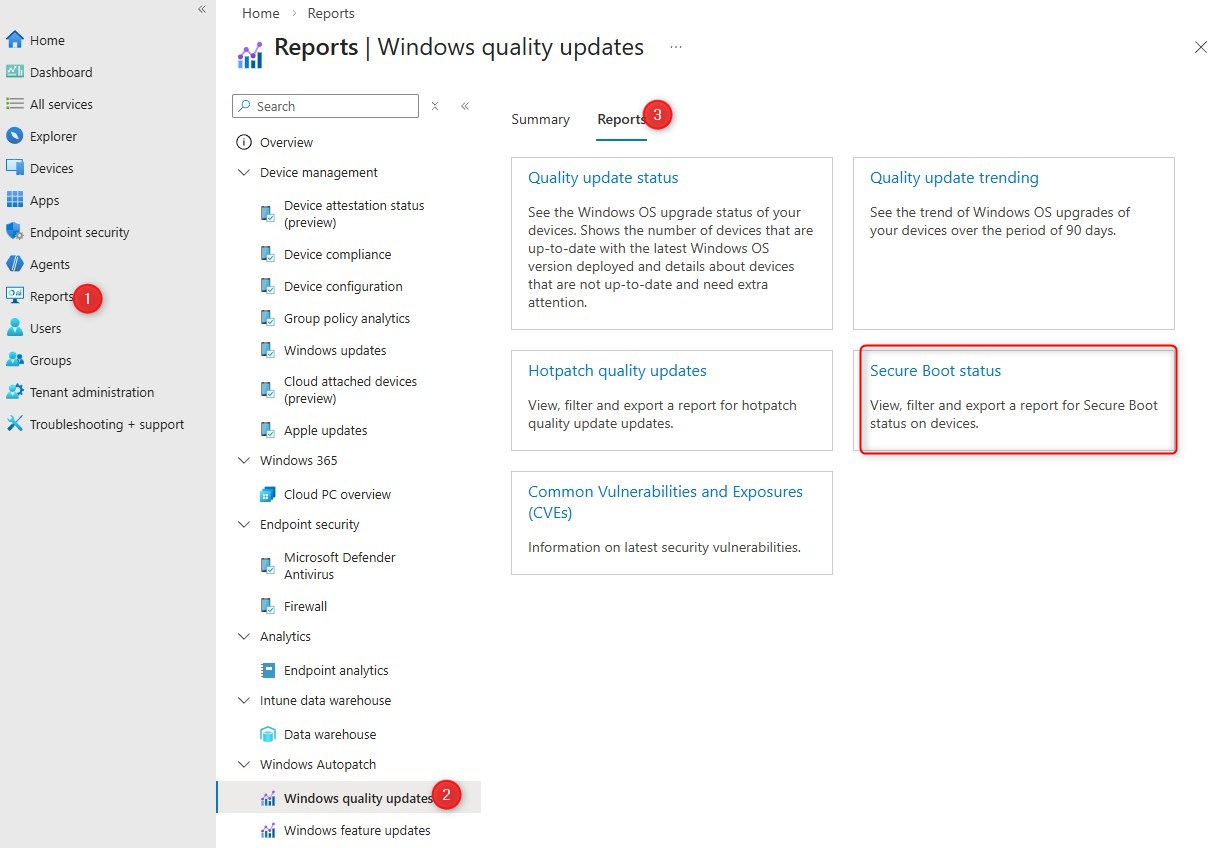
- Go to the Intune portal
- Browse to Reports / Autopatch / Windows Quality Update / Reports
- The Secure Boot status report is there.
Important to note that while it is located under Autopatch, the report will work whether you are using Autopatch, regular Windows Update for Business, or even if Configuration Manager is still the owner of the Windows update workload.
The report provides a lot of detail on the status of Secure Boot and the Certificate update. It can also list the version of the firmware to help group and identify the potential list of devices with specific models to take action.
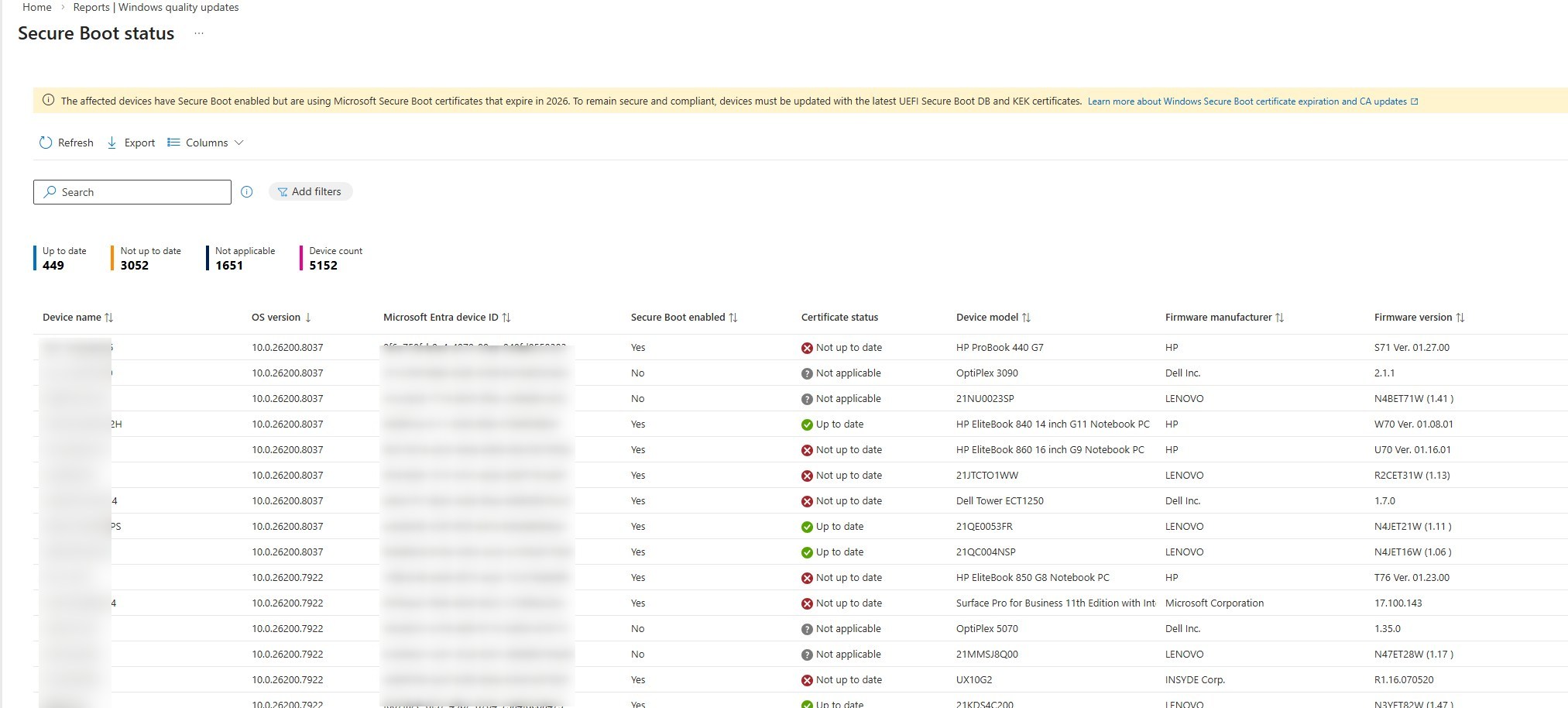
There is no action possible from the report itself.
Intune Secure Boot Certificate Remediation Script
On top of the report, a remediation script, in monitoring only, can help track progress. While the script is originally intended for Intune, it can work just fine in SCCM Compliance baseline.
- In Intune, go to Devices / Manage Devices / Scripts and remediations, create a new Remediation
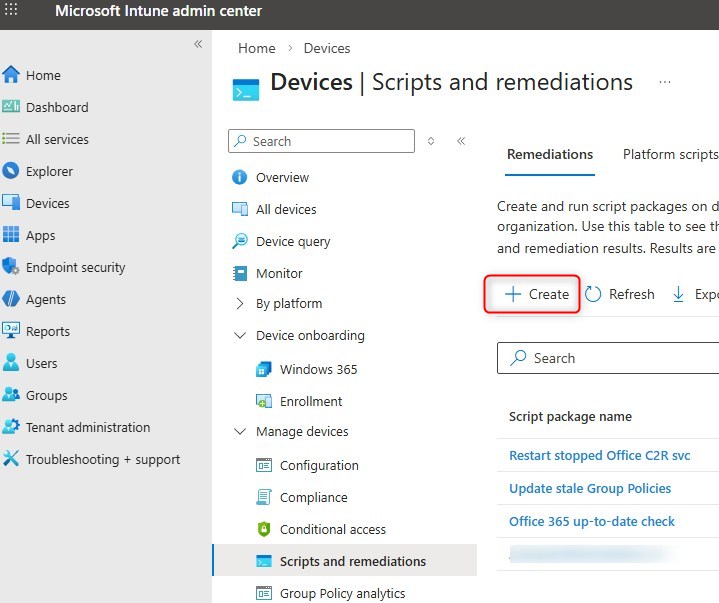
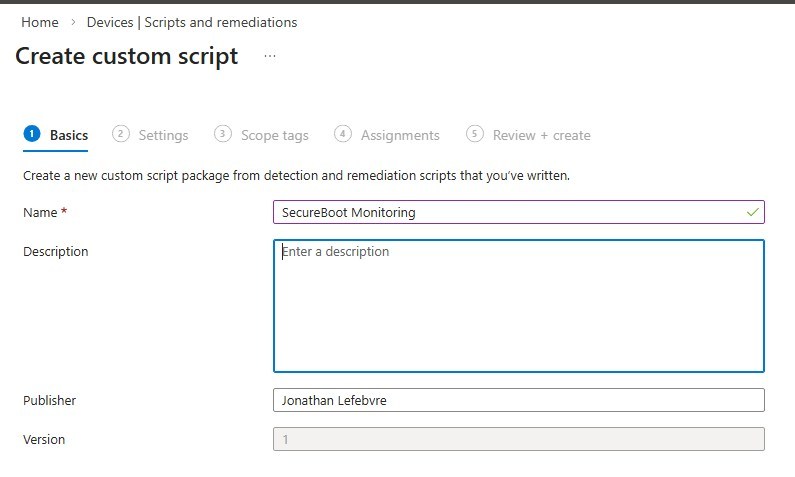
- Set the name SecureBoot Monitoring
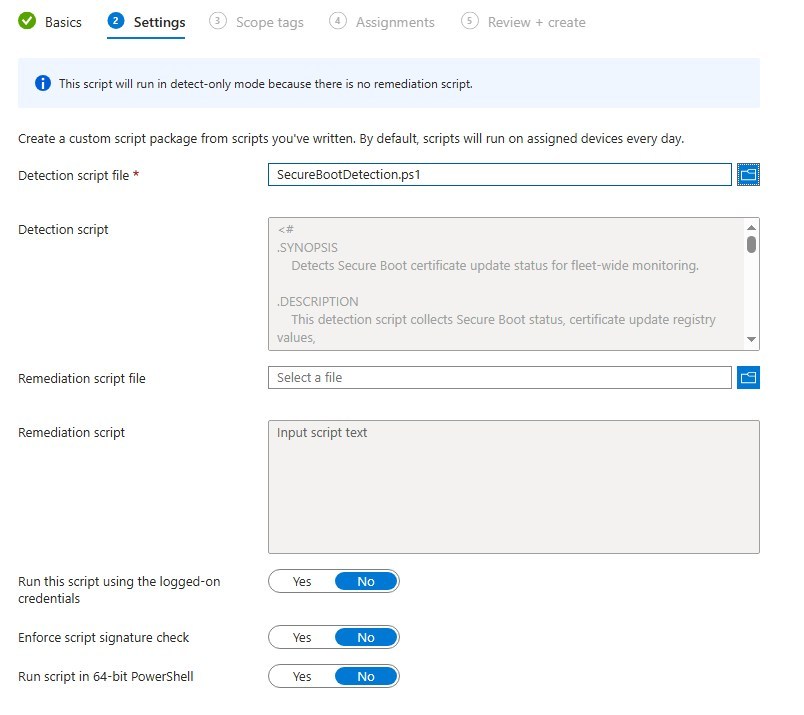
- Get the Monitoring script from Microsoft, here.
- Set the PowerShell script in the Detection Script section.
- Leave remediation empty.
- Assign the script to a group
Create an Intune policy for Secure Boot Certificate
- Go to the Intune portal
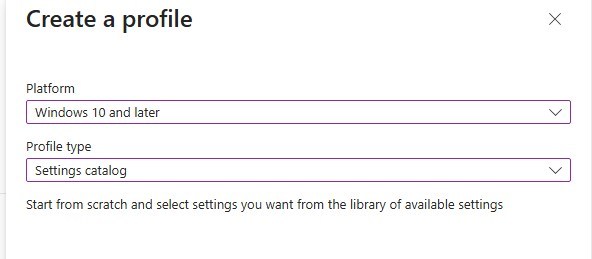
- Browse to Devices / Configurations and create a new policy
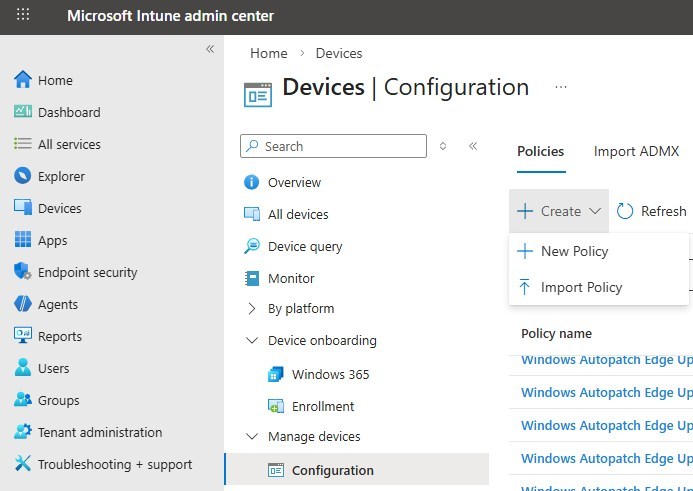
- Select Windows 10 or later and Settings catalog
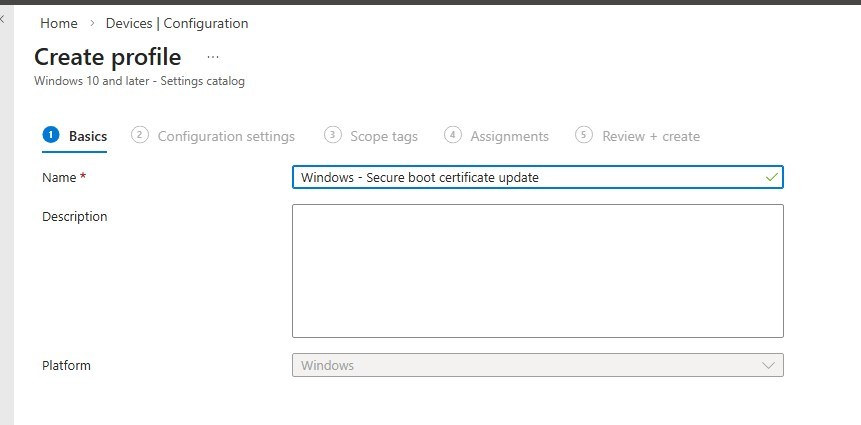
- Provide the name of the policy
- Click on Add settings and search for Secure boot
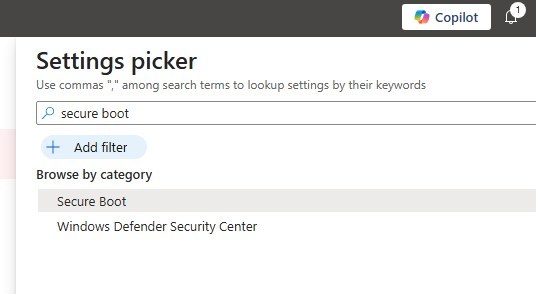
- Pick the 3 Secure boot settings.
- Enable SecureBoot Certificate Updates is the only mandatory setting.
- For Opt-in/Opt-out, review the documentation to determine the option that best fits your business.
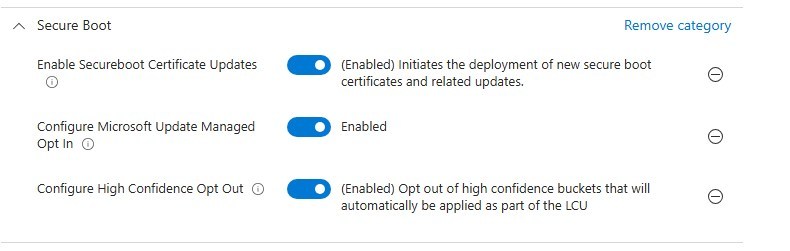
- Complete the policy and assign it to a test group
For more details about the impact of each setting, see Microsoft learn.
How to enable Secure Boot certificate update via Group Policy
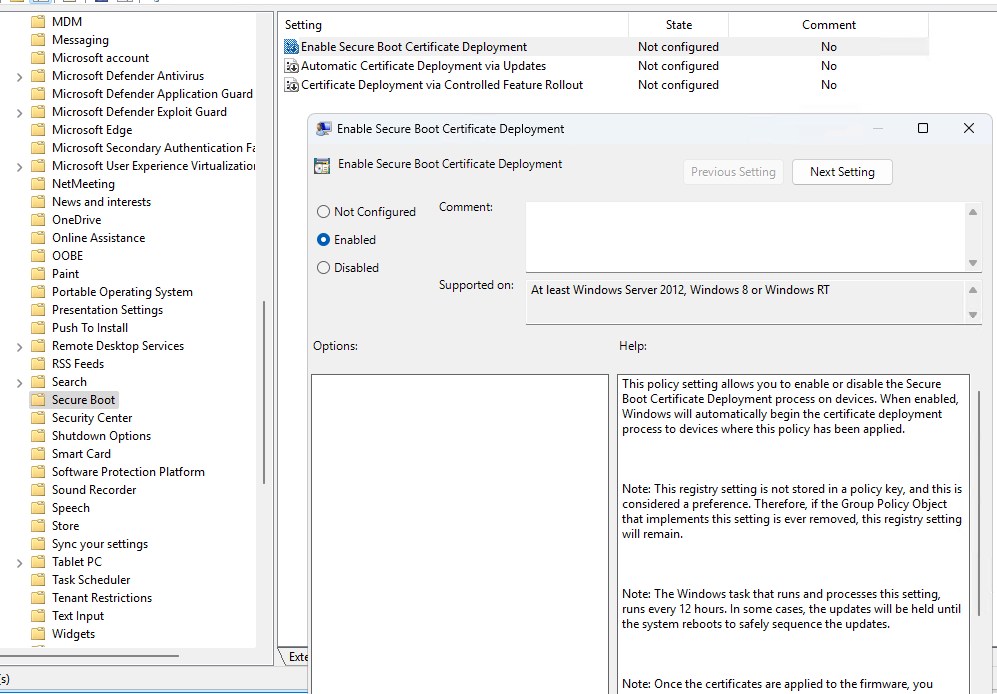
Secure boot ADMX is pretty new. There is a good chance the Central Store in SYSVOL is not up to date.
- Download the latest ADMX templates for Windows 11
- Once the SecureBoot.admx is in the central store, set the Enable Secure Boot Certificate Deployment to Enabled
- It is under Computer Configuration/ Administrative Templates / Windows Components / Secure Boot.
Validate Secure Boot policy configuration
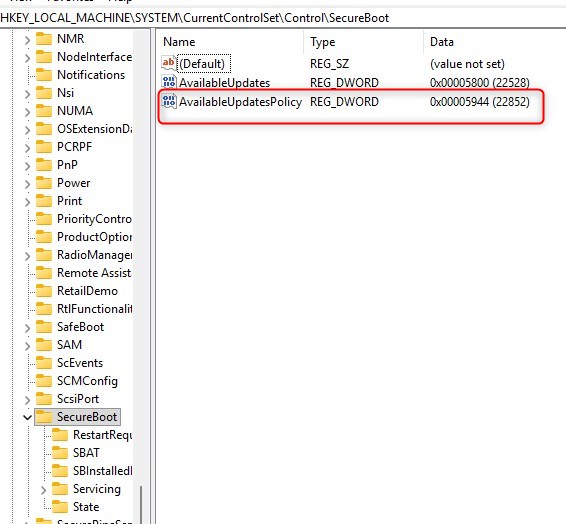
In both cases, from GPO or from Intune device configuration policy, the same registry keys are modified.
- Under HKEY_LOCAL_MACHINE\SYSTEM\CurrentControlSet\Control\SecureBoot, look for AvailableUpdatePolicy set to 5944.
- I don’t know why it creates another Reg_DWord, while leaving the AvailableUpdate with the default value.
How to monitor Secure Boot certificate update on a device
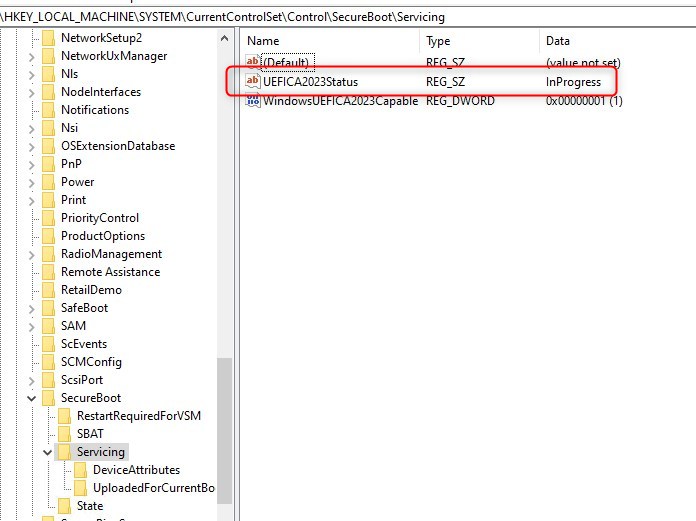
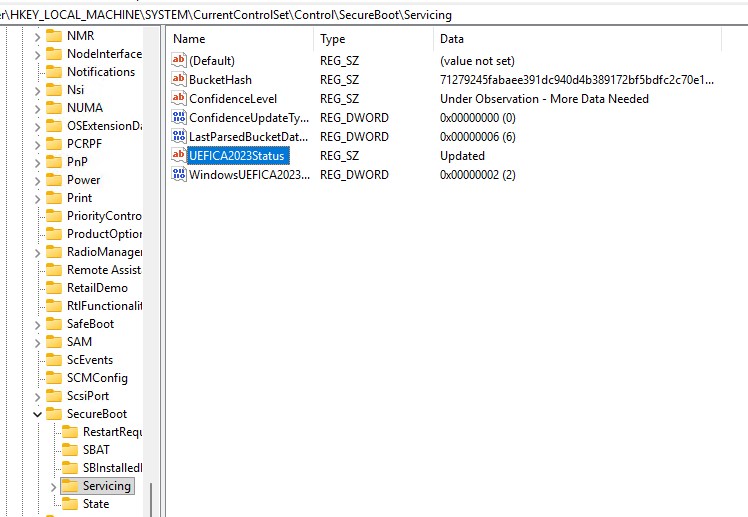
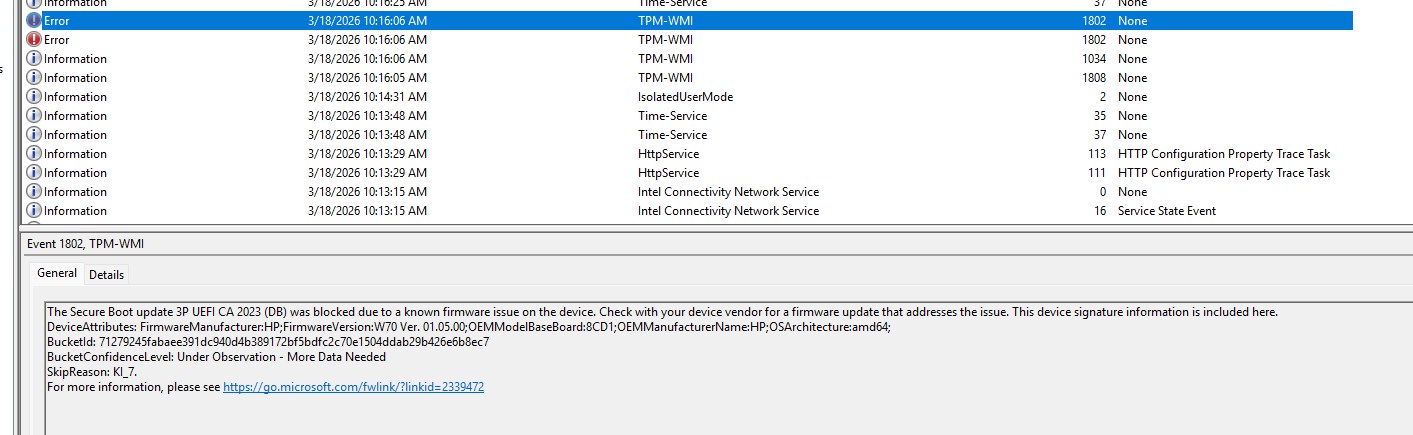
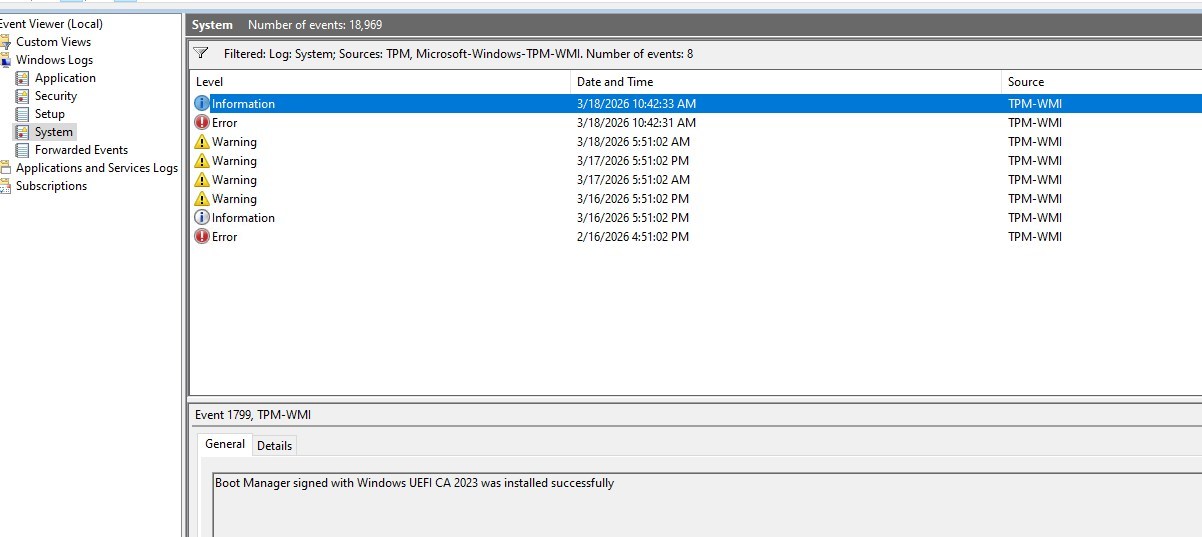
There are 2 places to look for to monitor the Secure Boot Certificate update. The registry will list SecureBoot configuration and the progress of the Certificate update. The Event viewer will also note progress for SecureBoot, but will also highlight issues enforcing the new certificate because of a Firmware issue.
- Registry
- Under HKEY_LOCAL_MACHINE\SYSTEM\CurrentControlSet\Control\SecureBoot\Servicing
- For the complete list of possible values and keys, see Microsoft documentation.
- Event Viewer
- Look under Windows Logs / System, look for sources TPM and TPM-WMI
- as this example, issues with the current outdated firmware are reported.
Intune Secure Boot Certificate – Additional notes
The Secure Boot certificate update, along with the firmware update, is still fairly new and will most likely lead to new discoveries along the way.
So here are a few notes so far:
- Some devices need more than 1 reboot to be fully compliant with the certificate and firmware.
- While the Secure Boot or the Compliance script returned compliant, I still saw some errors about the outdated firmware on some devices.
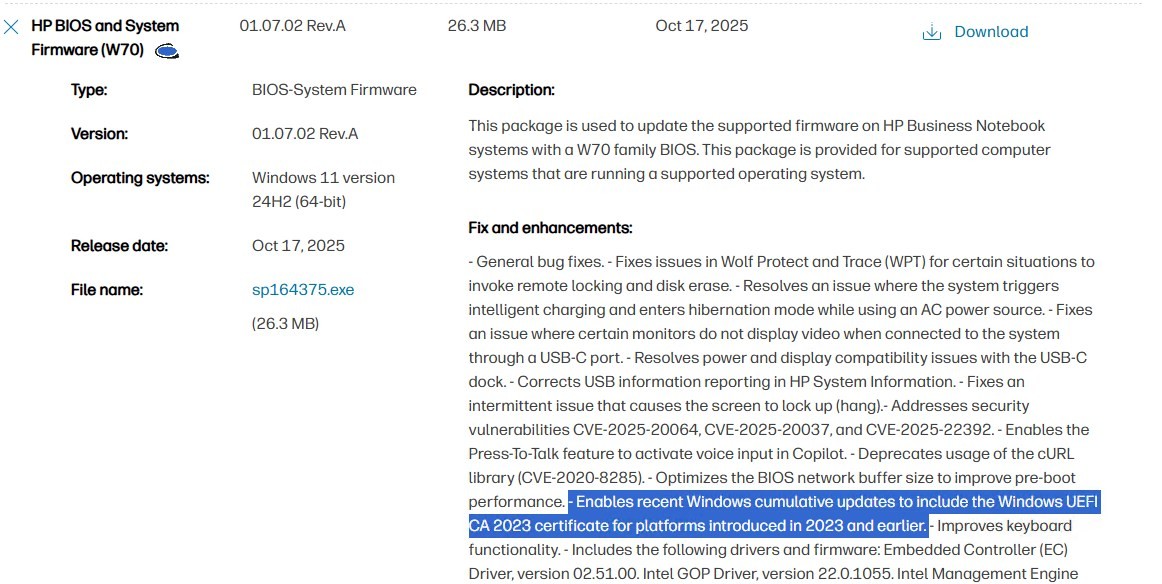
- Carefully review the list of models that need an update of firmware, BUT, don’t assume they are all listed correctly.
- Example HP Zbook Firefly G11 that isn’t listed on HP list of devices with Firmware update.
- Looking into the details, the firmware from last October
For more details about the Secure Boot certificate update, see the Microsoft TechCommunity post.
Hope this clears a bit the scope of this hot topic!
Share
Get the latest insights and exclusive content delivered to your inbox


Only authorized users can leave comments
Log In