

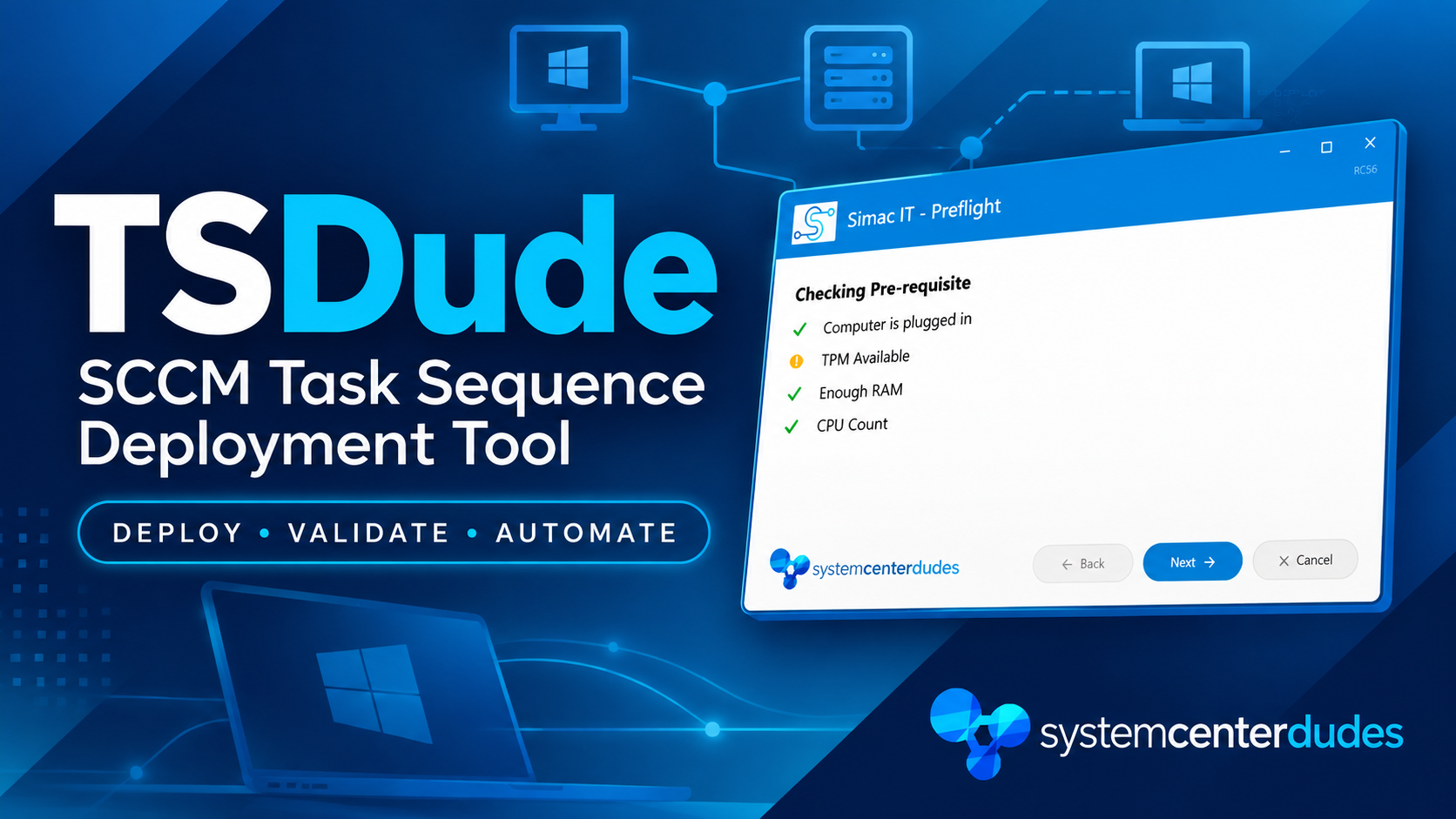
Introducing TSDude : A new Task Sequence UI
SCD Consultant, Contributor. Specialized in Microsoft Endpoint Manager (SCCM, InTune), Windows Autopilot, Windows10 (11) and Office365 Deployment and maintenance.

Marc-Andre Chartrand
Table of Content





Share


Get the latest insights and exclusive content delivered to your inbox
If there is one thing you can do to your Configuration Manager Task Sequences to streamline imaging, it’s building them around a UI that sets Task Sequence variables based on selections. There have been many major tools that filled this need over the years:
- MDT’s UDI Wizard
- It had a configurator to help you build it
- It was often overwhelming and needed many pages to accomplish simple selections
- MDT has been deprecated for a while now and newer Configuration Manager versions don’t support the MDT integration anymore
- Can’t be downloaded from official sources anymore
- MDT packages were 250MB+
- UI++
- This has been the golden standard for anyone wanting to move away from MDT
- Very lightweight
- Very powerful, but required all configurations to be done by editing an XML file
- The project is no longer maintained and source code was released to the public
- UI++ uses dependencies on VBS, which in the past has been broken in WinPE
- We covered the fix in This blog post
- TsGui
- Based on PowerShell, which removed the VBS dependency that UI++ has
- Fully customizable UI
- Lacked some features compared to UI++
- XML files were huge and hard to maintain
Why TSDude Task Sequence UI might be the best solution for you
While we always recommended UI++ at System Center Dudes, its aging VBS dependencies, XML files that some struggled to maintain and the fact that it’s no longer maintained by the developer pushed us to bridge the gap and work on a solution that would check all the boxes.
- TSDude Task Sequence UI
- Based on PowerShell
- Inspired by the great UI++ (because you don’t change a winning formula)
- Comes with a configurator helping you build and maintain your XML config files
- Custom colors and logo
- Has all the same features that UI++ had for Task Sequences, such as:
- AD Login
- AD Computer name validation
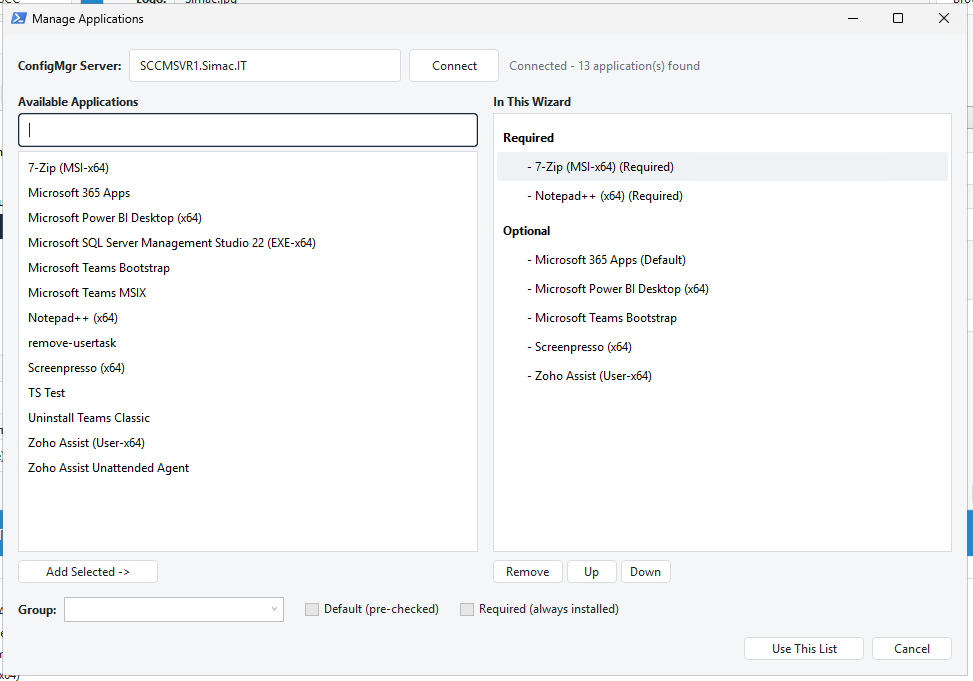
- Application tree selector
- The configurator will connect to your SCCM and offer you a list of your apps to add
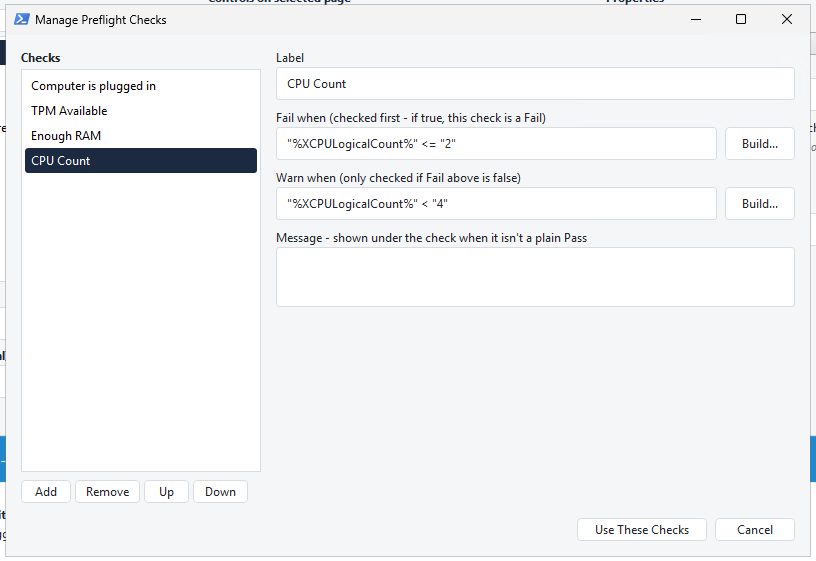
- Customizable Preflight checks
- Gathers all relevant information
- Uses the same variable names as UI++, allowing easy transition without adapting your task sequence to new variable names
- Great, useful, simple log files
- Comes with a UI++ XML Converter so you can easily move from UI++ to TsDude
- Items that can’t be migrated natively will be mentioned for review following the conversion
- Still actively maintained by System Center Dudes
- We are open to feature suggestions if they are relevant to the community
- Has a built-in Help button in the configurator bringing you to the KB, so you can quickly find any information you need to ensure you set the proper values
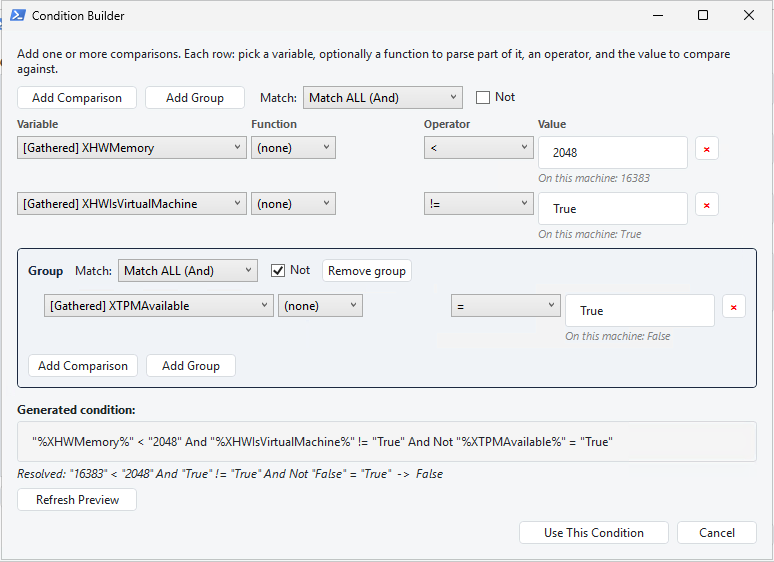
- Has a condition builder with immediate validation to confirm they work before trying in a task sequence
- Configurator has a live preview integrated so you can visualize and try your config as you build it
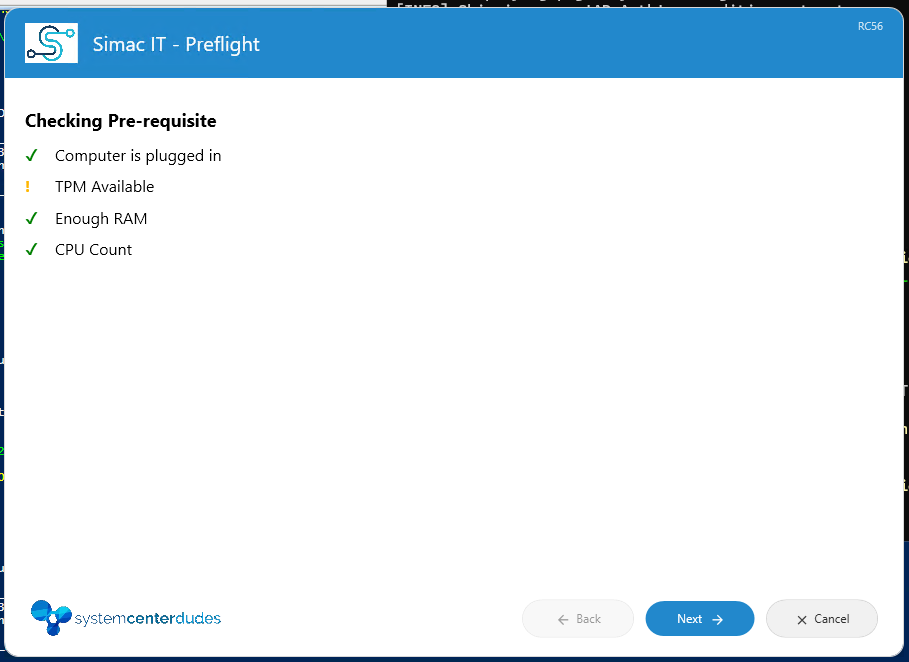
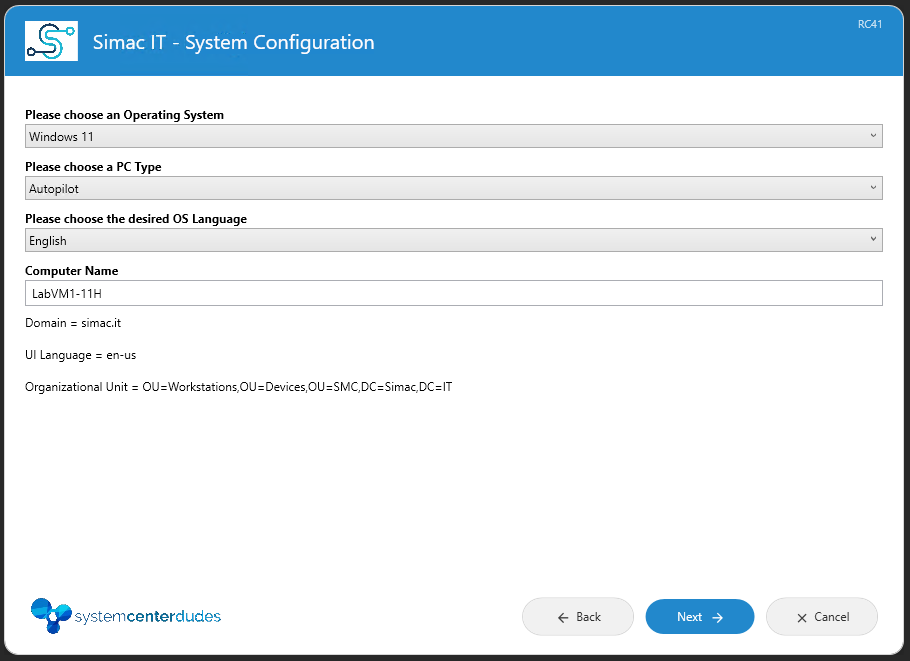
The Wizard
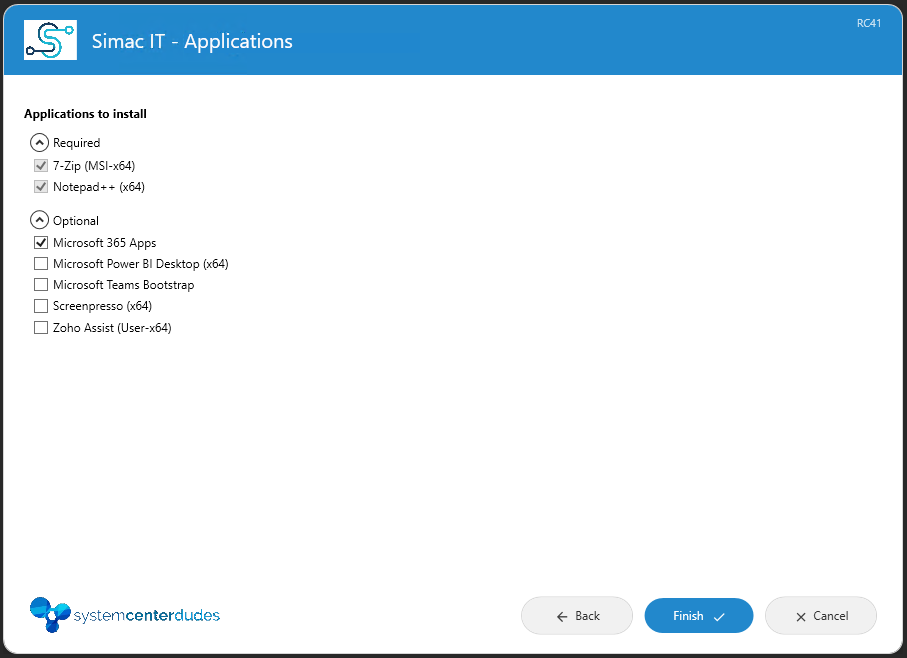
The wizard itself is what is used within the task sequence to do your selections. Here are a few sample pages from my lab config:
TSDude Task Sequence UI – The Configurator
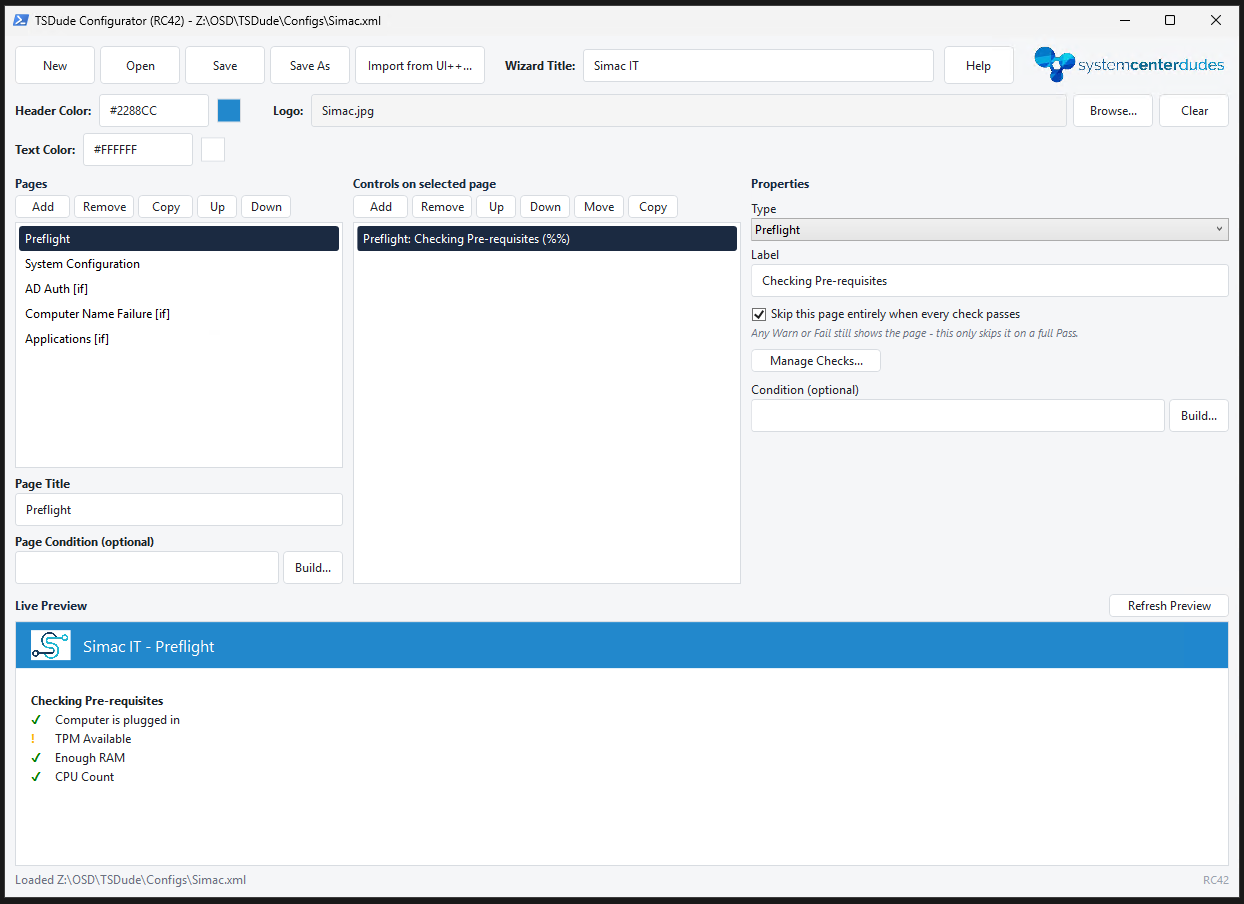
This is where the magic happens. You can entirely build your config XML from there, and also convert UI++ XML Files from here.
Here are some screens from the configurator. Note that these pictures were taken from a Release Candidate (RC) version and may look slightly different from the versions released in the future.
Main page of the configurator:
Preflight checks builder:
Condition builder:
Application selector, with a search field:
TsDude Prerequisites
To implement TsDude in your environment, the process is very similar to UI++, but you’ll need to add the PowerShell component to your boot image first.
In your SCCM Console, go to Software Library->Operating Systems->Boot Images
Right-Click on the boot image you use in production, and go to properties
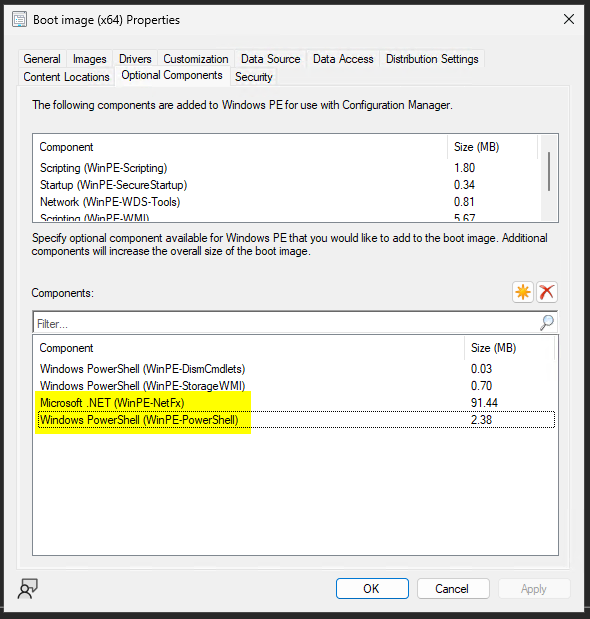
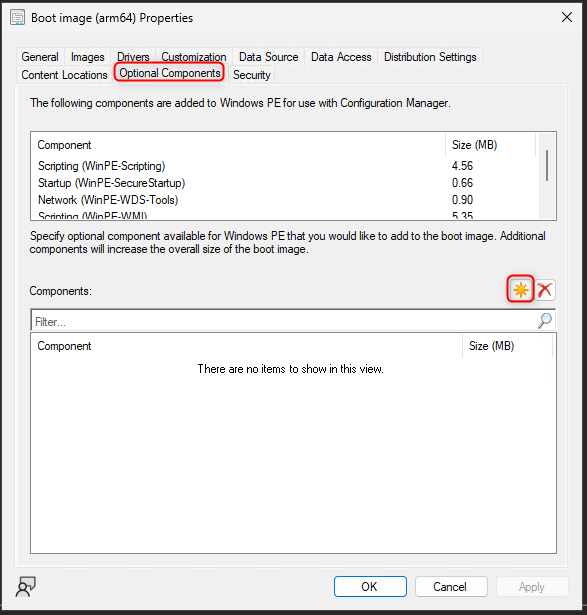
From there, click on the Optional Components tab.
You need to ensure you have WinPE-PowerShell and WinPE-NetFx in your list of components:
If you don’t, then you can click on the Yellow star button to add new components
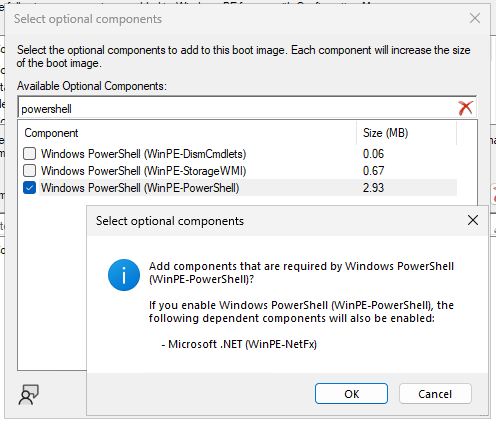
Select WinPE-PowerShell from the list, this will automatically pull the dependency on WinPE-NetFx
Click apply to save your boot image, and say yes to redistribute it to your Distribution Points.
Adding the Package to SCCM
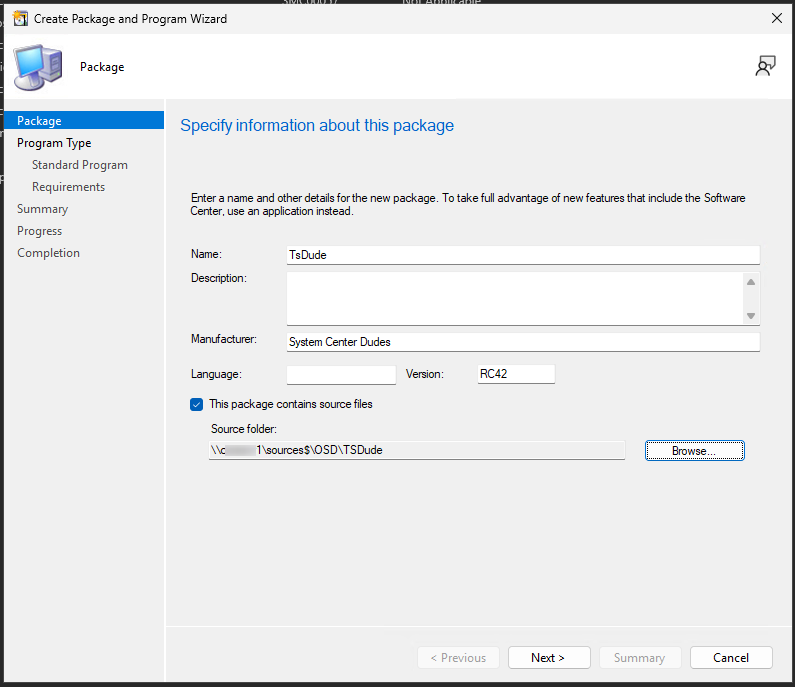
Create a package that points to the TsDude folder that contains all the scripts, your logo, and your configuration file
- Go to Software Library -> Application Management -> Packages
- Create a new package, and name it TsDude
- Point it to the TsDude folder
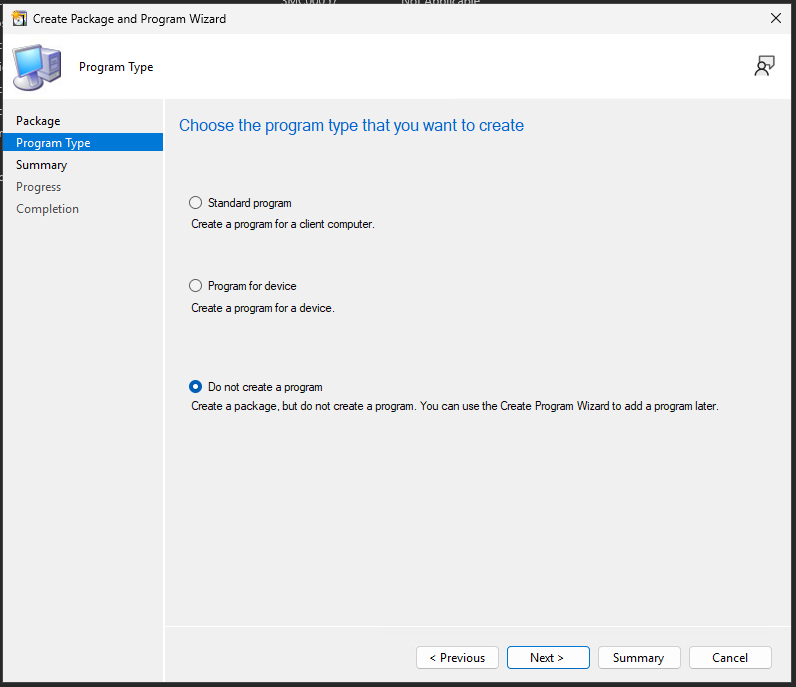
- select Do not create a program, then simply click next until the end.
- Be sure to distribute the package to all distribution points that can image devices
Task Sequence implementation
It’s recommended you build a copy of your existing Task Sequence while you complete the implementation of TsDude to avoid impacting production until you’re ready to do the cut over.
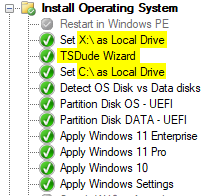
- Create a “Run PowerShell script” step near the top of your Task Sequence
- If you don’t use disk encryption (BitLocker), you can put TsDude before the format drive step.
- If you use BitLocker disk encryption, you can either:
- put TsDude just after the format drive step
- Set the Task Sequence Variable SMSTSLocalDataDrive = X: before TsDude, then SMSTSLocalDataDrive = C: after the format disk step.
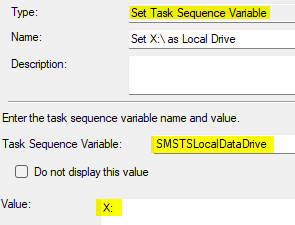
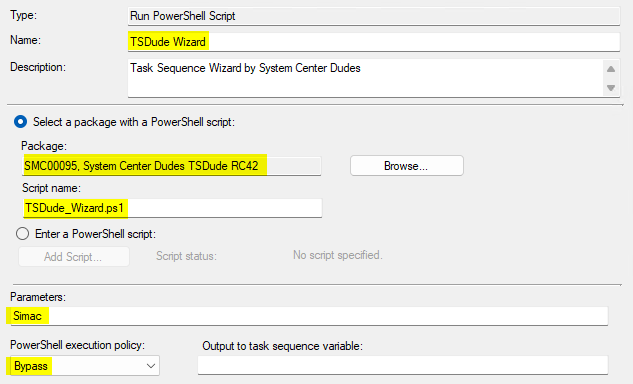
- Set a descriptive name, such as TsDude Wizard
- Select your previously created Package that contains TsDude
- for the Script name, enter TsDude_Wizard.ps1
- under Parameters, you can put the name of the config file. Formats accepted are:
- Name
- Name.xml
- Configs\Name.xml
- Set the execution policy to Bypass
With all steps created, your task sequence should look something like this:
Where can I download TSDude?
As with all our products, TsDude is available through the Free System Center Dudes subscription.
Share
Get the latest insights and exclusive content delivered to your inbox


Only authorized users can leave comments
Log In