

How to Configure Intune Remote Help (Step-by-Step Guide)
Founder of System Center Dudes. Based in Montreal, Canada, Senior Microsoft SCCM Consultant, 8 times Enterprise Mobility MVP. Working in the industry since 1999. His specialization is designing, deploying and configuring SCCM, mass deployment of Windows operating systems, Office 365 and Intune deployments.

Benoit Lecours
PresidentTable of Content


Share


Get the latest insights and exclusive content delivered to your inbox
Remote support has become an essential part of modern IT administration. Whether your users are working from the office, remotely, or in a hybrid environment, being able to securely connect to their devices is critical for reducing downtime and improving the end-user experience.
Intune Remote Help provides organizations with a secure, cloud-based remote assistance solution that integrates directly with Microsoft Intune and Microsoft Entra ID. Unlike traditional remote access tools, Remote Help uses your existing identity, Conditional Access policies, and Intune role-based access control (RBAC) to ensure only authorized administrators can provide support.
Until recently, deploying Intune Remote Help required purchasing either the Intune Suite or a dedicated Remote Help add-on. Microsoft is changing that by including Remote Help with Microsoft 365 E3 and E5 licenses. For many organizations, this removes an extra licensing step and makes it much easier to deploy a secure, enterprise-ready remote support solution that’s integrated with Intune, Microsoft Entra ID, and your existing security policies.
In this blog post, we’ll walk through the complete deployment of Intune Remote Help, including licensing requirements, Intune configuration, application deployment, RBAC configuration, and common troubleshooting tips.
What is Intune Remote Help?
Remote Help is Microsoft’s enterprise remote assistance solution for organizations managing devices with Microsoft Intune.
It allows IT administrators and help desk technicians to securely view or control Windows devices while maintaining security and compliance through Microsoft Entra ID authentication.
Some of the key capabilities include:
- Secure authentication using Microsoft Entra ID
- Integration with Intune RBAC
- Conditional Access support
- Elevation during support sessions
- Device compliance visibility
- Audit logging
- Secure screen sharing and remote control
Unlike consumer remote assistance tools, Remote Help was designed specifically for enterprise environments where security and auditing are essential.
Intune Remote Help vs Quick Assist
Many administrators ask whether they should continue using Microsoft’s free Quick Assist application or deploy Remote Help.
While both applications allow remote assistance, Remote Help offers significant advantages for managed environments.
At first glance, Remote Help and Quick Assist appear very similar. Both allow a support technician to view or control a user’s Windows device over the internet. However, Remote Help was built specifically for enterprise environments. It integrates with Microsoft Intune, supports Intune RBAC, provides device compliance information during a session, can be protected by Conditional Access policies, and supports administrative elevation when authorized. Quick Assist remains an excellent free option for occasional support, but organizations already managing devices with Microsoft Intune will benefit from the additional security, governance, and management capabilities offered by Remote Help.
If your organization already manages devices with Microsoft Intune, Remote Help is the recommended solution.
Intune Remote Help Prerequisites
Before deploying Remote Help, verify the following requirements.
Licensing
Remote Help licensing has changed. Remote Help was previously available through the Microsoft Intune Suite or as a standalone Remote Help add-on. Microsoft is now expanding access by including Remote Help with select Microsoft 365 plans, including Microsoft 365 E3 and E5.
This means many organizations no longer need to purchase a separate Remote Help add-on, depending on their licensing agreement and rollout timing. Always validate availability in your tenant before deployment.
Verify that both helpers and users have the required licenses assigned.
Supported Platforms
Remote Help currently supports:
- Windows x86, x64, and ARM64 (Windows 10 (19042+) and Windows 11)
- Windows 365
- Azure Virtual Desktop (desktop and RemoteApp sessions)
- macOS 13 (Ventura)
- macOS 14 (Sonoma)
- macOS 15 (Sequoia)
- macOS 26.0 (from version 1.0.2509231 of Remote Help and later)
- Samsung Knox devices (Device Compatibility Knox Solutions)
- Zebra devices (MX version 8.3 or later.)
Network
Both the helper and sharer must be able to reach specific endpoints over port 443.
Required Permissions
- The sharer’s Windows device must be enrolled into the same tenant where the Remote Help session is starting from.
- Intune-enrolled devices must be registered with Microsoft Entra.
- Helpers must have the appropriate role-based access control (RBAC) permissions assigned to their user account. The following table lists the available permissions for Remote Help and their descriptions.
| Permission | Description |
|---|---|
| Remote Help – View screen | Allows the helper to view the sharer’s screen without taking control. |
| Remote Help – Take full control | Allows the helper to take full control of the sharer’s device. |
| Remote Help – Elevation | Allows the helper to interact with the user account control prompts on Windows. |
| Remote Help – Unattended | Allows the helper to connect to Android devices without requiring the sharer to accept the connection each time. This capability requires the Android device to be enrolled in Intune as a dedicated device. |
| Remote Tasks – Offer remote assistance | Allows the helper to offer remote assistance to users. |
| Remote Assistance Connector – Read | Required to allow the user to see if Remote Help is configured for the tenant when starting a session. |
Deploy Intune Remote Help
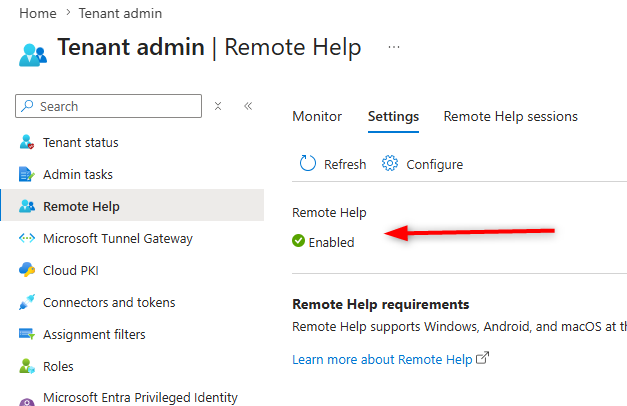
Step 1 – Enable Remote Help
- Open the Microsoft Intune Admin Center.
- Navigate to Tenant administration / Remote Help / Settings / Configure
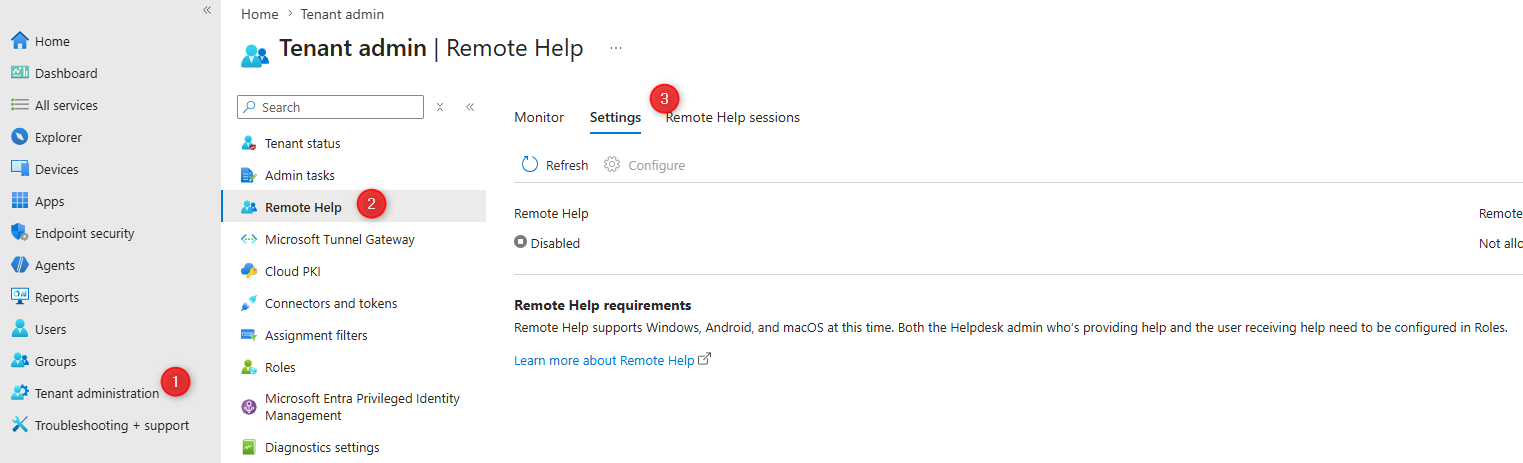
- On the right pane : Enable Remote Help
- Select Save
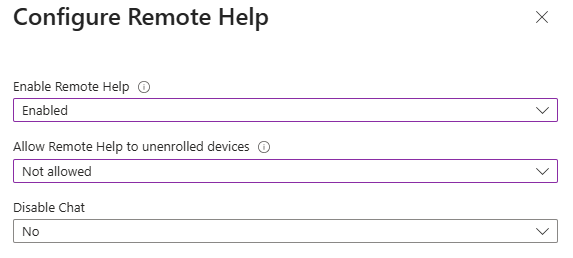
We recommend not enabling Allow Remote Help to unenrolled devices. While this can be useful during migrations or temporary support scenarios, most organizations should leave this disabled unless there’s a clear business requirement.
Once enabled, you’ll see that Intune Remote help is enabled.
Step 2 – Configure Intune RBAC
Remote Help relies on Intune Role-Based Access Control.
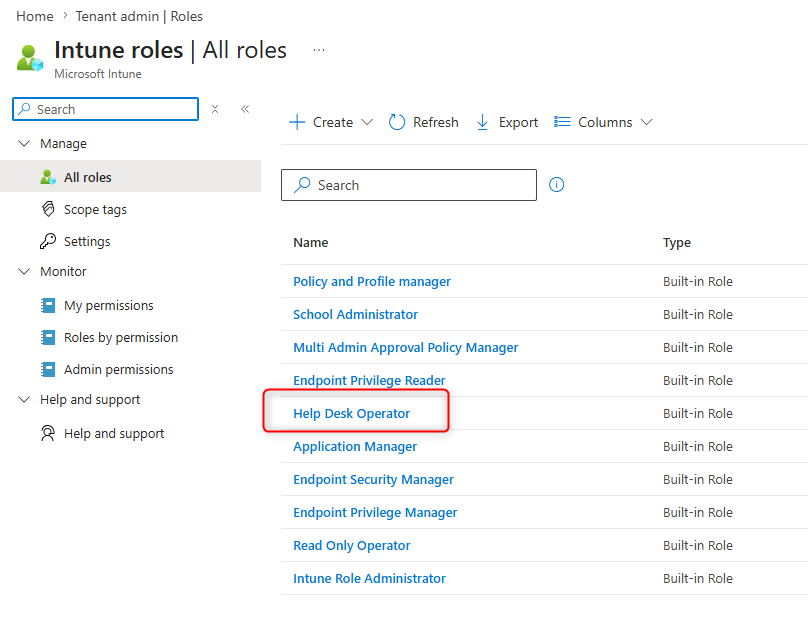
- Navigate to Tenant administration / Roles
You can either assign one of Microsoft’s built-in roles or create a custom role specifically for your support team. The built-in Help Desk Operator role includes all of the required permissions for Remote Help.
For our test we will use a user that is member of Help Desk Operator
Step 3 – Deploy the Remote Help Application
The Remote Help client must be installed on managed devices. You can download and deploy the app to enrolled devices.
There are two common deployment methods.
Option 1 – Enterprise App Catalog
If available in your environment, the Enterprise App Catalog offers the easiest deployment experience. This approach eliminates the need to manually package the installer.
The Enterprise App Catalog is a feature of Enterprise App Management (EAM), which is part of Microsoft Intune Suite and available for trial and purchase. For more information, see Microsoft Intune advanced capabilities.
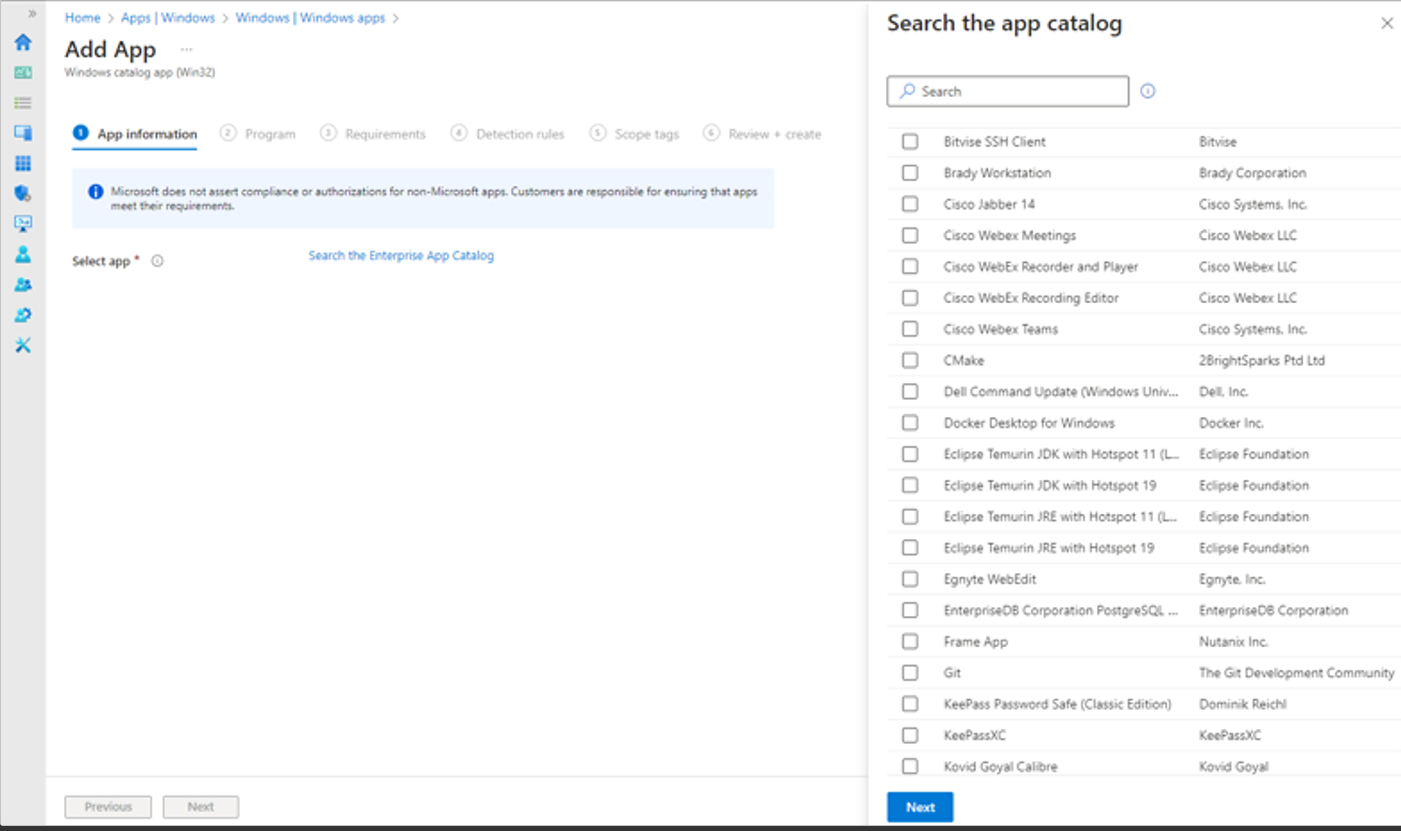
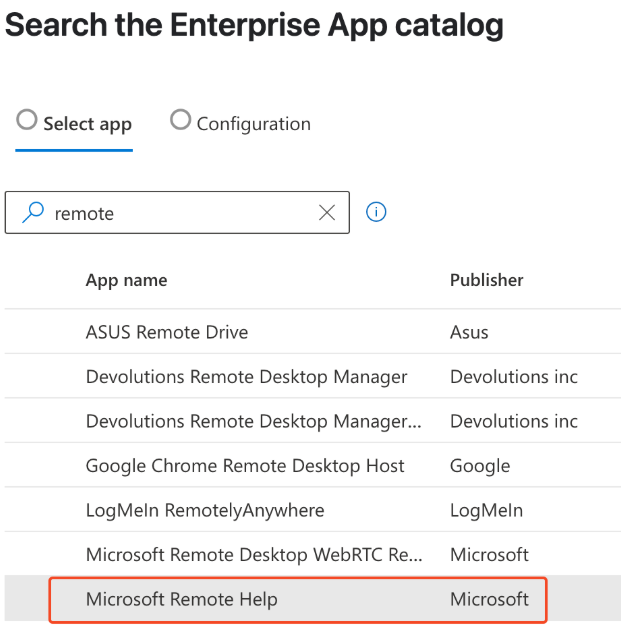
- Select Microsoft Remote Help and deploy it as a required application.
Option 2 – Win32 Application
If you prefer full control over deployment, package the installer as a Win32 application.
Download the Remote Help app installer from the Microsoft website and create a Win32 app with the Microsoft Win32 Content Prep Tool. If you’re not familiar with the process, you need to convert the downloaded .exe to a intunewin file before creating the app.
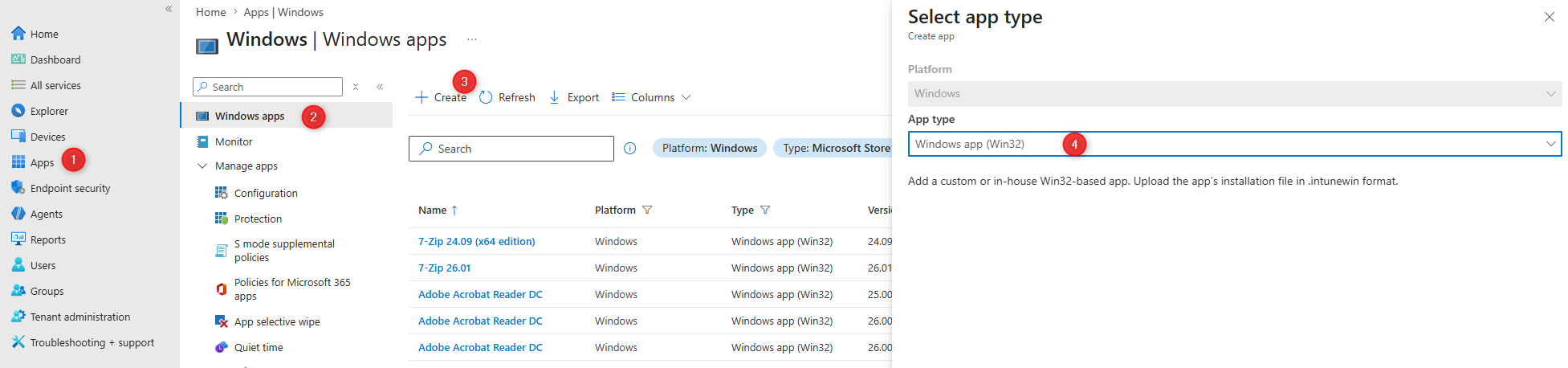
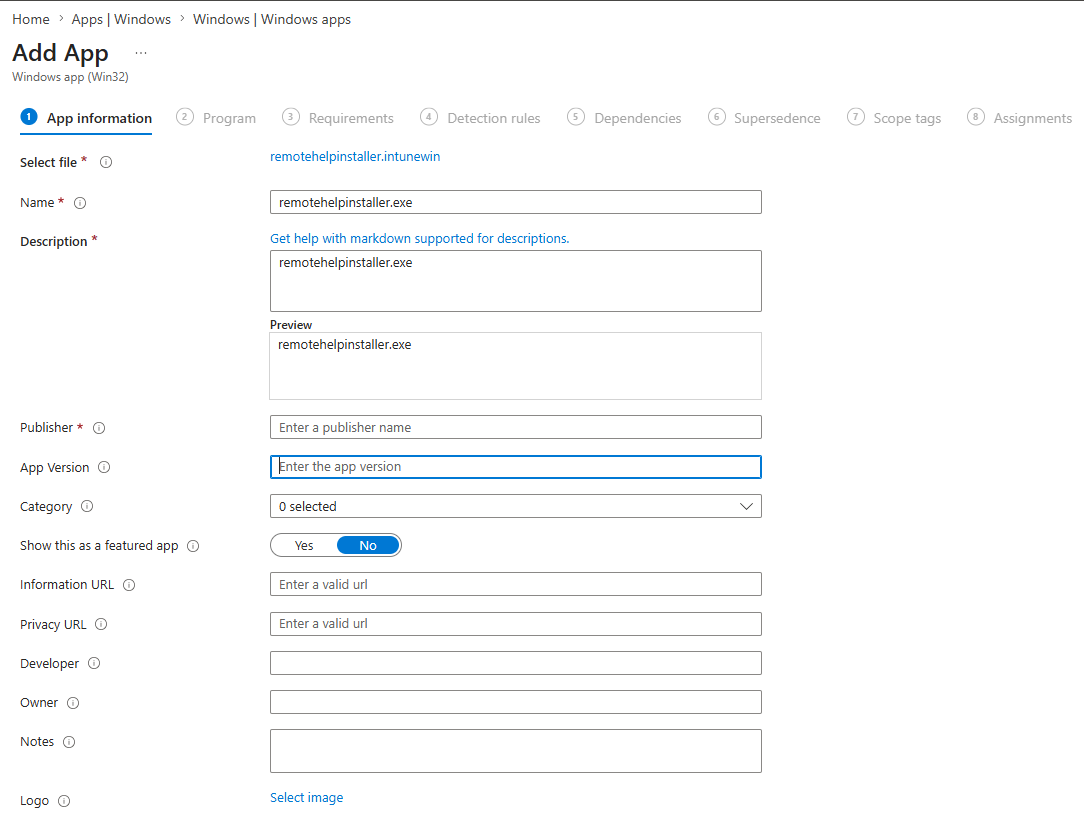
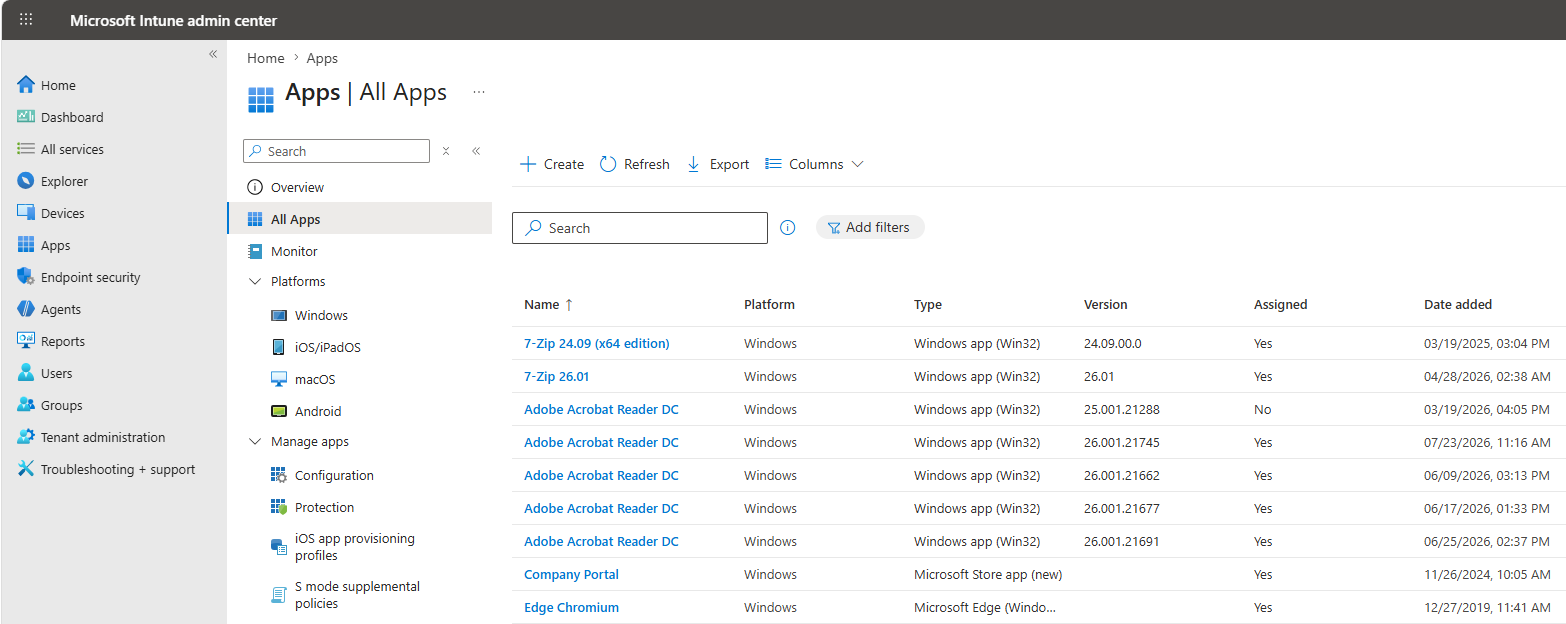
Go to Apps / Windows / Create / Windows app (Win32)
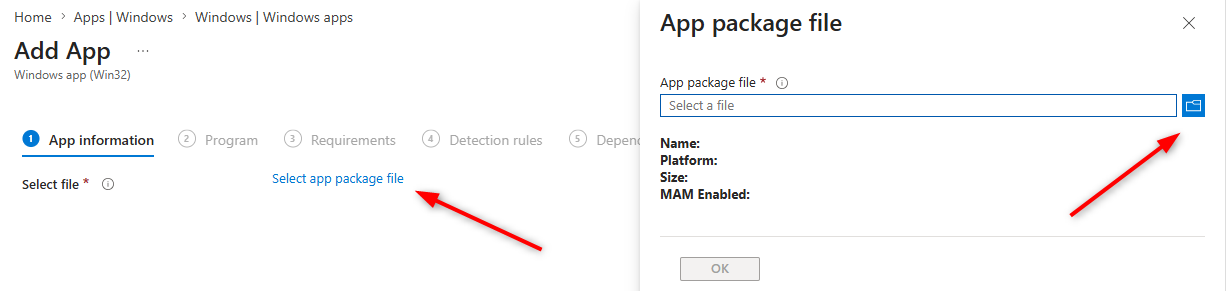
- Select the Remote help intunewin file you create from the downloaded .exe
- Enter the Remote Help app information. This is important if you’re deploying your app as available to your user through the Company portal.
- For the version, you can check in the properties of the downloaded .exe. At the time of this writing, the most recent version of Remote Help is 5.2.1037.0.
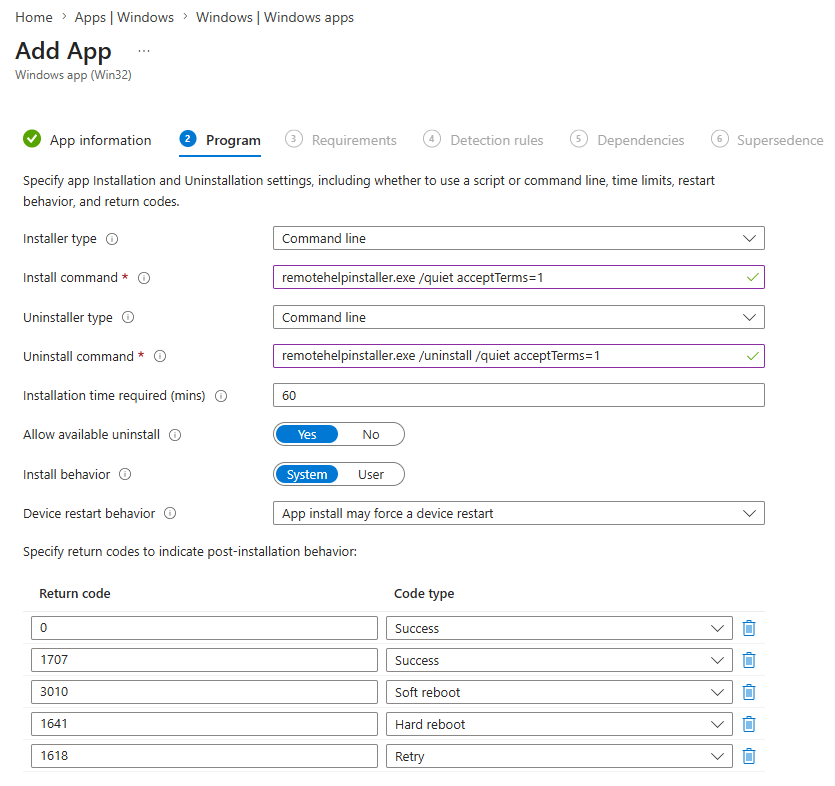
- On the Program page, configure the following options:
- For Install command line, specify remotehelpinstaller.exe /quiet acceptTerms=1.
- For Uninstall command line, specify remotehelpinstaller.exe /uninstall /quiet acceptTerms=1.
To opt out of automatic updates, specify enableAutoUpdates=0 as part of the install command remotehelpinstaller.exe /quiet acceptTerms=1 enableAutoUpdates=0.
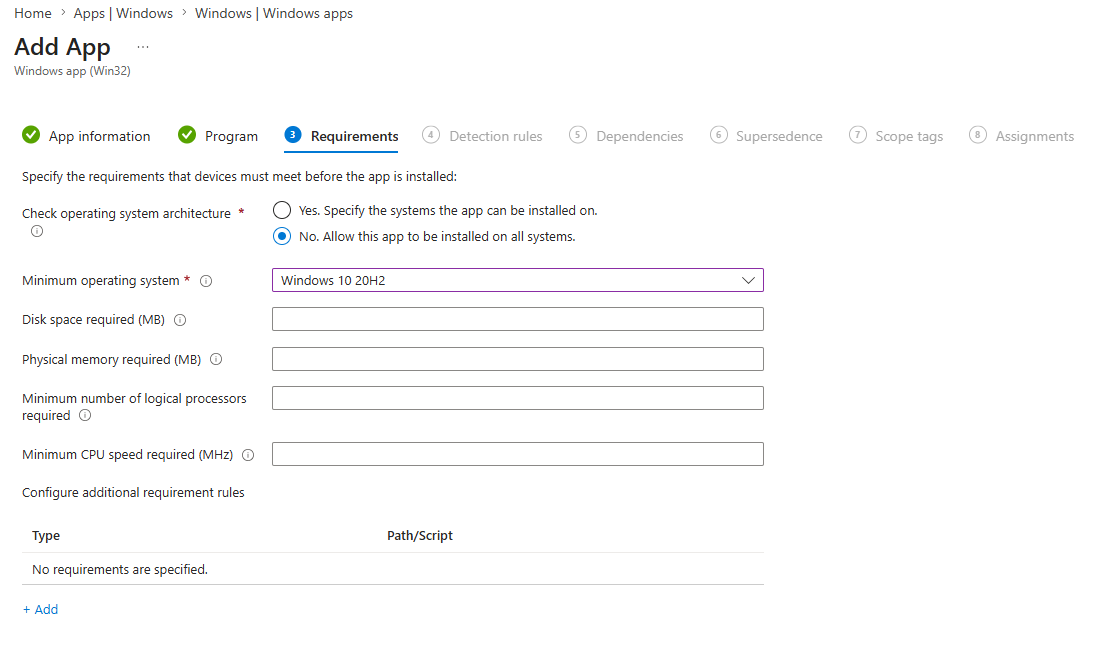
- If needed, enter some requirements; we entered Windows 10 20H2 (19042) as a minimum OS requirement.
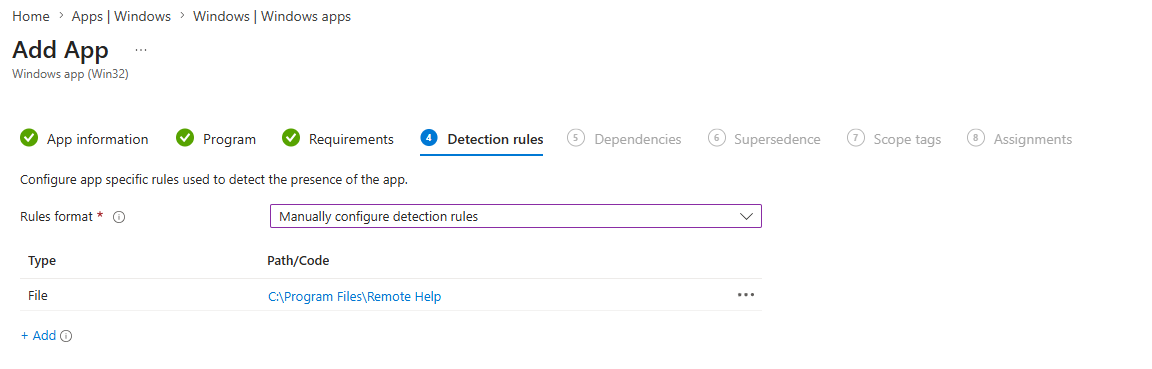
- On the Detection rules page, for Rules format, select Manually configure detection rules, and then select Add to open the Detection rule pane. Configure the following options:
- For Rule type, select File
- For Path, specify C:\Program Files\Remote Help
- For File or folder, specify RemoteHelp.exe
- For Detection method, select String (version)
- For Operator, select Greater than or equal to
- For Value, specify the Remote Help version that you’re deploying. For example, 10.0.22467.1000. See the next note in this article for details on how to get the Remote Help version.
- Leave Associated with a 32-bit app on 64-bit clients set to No
To get the version of the RemoteHelp.exe, install RemoteHelp manually on a machine and run the following PowerShell command:
(Get-Item "$env:ProgramFiles\Remote Help\RemoteHelp.exe").VersionInfo. From the output, make a note of the FileVersion and use it to specify the Value in the detection rule.
- Skip the Dependencies and Supersedence section
- Deploy the application as Required to the desired group. For our test, we select all devices
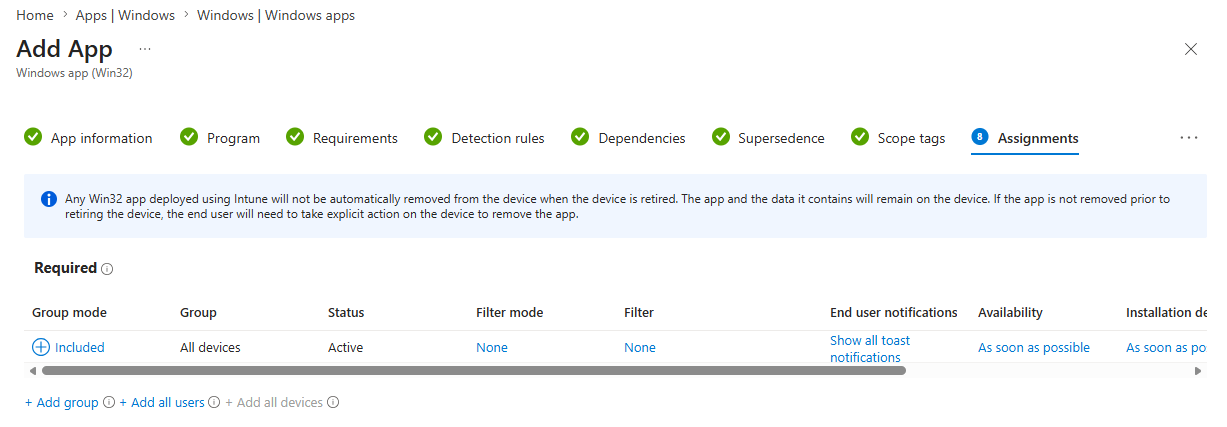
If you’re piloting Remote Help, start with a small device collection before expanding deployment across the organization.
Step 5 – Start a Remote Help Session
Once the application is installed, administrators can initiate a support session to the devices that has received the app.
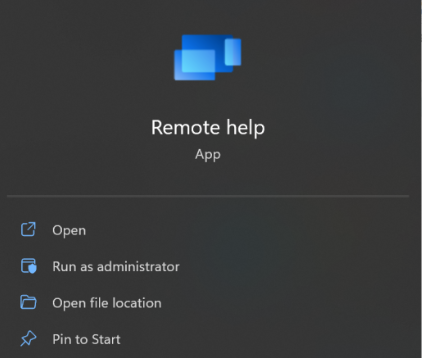
There are two common methods to start a remote help session
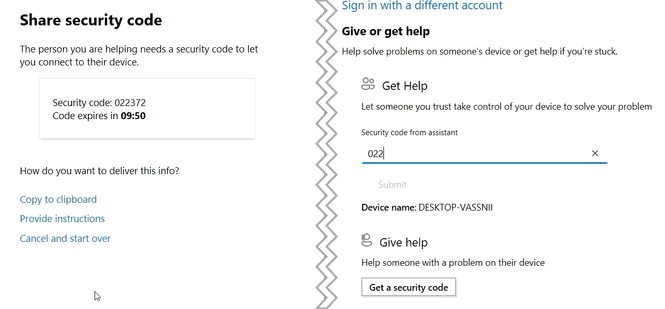
From the Remote Help Application
This method is completely standalone, we’ll just list the step but this post will focus on the Intune method.
- Launch Remote Help
- The helper generates a security code.
- The end user enters the code and accepts the request.
- Once approved, the technician can view or control the device based on assigned permissions
From the Intune Admin Center
Microsoft has also integrated Remote Assistance directly into the Intune portal. This is the method that interest us.
- Go to Devices / Windows / Select Device / New Remote Assistance Session
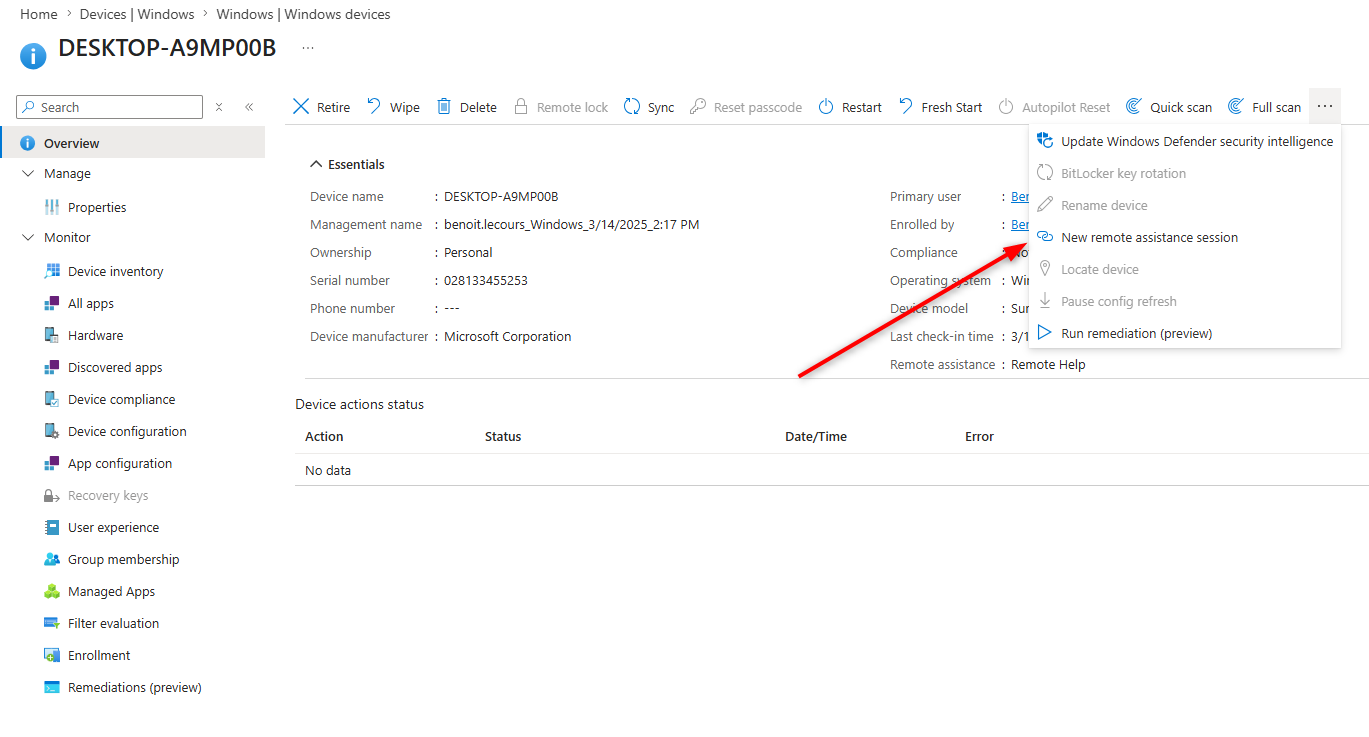
This simplifies the support experience since administrators can initiate sessions directly from the device they’re already managing.
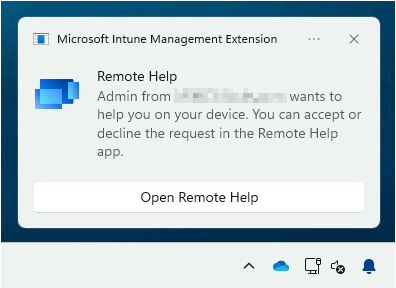
- The user will receive a notification to accept the remote help session. . If your computer is in do not disturb mode, the user might not see the notification
- Once the user has allowed the control. You’ll see the screen of the end user in Remote Help.
- The helper can request to move from screen sharing to full control if the session started with screen sharing only. You can choose to Allow full control or to Decline the request.
Intune Remote help Troubleshooting
Session Monitoring
You can monitor the use of Remote Help from within the Microsoft Intune admin center.
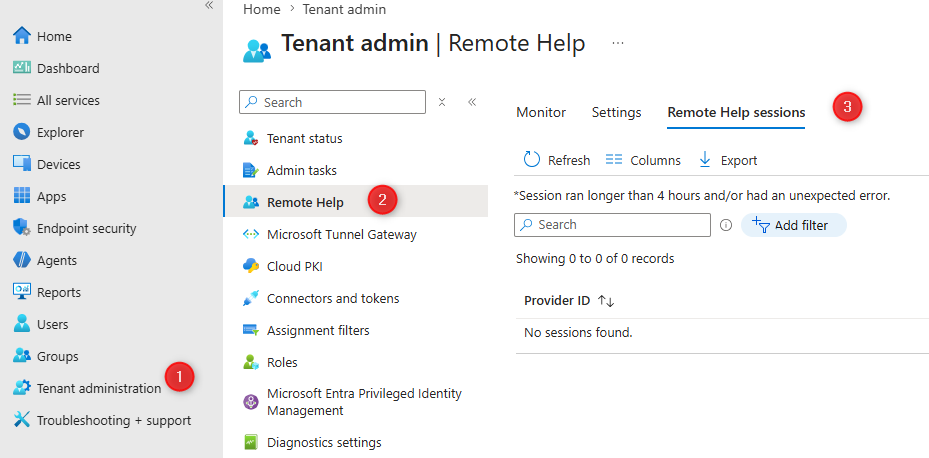
- From the Intune go to Tenant admin > Remote Help.
- On the Monitor tab, you can see a count of active sessions and historical data about past sessions.
- On the Remote Help sessions tab, you can see the records of past sessions
Remote Help Log Files
Operational logs – During use of Remote Help, operational details are logged in the Windows Event Viewer:
- Event Viewer / Application and Services / Microsoft / Windows / RemoteHelp
User cannot sign in
Both the helper and sharer must sign in with a Microsoft Entra account from your organization. You can’t use Remote Help to assist users who aren’t members of your organization.
User is not receiving Remote Help Notifications
This may be cause by one of these :
- Ensure that the DisallowCloudNotification CSP (./Device/Vendor/MSFT/Policy/Config/Notifications/DisallowCloudNotification) is not enabled
- If the device is in do not disturb mode, notifications for Remote Help session requests won’t be shown. Disable don’t disturb mode and try again
- Notifications for remotely triggering a Remote Help session fail if the Microsoft Intune Management Service isn’t running.
Helper cannot take control
Usually this indicates an RBAC issue. The helper must be assigned to an Intune role with Remote Help permissions and have the “Offer remote assistance” permission.
Session cannot start
- Verify network prerequisite and firewall rules
- Also ensure both devices are running the latest Remote Help client.
Final Thoughts
Microsoft Intune Remote Help provides organizations with a modern, secure alternative to traditional remote assistance tools.
By integrating directly with Microsoft Intune, Microsoft Entra ID, Conditional Access, and Intune RBAC, administrators can provide remote support without sacrificing security or compliance.
If you’re already managing Windows devices with Microsoft Intune, deploying Remote Help is a no brainer and can significantly improve both IT efficiency and the end-user support experience.
Share
Get the latest insights and exclusive content delivered to your inbox


Only authorized users can leave comments
Log In