

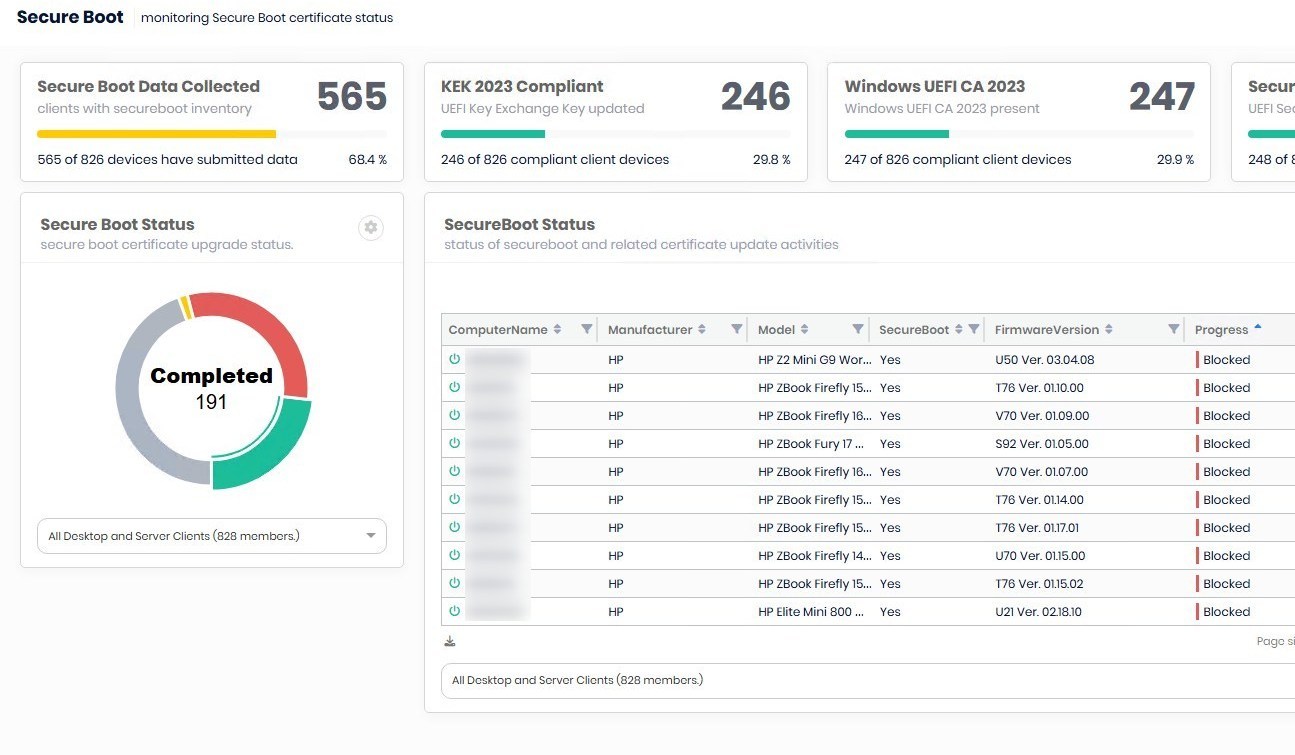
Patch My PC Advanced Insight Secure boot Reporting
Contributor of System Center Dudes. Based in Montreal, Canada, Senior Microsoft SCCM consultant, working in the industry for more than 10 years. He developed a strong knowledge of SCCM and MDT to build automated OS deployment solution for clients, managed large and complexe environment, including Point of Sale (POS) related projects.

Jonathan Lefebvre
Table of Content






Share


Get the latest insights and exclusive content delivered to your inbox
As part of the series of blog posts about the upcoming SecureBoot certificate expiration, reporting is the next logical step after reviewing a few options for updating the SecureBoot Certificate. We just released our own Power BI report, available here. The guys at Patch My PC also offer reporting capabilities through their Advanced Insight reporting portal.
In this blog post, we will detail how to use the Patch My PC Advanced Insight inventory extension to review the Secure Boot certificate status.
PatchMyPC Advanced Insight Trial
It is possible to try the features of Advanced Insight in your environment upon request. Contact us for more information. Note that we are an official reseller of PatchMyPC products. You’ll save on the retail price as we offer a discount to our clients.
See these recommended reads about Patch My PC Advanced Insight and Secure Boot:
- How to install PatchMyPC Advanced Insight – System Center Dudes
- How to update Secure boot certificate using Intune – System Center Dudes
Patch My PC Advanced Insight Secure boot – Prerequisites
- License
- Patch My PC Enterprise Premium
- Advanced Insight is NOT included in the Enterprise or Enterprise Plus edition
- Advanced Insight version 2.5.5 or higher
- See official documentation if an update is needed
- Patch My PC Publishing service is configured and connected to SCCM
Enable Advanced Insight Inventory extensions
- In the Advanced Insight portal, go to Administration / Settings / Advanced Insight Inventory Extension
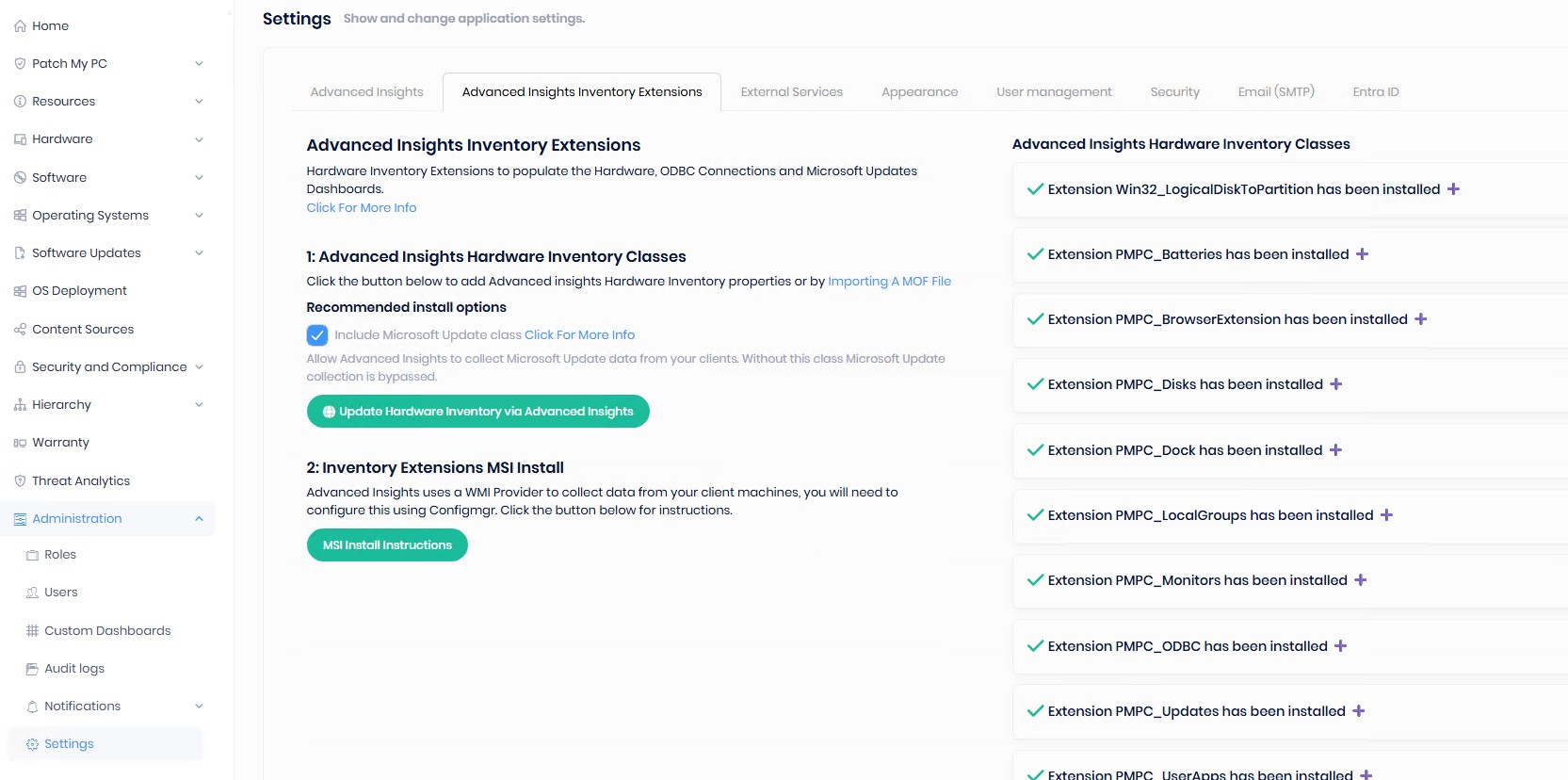
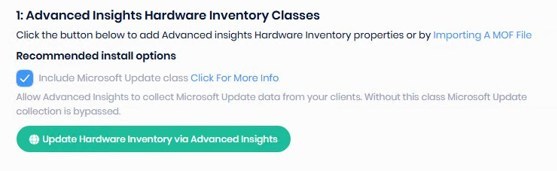
- Click on Update Hardware Inventory via Advanced Insight
- This will take a few seconds to complete.
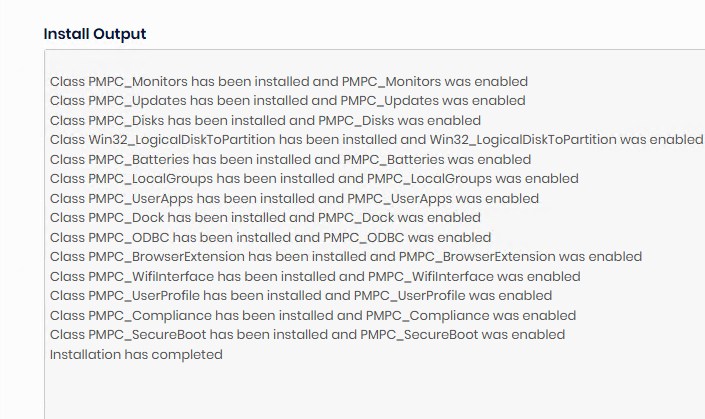
- Validate in the default Clients settings / Hardware Inventory / Classes, for the new added classes.
- At the next Hardware inventory cycle, they will start populating these, if the Inventory extension is well installed, see the next section.
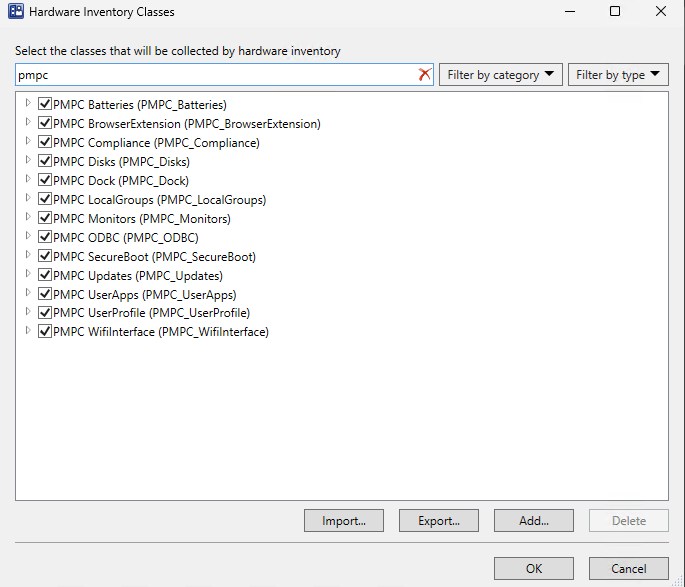
Publish Patch My PC Advanced Insights Inventory Extension
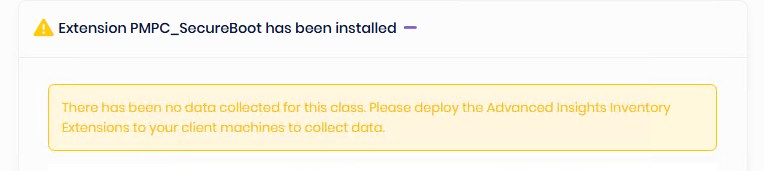
Once the classes are added, a warning will appear about the importance of deploying the Advanced Insights Inventory extensions. This simple MSI installer will add WMI classes that will later be inventoried by SCCM’s hardware inventory
- Open Patch My PC Publishing Service
- Under ConfigMgr Apps, select Advanced Insights Inventory Extensions for ConfigMgr
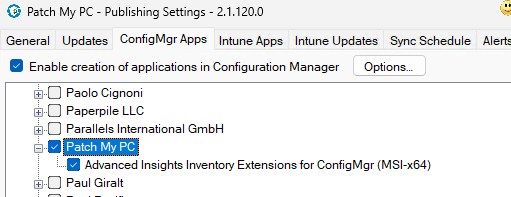
- After the publishing service syncs, a new application is available to be deployed
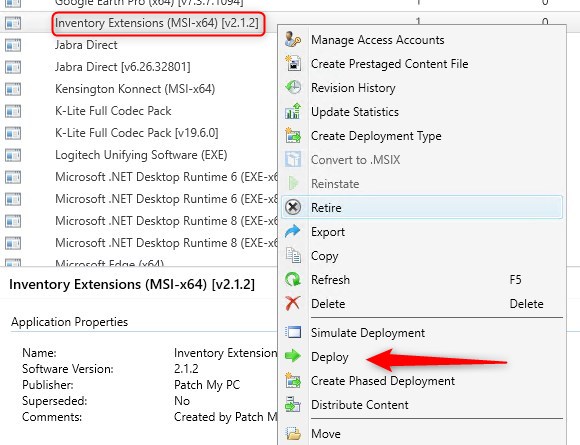
- Once the Inventory Extensions are installed and a successful Hardware Inventory run, the report will start to display results.
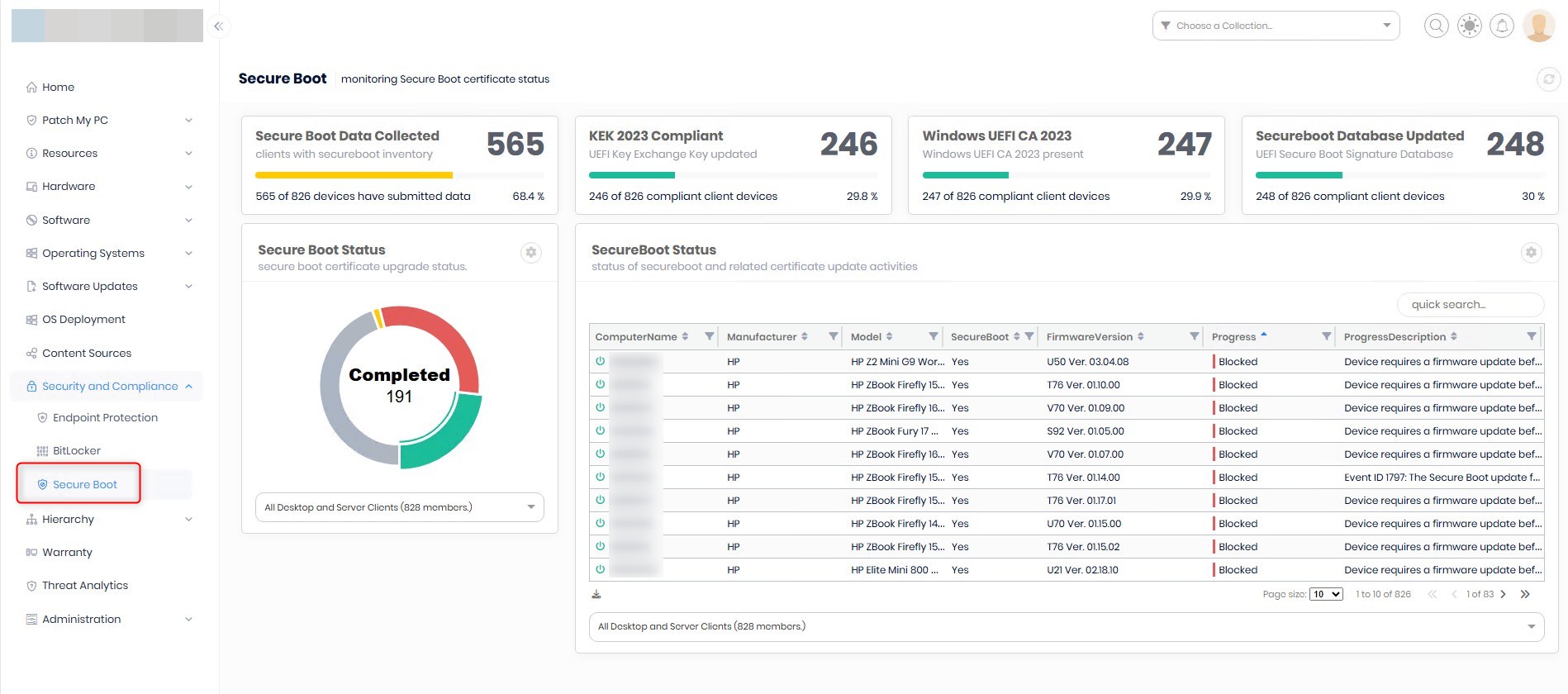
Bonus Patch My PC Advanced Insight Secure boot Extended Inventory
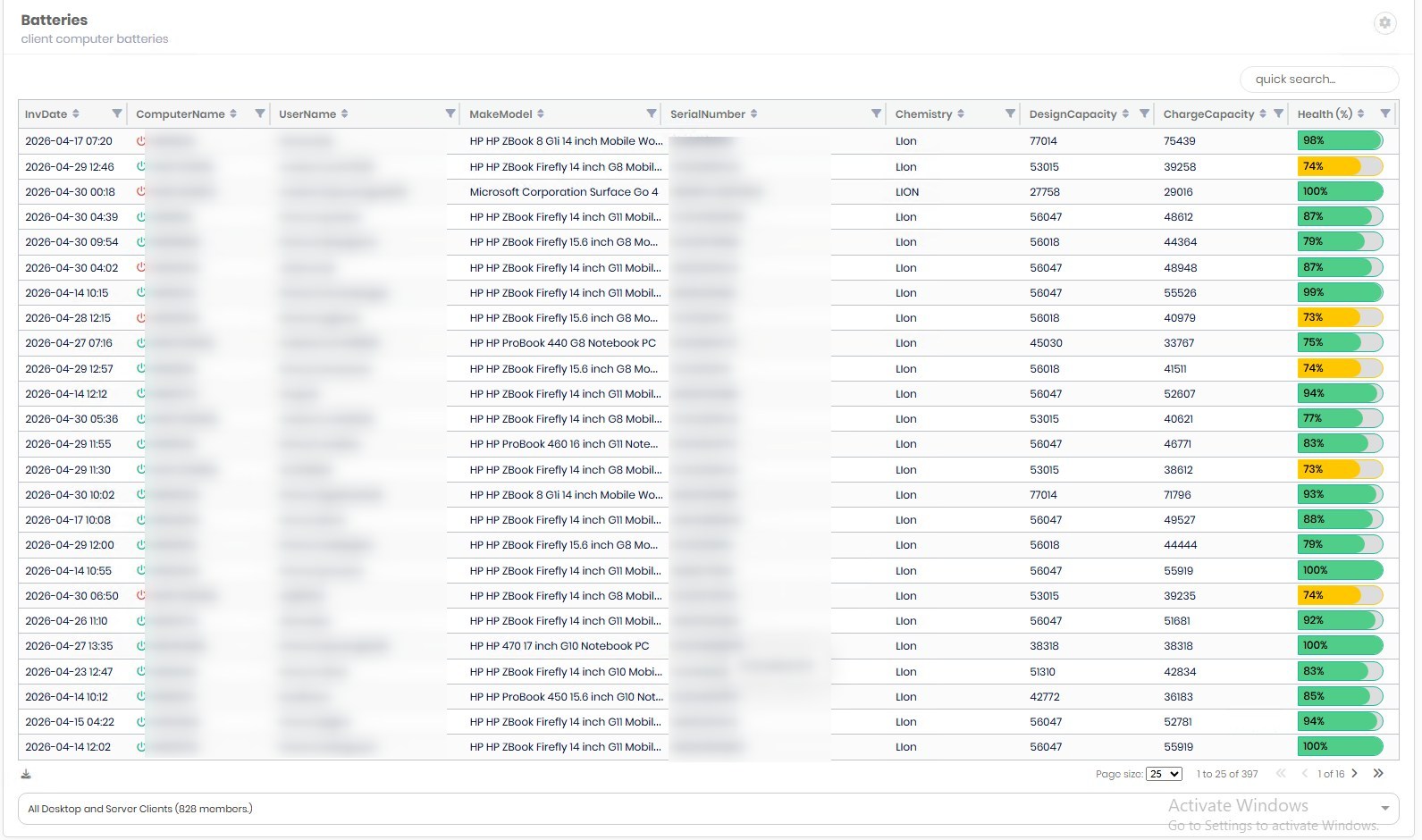
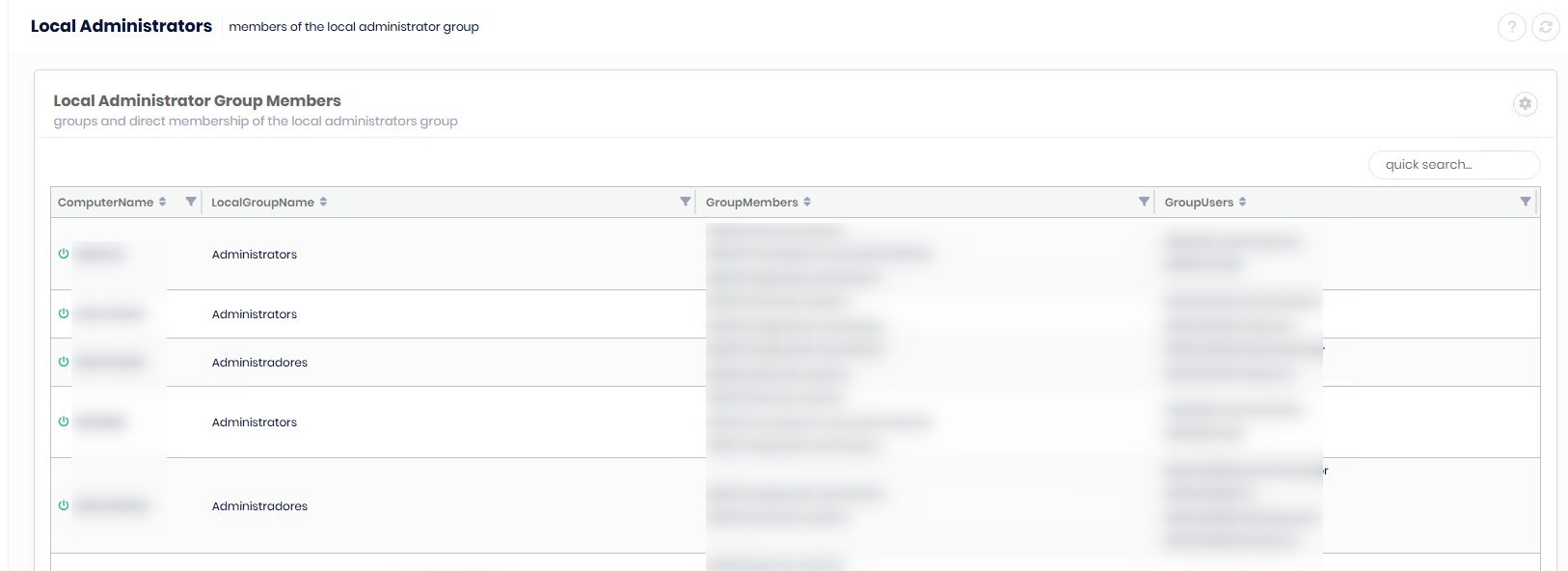
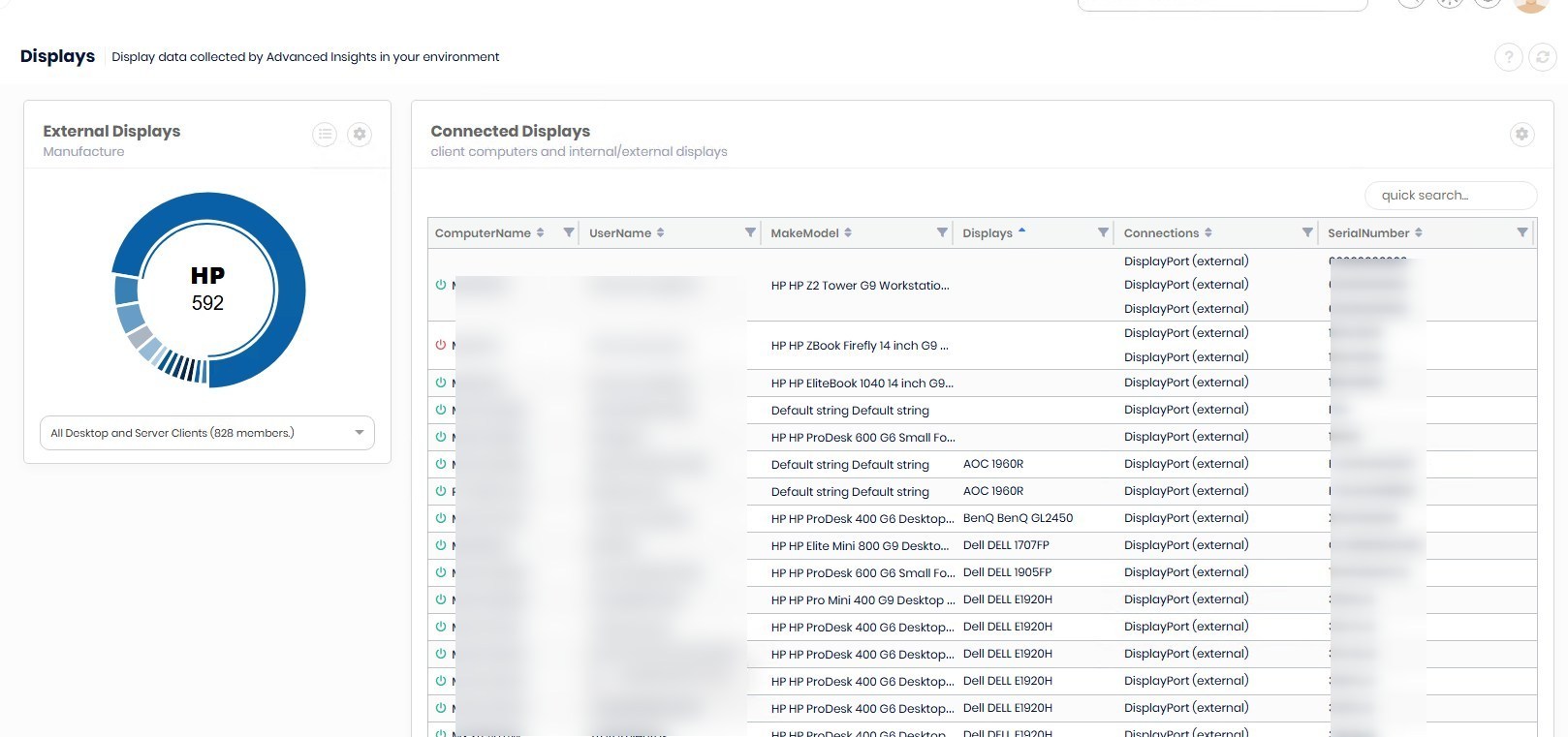
When enabled, Advanced Insights extended inventory, a lot more is available inside the report portal.
Batteries details
Local administrators
Monitor/display inventory
For more details about Patch My PC Advanced Insights Inventory extensions, see their official docs.
Share
Get the latest insights and exclusive content delivered to your inbox


pebblelament
05.13.2026 AT 05:19 AM