

How to use Patch My PC Cloud Migration feature
Contributor of System Center Dudes. Based in Montreal, Canada, Senior Microsoft SCCM consultant, working in the industry for more than 10 years. He developed a strong knowledge of SCCM and MDT to build automated OS deployment solution for clients, managed large and complexe environment, including Point of Sale (POS) related projects.

Jonathan Lefebvre
Table of Content




Share


Get the latest insights and exclusive content delivered to your inbox
Migrating applications from Configuration Manager to Intune can feel like a daunting, time-consuming task—especially when you need to maintain consistency, security, and application health along the way. Fortunately, Patch My PC’s cloud migration feature is designed to simplify that transition by automating much of the heavy lifting while giving you valuable insights into your existing application estate.
In this post, we will detail the benefits of the Patch My PC cloud migration feature and how to use it.
Prerequisites
If you’re not a Patch My PC customer, you can’t benefit from this feature. We are a Patch My PC reseller and can provide a quote if needed. If you’re already a client, you can benefit up to 40% on your renewal cost simply by renewwing your license with SCD.
- Patch My PC licence
- Enterprise Premium
- Full capabilities
- Enterprise Plus
- Limited capabilities
- Only migration dashboard, not actual migration capabilities
- Enterprise Premium
- Configuration Manager running a supported version
- Build 2409 or higher at the time of writing.
- Account with full Admin rights in the Patch My PC Cloud portal
- Patch My PC cloud portal is configured and ready to go!
- See our post How to configure PatchMyPC cloud portal
Patch My PC Cloud Migration capabilities
Patch My PC Migration is made to migrate SCCM Applications. It does not support Packages or task sequences.
On top of that, the migration process evaluates your applications for outdated, out-of-support, or known-CVE status. The goal is to use this opportunity to upgrade them to a newer version if possible.
At the moment, Patch My PC Migration has some limitations. For example, easily republishing Patch My PC applications deployed in SCCM and enabling them in the Cloud portal is not part of the migration. So for the moment, if you are using the OnPrem Publisher, you’ll need to manually publish those apps in the Cloud portal.
Since this feature is quite new, we can trust them to add more to it eventually!
To see the full list of unsupported reasons, see here.
Configure Patch My PC Cloud Migration
- Login the PatchMyPC Cloud portal, browse to Migration, and click Connect Publisher.
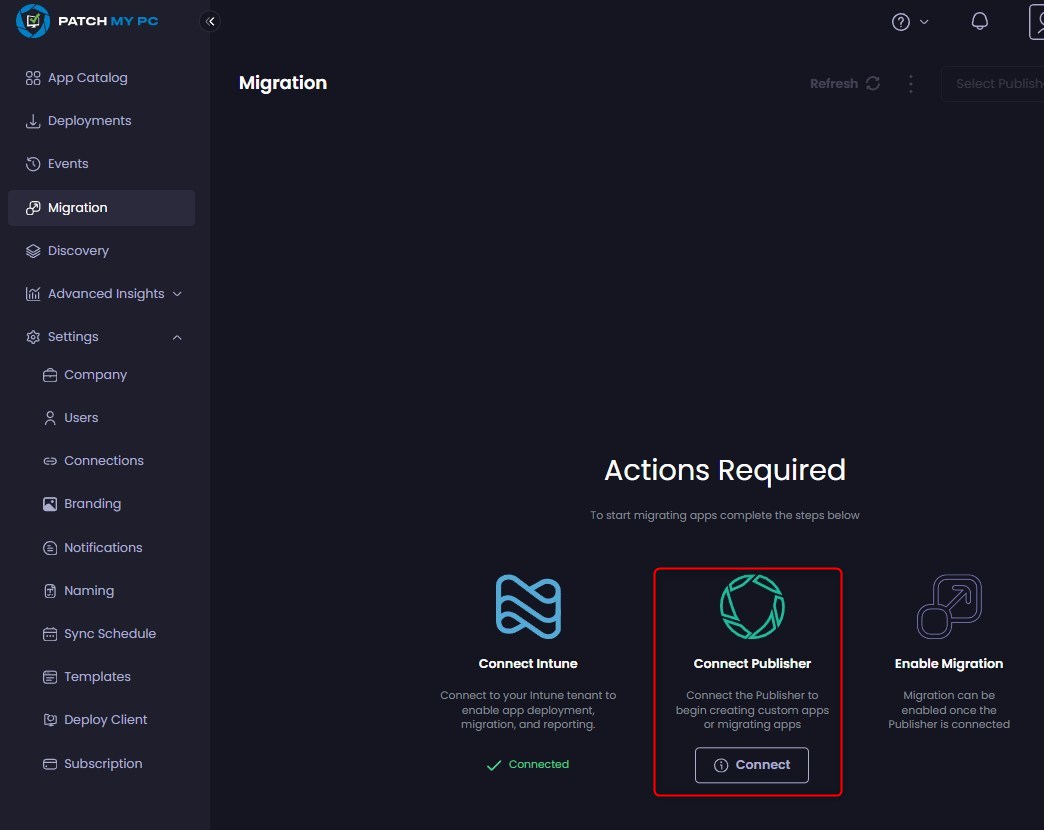
- Listed steps are displayed. Actually, nothing is needed on this side yet.
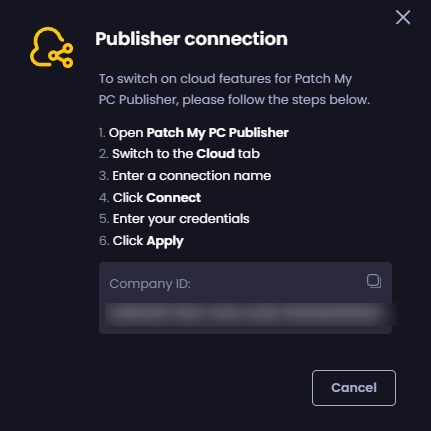
- Open the on-prem Publisher and go to the Cloud tab.
- Provide a Connection Name that you wish to use.
- Name has no importance, and is NOT your Company ID
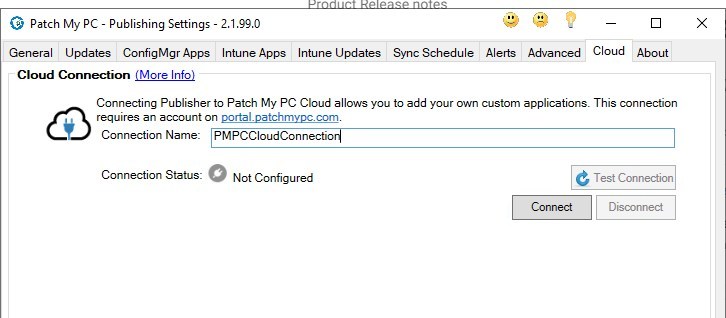
- Click on Connect and provide authentication with the Full Admin on the Patch My PC Cloud portal.
- Once completed, a small notification is displayed in the browser

- On-prem Publisher now displays Connected
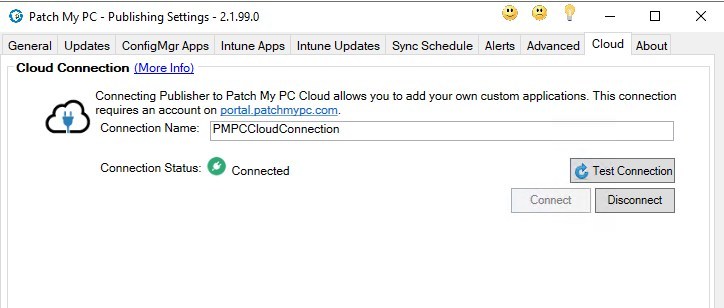
- Within seconds, the Cloud Portal also sees the connection.
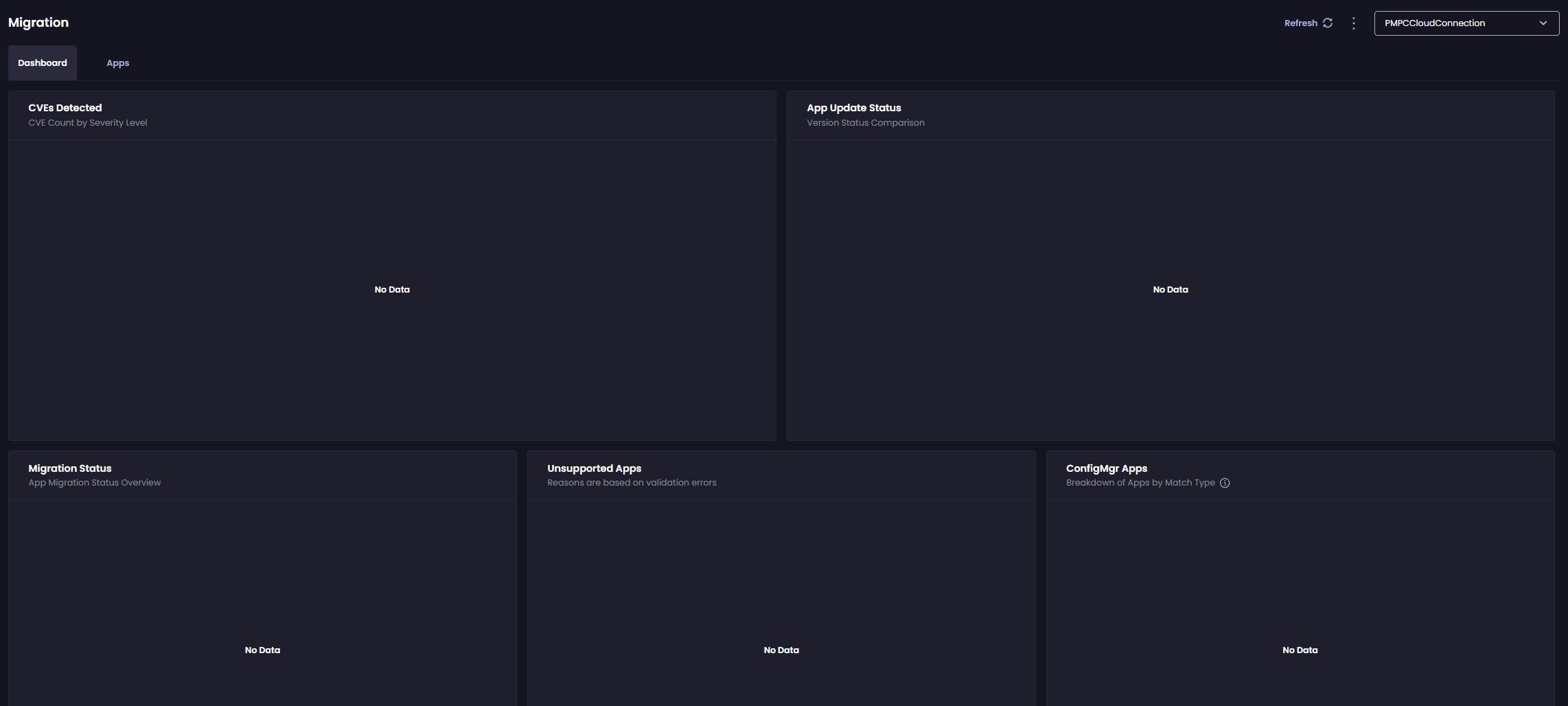
- At this point, patience is needed.
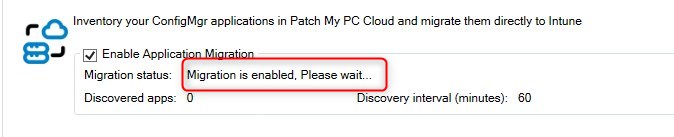
- After about an hour, information is visible inside the Cloud Portal.
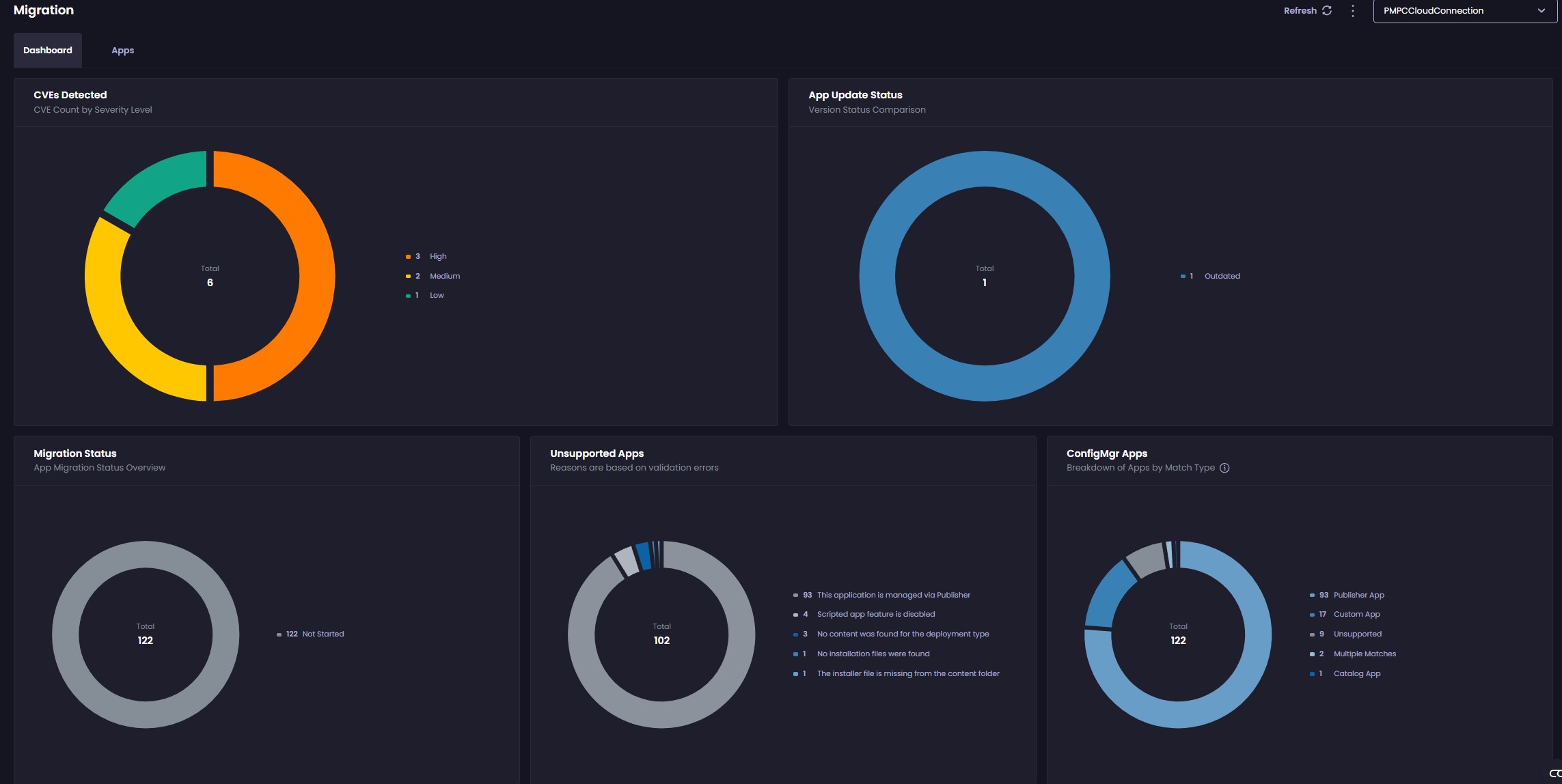
- The list of CVEs detected is related to your apps in SCCM, which are NOT already published by Patch My PC on-prem publisher.
- In the example, it’s a NotePad++ that was created manually, using an outdated version.

Migrate an application with Patch My PC Migration
- The first step is to review which applications are actually able to migrate.
- Filter by Custom App, Catalog App, and Multiple Matches.
- Unsupported and Publisher App cannot be migrated.
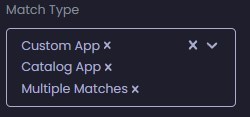
- Applications that can be migrated will display the Migrate button as clickable.

- Note that almost all will have a warning, since some SCCM configurations can’t be ported one-for-one in SCCM, such as deployments or some requirements, for example.

- To migrate an application, click on Migrate and follow the onscreen instructions.
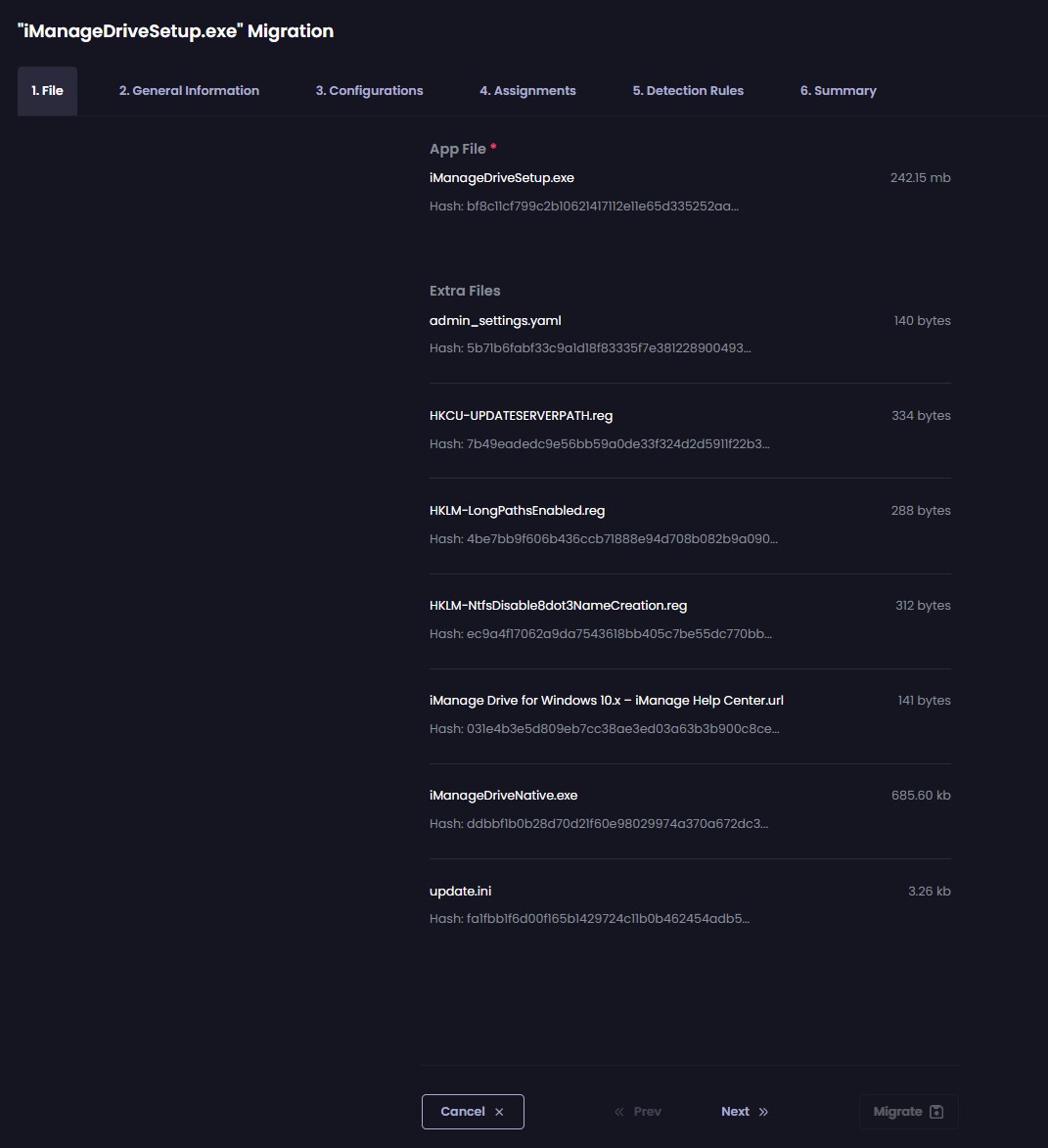
- Add Description and Installed Apps names, since those are required Intune fields, that aren’t mandatory in SCCM.
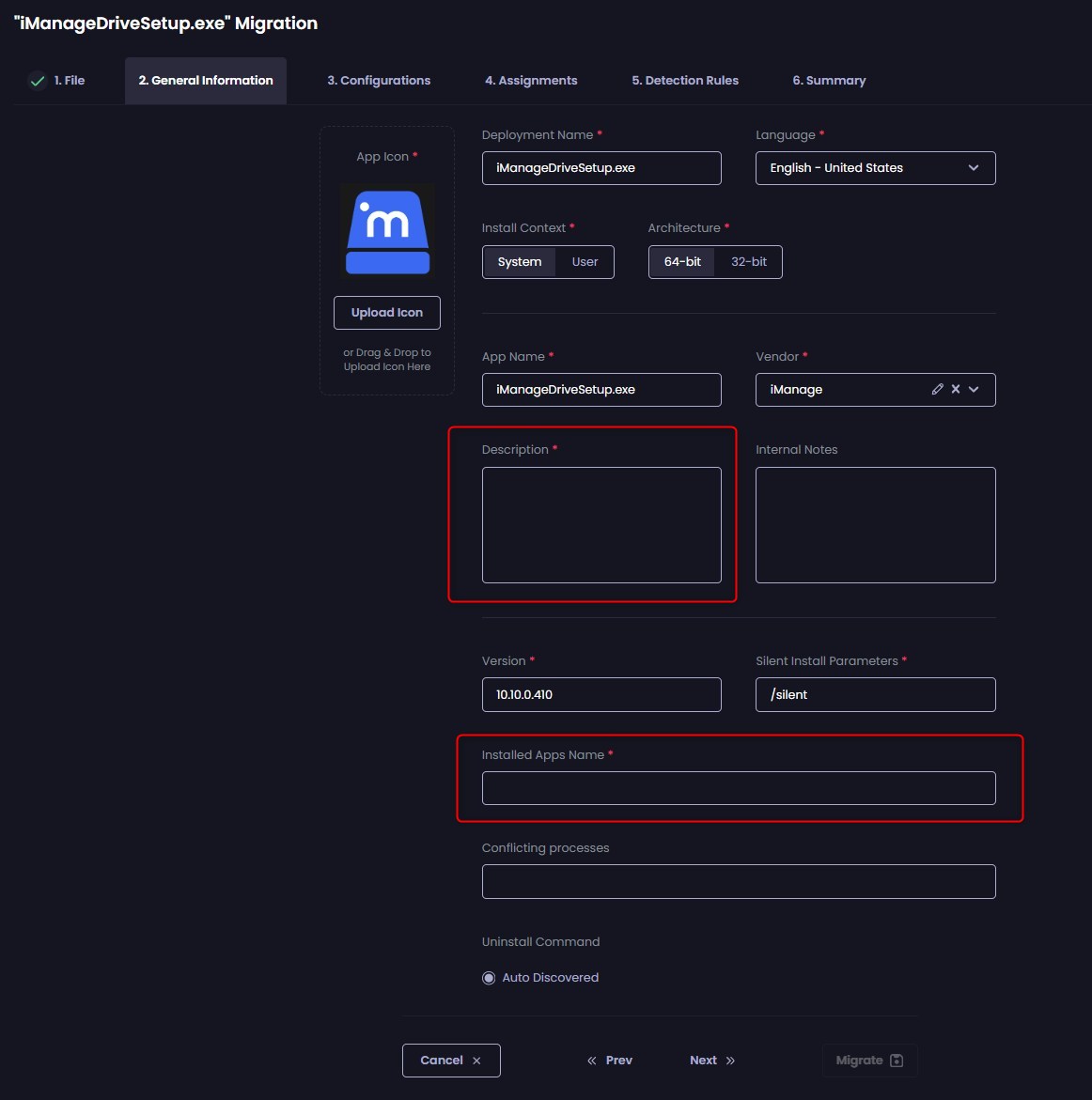
- The configurations can be reviewed, but in this case were ok to move forward.
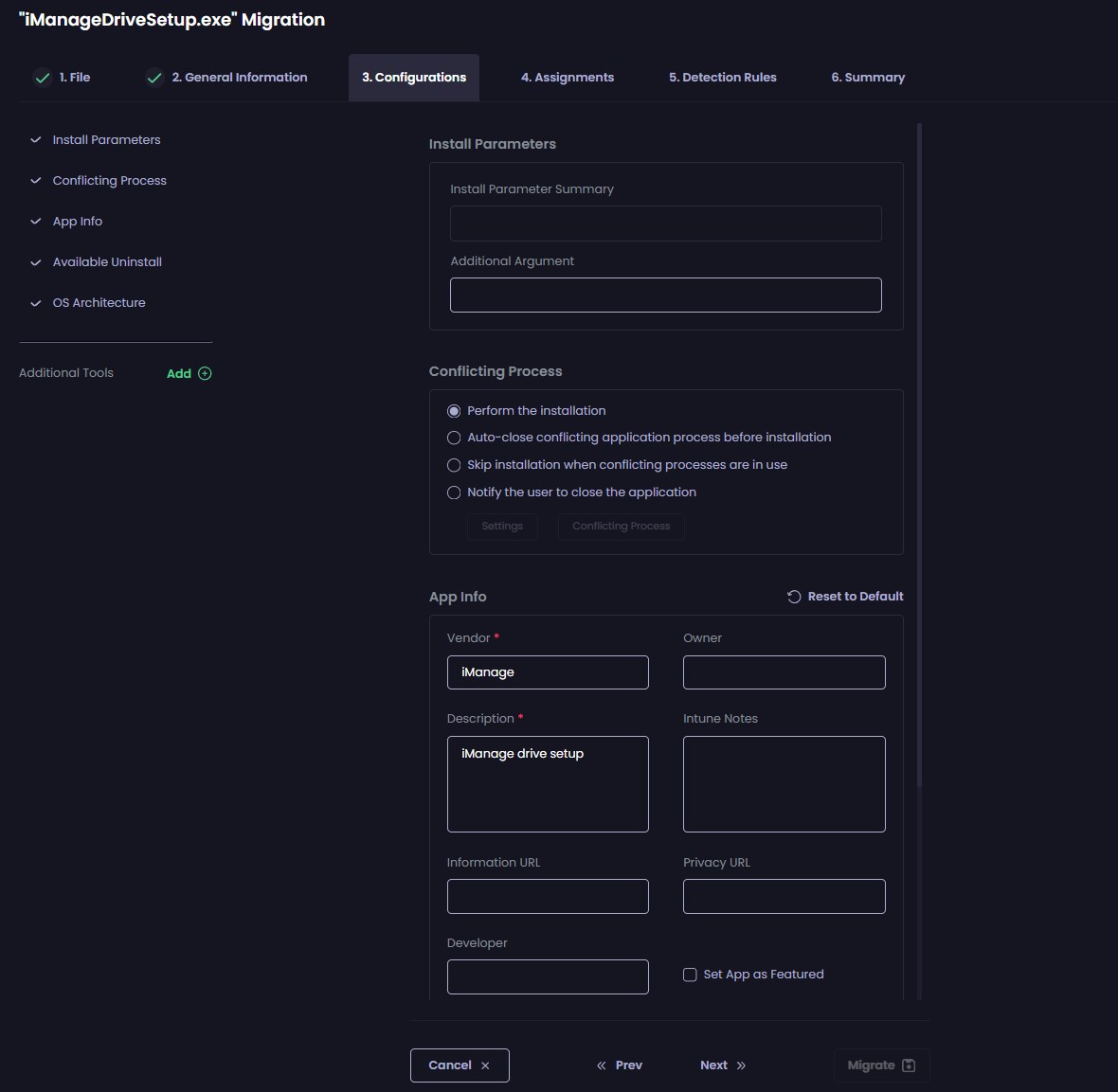
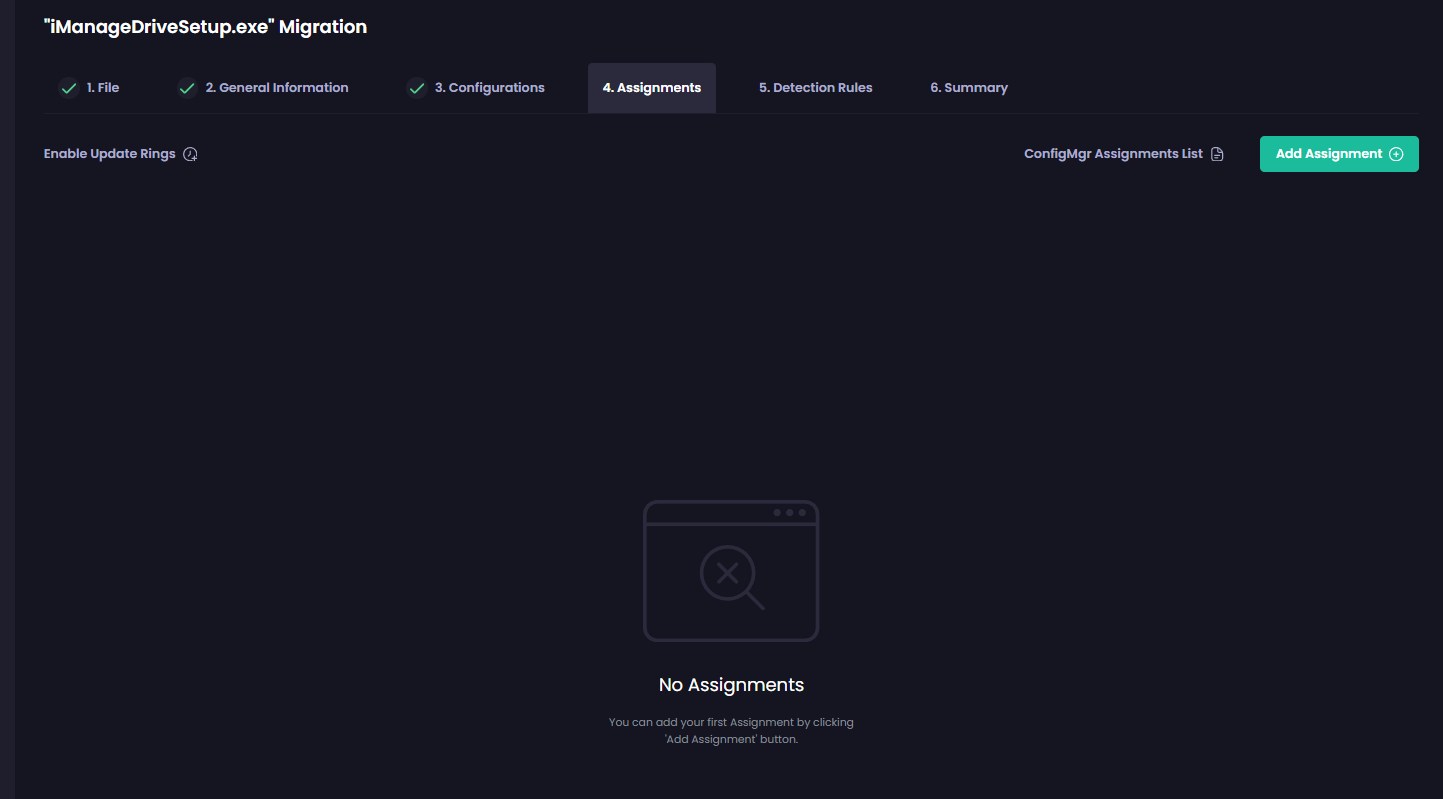
- Manage the assignment. This can be addressed later.
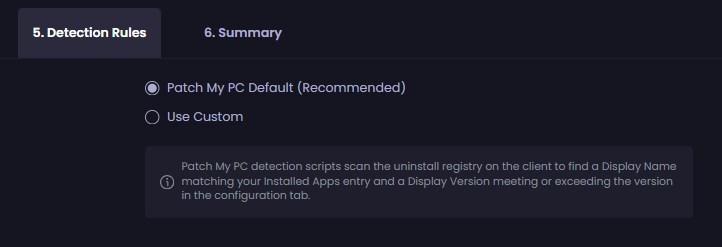
- Decide the Detection method. In many cases, the Default Patch My PC
- Once completed, the application will be migrated automatically to Intune.
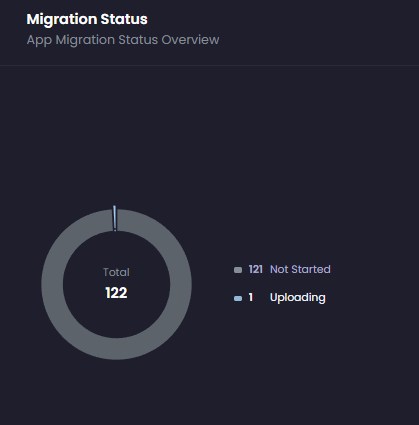
- The migration process essentially creates a Win32 app, so the bigger the content, the longer it will take.

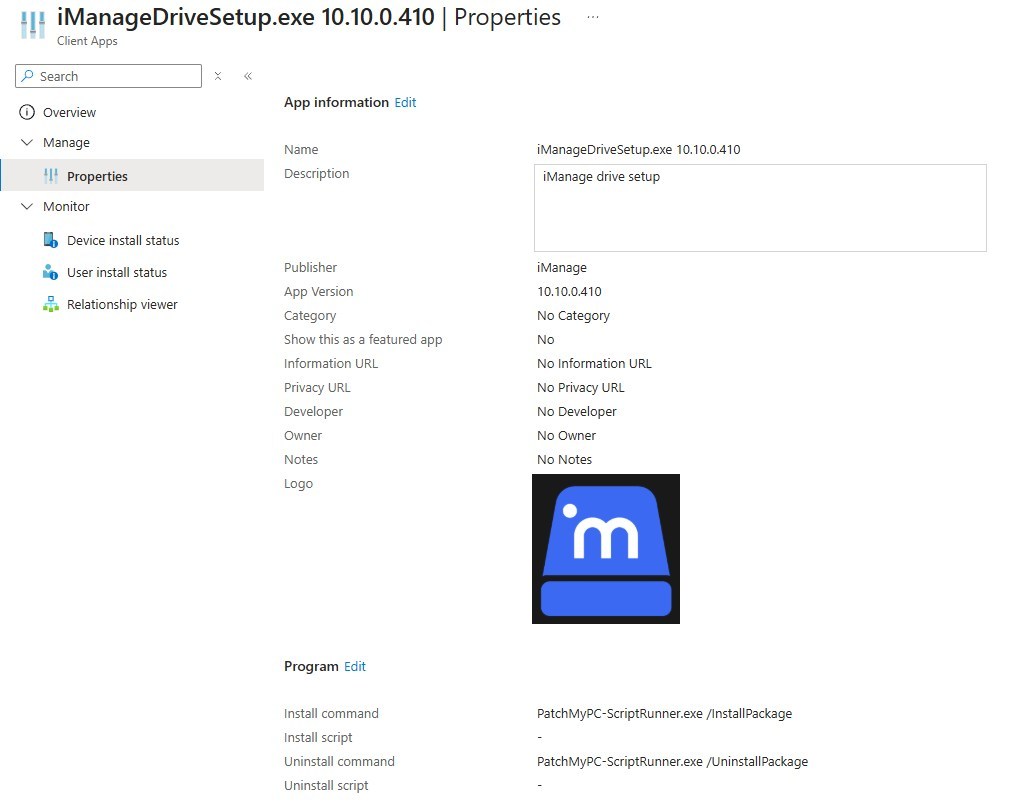
For more information about Patch My PC migration capabilities, see their official docs.
Share
Get the latest insights and exclusive content delivered to your inbox


pebblelament
05.13.2026 AT 05:19 AMNicolas Pilon
05.23.2026 AT 12:05 PM